3-in-1 Battery Charger
Company: Macally
Price: $49.99
http://www.macally.com
The Macally 3-in-1 battery charger gives you three ways to recharge electronic devices in a playfully designed gadget. My first impression was of an electronic Rubic’s Cube or something made from a Lego set. But it’s not as frustrating as a Rubic’s Cube and although its purpose is simple, it is far more sophisticated than a bucket of Legos.

Any of us can buy separate devices to recharge an iPhone or iPod from an outlet in the house. You can also get yourself a separate gizmo to recharge the battery in a digital camera or laptop from a car’s cigarette lighter socket. But the Macally does both things and throws in a third feature that can be very handy.
The 3-in-1 comes with a built-in rechargeable battery. It will recharge itself from your cigarette lighter as you drive – lots of gizmos do that – but it can also be detached from the main unit and plugged into an outlet in your house. In other words, recharge on the go or recharge at home while you’re doing others things.

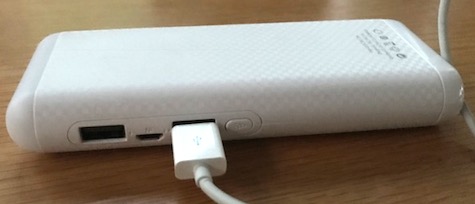
The device comes with two cables, one for USB Mini-B devices and another for Micro USB connections. There’s also a handy status button which, when pressed, will tell you how much juice is left in the battery or, if the gadget is plugged into an AC outlet, what the status is of the recharging.
The charger worked well and I liked the whimsical quality in its design, but I balked at the price. It’s listed at $49.99 on Macally’s website but is advertised for $12 less at Amazon.
Is it worth it? It depends. My needs are such that with a minimum amount of planning, I can charge my phone, digital camera, laptop and iPod for a lot less than that. On the other hand, I have to admit there are times I’ve resented the amount of electronic spaghetti I had to gather and sort through before getting on a plane.
If you travel a lot and don’t want to carry along three or four different cables for every device you own and then try to remember what goes with what, you may well find the Macally 3-in-1 Charger refreshingly convenient. So the choice is yours. Either get organized and practice self discipline or pony up the $50 and let Macally do the heavy lifting.
MyMac Review Rating: 8 out 10
email – MyMac Magazine – Twitter – Advertise – Reviews Archive – Podcast
Wi-Fire Long-range Wi-Fi Adapter
Company: hField Technologies
Price: $49.95
http://www.hfield.com/
The number of wireless adapters on the market can make your head spin. They all connect to a USB port in your computer and piggyback on whatever Wi-Fi signal they can reach. Many claim to be long-range. The Wi-Fire says it can pick up a signal 1,000 feet away.
If you have a laptop, you can drive around your neighborhood and see how this works from your AirPort menu. Every few feet you’ll see the list of available connections expand or contract depending on how many of your neighbors have Internet connections. Of course, most of the time these connections will be (as they should be) password protected, so they won’t get you on the Internet. You wouldn’t want to intrude on your neighbor’s privacy anyway, would you?
But if you’re on your patio or in the parking lot of a publicly available wireless connection, the issue shifts away from whether you’ll get a connection (of course you will) to how strong that connection will be. What good is a connection if it goes to lunch every five minutes?
In-ear Headphone review of:
Thinksound Rain 9mm high definition headphone
Arctic Sound E 352 earbuds
Arctic Sound E 351 earbuds
If you’re in the market for earphones, repeat after me:
"I will trust my own ears."
"I will find out what the seller’s return policy is."
These warnings are not to be taken lightly. Many companies selling earphones or earbuds will tell you their products have a frequency response of such-and-such and impedance of X number of ohms, and so on. The numbers will vary by manufacturer. Remember that what’s important is that if you’re like most consumers, you have no idea what all the electronic specifications mean. If you ask a sales rep, they may tell you the numbers mean the sound will be lean and forward and they’ll provide good performance across a wide range. On rare occasions they actually know what they’re talking about.
The only meaningful test of good earphones, however, is how they feel in your ears and how they sound. That’s why you want to buy from a place with a liberal return policy. If you haven’t damaged the product and it’s simply a matter of discovering that the audio quality is not to your liking, you ought to be able to return it without any hassles.
You should also remind yourself what types of music you listen to most often. As you will read below, earphones that are fine for one type of music may perform poorly with other types of music. A knowledgeable sales rep can tell you which earphones may be best for you if you let him or her know what your preferences are. I wouldn’t place much confidence in the marketing hype that appears on the product’s package. And don’t be swayed by the non-sound related trinkets such as the attractive carrying cases that come with both Arctic Sound earphones reviewed below. I often store earbuds in a Ziploc bag and am yet to damage anything.
The points I’ve made above are best illustrated in the three earphones discussed below. Readers should also keep in mind that at the recommended retail prices of these products, you can find numerous other earphones that are at least as good and sometimes far superior to those discussed in these reviews. Like most earphones, all of these can be used with an iPhone or Blackberry. Only one of these sets, the Arctic Sound 351 earbuds, comes with a built in microphone.
Onward!
Thinksound Rain 9mm high definition headphone
$59.99
Thinksound
http://www.thinksound.com/
These attractive earbuds, the best of the three products under consideration, are very comfortable and reproduce music with remarkable clarity. After listening to them for a few days, I was impressed by their purity and balance across the full spectrum.
I don’t believe they’ll please those who like the kind of bass that makes your car vibrate, but for almost every other kind of music I found voices and instruments as faithfully projected as though I were listening to a pair of high end Polk speakers. This is not intended to suggest that the bass is tepid or that the overall sound is tinny. Just the opposite is true. The bass is present but it’s clean. You won’t need to fiddle with an equalizer to make it palatable.
At the other end of the spectrum, the highs are so sweet that I found myself describing them to others with a word I never use: charming.

People who listen to classical voice recordings find themselves looking forward to specific features in the score. For example, they will anticipate and listen for the high B flat in a famous tenor aria from Puccini’s La Boheme, two high Ds back to back from Verdi’s Rigoletto, a string of punishing high Cs from Donizetti’s The Daughter of the Regiment. With the wrong earbuds, these notes can be absolutely painful to hear. Not with Rain. All of these notes came through crisp and with a ringing clarity but with no edges, very similar to how you would hear them from an orchestra seat in the concert hall.
I listen to a wide variety of genres but spend most of my time with the classical music I grew up with. If I’m listening to a piece by Mozart or Brahms, the chances are good that I’ve heard it performed by at least 20 different orchestras or ensembles, and yet with these Rain earbuds I found a whole new way to appreciate the music.
For those who care about appearances, these earbuds will not disappoint. The design is understated and classy. The drivers are enclosed in a handsome 9mm wood chassis attached to silver tips, and you’ll find three extra sets of silicon tips in the box along with a homely sack made from some kind recyclable material. All I really cared about was the sound.
Though the MSRP is $99, the Thinksound Rain earbuds are selling on Amazon for $59.
Thinksound reports that users are finding that the quality of the sound improves after a 24-48 hour break-in period, which definitely coincided with my experience. If you want all the technical details about frequency response and so forth, go the company’s website, at http://thinksound.com. Otherwise, just get a pair and give your brain a few days to adjust to a new experience in listening pleasure.
Arctic Sound E 352 earbuds
$69.95
Arctic Cooling
www.arctic-cooling.com

The big selling point for these earphones, at least from the company’s standpoint, is that the drivers are encased in wood. The wood looks nice and supposedly enhances the bass response, a claim I could not substantiate after listening to a wide variety of music.
The earbuds have no Left and Right markings and no explanation for that lack in the packaging. I contacted a representative who said there is no Left and Right because both sides produce identical sound. One sentence on the package would have cleared up that mystery. [Editor's note: "identical sound" still confuses the situation. We'll try to obtain a better reason.]
I found these earbuds physically and aurally uncomfortable after an hour or less. They produce clean, lifelike reproduction of some music in the mid-range, which is to say most popular music, jazz, rap and similar categories. They are not appropriate for symphonic music, opera or any music that covers a broad spectrum of sound. They are generally well-defined but unexceptional in the middle of the register but fall apart as the music becomes more complex or stretches to the higher end of the staff. They’re not absolutely horrible but the lack of refinement in the high notes is noticeable enough to be annoying.
I also gave them to an adult friend who listens to Hip Hop and similar styles of music. Her reaction? "I like my $20 earphones better."
I tried these earbuds with each of the three different sized included silicon tips to see if the sound improved with a better seal in the ear canal. Sensitivity in the middle and lower registers did indeed improve slightly but not in the upper. In short, the E 352 earbuds are probably fine for computer games and popular music, but not a great choice for symphonic or operatic music.
Arctic Sound E351-WM (with microphone)
$42.20
http://www.arctic-cooling.com/
The 351 earphones cost about a third less than the 352s, so it should come as no surprise that they don’t sound as good. But in this case it’s a matter of splitting hairs. The more expensive 352 earphones were one-third higher in price, but most of the time there was no proportional improvement in sound. In some cases, however, the 351s seemed to suck the oxygen out of a performance and the difference between the two products was definitely noticeable.
In place of the wood barrels in the 352s, the 351s have large driver coils encased in an attractive aluminum chassis. They come with an integrated microphone so you can plug them into an iPhone, put the phone aside and talk hands free. Like the more expensive model, the 351 comes with three sets of different sized soft tips for noise cancellation and better sound.

Both are best when processing notes an octave above or below middle C. After that, results are mixed, though the 351 is even scratchier at the upper end than the buds with the wood chassis. On the plus side, the cord on the cheaper earphones if about three inches longer than the others, making it slightly easier to use when connected to a computer.
There was no "Aha!" moment with either of these earphones.
Thinksound Rain — MyMac Review Rating: 8 out of 10
Arctic Sound E352 — MyMac Review Rating: 3 out of 10
Arctic Sound E351 WM — MyMac Review Rating: 2 out of 10
email – MyMac Magazine – Twitter – Advertise – Reviews Archive – Podcast

Hear
Price: $49.95
Company: Joesoft, Inc.
http://www.joesoft.com
Hear is an application for Macs that will dramatically improve the quality of the sound coming from your computer’s speakers. It doesn’t matter whether the sound is music, dialogue from a movie, or an Internet telephone conversation with your friend in Scotland. Even using the default settings in Hear, everything will sound richer and clearer.
Hear is somewhat like the digital sound processor built into iTunes, but it’s like iTunes on steroids.
In iTunes, users can click on a track title, right click and go to Information and Options to reach the equalizer presets and assign settings such as bass reducer, vocal, classical, and so forth, any one of which will change the characteristics of the sound coming through your speakers. You can do the same thing (and much more) in Hear, and the results are noticeably more sophisticated. I immediately noticed that the music I was listening to had greater depth and dimension. You can also change the settings by indicating whether you are listening through speakers or with earphones.
Hear is easy to use, up to a point. Which is to say you can make it as simple or as complicated as you like. If you have a lot of time on your hands and want to tinker or experiment to see what it’s like to be an audio engineer, Hear has enough settings to keep you happy for at last 72 sleepless hours. You’ll find icons for General settings, EQ, Mixer, Ambiance, 3D, Maximizer, Fidelity, Speaker and sub. There are others.

You can make multiple adjustments to any of the settings under each tab, and you can also go to the Help menu to find out what they mean. Sort of. The explanations are not particularly helpful to the ordinary consumer (read: me) and probably not necessary for the true audiophile. A glossary would be very helpful. I felt most comfortable using the presets.
If you’re watching a movie and don’t have surround sound, Hear has a setting that will make your system sound like you do. If you don’t have speakers linked to a subwoofer, no problem. Hear will make your speakers sound like you have a fine subwoofer attached.
Hear allows you to change settings depending on what you’re listening to, but there is no way to assign track by track settings. So if you’re listening to a compilation that includes some vocal music followed by some orchestral or rock music, you have to keep going back to Hear to change presets (or other settings for each type of sound). I hope Joesoft, the creators of this program, eventually changes that.
The application does enable you to assign different characteristics to different programs. This means that once you set up your Mail app, for example, you won’t hear a loud obnoxious burp while you’re listening to music. If you happen to like a little burp with your Beethoven, however, be my guest. You can arrange it in Hear.
MyMac Review Rating: 7 out of 10.
email – MyMac Magazine – Twitter – Advertise – Reviews Archive – Podcast
![]()
BusyCal
Company: BusyMac
busymac.com
$49 for single user
BusyCal is the OS X appointment calendar that iCal should be. It is smart, attractive and configurable in ways that iCal is not. Unlike iCal, however, it is not free.
There are two features that make BusyCal outstanding. Most important to me is the ability to change the global font size to something I can read. ICal has always been useless for me because I have to struggle to read its default fonts, which cannot be changed. What good is an appointment calendar you can’t read?
In BusyCal, you set the global font size in the Preferences pane. Then, when you’re in the Day, Week, or Month view, you simply right click on a day and add an event, or appointment. You can enter an appointment and just type next Tuesday, tab to the time and say noon and it will assign the event to the proper date and time. In addition to the Day, Week, and Month views, you can also see your events and appointments as a chronological list. Keep in mind that the larger the font size, the more things gets scrunched together. Life is not perfect.

With BusyCal you can easily share calendars with family or small workgroups over a local area network. Multiple users can view and edit the calendars, and the changes are instantly synchronized over your local network.
If for some reason a user wants to use both iCal and BusyCal, the two can easily be synchronized. Whatever you enter in iCal, or Google calendar for that matter, can easily be set up to instantly appear in BusyCal. This is handy because it means that if I’m at work and want to remind myself to enter something on my personal calendar at home, I can go to my Google homepage, where my Google Calendar lives, enter an appointment or reminder, and be confident that it will turn up on my BusyCal calendar on my home computer.
Which raises a question that only individual users can answer. Why use BusyCal at all when you can use Google Calendar or Yahoo Calendar for free and have access to your appointments any place there’s an Internet connection? The main reason as far as I can see is BusyCal’s ability to synchronize with other Macs on your local network (or mobile device). You can also enter appointments in BusyCal when you’re offline and they’ll be synchronized as soon as you connect to the Internet.
There are some less dramatic features that some people will find useful or entertaining. For instance, the user can add a weather icon that gives you rudimentary weather info at the top of each day’s calendar, thus saving you a trip to the national weather service website or, perish the thought, a glance outside.
The big downside to BusyCal is its price. Fifty bucks for an appointment calendar seems steep to me. On the plus side, the program is thoroughly reliable, tech support is prompt and courteous, and if your vision isn’t perfect, you can configure BusyCal’s fonts to make everything crisp and clear. Another plus is that you can try before you buy. Download a 30 day trial version for free here. You’ll also find that BusyCal has numerous video tutorials you can consult online if you need help.
When examining BusyCal, consider what you’re willing to pay for a quality product that won’t require that you spend endless amounts of time solving problems that never should have been there to begin with. Is your time worth at least $50 an hour? If so, you might consider this application a bargain. Even though I balked at the price, I must admit it’s awfully nice to be able to adjust the calendar fonts to something a guy with trifocals can actually read without a magnifying glass. Besides, now I no longer need to waste energy shaking my fist at iCal.
BusyCal MyMac Review Rating: 8 out of 10
email – MyMac Magazine – Twitter – Advertise – Reviews Archive – Podcast

A friend recently gave me some LP records, some of which were still sealed in shrink wrap. Since they were in excellent condition, I decided to transfer them to my computer using my USB turntable and Audio Hijack Pro, an excellent $32 program from Rogue Amoeba. Here are the steps for transferring records to your computer and then loading them into iTunes.
1. Connect your turntable to a USB port on your computer.
2. Launch Audio Hijack Pro.
3. Click the + sign in the bottom left, and create a new Hijack point.
4. In the right pane, click on the drop down field next to Source Type and select Audio Device.
5.In the Input Device, select USB Audio Codec. Be sure that all other USB audio devices are disconnected.
Continue reading »
Sometimes the obvious is elusive.
The optical drive in my three-year-old iMac has been doing strange things for several months. I spent an inordinate amount of time pursuing complicated and aggravating remedies before I discovered the $5 solution.
Here are some of the symptoms that were driving me nuts. Using my iMac’s SuperDrive, I would burn a playlist from iTunes. Sometimes I would get a message saying the burn failed because of a “medium” error, or something like that. I was thrilled that the problem was only “medium,” but what in heaven’s name could that mean? Our cryptic friends in Cupertino could have added something to the error message saying what a medium error might be but Geez, think of all the energy that would have required.
I searched around on the Internet and found a dozen different explanations and suggested remedies. The more I looked, the darker the hole became. I soon felt like I’d left Earth’s gravity behind and seemed to be spinning in concentric circles. The suggestions ranged from updating the drive’s firmware to employing incantations. I thought, this is crazy; it can’t be that complicated.
Continue reading »
Bento 3
Company: Filemaker
Price: $49 ($99 Family Pack), $20 upgrade rebate for qualifying Bento 1 and Bento 2 users
http://www.filemaker.com

iGroove SXT
Company: Klipsch
Price: $149.99
http://www.klipsch.com
The iGroove SXT from Klipsch is an iPod player and charger. It is compact, attractive, and does not play music at ear-splitting levels. On the contrary, one of its most delightful characteristics is that it will play music at moderate and lower volumes with balance, clarity, and a life-like resonance. A lot of small units in this category are shrill or tinny in the higher treble notes, no doubt the result of cheap tweeters.That does not apply to the iGroove SXT.
Continue reading »
Klix
Company: JoeSoft
Price: $29.99
http://www.prosofteng.com
CardRescue
Company: WinRecovery Software
Price: $39.95
http://www.cardrescue.com/
In the world of digital photography, there is life after death. Which is to say that if you’ve reformatted your memory card and erased all the photos stored on it, you can usually bring them back in just a few minutes using one of several software programs designed to do just that. More than once I’ve reformatted a camera’s card only to discover that I really wanted a couple of the images I had deleted. Until recently, I thought that gone meant gone. Two programs, Klix from JoeSoft, a division of Prosoft Engineering, and CardRescue from WinRecovery Software, proved me wrong.
Both programs will recover photos from any card reader or digital camera and all types of memory cards. Both are simple to use, but CardRescue has a major flaw that may drive you crazy if your card has a lot of images on it. When it recovers images, its preview window will only show you six photos at a time. You place a checkmark in the box under those you want to recover and move on to the next six. My memory card had approximately 300 photos on it, which would have required a lot of time, not to mention patience.
DotHub
Company: Macally
Price: $19.99
http://www.macally.com
One of the attributes of Macally’s 4-port hi speed USB2.0 DotHub is its size. It’s a small square. At a little under 2-inches square it takes up no more space than a small brownie (except it’s white) and because it’s small the company says it’s a great accessory to use with a laptop. That’s undoubtedly true, but I found it also made a very unobtrusive accessory for my desktop. Half the time I forget it’s there.
The DotHub comes with a USB port on top and one on each of three sides. The fourth side has ports for a DC connector and USB connector for the computer. It’s Mac and PC compatible. There are any number of USB hubs on the market, of course. I like this one better than the others I own mainly because there is only one port on each side, so there’s nothing to block those big clunky usb connectors that come with some devices. The DotHub is simplicity itself.
email – MyMac Magazine – Twitter – Advertise – Reviews Archive – Podcast
Fundamentals of Adobe Photoshop Elements 7 DVD
With Sue Jenkins
Company: Class on Demand
Price: $39.95
http://www.classondemand.net
Fundamentals of Adobe Photoshop Elements 7 is a comprehensive DVD tutorial that will provide most users with everything they’ll ever need to know about a complicated photo editing program. But take my advice: Before you plunk down $39.95, give some serious consideration to your own personality and think about how you learn.
Do you learn best by taking classes or are you more inclined to learn by trial and error? Are you patient or do you jump from one thing to another like a cricket?
How many hours a day are you willing to spend sitting in front of your computer? Consider, as one of my friends frequently reminds me, that every hour spent in Elements or any other photo editing program is an hour not spent outdoors learning to take better pictures that may not need any editing at all.
Or perhaps you’re one of those who is simply curious to know how things work. Many of them, and I include myself in this group, don’t have a pressing need to learn Photoshop Elements. Most of the time I can take halfway decent pictures and if some tweaking is needed, iPhoto is not only simpler to use but now comes with enough basic tools to make it useful.
However, Elements is far more sophisticated and offers a nearly bottomless array of possibilities for modifying pictures. Watch just one section of this Sue Jenkins’ Class on Demand, such as the one called "The Editor Overview," and you’ll see what I mean. Photoshop is feature-rich, but it’s also like a trail that gains 2,000 feet in elevation in just a half mile. It’s steep but some users will not rest until they know whether they can make the grade, so to speak.
Jenkins is a good teacher, which is to say she knows her subject thoroughly and has the ability to communicate clearly, but if you made a list of just the basic topics she covers on this one segment, you’d end up writing a short book. We can’t fault Jenkins for the fact that Photoshop Elements is so dense and complex (It even has its own arcane vocabulary). Nor can we complain that she talks fast. Her diction is excellent, and after all, she’s trying to provide in four hours what a community college class would probably cover in a whole semester.
If you’ve decided you’re serious about learning the program, get this DVD and plan on spending at least 60 to 90 minutes a day with it. You’ll probably want to have your copy of Elements open so that you can go back and forth between the class and your own photos. Although it may seem obvious, keep in mind that if you have Mac Elements 6 or any earlier version of the program, this class is still going to be useful.
Most of what Jenkins talks about in the "Workspace Overview" and "The Organizer Overview" would be more applicable (though not entirely) to the Bridge in Elements 6, which allows easy access to your iTunes library. Elements 6 for Mac is the latest version, and its Editor is essentially identical to that of Elements 7 for Windows, which is its current version.
One of the major benefits of having the Class on Demand DVD is that you can review chapters eternally. If you really didn’t get that explanation about using what is cryptically called "adjustment layers" the first time, you can watch it repeatedly. For some purchasers, this will not seem as useful as being able to ask the instructor questions.
Sadly, however, good teachers are hard to find, so for my money it’s better to watch Jenkins repeat her explanation three times than to ask questions of someone who may not be able to explain the topic well. And besides, attending a class in the comfort of my home is a lot more convenient than driving across town to sit on metal chairs designed by Luddites.
The DVD begins with 30 seconds of obnoxious music and kids jumping up and down at a rock concert. Mercifully, you can click in the upper right hand corner and abort that nonsense. On the next screen, Jenkins recites her resume, which bored me to tears. Again, you can click and bypass it. Those caveats out of the way, I can say the class content is well organized and Jenkins is a "let’s get down to business immediately" type of teacher. Other than the narrated resume, which is brief, you won’t have to stumble over her personality to get at useful information.
Fundamentals of Adobe Photoshop Elements 7 is divided into four parts, "Introduction to Photoshop Elements," "Working with the Organizer," "Working with the Editor" and "Special Techniques." The DVD comes with a file of stock photos so you don’t have to rely on your own image. In addition, each of the chapters is a hyperlink. If you feel you know enough about the basics, you can easily jump to the more advanced section.
email – MyMac Magazine – Twitter – Advertise – Reviews Archive – Podcast
Creative Shutter Speed
By Derek Doeffinger
Wiley Publishing, Inc.
ISBN: 978-0-470-45362-9
US $24.99, CDN $29.99
256 pages
Creative Shutter Speed, by Derek Doeffinger, is a clear and informative primer for any amateur photographer who wants to move beyond a camera’s automatic settings. The auto setting on better Digital Single Lens Reflex DSLRs (see link below) is so good that it’s easy to overlook the fact that they aren’t perfect and that, with a little tweaking, the image can be significantly improved. The author makes this point convincingly, and without ever disparaging those who just want to point and shoot.
The best thing about Doeffinger’s book is that, without any gimmicky prose, it guides you from concept to practice. And since it’s really not useful to discuss shutter speed without delving into other factors that contribute to making a satisfying exposure, the book is really an introduction to everything that goes into good picture-taking.
However, the focus (no pun intended) of the book is shutter speed, and it’s organized so that practical information is immediately accessible in the opening chapter, Tap the Power of Every Shutter Speed. Someone else might have chosen to use Chapter 2, Understanding Shutter Speed and Exposure, as the book’s opening. Certainly that would seem logical, but readers will quickly find that the editors made the right choice by leaving the more in-depth discussion for the second chapter.
Why? Because Chapter 1, Tap the Power of Every Shutter Speed, lists every shutter speed you’ll ever encounter and briefly lets you know what it can (and sometimes cannot) be used for. This enables the reader to pick up his or her camera, set the dial to Shutter Priority, and immediately begin experimenting. If, like me, you like to tinker, this can be great fun, and very enlightening.
For example, place your camera on a tripod and aim it at anything in your house: a lamp, a vase, whatever catches your eye. Turn the camera’s mode button to Shutter Priority and rotate the appropriate button to 1/2 second. Take a picture. In the next frame, rotate the dial to 1/4 or 1/8. After you’ve played with this for a few minutes, set the camera to Auto and take the same picture. More than likely, you’ll see a radical difference between the slower shutter speeds and what the camera selected using the Auto setting. You’ll be very surprised.
For experienced photographers, this kind of information is obvious. For beginners, however, this is an important and entertaining lesson, and Doeffinger makes it easily available by not assuming that we know more than we actually do. His voice is that of a helpful friend. Readers won’t have to wade through the morass of a bloated ego to arrive at the information they’re seeking.
His language is direct and his information is presented with real life examples. Technical jargon is kept to a minimum and when he addresses a term you may not be familiar with, such as a histogram, the text is clarified with good illustrations. A histogram is a graph that shows how light and dark tones are distributed in a photo. Doeffinger helpfully shows both a histogram and the photo it represents, explaining how the light in different parts of the photo is expressed in the image on the histogram graph.
In short, if you want to learn how to get better pictures with a digital camera, or if you know someone whose imagination has suddenly been ignited by the possibilities of picture-taking art, this book would make an excellent holiday gift.
email – MyMac Magazine – Twitter – Advertise – Reviews Archive – Podcast
Omniverse 13.3-inch Universal Tote
Company: Uniea
Price: $39.95 from uniea.com
http://www.uniea.com/universal/omniverse.html
Omniverse Small Camera Case
Company: Uniea
Price: $14.95 from uniea.com
http://www.uniea.com/universal/omniverse_s_small_silk.html

It’s impossible to find a laptop carrying case that will appeal to everybody. Some are too big. Some are too small. Some users prefer something with a shoulder strap; others want a backpack. I’ve owned five, including a couple of backpacks, and all have at least the basic protective cushioning necessary for ordinary use. My latest is Uniea’s new Omniverse 13.3-inch Universal Tote, and right now it’s my favorite way of carrying my MacBook, but I’m well aware it’s not going to appeal to everybody. Like all the other cases congregated in my closet, it has its pros and cons.
Initially, the primary appeal of my other cases was their size. I could fit my laptop, a thermos, a book, keys, Day-Timer, wallet, a piece of fruit, whatever files I happened to be working on that day, maybe a newspaper, sometimes a digital camera, my iPod, a Blackberry, a card reader, flash drive, and so on. However, the initial appeal of these trough-sized laptop cases quickly vaporized when I realized I was not so much going to work as I was going to a work-out. The bag got heavier each time I added a new "indispensable" gizmo. Was it really necessary to haul all this gear around?
For me, the answer was, "Absolutely not!" Which is why I like the Omiverse tote. First, it has a nice compact feel about it. And although it’s well-padded with memory foam on the inside and silk fiber on the outside, it’s small enough so that if I feel compelled to carry all my other junk along, I can just slip the Omniverse into my larger briefcase.
The external compartments on the Omniverse have very little clearance. You can take a cable along to recharge your laptop, but it’s a clunky fit; there’s a tiny space for an iPod and cellphone, but really this case is going to turn you into a minimalist. If you believe the old saying that "less is more," you’ll be in heaven with the Omniverse.
It suits me because it enables me to carry as much as I really need, while discouraging me from hauling all kinds of "just in case" gear that ends up being annoyingly heavy. Less is more is very good to remember when you’re changing flights and your connection is in a terminal three muggy blocks away.
Which brings me to the cons. The Omniverse has a good strong zipper and metal snap, but that means you can’t leave it in its case when you slide it through the security checkpoint at an airport. MyMac writer Russ Walkowich, in an evaluation of another laptop case in April (http://www.mymac.com/showarticle.php?id=3592), noted that, "…in August 2008, the TSA changed the regulations and began to permit certain types of laptop bags to go through the X-ray machines without the owner having to remove the laptop from the bag. There are primarily three styles of bag that have been authorized: butterfly style, trifold style and sleeve style. The TSA further spells out the requirements for these bags —
• The laptop bag has a designated laptop-only section that can lay flat on the X-ray belt.
• There are no metal snaps, zippers or buckles inside, underneath or on-top of the laptop-only section.
• There are no pockets on the inside or outside of the laptop-only section.
• There is nothing in the laptop compartment other than the laptop.
• The bag is completely unfolded so that there is nothing above or below the laptop-only section, allowing the bag to lie flat on the X-ray belt."
The snap and zippers on the Omniverse tote mean you’ll have to remove the laptop for airport security, not a deal breaker for me but perhaps an issue to frequent flyers. The Omniverse also lacks a shoulder strap. Arguably, it’s small and compact enough so that one is not necessary, but I like to have my hands free for other things.
Still, these are small matters. The Omniverse tote is useful and stylish and has a distinctly techie feel to it. If you don’t need to haul a saddle blanket and spurs along with your laptop, this quality product should suit you fine.

And if you need an accessory for your accessory, Uniea also recently released a small padded case with two zippered compartments suitable for either a 2.5" hard drive, a digital camera, or an MP3 player. The small outside pocket is handy for carrying an extra battery or a USB cable. You can slide the case on to your belt or clip it to your belt loop or a ring in your backpack. It’s well-constructed and useful, especially since so many point and shoot digital are sold without even a basic carrying case.

MyMac.com Rating (both products): 4 out of 5
email – MyMac Magazine – Twitter – Advertise – Reviews Archive – Podcast
LaCie DataShare
Company: LaCie
Price: $12.99 from Lacie.com
http://www.lacie.com
LaCie Flat Cable USB A to mini B
Company: LaCie
Price: $9.99 from LaCie.com
http://www.lacie.com
LaCie, the company known best for its hard drives, has also developed a reputation for stylishly designed accessories. The DataShare, for example, is little more than two card readers, the red side with an SD card slot, the white with a micro SD slot, but its designers clearly wanted something that was not only functional but attractive. When not in use, you plug the two units together and it makes a nice conversation piece.

It’s small enough to fit in a shirt pocket but you can also attach it to a key ring or drop it in your camera bag. If you choose, you can also use the red side for both the SD card and the micro SD because it comes with an adaptor. The adaptor looks like an ordinary SD card but look closely at its end and you’ll notice a tiny slot for a microSD. I say look closely because you’re not going to find anything on the package that explains the adaptor.
Slide the adaptor card into the red side and slide your microSD into the tiny slot at its end; then plug the unit into any USB 2.0 or USB 1.1 port. Like many similar products, you can use the DataShare and your SD card as a flash drive from which to upload and download files to and from your computer. The DataShare requires no software installation. Just insert your SD card and push the drive into any USB port. It also comes with a short USB extension. The device is compatible with Mac or Windows-based computers.

The card reader is fast, with a maximum transfer rate of up to 480Mbits/s. Supported formats include Secure Digital and micro Secure Digital (including SDHC).
A word of advice: If you pick one of these things up, ignore the dimensions listed under specifications on the back of the package. The drive is actually 2.7 X 1.3 X .51 inches. Oddly, the package containing the drive lists the dimensions of the box it ships in, rather than the dimensions of the drive itself.

If you don’t need a card reader that will double as a flash drive, and all you want to do is upload photos from your camera to your computer, you can spend $9.99 for LaCie’s sleek blue flat USB A to mini B cable. Chances are your camera came with its own cable that enables you to transfer photos directly from the camera to the computer, but it if you lost it, or really want one that is flat and blue and attention-grabbing, this may be just what you’re looking for. It’s 3.9 feet long (1.2 cm).

The cable comes with 24 stick-on labels so if you have lots of gadgets in a hub you can tell at a glance which cable is connected to each device.
MyMac.com Rating (Both accessories): 5 out of 5
email – MyMac Magazine – Twitter – Advertise – Reviews Archive – Podcast
Lacie USB Speakers
Company: LaCie
Price: $29.99 from LaCie.com with free shipping
http://www.lacie.com
LaCie’s USB speakers are attractive to look at, small enough to fit into a small carrying case, and produce a clean clear sound that will not cause hearing impairments. If you want the kind of bass response that makes cars and apartment walls vibrate, these speakers are not for you. However, given their size, the sound is impressive and the separation is distinct and clear. In a world where competition did not exist, a $30 pair of speakers that sounds this good would seem like a gift.
But competition does exist. Several other companies, notably Altec Lansing and Logitech, make USB speakers comparable in price to the LaCie offering but with more features. Some come with a miniature subwoofer and volume controls handily accessible on the unit itself, neither of which is to be found in this LaCie USB system.
However, keep in mind the extra features may be seen as attributes to some users and as impediments to others. For example, I will use my LaCie speakers mainly in my camper. I don’t usually have access to electricity where I camp, so the fact they’re powered off the computer’s battery is a plus. I’ll plug them into a USB port on my iMac, crank up iTunes, and listen to some music or a podcast while I’m relaxing in the evening.
My camper is small and compact – not one of those motor homes the size of a Greyhound Bus. I have neither the space nor the need for a subwoofer. And the last thing I want are speakers big enough to scare off the elk bugling at the edge of the forest. When it’s time to move on, I’ll wrap the speaker cables into the storage space provided in the base of each unit, place the speakers in their tiny carrying case and tuck them away in a cupboard.
Obviously, my needs are modest, so the LaCie USB speakers are perfectly adequate. If I lived in an apartment and didn’t want to drive my neighbors nuts, I’d feel the same way. The only features I’d miss are volume, bass, and treble controls on the speakers themselves.
There’s no real setup with these speakers. There are no drivers to install. You plug one speaker into the other, then plug its USB cable into an empty USB port on your computer. If by chance you’re not getting any sound, click on the Apple at the top left of your screen and open System Preferences. Click on Sound and under the Output tab, select the USB speakers. That’s as complicated as it gets.
You can also connect your iPod to these speakers, but for that you’ll have to get an AC adaptor, sold separately. The lack of an AC adaptor made me cringe.
A cautionary note: If I were a gamer or someone who wanted the kind of sound you’d get from studio speakers, the LaCie speakers would strike me as annoyingly inadequate. There’s the dilemma for both manufacturers and consumers. The LaCie speakers are $29.99 and some consumers want them to sound like units that sell for $900 each. That’s not going to happen, though more powerful sound, equal or superior to the quality the LaCie speakers, is available in the same price range from several other manufacturers.
In short, think carefully about your needs and how you’ll use the speakers before deciding what to buy. The LaCie speakers are far superior to the raspy nightmares that some computers ship with; tones are full and clear throughout their range. But if you want a subwoofer and more boom for your buck, look to Logitech and Altec Lansing.
Specifications
2W audio; 1W per channel
Output Minimum : 2W audio; 1W per channel
Amplifier : Class D
Driver : High excursion neodymium driver (2 inches/5cm)
Signal Processing & Frequency : 16-bit / 48kHz
System Requirements : • Mac or PC with a USB port • Mac® OS X 10.3.5 or higher / Windows® 2000, Windows XP, Windows Vista
Frequency Response : 90Hz – 20kHz
Size : 5.31 x 3.94 x 3.54 in. / 135 x 100 x 90 mm
email – MyMac Magazine – Twitter – Advertise – Reviews Archive – Podcast
Rick Sammon’s Digital Photography Secrets
by Rick Sammon
Wiley Publishing, Inc.
http://www.wiley.com/
ISBN: 978-0-470-42873-3
US $39.99, CDN $43.99
252 pages
This book is so poorly written I felt embarrassed for the author and his editor. While here and there it contains snippets of useful information, I suspect many adults will feel like they’re reading a script for an infomercial targeted at adolescents. Sammon undoubtedly understands cameras and photography. What he and his editors fail to understand is that some readers will grow weary of a book filled with so many plugs for one camera manufacturer (Canon) and gushing commercials for dozens of other name brand products from vests to tripods. I sure hope the profuse endorsements helped finance the cost of producing this glossy, well-illustrated book because it’s hard to believe it will compete well against a dozen similar books that readers can see for free at a public library.
The hype begins with the title. There are no "secrets" in this book that you won’t find in any other digital photography book by individuals like David Pogue, Bryan F. Peterson, or John Shaw, to name just a few. The major difference is that Pogue, Peterson, and Shaw write professional quality prose. Here are a few examples of Sammon’s writing style:
A page dealing with tripods begins this way: "Wowzie Zowie! Here you see a picture of two tripods and a picture of a tripod head." Presumably somebody worried that a reader might not be able to figure that out from the two photos that take up half the page.
On a section dealing with depth of field: "Hey, I know I could have added tips on creating depth in our photographs on the previous page, but it’s so important I wanted to give it its own topic. So let’s go!" Why, I wondered, didn’t someone tell Sammon that his motivational speaker-style preface added nothing to the reader’s understanding of the topic? Give us the information and let’s move on.
It’d be easy to provide a dozen more examples of anemic writing filled with hackneyed cliches and cartoonish exclamations, but I suspect most readers would overlook those elements if the book actually communicated practical information in a format that was clearer or more useful than it is in other digital photography books. I liked the format but not the content.
The format dedicates a single page to a single topic. Because each topic begins and ends on the same page, you would think precise information would hit you like bullets. Unfortunately, a lot of this valuable space is wasted by motivational gushes or information that will be plain useless to many readers.
For example, the author begins a discussion of an important topic labeled "F-stop info" by leaning on the shopworn advice he heard as a beginning photographer. The secret to good pictures is, "set your lens at f22 and have a good subject." You may have heard it, as I did, as "f22 and be there." Rather than follow that preface with some clear and concise information about exposure, Sammon tells us f22 is not always a good idea and then he steps out of the frame and provides us with an explanation from "my friend Rick Winston of Canon." And here’s what Rick has to say:
"What happens is this: The aperture blades have the potential to deflect and bend light as it passes by them and scatter it as it heads toward the digital image sensor. At fairly wide aperture settings, the vast majority of the light rays entering through the aperture are unaffected — only those on the outermost peripheries are impacted by the aperture blades. The wide opening means that nearly all the transmitted light continues on its way, sharply focused by the lens."
I immediately wondered how many ordinary photography buffs would find this a useful and interesting digital photography secret. This is Sammon’s book. Couldn’t he have said it better himself without falling back on an expert who will explain it in a style that will connect to few if any amateur photographers?
Quotes like the one above made me wonder what niche this book hoped to fill. Was it aimed at the beginning, the intermediate, or the advanced amateur? If the intended audience was the more sophisticated amateur photographer, would he or she need to told to avoid shooting in the harsh light of midday, that you get better photos at sunrise and sunset when the sun is low? That’s one of the secrets you’ll find in this book. Also, salt water is hard on cameras. Also, keep your equipment clean and dry. The truth is that there are as many "secrets" in this book as you will find in any other photography book, which is to say there are no secrets.
Learning to use your camera is a fundamental necessity. One of the best tips I found in an older digital photography book suggested that any time you buy a new camera, sit down and make up your own cheat sheet containing information about the features you may change most often. Start with a few, changing ISO, using exposure compensation, changing the metering method, how to use the self-timer. Most user manuals are close to useless. Write your own simple instructions, press this button to do this, that button to do that. Add to the cheat sheet as you become more familiar with the initial instructions.
Instant gratification is addictive, and most of us have heard that digital photography is a joy because we get to see our pictures as soon we’ve pressed that shutter button. But this is instantly gratifying only if you’re happy looking at a lot of bad pictures. Learning to take good pictures, to become sensitive to the interplay of light and shadow, cannot be learned overnight. Like any other skill, you learn the basics and then proceed to improve through trial and error. Eventually, the way your photos look and feel becomes an extension of who you are. True gratification comes from seeing the results of your journey through the learning process.
Part of that process requires that you sort through "How To" books. There are thousands on the market and very few worth a $40 price tag. Be very critical of these books. Make sure the author defines the terms he uses (rarely done in Sammon’s book) and that information is clearly presented. If the information is unclear, never believe it is only unclear to you. If the information and instructions are unclear, it’s the writer’s fault, not yours.
Equally important, look at one of these instructional books and ask yourself whether it’s about the person who wrote it or about the subject you’re trying to learn. The danger in writing an instructional guide book in the first person is clearly illustrated in Rick Sammon’s Digital Photography Secrets. If the book seems to be overflowing with self-congratulatory fluff and commercial zeal, as this one is, you may find the writer’s personality an unnecessarily intrusive layer separating you from the information you’re seeking.
email – MyMac Magazine – Twitter – Advertise – Reviews Archive – Podcast
Acoustibuds Premium Adapters for Earphones and Bluetooth Headsets
Company: Burton Technologies
Price: $14.99
http://www.acoustibuds.com
Acoustibuds are silicon rubber adapters that easily connect to the earphones that come with iPods and other MP3 players. The adapters achieve two purposes. First, they make your stock earphones fit more securely in the ear canal. Second, they improve the sound quality coming from most earphones.

When I bought my first iPod several years ago, I thought the earphones were poorly designed. The audio was barely acceptable considering the overall price of an iPod, and they simply did not sit securely in my ear. In addition, they came with nearly useless tiny flannel socks to cover the hard plastic ends of the speakers. My solution was to go out and spend about $50 on some decent Sony earbuds.
Had Acoustibuds been around at the time, I could have saved myself a bundle. For $15, Acoustibuds will improve the acoustics of standard iPod earphones by at least 50 percent. Made of silicon rubber, Acoustibuds are a little like a soft sock with flexible fins that keep them lodged in the ear, a big plus for those who wear their earphones while running or hiking. They fit snugly over standard iPod earphones.
The manufacturer says, "Superior sound isolation is also created with the fins to seal out noise from outside. Volume and bass frequencies are amplified allowing operation of your MP3 at a lower volume setting. Inside, the ‘Twin Cone Core’ better channels the sound wave in your ear. The twin cone core guides the sound wave like a miniature acoustic horn to minimize sound impedance enriching middle and upper range frequencies."
I found all of that to be true when the Acoustibuds were attached to standard iPod earphones, but when I attached them to my higher end Sony earphones, they exaggerated the treble range too harshly for my tastes. They also were a little too big to create a tight fit with the ends of the Sony earbuds, and slipped off too easily.

There’s no question they do define sounds more clearly, and listeners will definitely hear more instruments than they’d hear with the stock iPod earphones, but that’s not always a plus. If you’re the kind of music buff who listens to a Bach piano sonata and tries to disassemble the melodies played by the first and third fingers on the left hand from those played by the second and fourth fingers on the same hand, and then analyze how those are integrated with the melodies played on the right hand, you’ll probably find you can do that with Acoustibuds attached to almost any earphones. For me, however, that defeats the purpose of the music. I’m more interested in the sum of the parts than in each of the parts.
I doubt Acoustibuds are designed for audiophiles. Those who are interested in high end audio will spend whatever it takes to get the last decibel of clarity out of their speakers. But I think most users will find that Acoustibuds perform as advertised. They definitely make your stock earphones sit in your ear more securely, and they unquestionably will make your iPod earphones sound much better than you ever thought they could.
Acoustibuds come with two sets of adapters, one larger than the other. Experiment with size and fit, and heed the manufacturer’s advice to turn down the volume before you put them in your ears. They definitely magnify the sound and you’ll be able to play your iPod at lower volumes without a loss of audio clarity.
email – MyMac Magazine – Twitter – Advertise – Reviews Archive – Podcast


Comments. Be heard!
MyMac Podcast #403
Review
Review
Review