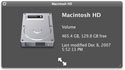
Well, it’s been a month and a half since I upgraded to Leopard and overall, I really like it. However, what I would really like is to be able to print again without having to resort to restarting the computer just to have access to the printer.
Now, understand, the printer is there, my Mac sees it, knows it’s there but when I go to print, it tells me that it’s not. Yet, when I open up the printer/fax panel, there it is listed as the Default, sitting idle, just waiting for me to send it something to print. Yet, when I do, it tells me it’s printing, then says there is a fatal error, but doesn’t provide an error code. Error, yes, I know there’s an error, you’re not printing.
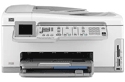
Now I’m using a HP Deskjet 5550 that if I start up on another hard drive running 10.4.10, I can print any time I want. Yes, I’ve checked the USB connection, it’s fine. Yes, I’ve switched the USB cable to another port… still doesn’t work. Yes, I’ve reset my PRAM…I cleared and then reset my printer system following Apple’s instructions… reset the PMU… Hell, I even resorted to trying HP’s online chat with a tech… does not speak MAC… so I sent an email form that I got an auto response quickly back telling me that they would respond back (or forward to the appropriate HP section to assist me) within a very short time period. That was December 8th… HELLO HP… did my email go to the dead email letter box by mistake????
Anyone have any suggestions?
Russ
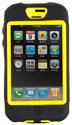
OtterBox for iPhone
Otter Products
$49.95
http://www.otterbox.com/
I’m happy to find an iPhone case I can recommend. The OtterBox from Otter Products is a stylish, rugged product that looks like it ought to be on the hip of an architect at a work site.
It’s not waterproof, nor is it designed to be; but it is ready to shield against mud splatters and unexpected showers while you run for cover.
The phone is protected first by a hard polycarbonate shell (in black or yellow) that snaps together snugly and easily. A good plastic window covers the screen and I had no trouble typing through it. Over the hard plastic is a silicone jacket with strategically placed tabs keeping a reasonable seal over the data and headphone ports. Flip up the tabs for quick access. Flexible nubs provide access to the volume and power buttons. The silicone jacket also offers some shock protection as well as another layer of resistance to yucky stuff. Finally, a polycarbonate holster gives more protection as well as quick-draw capability. It’s very sturdy and took a considerable hit without a whimper when I caught it on a tile countertop. Worthy of note on the holster is the belt clip which sports click-stop detents and rotates into place with authority. When I raised up under the countertop, I expected the whole thing to shatter. But it didn’t phase the OtterBox.
Gloryosky! A product that works! And, I could still hear my ringtone through the three layers of protection!
All controls are accessible except for the silence switch. No problem . . . I simply turned it off. I wasn’t going to answer the phone during that meeting, anyhow.
I haven’t decided if I like the new Stacks feature in Leopard or not, but what I don’t like is how the icon of the stack is the icon of first alphabetical item in the folder you put in the Dock for a stack. For me it was the Applications folder, and the Address Book icon representing that folder.
I was trying to figure out a way to change the icon, and I remembered an old OS9 trick for reorganizing items in the Apple Menu. If you put a space before the first letter of an item ‘s name in the Apple Menu it always moved straight to the top of the list. For example “Zebra” would be at the bottom of the Apple Menu, but “ Zebra” (notice the space before the Z) would be at the top of the Apple Menu.
I decided to try this with Stacks, and it worked!
Here’s what I did to get the icon of my stack to be the icon of my choice. First, make a new folder in the folder you want to create a stack with. Make the name of that folder
“ “ (that would be one space).
Next, change the icon of that folder you just created and named. This can be any icon you want. See this “Teach Me My Mac” video for directions on changing icons.
Finally, create your stack by dragging and dropping the folder you want to become a stack into the right side of the dock. The stack will be created, and the icon will be the customized folder you created above.
That will be the last Macspiration for 2007. Look for more Macspirations in 2008! and don’t forget about “Macspiration: The First Fifty” available at Lulu.com.
Leave your comments below.
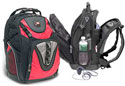
"Maxxum" Computer Backpack
Swiss Gear (by Wenger)
Price: $71.00 (US)
http://www.wengerna.com
I’ve decided to attend my first MacWorld Expo and there is no way I’m going with my old computer bag, lugging it all over Moscone Center, cutting off circulation in my shoulder for a week.
So I went to CompUSA (R.I.P.) to see what kind of backpacks were available.
A lot.
But most were quickly vetoed. My 15" MacBook Pro doesn’t fit. Not enough pockets. Too much style and not enough utility. No style.
And just about every one dug into some tender part of my anatomy. The straps are too close together on the top. The padding is a lump against my kidneys. And so on. And so on.
But like Goldilocks I finally found one that was "just right."`
Enter the Wenger Swiss Gear "Maxxum"
To begin with, it looks good with colorful red, blue, or dark grey nylon panels offsetting the light gray and black. And to be perfectly honest, its stylish look made it one of the first I tried on, but in the interests of fairness and thrift I looked at the entire selection.
One glance at the number of zippers and pockets tells you we’re talkin’ some serious storage here. There is an "Essentials Organizer" pocket, a pocket for your iPod with a headset access port, zippered side pockets, two mesh side pockets for those sweaty bottles of Jolt Cola. But it’s the main pockets where this case shines. Next to your back is the padded laptop section with an internal strap to keep it snug. Next, on top, is the iPod section with its headphone port followed by, in decreasing size, no less than four zippered sections and pockets . . . ending with the "Essentials Organizer" pocket.
Inside the sections are numerous pockets, flaps, straps, and hidey holes to gladden the heart of your inner geek. Plenty of space even for me . . . the guy that hauls around everything because you never can tell when you’re going to need that wire, plug, dongle, car charger, etc. There’s even a mesh-sided section for stuffing a light jacket, lunch, gym clothes, chihuahua, or whatever else you have that should need air.
It has a dual handle (carrying handle and trolly strap) and what they call a "CaseBase Stabilizing Platform," stiff inserts that let you sit the case on the floor without it falling over, and more straps and clasps.
The comfortable shoulder straps are characterized as "shock absorbing," and there is a chest strap if you feel the need for even more stability. Finally, is the "air-flow" back padding which rode comfortably without poking me anyplace.
What else would you expect from the makers of the Swiss Army Knife.
Three FM iPod car adapters:
iTrip Auto SmartScan FM Transmitter and Car Charger for iPod
Company: Griffin Technology
Price: $80
http://www.griffintechnology.com/products/itripautoss
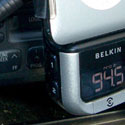
TuneBase FM with ClearScan
Company: Belkin
Price: $90
http://catalog.belkin.com/
BTCUP
Company: MacAlly
Price: $119
http://www.macally.com
* * * * *
FM iPod transmitters locate and use vacant FM radio frequencies to broadcast iPod audio via a car radio. Signal clarity can range from excellent to horrible, depending on factors beyond the control of the car and its occupants.
MyMac.com has reviewed many of these devices: Here, Boom, Pow, Wow, Bang, Crash, Zing, and Oh, and here, too. Whew! That’s a lot of previous reviews, and very mixed results, to acquaint you with the technology and evolution of this class of product.
Belkin, Griffin, and MacAlly each sent MyMac.com an iPod FM transmitter/charger that is very different from its rivals. To compare features and functionality, below is a comparative ranking of the most important attributes of each one:
FM SIGNAL CLARITY, INTEGRITY, AND CONSISTENCY
iTrip Auto SmartScan (Griffin) = good (tie)
BTCUP (MacAlly) = good (tie)
TuneBase FM with ClearScan (Belkin) = okay to marginal (may be better in your town — I live in a mountainous area with severe signal multipath <http://en.wikipedia.org/wiki/Multipath> and few vacant FM stations)
EASE OF iPOD USE WHILE DRIVING
TuneBase FM with ClearScan (Belkin) = excellent
BTCUP (MacAlly) = good
iTrip Auto SmartScan (Griffin) = okay to marginal
ABILITY TO VIEW FM STATION INFORMATION IN BRIGHT DAYTIME LIGHTING
TuneBase FM with ClearScan (Belkin) = excellent
BTCUP (MacAlly) = good
iTrip Auto SmartScan (Griffin) = bad
FM STATION SCANNING AND TUNING
BTCUP (MacAlly) = good
iTrip Auto SmartScan (Griffin) = okay
TuneBase FM with ClearScan (Belkin) = okay to marginal
UTILITY OF DESIGN
TuneBase FM with ClearScan (Belkin): flexible, articulating neck, rotating cradle, multiple cradle inserts, Pro buttons and settings = excellent
BTCUP (MacAlly): spring-grip base for secure placement in auto cup holder, Bluetooth wireless cellular telephone functionality = clever and ingenious
iTrip Auto SmartScan (Griffin): long cable, but no iPod security whatsoever = inefficient
(Note: FMCUP by MacAlly is half the price of BTCUP, when you don’t need Bluetooth phone capability. We did not have a FMCUP for review.)
FMCUP
Company: MacAlly
Price: $60
http://www.macally.com
INCLUDED PRINTED MANUAL
TuneBase FM with ClearScan (Belkin) = comprehensive and thorough, but in very small type
iTrip Auto SmartScan (Griffin) = very good, and easy to read
BTCUP (MacAlly) = good, and easy to read
BEST FEATURES DURING EXTENSIVE ROAD TESTING
BTCUP (MacAlly) = ease of use with iPod and/or Bluetooth cellular phone, hands-free phone conversations, consistency of FM signal, ease of viewing and changing FM stations, iPod security in car’s cup holder
TuneBase FM with ClearScan (Belkin) = flexible, movable cradle and neck that is very convenient, secure, and legible; rugged construction
iTrip Auto SmartScan (Griffin) = iPod can be operated while in a protective case; passenger can operate iPod and iTrip Auto SmartScan
WORST FEATURE(S) DURING EXTENSIVE ROAD TESTING
iTrip Auto SmartScan (Griffin) = insecure iPod, invisible and confusing signal settings
BTCUP (MacAlly) = concern for eventual damage to small, flexible Bluetooth microphone*
TuneBase FM with ClearScan (Belkin) = annoying FM signal static and inefficiency
*Regarding the BTCUP’s microphone, Nelson from MacAlly Tech Support tells MyMac.com: "I pushed to bend the BTCUP Mic back and forth for 50 times, it is not broken inside, talking still works. Average user won’t ‘abuse’ it this way. We have done the test, Mic might seem soft and fragile, but it is robust enough."
* * * * *
Are you enlightened now by our real world test results, or completely confused? Let’s distill the variables above into two straightforward recommendations:
1. When you drive in an area that has clear, vacant FM frequencies, Belkin’s TuneBase FM with ClearScan is a well-designed and robust iPod receiver with a three-year warranty. My town has few vacant FM frequencies, and none of them are clear enough for me to be able to use Belkin’s TuneBase FM, although I wish I could.
2. For overall versatility and reliability, MacAlly’s BTCUP or FMCUP are good choices. This is the FM technology I’m using on a daily basis.
* * * * *
FM iPod transmission is a distant third place for audiophiles or serious music listeners, who pay much more for dedicated auxiliary connections to their car stereo systems. This subject was covered in detail during MyMac.com Podcast #156, along with several other lengthy topics. Second place for iPod car audio goes to cassette adapters, which are clumsy and not available in many newer automobiles, but deliver consistent sound output. When FM signals are strong, iPod audio transmission is as good or better than from a cassette adapter.
* * * * *
Here are the URLs for the three units being reviewed:
BTCUP (MacAlly)
iTrip Auto SmartScan (Griffin)
TuneBase FM with ClearScan (Belkin)
Our MyMac.com rankings blend objective quality with subjective personal experience. Your audio signal mileage may vary a lot from mine. If you can try before you buy, or return/exchange if not completely thrilled, you’ll eventually be satisfied by one of these units.
BTCUP (MacAlly) = 4.5 out of 5
TuneBase FM with ClearScan (Belkin) = 3.5 out of 5
iTrip Auto SmartScan (Griffin) = 2.5 out of 5
Klix
Company: Joesoft
Price: $29.95
http://www.joesoft.com/
Klix is a utility that recovers photos from digital cameras and memory cards. Klix can’t recover digital image files that have been partially or completely overwritten, but that caveat aside, Klix provides a quick and easy way to bring lost files back.
The basic Klix interface is very simple. When launched, the application scans for attached digital cameras or media cards. Klix can then be used to perform three different functions, the most important of which is to scan for deleted files. Both photographs and movies are located and then presented in an Image Recovery window. Photographs are given thumbnail previews, making it easy to identify the ones of interest. Movies do not have previews, though double clicking the generic QuickTime icon presented opens the movie in the QuickTime Player.

Browse recoverable photos in the Image Recovery window.
The recovery portion of the operation is very simple: select the files you’re interested in, click on the Recover button, and then choose where to save them to in the window that appears. There are a couple of questionable interface issues here. Firstly, there’s no “Save” button once you’ve chosen where to save the files to; oddly, you have to click the “Open” button to actually save the files. Secondly, there’s no progress bar, so when Klix is saving large files across slow connections (e.g., a movie file from a USB 1.1 device) it isn’t always obvious that anything is happening or how long its going to take. But these are minor quibbles compared to an application that fully delivers on its promise to make lost photo recovery easy.
Klix is more than just a one-trick pony, and has two other useful features. It can create disk images of media cards and digital cameras. The most obvious use for this feature is if you may want to recover files from a particular device in the future, but right now need to carry on using the device to take more pictures. Klix opens these disk images just as it would the original device. Klix can also be used to securely erase devices, with three levels of security available.

Klix will find all available devices, letting you recover deleted files, create a disk image backup, or erase the device securely.
Bottom line, Klix is compatible with most digital cameras and storage cards, but its worth trying out the demo version just to be sure. Assuming it works with your hardware, Klix is an inexpensive, useful little utility that makes recovering lost photos a breeze.
Pros: Easy to use, previews of deleted photos in recovery window, recovers movies as well as photos, compatible with a broad range of hardware, useful built-in utilities.
Cons: Movies lack previews, Save dialog box lacks a ‘Save’ button, well-priced.
Price: $29.95
System requirements: Mac OS X 10.2.4 or higher; Universal Binary.
Download the show here, via iTunes, or listen above
A full show this week with Tim, Chad, Guy, Rich, and Russ to kick it off. We look at some of the rumors and speculation on upcoming Apple products, Think Secret going off-line, and ringtones from GarageBand for your iPhone. John Nemo plays with the Edirol R-09 in a car, along with the Jalapeno Chorus. Finally, Sam Levin joins Tim and Chad for a Cool Mac Picks for the first time in months!
As always, we would love to have some feedback. Send us an email here, or simply call 1-801-938-5559 and leave a message.

Subscribe to us in iTunes.
Links from the show
Sam Levin
Vaja Cases
Go + Play
Evolve speaker system
iTalk Pro
Sanyo Xacti
Axiotron Modbook
Prosoft Engineering

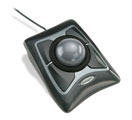
Kensington Expert Mouse Optical USB Trackball
Company: Kensington
Price: $99.99 USD
http://www.kensington.com
Over the years, I’ve used just about every type of mouse out there: Apple’s one-button mouse, trackballs, corded and wireless, small and large, two button up to multi-button. I even used the Kensington Turbo Mouse (version 3) during the mid-90’s and enjoyed its capabilities and ease of use. Fast forward to the present time and here I am using Kensington’s Expert Mouse, the descendent of the Turbo Mouse. How does it hold up?
Out of the box, the Expert Mouse is simple to install and set up. Plug the USB cord into your Mac, go to Kensington’s website and download the latest version of MouseWorks, install it and then set your preferences for what you want each of the four main buttons to do, set your click and scrolling speed and the pointer speed and you’re good to go. Want to open up an application? No problem, set it up in preferences as to what button you want to use and off you go. Launch a particular URL… set it up and away you go.

The unit itself is designed as 5 3/4″L X 1 1/2″H X 5″W with the end closest to your hand being less than 1/2” in height. Kensington solved this problem of the unit being so sloped by providing the user with a padded palm rest that easily attaches to the low end and slopes your hand up into a more comfortable position. Once you’ve set up your Expert Mouse, the first couple of hours are normally spent just getting used to the feel and the capabilities of the mouse. The six-foot USB cable should prove to be more than enough for most users to set the mouse up comfortably on their desktop and not feel restricted.

Choosing what button on the unit does what can be an interesting experiment in itself. I found that I changed my first selection of button use once I became more familiar with the unit and discovered that it was far easier for me to utilize the top left button to scroll, the top right button to go back/forward, open in new window; the bottom left button to click and the bottom right button to double-click. The nice thing about Kensington’s MouseWorks is that is does work and it doesn’t cause any problems with the operation of the Mac, unlike some other software.
I found the trackball to be great, quiet, smooth and easy to use. The use of the trackball to scroll is just fantastic in its ease of use and control, and with the bottom left button set as the click, I’m easily out of the scroll mode and able to move the cursor to where I want and then use the bottom right button to double-click and open a link. The one issue that I did have is that the Scroll Ring just did not seem to work the way it should. I found that no matter where I had the scroll speed set to, in using the Scroll Ring the movement was jerky and at times, I wound up right back where I started from. Utilizing the trackball in scroll mode solved that issue right away but I was disappointed in the way the Scroll Ring just didn’t seem to work the way I thought it should. Despite that issue, I would still highly recommend the Expert Mouse to anyone looking for something more than just a plain old mouse.
So to review:
Pro: Easy to use, easy to program, good number of programming options available to the user; use of trackball to scroll was great. Great warranty on the product.
Cons: The one problem that I had was with the Scroll Ring, just could not find a comfortable movement to make scrolling as good as it is otherwise.
System Requirements: Macintosh running OS X or later with an available USB port. Internet connection or CD-ROM drive to install the software.
Warranty: Kensington 5-Year Warranty and free technical support.
Highly recommended!
My Mac rating: 4 out of 5.
Griffin iClear, Reflect, and Elan Form hard cases for iPod nano (3rd Generation)
Company: Griffin Technology
Price: $19.99, $24.99, and $29.99 respectively
http://www.griffintechnology.com/
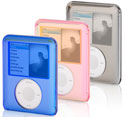
Newly available from Griffin is their revamped hard case lineup for the iPod nano, ranging in price from $19.99 for the iClear to $29.99 for the all new Elan Form, with the $24.99 Reflect staking out the middle ground.
The iClear is a clear polycarbonate snap together shell with an opening along the bottom for the hold switch, dock connector, and headphone jack as well as on the front for the click wheel. It also has a notch in the corner near the headphone jack that is used to pop it apart with a coin to remove the iPod. The 2 mm thick casing brings the thickness of the nano from 6.5 mm to 10.5 mm, but as thin as the nano is this isn’t a problem. It is quite scuff resistant and protects the iPod very well from accidental (and test) drops.
iClear is also available for the 5th generation iPod, 1st and 2nd generation iPod nano, iPod classic, and iPod touch.
A snap together polycarbonate shell like the iClear, but with a black rubberized back half and a semi-transparent chromed front half, the Reflect adds an extra touch of style. The rubberized coating makes it easier to grip, and the front coating adds an interesting effect – as the screen lights up it magically appears. Some people may not appreciate the hidden screen effect, however. Like a pair of sunglasses, the chromed front has the effect of lowering the screen brightness somewhat. Both coatings also seem to make the Reflect more resistant to scuffs and scratches than the iClear.
Reflect is also available in pink and blue for the 3G nano, and also for the 5th generation iPod, 2nd generation iPod nano (pink and blue also), iPod classic, and iPod touch.
New to the Griffin nano hard case lineup is the Elan Form. Elan Form has a black polycarbonate inner shell covered with a black top-grain leather outer shell. It snaps together and pops apart just like the iClear and Reflect, but has a separate clear polycarbonate panel over the screen. The leather adds an extra 2 mm of thickness and feels good in the hand, in addition to being practically scratch proof. The leather easily makes Elan Form the nicest in the family, with the Reflect and iClear pretty much equal depending on how you feel about the Reflect’s screen hiding effect.
Elan Form is also available for the iPod classic and iPod touch.
The bottom opening on all 3 hard cases is flush with the bottom of the iPod nano, making them compatible with the majority of dock connector accessories. In addition, as long as you are using a dock insert sized for a 20 GB 4th Generation iPod (or similar size), the iPod nano is dockable in the case. As illustrated in the accompanying photo, however, the pause/play button may be below the top of the dock, making it difficult to press due to the low placement of this nano’s click wheel compared to earlier model nanos.
A feature lacking in all 3 of these similar hard cases is any kind of clip, belt or lanyard, requiring that the iPod be held or carried in a pocket. Griffin states that their research has shown that customers interested in these cases have generally not wanted this feature, but if that’s a drawback for you I have a solution – make your own lanyard.
How you choose to finish it is up to you, but the basic idea is simple – clip the computer end off a spare USB or FireWire Dock Connector cable, loop it back, and connect the ends together. I used two tightly pulled cable ties, but there are other ways to do it. It must have the squeeze latch as shown below and not be Apple’s shorter dock connector design that pulls out easily. Since the nano will be hanging upside down from the dock connector you don’t want it to be able to fall off.
All 3 of these hard cases do a fantastic job of protecting the iPod and make excellent choices for those looking for this type of case. The only feature I would like to see added is a lanyard, which could be done with hardly any bulk added to the case & could be left as optional to the user.
iClear – 4 out of 5
Pros: Tough, clear shell shows off your iPod and provides excellent protection.
Cons: iPod must be held or tucked into a pocket.
Reflect – 4 out of 5
Pros: Rubberized back easier to grip. Interesting hidden screen effect.
Cons: Some may not like screen being dimmed by chromed front coating. iPod must be held or tucked into a pocket.
Elan Form – 4.5 out of 5
Pros: Elegant leather finish and tough inner shell provide excellent protection and nice appearance.
Cons: iPod must be held or tucked into a pocket.
U-Suit Folio for iPhone
Company: Uniea
Price: 34.95
http://www.uniea.com
Another iPhone case arrived from Uniea review; the U-Suit Folio. Following hard on the heels of the U-Suit iPhone case, which I rated very highly, I expected another great iPhone case.
Wrong. Not even close.
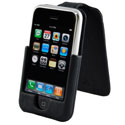
Like the U-Suit, the Folio is a hard carrying case with a belt clip. The iPhone slips into the case rather snugly. Folio, however, uses a fold-over flap that covers the entire iPhone, and closes with a small magnetic latch.
When the iPhone rings, you need to flip up the fold-over flap, and pull the phone out of the case. Otherwise, you need to yank the whole affair, belt clip and all, off your belt. The iPhone is a snug fit in the Folio holster, so you’ll need to pull harder than you’d expect. This may dislodge the belt clip. Or, you may not get the phone out before the call goes to voicemail…
Once you’ve finished the call, you need to flip open the flap, and while holding the flap open, slide the iPhone back into the slot. Again, it takes some pressure to slide it down into the holster.
Keeping the flap out of the way is awkward, plain and simple.
The flap does double duty as a stand, but that doesn’t offset the fact that it is in the way most of the time. The flap’s a good screen protector, but it prevents easy access to the phone.
Was this designed by the same person who scored big with the U-Suit? I hope not.
Mac OS X Leopard Pocket Guide
by Chuck Toporek
O’Reilly Publishing
http://www.oreilly.com
ISBN-10: 059652981-3
ISBN-13: 978059652981-9
211 pages, paper
US: $14.99, CAN: $17.99
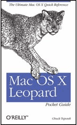
Like previous versions of Chuck Toporek’s Pocket OS X guides, Mac OS X Leopard Pocket Guide packs a lot of useful information into a compact format. If you travel a lot you might find yourself thinking of this little book as a handy security blanket.
New features of OS X, such as Time Machine, Spaces, Quick Look, and Stacks are covered in Chapter 1 along with changes to Finder, iChat, iCal, and Mail. A reader who is new to Leopard (and aren’t we all?) may find it reassuring to have a copy of Mac OS X Leopard Pocket Guide with them as a memory-jogger on how to use new features.
Chapters 2 and 3 are devoted primarily to Mac OS basics, shortcuts and, security issues and features. Readers who are new to the Mac will find many of their questions answered here. For more experienced users, the Mac OS X Leopard Pocket Guide will help them sort out new wrinkles that Leopard has introduced.
For example, the built-in Help menu in OS X now has a Search field. Leopard has introduced some changes to the Dock, such as Stacks and a Downloads folder. Spotlight has become faster with Leopard and is capable of doing more comprehensive searches. Spotlight can even search attached external FireWire drives. Readers who gave up on using Spotlight with Tiger may want to give another try, and the Mac OS X Leopard Pocket Guide gives succinct instructions in its use.
Chapter 4 is devoted to System Preferences. Even here you may find that Leopard has thrown a few curve-balls that are covered in the Mac OS X Leopard Pocket Guide. The Security pane has new features, such as the ability to disable the IR sensor of a MacBook or MacBook Pro to avoid vulnerability to external devices. Another notable change is that Firewall is now in the Security panel, instead of the Sharing panel of previous versions of OS X.
There are some new wrinkles in the Screen Saver pane of the Desktop and Screen Saver panel such as the ability to opt for a Slideshow, Collage, or Mosaic. There is a new Time Machine preference panel to turn Time Machine on or off and specify a drive to make backups to. There is brief, but sufficient, information in Chapter 4 to guide readers to the many facets of System Preferences.
Chapter 5 provides only brief descriptions of the many applications and utilities that are bundled with OS X. The diminutive Mac OS X Leopard Pocket Guide would have turned into a big and weighty tech manual if each application and utility was covered in detail, but the chapter is useful for pointing them out. Unless a reader has made an intensive study of the Applications folder, he may be unaware of some of the gems lurking there.
Chapter 6 is titled Configuring Your Mac. This just might be the chapter that saves the day for road warriors, with information about things such as finding the MAC address of their Airport card, switching to an Airport network after disconnecting the ethernet cable from their laptop, sharing a modem or ethernet connection with other Macs, maintenance and troubleshooting, and sharing a USB printer over an Airport network. This chapter also contains information about networking and connecting to a Windows server, using a .Mac account, fonts and font management, and basic settings for customizing a system. Topics in Chapter 6 are covered very succinctly but with just the information a reader might need to get out of a jam.
Chapter 7 is simply a table of special characters and their key mappings, and Option-key commands for creating accented characters. There is also mention of the Keyboard Viewer application. A world that seems to be getting smaller has increased the need for many special and accented characters.
Many OS X features are the same as they were in previous versions, and these are covered in sufficient detail to jog readers’ memories or help out if they need to venture into unfamiliar territory. A tiny book that fits in a back pocket can’t be expected to compete with a full blown tech manual that is four times its size, has twice as many pages, and outweighs it by a factor of ten. But the big bruiser gets left home while Toporek’s compact tome makes a great traveling companion. It might just get you out of a jam if you need to do something on your Mac that you have forgotten or are unfamiliar with. Given the size and weight constrains that Toporek was working with, he has done an admirable job of packing this little book with useful information.
Turns out that after purchasing the book it isn’t even necessary to carry it, small as it is, to get the benefits. O’Reilly provides a coupon code good for 45 days of free access to an online edition at Safari Books Online. Now THAT is really lightweight take-along support! Might still be a good idea to bring the analog pulpware-substrate version in case you run into a snag getting online.
Even power users may find themselves referring to Mac OS X Leopard Pocket Guide from time-to-time. Scenario: you are on the road and need to contact a prospective business partner in Norway. You’ve forgotten how to type an umlaut! No problem if you’ve got Chuck’s little gem. Mr. Überbucks will appreciate it. Or maybe you forgot how to go from Quick Look to full screen slideshow to give a client a peek at the contents of a folder full of projects you’ve been working on for them. Chuck has you covered there too. Examples are numerous. Hard to know what tips you’ll need or when you’ll need them. With Mac OS X Leopard Pocket Guide along for the trip you’ve at least got a fighting chance of finding an answer.

The Artist’s Guide to GIMP Effects
Michael J. Hammel
Published: No Starch Press
ISBN 978-1-59327-153-4
Paperback, 360 pages, $44.95
GIMP, or the GNU Image Manipulation Program to give it its proper name, is a graphics-editing program broadly similar to Adobe Photoshop in terms of functionality. The GIMP is an open source program that can be freely downloaded and installed on most computers, including maps. But on the downside it doesn’t come with a manual, so figuring out how to use GIMP can be tricky.
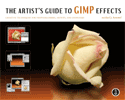
But ‘The Artist’s Guide to GIMP Effects‘ isn’t simply a book explaining what all the different tools and features do. Michael Hammel pitches this book quite a bit higher than that, focusing instead on how to use GIMP to perform a variety of useful and common tasks. From trick photography to building graphics for web sites, Hammel leads the reader expertly through nicely illustrated tutorials. The end result is more than simply a better understanding of the program, but a richer appreciation of what the program can be used to do.
There are six chapters, the first of which introduces many of the basic concepts. Although there is some attention given to where the relevant tools are found and how to use them, the focus here is on what they do and why you need them. Fundamental to success with any graphics program is understanding how different tools work when applied together, and Hammel finishes off this chapter with a set of multi-function tutorials that underline this point.
The second chapter concentrates on manipulating photographs. These include softening images, adding motion effects, and creating reflections. In each case the process is taken step-by-step, with clear text and relevant screenshots. At this point it’s also worth mentioning something about the layout of the book. No Starch has really done a good job here. The book is wider than it is tall, and each page holds two columns of text. The flexible binding lets the book stay open at any page. As a result, it’s an easy book to use alongside the computer.
The next chapter is about creating artwork for web sites. These include things like tiles for web page backgrounds, buttons, tabs, and menu bars. The first tutorial in this batch is all about creating glossy, gel-like buttons of the type Macintosh users will be familiar with. One of the later tutorials looks at the ubiquitous rollover buttons, though from the perspective of creating the actual artwork required rather than the necessary JavaScript or CSS coding. That said, if you use a WYSIWYG web page layout program like Freeway, you probably won’t need to manually any of that sort of code to your page anyway; all you need are the graphics.
Like all the other chapters, the web design chapter finishes with a collection of useful tips. Some of these should be required reading for any web designer, and it’s great to see the author lay them out fair and square.
The fourth chapter is very unusual but actually makes a lot of sense. It’s a chapter devoted to creating advertising. While no substitute for a degree in marketing, there’s some great stuff here for anyone who needs to produce things like packaging and posters. Small businesses attracted to GIMP by its low cost will likely find this chapter worth the price of the book alone. On the other hand, some of the tutorials in this section are only incidentally useful for advertising purposes though, and could be just as relevant to anyone creating computer artwork. Again, there’s a wrap-up section with a slew of useful tips and tricks.
Chapter five brings text into the mix. This chapter kicks off with some tutorials covering things like neon, metallic, and gel-like text, among other typographic effects.
The last chapter is specifically for software developers, and illustrates the ways in which GIMP can be used to design and prototype application interfaces. While a clever and potentially useful chapter, what was obviously missing from this section of the book was something on designing icons for programs. The book then rounds off with a detailed index.
For $45 this isn’t a cheap book, especially when you consider that GIMP itself is free and comes with its own online guides and tutorials. The question is whether having things laid out clearly and logically in a nicely illustrated book justifies the cost. In the opinion of this reviewer at least, the answer is yes. For the GIMP user looking to go beyond simply cropping and resizing digital images, this book is highly recommended.
Have you ever had an icon in your dock stop working? You click the icon for a program (maybe Mail), and the program never launches? The icon never bounces? The odds are that the link to the actual program has been broken. How do you fix it? Read on!
Icons in your dock are simply links to the original program. They are not the actual program. So if the link breaks, the program won’t launch. Don’t panic this is fixable (in most cases).
A way to confirm that the link has been broken is by clicking and holding the “dead” icon. A little menu will appear with an option to “Reveal in Finder.” On a “live” icon this option will reveal the actual program in the Finder. Click this option. If nothing appears the link is broken.
To replace the icon in your dock you want to start by removing the bad icon. To do this click and drag the bad icon off the dock. When it is clear of the dock un-click you mouse. The icon will disappear in a puff of smoke.
The only way the link cannot be repaired is if you have deleted a program that was in your dock. If you haven’t emptied you trash in a while you can check the Trash for the missing program. If it is there, drag and drop it back to your Applications folder. If you cannot locate the original application, you will have to reinstall the program before proceeding.
I’m going to assume you have found the original icon, and the program has not been deleted. All you have to do now is drag and drop the original icon to the dock. Click and drag the program to the dock, once space is made un-click. A working icon will appear in the dock, and you are good to go.
It is just that simple.
Leave your comment below.
Download here, via iTunes, or listen above.
With no big Apple or Mac news, Tim, Chad, and Guy look forward to Macworld Expo, and invite any and all listeners for a get together during the event. Also up this week, Nemo interviews educator Sharon Price using the Edirol R-09.
As always, we would love to have some feedback. Send us an email here, or simply call 1-801-938-5559 and leave a message.

Subscribe to us in iTunes.
Links from the show
Macworld Expo
Imaingo speakers
EA Games
Edirol R-09
Hewlett-Packard Photosmart 7280 All-In-One Printer
Company: HP
http://www.hp.com
US $299.00
I’ve been a long-time user of HP all-in-one printers. My Photosmart 2710 has a reliable workhorse for me, in spite of a few small irritations.
While there are some drawbacks to having all your printing/scanning/copying/faxing eggs in one mechanical basket, I love the convenience of having only one box to deal with. When I was offered the chance to review the Photosmart 7280, I jumped at the chance.
Features and Specifications
The technical term for the 7280 is "jam-packed full o’ features." Here’s the list of features and technical specifications:
Print technology – HP Thermal Inkjet
Print quality, black – Up to 1200 rendered dpi black (when printing from a computer)
Print quality, color – Up to 4800 x 1200 optimized dpi color (when printing from a computer and 1200 input dpi)
Number of cartridges – 6 (1 each black, cyan, magenta, yellow, light cyan, light magenta)
Paper tray(s) – 2
Input capacity – Up to 100 sheets
Automatic Duplex printing
Media sizes – Letter, legal, executive, No. 10 envelopes, cards, borderless photo (4 x 6-in, 5 x 7-in, 8 x 10-in), borderless panorama (4 x 10-in, 4 x 11-in, 4 x 12-in)
Memory – 64MB
Up to 19200 dpi Scanning
Maximum scan size – flatbed – 8.5 x 11.7 in
Connectivity – 1 USB, 1 Ethernet, 1 PictBridge, 1 Wireless 802.11g (optional HP Printer Adapters with Bluetooth Wireless Technology)
Minimum system requirements – Mac OS X v 10.3.9, 10.4 (or later); Power PC G3, G4, G5 or Intel Core processor; 128 MB RAM, 200 MB available hard disk space, CD ROM, USB port
Setup
The 7280 comes well packaged against shipping abuse; virtually every moving part is taped down to protect against damage in shipping. I’d recommend following the unpacking directions to ensure you don’t miss some packing tape, and leave some moving part taped in place.
When it’s time to install the print cartridges, you’ll notice one major difference between the 7280 and its predecessors. Unlike many older HP printers, which used large, three-color ink cartridges, the 7280 uses six smaller cartridges. Black, yellow, cyan, light cyan, magenta, and light magenta each have their own cartridge. This has two advantages; you can replace each color separately. Older HP printers used a large three-color cartridge, requiring you to replace the whole cartridge as soon as one color ran low, even if the other colors still had plenty of ink. HP charges $9.99 for a single 7280 color cartridge, and $17.99 for a standard black cartridge. In comparison, HP wants $34.99 for a standard tri-color cartridge for my old Photosmart 2710, and $19.99 for a standard black cartridge.
Also, the extra colors (light cyan and light magenta) allow for better color reproduction.
Installation was trouble-free, but it must be done when connected via USB. I did the regular installation under Mac OS 10.4.9 Tiger, which installs the full version of ReadIris Pro optical scanning reader software. Also installed is HP Studio, a scan and image management application most Mac users will probably not often use.
Note to Leopard users! The software I installed when running Tiger runs uneventfully under Leopard. One minor glitch is that the installer version shipped with Tiger refers to the "Printer Setup Utility." Leopard does not have this; the preference pane has been renamed "Print and Fax." You’ll need to open it manually, then add the printer.
HP has a beta version of the 7280 software available for download from the Support area of their web site, for those who are willing to use beta software. I installed it partway through the testing process, and had no problems with it. It’s a 217 MB disk image, and you can download it here.
Be forewarned that you’ll be nagged to register your unit. One nag I can understand, but I was annoyed when I was nagged to register each time I installed another driver (network or wireless). You need to go out of your way to tell the software not to nag you about registration. Why can’t the software see that I already registered?
Like its predecessors, the various print/scan/copy fax features are accessed via the HP Device Manager application. The installer conveniently places an icon in the Dock for easy access. If you prefer, you can access these functions through the front panel buttons.
Printing
Basic printing is Macintosh easy. The HP print driver allows you to select from a wide variety of paper types, two-sided printing, borderless printing, etc. It’s worth the small amount of time to choose the paper you’re printing with, as the 7280 will adjust the output accordingly. I was pleasantly surprised at how good photo printing looked on plain paper when "plain paper" was chosen. If you choose paper type "Automatic" but actually use plain paper for photos, print quality is disappointing. You need to choose the right paper type for the 7280 to shine. When you choose, and use, high quality glossy paper in the print dialog box, the 7280′s print quality is very good, considering it’s not a specialized photo printer.
I tested the 7280 with my Airport Extreme network that allows both 802.11g and 802.11n connections. The base station sits only three feet from the printer, so any decrease in throughput due to distance was not an issue. The 7280 is a "g" unit.
Printing via Wireless was trouble-free, and only a bit slower than USB printing.
With the improved printer driver, and paper selection choices, the 7280′s print quality is noticeably superior to my old 2710. But there are some tradeoffs.
If you don’t print frequently, you’ll be annoyed at how much time the 7280 takes to initialize itself; the unit can take up to thirty seconds of noisy grinding and clacking to ready itself to print. From time to time, it will bump and grind on it’s own, even if you are not actually printing.
Once the printer has convinced itself it’s ready for work, the actual print quality is good. Photos printed on plain paper are better quality than on the 2710, and photos printed on high-quality HP photo paper are clearly better than the 2710. Having extra ink colors does make for better prints.
Scanning, Copying, and Faxing
Scanning via USB was quick and uneventful. You can choose to save your scan in a wide variety of formats.
As expected, scanning via Airport was substantially slower. The initial scan of an 8×10 color photo at 200 DPI (20 MB in Preview) took roughly 2 minutes via Airport. Scanning the same photo via USB took 55 seconds; less than 1/2 as long. Wireless scanning works fine; just don’t be in a hurry.
The purchase price of the 7280 includes a copy of ReadIRIS Pro 11 for Macintosh and Windows. While I’m not going to review the ReadIRIS software, I did try a few quick scans to OCR; READIris Pro easily recognized and OCR’d them all.
Copying and faxing are functions I always do from the front panel. The whole point of having a multi-function unit that copies is that you don’t need to use the computer to make a copy. It was easy to use the front panel controls to set the number and quality of copies. During testing, I made dozens of copies and sent and received close to a hundred pages of faxes. Copy quality was excellent. I had no trouble connecting to several different kinds of fax machines, and all of my received faxes came through uneventfully.
Perhaps my favorite feature of the 7280 is the 50-sheet document feeder. My old 2760 had no sheet feeder, and without one, making multi-page copies and faxes is a time-consuming hassle. The 7280 sheet feeder worked perfectly through all copying and faxing, even with slightly wrinkled originals. For me, the feeder is worth the price of admission.
Card Reader
The 7280 can do card tricks!
The unit is able to read images directly from numerous kinds of digital camera cards, so I popped the Secure Digital card out of My Canon Powershot, and slid it into the SD Card slot on the front panel of the 7280. The card immediately recognized all twelve images on the card, and I was presented with several options. I could print albums, individual prints, and multiple prints on one page. The Photosmart Express software built into the printer even allows you to do basic cropping.
I can’t imagine that anyone would do serious printing without using photo editing software, but if you need to print something immediately, and don’t want to take the time to import your images into iPhoto, printing with the front panel controls is the quickest way get an image on paper.
Summary
Overall, I was quite impressed with the Photosmart 7280. It has the flexibility to use USB, 802.11, and network interfaces. As long as you don’t expect too much speed from the wireless connection, you can print, scan, and copy with with some patience. The HP software installed easily, and was fairly easy to use. Print quality was better than older HP Photosmart printers that used tri-color ink cartridges. The document feeder was one of the high points of my testing.
ezSkin Classic for Apple iPod Classic (Black, White, Pink, or Blue)
Company: ezGear
Price: $30
http://ezgear.com
ezSkin MAX for iPod Classic (White or Black)
Company: ezGear
Price: $35
http://ezgear.com
Defender Series OtterBox for iPod Classic
Company: OtterBox
Price: $30
http://www.otterbox.com/
Armor Series OtterBox for iPod Classic
Company: OtterBox
Price: $50
http://www.otterbox.com/
* * * * *
iPod case selection is one of the most random, haphazard, subjective purchases made by iPod owners. The four cases being reviewed address most of the concerns an iPodder will have once the case is in active use. An iPod 80GB Classic was used for these evaluations. Both ezGear and OtterBox have comparable cases for all the latest (and many previous) iPods, plus the iPhone.
All four review cases are well-priced for value, quality, and marketplace competition. Note: Each case covers the scroll wheel in a slightly different way, somehow without sacrificing scrolling or clicking.
* * * * *
ezSkin Classic for Apple iPod Classic is a thin, flexible, slip-in silicone sleeve with cutouts for access to HOLD/ON, EARPHONE, and DOCK CONNECTOR ports, plus a window that precisely covers the iPod’s display. A plastic screen protector is provided, with narrow adhesive along its edges, to keep the display in pristine condition. I chose not to use this protector. A removable belt clip and neck strap are included, that add more bulk that I desired for this particular ultra thin case.
This ezSkin case is easy on an iPod exterior, and easy on the fingers when using doing scroll wheel activity. The silicone fit is snug, and remains so after many removals and insertions. I’m fond of this case, use it frequently, and give it our MyMac.com 4.5 out of 5 rating recommendation.
ezSkin MAX for iPod Classic is a more hefty version of its slim sibling. MAX has thicker silicone, plus five bumpers along each narrow left and right rim. Fit is not as snug as in the ezSkin Classic model reviewed above, and the docking port opening at bottom is twice as large as in ezSkin Classic, due to the thicker material in MAX. When extra protection is required, ezSkin MAX is a valid choice, for only $5 more than the Classic ezSkin iPod cover.

I use ezSkin MAX with a belt clip and strap for outdoor activity, and it deserves a strong 3.5 out of 5 rating.
Defender Series OtterBox for iPod Classic has a two-piece snap-together inner rigid plastic shell, complete with clever clear membrane cover for iPod screen and scroll wheel areas, and four standard port openings. Once the iPod is within this plastic shell, a black silicone outer sleeve slides over it. This sleeve is similar to the ezSkin Classic, with a notable addition.
OtterBox for iPod Classic is an all-weather case, with tuck-in flaps that gently seal every port and snap fitting of the rigid inner shell. Only time will tell if OtterBox’s flaps and plugs are durable enough for years of abuse by active lifestyle iPod owners. I’ll be using Defender Series OtterBox for iPod Classic as my primary case during the next rainy month, for its strength and versatility, and I expect it will earn our MyMac.com rating of 4 out of 5.
Unsnapping and snapping the plastic inner shell is a bit tricky. Be patient when learning how to do it, so you don’t damage either the case or your iPod. Once both plastic and silicone components of this OtterBox are in place, your iPod is secure and safe.
Company PR claims this is: "A distinct line of semi-rugged, slim fit cases that offers complete user interaction in an attractive look and feel. Cases shield from dust, dirt and drops in a thin yet protective design. Great for people on-the-go and those looking to defend their device without added bulk!," and MyMac.com agrees. But be aware: "This case is not fully waterproof. This case will protect against light rain and precipitation, but is not meant for full submersion."
Armor Series OtterBox for iPod Classic is the most secure and protective iPod case we’ve seen. It’s the direct descendent of OtterBox’s indestructible laptop computer case, described and pictured here. A secure offset headphone jack is the only opening to the outside world, once the case is clamped shut. No charging, docking, or ON/HOLD button access is possible. Your iPod is safe from the elements, and can be used for playback just about anywhere in the world except underwater.
This Armor Series enclosure is large, bulky, and awkward, but scroll wheel access and operation are straightforward due to an ingenious membrane cover that is easy to demonstrate but difficult to describe. When you want the ultimate in iPod physical coverage, everything else is in last place. In a bar fight, OtterBox’s Armor iPod case would say, "Hey, pal, wanna take it outside for a little rumble?!" and return shortly afterward without a scratch.

Company literature claims correctly "the Armor series protects devices so you can take your technology virtually anywhere, rain or shine!" As long as you understand this case is listen-only, and must be opened to the elements for all other functions, you’ll agree it deserves our recommendation and 4.5 out of 5 MyMac.com rating. A spring-loaded removable belt clip is the only accessory.
Putting it all together
If you have stuck with me so far, I’ve talked a lot about how to use iWeb’s powerful built-in tools, how to make your own navigation bar, and how to set up Master Pages. What have I left out? Oh yeah, some other tools you may find useful and actually using the program.
What ELSE do I need?
In all honesty, you don’t really need any other tools beyond what iWeb and the other programs that make up the iLife suite provide. Apple has been kind enough to include very powerful text and graphic manipulation software to get you started. However, no man is an island and no web site worth it’s weight in pixels is typically made alone. As I said, iWeb includes some very good tools, but they are far from complete. For some other really cool and creative text and graphic manipulation, you may need to go outside the Apple enclosed world.
Some of the other text tools you can use you might already have and not realize it. Do you have Microsoft Word for the Mac? Within Word there’s a text manipulation program called WordArt. It’s nothing fancy, but it might suit your needs without having to spend another dime. More good gear for making text dance is BeLight software’s ArtText. It’s a bit of a one-trick pony as compared to say PhotoShop Elements, but the learning curve isn’t nearly as deep.
For manipulating graphics and pictures there are few tools more complete than Adobe’s suite of ground-breaking software known currently as CS3. However, most people who will probably use iWeb don’t have six to twelve hundred dollars just sitting around for the full suite, nor the time and patience to learn the complete interface. So get Photoshop Elements instead for eighty to one hundred bucks (or whatever your currency of choice is). Most of what you’ll actually use is right there. If you want to go cheaper than that, there is Lemkesoft’s most excellent GraphicConverter (lemkesoft.com), DrawIt (getdrawit.com), Painter from Corel (corel.com), and many more.
Interested in web animation to use in iWeb? Photoshop Elements has this somewhat covered with animated gifs (you can see an example with the macparrot.com logo) and LaughingBird software (laughingbirdsoftware.com) has what looks like low-learning entry software for web graphics and animation that isn’t going to cost an arm and a leg. LaughingBird has been kind enough to send me their suite of graphics tools and I will be testing what does and doesn’t work within the confines of iWeb as I go along.
iWeb’s Welcome Page
Your Welcome Page is the first thing someone will see when they visit your site initially unless they have a direct link to some other posted content. We’ll get to that later, in a fashion, but let’s assume that they have heard of your site and this is what they’ll see. You want it to be a representative of what they’re most likely to find on your other pages, so if it’s boring or looks like everyone else’s site, they might not linger for long. So make it symbolize the way you think or write. Apple’s iWeb allows the use of templates which is the easiest way to start, but remember you want it to reflect you and not someone else’s idea of a web page.
If you want yours to look different, your best bet as said before is to choose either the “White” or “Black” blank template and work from there. What? You mean you don’t HAVE to use iWeb’s “Welcome” template for your first page? Of course not. Use whatever page or template you want. Choice is good. Just remember that the more complicated the iWeb template, the more work you’ll have to do on every master page you create to tweak and make it your own.
Hold on a second? MORE master pages? What in the seven hellish trials of the Woz am I talking about? Remember the last section I wrote about creating Master Pages? I talked about creating the basic structure of your pages so that you don’t have to reinvent it every time. Well, I won’t go into great detail here, but some templates and pages are easier to manipulate than others and may require some gentle modification (see 20th century dictators for examples of gentleness) to actually still work within the parameters of your master page. Don’t fret about it now. I’ll speak of this (with more bad jokes) in other sections after we get beyond your welcome page.
Choose your template and page and get it on the screen. You can at this point effortlessly change the background color or the browser color of the page in the Inspector/Page/Layout box. Depending on the template you chose there may be lots of default text boxes with Lorem Ipso facto text written inside. You can either edit the text to say what you want (most times), get rid of the text box altogether by highlighting it and hitting delete, or you can make the box as small as possible and then change its opacity in the Inspector box to zero. It will still be physically present, you just won’t see it anymore. Some of the boxes that won’t go away are very important in the “Blog” and “Podcast” iWeb pages and we’ll go more into those later. Don’t worry about it too much on your Welcome page.
Add text, photos, graphics or whatever other elements you wish to make it look the way you want it to. As an example, look at this page to see the MacParrot.com master page graphics seperated and this page to see them all together. One of the best parts of iWeb is that all the graphics created in other programs were pretty much a drag and drop affair from a Finder window. iWeb accepts most common graphic file types including jpeg, gif, and png. There are others as well, but those three are the biggies. Of course you can import all the graphic files you might use into iPhoto and just drag and drop them directly within iWeb’s Media window as well. Reshape and resize them using the Inspector/Graphic and Inspector/Metric windows.
Now think about how you want your text to look. Do you want to go with a single or double column. For the MacParrot sites, I went with three columns and because I chose a wide layout (915 pixels wide to be exact), I had plenty of room not only for the three columns, but also my homemade Navigation menu, some graphic site links, Google ads (oh yes, we will talk about Google ads…just not today) and search bar, and also a favorite links section. You can make your website about as wide as you want to, but keep in mind that many people will be looking at your site with browsers somewhere in the 800 to 1024 pixel width range. Going beyond that will force people to scroll left or right and that can make people dislike going to your site.
Besides your layout, something else to consider is how you want people to find your most recent content. The Navigation menu you created should mostly be used for going to the main sections of your site, not for letting people know about new blogs, photographs, or podcasts. Consider using the remaining space to talk about and link to new things you’ve added to your site.
How to do this is very easy. Assuming you have room for a column or two, you have a few options. For the three columns at MacParrot.com , I have each listed according to the kind of content I would typically add. The first column has Mac news stories I found interesting and would add my own comments to. The second column I use for reviews (mostly just a repeat of stuff I post at MyMac.com. Remember that MacParrot and its derivatives are meant for testing different webpage creation programs) and tech articles I’ve written, and the third column is for my blogs and whatever podcasts I might create. Each column consists of one large text box that you can make either by selecting it in the “Insert” menu of by hitting the “Text box” icon at the bottom of your main iWeb screen. I use one long column for each section and update by copying and pasting to the top similar text and then changing the date and title. My old stuff goes down in the column and my new stuff is at top.
All of your text is fully editable within iWeb. Make it bigger or smaller using the keyboard shortcuts (that weird cloverleaf key, also called the “Command” key and the “+” or “-“ keys just to the right of the top number keys), hitting the “Fonts” key at the bottom to open the separate fonts window, or by using the menu commands. The Fonts window is also the easiest way to change the font within the textbox or just the highlighted text you have chosen. You can change the color of the text and spacing and a few other neat tricks in the Inspector/Text/Text window. Make bulleted lists, go hog wild! Explore your options and have fun.
One thing I’ve haven’t really talked about yet is just what you’re going to use your website to convey to the world at large. There is an excellent reason why I haven’t. I have no frigging clue what you want to say. It doesn’t matter that much really for the sake of this article. What you want to say and how you want to say it is entirely up to you. You may have a fascination with the mating habits of an aborigine plaid spider from lower Albania (if this is something you find interesting, I really don’t want to meet you) or how many thumbtacks it takes to recreate the Eiffel Tower in full size. It doesn’t really matter. Your passions and what you find interesting are reasons enough to make a website. The first step is to make it look interesting enough to stick around.
What’s next?
You’ve now created your Master page and used it to make up your Welcome page. Maybe one page is all you need. Most people can’t resist the lure of adding more pages especially when it’s so easy to do so. Join me next time when we’ll start making additional pages like blogs and photo pages.

Mac OS X 10.5 Leopard: Peachpit Learning Series
Publisher: Peachpit Press
ISBN: 13: 978-0-321-50263-6
Price: $24.00
Page Count: 458
http://www.peachpit.com
Whether you are an experienced Mac user, new to the Mac or just switching over from a PC, you won’t go wrong by getting renowned Mac author Robin Williams’ new book, Mac OS X 10.5 Leopard.
Known for her ability to teach others, Ms. Williams does so with this book by not having chapters but lessons. She starts at the beginning by introducing the Desktop and Finder to the reader, running them through the entire capabilities of Leopard until at Lesson 24 Ms. Williams covers securing your Mac. Using great graphics at each step, each section clearly illustrates what Ms. Williams is talking about. Ms. Williams works her magic as she takes one through the basics and the intricacies of Leopard.
As one would expect, Ms. Williams starts you off with the very basics of Leopard, introducing the Desktop and the ins and outs of what everything is, primarily for the new users. She then brings you into a more detailed walk through of the various icons on the Mac, explains the various Library folders that are on the Mac, contextual menus and then keyboard shortcuts.
Lesson 3 introduces you to the Applications of Mac OS X, covering the features that are common with most Mac applications and begins with TextEdit for word processing. Not familiar with Apple’s Mail application? Have no fear, Ms. Williams starts you with the setup of your new account, how to read and send email, works her way through filters, setting up mailboxes and walks you through Notes and To-Do lists.
The “student,” for want of a better word, is then shown the Address Book, Safari, iCal, iChat, iTunes, Preview and then other tools that are available for the user on the Mac. Ms. Williams then gets into the fun stuff; personalizing the Mac so it fits your wants and needs, including preferences. Next, you’re off to the Dashboard, Widgets and then into printing. Ms. Williams continues to work the reader through all aspects of the Mac, explaining not only what items are for but also how to use them to their best advantage. She also walks you through the process of upgrading your Mac to Leopard and how to migrate all of your files and folders to the new system.
The best part of all of her writing and instruction is that she never “talks down” to the reader. No one will feel embarrassed or dumb if they don’t understand something because she will explain each item and then show you the proper way to utilize Leopard or how to do something.
The book is logical, well thought out and is not overwhelming even for the brand new user or beneath a user that is familiar with the Mac operating system.
So to review:
Pro: Well-written book that not only covers what you need to know to properly utilize Mac OS 10.5 Leopard and does so in an energetic, clean and simple way.
Cons: None.
Highly recommended!
One of my favorite features of Leopard is Quick Look. Quick Look allows you to see the contents of a file without opening that file in its program. For example, a spreadsheet can be viewed through Quick Look without opening Charts or Excel. This article contain a few Quick Look tips that you might not know.
To activate and deactivate Quick Look use the spacebar. Select the icon of what you want to view and press the spacebar. I didn’t know this until I heard it on a podcast.
Add a Quick Look icon to your Finder toolbar. To do this go to the “View” menu from the Finder and click “Customize Toolbar…” Make sure you have a window open and you have clicked in the window before doing this.

Here you will see a Quick Look icon as an option. Drag and drop the icon to your toolbar.
This is something the should be in the toolbar by default (in my opinion).
You can add plugins to Quick Look. One great plug-in allows you to see the contents of a folder. You can find the plug-in and directions on installing the plug-in here. A Quick Look plug-in for looking inside of zipped archives can be found here. Let’s hope more Quick Look plugins are not far behind
Not a long article, but hopefully a useful one. Look for more Leopard related Macspirations in the near future.
Nighttime Digital Photography with Adobe Photoshop CS3
by John Carucci
Peachpit Press
http://www.peachpit.com
ISBN-13: 978032150354-1
ISBN-10: 032150354-6
230 pages, paper, full color
US: $49.99, CAN: $56.99, UK: £35.99
John Carucci’s Nighttime Digital Photography with Adobe Photoshop CS3 covers those aspects of Photoshop CS3 that would be particularly valuable to photographers desiring to make nighttime photos. Examples of the types of nighttime photography addressed include subjects such as city lights, automobile traffic, architecture, concerts, theatrical productions, sporting events, people, and urban street scenes.
Carucci covers all aspects of taking nighttime photos including equipment, selection, technique, composition, timing, and strategy. Almost as much of Nighttime Digital Photography with Adobe Photoshop CS3 concerns itself with TAKING good nighttime photos as with MAKING them (with CS3). Kudos to Carucci for demonstrating that nighttime photography isn’t just a “fixit” exercise using Photoshop: for best results, a photographer needs to do the right things with his camera before opening his files in Photoshop.
I was amazed at how many aspects of nighttime photography need to be considered and also how efficiently and thoroughly they are covered. Topics such as the wide variety of artificial light sources and color temperature that are often taken for granted by photographers who quit when the sun goes down are amply covered.
I was surprised at how well Carucci provides a sound foundation in selection of photographic gear and computer equipment, as well as fundamentals of using Photoshop and Bridge. Even seemingly minor topics such as printing nighttime photos require some extra consideration, and Carucci presents appropriate information. While Nighttime Digital Photography with Adobe Photoshop CS3 is definitely not aimed at beginners, Carucci makes no assumption that the reader is already an accomplished photographer or Photoshop user.
The twelve chapters of Nighttime Digital Photography with Adobe Photoshop CS3 are divided into three parts. Some fundamental information about making nighttime photographs with a digital camera and getting started with Photoshop is included in Part 1 of Carucci’s book. Some of the topics include: Camera types and the importance of pixel size for minimizing digital noise at high ISO settings, Exposure Modes, Media Cards, White Balance, Tripods, and Electronic Flash. Part 1 also has chapters devoted to Computer Equipment, Fundamentals of Using Photoshop, and Thinking in Layers. Happily, Macs are given equal billing with PCs in these chapters. Experienced photographers and Photoshop users will likely breeze through these chapters, but they serve to ready less experienced readers for more advanced topics in the rest of the book.
Part 2 gets deeper into night photography techniques and using CS3. Topics include: Visual Literacy, Composition, Trendy Techniques, Night and Shadow, Foundation of Exposure, Artificial Light Sources, Proactive Color Control, and Photographing People. These topics are covered at a level suitable for more experienced photographers.
An example of one of the projects in Part 2 shows a harshly lit head shot taken with flash transformed into a stunning portrait by using, but not abusing, the Gaussian Blur filter. Step-by-step instructions are given, as is true for all of the more complex projects. As is the case with other projects in Nighttime Digital Photography with Adobe Photoshop CS3, a folder with photo files can be downloaded from Peachpit to use for practicing the technique.
Another such project in Part 2 involves the color transformation of a nighttime picture of Atlas with St. Patrick’s Cathedral in the background. The project makes use of many Photoshop tools and techniques, including hand coloring. Not for the faint of heart, but the end product is pretty stunning. Not all of the projects in Nighttime Digital Photography with Adobe Photoshop CS3 are as complex as these. One project simply made use of the Shadow/Highlights command to change an unacceptable street scene photo taken at Hollywood Boulevard into one that many photographers would be proud of.
Part 3 goes beyond the basics to Special Effects, Light Painting, and Special Situations, such as Traffic Patterns, Amusement Park Rides, Fireworks, and Star Trails. A chapter is also devoted to some of the more advanced photoshop techniques such as the Camera Raw plug-in for doing things like split toning and lens correction. Other advanced techniques include use of the Lighting Effects, Lens Flare, and Vanishing Point filters. Part 3 also includes a chapter full of Photoshop projects and a chapter devoted to various ways of presenting photos, such as Printing, Slideshows, and a Web Photo Gallery.
Nighttime Digital Photography with Adobe Photoshop CS3 is a comprehensive look at the specialty of nighttime photography. The project downloads from Peachpit make it into a real learning experience for those who want to maximize their skills.
Nighttime Digital Photography with Adobe Photoshop CS3 is well illustrated throughout. Many of the illustrations are of the before/after variety which serves to demonstrate the improvements that can be wrought with various tools in Photoshop. Many photographers would be happy with some of the “before” pictures until they saw how subtle adjustments can make a mediocre or good photo into a great photo. The author’s illustrations are “eye-openers.” They show ugly ducklings turned into swans.
Most of the digital editing techniques demonstrated by Carucci could be accomplished with earlier versions of Photoshop. The photographic technique, equipment, and lighting considerations covered in Nighttime Digital Photography with Adobe Photoshop CS3 are applicable for all readers. The more the merrier!
If someone is limping along on an earlier version of Photoshop they can still attend the party. Peachpit has done itself proud once again with a book of definite value for the intended audience. The book may be a little on the pricey side for a paperback, but for photographers with a serious interest in nighttime photography there is plenty of worthwhile content to justify the price.


Comments. Be heard!