Reginald Transfer
Company: Crumpler
Price: $65.00
www.crumplerbags.com
Sometimes it is nice to keep things simple, and that is my feeling on laptop bags. I don’t like bags with all the bells and whistles and pockets that make the bag bulky and heavy when filled. I like the simple laptop bags. The Reginald Transfer by Crumpler is one of these bags.
The Reginald Transfer is a laptop bag that will fit the 13” Macbook (my 12 iBook also fit fine) and is available in 4 colors. The color names are unique, so I am going to “translate” them to Black, Brown, Green, and Red. The bag is actually made for 15” laptops, so a Macbook Pro 15” size should also fit fine (i only tried the iBook and MacBook).
As I said the Reginald Transfer is simple. It has a main pocket for your laptop and a few small pockets on the outside. One side of the bag has a zipper that opens to two half pockets.. The other side has a sleeve pocket that a letter size paper can fit into. There are also two pockets for the handles, but I used these for small accessories. These extra pockets are great for mice, power cords, iPods, and whatever else you need on the go. It also has a removable shoulder strap.
The main pocket easily fits my MacBook and Wacom drawing tablet.
The bag itself is well made. It is water resistant on the outside and a soft polyester on the inside. It has plenty of padding on the inside pocket to protect you laptop. I feel very comfortable using the Reginald Transfer as a bag to protect my laptop in.
I received a sample of the black model. It has the Crumpler logo stitched onto the outside in green, with a green interior. A very nice looking bag, in my opinion.
I have to say I really like this bag. It is light weight and small, but it holds a lot. I had a larger bag with the same amount of items in it, and the Crumpler bag feels like I cut the weight in half. The price of sixty five dollars might seem like a lot for a laptop bag, and in some cases it is. However, in this case you are getting a great bag that is well worth the money.
My only complaint is that the shoulder strap is not padded. A padded shoulder strap would make this an easy 5 out of 5, but I’ll have to go with a 4.5 out of 5.
email – MyMac Magazine – Twitter – Advertise – Reviews Archive – Podcast
Introducing Rapid Repair for iPod and iPhone
Company: Rapid Repair
http://www.rapidrepair.com/
Tales from the PodCrypt! Return of the Living DeadPods! The iPhone Ranger Rides Again! These stories and others too amazing to describe are yours to experience when you boldly go where no CroakedPod has ever ventured — RapidRepair.com!
When the nice people from Rapid Repair, a new service in Kalamazoo, Michigan, USA, asked MyMac if we were interested in learning more about the company, most staff members yawned, and asked, “What’s the big deal, Nemo, because you send them a broken iPod and they fix it, right?” Right, but nobody else from our staff took the next step. Enter Nemo, from rear of stage.
• One of my best consulting clients, Paul, had recently completed a difficult journey to Asia, without any trouble from his video iPod. Upon return to the United States, he stopped at a motel in California for the night, on the way back to Arizona from Los Angeles. Paul set his iPod down on a luggage cart, and watched it slip to the ground when the cart started rolling. Smack! Cracked display. Useless iPod. Stow it in a suitcase, and ask Nemo’s advice before replacing it.
• A colleague, David, had used his 4th generation 20GB iPod until it stopped working, which was when he became an iPhoniac. He donated the expired iPod to my tutorial and review gear collection. I removed the hard drive and used it to test a WiebeTech adapter, which worked fine.
I sent both broken iPods to Rapid Repair at my own $10 expense, in my own packaging, for a free evaluation. In two days I received the following email:
- – - – - – - – - – - – - – - -
Hello John,
As we discussed, our technicians have diagnosed your iPods.
iPod Video – this unit has a cracked LCD, most likely due to dropping/impact damage. It is fully functional after replacing the LCD.
iPod 4th generation – this unit had no battery included with it. It is fully functional otherwise, but does have a slow-failure Hard Drive (loud motor, usually due to age and normal use), and we recommend replacing it.
The cost for these repairs would be as follows:
iPod 4th generation:
20GB Hard Drive – $99.99 – optional
Xtended life battery – $10 (discounted)
iPod Video:
LCD screen – $40 (discounted)
Total: $149.99 (with optional component)
Please contact us at your earliest convenience so that we may complete your order.
Thank you and have a good day,
John Knuth
Lead Technician
Quick Tech LLC
www.rapidrepair.com
888.763.6637
- – - – - – - – - – - – - – - -
The $40 LCD screen for an iPod Video was a screaming deal. Over $100 to revive a 20GB legacy discontinued model was of questionable value, but worth pursuing for our comprehensive evaluation. I said GO AHEAD, and three days later a plain brown wrapper appeared with both working iPods, plus an additional $10 shipping fee.
I took Paul’s video iPod to his house, and he was overjoyed, elated, and extremely happy, to say the least. I loaded David’s 20GB iPod with over 2,000 songs, in preparation for a long driving trip, and have used it every day since then, without a burp or a bump in the iPod highway.
MyMac is very impressed with the speed, efficiency, and proficiency of Rapid Repair. We recommend this company without any hesitation. They help you decide if the repairs are sensible and of good value, with honesty and integrity.
I hope you never need *any* repair service, but many of you will have to take the plunge. We have not evaluated competitive companies, so do your homework. Rapid Repair is impressive, and deserves your consideration.
Now it’s time to get back to my trax. Where did I set that 20GB iPod?
email – MyMac Magazine – Twitter – Advertise – Reviews Archive – Podcast
Download the show here or subscribe and download via iTunes
Do you have any fond memories of old computer games? Tim and David do, and chat about 3D Monster Maze for the ZX81 and Dungeons of Daggorath for the TRS-80. This is the last week for Bill Gates at Microsoft, and we chat about the possible Yahoo – Microsoft merger in the segment we call the Marriage of Mediocrity. Sam Levin kicks off the show with two Cool Mac Picks, the Myvu and Partners In Rhyme.
Other World Computing pick of the week:
NLU Products BodyGuardz for Apple iPhone
We would love your feedback! Email us at MyMacPodcast@gmail.com or leave a voice message at 1-801-938-5559
Links from the show
Myvu
Partners In Rhyme
3D Monster Maze
Dungeons of Daggorath
email – MyMac Magazine – Twitter – Advertise – Reviews Archive – Podcast

GrooveAtomic: High performance earphones (pink)
Company: Cygnett.com
Price: $14.99 to $29.99
http://www.cygnett.com
Before I start this review I should say that I’ve been quite satisfied with the stock headphones that were shipped with my iPod nano. Perhaps my expectations for a unit costing $14.99 to $29.99 were not so high, but for such a small device I wasn’t expecting $100-plus Bose power, only a set that would give me clear, crisp highs, non-muddled mid-ranges, and reasonable bass sounds.
The iPod stock headphones fit the bill for that. They work pretty well, perhaps lacking a very strong bass. I wasn’t expecting "heavy lows" in a unit that size anyway, just non-muddled mid-range sounds.
I was given the assignment to review the pink GrooveAtomic earphones. Before they had even arrived, I went ahead and Google’d away. That’s right; I wanted to see what other had to say about the GrooveAtomics. That is definitely a reviewer’s sin. (A set of identical black "GrooveJets" unit arrived unexpectedly, an extra surprise)
Nearly all reasonably objective reviewers said basically the same thing, "powerful bass," "lightweight," "stylish design," "comfortable during long sessions…" yet the upshot was "muddy mid-range, overwhelming bass, lack of crispness." I would add that they’re pretty good noise canceling units and, for me, a good fit.
Well, I searched my iPod for some tunes that would sound good on the GrooveAtomic. I went for Led Zeppelin’s "D’Yer Mak’er." There’s not much crispness to that song, just balls to the wall rock’n'roll and plenty of mid-range and bass. But it was so muddled on the GrooveAtomic that I thought I was using a late-’70s all-in-one-speakers-unit-it even sounded fuzzy. So I tried "The Song Remains the Same" and it was better. Mid-way through that song I switched to the iPod stock unit. I was temporarily fooled. The stock unit was just clearer. It’s just what most of us want.
The GrooveAtomics aren’t terrible. Think Richard Hell, the Sex Pistols, Led Zeppelin’s "Moby Dick…" or the Grunge phenomenon. Any muddled, murky sound that doesn’t require separated out crisp highs will work out fine here. Also, they’re REALLY good at tuning out intolerable noises.
And at $14.99 to $29.99, it’ll hardly break the bank. Still the iPod stock units cost just $29.00. That’s a nice price for a very nice sound. I’d know where to spend my money for a back-up.
email – MyMac Magazine – Twitter – Advertise – Reviews Archive – Podcast

iRecord
Streaming Networks, Inc.
Price: $199.99
www.irecord.com
The iRecord is billed as your “Personal Media Recorder.” I was hoping I’d be able to use this unit to pull some video from a few DVDs I wanted to use in another project. Read on and we’ll find out how successful I was and what the iRecord is all about.
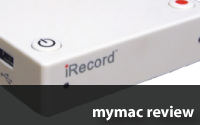
The iRecord is a small (2″ x 3″) analog video/audio hardware conversion device that connects to a wide range of recording media. iRecord doesn’t require a computer, since it can record directly to a video iPod, a USB stick or hard drive, and even a PSP.
The iRecord can record from a variety of devices: TV/VCR/DVD, Cable or Satellite box, PVR, DVR, LP/Cassette, Camcorder, Internet or Satellite radio.
It’s easy to hook up the iRecord. Simply plug the included RCA composite video cables, or the S-Video cable, into the unit you want to record from. Then plug the device you want to record to into the USB port on the side of the unit and you’re all set to go.
The iRecord only has two buttons. One button turns it on and one button starts or stops recording. The record button glows green when it’s ready to record, and once pressed, the button flashes red as it is recording. Not the best method for someone who is colorblind like I am. There are no other settings, which is good and bad at the same time. You can’t adjust anything. iRecord does its thing and either you are happy with the results or not.
I tried the iRecord with a DVD player, and a Satellite DVR. I recorded video to a USB stick drive and a portable USB hard drive. Note, the USB drives must be formatted in FAT32 (Windows format). I had no problem connecting these drives to a Mac.
Hooking up the iRecord to a DVD player yielded mixed results. I popped in a DVD of the “Rat Patrol” and successfully recorded a segment I was watching. When I played it back on my Mac, I thought the recording was a bit darker than what I was seeing on the DVD player, but that could just be the difference in the players.
Compression is impressive. The device encodes in hi-quality H.264 video with AAC audio at 320X240 resolution. I used a USB stick drive and an external hard drive for my testing.
The compression is really pretty good. What is “video compression?” From Wikipedia, “Most video compression is lossy i.e. it operates on the premise that much of the data present before compression is not necessary for achieving good perceptual quality. For example, DVDs use a video coding standard called MPEG-2 that can compress ~2 hours of video data by 15 to 30 times while still producing a picture quality that is generally considered high quality for standard-definition video.
Video compression, like data compression, is a tradeoff between disk space, video quality and the cost of hardware required to decompress the video in a reasonable time. However, if the video is over compressed in a lossy manner, visible (and sometimes distracting) artifacts can appear.” The documentation claims that the iRecord “automatically recognizes the type of mass storage device and optimizes the audio and video resolution for the target device.” Using a USB 4 GB stick, I recorded one hour of video from my Direct TV DVR, which consumed about 350MB of disk space.
Using the iRecord to record something from commercial, protected, DVDs yielded mixed results. Using the device to record from a “Get Smart” DVD was no problem. However, attempting to record a segment from an “Indiana Jones” movie came back with only a message stating that the DVD was protected and copying was prohibited. I found this to be most annoying. After that, it was hit or miss. Some DVDs I could record from, others I could not.
The iRecord also has the ability to record music. Using the RCA jacks, you can hook this device up to a stereo, and record from cassettes and LPs (remember those?) or any analog audio source. The iRecord formats these as MP3. Just like video recording, there is no way to edit what you are recording. You’ll have to own an audio editor to do that. The device will automatically split tracks.
The iRecord is quite versatile. It will record from just about any device that plays music or video. The video and audio quality are good and the device is small and lightweight. However, you can’t record from “protected” video sources you may own and the iRecord inserts an annoying watermark at the beginning of every video you record. These can be edited out in iMovie, but it is annoying nonetheless.
Pros: Easy to hook up. Will record from just about any device. Good compression with the H.264 codec for video and MP3 audio formats, both at pretty good quality. Will record to a variety of USB media, stick drives, hard drives, PSP, iPods or any mass storage device. Firmware is upgradeable. You can connect via S-video or composite for video.
Cons: Once you begin to record something there is no way to see what is going on other than a flashing light. Even when trying to record off of protected DVDs the light was flashing even though I was not recording anything. If you want to edit anything, you’ll have to do it on your Mac. Any USB drives you want to copy to must be formatted in Windows FAT32 format, but iRecord will copy directly to either Mac or PC formatted iPods. Annoying watermark at the beginning of every video. Will not allow me to copy from protected DVDs I own.
MyMac Rating: 3.5 out of 5
email – MyMac Magazine – Twitter – Advertise – Reviews Archive – Podcast
For users straddling the Windows PC and Mac worlds, the question of seamless data interchange between the systems can be a challenging one. Of course, with the capabilities of OS X, the rise of USB and the availability of flash drives and external disks it is probably easier than it has ever been to pass data, but nevertheless there are still considerations of disk formats, file formats and application versions to consider.
Even when moving between applications from the same software house, compatibility is not guaranteed. Adobe applications are normally OK – but then you would expect that from the company that brought us the universal PDF format. (Editors note: production houses would tend to disagree) Microsoft, however is another matter – there are a variety of applications that they only offer in the Windows version of Office that are unreadable on the Mac platform – such as Access databases, Visio diagrams or Project files. This is frustrating as Microsoft does make reader applications available for Windows users, but does not give Mac users the same courtesy.
Even among the applications with Mac equivalents, all is not sweetness and light. The most recent version of Office on Windows is Office 2007, which on launch at the end of 2006 introduced new file formats for the core Word, Excel and Powerpoint applications. Microsoft took some time to bring equivalent file compatibility to the Mac with Office 2008 for Macintosh, which was released in January of this year. While Office 2008 has file compatibility with all earlier versions of Office for Windows, it does NOT support Visual Basic for Applications, Microsoft’s Office macro language. This means that many files (particularly Excel spreadsheets generated in a business environment) might not work properly. Microsoft has subsequently announced that the NEXT version of Office for Mac will reinstate VBA support. In the meantime, Office 2008 has other foibles as well – it is buggy (even with the latest Service Pack 1), and runs poorly on non-Intel Macs.
Office 2004 for Mac was a more solid release, and copes well with Office files from Windows versions before 2007. Again, while Microsoft retrofitted the latest file compatibility support to older versions of Office for Windows when Office 2007 for Windows was release, we are still awaiting the equivalent file converter package for Office 2004 for Mac.
Mac developers have stepped into the file format breach where possible – the latest version of iWork will open Office 2007 files, for example. However, this scenario is an objective example of that oft-used phrase ‘your mileage may vary’! As the formats themselves are not completely open, and the capabilities of the program doing the conversion often vary from Office itself, results can be mixed – especially with more complex documents. Ultimately, only you can decide based on your need whether a separate program is ‘good enough’ for this sort of file working.
One effective route for transparently moving data between PCs and Macs is to use web applications and services. Apple themselves have embraced this with their MobileMe service, that will move data between Mac, PC and iPhone and also allow data editing using web apps for data stored on the server – or ‘in the cloud’, as all the cool kids call it. This actually does work really well. I use Evernote, which does the same thing as MobileMe for text notes, web clippings and images. They have clients for all platforms, and also allows data to be added and edited via a web service. The advantage is that you don’t have to worry about syncing between multiple machines – the same data is available everywhere, and is automatically synced from the web service when you fire up the local client. Where the service beats out online systems such as Google’s applications is the offline client aspect – you can work on your data when an Internet connection is not available, and synchronize back once you get in to connectivity again.
This to me is the way of the future, and there are signs that the industry appreciates this. Google themselves are working to extend their Web 2.0 magic to allow offline editing, and Adobe has launched their Air platform, which is another way of merging local clients and web services. Imagine a future where Microsoft Office is the same code base for either Mac or Windows, run off a web server but capable of running in a disconnected mode – but file sharing is enabled via a Microsoft web service. We would then be able to move away from the functionality wrinkles and data exchange uncertainty.
email – MyMac Magazine – Twitter – Advertise – Reviews Archive – Podcast
Take Control of Back to My Mac
Glenn Fleishman
TidBITS Electronic Publishing
http://www.takecontrolbooks.com
ebook US $10.00 online purchases only
100 pages

Take Control of Screen Sharing in Leopard
Glenn Fleishman
TidBITS Electronic Publishing
http://www.takecontrolbooks.com
ebook US $10.00 online purchases only
88 pages
Both ebooks purchased together $15.00
TidBITS author, blogger, columnist, and all-around networking pundit Glenn Fleishman is bound and determined to help Mac users better understand and use screen sharing and Back To My Mac.
Apple’s famous ease of use notwithstanding, many users may find setting up screen sharing, and especially Back To My Mac confusing. If their home or office network is not all Apple gear, setup can be tricky.
He’s so determined that he penned 188 pages (two ebooks) worth of help, explanation, and tips for those who are clueless, or merely stumped when screen sharing won’t share, or Back To My Mac just doesn’t get back.
For those of you who have not purchased a TidBITs ebook, you’re missing out on great help books. TidBITS publications have a refined format that gets you the information in a clearly presently, well-written manner. TidBITS titles are extremely affordable (I won’t say "cheap") and easy to download and read. Some (not these two new titles) are available in printed versions, although I prefer them in ebook format, as I want electronic reference when I working on a computer problem.
Why electronic reference?…Have you ever tried to copy and paste Terminal commands from a printed book?
Screen sharing is the ability to remotely connect to and control another computer. While Apple has only implemented screen sharing as a standard feature relatively recently, it’s been around for a long time, and the technology is straightforward. Netopia’s remote control application Timbuktu has been for sale for at least ten years. Apple’s implementation is plain vanilla by comparison, and unlike Back To My Mac, does not require a Dot Mac (soon to be MobileMe) membership.
In contrast, Back To My My Mac is a combo feature from Apple. It’s a twofer that allows screen sharing and file sharing with your remote Mac, without the usual hassles of screen sharing and file sharing. When properly configured on both routers and Macs, BTMM (Back To My Mac) dispenses with the usual login and authentication bother, instead leveraging your .Mac/MobileMe account to provide both login info and the Internet "location" of your other Macintosh. Even when you’re galaxies away from home, your remote Mac looks and acts just like it’s hooked up locally.
Naturally, Apple’s easy to set up screen sharing and Back To My Mac both have gotchas and pitfalls that Steve Jobs didn’t happen to mention in his last Keynote. This is where Fleishman comes in.
Take Control of Back to My Mac covers both the Screen Sharing and File Sharing aspects of BTTM. But Screen Sharing has enough details that Fleishman felt it was worth a separate ebook to provide the usual TidBITS level of comprehensiveness. So, Take Control of Back to My Mac covers the basics of Screen Sharing in the context of BTTM, but no more than the fundamentals. If you want the full scoop on Screen Sharing, get Take Control of Screen Sharing in Leopard. You’ll learn more about how Bonjour screen sharing differs from direct screen sharing, the pros and cons of third party screen sharing application, and much more.
The Take Control BTTM ebook, will take you step by step through BTTM setup and usage. But since BTTM has earned a reputation as being cantankerous to actually get working, the book has a substantial troubleshooting section. Back To My Mac, while seeming simple, is really a significant undertaking. Getting secure auto-logon, file sharing and screen sharing to work seamlessly is a huge task: avoiding the fundamental problem of finding the remote computer is not trivial. A technique known as port forwarding is the most common solution. Take Control Of BTTM has to try to explain the subtleties of port forwarding. Port forwarding, or how to direct a specific service to find a specific computer inside a router, is the bane of those of us who have to setup remote control software.
Fleishman takes a powerful swing at explaining port forwarding. While he doesn’t hit it out of the park, he does hit a stand-up triple. It’s too bad he has to spend as much space as he does explaining this complex (for most users) topic. For BTTM to work just right, with no finagling, you have to use Apple routers, and not be in most hotel or office environments. If you’re using non-Apple gear, TCO Back To My Mac will tell you how to setup several popular non-Apple routers, although it can’t help find you a friendlier office or hotel.
While screen sharing is much more reliable than full-blown Back To My Mac, it has quirks of its own. Port forwarding problems still lurk in wait. Various flavors of screen sharing applications each have their own strong and weak points. Apple’s application looks plain-Jane, but even it has hidden configuration options that will make it much more powerful. Fleishman covers each in turn.
If you have permanent Back To My Mac problems, Take Control Of Screen Sharing can get you over half the puzzle, as screen sharing is generally easier to configure, port forwarding notwithstanding. The other half can be solved with plain old file sharing, which Fleishman covers in his TidBITS ebook, Take Control of File Sharing in Leopard. Between the two, you’ve got all of the functionality, and 75% of the ease of use, of Back To My Mac.
I have a few quibbles with TCO Back To My Mac and TCO Screen Sharing. While I realize Fleishman wants to provide comprehensive help, and explain fundamental networking concepts, there are times when the acronym per page ratio is sky-high. Many readers may find the explanations of port forwarding, DHCP reservations, publicly routable addresses, and so forth too complex. Networking concepts are tough topics to write about in a few pages, but this much detail may prove daunting for some.
In his drive to be comprehensive, Fleishman covers virtually every choice, permutation, and combination of setup options for screen sharing and BTTM: local networks using IP, networking with Bonjour, screen sharing with three different applications, etc. On occasion, I had to wade through discussion of obscure options (Kerberos security, for example) I did not want, to get the information I desired. If you get overwhelmed, the numerous hyperlinks and Table of Contents are your friends.
All in all, these two books are fine additions to the Take Control library. Don’t be scared off by a smidgen more jargon than usual, you may actually learn something about networking.
MyMac.com rating 4 out of 5 for both titles.
email – MyMac Magazine – Twitter – Advertise – Reviews Archive – Podcast
Laplogic G800 Aerogel Extreme
Company: LapLogic.com
Price: $69.95
http://laplogic.com
My Macbook Pro gets hot. Too hot to sit in my lap with extended usage. One of the ways to combat this is to use smcFanControl to adjust the speed of the internal fans to help cool the laptop. But even then, I only trust setting the fans so high before I start worrying about damaging the computer. And that’s where the LapLogic G800 with Aerogel comes in.
Impressions and Observations
Very lightweight. As the G800 is, I would expect it to feel heavier.
Sturdy. The G800 feels very durable. Very well made with quality materials.
Not slippery! This may sound obvious, but many laptop stand makers tend to forget that these computers sitting on a plastic lap stand can become slippery. Many of them come with plastic or rubber feet that stick to the plastic stand to prevent just that, but those pieces tend to fall off after extended use. With the G88, the entire devise is wrapped in a no-slip covering that is both soft to the touch, and very sticky to the computer. Nice!

crappy looking PC not included
Cool in my lap! Really the most important reason I wanted to test out the G800. My Macbook Pro gets too hot on the bottom. Using the G800, that is not a problem. I cannot feel the heat at all.
On the bottom of the G800 there is a sleeve for CDs or DVDs. Just a little pocket. This could come in handy, although I have not used it.
All in all, I really like the G800, and I believe you will, too. Yes, it is a little expensive at $69.95, but I don’t find that price excessive for such a high quality product.
Also of note, I also tested the $79.95 W700, which is simply a wider version of the G800, but with a mouse pad. It, too, works extremely well, and the extra weight of the Scotch-Guard coated nylon mouse made is manageable for those who prefer to use a mouse with their laptop.
MyMac.com rating: 4 out of 5 for both.
email – MyMac Magazine – Twitter – Advertise – Reviews Archive – Podcast

Download the show here, or subscribe via iTunes
Night Ranger’s Kelly Keagy stops in for an interview this week, while the rest of the gang chats about the AppleTV, a Macintosh software store, and so much more. If you are either a software developer or simply someone who buys software, this weeks podcast is a must to listen to.
Other World Computing pick of the week:
MiniStack V3
We would love your feedback! Email us at MyMacPodcast@gmail.com or leave a voice message at 1-801-938-5559
Links from the show
Night Ranger

Mac Family Tree 5
Company: Synium Software GmbH
Price: $49.00
http://www.synium.de/products/macfamilytree
I’ve been involved in genealogy work for years. I cut my teeth on the LDS church’s Personal Ancestral File, back in the day when they still published a Mac-compatible version. Since then, I’ve used Reunion from Leister Productions, and a whole slew of Windows-based products, including Brother’s Keeper, The Master Genealogist, and Legacy Family Tree, among others. When I edited and published the 750 page Grinnell family genealogy back in 1997, I used a combination of genealogy database programs and book publishing utilities. It was an exhausting job–one that I am ready to start on again, only this time the book could hit 2,000 pages!
I say all this because MacFamilyTree is not capable of publishing genealogical data in book form, using one of two specific narrative formats most often used in genealogy publishing: New England Historic Genealogical Register or National Genealogical Society Register formats. But my particular needs in this area are a very narrow part of genealogical research–decidedly not in the mainstream. Most people doing genealogical research on their families are not professional or certified genealogists, but dedicated amateur researchers, trying to find out more about their ancestors so they can share that information with the rest of their family. Most of you probably have at least one person in your extended families that fulfills that role, and if they are doing their work on the Macintosh, MacFamilyTree could be just the product for them.
First, the wide range of graphical charts and reports just blow every other genealogy program out of the water. Many of these reports are not necessarily "standard" ones, but that’s OK, too. Some of these reports, which I will describe more fully later, can really bring their ancestors to life in a clear, concise, and understandable way. The developers of MacFamilyTree took full advantage of the Mac OSX graphical user interface, and more importantly, the graphics engine built into OSX, that make quick work out of complicated graphs and charts.
I guess the best place to start with a product like this is to talk about standards. In genealogy, the main standard, that make data inputting and data exchange a breeze, is called GEDCOM (GEnealogical Data COMmunication), and pronounced "jed-comm". Developed by the LDS church, this is a very robust standard, platform independent, and is the primary way in which genealogists exchange information. Virtually every genealogy software program supports GEDCOM for both input and output, and MacFamilyTree is no exception. What I appreciate about MacFamilyTree is how fast the import is. My huge database of Grinnells consists of over 38,000 individuals, and almost 14,000 families. Most genealogy programs take anywhere from a few minutes to a few hours to import and process this much information. Mac Family Tree took 45 seconds to import my GEDCOM file. Saving or exporting that same data, however, took about five minutes on a dual 2GHz processor G5 tower, running Tiger. For most of the examples here, I will be using the family of my great-great-great-grandparents, James A. and Mary (Wright) Grinnell, of Jamestown, Rhode Island.
Most work usually begins with the Family Assistant screen. From here, you can locate any individual in the List of Persons list. Once you have selected the person of interest, a quick Person Information menu is displayed above the List of Persons, and to the left, a graphical Person Chart, that displays the person of interest, two generations above, and one generation below, in an attractive graphical format.
Next is the Persons list. Scroll through the list to find the person you are seeking. You can also change how things are sorted by clicking on one of the column headers. Below that is Families (married couples). Columns are set up for the Man, Woman, and Children (sorted oldest to youngest). In any case, double-clicking on a name in either the Persons or Families lists will bring up the complete record on that individual or family, respectively. I apologize in advance for the small screens. You can go to the website and view many of the screendumps in a larger size.

Persons List

Families List

Individual Record
The Individual Record is the core of this product. As you can see in the screen capture above, Mac Family Tree packs a lot of information in a relatively small window. Not only do you use this window to put in the basic events of one’s life, but you can add a large number of events (see screen capture below). Events are things like birth, marriage, and death, but there can be a large number of additional events in one’s life.

Individual Record showing the list of event types
The individual record, once filled out, is a handy place to look at family structures. If you look at the Individual Record screen dump, you will see a graphical representation of a family, referred to as Quick Navigation. The individual whose record is active shows up with a highlighted blue star-like object. Click on any other name, and you are taken to that person’s individual record. Obviously, the width of the window cannot show an entire family, but you can click and drag inside the window to move the contents around for your examination.
Genealogists are extremely critical about how they prove their research. Preferably, primary source data should be used (vital records such as birth, marriage, death; military records; church baptism records; and more), and a record must be kept of these sources. The Sources list takes you to a window where you can enter primary source data, such as local birth records, burial records, marriage records, census information, etc., along with a pull-down menu that shows the degree of credibility of a piece of source material, from unreliable, to questionable (family bible?), and all the way up to first hand (town clerk or census records) information. You can later link source information to each person or family, though that process is somewhat counterintuitive. Photographs can be added to each individual record by dragging the file into the Media window, when in the Individual view only.
The Search item under the Edit section is interesting. The search window. window is set up as pre-built searches on primary events (adoption, birth, burial, death, family, marriage, etc.) . Just scroll to the event type and locate the name of the individual you are looking for. There is a search field in the lower right-hand corner of the MacFamilyTree search window, which can be used to trim down the list of people you are looking for.
Whew! That’s just the editing section. Next comes the views section.
The Virtual View is simply amazing. I’m not sure I can even describe it. In a nutshell, the Virtual View creates a fully linked 3-D cloud where you can zoom in and out, rotate left, rotate right, rotate up, and rotate down. Each person is represented as an avatar, blue for males, and brown for females. The key to using this view efficiently is to use the List of Persons table to select the person you wish to view. That person can easily be seen because they rotate left and right. Moving your mouse cursor over any avatar pops up a small window containing basic information (name, birth date, where born, death date, and where died). The ability to find unlinked people is always a pain. The Virtual View makes that task much easier to do. Each complete family floats in its own cloud. It’s easier to do it than to try to describe it. This is probably the single most significant piece of this software. Admittedly, I was testing a beta release, and found the Virtual View to be a tad unstable (it locked up my computer completely when I tried to resize the window).
The Ancestor Chart displays a pedigree view of the ancestors of the chosen subject. While this graphic is kind of small, there is a slider control to enlarge the display, though doing so will obscure part of the chart.

Ancestor Chart
The fan chart is another type of ancestor chart. What makes this so useful is the way the researcher can immediately see where you have holes in your research. The more complete each row on the fan chart, the more complete your research is. See the sample below.

Fan Chart
The descendant chart is impossibly small to see in a screen dump, so suffice it to say that MacFamilyTree generates a colorful descendant chart, defaulting to about six generations. You can use the slider to expand the chart to permit you to read a small portion of the data.
I got the Timeline to function only after I redid my data set to use a much smaller number of people. This is because the Timeline shows the lifespan of every individual in the entire data set. My computer locked up when I used the original data set consisting of almost 40,000 individuals and 12,000 families.
You can tie MacFamilyTree to Google Earth, so you can see the locations of people and events on a globe.
The Statistics view can be used to show several different types of data: Age Chart of Living Persons, Age of Death, Children per Family, and so on.
The Tutorial best describes the Genogram function: "The Genogram view uses pictograms to show family ties. This view serves to locate and analyze certain patterns and constellations relevant in medical studies, e.g. hereditary diseases, birth defects. In so doing, the Genogram expands the perspective of the family tree and is designed to detect and trace recurrent behavior patterns within a family of relevance for psychotherapy or family therapy."
There are a ton of reports that you can generate from MacFamilyTree, too. Things such as a List of Persons, Person Report (all the data about an individual), Kinship Report (how an individual is related to everyone else), Places (a list of all places like cities, towns, cemeteries, churches, etc). Events summarizes births, marriages, and deaths by decade. Distinctive persons identifies people whose information may be out of the norm, such as new parents in their late 40s, large numbers of children, and so on. Birthdays are summarized by date and the names of individuals born on that date.
Finally, you can publish your information as a series of static web pages, published to your own hard drive, to a MacFamilyTree.com site sponsored by Synium, or to your website on .Mac. You can also burn a CD with the static web pages. My only criticism here is the individual and family lists are single HTML pages, which could take a long time to load if the database has a large number of individuals and families.
I had a few challenges with this program, mostly related to my enormous Grinnell family database, and because I wanted to check out some of the newest features that are included in the beta version of the product (in particular, the really neat Virtual View). After experiencing a few problems, and finally realizing it was because many of these reports and screens are generated dynamically, I heavily reduced the size of my data set, which made things run much better. I can only say that if you have a large data set (over 10,000 individuals), I would strongly recommend that you load your computer with as much RAM as possible, and use the fastest Core 2 Duo processor you can get your hands on.
All of that said, MacFamilyTree is a really nice program for the casual researcher. I loved the charts and the overall ease of use and its intuitive nature.
At the same time, it is very resource-hungry, a tad unstable (perhaps due to evaluating a public beta release), it slows to a crawl when working with large data sets, and it lacks a number of reports many professional genealogists expect to see (though you could argue that this program is more suitable for the amateur, and if that’s the case, the user may not even miss the charts). It also lacks the ability to publish this information as a book–only as a website. Is that important to you? You will need to decide this for yourself. I might use this program in parallel with a more standard genealogy database, just so I can use and share MacFamilyTree’s neat charts.
To read the blog on the state of Mac genealogy software that I wrote last year, please check out this lin.k
email – MyMac Magazine – Twitter – Advertise – Reviews Archive – Podcast
Last time I did a download article I mentioned that good free downloads (for my use) had been few and far between. However, I’ve been downloading a bunch of new free apps and utilities lately. Here’s some of them (ALL FREE!).
This is Avery’s new Mac software package for printing to their labels, cards, etc. It is full of templates and much better than their old software for the Mac (which for some reason was only available on the Avery UK site). It even has Quicklook support.
I’ve been reviewing a lot of 2D animation software lately. In fact, I have two more reviews coming this month. For those that want to dabble in animation without paying any money Pencil is a great free animation program. It is still in beta, but worth checking out.
If you like using the special effects in iChat and Photo Booth this is a free collection of 48 more effects you can install.
Do you use smileys in you chats? Want more variety? The same company that makes the effects for iChat makes this program that install more iChat faces including aliens and more.
Open Office is not new. It is the free suite of utilities that is comparable to Microsoft Office. What is new is that version 3.0 has been released in beta form and it is OSX native. This means no need to run X11 (I still don’t fully understand what that is) in order to run Open Office.
and finally…
While I was writing this article on my iBook I was taking icon screen shots, which save to .png format by default. I knew I changed that to .jpg on my iMac, but I could not remember how or where. I did a search in Google and stumbled on this little program that lets you change the default screen shot format to .jpg, .tif, .pdf, and others.
email – MyMac Magazine – Twitter – Advertise – Reviews Archive – Podcast

Remembering Mac writer Rodney O. Lain
It was six years ago this week that the Mac world lost a prolific Macintosh advocate, and I lost a friend. Rodney Lain, popular writer for Mac sites AppleLinks, The Mac Observer, MacAddict, and our own MyMac.com, died on June 16th, 2002.
A controversial writer from the start, Rodney loved nothing more than to stir the hornets’ nest. He was very good at knowing which buttons to push in his readers to get them so hopping mad that they would leave the most vicious email in his in-box, or post after post on message boards and forums around the world. Very few writers could get away with using the dreaded and racist “N” word in an article to describe the state of the Mac faithful. But Rodney could, and did.
He took a lot of flak over the years, weathering it all as the professional he was. Rodney never got rich from his writing, nor did it lead to any more high-profile opportunities, he continued to write even at the height of his depression. A depression that ultimately led to his death, at his own hands.
Rodney was also a religious man, even after being excommunicated from his church years before. The reasons are not important now, but it did leave a lasting impression on him. Rather than simply fading from view, Rodney joined the Mac web writers in evangelizing the Mac platform as he once did preaching the word of Christ. And with equal fervor.
Very few sites or articles exist today about Rodney. Sure, there are a few out there, most posted or written days after his death. Even Wired Magazine had a brief write-up on Rodney after he died. I have written a few articles since, including my much-read initial article on his suicide, as well as the mostly overlooked MacDaddy tribute to him.
As one of the only Black writers on the Mac web, Rodney was a minority within a minority. He never hid his race behind the keys of his keyboard, instead reveling in his race and computing platform of choice.
When Rodney saw something he did not like, be it a perceived error by Apple Computer, Inc., or another article he disagreed with, Rodney wrote with a “pull no punches” style that was very popular with his many readers.
Today, six years later, is the anniversary of his death. I hope to at least see some other website acknowledge it, though I don’t expect to. Without looking back, we cannot move forward. Rodney brought a unique voice to the Mac web, one that has yet to be duplicated.
Thanks, Rodney, for everything. I hope you know, wherever you are, that you are not forgotten.
email – MyMac Magazine – Twitter – Advertise – Reviews Archive – Podcast


Comments. Be heard!