MediaCentral 2.1 – Review

On August 31, 2006, in Uncategorized, by Claus Wolf

MediaCentral 2.1
Company: Equinux
Price: €29.95 / $29.95
Web: http://www.equinux.com/us/products/mediacentral/index.html

System Requirement:
Apple Macintosh G4 1GHz or Intel Mac / Mac OS X 10.4 or higher / An active internet connection

Introduction
In March I did a review of MediaCentral 1.2, just as the new Intel MacMinis were released to the public with FrontRow part of the package. MediaCentral had a lot to offer though and scored a strong 4 out of 5.

Recently Equinux released version 2.0 and shortly thereafter version 2.1 – it is no longer a free download, but pay for software. It no longer is a tiny 1.8MB download, but a 33.4MB download. So it raises the question – what’s new?

What’s new?
The MediaCentral content and development team have spend a lot of time improving the availability and choice of internet content. Not only has the list of available programs and languages grown for IPTV stations, but you can hook up to the top rated clips from Google Video, Viralx.com or YouTube.

Not happy with the selection and desperate to add something? The guys at Equinux added a folder to your home directory. MyMedia Central. Simply download the stream files in .asf, .ram, or .mov and place it in the directory and you can go off and access your own favorite shows. Well done and simple enough even for me to handle and manage.

The Movies section has seen the addition of link through to iTunes, something that Donny Yankellow had posted about in the original review. Movie Trailers have been improved as well, while you wait for the trailer to load, a short bit of information about the movie is being displayed.

The DVD section, so the website has been improved as well, most notably with better playback control (keyboard shortcuts) and the new Stop and Go feature. Somehow that didn’t work for me – but the idea is simple, continue watching a DVD from where you left off, even after having switched off and rebooted your Mac.

The Music section was improved as well with eContent, as has the Pictures section, which now links through to Flickr and iPhoto and displays whatever you put in your My MediaCentral folder. Nice touches, only bit of improvement I’d like to see here, is the ability to chose what tags it searches for on Fllickr and possibly link to your "Flickr contacts" images.

All new and sparkling is the section TV, Games, Radio and Skype.

Games offers you some flash based arcade classics like Snake and Alien Invaders. Nice touch and even so many years after first having played those games, a round of Snake is good fun.

Radio offers you quick access to internet radio station, you chose from a genre, like Country or Jazz and a radio station will show up. There is again local support for German stations (and many others, if you activate them) and of course you can add the stream of your favorite local station. Really, really nicely done.

TV offers support for my Terratec Cinergy T2, you need to tune the stations from within the system preferences pane, but it allows you to resort and rename as you like. It only takes a minute or two to set it all up.

It works nicely, but the well advertised EPG is the more basic "Now and Next" information transmitted with digital terrestrial TV channels and not the more advanced full EPG that gives you a few days worth of schedule data.

What MediaCentral still doesn’t do is incorporate well enough with EyeTV, I cannot access my recordings quickly and I cannot schedule them either. That is a real pity, as I would use my TV’s build in tuner for watching TV most of the time, but the ability to schedule a recording and watch it later would be the real killer feature. Maybe next time.

Maybe MediaCentral will work with Elgato to incorporate their brand new full screen menus, which not only look really nice, but also offer full feature EPG (either DTT data, or from TVTV) with scheduling, access to your recordings and all. I believe that for me as a user this would make it the PERFECT media center.

The last update brought us Skype integration and we could probably argue a day and a half on whether this is useful. I will argue it is, as long as you have a Bluetooth headset. My assumption here is that the mac is near your TV and you are a good few feet away from your computer.

If a call comes through while you watch a DVD or do just about anything on MediaCentral the call will be announced and you can accept the call. Useful as you won’t miss a call again. If you want to initiate a call, you can do so, as long as the name is in your buddy list – but that is fair enough.

MediaCentral now also supports more remote controls, the one you might be interested in is the one that comes with your new Apple and that was meant for use with FrontRow. A bunch of others are supported and I am talking to Tech Support to see whether we can get mine to work (I am trying to use the one that came with my TV tuner). Unfortunately after an initial confirmation of the problem and a promise that they are working on it, I haven’t heard from them again. I am sure they are working hard on it all…

Conclusion
This is an awesome update, making a great product even better. I had hooked up MediaCentral to my TV and it is a pleasure to use (even though I had to make do with my keyboard). The new icons on the left indicating the menu choice are a bit small on my TV, but look fabulous on my computer monitor.

The integration of TV is a big plus, though this is where MediaCentral needs to improve most. Now that it is no longer a free download, but a full "packaged" product a little work needs to be invested and working with the most popular provider (i.e. Elgato) might be a great start and allow the MediaCentral team to focus their development on the further integration of eContent.

Lastly the addition of Skype adds a unique touch to the entire setup and while I sat there and wondered, why I would want that feature, I tested it and realized why: because it is convenient and it makes your MacMini in your living room a reality.

So has my MacMini moved yet? No, not yet – it stays on my desk for the time being.

MyMac.com Rating: 4.5 out of 5

Recognizing the great strides this product has made and leaving half a point for improvement, when the TV feature works better and better EyeTV integration is achieved.


MacAlly IP-A411 iPod charger – Review

On August 31, 2006, in Uncategorized, by David Weeks


MacAlly IP-A411 iPod charger
MacAlly Inc.

Price: US $19.95

http://macally.com/spec/ipod/ip-a411.html

When you buy an iPod, you get a wall charger, so you can charge ye olde iPod without hooking up to a computer.

Do you want another wall charger, so you can keep one in two locations?

Mother Apple will charge(r) you $29.99, and then you’ll still have to buy the requisite USB cable, as Apple does not supply a cable with the charger.

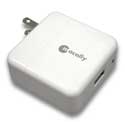
MacAlly will sell you their AC wall charger for a mere $19.95. It is virtually identical with the Apple wall charger, except it has a small LCD that glows when the iPod is charging. It is exactly the same size and color as Apple’s.

I’d wager that MacAlly uses the same manufacturer as Apple, and copied the external design and size. Even the electrical prongs look the same, and have the same swing-out hinge.

So save $10, and buy from MacAlly. The only drawback is that not only did MacAlly copy the charger design, they also followed Apple’s lead in not including the USB cable. You’ll have to buy the USB cable to connect the charger to your iPod, unless you want to charge an iPod Shuffle, which needs no cable.


Flaming Laptops – MyMac.com Help Desk #2

On August 29, 2006, in Uncategorized, by Tom Schmidt

Shortly after the PowerBook 5300 shipped in 1995 it was discovered that the installed Lithium Ion battery, then a new technology, carried with it a risk of severe overheating. Apple immediately recalled each and every one, a few of which had reached end users, and replaced the Lithium Ion battery with a Nickel Metal Hydride battery. No Apple computer since then has carried this risk, until now.

Some in the mainstream media have implied that Apple’s MacBook and MacBook Pro laptops may have the same risks as the recently recalled Dell laptops, since Apple also uses battery components from Sony. The MacBook & MacBook Pro don’t, but last week on Thursday Apple announced the Battery Exchange Program for iBook G4 and PowerBook G4. There are no reported cases of a 12″ iBook G4 or 12″ or 15″ PowerBook G4 catching fire, but if yours was purchased October 2003 or later follow the instructions on the recall web page to determine if your battery may have the problem and need to be exchanged. The 14″ iBook G4 and the 17″ PowerBook G4 are not affected, and not all 12″ iBook G4s and 12″ or 15″ PowerBook G4s are. I own a 15″ PowerBook G4 and the battery in mine is not part of the recall.

The battery recall does not mean there are any other issues with these laptops. Their failure rate is nowhere near that of the PowerBook 5300. The only computers Apple has made since the PowerBook 5300 (and the problematic Performas of similar vintage) that have had a much higher than normal failure rate are the white G3 iBook models, released between the clamshell G3 iBooks and the G4 iBooks, that were manufactured between late April 2001 and late October 2003. These iBooks have had numerous logic board failures, specifically with the graphics chip on the logic board.

Are there some that have never had this failure occur? I’m sure there are. My perspective is skewed, of course, because as an Apple repair technician I don’t see the ones that work. Our feature letter this month is about these iBooks. If you have one, and it is more than 3 years old, in my opinion it would be a good idea to be prepared to replace it just in case. Especially important is making sure your data is backed up. In the most extreme cases of this failure it is not possible to put the iBook into target disk mode to copy the data, requiring disassembly to access the hard disk.


iBook G3 Trouble

Hi Tom,
I just finished reading your first column at MyMac.com and have a question for you. I have a 14″ G3 iBook that is out of warranty. During warranty it had many issues including having it’s logic board replaced twice. But now it is having the same problems that it had when the logic boards went out in the past – not booting, screen is gray with crazy lines on it, etc. I’m guessing that it might be the logic board again and Apple told me awhile back that it was going to be over $700 to repair. That is just not worth it.

I have an iBook G4 that I use now so I am wondering what to do with this broken iBook. Will it really cost that much to fix and is it worth the cost? Or is there a way to part out the iBook like taking out the hard drive, AirPort card, and other things? Right now it’s just sitting collecting dust. Please help.
Thanks,
Regina in Southern California

Regina,
It sounds like it’s the logic board again. That’s a known issue with the white G3 iBooks, which is why Apple created the iBook Logic Board Repair Extension Program. This problem does not affect the original clamshell iBooks or the G4 iBooks.

The cause is the failure of the graphics chip on the logic board, requiring it to be replaced. Unfortunately the repair isn’t always a permanent fix. I have seen many white G3 iBooks that have had this issue two or more times. I believe that the graphics chip isn’t getting the cooling it needs in the G3 iBooks.

You had AppleCare on your iBook that expired in November of 2005. The 3 year AppleCare coverage happens to coincide with the 3 year period Apple put on the logic board extension. on the logic board extension. The PowerBook 5300 repair extension went for 7 years, and I think 3 years is not long enough for the iBook repair extension. Unfortunately this means that it is a non-warranty. As for the $700 cost, that is much higher than I would quote. No matter how you would arrange the repair it shouldn’t exceed $500. In any case, the G3 iBook logic boards are only done as mail in repair due to supply constraints. The logic board can not be ordered from Apple.

Considering the failure rate on the G3 white iBooks, I don’t think I would do it outside the 3 years. This would be the 3rd logic board replacement for you. From what I can tell (I’m not an expert in used computer value), your iBook is worth about $300 in working condition. The repair will probably cost more than it is worth, and even if it didn’t I’m not sure I would do it as the likelihood of the failure returning is higher than average.

As for parting it out, it would be worth it only if you are experienced in taking iBooks apart. Be sure to use an anti-static wrist strap to avoid damaging the parts. If you would need to pay someone it’s too much trouble.

You could get a very good price for the AirPort card on eBay. That just slides out. The RAM might be worth the effort if it is at least a 512 MB DIMM. RAM sits under the AirPort card and a shield. You can use the AC adapter as a spare with your iBook G4. If your G4 iBook is also a 14″ then you have a spare battery, too.


The Generation Gap


Hey guys,
A friend of a friend of mine has a Power Mac 8200 that she needs to get the data off to put on a new MacBook. I was wondering if you could point me in the right direction for a good method for transferring her data. Perhaps some way to attach an external hard drive or put her drive in an external case? Thanks for your help.
Chris in Australia

Chris,
The only port those machines have in common is the Ethernet port, and that is probably the easiest way to transfer the data. Any Ethernet cable will work, as the MacBook’s built-in Ethernet will auto-sense the connection and configure it appropriately. It will have the greatest chance of working if the 8200 has Mac OS 8.6 or higher.

Have both both computers running and connect the Ethernet cable between them. On the 8200, make sure AppleTalk is on and set to Ethernet in the AppleTalk control panel. In the TCP/IP control panel, set it to Connect via Ethernet, Configure Manually, and give it an IP address of 10.0.1.51 with a subnet mask of 255.255.255.0. In the File Sharing control panel, turn on file sharing with the “Enable File Sharing clients to connect over TCP/IP” option enabled.

On the MacBook, set up the TCP/IP tab of the Ethernet section of the Network system preference to Configure IPv4 Manually with an IP address of 10.0.1.52 with a subnet mask of 255.255.255.0. In the AppleTalk tab, make sure AppleTalk is on. If you do not wish to alter your existing network settings, you can create and switch to a new Location and delete it when the transfer is complete.

Once the setup is complete, select Connect to Server… from the Go menu in the Finder on the MacBook and connect to server address afp://10.0.1.51. Log into the 8200 using the owner name and password that are entered into the File Sharing control panel on the 8200. You should then see the icon for the 8200 on the desktop.

If for some reason that doesn’t work, your best option would be to find a SCSI Zip drive for the 8200 and a USB Zip drive for the MacBook or a similar solution.

Send your questions to tom@mymac.com. I will personally reply to each message when received and select letters will be included in the MyMac.com Help Desk column.


MacAlly iLaser Mouse – Review

On August 29, 2006, in Uncategorized, by David Weeks


MacAlly iLaser mouse
Company: MacAlly, Inc.

Price: $29.99
http://macally.com

Computer mice are becoming as plentiful as rats in the New York subway. There’s a mouse for almost every type of user. MacAlly has just made the choice harder to make with their new iLaser mouse. I spent a while with MacAlly’s new iLaser mouse, and came away with mixed feelings about it.

Everyone knows that mice likes and dislikes are extremely personal; what fits my hand perfectly may cause RSI (repetitive strain injury) with yours. Personal feelings about weight, click resistance, and the overall feel make it hard to believe any mouse review.

Having said that, let’s take a look at the iLaser.
The little rodent uses a laser for its optical tracking mechanism. This means it can track well over almost eny surface, even glass. Not having a glass desk handy, I didn’t evaluate this, but the mouse did track nicely on several different mousepads, and the unadorned surface of my desk.

It’s light, quite a bit lighter than my reigning mouse-of-choice, the Kensington Optical Elite. I found it too light for my taste, as even the smallest unintended hand movements would move it.


The shaping and contouring was pleasant, but people with large hands may find it virtually disappears beneath their fingers, as iLaser is somewhat small.

MacAlly provides custom mouse software on a CD. Installation was quick and painless, requiring a reboot after installation. MacAlly’s software pales in comparison with Kensington’s MouseWorks. You can’t adjust the tracking acceleration curves with for the iLaser, for example. Nor can you do chording with the iLaser. You can assign various sorts of clicks to the buttons, but nothing exotic.

My main complaints stem from the lack of programmable side buttons. Instead of side buttons, the iLaser has the two traditional left and right click buttons, as well as a scroll wheel, and Forward and Back buttons. Unfortunately, the Forward and Back buttons, which are automatically recognized by Safari (a great touch) are located -on the top- of the mouse. They’re far enough back on the upper surface that I had a difficult time getting my index finger far enough back to click the button. My wife tried to click the Back button, and could not reach it without taking her whole hand off the mouse, as she has long fingers.

After numerous attempts, I gave up trying to use the top-mounted Forward and Back buttons, as I could not easily reach the Back (the rearmost) button.

In contrast, the scroll wheel was perfectly located, and had a wonderful feel to it.

While small-handed users may love the iLaser mouse, especially if they don’t need high-powered mouse configuration software, I won’t give up my wonderful Kensington Optical Elite for the iLaser. The iLaser isn’t bad, but it’s not great, at least not for me.


MyMac.com rating 3 out of 5


Macspiration 49 – Four Great Utilities

On August 29, 2006, in Uncategorized, by Donny Yankellow


This installment of the Download Drawer has four great utilities for the Mac user. They are all free, just like we like them.

1. Flip4Mac, by Telestream

http://www.flip4mac.com

Have you ever visited a website with a movie file you can’t play because it is in Windows Media Format? Or has someone emailed you a file with the .wmv extension? Quicktime won’t play these files. At least, it won’t play these files without Flip4Mac. Flip4Mac is a free download which will allow Quicktime to play these files. It will play them through a Quicktime window, or through your web browser. To make this even better, they just released a universal binary version!

2. Onyx, by Titanium Software
http://www.titanium.free.fr

There are many free maintenance programs out there for the Mac. These programs can fix permissions, run maintenance scripts, and more. My program of choice is Onyx. It is easy to use and has more than the basic permission fixes and maintenance scripts. Too much to explain here in a little paragraph, but you want to make sure you download the right version for your operating system. This is also available as a universal binary.

3. Avery Mac Label Expert, by Avery
http://www.avery.co.uk/uk1/downloads/maclabelexpert.jsp

This may not seem like a must have, but if you have ever tried printing Avery Labels on your computer you need this recently released program by Avery. The program has tons of templates for Avery labels. There are large labels, small labels, round labels, and more. You enter the label number, the template comes on the screen, layout your labels, and print. You might argue that your word processor has this feature. Mine does too. I even have templates for Illustrator. However, nothing has worked as good as this program in having the printed results actually line up with the labels.

This is not a universal binary, but it works fine on Intel machines.

4. PocketMod (not sure of the author)
http://www.pocketmod.com

For those like myself who don’t have a Palm or other digital personal organizer this is for you! PocketMod is a customizable personal organizer. You can use it online, or download a free version. Basically, you fill out the template with the type of pages you want in your PocketMod. There are a bunch of page options to choose from. You can have a calendar, a list, an address book, a storyboard page, even Soduku. Once the template is done, you print, cut and fold. Presto- your own personal organizer on a piece of paper.

Next week- Macspiration 50!


Now I’ve got my new MacBook and I’m chomping at the bit to get some Photoshop onto it. I decided, after a bit of reflection, that I need professional Photoshop CS2 like I need a Bentley. The way Photoshop is going the best deals for the average Joe, like me, is to get one of the Elements programs, such as Elements 4. There’s enough features on that application to keep me slobbering over images for years.

So I got in the car and drove down to the nearest shopping center a mere 6 miles from home. I went to Circuit City first only because I did not wish to go to Best Buy (see my reason a couple of paragraphs below here).

I’m not a big fan of Circuit City. The people that work there are so brainwashed by the management they don’t even have the good sense to pay attention to whom they are speaking. Case and point: We bought a DVD player at Sam’s Club. We needed a cable to hook up the sound.

My wife stops at Circuit City for the cable. She explains to the associate that we need a cord to hook up to our amplifier. We have surround sound but we’re not into anything real fancy.

The guy tries to sell her a $25 digital cable. She, thankfully, said she’d talk to me before she bought it. He wasn’t listening. He never even gave her an alternative. THAT was the only cord for us. BULL!!!. So I looked at the connections and went to another store to buy a patch cord that cost $4.95. Thank you Rip-off City.

But I went there to avoid Best Buy. I went to Circuit City’s software department and could not find any Adobe anything there. I asked an associate. He looked around the same aisle and said, "We’re kind of winding down our software business. We really don’t have much anymore." I suspect they won’t have any software at all in the very near future.

So to Best Buy I went. Story: A few years ago I bought a Microtek scanner and a Lexmark printer there. I was happy with the deal, especially since I got 2 free printer cartridges, one color, one black and white. This was even greater savings. What an offer. Problem: The free cartridges they gave me were for a different printer. I could not use them. By the time I needed them it was a couple of months down the line. I tried to install but they wouldn’t go. Wrong ones.

I went back to Best Buy with the wrong cartridges to get them replaced with the right ones. I consider this the salesman’s fault although I may not be totally blameless. Unfortunately, sometimes, I am clueless, as in throwing away or losing receipts. You guessed it. No receipt.

Into the store I go and talked with an associate. No receipt? No Cartridges! But, I said, these boxes have your mark all over them. I don’t want money. I want the right cartridges. To management we go. Manager says he can’t make the exchange because it will screw up his inventory. I said I couldn’t give a half of a fig about his inventory. They screwed up. I just want the right cartridges. Back to the no receipt, not cartridges bit. I was pissed. I told him I’d never shop in Best Buy again for anything, and to stick his inventory where his brain is.

I broke my vow. Here I was, standing in the forbidden Worst Buy store with my hopes hanging out. I really wanted to get that Adobe Elements 4 on my MacBook. I asked an associate about Mac software. He said they don’t carry Mac software. I thanked him and left.

I’m beginning to see why so many people refuse to venture outside of PC. Mac stuff is just not conveniently available unless you know exactly where to go and you are patient.

I went home, got on the computer, and after a bit of searching I wound up at Amazon.com.

Folks, I’d love to shop in my home town. I’d love to be able to form some kind of relationship with people with whom I shop. They get to know me. I get to know them. There’s an actual bond, for better or worse, that becomes apparent. This may be another subject for another column so I’ll just say that those days of relationships with the butcher, the baker, and the software maker are all but gone. Welcome to the "you can’t speak to a real person" days.

But I have to admit that it was simple as dirt ordering my Elements program online. I got the best price I could find, and with the extra $20 rebate I will wind up paying only $59, with no tax or shipping costs. What a deal.

Am I happy with the outcome? Sure. Who wouldn’t be. But there’s something missing here. And I’m not sure that for the few bucks more it would have cost me it wouldn’t be worth having a name and a face and a handshake. A relationship, just so when I do have a problem I can deal with someone who knows that I’m not there to rip them off, or to screw up their inventory.


MyMac Mini Podcast 6

On August 28, 2006, in Uncategorized, by MyMac PodCast


Download the show at this link
MyMacMini Podcast 6 features David Cohen, John Nemo, Tim Robertson, and Guy Serle.

This podcast is sponsored by SmallDog.com, RamJet.com, and Inno-Tech.com.

Get the show from these links:
iTunes Link
Podcast-only RSS Feed

Check the links below for sites mentioned during this podcast
Same Game Widget
Scenario Poker Widget
Ask Dave Widget
Chuck Norris Facts Widget
DeathWatch Widget
Jared
iBook/PowerBook Battery Recall
Apple support document on Resouce Forks
BlueHarvest
Fitness Over Fifty


Kibbles and Bytes 490

On August 27, 2006, in Uncategorized, by SmallDog


It is too early for it to be fall, but I was riding my motorcycle up to Burlington over the Appalachian Gap (Route 17) and I actually spotted a couple of maple saplings in full red already. With the cool evenings and shorter days it isn’t long before the woods will be ablaze with color.

Okay, even though I am counting carbs, I couldn’t resist having two corn-eating orgies. It used to be that Artie and I would have a contest to see who could eat the most ears of corn in a season, but these days it is a rare treat for me. I’m sure Art is still putting away a couple bushels each year, though.

I am not allowed to talk too much about our "Operation Burlap" but I can tell you this: Hannah is hard at work on the project and we will have an announcement on September 15. Until then the official word is WOOF!

We have quite a bit of dog art by Steven Huneck in our office <http:// www.dogmt.com>. Steven is a local artist who specializes in dog images. He has a dog chapel up on dog mountain. Hannah and I are headed up there next week to talk to him about his art. We’ll bring the digital recorder with us to record a bit for the Small Dog Electronics Dog Food for Thought podcast. We’ll bring the pups along, too!  We want to offer Steven’s work in our Waitsfield store and perhaps online, too.

+———————————————————+

Battery Woes, Part 1: Apple Recalls 1.8 Million Notebook Batteries! By Ed @Smalldog.com

Apple is recalling 1.8 million lithium-ion notebook batteries after nine devices overheated, causing minor burns in two users. The affected batteries could overheat, posing a fire hazard to consumers.

Apparently this is the second-biggest computer battery recall in U.S. history, after Dell’s recall of 4.1 million lithium-ion batteries. Both companies use batteries made by Sony Corp.

These are batteries used in G4 iBooks and G4 PowerBooks. You can read all the information here:

https://support.apple.com/macbookpro15/batteryexchange/

The recalled batteries include those with model numbers A1061, A1078, and A1079 and serial numbers that begin with HQ441 through HQ507 and 3X446 through 3X510. To view the model and serial numbers labeled on the bottom of the battery, you must remove the battery from the computer. The battery serial number is printed in black or dark grey lettering beneath a barcode.

The recall is for batteries manufactured from October 2004 through May 2005.

Small Dog Electronics is committed to keeping our customers up to date with critical electronics recalls. We’ve put up a new page with recall information here:

http://www.smalldog.com/recall.html

This is a brand-new page and will be updated shortly.

+———————————————————+

Battery Woes, Part 2: Battery Melting/Burning/Exploding Issues By Ed & Don @Smalldog.com

Apple is recalling 1.8 million laptop batteries, and Dell is recalling over four million laptop batteries. Most of these faulty batteries simply short-circuit and won’t keep a charge; however, in some cases, the battery will actually catch on fire. This is a serious problem. To read more and to see which machines are affected, visit Dell’s recall page:

https://www.dellbatteryprogram.com/

And, as posted above, Apple’s recall page:

https://support.apple.com/macbookpro15/batteryexchange/

Traditional lithium-ion batteries fail easily, and are recalled frequently, because of limitations in both materials and manufacturing. Read below for information about various types of laptop batteries.

 From Don @Smalldog.com:

In related news, Apple has joined with Dell and Lenovo and HP to form a group to hold a summit to set manufacturing and quality standards for lithium-ion batteries. A little bit like closing the gate after the horse got out, but I guess it got everyone’s notice when Dell had to recall 4.1 million batteries!

+———————————————————+

About Lithium-Ion Batteries By Ed @Smalldog.com

The original G3 PowerBook, introduced in January 1997, was the first Apple laptop to use a lithium-ion battery; previous machines used nickel-based batteries, or, in the case of the original Macintosh Portable, a sealed lead acid battery (no wonder it weighed 15 pounds!).

According Howstuffworks.com, the classic lithium-ion battery is made of pressurized containers housing a coil of metal and a flammable lithium-containing liquid. The cells of a lithium-ion battery also contain separators that keep the anodes and cathodes, or positive and negative poles, from touching each other.

When a lithium-ion battery is manufactured, tiny pieces of metal can get trapped in the lithium liquid. Careful manufacturing reduces the size and number of these fragments, but can’t eliminate them altogether.

If the battery becomes hot through use or recharging, the metal fragments will become agitated and in extreme cases will puncture a separator in the battery and cause a short circuit. After that, the battery might stop working, or it could melt, catch on fire, or get right to the point and explode. This is more likely for small, lightweight batteries that are used to power very electricity- demanding machines. Fortunately, even for Dell, the melting/burning/ exploding battery scenario is extremely rare.

All Intel-based Apple laptops ship with lithium-polymer batteries. Lithium-polymer is slightly different from lithium-ion technology, as it uses a solid to hold the lithium electrolyte, instead of a liquid solvent. Lithium-polymer batteries can be lighter, have more possibilities for flexible shaping, deliver more current, and are less hazardous than traditional lithium-ion batteries.

For the record, Apple now refers to "lithium-based" batteries in its support and knowledge-base pages, rather than lithium-ion batteries.

Confusingly, the MacBook and MacBook Pro are stamped with the words "Li-Ion," but use the lithium-polymer version of the technology.

+———————————————————+

The Love and Care of Lithium-based Batteries By Ed @Smalldog.com

Conditioning and maintaining laptop batteries has been a contentious issue. Apple offers a few tips on the subject. These tips are straight from Apple’s website, and can be read here:

http://www.apple.com/batteries/notebooks.html

• Be sure to fully charge your portable when you plug it in for the first time, and then run Software Update to ensure you have the latest software. Apple periodically releases updates that may improve battery performance.

• For proper maintenance of a lithium-based battery, it’s important to keep the electrons in it moving occasionally. Apple does not recommend leaving your portable plugged in all the time. An ideal use would be a commuter who uses her MacBook Pro on the train, then plugs it in at the office to charge. This keeps the battery juices flowing. If on the other hand, you use a desktop computer at work and save a notebook for infrequent travel, Apple recommends charging and discharging its battery at least once per month. Need a reminder? Add an event to your desktop’s iCal.

• You can calibrate your iBook, PowerBook, MacBook, or MacBook Pro computer’s lithium battery for best performance. Apple says, "The battery has an internal microprocessor that provides an estimate of the amount of energy in the battery as it charges and discharges. The battery needs to be recalibrated from time to time to keep the onscreen battery time and percent display accurate. With all iBooks and PowerBook G4 computers except the aluminum PowerBook G4 (15-inch Double-Layer SD), you should perform this procedure when you first use your computer and then every few months thereafter." You can read how to do this here:

http://docs.info.apple.com/article.html?artnum=86284

• Notebook Temperate Zone. Your Apple notebook works best from 50° to 95°F. You should store them in places with temperatures of -13° to 113°. That’s 10° to 35°C and -25° to 45°, for the metrically inclined. Keeping your Mac as near room temperature as possible (22° C) is ideal.

• If you don’t plan on using your notebook for more than six months, Apple recommends that you remove and store the battery with a 50% charge. If you store a battery when it’s fully discharged, it could fall into a deep discharge state, which renders it incapable of holding any charge. Conversely, if you store it fully charged for an extended period of time, the battery may experience some loss of battery capacity, meaning it will have a shorter life. Be sure to store the ejected battery at the proper temperature.

• You can choose to use your Apple notebook in a way that maximizes its battery life:

The Energy Saver control panel offers several settings that determine power levels for your PowerBook. Your portable knows when it’s plugged in and runs accordingly. When on battery power, it will dim the screen and use other components sparingly. If you change this setting to maximize performance, your battery will drain more quickly.

Dim the screen to the lowest comfortable level to achieve maximum battery life. For instance, when watching a DVD on an airplane, you may not need full brightness if all the lights are off.

AirPort consumes power, even if you are not using its features to connect to a network. You can turn it off in its control panel to save power.

Likewise, you can turn off Bluetooth to maximize your battery life, as it also consumes power when not in use.

Disconnect peripherals and quit applications not in use. Eject CDs and DVDs if not currently accessing them.

+———————————————————+

Apple Settles with Creative Technologies By Don @Smalldog.com

Apple and Creative Technologies have settled the patent dispute between the companies that was the subject of five lawsuits. They shook hands, some money passed hands, and they kissed and made up. Basically, Apple paid about $100 million (chump change for the guys with the $10 billion bankroll) to Creative to license their recently awarded patent for music searching on portable devices. Apple had countersued with claims of its own, but there was enough pressure and evidence that Apple decided that the cost of settling now was much less than a prolonged legal battle with a risk of an even higher judgement.

In addition to the license to Apple, Creative Technologies will now be a part of the "Made for iPod" program and is planning on releasing a series of iPod compatible products. I think this is good news for Apple as it solidifies its hold on the MP3 market and will allow it to continue to dominate that market while also having Creative as a new part of the iPod peripherals market.

Now if only we could do something like this for the Middle East conflict…

+———————————————————+

Mighty Mouse Unplugged By Don @Smalldog.com

Apple introduced the Mighty Mouse Bluetooth wireless version some time ago, but we got our first stock just this week. I had always been a trackball user before the corded version of the Mighty Mouse came out, but I quickly converted to the Mighty Mouse because it had all the features of a trackball and all the features of a mouse in a much more compact pointing device. That wire just cluttered my desktop (as if my desk is not cluttered enough — I can barely see the bird’s eye maple!) and I was anxious to get one of the Bluetooth versions. I almost had to go to a sumo match with Hapy to get him to allow me one from inventory (Hapy controls the pursestrings around here with a very heavy hand!). Nevertheless, I was able to convince him without getting humiliated in the ring.

I got more grief from Artie, who controls our inventory, He demanded my invoice before he tossed me a Mighty Mouse from the warehouse floor. Having cut through the red tape at Small Dog, I was now able to actually test the Mighty Mouse. I went back to my desk, but Berkey was using my machine to burn some DVDs for a customer so I had to wait again. I felt a little like Rodney Dangerfield. I finally tossed him out of my chair and put the batteries into the Mighty Mouse (it comes with two AA lithium batteries). I opened the little door on the bottom of the mouse and thought I’d be good to go. But, nope, it turns out that my desktop machine gets swapped out so often that this one (a quad 2.5) did not have Bluetooth, so I ran down to the store and got a D-Link USB Bluetooth adapter <http://www.smalldog.com/ product/41418>. I knew I was likely to have a Mac Pro soon, so it didn’t make any sense to use the Apple Bluetooth upgrade. At $35, the D-Link is a great option to add Bluetooth to a Power Mac, although there are some Bluetooth devices that may not work with this solution.

I installed the software that came with the Mighty Mouse wireless (you will need to install this software), restarted my Mac, and used the Bluetooth setup assistant to set up my new Mighty Mouse. It took only seconds for it to be discovered and ready to use. I unplugged the old mouse and got back to work without the wire! Going to the keyboard/mouse system preference panel, I noticed some new options for my new mouse. In addition to being able to activate vertical and/ or horizontal scrolling, I was now able to activate 360° scrolling, which means that I can scroll diagonally, too. There is also a new zooming feature that allows you to use a modifier with the scroll ball to zoom in on documents. I set this for the Command key, so when I hold that key down and use the scroll ball it will zoom in and out on the document. That’s a handy feature, especially if you are working with images. There are options for zooming that include activating "smoothing" and how the screen image will move when you are zoomed in.

I was a bit worried about battery life. However, after a few days of work the battery meter in the Bluetooth pane of the Keyboard/Mouse system preference still showed a full battery. That is the same pane where you can rename your Mighty Mouse.

One interesting feature of the Bluetooth Mighty Mouse is that you can run the mouse on either one or two batteries. While it comes with lithium AA batteries, you can also use alkaline AA batteries. Apple warns against mixing battery types or mixing an old battery with a new battery.

I haven’t had any need to clean this new Mighty Mouse yet, but my old wired Mighty Mouse was getting a bit sluggish in scrolling and would only scroll down and not up. With a trackball or regular mouse, I would pop the ball out and clean the lint and dirt off the sensors. With the Mighty Mouse, the ball is not removable, but if you turn the Mighty Mouse upside down and roll the ball vigorously on a damp cloth or paper towel it will clean the ball and the sensors. I did this to my wired Mighty Mouse and it immediately got over the sluggish scrolling.

One other difference between the wired and the Bluetooth Mighty Mouse is that the wireless Mighty Mouse features a laser tracking engine that Apple claims is up to 20 times more sensitive to surface details than the traditional optical technology that is used in the wired version. That means it can track with precision on more surfaces than ever — even smooth or polished surfaces — with no mouse pad required. It works fine on my polished maple desktop and on my purple Small Dog mouse pad.

http://www.smalldog.com/product/40989

+———————————————————+

Specials!

Here are the specials for this week, valid through September 1 or while on-hand supplies last. Be sure to use the wag URL to get this special pricing.

+—————-+

$50 Rebate – Miglia TVMini HD

To order: http://www.smalldog.com/wag16859/mymac

+—————-+

Office 2004 for Mac Student and Teacher Edition – $138 AND get $50 back w/ mail-in rebate!

http://www.smalldog.com/wag16883/

+—————-+

LaCie 300gb Extreme Triple Interface FireWire 800/400/USB – $169, limited time only!

To order: http://www.smalldog.com/wag16858/mymac

+—————-+

MacAlly BTMouse – Bluetooth Full Size Optical Mouse – $38!

To order: http://www.smalldog.com/wag16888/mymac

+—————-+

Small Dog Groove Cube portable speakers – $14!

To order: http://www.smalldog.com/wag16851/mymac

+—————-+ Mophie Relo Run 5G Black – $19!

To order: http://www.smalldog.com/wag16889/mymac

+—————-+

3-Year AppleCare Warranty Plan for MacBook – only $189 until September 8!

To order: http://www.smalldog.com/wag16832/mymac

+—————-+

MacBook 1.83, Canon iP1700 Printer, Belkin Surge Protector, Cable for printer, Ogio Case – $1189!

To order: http://www.smalldog.com/wag16817/mymac

+—————-+  PowerMac G5 DC/2.3GHz 2.5 GB RAM/250/Superdrive/GeF6600, Apple 20in LCD – $3099!

To order:http://www.smalldog.com/wag16836/mymac

+—————-+

Back-to-School Add-On Bundle – Office, 512 MB Flash Key, Lock, More – $174 PLUS $50 Rebate!

To order: http://www.smalldog.com/wag16831/mymac

+———————————————————+

They are tearing up Route 100 in front of our facilities here in Waitsfield, so I have been taking the back roads to work. This has a few advantages. It slows me down because they are all dirt roads, but it also gives me a whole new set of scenery, wildlife, and friends to wave at as I motor down the road. It doesn’t seem to be having an impact on the traffic at our store, because I just got a page to come down to help as the store is jammed at 10:00 AM on a Thursday!

Thanks for reading this issue of Kibbles & Bytes and have a great weekend.

Your Kibbles & Bytes team,

Don, Ed, and Holly


MyMac Podcast 96 – Vern Seward

On August 24, 2006, in Uncategorized, by MyMac PodCast


Download the show here

Tim and Chad spend most of the podcast talking with Vern Seward, writer at The MacObserver. Vern is a long-time Mac writer, and goes way back with computers. From Mix Tapes to Atari to a colored iPod Nano, we hit a lot of topics.

Leave audio feedback by calling 801-938-5559

This podcast is sponsored by SmallDog.com, RamJet.com, and Inno-Tech.com.

Get the show from these links:
iTunes Link
Podcast-only RSS Feed


Although there had been a version of the PowerBook 3400 with a G3 processor, the real G3 show began with a totally redesigned PowerBook featuring a slim, black exterior and a larger screen. Apple referred to them all as G3 PowerBooks, but Mac users have instead used their code names, Wall Street, Lombard, and Pismo respectively, for the three generations of G3 PowerBook.

These PowerBooks are important from a historical perspective, because they were transitional between the original PowerBook morphology and functionality and those of the G4 PowerBooks and even the current MacBook Pro. For example, the first generation of G3 PowerBook sported the same ADB, SCSI, and Serial ports as the original PowerBook 170, but the final model in the series lacked these, and instead came with the now-standard USB and FireWire interfaces instead. In addition to these standard Mac ports, these PowerBooks came with the 32-bit CardBus slot instead of the old 16-bit PC Card one, allowing the use of high-performance external devices such as USB and FireWire adapter cards and wireless networking cards. CD drives became a standard feature instead of an optional extra, and for the first time DVD players became available, making these the first PowerBooks that could be used to watch the latest Hollywood movies on the go. Finally, being based around the G3 chip, these PowerBooks were the first to support OS X.

While their specifications were solid, and reliability and performance good, these PowerBooks really distinguished themselves by their design and styling. For the first time since the original PowerBooks were released in 1991, Apple’s portable computers were setting trends instead of keeping up with them. The G3 PowerBooks were extraordinarily thin by the standards of the time, a mere 4.3 cm versus 6.1 cm for the PowerBook 3400. They had two battery bays, giving them an endurance of up to 10 hours, though one of these battery bays was more frequently used as an expansion bay for a floppy disk drive, CD player, or some other device.

Apple consolidated their leadership in laptop design and innovation into a stranglehold with the “Titanium” G4 series of PowerBooks. In terms of performance, these machines were really only incrementally better than the G3 PowerBooks, with things like connectivity and networking being essentially the same. Indeed, in one respect the G4s were less well appointed than the G3s: they did not have an expansion bay. While all the G4 PowerBooks had a CD or DVD device of some sort, floppy disk drives and other storage options could only be added using external, third party devices.

No, where the Titanium PowerBooks scored wasn’t on the inside but on the outside, with their styling. Bucking the trend for Apple computers at that time to have curvy, organic shapes the Titanium G4 series were angular and finished with a shiny metallic paint that gave them a futuristic, techno-industrial feel. In keeping with Steve Jobs’ mantra that Apple computers should be as much home appliances as computers, the G4s were built around an extra-wide 15” screen ideally suited to showing widescreen DVD movies. Successive iterations within the series upped the performance, and a major “reboot” took place in 2003 with the arrival of 12” and 17” models alongside the standard 15” one. The new series featured a more durable aluminum casing, which fixed the complaints that while the Titanium G4s were finely designed, the paint quickly chipped off them, diminishing that aesthetic value. The Aluminum G4s were tweaked on the insides, too, with improved performance and upgraded connectivity, including things such as USB 2.0 and AirPort Extreme.

The iBook — PowerBook Lite

There had always been consumer-level PowerBooks. The PowerBook 100 and PowerBook 150, for example, were machines built to a price rather than a standard. Using slower (but cheaper) processors than the other PowerBooks available at the time, they are often criticized by Apple aficionados, there can be no question that they opened up mobile Mac computer to entirely new groups of people. Following on from the differentiation between the Power Mac and iMac models in the desktop range, Jobs introduced the “iMac to go” portable, the iBook, in 1999. What really set this machine apart wasn’t that it was a cheaper, lower-end version of the main PowerBook line, but that these machines were designed with the home user in mind.

The original iBook sported a curvy, clamshell enclosure recalling the styling of the fruit-flavoured iMacs but also being durable and easy to carry. Opinion was fiercely divided over the merits of the external design. Some thought them whimsical and appealing, others hideously ugly. Either way, these computers sold well. The iBooks were completely redesigned in 2001, the result being a smaller, lighter machine essentially a translucent white version of a regular PowerBook. Speed bumps over the years kept them fresh, most notably with the use of the G4 chip from 2003 onwards, and the iBook remained a fixture of the Apple line-up until being replaced by the MacBook in May 2006.

Endgame

Though these improvements to the PowerBooks looked good on paper, in reality they were largely offset by the slow rate of improvement with the G4 itself. The fastest processor used in the PowerBooks was the 1.67 GHz G4, which was substantially slower than the G5 processors used in contemporary PowerMacs and iMacs. Moreover, the energy demands of the G5 processor and especially the heat it produced meant that it was totally unsuitable to use inside a PowerBook. Desktop Macs were fully able to take advantage of the speed of the G5 though, and even the consumer-level ones like the iMac were more than twice as fast as the supposedly high-end PowerBook.

When Apple announced its switch to the Intel processor, the PowerBooks seemed to many to be the computers most in need of the upgrade. With the release of the 15” MacBook Pro in January 2006, the PowerBook gradually wound down, with the 12” and 17” MacBook Pros replacing their G4 predecessors less than four months later. While the MacBook Pro is a very different beast as far as its processor goes, in many ways it is essentially the same as the G4 PowerBook, sporting the same basic layout, connectivity, and network connections. Its lineage obviously goes back to the PowerBook 170, with the trackpad and mouse button in just the same place as the trackball was in its distant ancestor. The family resemblance is clear for all to see, and the unfussy exterior and discrete arrangement of ports and slots immediately sets the MacBook Pro apart from contemporary Windows laptops, which are invariably much more cluttered, with flashing lights and randomly arranged ports scattered all over the place. Plus c’est change, plus c’est la meme chose.

Be sure to read part 1 and part 2 if you have not done so already


E500PTH Sound Isolating Earphones – Review

On August 23, 2006, in Uncategorized, by John Nemerovski


E500PTH Sound Isolating Earphones with Push-To-Hear Control
Company: Shure

Price: $500
http://www.shure.com

First time I listened to songs on my iPod using Shure’s super-premium in-ear earphones, I thought it was the most immediate, exciting audio playback experience of my longish life as a musician and music lover. And the most uncomfortable. I had no interest in becoming accustomed to idiotic compressed foam tips inserted into my precious ear canals. With some enthusiasm (meaning not much), I told Shure’s product manager I could hardly wait for a personal evaluation leading to a favorable review in MyMac.com. That was January, 2005, in an exceptionally noisy Moscone Center exhibition area of San Francisco’s Macworld Expo a year and a half ago, accompanied by colleague Owen Rubin.

One year later, same people and location, updated products, same reaction to the foam tips. Shure introduced E500PTH at Macworld 2006, with better audio drivers plus a clever in-line on/off microphone, so earphone listeners can communicate with the real world without having to remove aforementioned tips from ears. Owen and I were impressed. Artie Alinikoff visited the Shure booth later that day, writing his own report.

Now, eight months later, E500PTH is in full production, with samples **finally** available for the media. I’m listening to these earphones day and night, and they are good. How good? I’ll tell you, but first please take ten minutes to read both previous recent reviews of competing products from XtremeMac, Ultimate Ears, and Etymotic Research, linked from here and here.

* * * * *

Is Shure the Microsoft of earphone manufacturers, with regard to earpieces? Included with E500PTH is a set of grey "soft flex sleeves" that strongly resemble those from XtremeMac, clear "flex sleeves" just like the ones from Ultimate Ears, and a "triple flange sleeve" that is almost identical to tips by Etymotic Research, plus the generic foam cover that Artie prefers (bless his ever-lovin’ heart). If the result is comprehensive comfort for every possible user preference, who’s to criticize? My first choice for comfort and audio isolation remains clear silicone blobs by Ultimate Ears and Shure. A close second choice is soft grey lightweight rubber cones by XtremeMac and Shure.

With fit and comfort being so important to me and other in-ear earphonuts, my initial goal was to fall asleep wearing E500PTH. What better program to lull me into dreamsville than Chad and Tim’s latest MyMac.com Podcast (sorry, comrades)? Both styles of softy tips did the trick, and I was snoring along with the current Macintosh news and podcaster views (or so my spouse informs me). Perfect score on audio isolation, comfort, and fit. E500PTH is meant to loop behind your ears, which takes about six minutes to figure out and 30 seconds to feel natural.

Audio evaluation is somewhat tricky, and always subjective. In the past I used convenient sidekicks for supplemental comparisons, but this time Nemo is doing a solo act. I listened. And listened. Then listened some more. Jazz, classical, rock, folk, younameit. Large range of Equalizer settings. Day after day. Night after night. Then I did back and forth comparisons with the highly-rated Etymotic ER-4P buds, that impressed me in our previous review. The results are (gasp):

Shure’s E500PTH has a thick, rich midrange that is satisfying for most listening situations and types of music. I can hear (but not always feel) the frequency response extend into bass and treble registers. The overall experience is of a hearty main course musical meal, without a memorable appetizer or dessert course.

Etymotic’s ER-4P, costing $200 less but without the PTH (see below) microphone, has a more evenly-distributed audio presentation that is somewhat less meaty in the middle, especially when switching over from the Shure phones. Serious listeners will disagree as to the merits of each approach to audio engineering, but my personal preference (and I’m talking about the top of the market of finely-designed and crafted earphones) is a slight advantage for Etymotic over Shure. ER-4P is more like a satisfying main course seafood salad entreé, followed by a desert of seasonal fresh fruit. See my "It depends" comments below.

Here’s how MyMac.com rates E500PTH’s earphones on our 20-point scale:

COMFORT and FIT (6 points possible) = 6, based on variety of insertion tips included, and on oversized driver shells that conform beautifully to the ear.

AUDIO QUALITY and SOUND ISOLATION (6 points possible) = 5, with high marks for isolation, but a slight reduction based on audio balance weighted toward the midsection of the listening spectrum.

ACCESSORIES, CASE, and MANUAL (4 points possible) = 3, thanks to outstanding selection of cables and connectors for every possible person and situation, and a decent five-language manual, but a case that is somewhat impractical.

CONSTRUCTION and DESIGN (4 points possible) = 4, with plenty of attention to detail in every aspect.

TOTAL = 18 for 4.5 out of 5 (high recommendation) by MyMac.com.

* * * * *

Now let’s address the mysterious PTH part of the equation. In Shure’s own words:

Push-To-Hear (PTH) Control — Switch between music immersion and your connection to the outside world.

A first for sound isolating earphones, the detachable Push-To-Hear Control allows you to activate the VoicePort Microphone and adjust levels of external sound for clarity — ideal for brief conversations without removing your earphones. The integrated switch allows you to conveniently alternate between your music and external sound.

That’s it, and it works as advertised. A couple of gripes:

• Adjustable volume control on the PTH module is so small and recessed that it’s almost impossible to use unless your fingers are tiny and ultra-nimble.

• PTH module’s in-and-out cabling and shirt clip are a little clumsy to position without more trial and error than should be necessary.

• Both microphone on/off switch and battery compartment cover are awkward to use.

Otherwise, it’s handy dandy, and very inventive. Once you get used to it, you’ll wonder how you ever lived without it. Can it be purchased separately, for people who already own or will buy different earphones from any manufacturer?

MyMac.com rates this PTH gizmo as a 3.5 out of 5, bringing the grand total for Shure’s $500 E500PTH Sound Isolating Earphones with Push-To-Hear Control to a solid 4 out of 5.

* * * * *

"IT DEPENDS, NEMO"
Returning to personal preference of premium ‘phones and your subjective sense of their audio attributes, once I finished writing the above, four visitors tested, without knowing my prior remarks, both Etymotic Research’s ER-4P and Shure’s E500PTH earphones. Comments included, in no special order:

"Shure is good, comfy and lightweight, resonant, and full tone. Etymotic is more tinny."

"I didn’t like either one. Etymotic has no oomph, and Shure has no depth of sound."

"I really hate all earphones. Shure is physically less irritating, and I can’t tell any difference in sound between them and Etymotic."

"Shure feels more like they’ll stay inside my ears, and they sound clearer. Etymotic are lighter in weight, which I like, but I’m not wowed by their sound."

Leaving us with a huge caveat. Once you are considering the differences between comparable high-end earphones, you’ll need to apply an "IT DEPENDS" to, among many factors: the song you’re hearing, the quality and bit rate of its recording and compression, the iTunes or other equalizer or tone controls you are using, the insertion tips of that particular set of phones, and your individual preferences as a listener. Whew! That’s confusing. But realize that when you purchase Shure’s E500PTH you are obtaining top quality earphones with a useful microphone attachment that you’ll use frequently, and with satisfaction, for years. Just keep them away from kids, animals, and anything in your kitchen.

* * * * *

Hold everything! As I was getting ready to submit the above for publication, a close friend, Rob, who is a professional audio engineer, stopped by for lunch and then did a lengthy comparison between E500PTH and ER-4P. He tells MyMac.com:

SHURE
"Very comfortable, with fine sound isolation. Midrange and upper register are smooth and natural. Every song is as good with these earphones as the original recordings can possibly sound. I listened to a variety of your classical compositions, and I can hear the subtle aspects of every one that reflect how each was recorded, from inferior to outstanding. And I especially enjoy that Haydn Trumpet Concerto on your iPod, Nemo. But the Shure ‘phones are really lacking in the low range, which is a disappointment."

ETYMOTIC RESEARCH
"These are a bit brighter, John. The high end sounds good, more responsive than the Shures. There is more low range also, but not much. Etymotic’s are not as comfortable, but otherwise they are very good. For example, cymbals are clean, bright, and clear, as they need to be, instead of being smoothly incorporated into the overall response, as the Shures have. I give a slight edge to these from Etymotic. Very interesting test, for a pro like me."


iPlayMusic Beginning Guitar Lessons DVD – Review

On August 22, 2006, in Uncategorized, by John Nemerovski


iPlayMusic Beginning Guitar Lessons DVD
Company: iPlayMusic

Price: $49.99 US
http://www.iplaymusic.com

Learning to play a musical instrument is difficult enough with the help of a paid instructor’s weekly lessons. How is a person, young or old, supposed to acquire basic guitar skills via QuickTime video computer lessons and on-screen chord charts?

iPlayMusic’s Beginning Guitar Lessons (iPM/BGL) is the best instructional method we’ve seen at MyMac.com for learning instrumental basics. eMedia Music, the established competitor, will need to work on its chops in order to regain top spot on the tutorial charts.

Installation of the 7.36GB iPM/BGL lessons files took half an hour on my G4 iBook 1.33 GHz with 768MB of memory. Three folders reside within a new iPlayMusic folder inside Library -> Application Support; one each for Garage Band, iPod, and Videos. Yes, you can enhance and amend the included lesson songs within Garage Band, and you can export tutorials and tracks to your video iPod. Neato! This is a Mac application all the way, with plenty of research and planning done before a line of a code was written or a video was shot.

iPM/BGL’s main instructional window utilizes a one-up+three-down split panel, and the upper section often breaks into four parts, having three dynamic and one static view of the teacher’s finger position:

The company provides full demonstration of what’s what in their comprehensive intro. On this same web page is an explanation of the software, with links to free !! lessons for an extensive test drive of how iPM/BGL plays in real time. Bravo!

Core lessons take place in 79 consecutive “Get Started -> Step-by-step Guide” short movies. Each one can be adjusted “Slow-Normal-Fast,” as you wish, but my humble iBook struggled with these timing alterations. Audio and video quality are first-rate, as is the straightforward method used by iPM/BGL’s instructor. Additional “Practice Drills, Rhythm, and Riffs_Techniques” are in the “Lessons” section. Chord Charts, GarageBand Tips, and a selection of old faithful songs (some being too old and faithful for many younger learners) complete the package. This is a lot of valuable material relative to iPM/BGL’s pricing and quality.

Stewart Putney, CEO of iPlayMusic, tells Mymac.com:

"We do offer downloadable song lessons and we update the song library, John, so we will have newer songs available over the next few months. Our software is on sale in Apple Stores (retail and online) now.

“We do have a kids / family guitar product called “Play Music Together”. You may already have it, but if not, there is a demo page on our site, at: http://www.iplaymusic.com/kids-demo.html. It uses the same software platform, but with kid / family content.”

Where iPM/BGL excels is in three-variation examples of the aforementioned tunes: one each for “Full Song,” “Guitar Only,” and “Jam Track.” Here you can play along with two versions of the guitar accompaniment by the video instructor and/or an excellent singer, all using a follow-the-bouncing-ball continuous stream of chords and lyrics. This is difficult to describe, but exciting to experience. Then you can send any track to Garage Band, for your own creative additions, and finally export the whole works to your video iPod. Double bravo.

(I didn’t try the Garage Band or iPod transfers. I’ll look into them during subsequent reviews of this company’s products. I don’t have adequate hardware available while completing this first-look evaluation. MyMac.com welcomes your comments on both features in our Article Discussion area below, that has free registration for all readers.)

Let’s get honest. You must practice! I’ve been playing and teaching basic and intermediate guitar for (groan) over 40 years, and there is still no substitute for daily 20+ minute practice sessions. There are no guarantees with any musical method, but if you apply yourself continuously to this or any competing video instruction, you’ll soon progress from newbie to dedicated beginner.

Their try-before-you-buy freebies will give you more than a taste of what’s ahead, and the modest price is less than two home lessons by Nemo or another decent pro instructor. A friend or family member with any guitar experience whatsoever can give you some personal hands on advice, and this video software will excel in any group or individual situation.

MyMac.com applauds iPlayMusic, and congratulates them on achieving our highest 5 out of 5 rating for Beginning Guitar Lessons. Let’s hammer on, and bend some harmonics with a swing feel. Then we can rock!


Macally External Li-ion Battery for iPod – Review

On August 22, 2006, in Uncategorized, by Donny Yankellow


Macally External Li-ion Battery for iPod
Company: Macally

$49.99
www.macally.com

Do you go on long trips and never have enough battery life for your iPod? If so, the Macally External Li-ion Battery for iPod is for you.

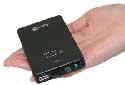
The Macally External Li-ion Battery is an external battery source for the iPod nano, iPod 5G, iPod Photo, iPod with color display, iPod 4G, iPod 3G, iPod Mini, and iPod shuffle. It is a black box about the size of the current 60GB iPod, but it weighs a lot less.

The battery has a standard USB port for connecting your iPod via the USB iPod cable. If you have an iPod Shuffle, the iPod connects directly to the battery through this port. There is also a port for an AC/DC 5v adapter (not included) for charging the battery, a mini USB port for charging the battery with the included USB cable, and an on/off switch.

The top of the unit has three battery level indicator lights which are activated with the “Check” button. The battery also comes with a nice storage case which has individual pockets for the battery and cable.

As I just mentioned, the battery is charged by plugging it into a USB port on your computer. A USB port on a hub works also. I would imagine that it would also charge fine through a USB charging block you might use for charging your iPod. As I mentioned above, the battery has a port for an AC/DC adapter, but the adapter is not included.

Once charged the battery status light blinks letting you know it is ready to go. It takes several hours to charge the battery.

The battery then connects to the dock of the iPod with the same USB cable you would connect your iPod to the computer with (iPod Shuffles plug right in). An extra cable is not included, so you’ll have to take the one you have off your computer, or purchase an extra one.

While connected to the iPod, the battery acts as a power source. It will charge your iPod whether in use or not in use. You just have to make sure the battery is turned on. This is a nice feature of the battery. The on/off switch prevents the battery from draining when not in use.

Now onto the important stuff. How does it work? The battery is AMAZING! It performed much better than I expected, and much better then the specs on the packaging (3x more battery life).

When I started using the battery I decided to really put it to the test with the video feature of my 30GB iPod. I normally get 90 minutes to 2 hours of battery life watching video. I figured if I could get 6 hours of video with Macally’s battery that would be great. I didn’t get six hours of battery life, I got FOURTEEN hours! Yes, I said FOURTEEN hours! That is twelve hours while connected to the external battery, and an additional two from the fully charged iPod after disconnecting the battery. Translate that into a proportional amount of time of only listening to audio on the iPod, and I could be listening to my iPod for close to ONE HUNDRED HOURS without having to charge at a computer or wall outlet.

Of course, the amount of hours will vary depending on the iPod you are using. My old Mini only got four to six hours of battery life, so the amount of extended time with this battery would be a lot less. However, I imagine it would still work great.

As great as the battery is, I do have a couple of minor complaints. It would be nice to have some kind of method to attach the battery to the iPod. A velcro strap would be an inexpensive solution. Since the battery is about iPod size, having the iPod, the battery, and the cable connecting the two can be a little cumbersome and clumsy, especially on an airplane, for example. On that same note, how about a six inch cable for connecting the iPod and battery together?

I’d also like to see an AC/DC adapter included with the battery. Even if it added five dollars to the price, it would be worth it. Not everyone has a computer with them for charging the battery when they go on a long trip. You might say that you could use a wall charger for charging the battery. This is true. However, you first need a wall charger. Second that wall charger has to be USB. I have a wall charger, but it uses a firewire cable from my old iPod, and the battery does not have firewire support. I don’t want to go out and by another one. Including an AC/DC adapter would eliminate the need to even bring an iPod charger with you, because you could charge it from the battery. The External Battery has such a long battery life, that you may not even need to charge it during a trip, but it would be nice to have that option.

Even with these minor complaints, the External Li-ion Battery for iPod is a fantastic product. It might seem pricey at $49.99, especially with cheaper external battery options out there. However, most of these options require standard batteries for power. Eventually, the cost of those batteries will add up and could pay for this battery.

If you are a constant traveler and take your iPod with you, especially one with video, I highly recommend this product.

MyMac.com rating: 4.5 out of 5

Pros:
Hours and hours of extended battery life for your iPod
Light weight
Comes with storage pouch
No need to constantly purchase batteries to use

Cons:
No means to attach to iPod
No AC/DC adapter included
It would be nice to see a mini USB-Dock cable included


This week you get the benefit of saving time from my wasting it. Recently, my grandparents switched from dial-up to DSL. My DSL service was a piece of cake to set up, so I figured theirs shouldn’t be a problem. Was I wrong.

Filters, Filters, Filters

Besides the modem, the most important items you’ll need when you install DSL are filters. The filters block out the noise on the line that DSL signals cause. EVERY outlet in your house that is connected to a phone device (cordless phone, fax, dial-up modem, etc.) must be connected to a filter. The only hardware that should not have a filter running to it is the modem.

When ordering DSL make sure you ask how many filters you are getting with the setup kit. Some providers will give you two, others will give you five. If you aren’t getting enough, order more. Providers differ here, too. Some will give you as many filters as you need, while others charge a fee.

Also, make sure to tell the provider if you have any wall mounted phones. There are special filters for these.

I knew all of this ahead of time, so we made sure we ordered enough filters. Of course, only the two that came with the install kit showed up. As you’ll read in a minute, this did not matter anyway.

One line or Two?

What I didn’t know about DSL filters is that if you have two phone lines in your house you need two-line filters. Did the operator tell us this when we ordered the service? No. Did the operator know my grandparents had two lines? Yes. The service came from their phone company, and I specifically told the person what line they wanted the service on!

This particular provider does not offer two-line filters, so it was off to the local electronics store. Two-line filters were $18 a piece! I decided to visit some more local stores. I soon discovered that two-line filters are not easy to find. No one carried them except for my first stop at the electronics store.

What to do? Ebay to the rescue! I hopped on Ebay and found 5 two-line filters for $8 and $7 shipping. Sold! The service was going to take two weeks to activate anyway, so we had plenty of time for the filters to arrive.

Surprise! No Phone Service!

So we had the service ordered, we had the filters, and we had the modem. We only had to wait for the service to activate.
The day before the service activated I get a call from my grandmother telling me that the second line in the house went dead. I went over to see if it had anything to do with the filters I installed. Everything looked fine, so we called the phone company. After about a half hour on hold, we learned that the phone company was activating the phone line and service could be out until morning. Luckily, they had a second line which was working. What if they only had one line? Did the operator who took the order tell us they would lose service during set up? Of course not. (By the way, I have phone service and DSL through a different phone company.)

Here’s the kicker. The operator told us we could speak to another operator and try to expedite the service so the line would not be dead for such a long period. Okay, great. The new operator tells me that we could request to expedite the service, but that would delay everything for another five days because they already started. We should have made this request when we ordered the service. Did anyone tell us this then? You can guess the answer.

Finally…Activation…Maybe…

So, I went back to my grandparents the next day to set everything up. The service was supposed to be activated and it would be easy. Once again, I was wrong. The service was activated, but nothing worked. No internet browsing and no email. I spent another hour or more on the phone trying to get everything to work. We eventually cancelled the service.

I have no idea why it never worked. My guess is that the house was too old and something weird was going on with the wiring. However, I have a friend who tried setting up DSL on a Mac with the same company. He now uses his Windows machine for the internet because they couldn’t get it working on his old iMac either. As for my grandparents? They are now surfing and emailing via cable internet.

So what should you learn from this? When ordering DSL ask the following questions:
1. How many filters do you get? Order more if needed.
2. If you have two lines, ask about two-line filters.
3. Will your phone service be interrupted while DSL is being set up?
4. Are their any known issues with Mac computers? (I’m assuming most readers of this article will have a Mac).

Well, hopefully someone will learn something from all the time that was wasted trying to set the DSL service up. The following week I set my uncle’s DSL service up with my phone company. I figured that would be a piece of cake. Once again, another mess- but that is another story.


InDesign Production Cookbook,
by Alistar Dabbs and Ken McMahon

ISBN 0-596-10048-5
Orielly Press
192 pages
US $29.95 CAN $41.95 UK £21.99
www.oreilly.com


InDesign For Macintosh and Windows: Visual Quickstart Guide,
by Sandee Cohen

Peachpit Press
ISBN 0-321-32201-0
582 pages
US $24.99 CAN $34.99 UK £17.99
http://peachpitpress.com


InDesign CS/CS2 Killer Tips,
by Scott Kelby and Terry White

New Riders Press
ISBN 0-321-33064-1
261 pages
US $29.99 CAN $41.99 UK £21.99
http://newriders.com


Creating a Newsletter in InDesign: Visual QuickProject
by Katrin Starub and Torsten Buck
Peachpit Press
ISBN 0-321-27892-5
128 pages
US $12.99 CAN $18.99 UK £9.99
http://peachpit.com


Adobe InDesign CS2: How-To’s
by John Cruise and Kelly Kordes Anton

Adobe Press
272 pages
US $24.99 CAN $33.99 UK £17.99
ISBN 0-321-32190-1
http://adobepress.com


Exploring InDesign CS2,
By Terry Ryberg

Thomson/Delmar Learning
360 pages
US $29.99 CAN $41.99 UK £21.99
ISBN 1-4180-1432-X
http://thomson.com/learning


InDesign CS/CS2: Classroom In a Book,
by Adobe

Adobe Press
ISBN 0-321-32185-5
454 pages
US $49.99 CAN $69.99 UK £35.99
http://adobepress.com


InDesign Type: Professional Typography with Adobe InDesign CS2,
by Nigel French

Peachpit Press
ISBN 0-321-38544-6
270 pages
US $39.99 CAN $33.99 UK £28.99
http://peachpit.com

I recently completed semester long introductory course to Adobe InDesign, and I can tell you the experience was nothing short of exhilarating. Adobe’s InDesign CS2, like other Adobe Creative Suite applications, is the leading application in the design industry. Having worked in lesser graphic applications like Apple’s Pages, I simply wasn’t prepared for the breath and scope of InDesign. I still keep shaking my head at the possibilities, and I’ve only learned about a third of the program.

Working through course assignments was very useful in learning the program, but having access and an opportunity to review the plethora of books about this powerful application allows me to see just much I still need to learn if I’m going to master this trojan horse.

InDesign won’t create design ideas for you, but it certainly provides the tools for making your ideas realizable.

I must confess that I of course have not read all these books cover to cover, but I have made use of them throughout the Spring semester and part of this Summer. In this review I will divide the books into three broad categories: reference/manual, tutorial-based, on-the-job approaches. I will discuss how each book might fit particular reading styles of different readers and users. For some of my classmates, reading a technical book is like reading instructors for operating their video or DVD player and recorder. They simply couldn’t get through the instructions, but rather chose to learn by osmosis and what they learned from our instructor and lab tutors. For me, on the other hand, good technical books and the keen eye and experience of my instructor was/is about all I need to learn the mechanics of a program.

One or two of these books under review can help anyone who has a strong desire or need to learn InDesign for real world application. Each of these books covers just about all the major features of the application, but their approach and delivery of information will appeal to different readers.

Reference Books
While all these books are essentially reference oriented for when you need to access and carry out a certain techniques, InDesign For Macintosh and Windows: Visual Quickstart Guide, the InDesign Production Cookbook, and InDesign CS/CS2: Classroom In a Book are like manuals that could have come with the application. Each of these provide comprehensive coverage of every panel, menu item, palette, tool, and feature of this creative machine. There must be like three hundred different menu items in InDesign and sometimes you just need a good reference guide to remind you where things are.

My instructor chose InDesign For Macintosh and Windows: Visual Quickstart Guide as the textbook for her course. She basically assigned less tenth of the books pages for reading, since this was introductory course. But Cohen’s book reads like a good manual with lots of illustrations and step-by-step instructions. It’s weighty a tome that will help you work through whatever you need to know about program. It’s not necessarily a fun read, but it’s very accessible with lots of side bar tips and design theory shared in grey boxes. However, it might intimidate readers who shy away from large manuals. My copy of the book has many dog-eared pages and yellow post-it stickies throughout. I’ve grabbed it for when I wanted to refresh my memory about how to use text wrap, master pages or use the direct path tool. It will be a book that remains on computer bookshelf.

Alistar Dabbs and Ken McMahon’s InDesign Production Cookbook is also very comprehensive, but it packs pretty much the same information as Cohen’s Visual Quickstart Guide but in less number of pages. Its coffee table style layout will appeal to designers looking for colorful illustrations (on every page!) and step by step instructions. Unlike Cohen’s book, this book has an accompanying website of image files used in the book. When learning an application for the first time, you might need precise instructions that don’t depend on you having the material to learn with and Indesign Production Cookbook does that.

Tutorial Books
Tutorial style books are my favorite for learning a program. Though the tutorial books take time away from perhaps your real world projects, I find that tutorials expose you to a program by actually taking through the type of projects you might carry out in the real world.

First off, I’m half way through Terry Ryberg’s Exploring InDesign CS2, which is a full blown textbook. This book is a part of the Thomson publisher Design Exploration series that focuses on the fundamentals and application of design theory. Rydberg has created lessons that teach all the major aspects of the program. Each lesson builds on the previous one, and if you follow the instructions precisely you won’t get lost. She leaves nothing to chance. She assumes her readers are students who are new to InDesign and are beginning their study of design. Each lesson ends with a list of questions that help you monitor what you just learned. These questions are followed up with somewhat independent assignments in which you apply what you just learned from the exercises of that chapter. What’s most useful about this book is that you repeat many of the most important techniques in different projects, which means that you really get emerged in a technique and just do it one time and move on.

Furthermore, the writing is not dry or overly technical. It’s very nice mix of instruction, design theory, and real world application. The CD that comes with the book contains all the resources you need to complete the exercises. Though the tutorials can take time to get through, the skills are re-enforced with each exercise. My approach to working through this book is to read, highlight, and jot notes for an entire chapter before I open the application and begin working. By reading the chapters first, I find that I can get through the exercises easier than if I tried to follow the instructions while sitting at my computer. The book is well illustrated and easy to follow. I would easily choose it InDesign college level course.

Adobe’s InDesign CS/CS2: Classroom In a Book and Katrin Starub and Torsten Buck’s Creating a Newsletter in InDesign: Visual QuickProject are also tutorial based and well illustrated. I’ve worked through a similar Visual QuickProject book for Apple’s Pages and when I completed the tutorial, I came away with nearly all I needed to know about how to use the program. While Buck’s book is not, of course, a comprehensive manual, it will be very useful to readers who have the task of laying out a newsletter for their job or organization. Though newsletter design could be done easier in template-based applications like Pages or The Print Shop, InDesign offers many advance and time saving tools for those who will output a newsletter on a regular basis. The mock newsletter you create from the tutorial will expose you to the skills of setting up a document, working with frames, creating styles, adding lines, colors, images and styles, and preparing and packaging the document for printing. This book is well illustrated with nice big and bold headings. Resource files are ready for download from the book’s accompanying website. I would also put this book in the on-the-job category, but think I think it’s more useful as a tutorial book for learning essential features of the program.

Adobe’s InDesign CS/CS2: Classroom In a Book also uses the tutorial approach with a focus on creating a newsletter and other projects. It likewise contains a resource CD and uses colorful illustrations. Some novice readers may be intimidated by the amount of material covered in the book. The instructional approach is not as accessible–at least to me anyway–as the other tutorial books under review, but it is written by the company that developed the program. It definitely is most useful as classroom textbook. It doesn’t appear to be the type of book you would work through independently from cover to cover. It seems to have been written by a team of technical writers rather than actual design instructors working with students. It does, however, provide instruction on the use of Adobe Bridge and Version Cue–two extremely helpful and time saving applications that work with all the Creative Suite Applications. This Classroom In a Book is the only one under review that provides adequate coverage about the use Bridge and Version Cue. When I learned about these programs, my workflow in InDesign and Photoshop got a boost, and I still haven’t made use of all their features.

Tips and On-the-Job Books
Finally, there’s Scott Kelby and Terry White’s InDesign CS/CS2 Killer Tips and John Cruise and Kelly Kordes Anton’s Adobe InDesign CS2: How-Tos. These books are very useful for those how know InDesign but simply need a tips and instructions to increase their workflow and as a refresher for specific techniques.

I think Kelby’s Tips books are the best for learning how to get around a program. These books are not meant to be comprehensive, but are written to help you cut through laborious tasks and problems that you encounter in using a program. Kelby and White’s very simple tip on selecting a layer buried under one or more layers has been nothing less than a time saver. I read through the entire book in one setting, bookmarking numerous pages to return to later. After using their suggested tips one or two times I find that I own it and thus save myself lots of time and headache.

Adobe’s InDesign CS2: How-To’s is not necessarily a tips book, but each of it’s 1-3 page chapters focuses on one of a 100 techniques that you can use in InDesign. From Getting Started with the Welcome Screen to Using Print Presets, it’s a very useful book for those who are familiar with InDesign, but just want a reference book that points to specific techniques.

This book briefly addresses design theory in each chapter and it also contains illustrated instructions, but I would say this book is not for those new to the program. It’s for those who already use the program but want to master its specific tools and techniques from drawing lines and shapes, to working with spot process colors, creating tables of contents, and preflighting and printing documents.

The book’s only short coming is that it could use cross referencing where when an application is mentioned in one chapter it could include page reference for where you the feature or technique is explained more in depth.

InDesign and Typography
In a category by itself is Nigel French’s InDesign Type: Professional Typography with Adobe InDesign CS2. I’ve only started reading the first few chapters of this book, but it’s certainly one that I will be using for some time to come. Has any graphic designer knows, typography is at the heart of graphic communication and French’s book takes you there as it pertains to typography theory and how it can be applied using InDesign.

French covers InDesign character and type features, including style sheets, importing and threading text frames, character formatting options, when to use kerning and tracking, paragraph formats, making text alignments, and much much more. There’s also an important chapter on Adobe’s Open Type fonts which many in the graphic design industry see as replacing Mac’s Type 1 PostScript and Window’s TrueType fonts.

There’s no shorter of books out there for typography gurus and hounds, but this is only book I know of that that relates the subject to a particular application. It will certainly be another reference book on my computer shelf.

As I said before, just one or two of these books under review should be adequate for anyone wanting to learn InDesign. None of these books however will make you a master of InDesign because that ability comes solely through practice and regular use. But by using the program on a regular basis, taking risks and trying new ideas, and learning from the experts like the authors of these books will certainly help you learn to use InDesign from the inside out.


MyMac Mini Podcast 5

On August 21, 2006, in Uncategorized, by MyMac PodCast


Download the show HERE

The gangs all here for the fifth MyMacMini podcast, including David Cohen’s Fenestration, Nemo talks backing up and Chocolate, Robert looks reviews the Neuros MPEG4 Recorder 2, and Guy Serle looks at more Must Have widgets

Leave audio feedback by calling 801-938-5559

This podcast is sponsored by SmallDog.com, RamJet.com, and Inno-Tech.com.

Get the show from these links:
iTunes Link
Podcast-only RSS Feed

Links from the show
Wikipedia Widget
Air Traffic Control Widget
The Neuros MPEG4 Recorder 2
Audio Hijack Pro
RealPlayer
Trader Joes
Carbon Copy Cloner
SuperDuper!
Roxio Toast 7

 

Interarchy 8.1 – Review

On August 20, 2006, in Uncategorized, by Tim Robertson


Interarchy 8.1
Company: Stairways Software Pty

Price: $39

http://www.interarchy.com

(Native to both PowerPC and Intel Macs)
When is an FTP client not just an FTP client? When it”s Interarchy. While I am not going to claim that Interarchy is the best FTP client on the planet, or even on the Mac platform (I have not tried them all) I will say I really enjoy using it almost every day.

For years, stretching back to 1995, I have been using a variety of FTP clients, usually to upload MyMac.com content. When the norm for connecting to the internet was a 56K or slower modem (Show of hands: who remembers Global Village modems?) downloading large files using a web browser was usually much slower than downloading using an FTP client. (FTP stands for File Transfer Protocol, after all.) To speed up downloading these huge 1.5MB files, FTP was the way to go. And for me, for years, that meant Fetch.

Fetch has followed me from Mac to Mac over the years. It has been one of the few programs that follow me on every machine I own, or use. Now that I am using Interarchy, that will change.

First, using Interarchy is much like using Safari, in that the navigation is similar, as is the tabbed windows. It sports bookmarks and a bookmarks bar for quick and easy navigation, which again is much like a modern-day web browser. Interarchy is to intuitive that it takes almost no time to get up and running with the application, a hallmark of good (and expected) Macintosh software.

Interarchy supports all the popular file transfer protocols, including standard FTP, secure FTP (SFTP), WebDAV, Amazon S3, FTP/SSL-TLS, and even HTTP downloads. The only notable exception, one I would have loved to see, is support for Bit Torrent file transfers. Perhaps in a future version. But for the most part, Interarchy has the download protocol you need.

It also supports mirroring, so that you can work on a website from your local hard drive, making changes and the like, and then upload those changes to the “live” website. And because Interarchy sports Scheduling, you can make changes, and it will upload to the site the next time the schedule allows. Handy. Scheduling is also good for downloading content. If you know that your local network is always busy at a certain time of day, you can schedule a large file to be downloaded at a time when network congestion is less.

There is on really cool feature Interarchy has many people may not care about, but I do. It is called Packet Sniffing, and it allows me to see all network traffic on my local area network, over Ethernet or Airport. Why do I like this? I can quickly see if some rascally neighbor is ridding on my Airport network and downloading a bunch of files. Usually they only use it to browse the internet, not hogging much bandwidth, so I let it go.

For the most part, I use Interarchy for uploading our two weekly podcasts from my office computer to our webserver at Inno-Tech.com. For such a simple task, Interarchy does not even break a sweat. I have also used it to download our entire website to my local machine, which was an all night task. This way, I could work on the site offline, make changes at will, and quickly see if what I was doing would cause any problems. (They usually do!)

Fantastic software. I love it, and it has completely replaced Fetch for me. While my FTP needs are meager, Interarchy is the real deal for those with much more demanding needs. For me, it is like using a fighter plane to get to my parents house ten miles away: way more power and functionality than I usually have need of. But it is nice to have it at your fingertips when you really have need of it.

Find out all the features Interarchy supports here


MyMac.com Rating: 4.5 out of 5


Aluminum V2 iPod Case – Review

On August 20, 2006, in Uncategorized, by Tim Robertson


Aluminum V2 iPod Case
Company: PodsPlus

Price $29.99
http://www.podsplus.com/

Time for another iPod case review. I have seen so many iPod cases, I fear I may eventually become jaded in reviewing them. Seriously, how many different types of iPod cases can you come up with? Well, in the case of the Aluminum V2 from PodsPlus, a lot.

The Aluminum V2, as the name suggests, is an Aluminum iPod case. Your iPod fits cleanly inside the back of the case, and you snap close (the a clasp)the front to seal your iPod in. The clasp feels very secure, so there are no worries about the iPod falling out.

The top of the case is open to allow access to the headphones jack and the sliding hold button. It is also where the clasp is located. The bottom is open to allow access to the dock port. Also on the bottom is the hinge that holds the two halves of the iPod together. The hinge is small, and for the most part unobtrusive. A regular iPod dock cable has no problem fitting in the opening, but there is not enough room for thicker iPod dock cables, such as the one that comes with the Harman Kardon Drive + Play. Is this a problem with the case, or with third-party iPod dock cable companies? I leave it to you to decide.

One of the problems with the newer iPods is scratching. Both the screen and plastic parts of the iPod are susceptible to ugly scratching. This is why there is such a robust after-market for iPod cases. But an iPod case should be more than simple protection for your iPod, it should also look as cool as the iPod itself. Here the Aluminum V2 really shines.

The scroll wheel is covered with a silicone cover that allows complete full access to the iPod controls. Rather than leaving a round cut-out like many iPod cases do, this is a great solution. It works fine, and I actually prefer the feel and touch of the silicone cover.

The case itself is made from anodized aluminum, which gives it both a solid and protective feel, but also keep the weight way down. The iPod does not feel much heavier inside the Aluminum V2 as it does without.

The screen is protected with a clear plastic screen, which I worried would lead to more reflection or loss of visuals. Neither is the case. The iPods screen looks as good outside the case as in.

You can buy the Aluminum V2 case in many different color combinations. For this review, I have the black case with the blue cover wheel. It is very cool looking. It retains the distinctive iPod look, but really grabs peoples attention. I have had not a few people as about it.

All in all, this is a fantastic iPod cover. As a measure of how impressed I am with this case, I plan on using it as the standard other iPod cases have to measure up to in my reviews. And those other iPod case companies had better Bring It, as the Aluminum V2 is going to be a hard act to follow.


MyMac.com rating: 4.5 out of 5


Kibbles and Bytes 488

On August 19, 2006, in Uncategorized, by SmallDog


My plane was on-time coming back from San Francisco last night and the pilot pointed out some fireworks on the right side of the plane when we were landing.   As I exited the plane I was surprised to see Governor Jim Douglas and Senator Pat Leahy standing by the door to welcome us home.  With the other dignitaries were also the families of the dozen or so Vermont National Guard members returning from duty in Iraq.   My seat mate told me that he had been traveling for nearly 35 hours from Qatar and boy was he happy to be coming home.   So, I joked a bit with the Governor and Senator and took my place in the welcoming line as the soldiers exited the plane.  It was good to see our Vermont guys home safely.

It was a whirlwind trip to San Francisco but it was also a very rewarding set of meetings.  I am on the Apple reseller advisory board so, in addition to the keynote at the Apple Worldwide Developers Conference, I had a series of meetings with other Apple specialists and Apple folks.   I met with the sales and marketing side of Apple as well as the AppleCare service organization.   One thing that is in common to every single meeting and the keynote was a very very upbeat attitude on the part of everyone connected with Apple including the resellers.   There is a lot going Apple’s way right now and there is an excitement and high energy level that I have seldom seen, especially in a company as large as Apple.  With this excitement is a growing realization in the reseller community and within Apple that we are, indeed, partners, and with the incredible opportunities presented by the great new products from Apple there is an increasingly obvious mutual respect.

I left Vermont on Sunday early in the morning and got to San Francisco in the late afternoon.  The reseller board had dinner scheduled to touch base before our meetings with Apple the next day.   We had about 20 minutes of chatting time before the flamenco guitar and dancers drowned out our discussion.  Nevertheless, it was good to get out and talk with the resellers from all over the country.   One thing that became pretty apparent to me is that no two resellers are quite alike.  Some are strictly business to business, some are strictly retail and others have a hybrid model.  I was chatting with David Lerner from Tekserve in New York and Kevin Anderson from The Mac Stores in the Pacific northwest and as the three largest Apple Specialists we all marveled at how different our business models were.

It was up early again to get in line for my pass to see the keynote at the Moscone Center.  I received my VIP badge and waited with a couple hundred others for the doors to open.  We noticed the doors open and made our way to the line to be seated.  I don’t know how we managed to get as close as we did but we ended up in the fourth row, easily the closest I have been for any keynote.  I did a lot of people watching as we waited for Steve Jobs to take the stage. Steve Jobs came out and gave a quick overview and then turned it over to Phil Shiller to show us the Mac Pro. The Mac Pro is about 2 times as fast as the fastest Macintosh computer ever and there are some really interesting design features. Apple has really taken advantage of the partnership with Intel and the lower power lower heat Core 2 Duo chips allow a much greater versatility in the configuration than the G5.

You can put up to 4 SATA drives into the Mac Pro and you don’t need to buy anything other than the drive to do so – it comes with the drive carriers and all the cables, etc. We asked an Apple engineer to show us how to add drives and it is very easy and a really cool design. You can also now have two optical drives. One very interesting comparison was the price comparison to a similarly configured Dell system.   We have now reached the point where we can effectively end the debate about whether Macs are more expensive.  In fact, the Mac Pro is the most economical AND most powerful Mac, ever.   Now, I don’t recommend this and it seems a bit of a waste but you COULD take Mac Pros and load up Boot Camp and Windows XP, set it to default to Windoze and you would have the most powerful and most cost-effective Windows tower on the market.   It is no wonder the Apple folks were all smiles!

We spent a lot of time debating the wisdom of Apple’s decision to just have one stock model of the Mac Pro and we the debate is still raging. We will be selling a lot more configure-to -order machines and will probably have to stock some configurations as we determine which are the most popular.

The Intel Xserves were also released and one of their most significant features is redundant power supplies. This has been a barrier to adoption at many critical server locations.

After Bertrand Serlet poked some fun at Microsoft and Vista, Steve and Scott Forstall reviewed just a few of the new features of the next version of OS X Leopard. You can read about them a lot of places including this issue of Kibbles & Bytes but the top three for me were:

Time Machine – this new backup and archival feature is simply revolutionary and will make backing up as simple as buying a hard drive (and we will have plenty to sell you!)

Web Clip – this Dashboard feature lets you make a widget from any section of any web page. You could make a widget of Barkings!

Spaces – A very cool addition to the finder which allows you to have several virtual windows open at once so that you can group applications together that you are using. This is going to be very useful.

I found the hints of the changes to Mail and iCal to be teasers, too, I can’t wait to get my hands on Leopard!

What a great thrill to be that close to the stage for the keynote! I feel very privileged!

On Tuesday, our board met with the AppleCare group from Apple and we discussed a wide range of issues and challenges.  I have been in these meetings where it has become very contentious and didn’t get the impression Apple was listening.  This time was very very different.   We were on one team and were working together to provide the best possible customer experience.  AppleCare was focused intently upon improving the customer experience and while Apple leads in most surveys in customer satisfaction they are not content to sit on their laurels but are pushing themselves and their service providers to do even better.  They have a good crew of folks that really did listen to our concerns and suggestions.

+———————————————————+

Mac Pro Analysis By Ed @ Smalldog.com

WWDC is in full swing this week. By now most Apple aficionados know that the Intel-based replacement for the PowerMac was finally unveiled. The PowerMac name is being retired after 8 years of use, and the new machine will be called the Mac Pro. "Pro" is the operative word here; high-end professionals are the target market for this high-end machine. Apple threw down the gauntlet with the Mac Pro – it’s a very impressive system.

It’s always a little confusing when a machine debuts with all-new architecture, so I’ve written a simplified overview of the features on the Mac Pro.

First, Apple offers one standard Mac Pro configuration that can be greatly customized. The standard configuration includes:

- Two 2.66 GHz Xeon 5100 Processors – 1 GB FB-DIMM RAM (2×512 MB) – 250 GB Hard Drive, 3 empty slots (3 Gbps SATA) – NVidia GeForce 7300 GT (256 MB VRAM) – SuperDrive (2 slots total, 1 open) – 4 PCI-Express Slots (One occupied by graphics card)

THE PROCESSORS

Apple is using two Intel Xeon (codename Woodcrest) processors in every Mac Pro. It was widely expected that Apple would power the Mac Pro with the slower (but still excellent) Core 2 Duo (codename Merom) processors. Apple will probably use the Core 2 Duo in a future machine.

The Xeon used in the Mac Pro is a brand-new, server class processor. Like the G5, it is a 64-bit processor, allowing speed advantages with applications designed to take advantage of 64-bit processing (such as many scientific applications, and Tiger server.) It’s currently available in 2GHz, 2.66GHz, or 3GHz speeds, and has an excellent roadmap for future speed bumps.

Each Xeon processor has 4MB of shared L2 cache; as Apple writes, "that much L2 cache enhances processor performance by keeping data and instructions closer to the processor cores."

For all it’s power, the Xeon is a relatively quiet processor – it’s energy efficiency rarely requires system fans to come on.

Apple calls these Quad Xeons. Each Xeon chip features two processors; thus two Xeons together makes a quad.

Each processor has an independent 1.33 GHz front-side bus; the G4 topped out at a 167MHz front-size bus!

The Xeon is an excellent, incredible chip.

VIDEO CARD

Some  people (mostly hardcore gammers) have been disappointed by the Mac Pro’s default 256 MB Geforce 7300 GT video card. However, the 7300 is a great card; it has a dual-DVI and standard DVI port, and will run a 30" Apple display, along a second display. The GeForce 7300 GT is faster than the previous GeForce 6600 GT and X600. The Mac Pro can host up to four graphics cards, so you could run four 30" monitors at the same time (yes, that’s ridiculous.)

Apple offers an upgrade to a 512 MB Radeon X1900 for $350, or to the 512 MB Nvidia Quadro FX 4500 for $1650. Both will run two 30" Apple displays at the same time. The FX 4500 is considered to be an ultra- high end option, with the highest possible performance. That’s why it costs more than a black MacBook. The FX4500 has an integrated stereo 3D port, so you can use stereo goggles for stereo visualization applications.

EXPANDABILITY

Every Mac Pro ships with a 16x dual-layer Superdrive, and has an open slot allowing you to install a second Superdrive, so you can copy a CD or DVD disk-to-disk. I remember when Apple dropped dual optical drives with the introduction of the G5, making some people very upset. Now that we once again have the option for dual optical drives, various people are saying, "who cares?"

The Mac Pro has eight RAM slots, and can recognize up to 16 GB of RAM. The Mac Pro takes 667MHz DDR2 buffered Error-Correcting Code (ECC) RAM; the RAM must be installed in pairs. We are selling a 512 MB chip for $125.00, a 1 GB chip for $185, and a 2 GB chip for $399.00. RAM is installed on a special riser card, that comes with the Mac Pro. This new RAM is very fast; each chip has it’s own mini- processor. Also, the Mac Pro has twice the width of the memory architecture of the G5.

The Mac Pro can host up to four 3Gb/s internal SATA hard drives (compared to two in the G5.) The Mac Pro comes with hard drive trays, similar to the Xserve. You put your SATA drive into the tray, and then slide and lock it into the Mac Pro. This is my second favorite feature of the Mac Pro (after the awesome Xeon processors.) You can swap these drives out as needed. Two thousand gigabytes (2 terabytes) of data storage can be hosted inside the Mac Pro. You can use OS X to create a RAID 0 or RAID 1 with the internal drives.

The Mac Pro features four PCI express slots. One of these is a double- wide PCI Express Graphics Slot, which means you can use the new double-wide video cards without using up one of the three open PCI express slots.

PORTS

The Mac Pro sports: two independent 10/100/1000BASE-T (gigabit) Ethernet interfaces with support for jumbo frames, two FireWire 800 ports (one on front panel, one on back panel) two FireWire 400 ports (one on front panel, one on back panel,) five USB 2.0 ports (two on front panel, three on back panel,) two USB 1.1 ports on included keyboard, front-panel headphone minijack and speaker, optical digital audio input and output Toslink ports, and analog stereo line-level input and output minijacks.

I’m glad to see that Apple has a Firewire 800 port on the back and front of the Mac Pro; Apple is still committed to Firewire 800!

CONFIGURE TO ORDER OPTIONS

Apple is bragging that the Mac Pro can be configured five million different ways.  The default Quad Xeon processor is the 2.66 GHZ; you can also choose a Quad 2 GHz and save $300, or choose the Quad 3 GHz for an additional $800.

You can upgrade the default Nvidia 7300 video card to a Radeon X1900 for $350, or upgrade to the Nvidia Quadro FX 4500 for $1650. You can also add multiple cards to a single machine.

You can add a second Superdrive for $100.

Bluetooth and wi/fi are not built-in; you have to custom order these. While most high-end computer professionals I know don’t use wi/fi or bluetooth on their desktop workstations, plenty do, and would like to have this option built-in. It will cost $79 to add bluetooth and wi/ fi to the Mac Pro.

The Mac Pro does not have a built-in modem, and it will cost $49 to add a USB modem.

Apple will also add additional RAM and hard drives to the Mac Pro for you. Small Dog Electronics charges considerably less than Apple for our brand-name alternatives to Apple’s offerings on those. This will not void your Apple warranty.

COST CONSIDERATIONS

Yes, the Mac Pro is cheaper than a comparable Windows-based PC. There is much speculation that many people will buy the Mac Pro, install Boot Camp and Windows, and use the Mac Pro as a Windows machine. Read this link for a detailed price comparison:

http://reviews.cnet.com/4531-10921_7-6625581.html?tag=blog

+———————————————————+

New Xeon Xserve PREVIEW By Ed @ Smalldog.com

Apple also unveiled brand-new Intel-based Xserves! I will write an in depth review next week. For now: the new Xserve features a  64-bit quad Xeon, running Mac OS X Server Tiger. The two Dual-Core Intel Xeon processors can run up to 3.0 GHz. According to Apple, performance runs up to five faster than of its predecessor. "With an industry-leading high bandwidth server architecture that includes PCI Express, independent 1.33 GHz front side buses with 4MB of shared L2 cache, and fully-buffered DIMMs (FB-DIMMs), the new Xserve delivers up to four times the I/O bandwidth, up to three times the memory bandwidth and twice the storage bandwidth of the Xserve G5. The new Xserve is Apple’s most customizable server yet with dozens of options, including faster processors, larger hard drives and dual power supplies."

We’ll provide an in-depth review of the Xeon Xserve next week!

+———————————————————+

My First Week! By Geoff @ Smalldog.com

NOTE: The following article was originally posted at Small Dog’s blog Barkings, which can be read here:

http://blog.smalldog.com/ The first week of a new job is daunting. Everything is new. New people. New desk. New commute. New language. New roles and responsibilities. New computer. New smells and sounds. Toss in the fact that this very same week I have moved to a new state, bought a new house (thus I am newly poor), have new cable, electric, internet, water softener, and phone companies AND I need to buy a new (used) car. What does this all add up to?

Wow . . . (take a deep breath Geoff) . . . WOW!!

I have not been this intimidated since walking into my first dance in 7th grade with new braces and a face doused with Oxy 10. I made it through that night though and rest assured I think everything is under control and I will make it through this first week in one piece.

So why VT?

After 7+ years in the marketing department of an international beer manufacturer with stints in both the US and the UK, my wife and I decided we wanted to step back a bit and take some time off. I am not a big corporate guy and I found myself getting sucked into the templates and politics of the big corporate world. So my wife and I decided to take our two little girls (3 and 18 mos) to New Zealand for 4 months and figure out our next move. (as an aside – New Zealand is the most incredible country I have ever been. The people, the scenery, the pace of life are all top notch. If you ever are fortunate enough to go you will never want to leave). Where we netted out was that we wanted to live in a place where you can enjoy the beauty of the outdoors and raise our children with the peace of mind that they will be safe, well educated and appreciate nature. Basically – how could we duplicate our lives in New Zealand every day back in the States? Being from the Northeast what better place to settle than VT (besides it is still Red Sox and Patriots country!)

So why Small Dog Electronics?

Where do I begin?

Was it that Small Dog is a member of the Vermont Businesses for Social Responsibility and they give thousands every year to worthy charities? Was it that the key product line (all things Apple) is a marketers dream as I have never seen such consumer passion for IPOD’s and IBooks than in any other category? Was it that when I spoke with friends and family who had heard of Small Dog they commented on the fact they received the best customer service they could imagine? Was it that as a dog lover I get to play with no fewer than 10 dogs on a daily basis in the office? OR was it the fact that I got a job offer despite not shaving a 9 month long goatee (in protest to the corporate world and despite protests from my wife and mother)?

Well it was all above and more. I love the idea of working for a small business who cares about the customer and believes in the product they are selling. There is an entrepreneurial spirit here that is felt from the warehouse to the showroom and all places in between.

So far so good . . . . While I am certainly the new kid on the block and need to learn an office language far different than ‘barley, malt and hops’, my first impressions are great ones and I cannot wait until I feel settled and am cruising along.

If you ever want to chat about New Zealand, beer, the Red Sox, or the perils of a new job please do not hesitate to give me a shout.

Cheers!

Geoff Blanck The new marketing and sales guy

+———————————————————+

OS 10.4 Security Tip By Ed @ Smalldog.com Here are the different types of user accounts that can be created and operated in OS 10.4. Knowledge of the different account types can help keep your computer secure.

1) The User account is the least privileged account. It allows a user to modify settings for their own account but not for others and they cannot modify the universal settings. For multiple users of a single system you can further limit user accounts to prevent them from changing system preferences, removing items from the Dock, changing passwords, burning CDs or DVDs or using some installed applications.

2) The Admin account can perform many of the operations normally associated with the root user. An Admin account can add or delete User files, but typically cannot otherwise modify the contents of the User file. Admin accounts can modify the System folder by using the Installer or Software Update applications.

3) The Root user is a superuser, which has full permissions for anything. Root users can execute any file and can access, read, modify or delete any file in any directory. Unlike most UNIX systems this superuser Root access is turned off by default and most Mac users will never have to access Root. This protects your Mac from those that might do damage by acting as a root user.

Every user on every computer should have a password assigned to him or her.

Many people are always logged into the Admin account by default, which is a security risk.

For an extra level of security, you can do what Morgan at Small Dog does – he creates an Admin account, and then creates his own non- admin user account for himself to use. The Admin account is the first account he creates on his computer, and then he creates the user account. You create the secondary user account in “Accounts” in “System Preferences.” Here’s how he does it:

1. Browse to System Preferences > Accounts.

2. Create a new user, with a new name and password.

3. Click on the button that says “Allow user to administer this computer.”

4. Select your previous Account.

5. De-select the button that says “Allow user to administer this computer.” The non-Admin will have all the data, bookmarks, and software that was created when it was a Admin Account. The Admin won’t have this data, but in most cases should not need it.

Even if you’ve always been logged into your computer as an Admin, it’s not too late to go back and demote yourself to user with the instructions above.

If you need both users to have access to all data, there may be some UNIX script that would allow you to do that, but I am not aware of what that script is.

Let us know if you have any other suggestions!

+———————————————————+

Anniversery of Walden By Ed @ Smalldog.com

Walden was published 152 years ago, on August 9, 1854. Walden is one of my favorite books. I’ve read it a few times, and skimmed through it many more. I always discover some new idea, historic curiosity, subtle witticism, or brilliant turn of phrase in Walden. I love how Henry Thoreau writes; he is one of the great American writers, and Walden is one of the great American books. Walden is appreciated around the world, and has been translated into dozens of languages. Walden had a powerful influence on Gandhi; he famously read it while imprisoned for protesting the treatment of Indians in South Africa.

Computers (even Apple computers) and the ideas in Walden would seem to be opposed. However, Thoreau’s ideas of self-reliance, freedom of expression, independence, and appreciation for Nature powerfully inspired the inventors of the personal computer. Many of those innovators were radicals who, like Thoreau, were extremely intelligent and yet did not quite fit into mainstream American society. From MIT to Stanford, to the Amateur Computer Society and Homebrew Computer Club, Thoreau was a personal hero of the inventors of the digitally interconnected world we occupy today.

While Thoreau might not appreciate Myspace, spam, the Drudgereport, and the billions of pages of online porn, he would probably approve of the research options, freedom of expression, and platform for speech offered by the internet.

The ideas of Walden are more relevant than ever. You can read Walden free online at Project Gutenberg:

http://www.gutenberg.org/etext/205

 Also check out one of my favorite websites, the Thoreau blog. See it here:

http://blogthoreau.blogspot.com/

+———————————————————+

Specials!

Here are the specials for this week, valid through August 18 or while on-hand supplies last. Be sure to use the wag URL to get this special pricing.

+—————-+

Back-to-School Add-On Bundle – Office, 512 MB Flash Key, Lock, More – $174 PLUS $50 Rebate!

To order: http://www.smalldog.com/wag16831/mymac

+—————-+

LaCie 300gb Extreme Triple Interface Firewire 800/400/USB – $169, limited time only!

To order: http://www.smalldog.com/wag16858/mymac

+—————-+

3-Year AppleCare Warranty Plan for MacBook – only $189 until September 8!

To order: http://www.smalldog.com/wag16832/mymac

+—————-+

Mac mini Intel Core Solo 1.5GHz 512/60, 19in LCD Moniter, MS Office, Keyboard/Mouse, MORE, $999!

To order: http://www.smalldog.com/wag16825/mymac

+—————-+

MacBook 1.83, Canon iP1700 Printer, Belkin Surge Protector, Cable for printer, Ogio Case – $1189!

To order: http://www.smalldog.com/wag16817/mymac

+—————-+

Mac mini Core Duo 1.66GHz 512 MB/80/Superdrive, 19in LCD Monitor, Office, Printer – $1289!

To order: http://www.smalldog.com/wag16826/mymac

+—————-+

MacBook 13in 1.83GHz 512/60/combo, Canon Print/Copy/Scan, MS Office, 512 Flash Key, Bag – $1399

To order: http://www.smalldog.com/wag16822/mymac

+—————-+

Mac 17in Intel 1.83GHz 512/160/Superdrive, Canon Print/Copy/Scan, Office, Lacie 160, More, $1699

To order: http://www.smalldog.com/wag16823/mymac

+—————-+

Black MacBook 13in 2.0GHz with 2 GB RAM/80 GB HD/Superdrive/AP/BT, Applecare – $1889!

To order: http://www.smalldog.com/wag16821/mymac

+—————-+

MacBook Pro 15in 2.0GHz 1gb/100/Superdrive (r), Black MacCase Sleeve for MacBook Pro – $1949

To order: http://www.smalldog.com/wag16829/mymac

+—————-+

MacBook Pro 15in 2.0GHz 1gb/100/Superdrive(r), Canon Printer/Copier/ Scan, Office, MORE – $2239!

To order: http://www.smalldog.com/wag16830/mymac

+—————-+

Canon DC10 DVD Digital Video Camera – FREE SHIPPING – $549!

To order: http://www.smalldog.com/wag16870/mymac

+—————-+

Canon DC20 DVD Digital Video Camera – FREE SHIPPING – $649!

To order: http://www.smalldog.com/wag16871/mymac

+—————-+

Canon Optura 400 Digital Video Camera – FREE SHIPPING – $789!

To order: http://www.smalldog.com/wag16872/mymac

+—————-+

Canon Optura 500 Digital Video Camera – FREE SHIPPING $989!

To order: http://www.smalldog.com/wag16873/mymac

+—————-+

Canon Optura 500 Digital Video Camera – FREE SHIPPING $989!

To order: http://www.smalldog.com/wag16874/mymac

+—————-+

Canon Optura S1 Digital Video Camera – FREE SHIPPING – $649!

To order: http://www.smalldog.com/wag16875/mymac

+———————————————————+

I’m glad I got my traveling over before the new restrictions and security procedures.  On the other hand, banning all carry-ons will sure make loading and unloading the planes a lot faster.  It looks like a great summer weekend coming up here in Vermont,  might be time to break my low-carb diet for my annual sweet corn eatin’ orgy. Thanks for reading this issue of Kibbles & Bytes!

Your Kibbles & Bytes Team,

Don, Ed & Holly


Why wireless?

On August 17, 2006, in Uncategorized, by David K Every

Why wireless?

There are many people with ideas. Many ideas sound good, until you know what you’re talking about. In other words, common sense isn’t all that common. To me it means thinking something through, and taking apart and idea, disecting it and the ramifications.

My brother sold his Apple stock because he heard that Microsoft was coming out with a wireless iPod competitor, and figured that would take away sales. Heck, who wouldn’t? A new wireless iPods just sounds cool, until you really think about it. Sure it is easy to market as sexy, and it’ll sell, but will people use it and like it long term?

Wireless to the headset means that your headsets get bigger, contains a battery (and have to be recharged or replaced), and have a more limited life. Is it just me? I’m not seeing a big win there.

I have a bluetooth headset for my Cell Phone (RAZR); I can’t stand it. I was often forgettng to charge it. I have to bring two chargers when I travel. When a conversation cuts out, I need to check whether it was my headset or my phone or cell service or interference between the headset-phone that had problems. It is a pain to configure the first time, and Motorola’s innept software means I have to do 10 steps just to change states (no simple button for on/off, but instead a layers menu multiple levels deep to say that I want the phone to use the headset or not). And what would happen is that my phone would be on headset mode, I’d answer the phone (not the headset), and then desperately have to find the headset while yelling “hold on” in case they could hear me. Or vise versa. And so on, the lists of annoyances far outweighed the conveniences for many of us.

I went out and bought a wired headset, for much less, and have been much happier, even if I don’t have that whole Star-Trek chic thing going. People see the wire more often, so are less likely to think I’m talking to them. The power lasts as long as the phone, and I don’t have to worry about that. It weighs less, and is less to carry around. I don’t get interference or another type of lost connection. And so on, and so on. Sometimes the simpler solution is just better, and sometimes a $.03 wire is better than a lot of technology that tries to remove it.

Now back from the side rant. I look at wireless headphones for an iPod as being as useful as the bluetooth cell phone headset has been. Some of these things can be slightly improved (they were implementation flaws), but many are inherent with technology. And I’ve had a lot of “wireless” technologies. A headset only phone that is heavy and my wife refused to use because it hurt her head. The wireless phone with the light wired headset was much more popular for a reason. Wireless stereo headphones, not too bad; lower fidelity and more weight, and battery things, but usable. Wireless mouse; great for presentations, day to day, I threw it away because of quirks I kept having. (I suspect that was more implementation than technology, but still not the panacea people think). And so on. Some work a little, some don’t work much at all. But wireless headphones means, “cost more, adds lots of annoyances”. Not a big win. If they can cover most of the annoyances, it might be a slight win — but I expect the promise of wireless headphones far outweighs the realities.

Well, maybe wireless to the computer sounds better.

Not really. Right now, I dock to charge and upload. Wireless means I can upload and download from anywhere in the house, but I still have to plug in to charge. But wait… I download new music infrequently, and I recharge daily. Obviously that means wireless charging would be cool, but wireless downloads is far less cool.

I’m more concerned with tradeoffs. Wireless costs a lot in battery life (both headsets or to the computer). My understanding is that wireless costs about double the battery consumption as not having it (at least in that area of the power budget). Even if you say that only results in 25% less battery life, that’s a pretty strong tradeoff for me. So what will you give up for wireless? Battery life or size? Both are far more important to me.

Wired connections are much faster/reliable; so I’d rather have it work quicker and more reliably than have the big win of not reaching over and plugging it in the dock. And remember, the computer is right there, because you had to download the song from a website/computer, right? So you have to be near your computer when downloading, and I assume you have room for that 1″ by 3″ iPod dock on your desk.

So far, wireless to computer gives me nothing.

Now if you want to talk about a real win, make a feature where the iPod can browse music, and download it directly without having to have my computer as the intermediary; now that’s cool and occasionally useful. But you could put that functionality as part of the dock/recharger and it would be 90% as useful. I don’t need it wireless, as I still need my dock to recharge. It would be cooler to do it from anywhere, any time. But the question isn’t “is it cool” but “is it cool enough to justify the tradeoffs”?

Still, I like the idea of wireless for an iPod, if I can browse from the iPod directly. So it isn’t wireless that is cool, but the solution. Apple sees solutions; Microsoft sees technologies. So if Apple does it, it will be for a reason. If MS does it, there’s much less guarantee that they’ll get the big picture and solve the important parts of the solution.

How about wireless from iPod to iPod? Now that too sounds cool. But again, it is a solution, not just a technology. You have to get past the licensing and security to make it a real solution.

In implementation, I almost prefer infrared to radio (802.11). The former uses far less power, and I’m sharing specifically — point devices at each other to pass notes, instead of broadcasting and so on. There’s an inherent security with doing the point the two at each other. But still, let’s assume you can get the wireless (RF) solution working well. How much battery life (a daily use feature) are you going to give up for a rarely used function like sharing music? You need to design the solution so it works on-demand, but not all the time, and you need to make it simple, easy and popular. If MS does it, but you can only share with MS people, then Apple can come out with their implementation later that doesn’t work with MS, but works with 95% of the iPod market, and defeat any advantage MS would have. So if it happens by Apple, it is useful as it works with most people. If MS does it, it offers no real value.

Conclusion

I’m unconvinced that wireless is a win. Wireless enables you to do some things that might be a win, if done well. But those aren’t the simple things like a wireless headset or wireless downloading, but much bigger things.

Let’s say MS comes out with a Wireless iPod competitor with those things, no big. Then let’s say Apple comes out with a iPod cellphone that lets you download music direct to the phone (from anywhere) and send songs to your friends, and so on. Apple is good at seeing the big picture, Microsoft is not. MS does good technologies, but Apple thinks about whole solutions. So even if Micrsoft comes first, they stand a good chance of letting Apple come in later and demonstrate how it should be done; after Microsoft has spent their credibility on a solution that sounds good, but works as cleanly and efficiently as Windows. And Apple’s superior marketshare just gives them a huge inherent advantage that even companies as large as Microsoft are going to have trouble overcoming.

Some analysts have upgraded Apple when hearing MS is coming to the market, and I tend to agree with them. MS’s solution is unlikely to be good enough to take real marketshare away from Apple; but the hype will be big enough to destroy all the other competition and get more attention to music and video players. Then Apple can come back with a crushing blow, and guarantee their position for a long time. So that bodes well for Apple in the long term.

I see in return on investment there are simpler things Apple can do. A virtual trackpad with the whole front of the machine as a display that can do movies, scene changes or have custom “screen savers” to personalize your iPod; that sounds cool and easy Video content, more games, more storage/sharing, more personalization options. Apple could bring magnetic cables (ala PowerBook) to the iPod headset? There’s a lot of ways for the iPod to improve that cost far less, and impact users far more than going wireless. So Apple doesn’t have to be first to wireless, they just need to keep focus on making the best iPod type devices.


Looking for something?

Use the form below to search the site:

Still not finding what you're looking for? Drop a comment on a post or contact us so we can take care of it!