Macspiration – Screen Savers

On October 31, 2005, in Uncategorized, by Donny Yankellow


You have your desktop tweaked with custom icons and custom images, now you might want a screen saver. There are several options for setting the screen saver on your computer.

Most of the screen saver settings occur in the system preference called Desktop/Screen Saver (the same one used last week in my article "Change that Desktop Picture"). To get here go to the Apple Menu, choose "System Preferences" and click "Desktop & Screen Saver." Make sure the "Screen Saver" tab is selected.

As was the case with the desktops, there are several preinstalled screen savers you can choose from. To see each one click the title, and watch in the little preview window on the right. To see it at full size, click test. The screen will activate, but by moving the mouse you’ll return to the preference pane. (see image above)

Clicking "Options" will present you with different ways to customize how the screen saver is displayed. For example, my aquarium screen saver lets me choose the fish I want swimming on the desktop. (This was a screen saver I installed, it is not built in.) These options can vary by screen saver, so I will not go into detail about them.

You probably noticed that in the windows with the screen savers are your pictures from the iPhoto library. You can choose them as a screen saver also. By choosing one of the folders/albums you will get a slide show of these photos for your screen saver.

At the bottom of the window you can set how long the computer sits idle before turning the screen saver on. You can also set the screen saver to be chosen randomly each time. You also have "Hot Corners."

"Hot Corners" presents the option of setting the corners on your monitor to turn the screen saver on, or disable it. When you click "Hot Corners" you’ll be presented with a display of the screen and a pull down menu for each corner. When you click a menu you can choose set corner to turn on the screen saver, or disable it. Maybe the computer is doing something that you don’t want the screen saver to interfere with. If so set a hot corner to turn off the screen saver. When you walk away from the computer move the mouse to that corner, and the screen saver will not turn on.

You will also see options for "Expose" in the pull down menus. A fabulous feature introduced in Panther (actually the feature that sold me on Panther). We’ll save that for another time.

You can also set your screen saver using iPhoto. When in iPhoto, click one of your albums, or make an album with a group of photos you want to be in your screen saver. Click the album, and click the "Desktop" icon. Instead of changing the desktop image, the album will become your screen saver in the slideshow format.

Don’t like any of these options for a screen saver? You can find a bunch of OSX compatible screen savers on the Internet. Many movie sites have screen savers promoting that movie. Most of these screen savers have an installer or directions for installing. Unless it is a stand-alone program, the screen saver you just installed will appear in the preference pane I described above. Just select the new screen saver from there, set the options to your liking, and you’re good to go.

So if you are keeping up with this column, you can now change icons, desktops, and screen savers – three great ways to customize the look of your display. Next week, I’ll switch gears and discuss something totally different. Until then email me your comments, or post them below.


10 Smart Playlists For Your iTunes Jukebox

On October 31, 2005, in Uncategorized, by Bakari Chavanu

Despite all the latest improvements in iTunes, the power of Smart Playlists remains the best way to navigate and get the most out of your ever-growing music collection.

iTunes comes with a few pre-installed Smart Playlists (such as Recently Added and Recently Played), but here’s ten more you should consider adding.

To get the most out of your Smart Playlist function, you have to do a little preparatory work. First, it’s a good idea to rate your songs and label them by genre. This can be easily done when you import songs into your iTunes. But if you have a bunch of untagged songs, a couple Smart Playlists can help rate them quickly.


Creating a "Not Rated" Smart Playlist

Open up a Smart Playlist window by choosing File>New Smart Playlists, or pressing Command+Option+N or Ctrl+Alt+N. When the Smart Playlist window opens, you’re provided four categories in which to create your Smart Playlist. (If you’re trying to make sense of the Smart Playlist parameters, you can look at this way. The first row is a set of rules about what you’re looking for; the second row is buttons for how to look for the items in the first row and what to limit the items or selections to, e.g. number of songs, amount of time.)

To find your unrated songs, click the "Match the following rule"; select "My Rating" and ‘is less than" from the drop down buttons in the first row. Click on the first highlighted star, which should in turn deselect all the other stars in the box. Leave the Limit box unchecked, and check the Match only and Live updating boxes if you want them to apply. The latter box is useful if you want any playlist to automatically update using the parameters you’ve set for it.

Notice also, that you can use the minus and plus buttons to add additional rules to your playlists.

After you click okay, you will be presented with a Smart Playlist of your unrated songs. Now got to Edit>Select All or Command+A to selection all your unrated songs. Next, press Command+I which will open the Multiple Song Information window. In the My Rating box, select the first two or three stars. As you listen to these songs, you can always rate them higher or lower.

If you want to find songs that you have not labeled with a genre, you can create a Smart Playlist with a set of rules that state "Genre is not…" in which you list each genre you have already used to label songs, for example "Genre is not rock," and so on. Use the plus button to add additional genre rules.

When you build Smart Playlists, you’ll find that you may need to edit them for various reasons. The fastest way to do this, is to click on the title of the Smart Playlist and press Apple/Command+I. You can also Option–click the Smart Playlist or choose Get Info from the File menu.

Now that you’ve done preparatory work you’re ready to make additional playlists. Here are 9 others that I find most useful.

Never Played: this one is useful for keeping tabs on songs if you’ve never played in iTunes.

My play count is 0
Limited and selected by what you choose
Live updating

Favorite R&B (or any genre you choose): This one is for your favorite songs in a particular genre.

Genre is (select the genre(s)
My rating is greater than 3 stars (or whatever you choose)
Live updating
Selected by most often played (or whatever you choose)

Best of …: This is another favorites list based on a particular artist.

Artist is…(first and last name of artist)
My rating is greater than 3 stars (or whatever you choose)
Live updating
Selected by random (or whatever you choose)


Number 1 Hit

Play Count is greater than 10
Selected by most often played
Live updating
By checking Live updating, you can discover when your number one hit changes.

Not Getting Enough Play: This one is for your favorite songs that you haven’t played in a while.

My rating is greater than 3 stars
Last Played is not in the last 2 weeks (or whatever you choose)
Selected by least often played
Live updating

Next Back Up: Even if you have all your songs backed up on your iPod or an external drive, it’s also good to back them up on CDs or DVDs. I use this Smart Playlist for songs I have not backed up on a DVD. I periodically check this list every couple of months and when it nears 4 gigs of listed songs, I burn them to a DVD.

Songs added after (choose whatever date for your last back up. If you have not backed up any songs, just create a smart playlist for the all the songs you want to back up.)

Genre is not Podcasts (or any other genres you don’t want included)
Limit to 75MB (for CD back up) or 4GB (for DVD back-up) by album

When you’re ready to burn this Smart Playlist to a disc, you will need to select Preferences>Advance>Burning and check the Data CD or DVD button.

A Little Romance: Everyone needs a little romance in their life. This one may need to be turned into a regular playlist and edited for songs that don’t fit.

Song contains you, love
Genre is not jazz
Genre is not Podcasts

Limit to 25 songs not recently played

Note: I only want songs with lyrics, thus I exclude "jazz" and podcast" files.

To Work and Back: A simple one for a list of favorite songs that last for the amount of time it takes you get to and from work. You can of course add this list to your iPod or make a CD of it.

My rating is greater than 3 stars
Limit to 25 minutes (or whatever time you like)
Selected by least often played.
Live updating

Back in the Day: Your spring chicken list when every song you listened to was a hit.

Year is in the range of 1975 to 1980 (or whatever time period of your choosing)
Limit to 25 songs selected by random. (or whichever you prefer)

For other suggestions, check out http://smartplaylists.com/ which is updated on a regular basis.


MyMac Podcast 50

On October 27, 2005, in Uncategorized, by MyMac PodCast

Contest Time! We announce the Prosoft Drive Genius contest winners, plus give instructions for the NEW Macromedia Studio 8 contest! Enter now, contest closes at midnight, Monday October 31st!

This is our longest show ever at almost an hour and a half. We talk the latest in the Mac world, how we record our podcasts, and so much more.

Get the show
(RSS) Subscribe to our RSS feed via iPodder or other RSS newsreaders
(iTunes) Subscribe to our podcast via the iTunes Music Store and have each episode downloaded every week automatically
(MP3) Download the MP3 file directly here, or listen in your web browser.
(Vote) For our Podcast on Podcast Alley
(YaHoo) Check out our listing at Yahoo and vote for us

Check out Chris Seibolds Sock Puppet MyMac.com Show!

Sponsor – SmallDog.com
Hosts – Tim Robertson and Chad Perry

Links
Prosoft Engineering, Inc.
Macromedia
MacMinute.com
MacCentral.com
Digigami.com (MovieToGo)

Send all feedback and MP3 files to MyMacPodcast@gmail.com
Interested in Podcasting yourself? Email Tim Robertson direct.


Photo Enthusiasts – Give Flickr a Try

On October 26, 2005, in Uncategorized, by Bakari Chavanu


This being my first article for MyMac.com, I’d thought I’d write about one of my favorite websites for me, an aspiring photographer. The site is called Flickr, a Yahoo! owned photo community site allowing users to post and share their digital photographs with other amateur and professional photographers throughout the world.

Becoming a member of Flickr is quite simple. If you only shoot a couple of dozen photos a month, you could get by with a free Flickr account which allows you to upload 20 MB of photos per month and to organize and maintain them in three different photo sets. You can get by with the free account for a couple of months without experiencing any limitations. But once you catch the Flickr bug you’ll want to go pro level for just $24.95 a year which gives you 2 gigs of monthly upload, unlimited storage, bandwidth, photosets, permanent archiving, and ad-free browsing and sharing.

It took me a while to realize the advantages of a pro membership. Once you uploaded your pictures to your personal Flickr site, you can choose to share them publicly with whomever visited my homepage, or you can choose to share selected photos only with family members, friends, or Flickr contacts.

For me, being able to create a buddy list of your favorite Flickr photographers is what makes the site most appealing. As you browse the site admiring the work of other members, you can invite them to become a contact or buddy, which means you keep abreast of the photos they’re posting. Typically your invited contacts also add you to their buddy list.

The greater appeal of Flickr is that your account acts both as a blog site and a photo-sharing site. You draw more traffic to your homepage because your photos can be viewed in various ways. Flickr members have created a plethora of photo group pools you can join and post your appropriate photos to. I just joined a new one today titled MLK Blvd, which seeks to display "photographs taken on streets, avenues, and boulevards named for Martin Luther King, Jr., in any city."

Like other advanced community sites, Flickr offers tagging as a useful way to organize and locate your and other members’ uploaded photos. When your collection of photos grows over a couple hundred, you’ll thank yourself for tagging the ones that are of your individual children or vacation shots. Maybe you’ll want to see all your black and white photos at once or every holiday photo you took in the last couple of years. With tags accessing what you want can be done in just a couple of clicks.

And getting your photos onto Flickr is just as easy as importing them into your iPhoto collection. A couple of very useful uploading tools exist for Mac users. The Flcikr Uploadr can rest on your desktop enabling to simply drag photos onto its icon, label them, and re-size as you choose. The Uploadr connects directly to your Flickr homepage and post your photos for you.

One Flickr member has also created a plug-in for iPhoto enabling you to post selected photos directly from your iPhoto library.

You can also post photos to your homepage the hard way–one at a time. Either method you choose, you can arrange your photos into individual sets or albums, tag them, add them to your selected groups, and, get this, post them to your personal blog site. Flickr also provides a way to get hyperlink codes for various sizes of your posted photos so that you can link to them on other websites.

It’s hard to believe that Flickr is still in its beta stage, which means that there’s more to come. Rumor has it that members will soon be able to publish prints and books of their photos directly from the site.

Overall, the site is clean, well organized, and fun. Though I’m the only avid photographer in my family, I have a growing list of contacts on Flickr who teach me through their work what good photography is all about.

Psssst, though I’m a little shy about my photos, here’s my Flickr homepage.


Introduction to Wireless Networking

On October 26, 2005, in Uncategorized, by David Cohen


In my previous article, I gave you an overview of Ethernet networking from the point of view of cabled connections, and a discussion of the basics of network protocols and addressing.

Cabled connections are all well and good, but in the home setting they are rarely overly useful. Broadband connections will terminate at their point of entry to your home – typically the main phone jack or your cable modem box, where as most people will want their Macintosh in a study, kitchen or bedroom. You can run long cables round your house if you like, but unless cabling is built into the walls like an office this is not an attractive solution.

The rise of wireless networking is a perfect solution to this dilemma, and recognizing this, Apple was one of the earliest adopters of the technology right across the Macintosh range. They branded the technology Airport, and made it available as an option on all machines – though nowadays, the vast majority of the range come with it as standard.


So is it magic?

It’s not quite magic, but the first time you sit with a laptop on your sofa or in the garden browsing the Internet, you might think it is! What makes wireless a bit confusing is there is a lot of jargon and acronyms, which is why Apple have applied simple names to the topic.

The basic principle behind wireless networking uses a radio to send digital signals between two points. The radio operates at the 2.4GHz microwave frequency, which is far away from audio radio frequencies. However, 2.4GHz is a frequency that is open for general use, so you may have other wireless devices that will interfere with your wireless network signal – more on that later.

The original standard that was widely adopted became known by the engineering number applied to the standard – 802.11b. Snappy, eh? They also created the term Wi-Fi, but this has become an umbrella term for the whole technology, and doesn’t define the various types of wireless. 802.11b is what Apple adopted as Airport, and it is characterized by a maximum speed of 11Mbit per second and a maximum range of around 150 feet.

Now, these statistics are theoretical maximums – in practice, you will get less speed and range. This is because in the real world, building construction will soak up some of the signal, and other devices such as microwave ovens and cordless phones will interfere. The 802.11b standard is designed to cope with this, and is good at maintaining a connection, but the radio gymnastics all reduce the overall throughput – 5Mbit per second average is typical.

That’s good enough for sharing a Broadband connection (even the fastest rarely exceed that figure), but it is not so good for streaming video or audio, and large file transfers will take a while.

As such, a faster standard was duly defined and ratified as 802.11g. This is backwardly compatible with 802.11b, but operates at a maximum of 54Mbit per second. This is the standard that Apple is currently using, and is dubbed Airport Extreme on the Macintosh. Airport Extreme is more interference and structure resistant than the slower Airport, due to the higher speed, and you will typically get around 20 Mbit per second on the throughput. Video and audio streaming works well, while still leaving enough bandwidth to browse the Internet or copy files at the same time.

These are the main standards in use today. There is a competing high-speed standard (802.11a) that has not been widely adopted as it is incompatible with Wi-Fi, and also a wireless Broadband standard known as Wi-Max (802.11n) that is in its infancy at present. However, for the Mac Airport and Airport Extreme are where it is at.


Sounds good – where do I sign up?

OK, so how do you get talking over wireless? Well, you are going to need some gear first. Obviously, a wireless device is required for your Macintosh – either an internal card or some sort of external device.

All Macintoshes currently on the market will take an internal Airport Extreme card, and with the latest round of updates virtually every model include one as standard. Most older Macs from the last five years will have a slot for either an Airport or Airport Extreme card. Original Airport cards are not available from Apple anymore, though of course Airport Extreme cards are. Either can be fitted by a dealer or an Apple Store Genius Bar. Failing that, look to eBay for older Airport cards. If you have a laptop with a PC Card slot, then many common PC Card wireless cards have OS X drivers (I use a Cisco Aironet 350 in my TiBook), or for desktops, try a USB wireless adapter (Belkin has an OS X compatible device).

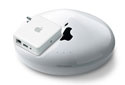
You will also need a Wireless Router – these are the wireless equivalent of an Ethernet hub or switch, and will link a cabled network to a wireless network. In the home, you will use this to share your Broadband connection wirelessly, and allow different wireless computers to see each other. Apple makes two wireless routers, the Airport Extreme Base Station and the Airport Express. The Airport Extreme Base is a conventional wireless router, and the Airport Express is a smaller device that can also receive and play iTunes music wirelessly. Both have a USB port to allow you to share a printer wirelessly as well. Airport Express is a particularly cool piece of kit that I will focus on specifically in a future article.

Like all things Apple, Airport equipment is fairly expensive, and cheaper equipment might perform better. However, for the money you do get guaranteed Macintosh compatibility and the best design. I recommend using Apple Airport equipment if you can – because the Airport software integrates so well with OS X, and so you should have fewer problems with Airport gear. However, there is one caveat about that – those cool metal cases that PowerBooks and Power Macs wear are very good at blocking 2.4Ghz signals, so you might want to use an external device if you think you will be at the edge of the range envelope.


Don’t steal my bandwidth!

The security (or lack thereof) of wireless networks has received a lot of coverage in the media over the last two years. This has been sensationalized to the point that "urban wi-fi guerrillas" armed with Linux laptops and coffee can antennas are painted as being on every street corner, looking to steal your hard-earned bandwidth!

The simple fact is that wireless networks were never that insecure – it’s just that a lot of companies never turned the security on! While it’s true that the first Wi-Fi security standard can be breached, you have to be a fairly hard-core hacker to do it, and you have to work quite hard at it – it takes time, patience and luck to breach a single wireless access point.

As such, a few basic precautions will render a wireless network relatively secure from casual breaches – and this is a good thing. While I admire the ideal of deliberately leaving a wireless network open for the passer-by, in practice free Broadband access runs a high risk of being abused by users of peer-to-peer networks like BitTorrent. You might have plenty of download bandwidth to share, but your upload bandwidth will be considerably less. If your upload pipe is congested by outgoing P2P traffic, your Internet experience will begin to resemble dial-up!

Fiercely, users should change the user name and password used to administer their wireless router, to something personal to them. This will prevent anyone reconfiguring your router to allow themselves access.

Next, the wireless router should be set so that it has a unique identifier (known as the SSID), and configured so that this SSID is not broadcast to all. Too many wireless routers are left as they come from the factory – there is one near my office that regularly is picked up by my laptop, and appears as LINKSYS on my desktop every day!

Finally, a level of access control should be applied to the wireless connections. The wireless router can be configured with the MAC addresses of your wireless devices, and it will only accept connections from those devices. This will stop anyone else from using your wireless connection.

What about encryption? There are two standards of encryption that can be used for wireless links – Wired Equivalent Privacy (WEP) and Wi-Fi Protected Access (WPA). WEP is the one that can be breached by the determined, though it takes a few days of packet sniffing and a powerful computer to do it. WPA is the gold standard in encryption nowadays.

However, in the home I don’t recommend encryption – it reduces range and throughput, and it can be the source of real problems when troubleshooting connections. My advice is stick with a hidden SSID and MAC filtering – if anyone manages to overcome that and get access to your network, they probably deserve free access as a reward for effort!

My next article will discuss the nuts and bolts of setting up an Airport network, together with how you can use an Airport Express to wirelessly send music and extend your network’s range.


Macspiration – Change That Desktop Picture

On October 24, 2005, in Uncategorized, by Donny Yankellow

In a recent Macspiration article, “Changing Icons,” I talked about customizing your computer by changing your icons. Another way to customize the look of your computer is to change the desktop picture. The desktop picture is the image you see on the main screen of your computer after it boots up.

Two ways to do this on the Mac are through the Desktop & Screen Saver System Preference or in iPhoto. I’ll cover both in this article.

Let’s start with the System Preference titled Desktop & Screen Saver. To get here, go to the Apple Menu, and choose System Preferences. Once the System Preference window opens, click the icon for Desktop & Screen Saver.

After opening, make sure you are in the tab labeled Desktop, (the title will be blue) and not Screen Saver. Once in the “Desktop” window, you will be presented with a list of folders on your left. Your iPhoto library and albums will be part of the list also. By clicking one of these items in this list, you will be presented with thumbnails of potential desktops to the right.

When you find one you like just click it and your desktop will change. Don’t like that one? No problem, click another.

Towards the top of the window, next to the thumbnail of the current image, you’ll find a pull down menu for how you want the desktop image presented on the screen. There are several options to play with. Choose the one that works best for you.

At the bottom of the window is the option to have the image change in the interval of your choice. The pictures can also be selected from that folder in random order. So when you boot your computer each time you will have a different desktop, or if you have an interval chosen, the desktop will change while you work (or play).

So I said that your iPhoto library was already in the “Desktop” preference pane, so why bother with directions for iPhoto? For one reason, you might have just imported a great photo you want for your desktop. Instead of going into System Preferences, you can just set it right then and there. It’s a piece of cake.

From your iPhoto library, click the image you want to use so a blue border appears around it. Then at the bottom of the iPhoto window click "Desktop." Your desktop instantly changes to that photo!

You have probably noticed that the “Screen Saver” preference pane is in the same one as “Desktop”. There are several options for setting your screen saver, and I’ll discuss that more next week. However, as I always say, don’t be afraid to play around.

Until next week, send those emails and post those comments. I love hearing from you.


MyMac Podcast 49

On October 19, 2005, in Uncategorized, by MyMac PodCast

The weeks top Mac news stories are discussed, including the new iMac, iPod, and iTunes. We finally get to interview Mac writer Bill Palmer, who joins us for a great interview. Audio feedback this week from Andrew Darlow, email reader feedback, and a new contest. We are giving away two copies of Drive Genius compliments of this weeks contest partner, Prosoft Engineering, Inc. Learn more about Drive Genius at this link. And we reveal the winner of the RadTech contest!

Tim thinks he knows what Apple, the Mac mini, and the Media Center are heading. Check out what he thinks in this weeks Focus Segment.

Get the show
(RSS) Subscribe to our RSS feed via iPodder or other RSS newsreaders
(iTunes) Subscribe to our podcast via the iTunes Music Store and have each episode downloaded every week automatically
(MP3) Download the MP3 file directly here, or listen in your web browser.
(Vote) For our Podcast on Podcast Alley
(YaHoo) Check out our listing at Yahoo and vote for us

Sponsor – SmallDog.com
Hosts – Tim Robertson and Chad Perry

Links
Bill Palmer (and here, here, here, and here)
Pirates of Silicon Valley DVD
Prosoft Engineering, Inc.
RadTech

Send all feedback and MP3 files to MyMacPodcast@gmail.com
Interested in Podcasting yourself? Email Tim Robertson direct.


Nemo’s Ten Point Tutorial #3
On October 18, 2005, in Uncategorized, by John Nemerovski

Nemo’s Ten Point Tutorial #3

“Record Audio Feedback for MyMac.com Podcast, Using Audio Hijack Pro”


Tim and Chad keep asking for live listener comments during each MyMac.com Podcast. Let’s call their bluff by learning how to create MP3 voice recordings that can be submitted for that purpose.

1. Download Audio Hijack Pro from Rogue Amoeba. Use the demo, or, even better, pay and register your software, because it’s worth every penny.

2. Launch Audio Hijack Pro, and plug in and turn on your USB microphone or Apple iSight into the correct USB or FireWire port, or plan to use the computer’s built-in microphone, if your Mac has one.

Hint: The iSight may auto-launch iChat, so quit iChat immediately if that happens. Audio Hijack Pro works independently of iChat. We’ll address iChat in a future MyMac.com tutorial.

3. Configure Audio Hijack Pro as in the screen shot below, with Audio Source at Audio Device, Input Device as the name of your microphone, and Output Device as Silence Output, to avoid any screeching feedback noise.

4. Launch System Preferences from your Dock or Apple Menu, and click to open the Sound Preference. Make sure the name of your microphone is highlighted in gray.

5. Test your voice audio input level by speaking normally. You want the blue peak blobs to reach most of the way to the right, leaving four or five blobs empty during your recording, as in the screen shot below. My Input volume level is set high for this particular USB microphone, called AK5370, manufactured by Labtec.

6. In Audio Hijack Pro, click on Hijack and Record at the upper part of the little window, count down slowly from five to one, relax and speak your audio commentary for a couple of minutes, then click Record and Hijack to end your recording. See below:

7. Navigate to: Go / Home / Music / Audio Hijack, and you’ll observe the MP3 file you just created. Drag this file onto your Desktop, and double click it to play it back in iTunes.

8. Don’t worry if the audio quality or your vocal sound is less than sensational. Tim and Chad will work with whatever you submit, if it’s coherent and audible.

9. Send an email to mymacpodcast@gmail.com with the MP3 file attached.

10. Keep listening to MyMac.com podcasts, and one day you may be featured!


Griffin iVault
Company: Griffin Technology

Price: $19.99
http://www.griffintechnology.com

Are you constantly dropping things? Fingers mashed in your car door? Constantly dropping your iPod Shuffle? Do you slip it in your pocket and forget you have your keys and change in there too? Are you a klutz?

Well, if you answered yes to any of the questions, then you need to provide an armor barrier around your Shuffle. As any military leader knows, you don’t go anywhere without your armor. With Griffin’s iVault, that’s exactly what iPod Shuffle users will now have for their Shuffle’s, armor.

Produced out of aluminum, and weighing only 1.5 ounces (empty), iVault provides a secure case for your Shuffle. When you open up your iVault package, you’ll find the machined aluminum front and rear shells, a bag of small screws and a USB extension cable. You put the front and rear pieces together around your shuffle, without the USB cap, use four screws on the iVault’s back piece and you have now armored up your Shuffle. The iVault is designed so that you have access to the front control wheel, the rear control pad, the USB plug and even an oversized hole on the top for your earphones for a larger sized plug from another company’s earphones. The provided USB extension cable, almost 34” long, provides an easy way for you to recharge or update your iPod.

Now let’s get down to the nitty-gritty about the case… You have to place your iPod Shuffle inside the case and screw it together. The USB plug on the bottom of your iPod will no longer be covered by a cap. The way that you carry it around with you is normally inside your pocket with the earphones plugged in for listening. I’ve utilized the iVault while running and I encountered no problems at all. Slip it in the pocket of my running shorts and off I went. You have total access to the controls and when it comes time to recharge or sync up your Shuffle, just plug in the extension cable and do so. If you have an issue with the fact that the USB plug is not capped, be inventive. A small piece of electrical tape over the bottom will prevent dirt from working its way in. If you feel the need to be able to open up the case because you want to plug it into your Mac, buy a small jeweler’s or eyeglass Phillips screwdriver and carry it around with you.

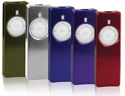
The case is tough and will definitely take a beating. I sat in my garage and continually banged on the case on all sides with a hammer. No dings, dents or bruises. Can you run over your iPod in an iVault with your car? Don’t know, I’m not that crazy to find out. Otherwise, the approximately $20 you’re going to spend to protect your Shuffle is well worth the outlay of cash. Oh, and before I forget, you get to choose your color- green, silver, blue, purple or red. No boring white or black!

Highly recommended.

MyMac rating: 4 out of 5

Tagged with:  

Road Rules – Two FM Transmitter Reviews
On October 17, 2005, in Uncategorized, by Chad Perry


For anyone wanting to take your iPod on the road using an FM transmitter, there are a few things that you need to keep in mind. First, if you’re using an FM transmitter and expecting to hear from your car stereo receiver what you’d hear from a CD player, expect to be disappointed (see Guy Serle’s iCarPlay Wireless Plus – Review for an explanation)

Second, the quality of your car receiver has a bigger impact on your FM transmitter’s performance than you might think. Both of these systems were tested in my car (with a Pioneer stereo) and my wife’s truck (with a stock stereo). Between the two vehicles, my wife’s truck has a much better receiver, and this made a big difference in the performance for the Griffin iTrip.

Finally, my preferred method for listening to my iPod on the road is through my iCarPlay Wireless from Monster Cable. This was the predecessor to the iCarPlay Wireless Plus that Guy Serle reviewed. The only difference between my unit and his is that I’m limited to only eight stations on the FM band (88.1, 88.3, 88.5, 88.7, 88.9, 89.1, 89.3, and 89.5). Other than that, I’ve been very happy with the sound quality from the iCarPlay.


XtremeMac AirPlay for the iPod Shuffle
Company: XtremeMac

Price: $49.95
http://www.xtrememac.com

My wife’s first purchase for her iPod Shuffle was the Airplay from XtremeMac. Tim and I had a preview of this unit in MyMac Podcast #30, although neither of us had a chance to test it.

The AirPlay has a very simple, elegant design and is very easy to use. On one end is the auto power adapter; the other is the FM tuner controller with a female USB port that allows you to plug your iPod Shuffle into the unit. The unit doubles as a charger for your iPod Shuffle while your using it.

The AirPlay controller has only 5 buttons: the (+) and (-) buttons are used to navigate the entire U.S. range of FM frequencies and buttons 1, 2, and 3 are used to lock in up to three preset FM stations. The unit also has a small backlit LCD display for the FM frequency you want to lock in.

As impressed as I was with the appearance and design of the AirPlay, I was equally disappointed with its performance. The AirPlay delivers AM radio quality sound on just about every frequency (and car stereo) I’ve tried. No matter what frequency I tried, there was a constant hiss in the background. I also tried listening to different songs to ensure that it wasn’t just some poor quality sound from a bad mp3 file, and even compared the same songs on the same car stereos using my iPod (with the iCarPlay) and my wife’s iPod Shuffle (using, of course, the AirPlay).

Suffice it to say, within a week the AirPlay was back in its box and off to Amazon.com for a $50.00 refund. I expect to sacrifice some sound quality with any FM transmitter, but I don’t expect it to sound as bad as every AM station on the dial.


MyMac.com rating: 1 out of 5


Griffin iTrip with LCD
Company: Griffin Technology

Price: $39.99
http://www.griffintechnology.com

For those of you wishing to go unplugged while listening to your iPod (or iPod Mini) on the road, Griffin Technologies offers the iTrip FM Transmitter.

The iTrip plugs into your iPod’s 9-pin remote port and headphone port on the top of your iPod and runs off your iPod battery. The manufacturer’s instructions stated that the iTrip will power up with the music, but I found that actually getting the iTrip to power up could be a little tricky, particularly if you haven’t had it plugged in for several hours. More often than not, I would have to cycle between play and pause on my iPod before the iTrip would activate.

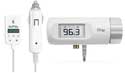
Once active, the iTrip is a lot of fun to use. The iTrip takes advantage of the remote port, allowing you to adjust sound volume on your car stereo using your iPod’s volume control. It has a backlit LCD display showing the frequency and broadcast mode. The only control is a silver knob on the right of the unit, which allows the user to select the FM frequency (by rotating it) and set the frequency (by pushing it in). Holding in the control knob for 5 seconds will allow the user to access and set the transmitter broadcast mode.

The iTrip has two broadcast modes: LX broadcasts in stereo, and DX in monaural. I prefer to listen to my content in stereo (the LX mode), but have found, with the iTrip, that the monaural (DX mode) provides better sound quality. This, of course, leads me to the real meat of this review, which is the sound quality.

In my car, I found the iTrip’s sound quality to be quite finicky. The signal strength in my car will vary with where I put my iPod. When I do use it, I have to place my iPod in the cup holder beneath my stereo to ensure that the car stereo receiver can pick up the signal. Now this is not the case when using the iTrip in my wife’s vehicle. We brought the iTrip with us when we went on vacation last month, and had no problems with signal strength in the truck. I even placed the iTrip in the back seat of the truck (we have a crew cab), and experienced no loss of sound quality due to signal degradation.

Finally, one of the nice options of having the iTrip is that you are not tethered to a car adapter to use it, allowing you to co-opt any empty FM station on any radio. I have used it with our living room stereo, and the sound is comparable with the local FM stations. For my own personal use, I still find that my iCarPlay Wireless provides better sound quality while also doubling as an iPod charger. But, if you have a decent stereo receiver and don’t like having your iPod tethered to your cigarette lighter, the Griffin iTrip provides decent sound at a reasonable price.


MyMac.com Rating: 3 out of 5


Macspiration – The Download Drawer

On October 17, 2005, in Uncategorized, by Donny Yankellow

In my last article, Macspiration: Changing Icons, I recommended a great program called FinderIconCM. After I wrote that article I decided to look through my hard drive for all of the freeware (free downloadable software) I had installed, and I have a lot. From utilities, to games, to full applications – you can find it on my hard drive. I decided to start a regular Macspiration article suggesting different freeware programs. Everyone, beginner or advance user, always likes having a program that makes something easier or more fun on the computer, especially a free program.

A lot of sites, podcasts, or television shows do something similar and recommend one piece of freeware or shareware at a time. I thought I’d be bold and daring – I’ll list three pieces of software each time. Maybe once in a while, I’ll list four or five.

Here are the first three:

1. Show Desktop by Everyday Software (www.everydaysoftware.net)
This is probably the most used program in my computer. Once installed it will put an icon in your dock or you can set it for your desktop menu (which is where I have it). When you click the icon from any running application you will automatically be put onto your desktop and all the other applications will be hidden. Similar to the “Desktop” feature of Apple’s Expose, but I like it much better. A great way to get to your desktop in a flash! There are a few more features, but this is the one I use.

2. Fishpad by Fishback Research (http://www.fishbacksw.com/fishpad.html)
This is a great little notepad program with all the features of a simple word processor. So what makes that special, right? Well, here’s the part I like. If I ever need to jot down a quick note on the computer, I open Fishpad, type the note, and close Fishpad. No need to save a file. It saves automatically! Also, just as the name suggests, it is a pad. So if you want to make a new note, you go to the next page and type away. The pages are unlimited (at least as far as I can tell), and it even has a search option to find a certain note with specific text.

3. Meteorologist by Heat (http://sourceforge.net/projects/heat-meteo)
This is a great program that will put a weather display in your menubar and/or dock telling you the current weather in your area or whatever area you set it for. There are many customizable options to play with. For example, the menu you see after clicking the icon can display more than one city and an extended forecast for those cities. I have it set to startup** every time I boot my computer.

There you go. Three fantastic FREE programs to try. Let me know what you think by sending me an email or leaving a comment below. If you have any great programs, email me with the name and/or website. I’ll check them out, and they might appear in future articles. Keep watching the Macspiration column for more downloads in the future. I’m planning on do a “Download Drawer” once a month. Next week – “Changing Your Desktop Picture.”

**Some programs have the option to run on startup in the preferences for that program. If that is not present and you want a program to run when you boot the computer do the following. Start by going to the “Apple Menu” and “System Preferences” and choose “Accounts”. Click the “Startup Items” tab. Click the “+” to add a program (“-” removes a program). Find the program on your hard drive, double click it, and it will be added to the list. The next time you boot your computer that program, or programs, will run immediately.


MyMac Podcast 48

On October 12, 2005, in Uncategorized, by MyMac PodCast

An early show this week. Tim and Chad talk to Mike Talmadge from ThoughtOut.biz about their cool new FlexPed. They are also offering a 10-20 percent discount for our podcast listeners, so be sure to download and listen. Go to www.thoughtout.biz/mymac for the special price, but listen to the podcast for the needed user name and password.

We go back in our Focus segment to 1995 and revisit the article 1-800-Buy-a-Mac written by Tim in which he telephones mac resellers to find out what was hot and not. Zip drive, anyone?

Sandro Cuccia sent in his Mac story. We would love to hear yours, so send in your MP3 file to us.

Get the show
(RSS) Subscribe to our RSS feed via iPodder or other RSS newsreaders.
(iTunes) Subscribe to our podcast via the iTunes Music Store and have each episode downloaded every week automatically
(MP3) Download the MP3 file directly here, or listen in your web browser.
(Vote) For our Podcast on Podcast Alley
(YaHoo) Check out our listing at Yahoo and vote for us

Sponsor – SmallDog.com
Hosts – Tim Robertson and Chad Perry

Links from the show
1-800-Buy-a-Mac
ThoughtOut and MyMac Discount Page
Binder Park Zoo
Wanted – Advertising Manager

Send all feedback and MP3 files to MyMacPodcast@gmail.com

Interested in Podcasting yourself? Email Tim Robertson direct.


InvisibleShield for iPod nano – Review

On October 11, 2005, in Uncategorized, by David Cohen


InvisibleShield for iPod nano
Company: Protective Solutions, Inc.

Price: $19.95
http://www.theinvisibleshield.com

Impossibly small, impossibly fragile?
Have you been seduced yet? Have you been suckered by the fabled “reality distortion field”? I am, of course, talking about the latest, hottest iPod device from Apple – the tiny nano.

I tried to be firm. I caught the presentation that Steve Jobs gave online, and then took a long cold shower and said “no” to myself. I have a 1Gb Shuffle, I just got a Sony PSP and I have a 1GB memory card for that so I shouldn’t need another iPod at the moment. Of course, as soon as I went into an Apple store and handled one, I reacted just the same way as Guy Serle did in his review and all of that went out of the window – I had to have one!

However, here in the UK just after the launch there were only 2Gb models on sale, so I had to wait. And by the time I did get hold of my black 4GB nano, the Internet and press were awash with negative reports of cracked screens and scratched surfaces. While the screen problems were a now-resolved manufacturing fault, what is clear is that the nano attracts scratches like bees to a honey pot! As a result, I did not actually use my nano in anger until I had some protection on it.

Military Grade Technology
The difficulty is that there aren’t a whole lot of cases available for the nano right now. There have been a lot of announcements but not much product has shipped as yet. I have even seen some people resorting to plastic kitchen wrap in an attempt to keep the scratches at bay.

A slightly more 21st-Century variation on the plastic kitchen wrap concept is the InvisibleShield – a skintight, incredibly tough plastic covering developed originally for protecting helicopter blades from chipping. The site has a video showing people abusing this material – you will not believe the punishment this stuff will soak up!

The company sells the film custom-cut for a variety of devices, and I picked up the nano version at a cost of $19.95 plus shipping. Despite my living in the UK, I received the product in less than a week, and I eagerly sat down to apply it to my nano.

For the steady of hand, not the faint of heart
Reviewing the comprehensive instructions provided on the web site, I was mildly disturbed to read that soapy water was involved! You have to wet the film in order to assist lining it up on your iPod’s surface, though this has the side effect of getting the click wheel wet. The instructions advise a 24-hour power down before fitting and use of the hold switch, but nevertheless I was concerned. At least I was, until I caught this article on MacMerc.com – iPod nano vs. washing machine. A guy washed his pants with the nano still in the pocket, and it survived the experience completely unscathed! I guess they are sturdier than we thought!


So I went ahead. The shield comes in two parts – one for the front that is a simple rounded off rectangle, and a back piece with tabs to wrap around the sides, top and bottom. The appropriate cutouts are in place to prevent blocking of the ports and hold switch.

The mild wetting with soapy water on the film definitely helped with the positioning, but it still took four or five tries to get it in place properly. However, once I had it, a couple of minutes of smoothing with a cotton cloth got rid of the excess water and a couple of air bubbles. There was quite a lot of speckling under the film surface, but the instructions say that is to be expected from the wet adhesive and that it disappears in 24 hours. Sure enough, after a day or so most of it was gone – what is left looks like dust that I missed while wiping the nano down during installation, and I have decided to live with it.

The back was a bit more fiddly – principally because I was trying to avoid trapping any fingerprints on the mirror surface under the film. The tabs mean that the whole iPod is well covered, with the exception of the corners – which is a bit of a flaw in my mind, as I expect the corners to take the brunt of any drops. It would be a shame to get the corners all marked up while keeping the rest of the unit pristine, as I would think the marked corners would be really obvious.

The good news is that the film is removable – it came off easily while wet for repositioning. Once dry, it can be removed, allegedly with no residue, though the film would be rendered unusable in the process. However, the good news is that the product comes with a lifetime replacement guarantee, so once you have registered in receipt of your product, InvisibleShield will send you out replacements as you wish. This is a nice touch – if you mark the film up in an “incident,” it will save your iPod’s finish, but you won’t have to live with the scuffed film. They do ask that you return the damaged film after you receive your replacement.

It really is mostly invisible, though – the surface is not the same mirror-smooth as the iPod itself, but you can’t really see the film on. Obviously, the texture is slightly different, with a bit more “give” than the hard plastic and metal of the iPod, but it’s not unpleasant and offers a superior grip, so hopefully dropping of the unit will be less likely.

Conclusion
As with Guy’s review of the nano itself, I feel that the InvisibleShield is a good product with a few minor flaws. It is quite costly – as much as a decent polycarbonate case will cost when they ship, and while it does offer “invisible” protection, the lack of coverage for the corners is a real weakness. If you’re really concerned about safeguarding your iPod investment, you may end up buying a case as well as using the shield. Also, the challenge of installation required will put off some customers, I fear.

However, it most certainly will protect the majority of your nano from scratching, allowing you to carry the bare unit around relatively worry-free, and that lifetime replacement guarantee is a sweet deal that goes some way to reducing the pain of the up front cost. Accordingly, I’ll rate the InvisibleShield for iPod nano with a MyMac.com rating of 4 out of 5.


FlexPed – Review

On October 10, 2005, in Uncategorized, by Tim Robertson


FlexPed iPod Stand
Company: Thought Out

Price: $39.99 – $63.99
http://thoughtout.biz

A few podcasts ago, I was talking about how I finally upgraded my car stereo to a JVC model with an audio input mini-jack on the front of the stereo. The reason for this was simple: I wanted to do away with the FM Transmitters I had been using to get my iPod music to play in the car. While many FM Transmitters work well, there is simply no comparison to an iPod connected directly to the stereo for much higher quality music.

The problem I had run into was where to put my forth generation iPod. I was using the docking station that came with the unit, sitting it on my center console, but it was not the ideal solution. First, I had to run two wires to it, and there was no place to mount the base station securely. So my iPod was one quick turn of the steering wheel away from sliding and falling to the floor. Not an ideal situation any way you look at it.

I explained all this during the podcast, and was happy to see a response to my problem from Mike at ThoughtOut.Biz, makers of the fantastic PED iPod stands. Seems ThoughtOut agreed with me that there was no one great solution for mounting an iPod in a car (I hate the cup holder solutions, as I use my cup holders for cups!) and they had come up with a new product to address just this problem. Mike told me about their newly released FlexPed, which combined with the imp (see below) provides just the type of solution I had been looking for. They offered to ship a FlexPed out to me for review, and I happily agreed.


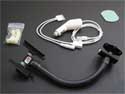
The FlexPed idea is a simple one, surprisingly so when you figure that no one else had come up with the idea yet. It is a 9-inch flexible steel tube, with a mounting bracket on one end, and an iPod stand on the other. Using the same type of iPod stand mechanism that their PED2 employs (Read my review here), the FlexFed looked like a winner to me.

Once the unit arrived, I set out to find the ideal place in my car to mount the unit. While ThoughtOut provides durable double-sided tape (AdPad) for mounting, I found this would not work for me. I had no one good place for the base of the unit to mount to. And once I found one, I found the included tape simply not strong enough to hold the heavy and well-built FlexPed in place. So I took a somewhat different approach. Unscrewing the mounting base plate from the bottom of the flexible tubing, I drilled a small hole (just slightly larger than the FlexPeds base plate screw) and placed the mounting bracket underneath, so that it looks like the FlexPed simply extends out naturally from my center console. I am also much more comfortable mounting it this way that relying on double-sided tape (AdPad as it is called) because here in Michigan, tape does not last long in the sub-zero weather. While 3M (makers of the AdPad) state that this tape actually gets stronger in the cold, I am still more comfortable installing via hardware, not tape.

Once the FlexPed was mounted, it is a simple matter of bending the neck in such a way to make using my iPod a snap. I can adjust the height, the pitch, and the angle of my iPod now so that no matter where or how I am sitting in the drivers seat, the iPod is at a level I am comfortable with. As I have mentioned in the past, I think the user interface of the iPod is fine, unless you are driving. Then, not so much. And not having the iPod mounted in the car at in an optimal position only makes the matter worse. So the FlexPed has been indispensable in this regard.

The actual part of the FlexPed that holds the iPod is adjustable to accommodate any iPod model, save for the shuffle. It can also be used with cell phones, blackberries, PDAs, and other like gadgets. (Sadly, not my PSP. Then again, what would I need an automobile stand in my car for a portable gaming system?) To adjust the type of gadget or iPod the FlexPed is holding, the user is required to use the included spacer tool kit to swap out different sized plastic spacers. This is easy to do, but it does require the buyer to keep track of the extra spacers for future needs. I put mine in my glove compartment.


So now that the FlexPed was mounted and ably holding my iPod at the desired height and angle, it was time to get power to it and sound out of it. Here is where the very cool imp came in. The imp is a cigarette lighter plug on one end, and an iPod-docking plug on the other. This provides recharging and operational power to your iPod, so that you are not relying on the longevity of your iPods battery on long car trips. More, the imp also has an female audio mini-jack output plug as well, so that in my case, all I needed was a male-to-male mini-plug wire to connect my iPod directly to the line-in jack on my car stereo. And trust me, the audio quality between a direct connect iPod and an FM Transmitter is night and day.

You can purchase the FlexPed without the imp for only $39.99, but it is well worth paying $63.99 to get both. This provides you with lineout audio and iPod charging on the go with the (excuse the pun) flexibility the Flexped affords you.

The FlexPed / imp is a must for those who want to listen to their iPods in the auto. It is easily mountable, has great adjustability, and is priced right.

MyMac.com Rating: 5 out of 5


Macspiration – Changing Icons

On October 10, 2005, in Uncategorized, by Donny Yankellow


Want to spruce up you desktop or folders, and make it more pleasing to your eye? One way to do this is by changing the icons. An icon is the little graphic that represents a file, folder, or application in your computer. Changing these icons is very simple to do.

First, to change the icon you need some new ones. You can find icons for downloading all over the Internet. My favorite icon source is “InterfaceLIFT” at http://interfacelift.com/icons-mac/. This site has a great catalog of free icons for downloading that includes cartoons, hardware, foods, you name it.

Once you have your icons downloaded, you’ll need to find their folder and pick the one you want to choose. Click the icon once, so it is highlighted.

Next in the “File” menu choose “Get Info.” You will now be presented with a window about that file or folder.

Click the icon in the top right of that window (a blue outline will surround it). Next go to the “Edit” menu, and choose “Copy.” You have now copied that icon into memory, and you can close the info window by clicking the red button.

Next you want to find the icon you want to change, and follow the same steps as above. However, this time when you go to the “Edit” menu you will click “Paste” instead of copy. The old icon will be replaced with the one you preciously copied. You can now close the information window, and you are done!

As easy as this is, there is even an easier way to change icons with the help of a great freeware (free) application called “FinderIconCM,” by Hide Itoh. You can find it on the web at www.pixture.com. Once you download the file, and run the installer, a contextual menu will be installed on the list of options when you click your mouse with the control key pressed. For those with three button mice, you can do this by right clicking.

FinderIconCM” has many great features you can play with. The only one I use is the copy and paste feature for changing icons. Just like before, you need to have a new icon you want to use. Instead of using menus, and opening windows, all you have to do is control-click the icon, go to the “Finder Icon” menu, and choose copy.


Next you go to the icon you want to change. Control-click on the icon, and choose paste. You’re done! You have changed your icon at record speed! I highly recommend this little program for all users, beginner and advanced.

I have found that in some instances I have to restart my computer for the icon change to take place. This is with the traditional method, and “FinderIconCM.” Now, there are some icons that cannot be changed with either process. For example, the trash can. To change the trashcan icon, you need to change some system files. This is not recommended for beginners, so I will not go any further on that topic.

You now have the tools to change most of the icons in your computer, and you know where to get some really cool icons. Have fun customizing your computer to represent you.

Until next week, feel free to email me any comments and questions, or leave a comment below. I’d love to hear from you.


Weekend Archive – Of Mac and Mini

On October 8, 2005, in Uncategorized, by


This weekend, we look back only to this past January and the debut of David Every at MyMac.com. David looked at the Mac mini, writing This is the Mac I’ve always wanted since 1984. Not a neutered Performa, or Classic with a tumorous CRT, just a cheap little headless entry machine that just worked, and people would be willing to try. Read this archive here.


iCarPlay Wireless Plus – Review

On October 7, 2005, in Uncategorized, by Guy Serle


iCarPlay Wireless Plus
Company: Monster

Price: $79.95
www.MonsterCable.com

I recently bought an Apple iPod nano and I love it. While many apparently have had some screen problems, mine has chugged right along like the good little 1.5-ounce color screen digital music player that it is. It even worked with my Belkin TuneBase FM Transmitter and though it didn’t quite fit properly, it was close enough for government work.

Everything was fine and dandy until my Belkin device’s fuse burned out. It uses a very odd fuse size that I couldn’t find anywhere. So, being the “just make it work” kinda guy I am, I substituted a slightly bigger fuse. The fuse holder for the TuneBase has a spring to hold it in place against the metal and it worked…for a while. I noticed that on occasion, the FM transmitter would stop working, and then start up again. Not often enough to replace it, just enough to be annoying. Then one day as I was driving along, I pulled the device out and it fell apart in my hands, right where the plug goes into the auxiliary power hole (what used to be called the cigarette lighter). Pieces went everywhere and I think the spring sprung out the window. I never could find it. I needed a new way to get music from the iPod into my car stereo without resorting to buying a new audio system. Also I wanted it to keep my iPod charged. I decided not to get another TuneBase, so I started looking for another solution. While not perfect, The Monster iCarPlay Wireless Plus does what it’s advertised to do.

A quick word about FM transmitters of this type. These devices by law must accept any interference from regulated FM transmitters (regular radio stations), so static and buzz can emit from your radio if a strong enough signal is present. Also, sound quality from devices like this is usually pretty good, but not as good as a direct connection from your iPod’s audio output directly through some tuner’s auxiliary port (if available). That’s the nature of the beast folks. No getting around it. If you can afford and want better, a direct connection is always going to be superior. In the product literature, even Monster acknowledges the limitations of this device and everything like it with this from their product literature: “iCarPlay Wireless Plus acts just like a tiny FM radio station, however no FM transmitter will ever sound like your favorite 50,000 watt radio station.” I admire their honesty for admitting this, but wish it wasn’t buried in small type in the manual.

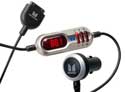
Back to the iCarPlay. It’s a minimalist device with a simple plug for the power port on one end, a standard iPod plug (for all current iPods except the Shuffle) on the other, and the FM tuner with presets in between. The FM tuner has a bright, easy to read red digital display for showing the currently used FM frequency, the three preset buttons labeled 1, 2, 3 on one side, and a plus, minus, and M (for memory) buttons on the other.

Keep in mind that you can’t use the following two FM frequencies: 87.7 and 87.9 (I have no idea what the limitation is for). Other than that, the entire U.S. range of FM frequencies (88.1 to 107.9) are available. In order to program the presets, you hold down the memory (M) button until the display starts flashing. Then, use the plus and minus buttons to select the FM frequency you want. Hold the desired preset number button for one second and you’re all done. While it’s easy to do, it’s not as simple or as straightforward as the Belkin TuneBase. If you live in a large metropolitan area, finding a clear frequency can be difficult and the added steps the iCarPlay Wireless requires for other than preset FM frequency changes is a burden and not recommended unless you and your vehicle are stationary. Monster could make this device better by allowing the plus and minus keys to change the frequency on the fly instead of having to hold down buttons to get it in program mode.

Once your three presets are..uh..set, using the device couldn’t be simpler. Set your car’s FM tuner to the same frequency as the iCarPlay, connect your iPod, and you’re ready. The cable is long enough to reach just about anywhere in the front seat of most cars available in the U.S. There are no clips or mounts to secure your iPod, so set it down carefully somewhere it won’t fly around with any sudden stops. You’ll still need to use the iPod’s controls to select songs and playlists, but that’s not what this device is for. If you need more, or wish to use wireless controllers (There are some available for most iPods, but not the nano yet), or your radio’s controllers, you’ll need a different solution. Monster’s iCarPlay is a simple solution for a simple problem.

Highs
Works with every iPod that uses Apple’s standard iPod connection (except the Shuffle which is USB only)
East to read display
Corrosion resistant gold contacts
Highest power FM transmitter allowed by the FCC
Quickly re-charges your iPod
Full frequency range (except for 87.7 and 87.9)

Lows
Must accept frequency interference
Sound quality not as good as a direct connection
Nothing to securely mount your iPod within the vehicle

If you can accept the limitations of a device like this, the Monster iCarPlay Wireless Plus is one of the better FM transmitters available today.

MyMac.com Rating: 3.5 out of 5


MyMac Podcast 47

On October 6, 2005, in Uncategorized, by MyMac PodCast


Contest Time! This week, we are working with RadTech to give one lucky listener four cool items! To enter, listen to the podcast and send all entries to contest@mymac.com

Tim takes Chad by surprise with this weeks focus segment, Five Questions for Chad.

Get the show
(RSS) Subscribe to our RSS feed via iPodder or other RSS newsreaders.
(iTunes) Subscribe to our podcast via the iTunes Music Store and have each episode downloaded every week automatically
(MP3) Download the MP3 file directly here, or listen in your web browser.
(Vote) For our Podcast on Podcast Alley

Sponsor – SmallDog.com

Hosts – Tim Robertson and Chad Perry

Links from the show

Freecell Widget


VF1 Widget


Original Dwelling

Send all feedback and MP3 files to MyMacPodcast@gmail.com

Interested in Podcasting yourself? Email Tim Robertson direct.


Nemo’s Ten Point Tutorial #2 – Shadows

On October 5, 2005, in Uncategorized, by John Nemerovski


As autumn yields to winter, light is clearer and shadows are in evidence throughout much of the day. Our minds sense drama in the contrast between highlight and shadow, but our photos often don’t capture the experience, as we perceive it.

All current versions of Adobe Photoshop and Photoshop Elements have a feature called Levels, which use black, white, and gray point sliders to alter darks, lights, and midtones in images. This tutorial refers to Adobe’s new Photoshop CS2, and if you are using an earlier version, or Elements, you can achieve the same affect. Hint: the keyboard sequence Command (or Apple) and the L key should bring up your Levels box.

1. LOCATE your desired shadow photo, and drag it over the Photoshop CS2 icon in your Dock to OPEN IT. If necessary, use Image / Rotate Canvas to view the picture correctly upright.

2. In the Menu Bar, choose File / Save As, and RENAME your picture something like “Strong Shadows” when the Save As box appears. For Where, choose Desktop, and for Format, choose Photoshop, at the top of the drop down list. Ignore the other check boxes, and then click Save.

3. Again in Menu Bar, choose View / Fit on Screen, and your newly named Strong Shadows.psd will occupy as much screen space as possible. Hint: PSD stands for Photoshop Document, which is the application’s preferred file format.

4. This time choose Image / Adjustments / Levels, and you’ll see a strange new little box appear that looks something like this “mountain range” screen shot:

Hint: You may need to move the Levels window over a bit, so you can see both it and your photo at the same time.

5. If the TINY UPPER TRIANGLES at far left (black) and/or right (white), underneath the mountain range don’t actually begin at the “foothills,” slide them over until they are at the beginning of “solid ground,” and not blank space. This is called “setting black and white points,” and tells Photoshop where to base all subsequent lighting adjustments.

6. Click and drag the CENTER (gray) triangle until your shadows become more dramatic, and your image still retains its original character. This center triangle relates to your midtones, and a little change can go a long way toward improving image contrast. Hint: Don’t overdo it! Subtle is better than excessive.

7. Click OK in the small Levels box.

8. If you want to SEE THE DIFFERENCE before and after your Levels manipulation, choose Edit / Step Backward and Edit / Step Forward. Below are my before and after images:

9. Remember always to File / Save your completed Photoshop image, then close all windows and observe its icon on your Desktop, complete with TINY THUMBNAIL view of the picture.

10. Strong Shadows.psd is now ready for printing and emailing, both of which will be covered in future Ten Point Tutorials.

Hint: Make sure you are familiar with Donny Yankellow’s basic Mac tutorials to enhance your computer skills.


ScanSnap – Review

On October 4, 2005, in Uncategorized, by Tim Robertson


ScanSnap
Company: Fujitsu ScanSnap

Price: $495
http://www.fcpa.com/

I am offered items to review almost every day; everything from iPod cases to large format printers to hard drives to monitors to the plethora of software available on the Macintosh. Most things I turn down, as there are only so many hours in the day, and only so much space in my office for another piece of hardware. So when the opportunity came up to review the ScanSnap, I was surprised that I actually wanted to.

I had in my mind, before the unit arrived, what the ScanSnap was all about. A document scanner, not a flatbed scanner. I read it does duplex scans (both sides of a document at the same time) and outputs directly to Adobe Acrobat format. It all sounded good to me, but the proof is in the pudding.

Well, the pudding is small, as in tiny, it is fast, and it tastes really good! Okay, enough of the metaphors.

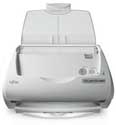
The ScanSnap is so much smaller than I had thought it would be. When I first unpacked it, I looked back in the box to make sure there was no base unit or something I did not see. This thing is about the width of a half loaf of bread, and the depth of half that! Small and tiny, just the sort of thing my desktop work area appreciates.

Size matters, yes, but not as much as functionality does. If it does not work as advertised, well, it could be the size on an iPod and I would not be impressed. Thankfully, the folks at Fujitsu have not let me down, as the ScanSnap works and works very well.

Installation is painless but does require a restart. I noticed that there is no TWAIN import functionality, but for the purpose this document scanner was created for, I don’t see this as a negative. You won’t use the SnapScan for importing high-res graphic files. For that, a drum or flatbed scanner would be more appropriate.

On the software side of things, SnapScan uses Adobe Acrobat Standard, which comes free in the box with the scanner. When a document is scanned it (more on that in a moment) it is saved as an Acrobat file. This is great for a number of reasons. First, Acrobat has become the default document format for transmitting and printing most documents. It is flexible, easy to use, but also powerful enough to use as an electronic workgroup and documentation online (or off) workflow. You can set passwords in Acrobat so that you can have some control over who can / can’t open sensitive documents. Spotlight can also search text within PDF files, although not documents scanned with the SnapScan, as these documents are scanned as a picture, without any OCR involved.

No OCR (Onscreen Character Recognition, the process of a software application understanding text when it is scanned in and converting it to editable text and font) is probably the most disappointing aspect of the SnapScan. While it is great to be able to quickly and painlessly scan in all your important documents, there is no way to search for text within those scanned files. Also, the user is not prompted to name each file as it is scanned, so to create somewhat of an organized structure of your scanned documents, the user is forced to go back and rename files. I found doing a Save As in Acrobat worked well, after which I would delete the original scanned PDF.

The SnapScan settings give the user a good combination of options such as compression rate (the lower the compression, the greater the scan quality, Paper Size (I leave it at Automatic Detection, which works great), file format (don’t like PDF? Save your scans as JPGs instead), Scanning options (quality, color mode, and scan button), Save options, and Application options in case you would rather Preview open the scan over Adobe Acrobat. All in all, most of the option a typical user would need to control the scanner.

The ScanSnap software automatically launches at start up, so there is no need to hunt and find the application to start scanning. The software and hardware is all ready to go.

The most impressive aspect to the ScanSnap has got to be the speed a document is both scanned and displayed on screen. The advertised speed is 15 pages per minute, which may not sound like much at first, but basic arithmetic will show that is four seconds for one page. And not just one side of the page, but both sides of each page! The scanner is intelligent enough to know if what you are scanning is a one or two-sided document, and acts accordingly.

One button scanning. Add the document(s) you want to scan in the feeder (50 sheets capacity) and push the big round button, and the ScanSnap takes it from there. It is so simple; the ScanSnap is the Macintosh of small office documents scanners.

I had so much fun working with the ScanSnap; I got carried away scanning every document I could find. Mortgage papers? Checks. Insurance papers? Check. Old pay-stubs? Birth certificates? Receipts? Check, check, and check. The scanner is so simple to use, and PDF’s small enough (even on high quality settings) to easily archive, I feel this is the first document scanner I can use to truly move all my important papers into electronic format.

Here are the specs:
Scanning Range: A4, A5, A6, B5, B6, Business card, Letter, Legal and Custom sizes (can set for up to 5 different paper types) / Automatically recognizes paper type by paper length
Interface: USB 2.0 (1.1 compatible)
1 Year Limited Warranty
Scanning Speed: 150dpi Color, 15 PPM, 300dpi color 5 PPM
Compatible with Mac OS X 10.2 and up.


MyMac.com Rating: 4.5 out of 5


Looking for something?

Use the form below to search the site:

Still not finding what you're looking for? Drop a comment on a post or contact us so we can take care of it!