Take Control of Running Windows on a Mac
by Joe Kissell

http://www.takecontrolbooks.com/windows-on-mac.html

PDF format, 104 pages, free 24-page sample available
Publication date: May 26, 2006
Price: $10, with $10-off coupon for Parallels Desktop

My work requires me to use a software application for accessing critical job-related information. The software is PC-only, and the vendor has gone on record saying that it will never produce a Macintosh version. I know many other Macintosh users are in the same boat as I am: you don’t want to buy a PC just to run one or two PC applications, but you need to run these apps for work.

The introduction of Intel-powered Macintoshes has vastly improved the number of options for Mac users needing to live in the PC universe. The days of having to run the oh-so-slow Virtual PC are over. Boot Camp, Parallels Desktop, and Q have changed the landscape completely. But there are plenty of obstacles to navigate when installing Windows compatibility software on your new Intel Macintosh, regardless of which flavor you choose.

Joe Kissell’s new ebook, Take Control of Running Windows on a Mac is the best book so far for the average Mac user who wants to jump into the world of running PC applications. He covers the pros and cons of Apple’s Boot Camp, Parallels Desktop, and the Q emulator.

Once you’ve made the choice of which pool to jump into, Kissell’s tips help you from ending up over your head in the deep end. He walks you through installing and configuring each one, and provides a boatload of good tips.

I’ve been fooling with running PC applications on my Macs since 1987, when I began running command line PC applications on my PowerBook 100 with Insignia’s SoftPC. While I’ve picked up a few things along the way, I wish I’d had this ebook to read the first time I had to set up and install Apple’s Boot Camp. I’d have saved plenty of time and confusion as I did not know the ins and outs of the two different MS-DOS disk formats; FAT 32 and NTFS.

Each of the three methods, Boot Camp, Parallels, and Q has their own idiosyncrasies, and Kissell coves them all. Follow his instructions and advice, and you’ll be up and running in the least possible time (slow Windows installation time notwithstanding).

As you’d expect, Take Control of Running Windows on a Mac is written in the wonderfully readable Take Control of… Style, and it takes full advantage of hyperlinks to help you jump from one topic to the next.

Wrapping it up at the end of the ebook is a coupon from $10 off the cost of the Parallels Desktop software, as well as a $5 off coupon on your next Smalldog.com web order.

Take Control of Running Windows on a Mac is highly recommended if you have any intention of running Boot Camp, Parallels Desktop or Q on your Intel powered Macintosh.


MyMac.com rating 5 out of 5


Digital Religion

On May 31, 2006, in Uncategorized, by Mazen Al-Angary


With all this high-tech lifestyle surrounding us, we tend to spend more time in front of computer screens then we spend praying. It could reach a point where it would be easier to convince anyone to convert to a new religion rather then switch to a new operating system.

Since I am a switcher myself, I remember being such a faithful Windows user years ago that I wouldn’t lend an ear to anyone who would drum to another camp’s tune. Then one day all my digital belief system crumbled, which was triggered by holding a 3rd generation iPod in my hand. It was like being touched by a white angel. That got me thinking, "If a company (Apple) could make such a remarkably constructed, stunningly easy to use MP3 player, how would their core business (Computers) be like?"

Two months after buying my first iPod, I ordered a 12" PowerBook from Amazon, and since I live in Saudi Arabia, I tried my best to find a Mac community with no luck. All I wanted was to take a real look at the Macintosh operating system. Back then most of Mac users were graphics designer who were hidden in advertisement agencies’ offices, I spent all that money for something that I never saw in action, or even test drive, it was a digital leap of faith. I believed that it would be the ultimate computer system that was ever created by mortals. And I was right!

I discovered that Mac users are looked upon as a "cult" by other operating system users, and this strengthen my theory that your choice of an operating system grows to be more of a digital religion rather then a flavor. But if that’s the case then I personally think that Linux users are looked upon as a tribe of nomads (I use Linux sometimes, and I think it punches the light out of any Windows machine).

After I got my Mac, running Panther back then, I started to babble about it, not believing that such an operating system existed in this world. Blindfolded by Microsoft’s dogma all those years, I helped tens open their eyes to the light of Apple, and they thank me whenever the topic is brought up.

A dear friend of mine told me once while ruptured in a state of confession, that this was the first time he felt that he spent money on something that was worth every penny. He is considering buying a quad PowerMac next to his G4 PowerBook before they switch them to Intel chips. He buys from two to three new cell phones every month, and doesn’t like most of them.

My brother bought a brand new 15" Dell laptop, and one day he saw me swiftly referring to the flight tracker widget on my PowerBook,

"Is this a real OS?" he said

"This is the Mac OS X Tiger" I replied

"It looks and acts like it’s some type of a futuristic operating system,” he said with astonishment

"Well this is what you get when you use a Mac." I said with confidence.

He came back to me an hour later, telling me that he has decided to sell his three month old crippled Dell toddler, and wanted me to buy him a Mac. He got a 12" iBook that he now cherishes. Another friend gave his wife a new Toshiba Tecra he originally bought for himself, and got a new PowerBook. My fiancée replaced her Sony VAIO with a cute white 12”iBook.

The main problem with using a Windows machine is that most normal users get used to utilizing the Windows environment where nothing is located logically where it should be, the highest-ranking question I get once a person switches is:

"So where did the Start button go?" They say terrified

"There is no Start menu here, you’re using a Mac now" I reply " just use the Dock or click on the Finder"

Average Window users are fixated on default pre-installed programs that come on their Windows machines, and if they feel a bit adventures they would download RealPlayer. But they never get a chance to start exploring other programs, unlike Mac users, who are open to new constructive applications that help them get their work done.

It was so hard for me to convince friends to stop using Internet Explorer when Firefox first came out, a lot of them didn’t even want to bother downloading the browser. I had to show them the benefits of tab browsing, and offer them CDs with Firefox program on them. But what surprised me was that some of them switched to Macs while the others kept on using Firefox as their default web browser. I learned that once you crack a chip in their digital belief system, you can turn them head over heals.

I had my 12" PowerBook for over two years now, I wrote my first book on it, and I am working on four other new books. I travel with it. I use it to write all my travel articles, and send them accompanied by digital pictures that I shoot on location to publications. I use my PowerBook to create DVDs to share with family and show them where I have been and what I saw.

But what really blows me away is that fuzzy, warm, and cozy feeling I get whenever I open my Macs cover to see its one second zippy wake-up, opposed to Windows’ hibernation wake-up process, which resembles a cranky bear’s waking form his winter-long hibernation. Or the sensation you get when you start tapping on a Mac’s exquisite keyboard, I guess that’s the same warm feeling you get when you have a digital religion.

Copyright © 2006 Mazen Al-Angary, All rights reserved.


Macspiration 37 – iTunes Tips

On May 30, 2006, in Uncategorized, by Donny Yankellow


This week I’m going to give you a few tips for using iTunes. Just like my normal Quick Tips, these are short tips that are too short for their own article, but still useful.

1. Setting the drive you want to burn a CD to:
Before I had a computer with a CD burner built in, I had an external 52x burner. When I burn a CD I prefer to use the external, since it is more than twice as fast as the internal burner. iTunes will use the internal burner by default, so you have to tell it to use the external drive.

To do this, go to the iTunes menu and choose “Preferences.” On the top of the windows click “Advanced.” From here, click “Burning.” On this window there will be a pull down menu to choose the burner you want to use. The name of the drives listed is usually the brand that makes the drive itself, not the company that makes it a nice external drive. For example, my Lacie drive is listed as a Mitsumi. If you aren’t sure which is which, the internal drive will be the one listed twice.

2. Set Parental Controls
For those parents out there who don’t want your children downloading explicit music, podcasts, or videos, this tip is for you. You can restrict this content in the “Parental” tab of the iTunes Preferences.

Here you can disable podcasts, radio, the Music Store itself, and shared music. Just want to keep out the explicit stuff? Check restrict explicit content.

This next step is very important. Click the lock in the lower left. You will be asked for the administrators’ password. This will prevent this setting from being changed. Of course, if your child knows the administrative password, you might want to change it. If your child has full control of the computer and is the administrator, you might want to change that too or just make the changes and hope they aren’t noticed or found. Good Luck!

3. Use the iTunes Music Store Shopping Cart
When I browse the iTunes music store I like to use the shopping cart feature. With this turned on I can click “Buy” on a number of items in the store, and they get added to my cart before I have to buy them. I can then go back and review my choices and make sure I really want to buy those items. With the cart turned off, you have to buy and download the items you want as soon as you click buy.

To turn the cart on you need to be in the iTunes Preferences again. This time click the “Music Store” tab. At the top of the window are options for buying items immediately or using the shopping cart.

With the cart turned on a shopping cart will appear under the “Music Store” listing in your Source window of iTunes. When you want to buy or preview what is in the shopping cart, click the shopping cart. You’ll get a list of all the items in your cart. You can preview each item directly from your cart. To remove an item just click the “x” at the end of the item’s row. You’ll also get a list or recommended selections at the top window of your shopping cart.

4. More on the Music Store preference window.
You might have noticed a few more options in the Music Store preference window. These options can be very useful too.

The first options is great if you are buying an entire album and you want to burn a CD of that album. Checking “Automatically create playlists when buying song collections” will automatically create a burnable playlist of that album.

“Play songs after downloading” is pretty self-explanatory.

Finally, “Load complete preview before playing” is great for those with slower connections (as the description in iTunes states). With this option unchecked a preview might sound like a bad cell phone connection. You’ll hear bits and pieces as it loads, instead of all at once with the option checked. Yes, you’ll have to wait a little longer for the preview to play, but it is worth it.

5. Deauthorize your old computer
When you buy a new computer, and you are completely finished using the old one, make sure you deauthorize the old computer before getting rid of it. Authorizing a computer allows it to play content purchased through iTunes, and you can have no more than five computers authorized under your account. By deauthorizing the old computer, you’ll free up one of these authorizations.

To deauthorize a computer go to the “Advanced” menu and choose “Deauthorize Computer.” You’ll be presented with a window asking you if you want this action for the iTunes Music Store, or for an Audible account. If you have an account for both, you’ll have to do this twice. The next screen will ask for your password. After that your computer is deauthorized.

Your new computer will ask you to authorize it the first time you play a purchased item from the iTunes Music Store.

6. Check for Purchased Music
Under the “Deauthorize Computer” option is one that says “Check for Purchased Music.” If you ever have problems downloading a purchase from the iTunes Music Store, this is the place to start. Choosing this option will look for items you purchased and make sure they are in your Library. If it doesn’t see something, it will start downloading it.

This option will not always “save the day,” but it is a good place to start before panicking or contacting Apple.

That will do it for now. Have any iTunes tips of your own? Leave them below, or send me an email. I love getting feedback.


Bits and Pieces was a monthly column that featured a look at what the PC Press was writing about Apple. This week, we look back ten years (July 1996) and learn what PCWeek was saying, Apple at Comdex Chicago, and more. Written by Grand Cassiday. Read it HERE.


Kibbles and Bytes – 467

On May 27, 2006, in Uncategorized, by SmallDog


Wettest May on record in Vermont. We had missed most of the most serious flooding but got hammered over the past week or so. There was moderate flooding here in the Mad River Valley but some roads were underwater just north of here. It was also in the 40s and 50s most of the week and we even had some snow up on the mountains! It’s a good thing it didn’t snow at my house-I might have pulled up stakes immediately and headed south. Instead I spent much of Saturday doing spoon work to fill the potholes in my driveway.

Grace and I are jumping on the bikes and heading to Maine for the long Memorial Day weekend. It is our traditional first long motorcycle ride of the season. We are staying in York, where I hear they got hit hard by the rain a couple weeks ago. We are on the bikes regardless of the weather, but we sure hope we have sun! We head back to Vermont on Memorial Day and we always meander our way back on the back roads. We invariably run into Memorial Day parades in the small towns in Maine and New Hampshire. Sometimes we just stop and watch and other times we’ve actually joined the parade.

You all probably know by now that I have always been against this war. However that does not mean that I do not honor and respect the men and women who serve in our armed forces, especially those who are in harm’s way. This is not a pro-war or anti-war thing because the greatest military leaders in the world have all been anti-war because they truly knew that war is the ultimate failure of humanity. We honor our men and women who have paid the supreme sacrifice of life and limb and pledge to work so that their efforts are never in vain.

"True heroism is remarkably sober, very undramatic. It is not the urge to surpass all others at whatever cost, but the urge to serve others at whatever cost." – Arthur Ashe

+———————————————————+


MacBook Pro or MacBook?

Now that the MacBooks are shipping, customers are asking us whether they should buy a MacBook or a MacBook Pro. The strong feature set of the MacBooks has blurred the line a bit between what had been a consumer product and the professional laptop. Now with the black MacBook, even business road warriors have to take a serious look at the MacBook as a traveling machine.

The new MacBook is remarkably small-just slightly larger than the 12- inch PowerBook. It is no wonder that Apple decided not to upgrade the 12-inch laptop. Here are some comparisons that might help you decide which Apple laptop is right for you. Of course, it might just confuse you, in which case I have the ultimate solution-buy one of each!


Price and Value: Advantage MacBook

The MacBook is $500 to $2000 less expensive than the MacBook Pro. If you are using your laptop for email, web surfing, and Microsoft Office, there may be no reason to spend the extra money for the MacBook Pro.


Plastic versus Metal: A Tossup

The MacBook Pro’s case is made of aluminum and the MacBook is polycarbonate. The plastic used in the MacBook is a high-strength composite. iBooks have been the most rugged of the Apple laptops. On the other hand, aluminum looks and feels better. Aluminum is not as wireless friendly as plastic (it is reported that MacBooks have greater range than MacBook Pros). On the other hand, the metal case dissipates heat better than the plastic case.

I don’t see this a deciding factor. Businesspeople may prefer the slim looks of the MacBook Pro over even the black version of the MacBook.


Do You Mac in the Dark? Advantage MacBook Pro

The MacBook Pro sports an illuminated keyboard and ambient light sensor. This makes typing in the dark much easier on the eyes. There’s a lot of light generated by the display, and I really like the illuminated keyboard when I’m on a redeye flight and I don’t want to disturb my seatmate.


ExpressCards: Advantage MacBook Pro

The MacBook Pro has the ExpressCard slot that the MacBooks do not. This is an advantage, but at this point I have no reason to use an ExpressCard. I suppose if I really wanted to add FireWire 800 to a 15- inch MacBook Pro, this could be one way to get there. Who knows, there may be some amazing uses for this slot in the future.


Graphics: Big Advantage MacBook Pro

The MacBook shares system memory for graphics display, while the MacBook Pro has independent graphics processing ATI Mobility Radeon X1600 (PCI Express) and at least 128MB of independent Video RAM. This makes the MBP faster in graphics-intensive applications ranging from Final Cut (neither recommended nor supported on the MacBook) to some games.


Resolution: Advantage MacBook Pro

The MacBook is limited to 1280 X 800 while the 15-inch MacBook Pro will go up to 1440 X 900. The MacBook’s resolution is sufficient for just about any application, but if you need higher resolution you will probably want to buy the Pro version.


Glossy Display: Advantage MacBook Pro

The glossy screen has an advantage in terms of color depth and some disadvantages in terms of true color rendition and glare. The MacBook Pro gets the nod here for offering the matte screen as stock equipment with a glossy option.


RAM Expansion: Slight Advantage MacBook Pro

I give the nod to the MBP even though both baseline systems come with 512MB of RAM (1GB in the higher-end 15-and 17-inch MPB). The 512MB stock RAM in the MacBook consists of two 256MB SO-DIMMS while the 512MB in the 15-inch MBP is a single 512MB module. While this may seem insignificant, it can increase the cost of memory upgrades because to increase the RAM on the MacBook you will have to remove one or both of the 256MB modules and replace them with higher- capacity units while with the MBP you can just add a module to the empty slot.


External Display Support: Advantage MacBook Pro

The MacBook will support the Apple 20- and 23-inch Cinema displays, while only the MacBook Pro will support the 30-inch display. I have enough customers who use an external display to turn their laptop into a desktop when they are not traveling that this can be a good reason to buy the MacBook Pro.


Battery Life: Advantage MacBook

Apple claims up to a 6-hour battery life for the MacBook. The 15-inch MacBook Pro has 4.5 hours while the 17-inch sports a larger battery and a 5.5-hour battery life.


Size and Weight: Slight Advantage MacBook

The MacBook is smaller and lighter than the MacBook Pro. Of course, the screen size is smaller, too.  The MacBook weighs in at 5.2 pounds while the 15-inch MacBook Pro is 5.6 pounds. That’s not much difference, but the smaller screen results in an overall smaller package for the MacBook, although it is actually 0.08 inches thicker than the 15-inch MacBook Pro.


Conclusions

The single biggest reason to buy the MacBook over the MacBook Pro is price. The single biggest reason to buy the MacBook Pro over the MacBook is graphics, both in terms of the screen size and resolution and, more importantly, the dedicated ATI graphics processor and V-RAM in the MacBook Pro versus the integrated Intel Graphics Media Accelerator 950 and shared RAM of the MacBook.

While the previous PowerBook and iBook lines were distinct (different customers, cases, and processors), the MacBook is one product family with two lines-each with a different market, but sharing a similar architecture and many of the same features. The line between consumer and pro has blurred because the MacBook may suit the needs of the mobile professional quite well, while the MacBook Pro is geared toward those who demand the most performance possible in a portable.

+———————————————————-+

All About iDisk by Ed @ smalldog.com

.Mac’s is Apple’s $99 suite of of Internet-based services. iDisk is one of the best of those services. For years, I rarely used iDisk (a copy of my 2003 resume is still sitting in my Documents folder). However, Apple recently made some interface improvements to iDisk, particularly when it comes to using iDisk via a web browser. Now I’m using iDisk extensively and have grown to rely on its ease of use and convenience.

According to Apple, iDisk allows you to "access your files from any computer connected to the Internet, or even share your files with your friends and coworkers." You use iDisk to store data, including digital photos, movies, music, and and documents, on Apple’s .Mac servers. You can launch an iDisk folder on your internet-connected Mac or Windows XP computer, which you use like any other folder, or you can access iDisk over the web, through a modern web browser such as Firefox or Safari.

iDisk is one  the most valuable features of .Mac. There are other services similar to iDisk, the most visible being Google’s rumored GDrive and Amazon’s emerging S3 online storage service, which requires you to pay a fee according to the size of the data being transfered and stored. But iDisk is already here, and it’s well tested and integrated to the core of Mac OS X.

On a Mac, iDisk can be quickly accessed by selecting Finder (or clicking on the desktop) > Go > iDisk. An iDisk icon will mount on your desktop, similar to how an iPod or hard drive will show up on your desktop. If you open your iDisk, you’ll see ten folders (Family Pack accounts have an additional Shared folder). According to Apple, the folders include:

Documents: Store anything here, including documents, letters, or spreadsheets. This folder is private, and only you have access to items in it.

Movies: Copy QuickTime movies into this folder and you can use HomePage to display them on your Web pages.

Music: Copy music files and playlists to this folder.

Pictures: Copy JPEG or GIF files into this folder and use them to create custom iCards or display them on your Web pages. To make it easy to manage and use your pictures, store related images in subfolders within the Pictures folder.

Public: Share items with others by placing them inside this folder. Anything you put here can be viewed or copied by anyone who knows your .Mac member name (and your Public folder password, if you’ve created one) and who can access iDisk Public folders. For wider access, use HomePage to set up a file sharing Web page that lets everyone on the Internet copy items from your Public folder, whether or not they’re a .Mac member and regardless of the type of computer they use.

Sites: The web pages you create with HomePage are stored in this folder. If you code your own web pages, or use a program like Dreamweaver, you would put these files here.

Groups (for members who belong to one or more .Mac Groups): This folder contains a folder for each of the .Mac groups you belong to. Each group’s folder contains subfolders that are accessible only to group members.

Shared (for Family Pack accounts only): This folder contains files that can be shared by the master account and sub-accounts within a Family Pack. Files you place in this folder will be available for use by all other accounts in your Family Pack group. The contents of this folder are counted against the master account’s iDisk storage quota.

Web: When you use iWeb to publish to the web, it uses this folder to hold what you publish. The Publish button in iWeb puts your published site(s) in the Sites folder within the Web folder, and, and if you provide an RSS feed with what you publish, the feed is placed in the RSS folder within the Web folder. If you create a site using another authoring tool, you can publish the site by copying the files to the Sites folder within the Web folder. This new site can then be browsed using the address http://web.mac.com/username/folder, where "username" is your .Mac user name and "folder" is where you saved the new site on your iDisk. Any iPhoto 6 album you have selected to photocast will be in an iPhoto folder in the Sites folder in the Web folder.

Backup: Data files that have been backed up using Backup software appear in this folder.

The remaining two folders in your iDisk are read-only:

Library: In OS X v.10.1 through v.10.3, applications like iSync use this folder for the supporting files they need to do their work. In OS X v.10.4, this folder contains files that support .Mac sync.

Software: This folder holds the Members Only folder where you’ll find software and files available exclusively to .Mac members, and the Apple Software folder for convenient downloads of relevant software from Apple. You cannot copy files to this folder, and the contents of this folder are not included in your total iDisk space allotment.

If you’re using a PC running Windows XP or later on which you can install applications, you can download and install the iDisk Utility for Windows and mount your iDisk alongside the other drives to which the machine has access. Download the utility from the Member Central page on .Mac.

If you’re using Mac OS X v.10.3 or later, you can use iDisk syncing to create a copy of your iDisk on your computer. When you create a copy of your iDisk on your computer, you can make changes to it at any time, even when you’re not connected to the Internet. Your iDisk will be synchronized the next time you are connected. This means you can fill up your iDisk, and then upload all the news files to the .Mac servers all at once, rather than  uploading the files tediously one at a time. You set this up in System Preferences > .Mac on your Macintosh computer.

You can access your entire iDisk from a web browser, such as Firefox or Safari on a Mac or PC. Either navigate to www.mac.com and select the iDisk icon in the left hand column (the icon looks like a globe), or go to:

http://idisk.mac.com/USER-NAME-HERE?view=web

When you go to http://idisk.mac.com/USER-NAME-HERE?view=web, and replace USER-NAME-HERE with your user name, a dialog box will drop down asking you for your Mac user name and password. Once these are entered, you’ll see an attractive page listing all of your iDisk folders-Documents, Music, Public, etc. You can then download these files to the computer you’re working on.

Again, you would do this on any web-connected computer using a modern web browser. If you’re on your own XP or OS X computer, it’s usually faster to mount your iDisk on your computer’s desktop.

One of the really great features of .Mac is its public folder. You can fill it with files to share with family, friends, and colleagues. Apple recently improved web access to iDisk Public folders. Now you simply enter the web address idisk.mac.com/MEMBERNAME-HERE-Public to see a page that automatically includes download links for whatever is currently in your iDisk Public folder.

I’ve put something for Kibbles readers on my Public page. Here’s my Public iDisk page:

http://idisk.mac.com/edwardshepard-Public?view=web

You can also password protect your public folder. If you have OS 10.3 or higher, here’s how to do this according to Apple:

Open System Preferences and click .Mac. > Click iDisk > Select the "Use a Password to Protect your Public Folder" checkbox > Type the password in the Password and Confirm fields > Click OK.

By default, iDisk has a 512 GB data limit. You can allocate up to 915 MB to iDisk. You do this by logging into your account settings in your .Mac account. If you need more than 915MB of storage, you can buy more storage-up to four gigabytes.

"The .Mac bandwidth data transfer limit is currently set at 10 GB per month, and if you’re like most .Mac members, you still have plenty of data-transfer headroom in your account-even if you’ve started experimenting with higher-bandwidth activities like audio podcasting. If you start showing signs of going over your limit for the month, you’ll receive email alerts with suggestions for how to be bandwidth efficient. We’ve added a "Details" link to your account page where you can check your current data transfer status.

"And what if your bandwidth usage balloons because your podcast gets you famous? You can boost your .Mac account to 4 GB  of storage and a very large 250 GB per month of data transfer bandwidth by purchasing an account upgrade. Fame has its costs but this has to be one of the cheapest you’re likely to encounter."

Again, you need to have a .Mac account to use iDisk, and .Mac costs $99. We have a promotion for free shipping on all copies of .Mac, and there is currently a $30 mail-in rebate on .Mac if you buy it and a new Mac at the same time.

http://www.smalldog.com/wag16704/mymac

+———————————————————+

What Can’t You Do with Google? Dawn @ smalldog.com

As many readers know, I have an obsession with Google. I started slowly, just using the search characteristics but then I began using many more of the free resources that Google provides. Here are some of the finer points of Google that you might not know about:

There’s Froogle, which you probably do know about. If you have something for sale on the Internet, you MUST get it listed on Froogle. This is one of the best-paying traffic generators for the Small Dog website. Google has detailed instructions on getting products featured in Froogle. If you don’t sell online but want to drive local traffic to your store, see Google Base, below. http:// www.google.com/froogle

Google Alerts is another Google tool that I use along with Google News to read about any mention of Small Dog in the press or online. This is a simple interface where you enter search terms and you’ll get an alert when your terms are in news stories or web pages. Very useful if you are keeping an eye on certain trends, products, or industries. http://www.google.com/alerts

Since I mentioned trends, the next tool that I’ll mention is Google Trends. Using Trends you can compare the popularity of search terms. For example, compare ice cream to yogurt and see the search trends related to these two terms. Correlating with the search activity are news stories and news reference volumes as well as how the searches compared in the top cities. http://www.google.com/trends

Google Base is a place where you can put something that will be found by Google’s search engines. By something, it can be ANYTHING, such as an item that you are trying to sell (similar to a classified ad), information about your store or business, or even recipes, poems, or papers you’ve written. Just about the only items not allowed are pornography and spam. http://base.google.com/

If you’ve ever come across a website written in a language that you don’t know, you might want to use Google Translate. Plug in a URL and make the translation. Try it with the Small Dog page! http:// www.google.com/language_tools

Google Page Creator is a free and easy way to get a web pages created and hosted. There are a few different layouts to choose from and lots of different looks. http://pages.google.com

Google Notebook provides a way to store information online without requiring a dedicated website. For example, suppose you were a fan of the TV show Lost. You could compile notes that you created into a Google Notebook and share them with other Lost fans. (There happens to be notebook by a Lost fan who has a theory on what is going on on the island.) Notebooks can be made private or public-the choice is up to you! http://www.google.com/notebook

Of course, there’s Google Earth (which I love!), Google Images, and Google Maps, and there is a whole lot more:

Google Calendar: Access your calendar from anywhere. http:// www.google.com/googlecalendar Blogger: Start your own personal or professional blog. It’s easy! http://www.blogger.com/ GMail: Web mail with lots of features. http://gmail.google.com/ Google Talk: Online instant messaging. http://www.google.com/talk Google Video: Collection of free and for sale videos. http:// video.google.com

+———————————————————+


start soapbox


Nuclear Proliferation and Hypocrisy

The drums of confrontation and war are beating in the controversy surrounding the nuclear weapons programs of North Korea and Iran. While it is a scary thought to realize that the North Koreans may have missile and nuclear technology to deliver a nuclear strike on the USA and that the Iranian nuclear program and rhetoric are destabilizing an already dangerous region of the world, I wonder at our approach and the urgency of action.

Let’s get the record straight: I have been in favor of nuclear disarmament from the days of debate club in high school. There are some weapons that we just should not consider part of our arsenal. As nuclear technology gets into more and more people’s hands, the road to becoming a nuclear state has been shortened. Our "allies" in Pakistan have security so lax that their scientists have spread the technology throughout the Third World. Pakistan and India both have nuclear bombs and are bitter enemies that have come close to all-out war several times. They don’t have any oil or perhaps we’d be more focused on the threat to our existence from their nuclear technology.

Even in the Middle East we have an undeclared nuclear power in Israel. I completely understand how some might look at our stand with regard to Israel’s nuclear weapons and contrast that with our stance versus the Iranian nuclear development program and wonder about the consistency of our moral pronouncements. I understand that Israel’s very right to exist is still in play, but turning a blind eye to their nuclear weapons in the Middle East while ramping up for confrontation with Iran over these same weapons is difficult to fathom.

I don’t know that we can close the Pandora’s box of nuclear technology. Technological advances tend to make yesterday’s impossible technology, today’s common knowledge. I am not saying that making nuclear bombs is easy, but I think we can expect that more and more countries may feel compelled to direct their scientists and money towards the development of nuclear weapons. An isolated North Korea sees nuclear weapons as essential to their security, an embattled Israel likewise sees defense of their country demanding a nuclear arsenal. I can name a dozen other countries that may soon feel that their are compelling reasons to make a bomb, countries such as Brazil, Venezuela, Turkey, or Saudi Arabia.

With an increasing international dependence upon nuclear energy for peaceful purposes as the world’s real energy crisis worsens, nuclear technology and material comes into more common use and diversion for weapons programs become easier to hide. It is an international arms race that is not built upon a cold war between a couple of superpowers but many little cold and hot wars and dozens of countries saying "Why not us?"

We went to war with Iraq to prevent weapons of mass destruction from falling into the hands of terrorists and yet the only weapons of mass destruction used or discovered in the war were our own. We talk about Iran destabilizing the Middle East and the administration floats the notion of using nuclear weapons to destroy Iran’s nuclear weapons. That is the height of hypocrisy. The production of nuclear weapons is evil enough, but the actual use of these weapons can only be described as a total disregard for humanity.

Our policy should be to create a world free of nuclear weapons and we should be setting the example by taking the first step and dramatically reducing our insane stockpile of nuclear weapons. Our nonproliferation policy should be the same for our friends and our enemies. If the spread of nuclear weapons is bad, it is bad regardless of which country intends to enter the nuclear club of death. Creating a world where all citizens can live free of war and oppression is the security we should be working towards, not a world where might makes right and where we view ourselves with real or imagined powers as the last remaining superpower. We have a world in turmoil with ideologies and cultures in conflict. It is a world that demands dialogue, understanding, and diplomacy. Tossing nuclear weapons into this mix works against the security that all of the world’s citizens should enjoy. Nuclear disarmament is the only long- term answer to the threat these weapons hold over the world. It is a threat that has an impact on politics and the psyche of humanity and also saps the budgets of countries big and small. It is a diversion of precious resources to produce weapons that only the insane could love.

Possession of nuclear weapons does not deter terrorist attacks and the very possession of nuclear weapons is more likely to lead to terrorism and nuclear proliferation. The selective approach of the U.S. towards nuclear proliferation, condoning or perhaps even encouraging states like Israel and India in their illegal possession of nuclear weapons while going to war with Iraq on unfounded suspicions and saber rattling with Iran and North Korea only turns countries away from nonproliferation treaties and compliance. Launching preemptive wars based upon faulty intelligence data can only serve to destabilize the world and increase tensions. This results in even more countries thinking that they, too, need some nukes for protection.

Coupling our efforts to enforce nonproliferation agreements with continued multilateral disarmament negotiations could change the landscape. Disavowing the use of nuclear weapons to settle disputes might be a logical first step in changing the tenor of this dialogue.

What are your thoughts about nuclear proliferation?  Share them on the Small Dog Electronics soapbox:

http://www.smalldog.com/PHPbb/viewforum.php?f=1


end soapbox

+———————————————————+


New Products

Nikon Coolpix L2 6 MegaPixel 3x Zoom Digital Camera – $232 The Nikon Coolpix L2 combines an array of high-quality components including a 3x Zoom-Nikkor lens and a bright 2.0-inch LCD screen with in-camera image-improvement features, housed in lightweight, compact, yet elegantly finished bodies. It boasts powerful 3x Zoom-Nikkor lenses with a focal range equivalent to that of a 38-116mm (35mm equivalent), providing the freedom to zoom in for tight personal portraits or out to capture expansive outdoor scenes. The CCD delivers higher performance within tighter dimensions, greatly adding to the camera’s compact form and portability while offering generous effective megapixel values of 6.0.

http://www.smalldog.com/product/40490/mymac

Nikon Coolpix L3 5.1 MegaPixel 3x Zoom Digital Camera – $186 The Nikon Coolpix L3 combines an array of high-quality components including a 3x Zoom-Nikkor lens and a bright 2.0-inch LCD screen with in-camera image-improvement features, housed in lightweight, compact, yet elegantly finished bodies. It boasts a powerful 3x Zoom-Nikkor lenses with a focal range equivalent to that of a 38-116mm (35mm equivalent), providing the freedom to zoom in for tight personal portraits or out to capture expansive outdoor scenes. The CCD delivers higher performance within tighter dimensions, greatly adding to the camera’s compact form and portability while offering a generous effective megapixel value of 5.1.

http://www.smalldog.com/product/40491/mymac

Nikon Coolpix L4 4.0 MegaPixel 3x Zoom Digital Camera – $139 The Nikon Coolpix L4 combines an array of high-quality components including a 3x Zoom-Nikkor lens and a bright 2.0-inch LCD screen with in-camera image-improvement features, housed in lightweight, compact, yet elegantly finished bodies. It boasts a powerful 3x Zoom-Nikkor lenses with a focal range equivalent to that of a 38-114mm (35mm equivalent), providing the freedom to zoom in for tight personal portraits or out to capture expansive outdoor scenes. The CCD delivers higher performance within tighter dimensions, greatly adding to the camera’s compact form and portability while offering generous effective megapixel value of 4.0 for the Coolpix L4

http://www.smalldog.com/product/40492/mymac

Nikon Coolpix P3 8.0 MegaPixel 3.5x Optical Zoom Digital Camera (Wi- Fi Capable) – $409 The Coolpix P3 features a 1/1.8-inch CCD and, because it offers 8.1 effective megapixels of image resolution, it delivers outstanding imaging power that’s not only enough to show beautiful skin texture and capture the myriad colors of the human eye, it also means shots stay breathtakingly clear even when significantly enlarged. The Coolpix P3 incorporates a high-quality 3.5x Zoom-Nikkor lens with a focal range equivalent to that of a 36-126mm lens in 35mm format. Perhaps the most exciting element of the Coolpix P3, however, is the inclusion of Nikon’s innovative VR (Vibration Reduction) capability. VR Normal compensates for the minor movements that can happen all too easily during handheld shooting, while VR Active compensates for more pronounced movements–so you can even achieve rock-steady results while shooting from a moving vehicle, for example.

http://www.smalldog.com/product/40493/mymac

Nikon Coolpix P4 8.0 MegaPixel 3.5x Zoom Digital Camera – $362 For those looking for a feature-packed high-resolution digital camera comes the Coolpix P4! The 8.1 megapixels and 3.5x optical zoom allow you to get in close and catch every small detail while the vibration reduction feature keeps your shots crisp and blur-free. Use the bright 2.5" LCD to preview and fix red-eye right in the camera. Then transfer them to your computer or print them without your computer with PictBridge! With these features and more, the Coolpix P4 is sure to satisfy anyone looking for impressive digital photographs in a small package!

http://www.smalldog.com/product/40494/mymac

Nikon Coolpix S5 6.0 MegaPixel 3x Zoom Digital Camera – $317 The stylish Coolpix S5 has been built with the sharing and enjoyment of digital photography in mind, combining high-quality imaging performance with a striking wave-surface design, the ability to improve images in-camera, an outstandingly large LCD, and a powerful new Pictmotion function that allows users to create entertaining in- camera shows. The brand new Pictmotion function lets users create much more than just a slideshow–indeed it enables a radically new form of in-camera entertainment. This allows users to select favorite images and movie files, pick a style, and then select a music file from one of the five pre-installed files in the camera–or even add their own music via PictureProject for Windows only–to suit the show. Pictmotion then automatically analyzes all these elements to produce highly entertaining shows that are coupled with pace and transition selected to match the chosen music and style.

http://www.smalldog.com/product/40496/mymac

Nikon Coolpix S6 6.0 MegaPixel 3x Zoom Digital Camera $362 Style meets wireless performance with the Nikon Coolpix S6 Digital Camera. The sleek, stylish and compact design fits easily into your purse or pocket and still produces stunning pictures. 6 Megapixels and a 3x optical Zoom-Nikkor ED Glass Lens combine to create stunning photographs. Create picture-perfect portraits with the One-Touch Portrait Button to activate the Face Priority AF feature to automatically find and focus in on a subject’s face while the In- Camera Red-Eye Fix automatically removes most occurrences of red-eye. Use Pictmotion to create an in-camera slideshow with your own music!

http://www.smalldog.com/product/40497/mymac

+———————————————————+


Specials!

Here are the specials for this week, valid through June 1 or while on- hand supplies last. Be sure to use the wag URL to get this special pricing.

+—————-+

Mac mini Intel Core Duo 1.66GHz 80/SuperDrive/AP/BT – demo units w/ FREE shipping – $779!

To order: http://www.smalldog.com/wag16703/mymac

+—————-+

Apple .Mac 4.0 1-year New or Renewal Internet Service – FREE shipping –  $99!

To order: http://www.smalldog.com/wag16704/mymac

+—————-+

Miglia TVMicro USB TV Tuner and DVR with Remote – $84!

To order: http://www.smalldog.com/wag39705/mymac

+—————-+

Apple iPod 20gb Clickwheel (r), with free shipping – $169!

To order: http://www.smalldog.com/wag16698/mymac

+—————-+

60B iPod photo, with free shipping – $319!

To order: http://www.smalldog.com/wag16697/mymac

+—————-+

Apple iPod 40gb Clickwheel with Dock, free shipping – $195!

To order: http://www.smalldog.com/product/40377/mymac

+—————-+

Bootcamp installation on any Intel Mac – Windows XP Home – $129.75

To order: http://www.smalldog.com/product/40479/mymac

+—————-+

Bootcamp installation on any Intel Mac – Windows XP Pro – $183.75

To order: http://www.smalldog.com/product/40477/mymac

+—————-+

Sennheiser PX200W Headphones – excellent quality, FREE shipping – $59.99!

To order: http://www.smalldog.com/wag16702/mymac

+—————-+

PowerBook G4 1.67 GHz and Adobe Graphics Bundle for Students, Teachers, and Grads!

To order: http://www.smalldog.com/wag16671/mymac

+—————-+

iMac 17-inch G5/1.9GHz 512/160/SuperDrive/AP/ BT/ PLUS 3-year AppleCare Protection Plan – $1099!

To order: http://www.smalldog.com/wag16673/mymac

+—————-+

15-inch PowerBook G4/1.67GHz 512/80/SuperDrive, plus 1 GB RAM and PowerBook MacCase – $1699

To order: http://www.smalldog.com/wag16661/mymac

+———————————————————+

It looks like the weather will be nice (finally!) for the Memorial Day weekend. Small Dog Electronics will be closed on Monday, May 29, in honor of Memorial Day and those who have paid the ultimate sacrifice for liberty. I’ll be looking for some parades on my way home from Maine.

Thank you for reading Kibbles & Bytes. It is the community of Small Dog Electronics customers and friends that motivates us to continue to provide the very best in customer service and products!

Your Kibbles & Bytes Team,

Don, Dawn, Ed, and Holly


Timbuktu Pro 8.6 – Review

On May 26, 2006, in Uncategorized, by Tim Robertson


Timbuktu Pro 8.6
Company: Netopia

Price: $179.95
http://www.netopia.com

For those of us who either have multiple computers or must access computers in another location, remote control software is a way of life. For myself, I had been using Timbuktu over the past seven years. It worked fine, got the job done, and I was pretty happy. But time, and programs, marches on, and I wasn’t staying up to date with Timbuktu. Happily, that has changed, as I recently upgraded to the most recent version, 8.6, and so far I am very impressed.

For those unfamiliar with Timbuktu, let me give you the basics. It is remote control software, meaning you use it to either take control of another computer (Mac or PC, but for this review, I’m only looking at the Macintosh version) or you allow someone else to take control of your machine. Sounds simple, and it is. But there is much more to it than that.

Timbuktu must be installed on all the computers you want to control. For instance, I have it installed on four computers; my main workstation, the G5, my PowerBook G4, and my two file servers, a G4 tower (500MHz Dual Processor) and a first generation Mac mini. For this review, I have Timbuktu 8.6 installed on each machine, save the G4 Tower. On that machine, I have an older version of Timbuktu, which sadly does not work with the newer versions of the software. More on that below.

After installing each copy of Timbuktu on each machine, and configuring each to accept TCP/IP incoming access, everything is set to go. Now, while the G5 in the office dutifully checks my email every five minutes, exports large movie files, and the like, I can be browsing the net in another room on my PowerBook. But what if I want to check my email? With Skype, all I do is launch the application on the PowerBook, and I will see a list of other Macs (or PCs) connected to my local network that I can connect to.


Figure 1

For each computer, you have to set up an account that defines users and what those users are allowed to do. (See figure 1.) With Skype, you can control the remote computer, and for anyone sitting in front of that machine, it actually looks like the computer has a mind of its own. It is a little eerie to watch your mouse move around on screen, seemingly all by itself, windows opening and closing, etc. You can also allow users to transfer files, observe your screen, chat with you, intercom (voice chat) with you, and much more. You can, obviously, limit what others can do as well.

For myself, I turn on everything, so that I can do whatever I want to my own computers remotely. This way, if I am sitting in another room with the PowerBook, I can log in to my G5, check my email, initiate a download, etc. I can also log into my file server (the Mac mini) and check the status of, say, free space on one of the external hard drives.

While all that is really cool, it’s nothing I couldn’t do with an older version of the software. What is the big, new feature of version 8.6? First, it’s a Universal Binary, meaning it will run natively on an Intel Macintosh. But the big new feature, for me, is that Timbuktu now works hand in hand with Skype!

So what, you ask? What’s the benefit of Timbuktu working with Skype? Glad you asked! Before this version, if I was going to log into one of my own computers from a remote location, I would have had to first open a port on my home router so that I could “tunnel” into my system via TCP/IP. While for me this is not much of a problem, for the vast majority of users, it is. It entails that a user log into their router, adding a port number to use with Timbuktu, and more. Not an easy, intuitive way of getting Timbuktu working. Routers are everywhere today, and many DSL modems are actually routers themselves. And let’s not even get into the security problems you can open yourself up to by leaving a port in your firewall (router) wide open! Not an ideal situation any way you look at it.

Timbuktu 8.6 works with Skype by using an open Skype connection on the destination computer to tunnel into. For myself, I set up a secondary Skype account that, when I leave home, I log into on my home G5. When I am off site, I launch both Timbuktu and Skype on my PowerBook, and I can then connect to my home computer by selecting my home Skype user name from within Timbuktu. Trust me, it’s easier in practice than it is to explain to someone.

Another major feature in this version is the ability to correctly work with a dual-monitor computer. I have two monitors connected to my G5, and many times I put running applications on the smaller 17” screen, such as my email window. Now, with Timbuktu, when I log in, I can see and control both screens simply by moving the cursor over far enough. Sweet!

So what is it like to use Timbuktu to control another computer? It’s simple. Once you connect, you see the remote computers screen within a window. When I’m on the PowerBook connected and controlling the G5, the window is either scaled to fit the screen, or actual size, meaning you don’t see the entire screen, just what can fit on your own screen at the time. Because my PowerBook is a 15” model, and the G5 has a 23” display, I’m only able to see a part of the screen, unless I set my preference to scale. But scaling doesn’t work real well in this scenario, as everything becomes so small it’s almost useless. Going the other way, however, I can take control of the Mac mini or PowerBook on the G5, and the entire screen is able to easily fit within Timbuktu’s window. You can also go full-screen mode in Timbuktu, meaning you don’t see your own desktop, but only the desktop of the computer you are controlling. (See figure 2)


Figure 2

Timbuktu also works via a standard dial-up account, but trust me, it’s so slow, it’s almost painful to use on anything other than a high-speed connection.

On the downside, version 8.6 is not backwards compatible with older versions. For instance, I have an older version of Timbuktu, 7.0.4, on the G4, and when I try to connect, I’m given an error message that my activation key is not compatible with this version. (see figure 3). I can understand that no company can continue support and backwards compatibility with every version of their software, but I was a little disappointed that my perfectly working copy on the G4 is now useless. Netopia does offer a 50% discount for users of the older version, so you will save some money. My problem is the G4 is not connected to a monitor or mouse, I only control it via Timbuktu, so for me to upgrade, I have to connect a monitor, keyboard, and mouse to do so. That’s a pain. The only error message is about the activation key, not a software incompatibility problem, so this is simply a way for Netopia to milk a little more money from people.


Figure 3

That minor quibble aside, I have been very pleased with Timbuktu 8.6 for the Macintosh. Yes, you can also buy a Windows version, and control it via the Mac as well. I did that for years back in my IT Manager days, when I had to connect to my job’s servers and work remotely. Also, while I didn’t have the chance to test this version of Timbuktu with a VPN, I did so many times with the last version, and it worked fine. My understanding from other online reviews and Netopia’s own documentation is that this version works fine as well.

One strange thing about pricing. The Macintosh version is $20 more expensive than the PC version, while the multi-platform version is $20 more than the Macintosh version. I’m unable to test at this time this, but I would like to know if I added a PC to my network (at least one with Timbuktu on it, I do have a PC on the network, a Dell). would I be able to use my Mac version to control the PC version, or would I be forced to upgrade or purchase the multi-platform version? I cannot find any documentation that answers that question on Netopia’s website.

MyMac.com rating: 4 out of 5


MyMac Podcast 83 – Marketcircle and GeeThree

On May 25, 2006, in Uncategorized, by MyMac PodCast


Tim and Chad look at the latest Mac news, including teachers in Scottish teachers wanting to ban the iPod, anti-iPod websites, the Creative lawsuit, Nike and Apple, and more. Guy Serle busts out with a new Dashboard Minute, while Nemo reviews the OtterBox. Plus, we talk to Alykhan Jetha, CEO of Marketcircle. The contest returns! Listen to find out how you can win a copy of Volume 9 and 10 of Slick Transitions and Effects from GeeThree.com.

Download the show

Direct MP3 Download

iTunes Music Store
Podcast RSS-Only Feed
Check out our listings at YaHoo, Podcast Pickle, or Podcast Alley.

The show is sponsored by SmallDog.com , RamJet.com, and Inno-Tech.com.Want to sponsor the show? Email us.

Leave audio feedback – 1-801-938-5559

Links from the show:

MarketCircle


GeeThree.com


MacMinute.com

iDont.com (But really, no reason to go there)
VLC Media Player

Dashboard Minute links
Sing that iTune
xCuts

No Snooze Reviews link
OtterBox


ABT iJet for Nano FM – Review

On May 24, 2006, in Uncategorized, by Donny Yankellow


iJet for Nano FM
Company: ABT

Price: $69.95
www.abtech2.com

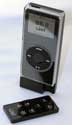
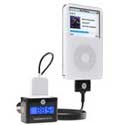
If you are in the market for a wireless remote and/or an FM transmitter for your iPod Nano, look no further than the iJet for Nano FM by ABT. The iJet for Nano FM is both of these accessories in one, and to top it off it is also a protective case for your Nano.


Wireless Remote

As a wireless remote, the iJet for Nano FM works great. It has all the basic control features you would expect: play, pause, scan a track in forward and reverse, skip tracks, and volume control. It even has a feature to skip to a playlist (although you’d have to have your playlists memorized to know what you were skipping to).

With a range of 150 feet, I had no problems getting the remote to work anywhere in my house. The signal had no trouble reaching the receiver between walls and ceilings, and even up three floors.

The remote itself is about 1”x2” and about 1/4” inch thick. It has a replaceable battery, and fits nicely into the back of the iJet unit when not in use. The buttons are raised on the remote, and response time is great.


FM Transmitter

There are a lot of FM transmitters on the market. I have tried several, myself. The iJet for Nano FM is, without a doubt, the best FM transmitter I have ever tried.

I live in Baltimore, Maryland. Some of my MyMac colleagues can back me up when I say that empty radio stations for FM transmitters are few and far between in this area. So, I was skeptical, especially since the iJet did not tune to the one empty station I had to use with another brand of transmitter, 87.7. However, I tried the iJet on 87.9 ( the range is 87.9-107.9), which has very faint reception of some broadcast coming from who knows where. I was blown away by how clear the sound was. It took control of the station, with no sign of the weak signal coming through. If I didn’t know better, I would have told you I was listening to a CD or a local station that always comes in clear. Plus, this first test was on a cloudy, on and off rainy, day. The other brand didn’t even give a signal half as good on days like this.

Another problem I have experienced with FM transmitters is that they have to be placed in a certain spot in the car. If you move it a drop the signal can go from good to bad. I moved the iJet throughout my car, and even inside a console. The signal was just as strong.

To control the transmitter, and set it up, you use the remote. Set up is very easy, and the included directions are great. All of the buttons have a second set of commands, which are easily accessed. The stations are tuned in through the iPod Nano’s screen. You can even have four preset stations saved to the iJet’s memory.


Protection

As I said earlier, the iJet even acts as a case for the Nano. Now, this is not the case you want to be jogging with. The “case” is a hard plastic that similar to a CD case. I suspect a drop or a hard bump into a table would crack the lid easily. However, it is still a case that would protect your Nano from scratches and dust while using it.

The case itself is the main unit of the iJet. The Nano sits in the case and mounts through the iJet’s dock connector. As I said earlier, the remote lives on the back of the case. It is very light, even with the remote attached, and adds almost no weight to the Nano.

There are no batteries for the iJet for Nano FM’s main unit. It takes power from the Nano itself, but I did not notice any significant power loss to the Nano while using the iJet.

Another great feature of the iJet, is that the bottom of the case has a dock connection, just like the bottom of the Nano. You can charge and sync your iPod without even taking it out of the unit! There is also an opening for access to the headphone jack.


The only problem I had with the iJet for Nano FM was in the lid for the main unit. It is not the easiest thing to open, and even more difficult to close. I can see it cracking easily with too much force used to close it.


Price

The iJet for Nano FM is priced at $69.95, and is available in black or white. Considering you could spend about that, or more, for a separate transmitter and a remote, this is a great deal. It even comes with an audio RCA stereo cable.

Pros:
The best FM transmitter I have ever tried.
As a wireless remote, it works great with a range of 150 ft.
Unit protects the Nano from dusts and scratches.
Bottom dock connector on the unit and headphone jack access.
RCA stereo cable included.

Cons:
Lid to the unit is hard to open and close.

The Pros far outweigh the Cons of this item.
MyMac.com Rating 4.5 out of 5.


This Macspiration is going to be a little different – More of a story with a solution to a problem. This may not be a common problem, but I have seen it more than once, which makes me think there are more people out there with the same experience.

Apple is one of the few companies that I trust to buy a refurbished product from. It comes with the same warranty as a new product, and you can also buy Applecare for a refurbished Mac just like a new one. However, based on my two experiences with refurbished Mac’s I’m starting to think something strange might be going on at the warehouse.

A friend of mine recently bought a refurbished Intel iMac from Apple. When it finally arrived he hooked it up, turned it on, and got a bunch of white text on a black background. Not only that, after the computer booted he was on a screen that resembled an OS 9 window. He had no clue what was going on, so he called me.

Coincidentally, I purchased a refurbished iBook for my school last summer (again, from Apple), and it had the same exact problem. What are the odds of that? In this case, I took the iBook to my local Apple Store where the problem was solved.

Anyway, after some emails to MyMac’s Tim Robertson, some Google searches, some posts on Apple’s Discussion Boards, and some “Aha!” moments when I remembered what the Apple Genius at my local Apple Store did with the iBook, we finally got the iMac working.

The one thing that I remembered clearly was that the Apple Genius told me that the techs at the warehouse forgot to finish setting the computer up for shipping condition. The Apple Genius entered some kind of code into Terminal and everything worked. Since I couldn’t remember anything else, I took Tim’s advice and reformatted the hard drive.

This was one of those “Aha” moments. I ran Disk Utility and discovered that the hard drive was broken up into three partitions. The iBook I bought had the same problem.

Another “Aha” moment occurred when I remembered the Apple Genius repartitioning the drive, and reinstalling OSX. So, I reformatted the hard drive into one partition, and reinstalled everything with the hope of a fix.

Well, the computer did boot fine, but that weird white text was still showing up instead of the Apple and blue progress bar screen. I finally discovered booting in verbose mode causes the text. Verbose mode allows someone to see what is happening “under the hood” when your computer boots, and use that for possibly diagnosing a problem. Apparently, the warehouse folks forgot to turn this mode off.

What would we do without Google? Probably use another search engine, but that is beside the point. I did some Google searches and found the Terminal command I kept thinking about from my iBook experience.

To turn off verbose mode, you need to use the Terminal. The Terminal is not an application to play around with. It is one of those “open the program, do what you have to do, and get out” type of apps. Terminal is located in the Utilities folder, which is in your Applications folder.

After opening Terminal, a window will open with a text prompt. At the prompt type:
sudo nvram boot-args="”

You should be asked for the admin password, enter it, and press return. After a few seconds, the Terminal will let you know the process has completed. Quit Terminal, and restart. The white on black text should be gone, and you should see the “normal” gray Apple logo followed by the blue progress bar screen.

My friend tried the code out, and it worked! What a relief. No trip to the Apple Store needed!

In my friend’s case, he had to choose “New Command” from the file menu, and enter the code there. I’m not sure why, but a least it worked.

If for some reason you want to turn verbose mode on, here is the Terminal code:
sudo nvram boot-args="-v"

My friend is up and running and enjoying his new Intel iMac.

You might ask if I would buy or suggest buying a refurbished Mac in the future? Sure. As strange and inconvenient as this problem was, it had a fix. If I couldn’t figure it out, we knew Apple would take care of it. A refurbished Mac is a great way to get a new computer and save a lot of money.

If I remember correctly, the iBook I bought for school was $600! That was for a G4 iBook with a combo-drive. In fact, I’m anxious to see what happens to the refurbished iBook prices when the next generation iBook (or whatever it is called) comes out. Based on the current refurbished iMac pricing, I’m hoping for below $600 iBooks. We’ll see.

Leave your comments below.


Kibbles and Bytes – 466

On May 20, 2006, in Uncategorized, by SmallDog


Rain and more rain! We were spared from the flooding that hammered our neighbors to the south but it has been raining steadily for the last two weeks. The Mad River is high and it is raining heavily today. We did get a slight break in the weather yesterday as Hapy and I took Artie out on the Killington Golf Course to do his performance review. (Ten years for Art!) As we headed down Route 100 it was raining but as we hit Rochester the sun started to peak out and we had a great round of golf (the weather, not the play!). Then on the way home it started to rain again. I had a meeting in Burlington later that day and on the way home I ran into a lightning storm like none that I have seen. There were repeated lightning strikes, some of them big horizontal bolts and others flashing to the ground on either side of my car as I drove. The flashes blinded me and some of them seemed to leave crackling embers of burning air.

One thing about all this rain is that the plants are growing fast. All of my apple trees are covered with blossoms, so unless we have a late season frost we might actually get some apples this year. Then again, I was listening to the weather forecast this morning and we have a cold front coming in on Saturday and they had the nerve to mention "snow" in mountain areas for Sunday night. Unfortunately, whenever they say mountain snow, the micro-climate at my house dictates that even if no one else gets snow, we will!  I hope this weather pattern clears up before my traditional Memorial Day ride to Maine.

I read an interesting report from the ChangeWave Alliance, a network of 7,500 highly qualified business, technology, and medical professionals in leading companies of select industries-credentialed experts who spend their everyday lives working on the front line of technological change. ChangeWave surveys its Alliance members on a range of business and investment research and intelligence topics, collects feedback from them electronically, and converts the information into proprietary quantitative and qualitative reports.

http://www.changewave.com/

They issued a report about Apple that indicates a "huge" increase in Apple Mac sales based upon the transition to the Intel chip and Boot Camp software. I think that they are correct and I can confirm their findings at least by the anecdotal experiences we have at Small Dog Electronics.  I was at the doctor’s office the other day and got to talking about the Mac. He had switched to PCs but has fond memories of his PowerBook Duo, saying it was the best computer he had ever owned. When I told him about the new MacBooks and Boot Camp, I could see the wheels spinning and I’m sure he’ll be visiting our store soon.  Twenty-five percent of the ChangeWave Alliance members surveyed said that Boot Camp made them more likely to buy an Apple computer in the next six months and only 2 percent said that it would be less likely.

don @ smalldog.com

+—————————————————————+

All About the All-New, Superfast, Do-Everything-out-of-the-Box MacBook by Ed @ smalldog.com

After months of speculation, the replacement for the G4 iBook has arrived. Expectations for the new machine were extremely high, and there were concerns that the eventual iBook replacement wouldn’t live up to the hype. In fact, the MacBook blows way past the hype. This is a bona fide smash hit of a computer—almost everything one would want in a portable consumer computer is found in the MacBook. Rather than an update of the iBook, this is a completely new design, with all-new features and capabilities not found in any other similarly priced machine.

Several readers have pointed us to this link, showing that the MacBook is cheaper than similarly configured Dell:

http://waffle.wootest.net/2006/05/16/macbook-cheaper-than-dell/

The MacBook is based on the Intel Core Duo, which means it is like getting two processors on a single chip. This is the same exact chip found in the original MacBook Pro. Speed tests around the web show this to be an extremely capable processor, exceeding many of the capabilities of the G4 and the lower-end G5 IBM processors (which, of course, are already quite speedy). The MacBook is currently the smallest computer using the Core Duo chip. It’s 20% thinner than the 12- and 14-inch iBooks. Despite its larger display, the MacBook weighs only 0.3 pounds more than the 12-inch iBook. Its total weight with battery is only 5.2 pounds.

The MacBook can use up to two gigabytes of PC5300 SO DIMM RAM. RAM should be installed in pairs in the MacBook for best graphics performance. The MacBook uses speedy 2.5-inch SATA hard drives, the same as the MacBook Pro. You can install up to a 120 GB drive in the MacBook. Here is a link to MacWorld demonstrating how easy it is to upgrade the RAM and hard drive in a MacBook. Our techs will appreciate this, as it is bit of chore to  upgrade the hard drive in the G3 and G4 iBook.

http://www.youtube.com/watch?v=8c6ckjy-gdY

The MacBook uses a brand-new keyboard design, with lower-profile keys integrated from inside the case. These should be much more durable than the keys on the iBook, which could occasionally pop off. People will either love or hate the keyboard; I think it looks really cool, and it should be extremely durable.

All MacBooks have a 13.3-inch "glossy" widescreen display with 1280 x 800 resolution. The glossy aspect of the display is another love-it- or-hate-it feature. The vast majority of people love the bright, saturated colors provided by the glossy displays. However, they can pick up a little side glare in bright sun, and some graphics professionals can’t rely on the colors provided by the glossy display.

There is a mini-DVI port on the MacBook, which is a huge upgrade from the mini-VGA on the iBook. You can drive an external monitor up to 1920 x 1200 pixels, which includes Apple’s 23-inch studio display. The MacBook supports native dual-displays, instead of the video mirroring found on the iBook. There is a 1/8-inch built-in audio port on the MacBook, allowing both digital and analog input and output.

All MacBooks come with the built-in iSight camera, an Apple Remote with Front Row software, AirPort Extreme and Bluetooth built in, as well as OS X and iLife 06. There is no built-in modem—if you need a modem, Apple’s external USB version is $49. The MacBooks also come standard with a long-life battery (up to 6 hours), and the awesome 85w MagSafe A/C power supply. The 60W MagSafe Power Adapter from a MacBook can be used to power a MacBook Pro, but because it is lower wattage (60W instead of 85W), it will not CHARGE the battery in a MacBook Pro. (This is identical to the way iBook and PowerBook AC adapters interoperated with each other.)

The MacBook starts at $1099 for a 1.83 GHz Intel Core Duo with 512 MB of RAM, a 60 GB drive, and the Combo drive for burning DVDs and playing CDs. For $1299 you can get it with a 2 GHz Core Duo and the DVD-burning SuperDrive. You have to pay $1499 to get the machine in matte black. The black model comes with an 80 GB drive and the SuperDrive as standard equipment.

The only thing you can’t currently do with the MacBook is run the current version of Final Cut Studio—the 64 MB integrated graphics card is not currently supported by Motion or Aperture. You need a MacBook Pro or PowerBook for that. However, the new version of Final Cut Express 3.5 will run beautifully on the MacBook.

The MacBook can run Windows XP under the Boot Camp beta. XP should run extremely well on this system, as it has on all other Intel Macs. It’s now possible to buy an Intel Core Duo laptop from Small Dog that ships with both Mac OS X and Windows XP installed, starting at only $1219. It’s almost like getting two powerful computers for the price of one!

+—————————————————————+

Occasionally readers send in emails or articles that simply have to be published. The following was written by a person who works at Apple, Inc. It’s really great, and I highly recommend reading it. Thanks again for sending this in!

I have been a loyal reader of Kibbles and Bytes and think you guys put out a great publication. I think your store has some wonderful things and I think you guys are a great place for all mac enthusiasts. I have yet to subscribe to your podcast, and I need to do that.

I figured I needed to contribute for your next edition of Kibbles & Bytes to add a tidbit that a number of people may not actually know. I work for Apple doing Tech Support for them.  What a lot of people may not know is that they may not know that there is a specific group in Apple (the one I work for) that started up last January that specifically deals with all the iApps and a few pieces of the OS.  We deal with the five pieces of the iLife suite (iPhoto, iMovie, iDVD, GarageBand, and iWeb; note:  iTunes is no longer part of iLife, it’s now its own app, and that’s handled by the people who handle iPod questions), the iWork suite (Keynote and Pages), and then deal with iCal, iSync, Front Row, and Photo Booth in the OS.  We deal with all the questions of things that aren’t working with the programs, report any bugs that are found, and correct any errors.  We normally try to refer any "how-to" questions to our help menus and knowledge base since we just don’t have the bandwidth to be able to sit and hold hands walking people through things that we do have documented that people do have already in front of them.  But, we also do what we can to make sure that we do point our customer to the right path so that if we are pointing them to self-help resources, we want to make sure that resource is there and that they are accessing it correctly.

If we could give some pieces of advice to our customers, we would say the following.  First, NEVER DO ANYTHING TO YOUR IPHOTO LIBRARY FOLDER!!!!!!!!!!!!!!!!!!!!  Well, let me take that back, you can always copy it and back it up.  But, other than that, don’t touch it.  If you want to delete photos, do it through iPhoto.  If you’re trying to attach photos to an e-mail message, do it through iPhoto. If you’re trying to attach photos through a web browser or upload them onto a site, export your photos into a folder onto your desktop and then attach them or upload them.  But, whatever you do, don’t go into your iPhoto library, delete photos from there, or go in there and, because you don’t like how it’s organized, go in there and change the organization.  It is organized a certain way for iPhoto, and if you go and change it, it will completely screw up your iPhoto library, and on our end as techs, we’re going to have to have you move your library out, create a new one, and reimport your photos, and have you rebuild all your albums, reorganize all your photos, and do a lot more work than if you did it through the iPhoto interface. I promise you that if you delete the photo in iPhoto, put it in the iPhoto trash, and empty the trash, the photo will be gone.  So, avoid the iPhoto library at all costs.

Second, in almost every program, under the menu next to the blue apple that has the name of the program next to it, there’s an item that says "provide ________ feedback".  Take advantage of it.  We truly treasure and listen to our customers’ feedback.  You don’t know how many changes to our programs come because of our customers’ feedback.  Changes that happen don’t just happen from a bunch of engineers that come up with their own ideas, they come from our customers.  I mean, so many of our customers use this so dedicatedly for so many different reasons, both personal and professional.  So, if you think there are things that you think should be changed about something, send it to us.  Either look for that feedback link under the menu, or go to our website at www.apple.com/feedback and send us something.

Finally, know your self help resources.  We refer our customers to three places to find answers.  First, our help menus.  The help menus are a great resource that really explain very well the very basics of how to do simple things in programs.  We use them all the time to point our customers in the right direction.  They should always be the first place a customer should look if they have a question about "how to" do something in any of our programs.  The second place is our knowledge base, or kbase.  Our knowledge base, on top of containing all the help articles you can find in the help menus, contain articles that we post on various fixes and issues to things that we are seeing and hearing from our engineers, customers, and tech support agents.  So, the "bug" you think you found might be something we already know about and already have documentation on in our knowledge base.  Last, when all else fails, a great place to look is our discussion boards.  Our discussion boards are a great resource because it allows you to talk to other mac gurus.  Normally, our computers come with 90 of phone support, and you can purchase AppleCare (which extends your phone support to 3 years) within the first year.  If you are out of your 90 days and cannot purchase or are beyond the 3 years if you had AppleCare, an alternative to the $49 charge we would charge for support is to use our discussion boards, and this is something that we do offer and suggest to our customers over the phone.  So, take advantage of your resources. They are there, they have lots of knowledge, and they should be able to answer your question 90-95% of the time.  One piece of advice, though, don’t treat it like Ask Jeeves. . . use short keywords, not long questions.  If you want to know how to burn your iMovie in iDVD, don’t go to the knowledge base and type in there "How do I burn my movie into idvd".  I would simply just put "imovie iDVD" and let it come up with a number of things.  It’s the thing of it’s better to have too much than too little.  It’s better to sift through a little too much than too little.  So, stay simple, stay short.

Oh, one more thing (Steve Jobs’ famous line), if you call Tech Support wanting to know about the latest and greatest stuff right after it’s released, we know just as much as you do, and we know about releases right when you do.  Sometimes, you know about releases before we do because while you’re listening to Steve Jobs talking about the release of our new product, we’re still on the phones.  We can’t shut the call center down to listen to him (BOY do we wish we could).  ;-)  So, if we don’t have all the answers about the newest product right away in tech support, understand that they tell us absolutely nothing until it’s released.  Once it’s released, then we get flooded with stuff, but we’re trying to read info while still trying to do our job.  So, understand that we won’t have all answers right away, but we will do our best to still get as many answers as we can.

Keep up the good work.  Look forward to your future editions.

+—————————————————————+

iLife ’06 Gets Upgrades by Don @ smalldog.com

It was a busy week for Apple. Apple started out by quietly revising the iLife applications. The most significant upgrades were to iWeb, which I will talk about in a minute, but the other applications were also upgraded. The updates are available through the software update system preference. You must already have iLife ’06 installed to take advantage of these upgrades.

• iDVD 6.0.2: Resolves issues with integration with the other iLife applications, importing of legacy projects, and some theme-related issues. It also addresses a number of other minor issues. iDVD 6.0.2 update addresses issues with burning some 16:9 projects and improves overall stability.

• iPhoto 6.0.3: Resolves several minor issues with playing shared slideshows in Front Row.

• iMovie HD 6.0.2: Addresses issues with Ken Burns rendering performance, scrubber bar editing performance, theme image quality, PAL audio, and displaying iLife Sound Effects automatically in its iLife Media Browser. It also improves overall stability and addresses a number of other minor issues.

• iWeb 1.1:  iWeb 1.1 update adds two new features for .Mac subscribers and addresses a variety of usability and performance issues.

Comment support for blogs and podcasts (.Mac published sites only) Blog search support (.Mac published sites only) Usability improvements to themes and templates Image management fixes to improve site performance Other bug fixes and usability improvements.

Of these, there are three improvements that are very significant. The first is the addition of comment support.  This only works if you have .Mac, but we all have that, right? If you have iLife ’06 and do not have a .Mac subscription, you are missing some of the richest and most powerful features of iLife. One of the drawbacks to using iWeb for a blog was the lack of comment capability. What fun is it to have a blog for all of your great thoughts if your friends cannot comment? Apple solved this problem not only by activating comments but in doing so in a manner that is very powerful.

It took me a little while to figure out how to activate comments on my personal blog <http://web.mac.com/donmayer>. I’ve been gradually putting up all of the soapboxes and other writings that I have done over the past few years and I like the feedback, give and take, and community that discussion of the issues generates. To activate comments, you must choose the "Inspector" from the toolbar on the bottom of the iWeb screen. Choosing the Blog tab will give you a couple of new options.  The first is whether to allow comments with an option to also allow attachments. You can set this flag for any blog entry. I decided to allow comments on any blog entry so I just selected the entire blog category and allowed comments.

One of the dangers of having an open-comment blog is that automated spambots will eventually find it and start posting crap. Apple avoided this by providing verification for posts. You have one of those little boxes with numbers and letters to enter that people can read but machines have trouble with. I like people-only schemes and find it a little like science fiction that we have to protect ourselves from machines by coming up with things that only real humans can do.

You may want to manage the comments of others because of inappropriate, off-topic, or otherwise bad posts. Apple again has made that easy. If you surf to your own blog and have comments, there is a little lock icon. If you click it, it will ask you for your user name and password and you can then delete the offending posts.

The other check box in the Inspector will put a search box on your blog. This will allow users to search your blog entries. It works great—very fast. The other big change to iWeb is under the hood. This is a change in how your changes are uploaded to .Mac. In the past, this was a long process that locked you out of working in iWeb until it was complete. Not only that, but it seemed to load the entire site to .Mac, not just the changes you may have made. It’s smarter now and will just upload the changes, making it a lot faster, and it also releases you and lets you work in iWeb while it loads in the background.

One less-documented change is that it is now possible to change the default location of your Domain file.   All the information iWeb needs to create your websites is in one file called "Domain." You can copy this file to another computer so that, for example, you can work on your site from home and at work. Beginning with iWeb 1.1, you can select a new default location for your Domain file. You do this by moving the Domain file to the location you want (i.e., Family, Business, etc.) and then rather than clicking on the iWeb application to open iWeb, you click on the Domain file you wish to use. While this does not solve the problem of the difficulty of working on iWeb on multiple computers, it does make it easier. You just have to copy that Domain file to a flash drive and carry it to the other Mac. One thing to keep in mind is that you can only publish one Domain on .Mac, so all of your sites that you wish to publish to .Mac must reside in that single Domain file.

Further details on changing the Domain file location can be found at:

http://docs.info.apple.com/article.html?artnum=303670

+—————————————————————+

Saft Makes Safari Better!
By Don @ smalldog.com

I was surfing around looking for something else when I bumped into Saft. Saft is a clever Safari plug-in by Hao Li that adds some handy features to Safari such as ad blocking, draggable tabs, sidebar, searchable history and bookmarks, full-screen browsing, type-ahead searching, customized Google Search field, URL shortcuts, and kiosk mode. One of the handiest features that I use is that Saft will remember which windows were open when you quit Safari and reopen those windows when you launch it again.

You can download a fully functional timed version of Saft at:

http://haoli.dnsalias.com/ld/d.php?saft_tiger

It is a single-session demo, but that’s all it took for me!  I immediately went to pay the $12 shareware donation and got the full version. It is an essential addition to Safari!

Here’s a list of the features of Saft:

Ad/banner blocking with simple URL pattern matching Add bookmark folder here and add bookmark here in every bookmark menus Always open browser window in tab Auto hide Downloads window Auto save and restore opened browser windows at quitting and start Block animation Block HTML refreshing in front-most browser Block images and plugins Bookmark search Bookmark this group of tabs Consolidate browser windows Control-1 to 9 to popup bookmark menu or open bookmark Control-drag page Crash protection Customizable HTTP timeout Customized Google search field Do not allow scripts to bring tab to front Drag tab buttons to add the URL string to other applications Enter/ctrl-enter to go to next/previous links (like in Google) Export Selected Bookmarks Extended search from contextual menu External text editor support for TextArea Focus the last selected tab when closing the current one Full-screen browsing Growl support History search Install debug menu Kiosk mode Max screen for normal browser windows One-page PDF export Open tab in new window Option to use Aqua interface Original URLs in Finder comments of downloaded files, exported PDFs and saved pages Save and load browser windows Separator in bookmark menu Sidebar Sort bookmarks in every bookmark menus Stop download warnings Tab rearranging with drag and drop Type-ahead searching Undo support for closing tab Undo support in TextField URL shortcuts URL traverse with return-key

+—————————————————————+

Why Every Small Business Should Use a Mac (and why Apple should abandon their new TV ads) Dawn @ smalldog.com

As Don mentioned, I’m leaving Small Dog to start my own business, Voodoo Marketing. Over the past few weeks, I’ve had conversations with several small business owners. Out of ten or so prospects, all but one of the businesses are using PCs and Windows.

I’ve noticed one thing that all these folks have in common: they haven’t added much new software to their computer. The computer has changed little since they brought it home, other than some documents accumulating and perhaps some pictures. If they bought a scanner, they may have Adobe Photoshop Elements, but that’s about it. They are basically going through life with nothing but Microsoft products— Word, Outlook, Excel, PowerPoint, Access, and Explorer plus other Microsoft products for dealing with sounds, images, video, etc. This is a full arsenal of software, but it provides a very limited experience.

Why aren’t these Windows users going out and getting cool software and doing more neat things with their computer? Again, I’m going to go back to the necessary evil idea. The business owner isn’t going to put more money into the computer because to them it’s a typewriter and email transmitter. Yes, there are thousands of shareware and freeware titles out there but if you had a Windows computer and were completely afraid of viruses, would you go looking for software online?

The biggest reason to use Macs instead of Windows for a small business is, of course, the virus issue. To be honest, we Mac folks don’t even know the pain of experiencing a crippling virus, so it is hard for me to understand how devastating this might be.

These folks are also afraid of  "screwing up" their computer. So instead of turning their computer into a useful tool, they avoid making any changes. Rather than thinking, "How can I get my computer to do this for me?" they think, "It will cost me too much to hire someone to set my computer up to do this." From the start, they think that they’ll screw something up. Of course, they may hire someone because they don’t have the time or interest to figure it out, but that’s not what I’m seeing happen. ( I have also seen a few Macintosh users who won’t try something new because it may mess up their perfectly balanced system, but this is usually a holdover from something bad happening in OS 7.)

Another problem these users face is crashing. Let’s face it, this is a frustrating waste of time. I haven’t had a serious crash since Mac OS X 10.3 came out. In fact, I haven’t restarted my home iMac in months (or at least since my last software update). This is just something to which I’ve grown accustomed. My computer is up and running constantly, sleeping only when it is not at my beck and call.

But how does all of this explain why Apple should abandon their current TV ads? If I’ve met ten business owners in two weeks who are all experiencing the same issues, think how many are out there. Apple’s current TV ads with two people pretending to be computers aren’t addressing these issues in a way to which real people can relate. Apple was bang on with their old Switcher campaign, but they are way off with the latest "Two Guys" campaign.

With Intel Macs blurring the differences between hardware, Apple needs to hammer home the things that make using a Mac different from a user standpoint: everyone can use them from scientists to kids, and they are rock solid. Two guys pretending to be computers just aren’t going to do that.

+———————————————————+

Specials!

Here are the specials for this week, valid through May 25th or while on-hand supplies last. Be sure to use the wag URL to get this special pricing.

+—————-+

MacBook 13-inch 1.83GHz 512/60/combo/AP/BT white, Windows XP home installed, FREE shipping, $1219!

To order: http://www.smalldog.com/wag16680/mymac

+—————-+

15-inch PowerBook G4/1.67GHz 512/80/SuperDrive, plus 1 GB RAM and PowerBook MacCase – $1699

To order: http://www.smalldog.com/wag16661/mymac

+—————-+

Men’s XL Burton Shield iPod Jacket – now only $199

To order: http://www.smalldog.com/wag16682/mymac

+—————-+

Men’s L Burton Shield iPod Jacket – now only $199

To order: http://www.smalldog.com/wag16683/mymac

+—————-+

Men’s M Burton Shield iPod Jacket – now only $199

To order: http://www.smalldog.com/wag16685/mymac

+—————-+

Men’s S Burton Shield iPod Jacket – now only $199

To order: http://www.smalldog.com/wag16684/mymac

+—————-+

Men’s XL Burton Audex iPod Bluetooth Jacket – now only $329

To order: http://www.smalldog.com/wag16687/mymac

+—————-+

Men’s L Burton Audex iPod Bluetooth Jacket – now only $329

To order: http://www.smalldog.com/wag16688/mymac

+—————-+

Men’s M Burton Audex iPod Bluetooth Jacket – now only $329

To order: http://www.smalldog.com/wag16689/mymac

+—————-+

Men’s S Burton Audex iPod Bluetooth Jacket – now only $329

To order: http://www.smalldog.com/wag16690/mymac

+—————-+

iPod 20gb (color display) with free shipping – $225!

To order: http://www.smalldog.com/wag16694/mymac

+—————-+

Apple iPod 20gb with Color Display with Free Kensington Case – $195!

To order: http://www.smalldog.com/wag16695/at_tidbits/mymac

+—————-+

Apple iPod 40gb Clickwheel with Dock, free shipping – $195!

http://www.smalldog.com/wag16696/at_tidbits/mymac

+———————————————————+

Another rainy weekend is coming up. We hope there will be some breaks in the weather so we can get outside a bit.

Hey, have you checked out the Small Dog blog lately? We have a lot of the Small Dog folks posting on a daily basis. We’ve even had a few posts from Hapy!  Check it out and let me know what you think:

http://blog.smalldog.com/

Thanks for reading Kibbles & Bytes and have a great weekend!

Your Kibbles & Bytes team,

Don, Dawn, Ed, and Holly


Weekend Archive – Look Into My Quartz Crystal Ball

On May 20, 2006, in Uncategorized, by


Bob McCormick, in November 1999, tried his hand at predicting. How did he do? Read his article Look Into My Quartz Crystal Ball to find out, and you may also learn a little something as well. Read it HERE.


Photoshop Filter Effects Encyclopedia
The Hands-on Desktop Reference for Digital Photographers
by Roger Pring

O’Reilly Press
ISBN: 0596100213
176 Pages
http://www.oreilly.com
US $29.95 CAN $41.95

In October of 2005 O’Reilly announced the publication of a new series, The Photoshop Digital Cookbook Series. The first four titles target the photographer, are each 176 pages in length, are priced at $29.95, and provide a wealth of ‘How-To’s’ for manipulating photographs. These are oversized books measuring 9.25” X 10” and are bound in such a way that they easily fall open to any page and stay open without the assistance of paperweights and other stabilizing devices. So, placing one of the titles on my desk to follow instructions for the filter settings in Photoshop was easily accomplished and did no damage to the book. The front and back covers both have flaps for easy book marking and the image files used within are available for download at http://examples.oreilly.com/.

Photoshop Filter Effects Encyclopedia is an impressive resource for getting the most out of Photoshop’s extensive collection of filters. The 109 built-in filters are presented, grouped into 13 categories, and include the new additions for CS2. Those filter categories are Artistic, Blur, Brush Stokes, Distort, Noise, Pixelate, Render, Sharpen, Sketch, Stylize, Texture and Other. An overview is presented for each group, with color examples for each filter in the group.

The individual filters are then explained, beginning with an overview of what the filter does and the basics of how it modifies an image. Next is ‘How it works’, which describes how to use or apply filter settings to achieve various effects and why you achieve those results. The ‘Using the …. filter’ provides examples and suggestions for practical application in your work, giving filter dialog settings in combination with blend settings and tonal adjustments.

There are copious color illustrations of originals and the possible modifications as well as screen shots of the dialogs used for the fine-tuning. Keyboard shortcuts for Windows and Mac are included where applicable. The image files used in the book are available for download at http://examples.oreilly.com/photofilterfx.

I love applying artistic effects to photos, so I’ll describe the details on the Watercolor filter page from the Artistic Group to give you an example from this volume. The brief introduction explains that the true effect of watercolor bleeding might best be achieved with the Smudge or Healing Brush tool. But, the slight darkening around the edges of each distinct patch of color produces an excellent gouache painting. In the ‘How it works’ section, the three dialog box sliders are explained and settings are suggested to achieve a ‘painterly result’. The ‘Using the Watercolor filter’ portion steps me through the process of transforming a photo.

The type of photo best suited to the application of this filter is discussed first. Then a test application of the filter is suggested, which comes out rather dark. Step 3 suggests a preferred approach, first stepping back to the original and then applying a 6-pixel Motion Blur. Next is applying the Diffuse filter several times, set to lighten only. Lastly, the Watercolor filter is applied with suggested settings for Brush Detail, Shadow Intensity and Texture. Following along, my results really did approximate a watercolor painting, as portrayed in the book!

In Summary:
This book is beautifully laid out and the steps for applying filters in combination with other Photoshop settings are easy to follow. I enjoyed using the directions straight off the pages for applying to my photos and then felt confident to start playing on my own with the slider adjustments and blend modes. Photoshop Filter Effects Encyclopedia gets a strong recommendation from me for anyone with Photoshop basics under their hat who feels ready to further explore their Photoshop potential.

MyMac.com Rating: 4.5 out 5

Reprinted with the permission of the Tucson Computer Society <http://www.aztcs.org>. Originally published in the print Journal of the Tucson Computer Society, but not available online until this posting at MyMac.com.


Total Training for Adobe GoLive CS2
Company: Total Training

Price: $99.00 US

http://www.totaltraining.com/prod/adobe/golivecs2.asp?mscsid=

Total Training for Adobe GoLive CS2 comes on a single DVD lasting seven hours. It is hosted by Lynn Grillo, Total Training instructor, author, and certified expert in GoLive, InDesign, Illustrator, and Photoshop. It sells for $99 US.

Watching a Total Training DVD takes you on a wild ride. The graphics are fun and it is a professional series. I quite enjoyed Lynn Grillo and her mode of instruction. She was clear, fun, and precise in showing me each step in GoLive CS2. I had spent weeks trying to learn this program on my own and was pretty confused. But Lynn took me through every aspect step-by-step. I knew a little html from past experiences, but with a busy graphic design business, I never had the time to really sit down and learn web design. Watching and learning with Lynn helped this confusing process actually make sense.

I am not sure how many people will want use GoLive CS2 as their web design software. However, with so many designers using Adobe CS2 apps, I encourage more to learn GoLive. Many designers would like to do web design but are unsure how to start. I think any unfamiliar territory can be scary yet I encourage each of you to take that first step. I certainly plan to use GoLive CS2. Plus, it is well integrated with other Adobe CS2 programs.

The difficult part for me was finding the time to sit down and watch the DVD. Yet, I found when I did plug it in and begin to listen, I would find myself quickly totally immersed in Lynn’s classes. Her lessons are extremely interesting. Not only did I learn Go Live but she taught me a zillion short cuts and little things that cross over to other CS2 software programs. I have been a designer for many years and have worked up the ranks from old PageMaker versions to recently acquiring Adobe Creative Suite 2. It has been ages since I have taken any class on current software, and learning all these little details that work across the CS2 programs was terrific.

So, what about web designing in GoLive? I am excited to finally learn this program and to take the plunge into web design. I actually designed a very boring web page once in Microsoft Front Page. Not anything I wanted to brag about. Several years ago, I happened onto a web page built in one of the early versions of GoLive on a Mac. I was impressed with the photos and how easy it flowed, and always thought some day I would investigate GoLive. I have always considered hardcore designers to be programmers, and think they will probably continue to design directly with html. But being a graphics person, I knew I had a program right under my nose that once I learned the software, designing a web page would be a piece of cake.

I must still say I think GoLive is a complicated program and takes some effort to learn. I have gone back over several the lessons a second time. But that is the cool thing about having instructions on a DVD. You don’t have to go through the frustrating part of rummaging through your notes, or flipping through endless pages of a textbook trying to find your answer. Just find the topic on Lynn’s list and within minutes it all makes sense again.

This DVD contains sixteen lessons with the first few laying the groundwork for understanding the program and the basics in designing a web page with GoLive. Each tutorial then consists of a list of topics taught during that lesson. Lynn takes you step-by-step through the program so you understand completely each one of the menu items and exactly what is their purpose. She teaches you about templates, smart objects and how to incorporate multimedia into your web design. You learn how to add a QuickTime movie, use JavaScript, flash files, animated rollovers and cascading style sheets. She shows how you can maneuver through the software or do certain tasks in several different ways, which is always important to know.

In any lesson she might show you something that appears on the page or in a palette. She will point it out and explain what it is but let you know she will cover that particular item more in depth in another lesson. You learn about tables, using color, working with PDF files in your web design and how to manage your site. You learn to upload your files and you learn to download a webpage so you can study how that web page was designed.

Something I never really understood and was very excited to learn was cascading style sheets. Lynn explains not to be intimidated by cascading style sheets (referred to as CSS). One does not have to be html savvy to learn CSS, but since web design trends are changing their approach to web design with CSS, it is important to know to be up-to-date in Internet language and understand CSS code. CSS teaches you a way to apply styles to text and page design on your website. An important aspect of CSS is keeping your web content separate from your web data.

Whether you are a newbie to GoLive or have worked in earlier versions of GoLive, Lynn will explain a particular process in designing your website. Then she will teach you another shorter way to do the same thing, often telling why along the way, then possibly even a third way to accomplish the same process. She will present what the process might have been in an earlier version and at the same time; refer to both Mac and PC keyboard shortcuts as she goes along. It really doesn’t matter what platform you are using as you learn from this DVD.

Once you have a site designed, Lynn goes over every detail of publishing your site. She explains how to publish to a directory on your hard drive or network if you haven’t set up a server where you will eventually publish your site. By publishing to your directory, you still can view it through a browser or several different browsers.

Total Training for Adobe GoLive CS2 comes with Desktop Projects Files for each of the lessons to place on your desktop. You have built in homework with files that pertain to each assignment so you can practice what was taught. If you hit a snag, you just go back to the lesson and watch to clarify. The conclusion of the DVD is full of some special tricks and tips Lynn Grillo had learned in her years of working with GoLive. Those were great to learn.

My Conclusion – A fabulous way to learn GoLive CS2. I think any true designer is a visual person and being able to see and hear GoLive CS2 explained to you step-by-step is worth every minute of the DVD. Lynn Grillo is such an excellent instructor and Total Training is very lucky to have her on their staff. (I look forward to hearing her speak at a future MacWorld Expo.) I also love having these lessons at my fingertips when I forget or get confused by something. GoLive is a complicated program and I think this is a terrific way to learn. I don’t have my website finished yet but I am on my way.

I have already recommended Total Training GoLive CS2 to several of my friends, one being a high school graphics and photographer instructor. He has students always in a hurry to learn new things. This way, they can learn at their own pace. Forget those classroom books and check out Total Training. I don’t think you will be disappointed with our 5 out of 5 rating.


MyMac Podcast 82 – MacBook – Jansport

On May 18, 2006, in Uncategorized, by MyMac PodCast

The MacBook takes center stage this week on the podcast. Tim and Chad look over the specs, price, and more. We also announce the winner of the Jansport.com Audio Livewire Backpack. And as Tim guessed, we were stood up in our interview segment this week. Sgt. Perry drops by with his opinion on the new Glossy Screen on the MacBook, as well as Nemo with No Snooze Review and Guy’s Dashboard Minute.

Leave audio feedback – 1-801-938-5559

Download the show

Direct MP3 Download

iTunes Music Store
Podcast RSS-Only Feed
Check out our listings at YaHoo, Podcast Pickle, or Podcast Alley.

The show is sponsored by SmallDog.com and Inno-Tech.com. Want to sponsor the show? Email us.

Links:
JanSports.com
MacMinute.com
PlayListMag

Dashboard Minute Links
QuExp
Digg Widget

Snooze Links
MaxProtect II
Laptop Sleeve


MacBook Pro (Rev. E)

On May 17, 2006, in Uncategorized, by Neale Monks
  • Product Name: MacBook
    Pro (Rev. E)
  • Company: Apple
  • URL: http://www.apple.com/macbookpro/
  • Category: Laptop
  • Price: $1999
  • Specifications:
    • 1.83 GHz
    • 1.5 GB RAM
    • 80 GB Hard Drive
    • Mac OS X 10.4.6
  • Rating: 3 Bounces – Lustworthy
  • AppleLust doesn’t commonly review hardware,
    but with the ongoing transition from the PowerPC
    processor to the Intel ones, I think it it’s
    worth taking a look at these new machines in
    the context of day-to-day work and play. One
    of the things that stands out when you read
    many of the hardware reviews is the use of
    benchmarks. I’m all for benchmarks; they’re
    objective tests of speed that allow the reader
    to see clearly how one machine compares with
    another. But there’s more to using a computer
    than speed.

    Powerbooks side by side
    PowerBook G4 (left) and MacBook Pro.
    The difference in screen brightness is
    prety obvious, but otherwise the two machines
    look remarkably similar.

    Basic Hardware

    Perhaps a good place to start is the new magnetic
    power supply connector. Ironically, it’s because
    of power supply cables that I even got the
    new MacBook Pro. I’ve been using a Titanium
    1 GHz PowerBook since late 2002, a machine
    that has stood me in good stead over the years.
    About a month ago, while taking the PowerBook
    from one room to another, the cable caught
    on a door handle and pulled the machine to
    the floor. On the plus side, the electronics
    worked fine, but alas, one of the hinges was
    broken, making it impossible to close the display
    properly. Luckily, my PowerBook was insured
    for accidental damage and with a declared value
    on my household insurance policy, something
    I recommend any Mac owner to consider. Within
    a couple of weeks, my insurers had assessed
    the PowerBook, decided it was uneconomic to
    repair, and sent me a brand new MacBook Pro.

    The magnetic power supply connector is supposed
    to stop this sort of accident from happening.
    It’s difficult to tell if it really would.
    The magnet is surprisingly strong, and while
    a neat gimmick, I wouldn’t call it a big-ticket
    item as far as selling the MacBook Pro goes.

    Lots of reviewers have commented on the fit
    and finish of the MacBook Pro. The hinge is
    certainly much more sturdy than those on my
    old G4 PowerBook, being a much larger chunk
    of plastic and metal than two spindly little
    things. Only time will tell if the paint job
    is significantly better, but there are some
    reassuring plastic trimmings at the edges where
    the paint most quickly got scuffed on my old
    PowerBook.

    Two high profile additions to Apple’s new
    hardware is the built-in iSight camera and
    the remote control. The iSight camera works
    nicely, and delivers really nice pictures,
    but to be honest I only use webcams as imagers
    for use on telescopes, and so don’t have much
    need for the iSight. The remote control, on
    the other hand, is a thing of sheer joy. I
    love listening to podcasts and talking books
    at night before dropping off to sleep, and
    being able to control iTunes so easily from
    my bed is wonderful. The remote seems to have
    considerable range and although using infrared
    beams, seems pretty tolerant about not being
    pointed in the right direction, so it "feels" more
    like a radio control.

    A lot of the other stuff on the MacBook Pro
    doesn’t feel that different though. The keyboard
    lights up in the dark, like those on the Aluminium
    PowerBooks, and likewise has a metallic finish
    instead of being translucent plastic, but otherwise
    feels similar to the one on my old G4. The
    trackpad feels about the same, though it does
    have some "cool" new features like
    horizontal scrolling. To be honest, I found
    the horizontal scrolling much more awkward
    than simply clicking the window scroll bars.

    Finally, while the overall size of the machine
    looks about the same, it is sufficiently larger
    that G4-sized goodies like carry bags and screen
    protectors might not work. My Tucano Second
    Skin sleeve certainly didn’t fit, and the the
    Radtech screen protector seems slightly too
    small to provide full protection.

    What’s Missing, Or At Least Different

    There are a few things reviewers have fussed
    over that don’t bother me in the least. The
    replacement of the PC card slot with the smaller
    ExpressCard slot, for example, is no big deal.
    While I have quite a few such cards for my
    old PowerBook 3400, they were either unnecessary
    or incompatible with my G4 PowerBook. Since
    the MacBook Pro comes with wireless and Ethernet
    networking already, those cards aren’t needed.
    A 56k modem might be something some users will
    miss, since these Macs don’t have one, but
    there isn’t yet an ExpressCard modem available
    for the Mac, leaving an external USB modem
    the only option for that functionality. PC
    card adapters for digital camera memory cards
    are popular, but I admit to using the slow
    USB adapter that came with my little Nikon,
    so again, this issue doesn’t really bother
    me either way.

    Another supposedly big deal is the lack of
    a two-button trackpad. Am I really the only
    person who doesn’t care? Trackpads are not
    nice input devices at the best of times, and
    it’s their clumsiness for doing graphics work
    or playing games that leaves me thankful I
    can plug in an external mouse. For typing e-mails
    or editing word processor documents on the
    go, the trackpad with one button is fine.

    Most of the ports on the machine are the same
    as those on my G4 PowerBook, except that they’re
    distributed along the left and right of the
    machine instead of all being at the back. There’s
    a single FireWire 400 port on the right, for
    example, along with the DVI video port and
    a security socket for one of those chains that
    supposedly keeps your PowerBook from being
    stolen. Incidentally, it’s worth noting the
    absence of a FireWire 800 port. Quite why it
    is missing is a mystery to me, since the 17-inch
    MacBook Pro has one. Either way, if you need
    high-speed connectivity beyond the specification
    of USB 2 or FireWire 400, the absence of FireWire
    800 will be an annoyance. The USB 2 ports are
    distributed one on each side, while the audio
    in and out ports are both on the left. A surprise
    is the lack of a restart button. When my MacBook
    Pro did freeze, and wouldn’t respond to the
    reset keyboard combination, I had no choice
    but to pull out the main adapter and remove
    the battery. Not nice. It turns out there’s
    a new keyboard sequence: Shift-Function-Control-Power,
    to be held down until the machine shuts down,
    and then after 30 seconds, press the Power
    button.

    One obviously missing thing that does matter
    is Classic. You can’t run OS 9 software on
    the MacBook Pro. The trade-off presumably is
    that you can potentially install and run Windows
    XP.

    What’s Better

    Perhaps a funny thing to start a list of improvements
    with, but the first thing I noticed was that
    the loudspeakers appear to be much louder,
    and the stereo effect when playing movies is
    distinctly better, perhaps because of the increased
    volume. I always found the loudspeakers on
    my G4 PowerBook a bit anaemic, significantly
    worse, for example, than those on my PowerBook
    3400.

    The screen has slightly more pixels than my
    old PowerBook (having a resolution of 1440
    x 900 compared with 1280 x 854). Curiously,
    this PowerBooks immediately preceding the MacBook
    Pro featured resolutions of 1440 x 960 in the
    15-inch screen format, so the MacBook Pro is
    a slight downgrade in that regard. On the flip
    side, the screen is wonderfully bright, and
    whatever the actual improvement in percentage-points,
    it’s certainly noticeable.

    Wireless reception is distinctly improved,
    and seems closer to that of my iBook than the
    old G4 PowerBook. In my usual workspace, my
    PowerBook would often drop one or two "bars" in
    the reception strength menubar icon, but so
    far the MacBook seems to get onto my network
    at full blast each and every time.

    Specification

    I got the machine sent to me with 512 MB of
    RAM, and while not optimal, I was surprised
    how well the machine performed. I could comfortably
    run Safari, Word, Mail, Photoshop, and Freeway
    Pro, for example with only the occasional sign
    of spluttering. Having said that, ramping up
    the RAM to 1.5 GB did help, and I can basically
    run as many programs as want without any noticeable
    memory issues. Installing the RAM, incidentally,
    wasn’t difficult, though first time round I
    didn’t push the memory module in far enough
    and the computer failed to start up at all.

    While the RAM allocation is perhaps adequate
    out of the box, the hard disk size is definitely
    uninspiring. My old PowerBook had a 60 GB drive,
    and the MacBook totes an 80 GB one. Okay, that’s
    an improvement of 33%, but there’s also a good
    3 year age difference between the two machines.
    I’d like to see Apple bump up the hard drives
    on these things pretty quickly, iTunes and
    iPhoto alone gobble up gigabytes of storage
    before you even begin to think about video
    and high-resolution images. There aren’t many
    applications that don’t requisition a few hundred
    megabytes either, and games are even worse.
    Partition your hard drive to install Windows
    XP (or Linux, for that matter) and your need
    for hard disk space will become even more severe.

    The MacBook Pro comes with OS X Tiger. That’s
    fine with me, but I have to say I didn’t upgrade
    from Panther on any of my other machines simply
    because I wasn’t all that impressed with Tiger.
    Admittedly, it works as well, if not better
    than any previous version of Mac OS X, but
    there just wasn’t anything about it that compelled
    me to buy the upgrade. After a week or so of
    using Tiger, I remain unconvinced. Spotlight
    doesn’t do much for me (perhaps I organise
    my files just too carefully?) and I find Dashboard
    completely useless (I don’t like applications
    that monopolise the user interface to the exclusion
    of any other apps I’m already running). Mail
    does seem faster, though I think I preferred
    the old interface, but if it doesn’t corrupt
    my mailboxes and rules as Mail in OS X 10.3
    did, then I’ll definitely be a happy bunny.

    Performance

    OK, this is where we get serious. So far we
    can say that the MacBook looks good, enjoys
    a few small improvements over the G4 PowerBooks,
    and runs the new Mac OS perfectly well even
    with its default RAM and hard disk allowance.
    But what about performance.

    My basic impression is this: provided you’re
    using software optimised for the Intel processor,
    things run swimmingly. Freeway Pro, for example,
    really shines on the MacBook. The operating
    system itself flies (it boots up in a fraction
    of the time the G4 did) and stuff like Mail
    and Safari really do sing. The iLife ’06 programs
    are likewise optimised for the Intel processor,
    and performance is pretty impressive.

    However, when it comes PowerPC applications,
    then things don’t look so good. MS Office runs
    about as quickly on the MacBook Pro as it did
    on my 1 GHz G4 PowerBook, and Photoshop 7 slightly
    slower. Smaller applications, like TextWranger
    and GraphicConvertor, run just fine, without
    any obvious performance issues. On the other
    hand, some applications simply don’t work at
    all, most notably Virtual PC 7.

    The problem for the MacBook Pro is that PowerPC
    applications need to run in an emulator (which
    Apple call "Rosetta"). A program
    with a lot of calculating to do is the worst-case
    scenario, and many games fall into this category.
    A real challenge is SimCity 4, a dog of a program
    as far as performance goes even on G4/G5 Macs,
    and frankly I was disappointed by how the MacBook
    handled it. It’s sometimes about the same as
    the G4, but other times very obviously slower.
    On the other hand, Tenebrae Quake, which wasn’t
    at all playable on the G4, works quite well
    on the MacBook. Presumably it is the improved
    graphics card, with 128 MB of memory, that
    makes the difference.

    Conclusion

    The MacBook Pro is obviously a better machine
    than a three-year old G4 PowerBook. Or is it?
    The short answer is it depends. The absence
    of Classic mode is a big deal for some people,
    and if you still use software that doesn’t
    exist in an OS X format or you hadn’t planned
    on upgrading, then you’re stuck. The absence
    of FireWire 800 and S-video output (at least,
    not without adapters or expansion cards) might
    be a problem, but I think they’re pretty trivial
    ones. Performance is very good with Universal
    Binary programs, but often insipid with PowerPC
    ones, and whether or not now is the time to
    jump to the Intel platform depends a lot on
    how much PowerPC software you use. The option
    to run Windows XP is a tempatation of course,
    but really, if I wanted a Windows laptop, I’d
    have bought a Dell. But I didn’t, I got a Mac.

    In short, the MacBook Pro remains a difficult
    machine to review, it’s good in some ways,
    but less good in others. Its problems are primarily
    to do with the the PowerPC to Intel transition,
    so as the months pass, it should be easier
    to obtain software written specifically for
    Intel Macs. As that happens, the subjective
    performance of the machine will improve. But
    if you use mostly PowerPC software, and your
    existing PowerBook does everything you ask
    of it more or less competently, then upgrading
    from the Titanium or Aluminium G4 PowerBooks
    offers little real advantage.


    Lapvantage Loft – Hardware Review

    On May 16, 2006, in Uncategorized, by Tim Robertson


    Lapvantage Loft
    Company: The Plasticsmith

    Price: $79.95
    http://www.plasticsmith.com/loft

    I first learned about the Lapvantage Loft (Just the Loft from here on out in this review) via an email from Plasticsmith about how the Loft had won a PC Magazine award. They asked if I would be interested in taking a look at a unit. I have many laptop stands and the like, but one look at the website (www.plasticsmith.com/loft) got me excited. I mean, just look at the pictures here. Doesn’t it look cool to you? It sure did to me, and I just had to check it out.

    Looking cool, and being a well-designed and functional piece of equipment can be two very different things. Cheapness of materials can ruin any initial impression of coolness. So can functionality. However, in both cases, those fears were proven unfounded. Not only is the Loft very cool to look at, it works just as promised on the companies website.

    There are two models, the Black Pedestal and Metallic Pedestal. If you have a black laptop, from Dell or another PC maker, the Black Pedestal model will probably look best for you. But if you are reading this review at MyMac.com, you are probably using either a PowerBook or a MacBook Pro, and the Metallic Pedestal will look best with your machine. For this review, I am using the later.

    Let’s talk esthetics first, since that was what caused my interested in this product to begin with. The bottom of the Loft is made of very durable steel. It in turns is connected to the bottom of the polished acrylic platform that holds the laptop itself. Just a description does not do the Loft any justice. Neither, really, do the pictures. When you actually see one in person, it simply looks very cool.

    So how does it work? Obviously, only users who are either looking to use a regular mouse and keyboard, and using their laptop as a desktop computer, or a person who wants to perch their laptop on it when not in use, will be interested in buying the Loft. I fall into, mostly, the second category. When I use my PowerBook G4, it is usually sitting in my lap in the kitchen. When not in use, the Loft is a perfect place to give my PowerBook a place to look impressive. And sitting in the Loft, any laptop will look impressive.

    If you are in the first camp, and use a regular mouse and keyboard while your laptop sits on the desktop, you will really find the Loft advantageous. First, it brings your laptop up to eye level, so you don’t have to look down at your screen. (I did this with an older G3 PowerBook for a number of years, and would get a kink in my neck after a while.) The Loft comes with 3M Gumdrop Feet, which stick to the top of the acrylic top, which in turn makes it so your laptop will not slide around while perched on the Loft.


    There is enough room under the Loft to slide your keyboard when you need the extra desktop space.
    I really like the Lapvantage Loft. The model I am using has the very cool neon-blue color on the sides of the acrylic top. It really does look like there is some sort of light source in there. Everyone who looks at it makes positive comments on how it looks. The steel base feels very durable, and easily strong enough to hold the acrylic top and laptop with ease.

    Great piece of craftsmanship, very ergonomic, and very, very cool to look at. What more could you want with a laptop stand? Worth every penny of the $80 for its coolness and functionality.

    MyMac.com Rating: 5 out of 5


    iDefrag 1.2.2 – Software Review

    On May 16, 2006, in Uncategorized, by Claus Wolf


    iDefrag 1.2.2
    Company: Coriolis Systems

    Price: €25 + VAT ($30 US)
    http://coriolis-systems.com/iDefrag.php

    I have used a Windows powered PC for much longer than a Mac, and the Mac just blown me away. In my private life there is (virtually) no room for a windows machine, though I continue to use a Dell laptop for work. Users of Windows have funny habits, for example, we like to start our working days with updating the virus and spyware definitions and once every quarter or so most of us go and defragment our hard drives. Now with Windows XP and its NTFS file system this isn’t as urgent a problem as it used to be, but it remains a habit.

    Being relatively new to Mac OS X and the HFS+ file system I started to wonder whether it was necessary to do my Mac a favor and defragment it’s hard drive? I couldn’t find a defragmentation tool installed, so I started to read up on the Internet and most people kind of agree to disagree on the question of disk optimization.

    What is "fragmentation" and how does it happen?

    Your hard drive constantly changes – a new email arrives, there is a change to your hard drive, visit MyMac.com, there is another change to your hard drive (the browser cache), when you delete something… you get the picture.

    Think of your hard-drive as a two dimensional rectangular space and think of your data as little square building-blocks. When you start filling your hard drive you will add your building blocks from top left to top right, and when you reach the end start a new row, and so you continue. As soon as you delete data, you will remove some building blocks, but the space remains empty for the time being.

    So as you fill up your hard drive, move or delete files you will get more and more empty spaces all over your storage space. This is what many people would call "Free Space Fragmentation". [1, 2]

    To be fair this is not what most people refer to when they talk about fragmentation, but it can become a problem in its own right.

    The other type of fragmentation, the one most people refer to, is the one, where files that belong together are spread around the hard drive making your computer look for all those files and "waste" a lot of time in the process.

    The makers of iDefrag give a nice example "…in these days of constant security updates as replacing operating system components not only increases the potential for file fragmentation, but also creates a more insidious problem—over time, the operating system itself ends up scattered all over your disk…" [3]

    I would compare it to shopping in a supermarket, which is really badly organized. You know, usually all the backing stuff is in one place. Now imagine you need backing power, flour, sugar, salt, etc. and imagine you had to get the backing powder from aisle 15, the sugar from aisle 2 the salt from aisle 24 and so on. To make your life more interesting you must get them in precisely the order in which they are listed on your shopping list. You’d run around like a mad man… [4]

    As files grow in size and large junks of empty space start to disappear, something else could become a potential problem. Go back to our first comparison of the hard drive as a rectangular space and data being the little building blocks.

    It is quite easy to see how a large file (e.g. a movie file) might get split in two or three sections to fit the "empty space holes" and this is the real nasty fragmentation, as it slows down your system when accessing the file.

    So this is general theory, how about Mac OS X and what does Apple say?

    In reality the HFS+ file system in use by Mac OS X is very good at avoiding fragmentation, especially for small to medium sized files, even the makers of iDefrag admit that [3].

    Our friends at Apple even wrote an article "About disk optimization with Mac OS X" [5] and there is lot of valuable information in there. I definitely recommend you read it. Basically the author argues many points that are quite true, here is a quick summary of the points I found most important.


    1) Hard Drives are much larger today

    Remember the concept of the big video file being split up – this is really only a problem if your hard drive is nearly full and so Apple states:

    "…the file system doesn’t need to fill up every "nook and cranny." Mac OS Extended formatting (HFS Plus) avoids reusing space from deleted files as much as possible, to avoid prematurely filling small areas of recently-freed space." [5]


    2) Continuous appending data to an existing file

    Another major cause, and Apple is quite right in pointing this out, was that data was frequently just appended to an existing file making it grow and ultimately become fragmented (as space runs out) and Apple has a good argument for that one as well:

    "…With faster hard drives and better caching, as well as the new application packaging format, many applications simply rewrite the entire file each time. Mac OS X 10.3 Panther can also automatically defragment such slow-growing files. This process is sometimes known as "Hot-File-Adaptive-Clustering"…" [5]


    3) Hot Bands / Hot Zones might be disturbed

    A hot band in Mac OS X is a number of files that have been placed together to allow for "rapid reads during system startup" [5] – thus moving them might cause your computer to grow slower, rather than faster.

    The makers of iDefrag state on their website [3] that their tool is able to recognize these Hot Zones and deal with them appropriately.

    So all in all, Apple, the maker of the operating system suggests that you really shouldn’t have many problems with fragmented files and free space fragmentation should not be an issue. They admit that in some circumstances you might want to use "third-party disk utilities" and that’s why I am writing this review.

    Mate, get on with it… what about that iDefrag tool…

    iDefrag is a product by Coriolis Systems and comes at a reasonable price of €25 + VAT. With iDefrag you also get access to Coriolis CDMaker, which will create a bootable CD for you, in case you need to defragment your one and only hard drive (as I did).

    After downloading and installing both products you are probably tempted (as I was) to take a look at your hard drive. The iDefrag window has a little volumes panel, click your hard drive and let iDefrag analyze your disk. At first you will get a very generic window with a little banner underneath, just telling you about the free space fragmentation:

    and a little while later it will be all colored in

    Those colors of course have a lot of meaning, they tell you what type of file you are looking at and also the main window will have changed. And look a bit like this (note this particular screen shot was taken a lot later than the others)

    Personally I am not big on colors, so I prefer the statistical view, which are very detailed, and give you a good understanding on whether you need to take action, or not:

    Looking at these statistics, I think it is fair to say, that Apple is quite right on saying that as long as you have a reasonably sized hard drive Mac OS X and HFS+ will take care avoiding file fragmentation, while free space fragmentation was big on my volume.

    iDefrag has five defragmentation algorithms, the description below is from the help file of iDefrag:

    Compact – Moves all files on the selected volume to the beginning of the volume. Useful for resizing a volume, or to improve free space fragmentation without running a full optimization.

    Metadata – Focuses on the volume metadata and the adaptive hot file clustering system. Volume metadata is moved into the metadata zone (if present), or to the start of the volume and defragmented. Metadata zone policies are enforced; hot files are moved in to the metadata zone, whilst other files are evicted. Files that are no longer on the disk are removed from the hot files B-Tree.

    Quick (on-line) – Attempts to defragment fragmented files without unmounting the selected volume. This is only possible for ordinary files; volume metadata, the files with hard links and some other files cannot be defragmented in this fashion.

    Optimize- Runs iDefrag’s disk optimization algorithm, which rearranges files on the disk under the control of the selected class set. Files can be grouped or sorted arbitrarily, based upon file name, size, and many other attributes. Note that this does not compact or rebuild the B-Tree files like the Metadata algorithm does.
    Full Defrag – Runs the Metadata algorithm and then the Optimize algorithm. If you have set the options to compact or rebuild the B-Tree files in the Metadata preferences, this will be done after running the Optimize algorithm.

    For the purpose of this review I went in and created a bootable CD-ROM with Coriolis CDMaker, restarted the system and let the Full Defrag algorithm run and optimize – it takes a while to complete, but it has a lot of work to do and in the end I had a nicely optimized disk. See below for the result:

    It was real simple to use! The interface is very clear, help files are descriptive and the interface itself shows you precisely what to do.

    Pick your volume, have it analyzed, select your algorithm and click the little green arrow button. If the arrow button is red, it means you can’t perform this operation, e.g. a Full Defrag on the system volume. In that case, reboot your system with the boot CD created by Coriolis CDMaker and execute it from there.

    With a utility tool there isn’t much more to tell – it does the job it set out to do and didn’t create as much as a single problem.

    So do you need it?
    If you are an average user, who doesn’t do much work with large files and/or video and has large enough of a hard drive – well, I think you won’t really need a disk optimization tool, such as iDefrag, very often. If you use large files a lot I personally think running a disk optimization every so often, will allow you to avoid any problem from even surfacing.

    iDefrag does what it says on the package, comes at a reasonable price and I would very much recommend it. Superb ease of use. Right now it lacks a Universal Binary

    System Requirements:
    Mac OS X 10.3.7 – 10.4, 450MHz PowerPC or better, 512MB RAM. Supports internal and external disks. To defragment your boot volume, you need to boot from a different volume (except for on-line defragmentation feature). iDefrag does not yet support Intel Macs.

    Not a Universal Binary yet – however Coriolis Systems is working on an iDefrag 1.5 (currently in Beta) making this product available for Intel Macs soon.

    MyMac.com Rating: 4 out of 5

    Additional Reading:
    [1] http://de.wikipedia.org/wiki/Defragmentieren
    [2] http://en.wikipedia.org/wiki/Fragmentation_(computer)
    [3] http://coriolis-systems.com/iDefrag-2.php
    [4] http://www.pcnet-online.com/content/general/199811.htm
    [5] http://docs.info.apple.com/article.html?artnum=25668


    Have you ever sent a word processing document to another person, but they could not open the file? If so, this installment of Macspiration should be able to help you out.

    When you save a document in a word processor it will save it in that program’s default format. The majority of the time that format will not be readable by another word processor. There are exceptions. For example, Pages has no problem opening an AppleWorks documents. It will even open a Microsoft Word document. However, Microsoft Word will not correctly open an AppleWorks or Pages document, unless it is saved in a different format.

    Saving a file in a different format is easy, but before changing the format of a document it is a good idea to save a second copy in the word processor’s default format. The steps described below are similar in almost any word processing program.

    To start, choose “Save As” from the “File” menu. Choosing “Save” will only work if you are saving the document for the first time.

    At the bottom of most “Save” windows, there is a pull down menu where you can indicate what file type you would like the save the document in.

    This is a little different in Pages ’06. In Pages you will want to choose “Export” from the file menu. Instead of a pull down menu in the window, you are presented with a list of formats at the top of the menu.

    If you are sending the file to a person who uses Microsoft Word, you will want to choose Microsoft Word (DOC). This will allow the document to be opened in Word. My experience with saving to a Word file has been mixed. Sometimes the person receives the file exactly as I type it, other times some of the formatting is lost.

    Some programs will give you a choice of Microsoft Word versions to save to. This choice might be based on the year and version of Word, or it might be based on operating systems. AppleWorks has an option for Word for Windows and Mac.

    What if the person you are sending the file to does not have Microsoft Word, or you aren’t sure what word processor they use? No problem. There are two options you can choose that any word processor should be able to open. These are Text (TXT) and Rich Text Format (RTF). Any operating system you send them to should have no problem opening these formats.

    What’s the difference? Text will save the file as a plain text document. Any page formatting will be lost. This includes fonts and font styles, paragraphs, columns, etc. The document will strictly be the words you typed and the punctuation. Rich Text Format, on the other hand, will preserve most of the formatting. Paragraphs will stay paragraphs, bold text will stay bold. Not all formatting will be preserved, but most of it.

    Here’s another scenario. You can’t send a Word document, and you want the person receiving your file to be able to see all of the fancy formatting you placed in the file. Save the document as a Portable Document File (PDF). Pages ‘06 allows you to export as a PDF, but if that is not an option you can print the document as a PDF. To do this you would choose “Print” from the “File” menu just like you would normally print a file. However, instead of clicking the “Print” button on the next window, you would choose the PDF option in the lower left. From here, click “Save as PDF” and you will proceed as if you were saving the document.

    For versions of Mac OS X older than Tiger, this might vary a little. Instead of a PDF menu, it might just say “Save as PDF.” It will still produce the same results.

    Keep in mind the person receiving the file must have a program that can read PDF documents. On a Mac running Mac OS X this will not be a problem. Preview, which comes with Mac OS X, will easily open a PDF file. For those who are on a Windows machine, have deleted Preview, or are on a pre-OSX machine will need another PDF reader. Adobe’s Reader (previously Acrobat Reader) is the standard for this. The person receiving this file probably won’t be able to edit it.

    As a last resort, you can always copy and paste the document into an email. Formatting will be lost, but the person on the other end will be able to read the text. They can even cut and paste it into a document and make changes of their own, and send it back to you.

    Three words of warning before I wrap this article up:
    1. If your document has graphics in it, they might be lost in the converted file. The best way to send a document with graphics is as a PDF.
    2. If you use a lot of fancy fonts in your file, this can cause problems. Unless the recipient has that font in his/her computer, all of your work making your document look nice will be lost. The person will still be able to read the file, but the font will be replaced with another. As a result, formatting can become a mess. As with files with graphics, the best way to send this file would be as a PDF document.
    3. If you are sending the file to a person on a Windows machine, or you are not sure what OS the person is running, make sure the file type (or extension) is in the name of the file. This is the three letters after the “.” at the end of a file which tell the computer what type of file you are opening. The file types mentioned above have the following extensions:
    Microsoft Word= .doc
    Rich Text Format= .rtf
    Text= .txt
    Portable Document Format=.pdf

    You should now be able to send text documents to any computer and any operating system. If the first format you try doesn’t work, try another.

    Leave your comments and question below.


    One year ago, Neale Monks asked After the Mac Mini, is there still a market for used Macs? The question is more valid today than ever with the advent of the Intel Mac mini. A good read.


    Looking for something?

    Use the form below to search the site:

    Still not finding what you're looking for? Drop a comment on a post or contact us so we can take care of it!