Take Control of Switching to the Mac
Scott Knaster
TidBITS Electronic Publishing
US $10.00
ISBN 1-933671-04-1
93 pages
http://www.takecontrolbooks.com/switching.html
I converted one of my PC-using friends to the Mac the other day. It didn’t take long.
Actually, I didn’t do the converting. Scott Knaster’s ebook Take Control of Switching to the Mac largely convinced my friend to buy a Mac. My Aluminum PowerBook 15" did the rest. In truth, I just watched, and answered a few easy questions by saying, "watch this."
Most of my coworkers are PC users, but my PowerBook always gets plenty of attention. After seeing the ‘Book wake instantly from sleep, or simultaneously run five or six applications without breaking a sweat, I begin to get the usual questions.
"I hear you don’t get email viruses."
"I heard there’s not much software for the Mac besides graphics programs."
Can I get into the corporate web site with the Macintosh web browser?
Once those questions are answered, I just hand over the PowerBook, and mention a few basics about navigating the Mac OS, and wait.
The main problem with this approach is that I’m not much of a Windows expert. I can get around well enough to avoid embarrassing myself, but I’m no XP wizard.
This is where Take Control of Switching to the Mac (TCOS for short) saves the day. After my friend finished playing with Safari, Entourage 2004, BBEdit, and iChat, he had many "how does this work compared to Windows" questions than I couldn’t easily answer, since I didn’t know the Windows details. He took 30 minutes to page through TCOS, and came away very confident that he could easily transition to the Macintosh world. Knaster had answered all his questions, except how to come up with the bucks for a new PowerBook!
For readers who truly don’t know what kind of a Mac to buy, TCOS gets down to business with a short review of Apple’s desktop and laptop lines. This section is short, as the reader is referred to TidBITS’ Take Control of Buying a Mac for the nitty-gritty.
The bulk of TCOS is devoted to a thorough, logical comparison of Mac OS and Windows XP. The discussion begins with how to set up your Mac, and provides constant "this is the Mac way, this is what you did on Windows."
While it might seem trivial, there are striking differences in menus and menu bars between Mac OS X and Windows XP. If you don’t get the differences, you’ll never be comfortable in the Mac world. Knaster carefully covers this crucial topic. Window management is equally important, and gets plenty of attention.
TCOS moves on to compare and contrast the Mac Finder and the Windows XP desktop experience. This section is one of the best in the ebook, and I found that I learned some new tricks.
TCOS includes a section titled "Live As A Mac User In A Windows World." While the ex-Windows user may have been an expert with his old computer, he may have no idea how to play nice as a Macintosh user in a Windows world. This short section covers document and file sharing, Virtual PC and Remote Desktop Connection. It’s the only chapter that falls a bit short, as more information would be worthwhile. Of course, this could be the subject for a complete Take Control of Being A Mac User in a Windows World edition.
If you’re a Windows user contemplating switching, and want to know what’s involved, Take Control of Switching to the Mac will provide you the knowledge to convert your Windows expertise to Mac expertise.
Highly recommended

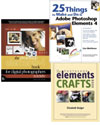
The Photoshop Elements 4 Book for Digital Photographers,
By Scott Kelby
ISBN 0-321-38483-0
$34.95 CN $48.99 £24.99
25 Things to Make and Do in Adobe Photoshop Elements 4,
By Lisa Matthews
ISBN 0-321-38481-4
US $34.99 CN $34.99 £17.99
The Adobe Photoshop Elements Book,
by Elizabeth Bulger
IBN 0-321-36896-7
http://peachpitpress.com
I took a class in digital photography this semester and while the instructor is a knowledgeable and experienced photographer and Photoshop user, he was most challenged by teaching us his students how to use Photoshop. Many students either couldn’t keep up with his demonstrations, or he showed rather taught us digital "darkroom" techniques as we passively sat watching him having all the fun.
As I reflect back on his class, I think how useful it would have been for this instructor to use one of Scott Kelby’s Photoshop how-to books for his course. As editor and chief of Photshop User magazine, President of the National Association of Photoshop Professionals, and (as if that’s not enough) Executive Editor of the Photoshop Elements Techniques newsletter, Kelby’s books are a large collection of techniques, typically explained in two to three pages each.
(By the way fellow Mac users, though the books under review have Photoshop Elements 4 in their title, and though Adobe has so far dissed us by excluding us for its latest PE update, there are still many techniques and projects presented in these books that could be done on PE2 or 3. In the meantime, we need to write Adobe and remind them to come correct. )
One of his latest books, The Photoshop Elements 4 book contains well over a hundred techniques to help you improve and manipulate your digital photos. The beauty of the book is that all the examples are in full color and if need be you can download the included photos from the book’s companion website to use for the exercises. Kelby’s witty and direct style make his step-by-step instructions easy to understand and apply.
Kelby’s a bottom line Photoshop user. He cuts to the chase pointing out the short key cuts and the little tips and tricks typically regulated to the side bars of many other how-to Photoshop books.
This is not a book you read from beginning to end. It’s one that you flip through and say, I want to try that, or I need to do this one to improve my photos. If you’re new to PE, he shows you how to get your digital negatives from your camera to the application. He follows up this tip showing you how to sort, tag, and present your digital photos. Granted some of these techniques like tagging photos are features available only in PE4, but hey we Mac users have iPhoto (and now Aperture) for all our digital organizing and management needs.
Many of the most useful techniques for those in the photo making business include the following: cropping and resizing, drag-and-drop instant color correction (a cool little time saver), adjusting flesh tones, digital dodging and burning, saving selections, removing or lessening wrinkles, doing digital nose jobs, cloning away unwanted objects, replacing the boring sky with a more dramatic one, creating a simple depth-of-field effect, turning a photo into a drawing (see mine below), colorizing black-and-white photos, retouching old photos, watermarking and adding copyright info, creating a digital frame, and putting your photos on the web. Kelby gives a brief introduction to each technique and then literally explains it step by step. There’s no wasted language, though he does explain as part of some steps why certain tools are used to achieve particular outcomes. I also notice that Kelby alludes to which techniques apply specifically to PE 4, but if you really rather have a book that addresses only the first three PE versions, you could always buy the previous edition of this book.)
Professional photographers working with digital photography will be pleased with how Kelby includes techniques applicable to client-based work. This is not an how to buy or use a digital camera book. He doesn’t talk about f-stops, composing a shot, or lighting a studio. He focuses on digital darkroom processing, retouching and manipulation from the perspective of working professional photographers and serious amateurs alike.

Project Based Photoshop Elements Books
Another useful way for better understanding and using PE is through doing specific projects. Elizabeth Bulger’s The Adobe Photoshop Elements Craft Book, and Lisa Matthews’s 25 Things to Make and Do in Adobe Photoshop Elements 4 present some very creative ways to make use of your digital photos.
These books of course are not manuals for the application, but I bet that even new users to PE could learn the application with one of these books. Each author starts off explaining fundamental tools of using PE like how layers work, how to make selections, and a basic understanding of resolution, especially in relationship to printing photos.
For those already familiar with these basics, you can flip through the pages and find in Bulger’s book how to use your photos to create a folding postcard, a Gingham gift box, an anniversary votive, a cover for a journal, a pet place mat, a travel photo CD cover (see mine below), and Christmas ornaments.
Lisa Matthews includes projects for creating panoramic images, making unique boarders, laying out a recipe book, making your won custom stationery, creating party banners, T-shirt designs, and CD or DVD labels. Many of her projects, like making a photo calendar, are particular to new features in PE4, but the ideas can still be pretty well accomplished in any version of Elements. (When these authors say, for example, Press the Ctrl key, they’re referring to PC users. In the case of using Macs, use the Command key.)

With each project you will no doubt learn a new tool or technique. For instance, in completing the holiday wrapping paper project (Bulger’s book), I learned the use of the Fill Layer and how to create and custom brush. Completing this and other projects you’ll learn how to resize photo, use selection tools, add a boarder, use the Custom Shape tool, mask an image inside a piece of text (see my example below), use the eye dropper, etc. In fact, it would be nice to have a "what tools will be learned" listed at the beginning of each project.

It’s well known that Photoshop Elements can do about 80% of what the larger, more expensive Photoshop CS can do. All three of these books, help you get the most out this powerful and affordable program.

David Every wanted to look at the year in review (in regards to Apple) to reflect on predictions he had made.
At the beginning of 2005 I said I expected Apple’s stock to hit $110-$140 and then split within a year. Turns out I was wrong — Apple split, then went up to $70′s+ ($140 pre-split level). I’m pleased that my financial predictions were that dead-on. You can read the original article at: http://www.mymac.com/showarticle.php?id=1917.
Of course, even a broken clock is right twice a day. And one lucky hit doesn’t make me a financial analyst. Any long term predictions require luck as well as strategy. Analyst often focus on the minutiae to see how well a company is going to hit their next quarter predictions, while I’m looking more at the industry and company to try to figure out trends for the next year. So let’s look at Apple’s different operating segments (as they break them down), think about strategy, and look forward.
In the past, Apple was limited from bidding on many contracts that required “PC Compatibility” (x86 based computers) or running Windows. That ends this year. Apple is making the move to x86. What does this mean?
1) The x86 stuff is actually outperforming the PPC on most things non-scientific. Also at least some people or companies have been holding out, waiting for the introduction of the new machine. To the users, this is a big leap both technologically and psychologically. To the business, this means higher refresh than normal (larger short term sales).
2) There was the psychological barrier that if you were a PC user that bought a Mac, you’d be locked in. (And computers were expensive). Computers are coming down in price, which reduces the psychological barrier to entry to try a Mac (the MacMini effect). But soon if you don’t like MacOS, you can just put Windows on it (the x86 Mac effect). To business this means more customers, and with the superiority of the Mac OS, more short AND long term sales.
3) The Mac has been benefiting from the iPod effect; people buying Apple iPods also want Apple Computers. As Apple’s iPod sales have gone up 300% last year, we can expect carryover to the Macs. We won’t see 300% from this, but even if 1 in 20 iPod buyers thinks this way (5% capture), that means 1.1 million computer sales this last year, and around 3 million Macs next year, not counting cumulative effects.
Apple’s Mac hardware net sales grew at a rate of 27% last year or $1.4B. Apple went from roughly $5B (2004) to $6B (2005) sales, and in units they went up by 38% or 1.2M units, with a 7% decrease in unit cost; from 3.3M/year to 4.5M/year. The unit costs went down because of changes in the product mix (more lower end desktop units like MacMini instead of higher end laptops) and general price decreases in the whole industry. But manufacturing margins were pretty flat and Apple shifted more sales from retail to direct (increasing sales margins).
Now if we figure Macs are going from selling an additional 1.1M units to 3M units because of the iPod effect, we’re already at 6.5M units this next year (44% growth alone). Throw in lower prices, x86 and Windows, new contracts, major PowerBook and low end desktop refreshes, new Applications, and estimating 50-100% unit growth this next year is not out of the question. That means for 2006 we can guestimate that Apple will move about 7-9M Mac units, and with some more price decreases, that mean about $8-12B in gross sales. Not too shabby. This is before factoring in new segment busters, or totally new products or features. (Of which I expect at least one this year).
Apple tracks their OS, Applications, AppleCare and AppleStore, as a separate line item. But it tracks pretty well with their Mac hardware sales; growing at about the same rate. Apple made about $1B in that area in 2005. Using our Mac unit forcast, that means we can estimate about $1.5-2B from this unit in 2006.
In truth, I suspect this number (percentage) is conservative. Apple is releasing more Applications, and enriching the ones they have, so in theory, penetration and profitability should increase with sales — but for a while, they may just put that back into R&D, so I’m going to play conservative and not factor in an increased penetration or operational efficiencies.
Apple also tracks their peripherals and other hardware separately. This “other” unit brought in about $1.1B, and it too tracks fairly well with hardware sales, but has a more modest growth slope. This may be more correlated to what products they introduce, rather than just how good Mac sales are doing. As such, rather than tie them to hardware growth, I’ll just use the current growth slope, and assume that by next year they’ll be selling about $1.3 – 1.5B in 2006.
The end result is these two units will likely go from bringing in $2.1B in 2005 (combined), to $3-3.5B in 2006.
Apple is the largest media gadget supplier. The iPod is a raging success. It has good interface, great design. Apple went from roughly $1.3B (2004) to $4.5B (2005) sales (248% growth), and in units from loosely 4.4M/year to 22.5/year. Apple is expected to sell over 10.5M units this quarter alone. That’s nearly half of last years total in one quarter (42M units if sales stay flat). So on the modest end of the forcast we’re talking 100% growth. If we stay at last years growth rate, we’re talking 115M units! And that’s if we don’t anticipate Apple figuring out ways to increase growth. Personally, I’ll be very conservative, and figure Apple is only going to sell 60M units (very modest growth over the current quarter).
Apple was selling the average iPod for $200 in 2005, which was down from nearly $300 the year before. But that was because of the introduction of the iPod shuffle. The Nano seems to be pushing those shuffle buyers back up the line, and the Video iPod’s may help there as well. So I don’t see much further errosion down. Even at an average selling price of $175, that means $10.5B in sales from iPods. That’s a fairly conservative estimate. I expect Apple to consider coming out with a device later in the year like a Phone or PDA iPod, which while wouldn’t move nearly as many units, could sell enough to increase average selling price, and keep Apple fresh and cutting edge.
Apple is changing their margins a bit, so there might be some thinning there. But they are also doing things to guarantee their supply chain, with investments and pre-buys into the memory they need for the Nano and Shuffles. This move is likely to stabilize their pricing, and put them in such a favorable position compared to competition, so it will be very hard to compete with iPods/Apple. Apple also has a pretty aggressive product refresh cycle on the iPods, and iPods are cheap enough that people don’t upgrade, they just buy new ones (driving up demand).
ITunes Music Store, and media distribution segment, Apple went from roughly $278M (2004) to $900M (2005) sales (223% growth). I couldn’t find unit sales, but it appears to be over 50M songs each month, and over a million videos per month and rising as they increase content library. If Apple increases capabilities of players and their computers, we can expect video sales to go up. For now, this number is nominal, even with the larger unit sales cost, and probably won’t be significant to the bottom line, but that’s just because Music sales are so huge for now. However, this will probably matter more in future years.
There is pressure from record labels to increase the price of some content, but the effects are unknown; increased and variable costs could mean more money and/or fewer sales. But still, if we assume the same growth rate, that means Apple will probably generate about $2.9B in gross sales. Apple doesn’t call out the margins, so we don’t know returns. But that’s still a measurable amount to their top-line, and exposure, even if we are unsure of the impact to the bottom one.
Apple is now one of the largest music retailers on the planet, and getting bigger, and expanding into video as well. This business is likely to keep growing at an extreme rate, because they have the software and hardware integrated in ways that make it hard to compete. All attempts by a company or companies have been dismal failures. The music alone isn’t a big deal to their bottom line, but it is critical to growth in the manufacture of the hardware (players), and market perception.
| 2006 | 2005 | 2004 | |
|
|
|||
| Mac Hardware (units) | 8M | 4.5M | 3.3M |
| Mac Hardware (per-unit) | $1,100 | $1,384 | $1,496 |
|
|
|||
| Mac Hardware | $8.8B | $6.3B | $4.9B |
|
|
|||
| Mac Software/Periph | $2.9B | $2.1B | $1.8B |
|
|
|||
| Media Hardware (units) | 60M | 22.5M | 4.4M |
| Media Hardware (per-unit) | $175 | $202 | $296 |
|
|
|||
| Media Hardware | $10.5 | $4.5B | $1.3B |
|
|
|||
| Media Software/Periph | $2.9B | $900M | $278M |
|
|
|||
| Totals (gross sales) | $25.1B | $13.9B | $8.3B |
So what does all that mean? Mainly that Apple in gross sales could be double the size company next year as it is right now; assuming a slight decrease in the growth rate. This is also without any wildcards.
What are some of the wildcards? I’m not a rumor guy, I’m more an industry observer and business guy (that has heard the rumors), looking at what I’d do if I was Steve Jobs. But then I probably wouldn’t have pre-announced the move to Intel the way Steve did (which worked out fine), and I figured the industry was going to be able to reverse engineer the iPod and undercut them (which they couldn’t because of iTMS and iTunes and Music deals and memory deals/supply chain). So I’m obviously no Steve Jobs. Consider that Apple has people smarter than me, and lots of them — both to shoot these ideas down, and come up with better ones. Still, that being said, I could see Apple coming out with one or two new products among the following.
A real iPod phone; not that cheap and cheesy thing that Motorola created the ROKR. Cell phone companies offer subsidies on hardware, but have lots of annoying requirements like they don’t want you to be able to download pictures taken, or use songs as your ringtones. Apple could create a really good phone, with a really good interface, and all the features people really want, and just sell it without the subsidies, or possibly figure a way to negutiate with the carriers. If they do not, in a couple years 802.11x or other new technologies could change the Internet itself into a wireless anywhere kind of function, and the limitations of the cell phones will work against them, as people jump network providers/types. Not a huge impact in bottom line, but more converts and a lot of psychological impact.
Home media center; Mac Mini as media hub. Imagine the PVR/DVR, DVD player, Music JukeBox, Picture Player, iPod dock, WebTV, Streaming Media Player, all in one small device. This killer little turn key hub could move a lot of units. (I also question the gaming station option with a good video card and reasonable processor/RAM — but I suspect the cost increases would move this option downstream a year or three). Either way this would move a lot of units! This type of thing could be the next iPod in sales numbers. The question is where does it fit? Apple would sell it as a stand along turn-key device, more in the iPod or PVR realm (not as a computer), or leave it as a media computer to move more MacOS X boxes, and possible software that would come with it or be added. I favor the latter, but Steve has favored some closed appliance options in the past. Either way, this has huge impact if it becomes a reality.
I also suspect there will be some device in the portable version of the media center. Whether that is an ultra-portable media Mac, or a Video iPod on steroids, I’m unsure. I tend to favor the ultra-light Mac realm. Sort of a WinCE without having to run a different Operating System (all your apps run). But a device that lets you watch movies, play DVD’s, music, and is a computer. Others think Apple will just add dashboard to the iPod (and connectivity) and give it an optional bigger form factor. Either is a way to blur the lines, where a Mac and an iPod become more similar, thus get more cross-over. No need for a PDA as a slightly different finder mode, and Address Book, eMail, Safari, and all that, make the Mac into the ultimate PDA or sub-notebook (or sub-sub-notebook). With Apple’s industrial design, I’m sure they could do something cool and compelling.
In the software arena to really help Mac OS X, if I was Apple, I’d do one of two things. Work out with Intel a way that you could run Windows and Mac at the same time, or more with someone else, a way to release Windows porting API’s to Mac. If Apple either came out with a Win32 Library that did some/most of the Windows stuff, on top of OS X, or something that helped them port/translate, it could radically increase the number of Apps on the Mac. In the past, NeXT had the ability that if you made your Apps for the NeXT it could run on Windows (with their own library). There are lots of ways to do it, and risks with them all — but the goal is to reduce the barriers to entry to write more Mac software, which will increase sales even more. As marketshare goes up, Apple will gain Apps anyways. But with x86 working on Mac, some wrapper or remapper libraries or other things could really decrease the costs of making/supporting Macs, which would radically increase the number of Apps, thus sales.
So any of those options could make the projections I made conservative, or be at least the way they help achieve the sales. I’m not sure where they’d put each of those devices. And I’m sure Apple has their own ideas as well. But I expect at least one new thing this year.
People get squeamish about investing in stocks that are ‘hot’, because they think there isn’t any value. But value is based on growth. Let’s assume Apple is a little hot (overvalued) right now, with 118% growth (year over year), how long until the current price is considered a bargain? One month? What if they are hot then, are you going to delay again, waiting for it to come down? Each dollar you didn’t put in Apple this time last year would be worth $2.28 now. Last year, I tried to convince my brother to invest; he felt Apple was too hot at $70/share, so he waited. Later he bought at $49, after the split, and missed out on 22% growth. Still he made 42%, so isn’t complaining. And they say Real Estate is a good investment? I made more on my Apple stock than I made in salary. You kow, I’d be perfectly happy if Apple could just repeat last year. Even at half that, I’m plenty happy with the returns, and they slaughter just about any other investment I could make.
If I’m even close to my projections, and looking at price to sales, Apple’s stock would have to near double next year just to keep up. Less if you’re looking at earnings (thinning margins). Still, Apple has managed to keep good margins in the tightest areas; consumer electronics, thus there’s no reason to believe they can’t keep that trend. That’s without any new revolutionary products, breaking into new markets, or other things Apple is trying to do. Last year, just primed the pump to help them more this next year. iTunes and iPod is leading into more media types. Their stores are profitable and have only 5% penetration. Their websites are huge and profitable, they can start leveraging more with them. The Mac OS X and x86 transition is opening new markets. Video is coming big time. And so on. I see very little risk that Apple will be worth less next year at this time.
If you’re looking two years out, then the next year is probably better still. Microsoft is coming out with Vista, with almost 1/2 the features they initially promised. This is going to be a major headache and upgrade for Windows users and companies. Microsoft is also promising an update soon after Vista (could be a year or two behind) to deliver some of the features that they’ve had to drop to keep hitting the schedule they have already slipped. If users are migrating and paying heavy retraining costs (which they will), and with the fear and dislike of Microsoft, the risk is great for Microsoft. They have to every target just to keep close to Apple; and Apple has a new version of their Operating System targeted around the same time (which we don’t know the features of yet, and could be a major leap forward). The potential for Apple to make real market penetration in the PC arena is staggering. Apple just has to repeat their iPod recipe in the PC’s, tie them together more, or offer some better Windows integration than they already have, and it could be huge for Apple and the entire computer industry.
Remember a few years back when Steve Jobs said to Michael Dell, “we’re gunning for you”. Most people didn’t take it seriously. Dell was 5-10 times the size of Apple by most metrics. By next year, Apple’s market capitalization could be 50%+ bigger than Dell. The year after, at these growth rates, or slightly cooling, Apple’s sales will surpass Dell, as will profits (earnings). With Apple in multiple groth markets instead of more stagnant ones, and controlling their own destiny instead of being dependent on everyone else. The only problem is that saying that to Michael Dell, wasn’t thinking big enough. In 4 or 5 years, Apple could realistically have over 25% of the entire PC market, with their own OS, Applications, and controlling Music and Video distribution, and pushing into streaming media as well.
All investment has risk. I actually see Apple and this growth rate as pretty high risk. The whole world is paying attention and trying to figure out how to beat Apple and break the hold they have on media. But then people had been trying to do that with Microsoft for 20 years. Even if people do figure out a way to beat Apple, it will be hard to keep Apple from responding — so they’d be lucky to become a serious player in an Apple dominated segment. Apple’s evaluation is currently fairly high, based on their growth projections. If they start missing, they could get a short term pounding in the market. But longer term, they’re making the right moves, and may be under valued for where they could go. But who knows, things change quickly. Still, I’m bullish on Apple for the next two years — with this being a high risk year, and next year being a little higher still. But for now, I see a lot of things coming together at the right time for Apple, and Apple is running with it — and at this rate, they are going to be the success story of the generation.
Daphne Kalfon, Songwriter and Composer of So Much More Than “I Love My Mac”
Quick! Name a contemporary singer-songwriter composer who is equally versatile in pop, jazz, rock, avant-garde and orchestral; who writes, arranges, and performs her vocal and instrumental tracks; who publishes an informative monthly column; who is world famous for one song and hopes to be acclaimed for many others; who has already been featured on our MyMac.com podcasts – whoizzit?
Daphne “I Love My Mac” Kalfon’s music has filled the iPods and MP3 players of open-minded listeners lucky enough to have become aware of her talents. Let’s go into her studio for a conversation with this one-of-a-kind contemporary musical artist. Welcome to the MyMac.com interview, Daphne.
MyMac – Do you make a distinction, Daphne, between being a “songwriter” and a “composer”?
Daphne – Yes I do. A songwriter is someone who writes songs, and songs are pieces that contain words and music combined. On the other hand, “composer” implies a wider range of music writing. It could include songwriting, but also includes writing instrumental pieces, whether it be for the symphony, a small ensemble, for the theatre, or for film. Also, the word “composer” connotes that a certain level of training has taken place, whereas in the case of a songwriter, he or she may have little if any formal training in music.
MyMac – Please tell our readers and listeners what you use for your recording equipment, both audio and computer (hardware/software).
Daphne – I use a dual 2 GHz PowerMac G5, and I’ve streamlined my hardware down to a NAD amp, Energy speakers, MOTU 828 hard disk recording unit, a trusty Studio Projects C1 condenser mic, and my baby which is the Alesis QS8 keyboard. All other instruments and effects are virtual. Since GarageBand came out, everything I’ve created has been done solely using GarageBand.

MyMac – Will you work on one composition at a time, or have several happening all at once, or overlapping?
Daphne – I sometimes have several happening all at once, although I prefer to try to concentrate on one at a time.
MyMac – Are those great jazzy chords you play in some of your songs written down, or made up as you go?
Daphne – Definitely made up as I go. Just whatever sounds good.
MyMac – How long have you been serious about creating music from scratch, and how have you evolved over the years?
Daphne – I’ve always been serious about creating music from scratch, but only in the last eight years, since I got a studio, have I been able to act on it. I had a lot to learn first, however. Over the first few years, I went from not knowing how to turn on a computer, to scoring film clips in Cubase. I didn’t know how to orchestrate either so I studied orchestration for several years and applied that to my later compositions, using programs like Encore, Finale and Sibelius.
MyMac – How would you characterize your results?
Daphne – I am continuously surprised at the music that comes out. It is always different from the last thing I did, and always seems to cover new ground, which for me as an artist, is really exciting and gratifying; if you’re not constantly evolving and stretching the boundaries, as least for myself, I would feel that I’m not fully tapping into the well.
MyMac – Is personal awareness and growth part of your creative process?
Daphne – I do believe that you need to be in the moment to take advantage of what is around you in your creative process. To evolve as an artist, you need to be personally self-aware, because anything that blocks the knowledge of yourself will also block your art. The more you know your “self”, the more you can know your art.
MyMac – Is your classical training a help or an obstacle when writing pop and jazz tunes?
Daphne – Much as it was a fairly oppressive experience for me over the years I took piano lessons, it has been a huge help later on. The solid background I received in classical piano and theory has helped me immensely. That kind of training cannot and should never be trivialized or under-estimated, because it really does add things to your artistic toolbox that you’d be hard-pressed to get any other way.
MyMac – How?
Daphne – It has influenced all my writing, whether it be pop or jazz, or whatever else, but only in a good way. Because of that classical training, I don’t feel that there are any limitations to what I can do; it has instilled in me the discipline and desire to learn every facet of my craft.
MyMac – Do you perform someplace live, so we can come hear you play and sing when in the neighborhood?
Daphne – No, I consider myself a songwriter and composer. I’m not the performing type at all, but rather prefer to be “backstage.” It does make things a bit more challenging when you aren’t able to perform your own material. Basically you have to find someone to sing and perform it for you, which I did over last summer.
MyMac – How does recent software (Garage Band and others) enable to you be your own studio engineer and recording ensemble?
Daphne – Recent software (especially GarageBand for me) of all kinds has greatly enabled me to do everything myself. What I don’t have are good engineering skills so my songs may suffer a bit in their production at times. That being said, I do produce the whole song or piece using virtual instruments, so I know that realistically, it can never sound the same as a live band, or a live orchestra. However, at least now I can produce a complete musical piece, whereas before, it was really difficult or not possible at all.
MyMac – What are the best and worst things about posting your tracks at on the Internet?
Daphne – I can’t speak for other people, but for myself, the best thing is simply having people hear your music. Also, receiving constructive criticism and feedback on your work can be invaluable. In many instances, it has helped me improve my songs. Another great thing is the potential for collaborations between members, be it instruments (both live and midi) or vocals. The worst thing is the rating system on certain sites, because people have the ability to rate your work however unfairly they desire, and that part is very unpleasant.
MyMac – Where did you get the idea to develop your own stylistic “word jazz” original repertoire?
Daphne – I call those “spoken word” pieces, but “word jazz” is a good one too. I don’t really know how it happened. One night I got this musical idea in my head, and the music just sounded like it should have spoken words over it, not singing. And based on what that initial snippet of music sounded like, I decided on the subject matter, and away it went.
MyMac – How so?
Daphne – I would compose one block of music at a time, perhaps a bar or two, and then come up with the words. “Kate’s Keys” is one of the most fun pieces I have ever done, in that it was both enjoyable and challenging for me to create, and all the while exploring new writing territory.
MyMac – We’ll get to “Kate’s Keys” in a little while, Daphne. I want our readers/listeners to spend time with your music starting with a couple of more pop-oriented tunes, and progress deeper from there.
Her compositions are located at the following URL (or will be soon – it’s scheduled to be fully operative early January, 2006):
http://www.daphna.ca
“Dissatisfied” is our first track to discuss:
MyMac – Tell us about all the vocal effects you used.
Daphne – I just stuck with the basic reverb and echo. A fellow macjammer by the name of James Bouchard did some sound processing and mixing on the whole thing, and added live guitar and drums using Drums on Demand, all of which really helped make the song sound more “alive” and present.
MyMac – How was it singing harmony with yourself?
Daphne – Pretty easy actually. Well, depending on what you’re trying to do, but in general, it’s not that difficult.
MyMac – How did you learn to do those drum and guitar tracks?
Daphne – I did a version with my own drums and guitar first, and you learn that by just listening to drums and guitar in other songs to see what they do. I was lucky enough however, to later have James play in real guitar for me, which is what you are hearing. For drums, he used loops from Drums on Demand.
MyMac – Why did you bury the guitar sounds in the audio distance?
Daphne – The mix could probably use some more tweaking. James did the mix and that was the way it came out. When it comes to mixing, there are so many variables, including personal preferences. Give it to ten individual people, you will get ten different mixes.
MyMac – How tricky is it to get the mix and balance right in this number?
Daphne – I would imagine probably very tricky, as there were so many tracks to deal with.
MyMac – Is your vocal echo hard to get in synch, to keep it natural and rhythmic?
Daphne – No. It depends on how much echo you apply and what the other instruments are doing around it.
MyMac – In which order did this song happen, during your creative process?
Daphne -At the time I wrote it, as with “Okey Dokey Corral” (see below), I was a TAXI member, and the listing was looking for songs a la Alanis Morissette. After carefully listening to several of her songs and reading up about them, I came up with “Dissatisfied.” I went through a few different melodies before settling on this one, and then came the lyrics, which were a bit more of a struggle than usual because this song was written specifically for a purpose, and not just a spontaneous thing as it usually is. The last thing I do is record vocals. Coming up with the section at the end was difficult, but after mulling it over, an idea came and I thankfully put it into the song and it worked out great. All in all I was very happy with the final result.
MyMac – Which age group and demographic is this tune for?
Daphne – Probably anywhere from tweens to twenty-something’s, possibly a little older, but probably not much.
“Will You Find Me” comes next:
MyMac – Tell us about this remarkable vocalist.
Daphne – I first heard Emily’s voice on macjams and I was really impressed with her vocal style. Sometime later, another very well-known macjammer by the name of Tobin Mueller, introduced my to Emily Rohm, saying that she was planning on recording an album and would I be interested in writing some songs for her for that project, to which I replied “sure!” I asked her whether she would be interested in singing “Will You Find Me” and she immediately said yes, and later on, she also recorded two other songs for me.
MyMac – Where else can we hear her live or on recordings?
Daphne – I really don’t know actually! She is a member of macjams and can be contacted through the site.
MyMac – Did you compose and arrange all lyrics, melody, and accompaniment on this song?
Daphne – Yes.
MyMac – Describe the studio experience for this session.
Daphne – If you mean sitting in a corner of the bedroom at my studio, that’s about as glamorous as it gets, I’m afraid! With GarageBand, you can swap files with other people all over the world, which is how I worked with Emily. I sent her my song file, she recorded her vocals, some edits were made back and forth, and then I mixed her final vocals into my song. It’s really quite simple.
MyMac – Tell us about scoring the subtle string section.
Daphne – I felt I needed just a little something more to build up to that climax in the song, and what could do it better than a touch of strings? I just picked an appropriate string ensemble sound, and recorded in a very simple part. Less is definitely more.
MyMac – Are these piano parts written or improvised?
Daphne – I usually noodle around while the song is playing a section over and over, and figure out the piano parts that way. So not really pure improvisation, because I record the ideas that I like the most and that I think work best in the song. But no, most often, nothing is written down. If it is a very complicated passage however, sometimes I will jot down some notes. When I first come up with a song idea however, I do jot down my ideas, both musical and lyrical. For the music part, long ago I devised a kind of short hand that allows me to write music without having any manuscript paper.
“Jazzy Chestnuts” is a delightful Christmas tune, given a new interpretation by Daphne Kalfon. Her comments on it:
MyMac – Is it possible to make your piano sound “less digital,” because the timbre is somewhat static and artificial here, Daphne?
Daphne – Sure. There are lots of piano patches available, plus quite a few just in GarageBand alone. As I have mentioned before, I’m not much of a sound engineer, but in good hands, GarageBand allows for very detailed sound editing, so you could probably get just the sound you want that way. Of course nothing really beats a real piano, like anything else.
MyMac – What’s the evolution of this arrangement?
Daphne – I came up with most of this piece many years ago when I was taking jazz piano lessons, and learning about chord substitution, which is very often done in jazz. I wanted to try to preserve most of the melody so that it would still be recognizable, but play around with the chord progressions as much as possible. I had never recorded it before, which means that very, very few people had ever heard it, save for the times I played it at my jazz teacher’s student concerts, so I thought it would be really great to finally record it and post it on macjams for others to enjoy.
MyMac – Have you ever played it live at a holiday party?
Daphne – No! Just the idea of playing live these days makes me very nervous. I’m not confident in my playing abilities because I haven’t practiced in years, something which I really need to address. Maybe if I had enough drinks in me however, I would play it just fine. Seriously though, just a little drink can loosen you up enough for a really wonderful performance. That happened to me once many years ago when we had a dinner guest one night, and he told me he will never forget that performance.
MyMac – Are you “thinking” during all those rich chords, or are you letting them happen via organic experience?
Daphne – At the time I composed it, it definitely involved a lot of thinking and working out of chords to get just what I wanted.
“Okey Dokey Corral” has more musical sense (or nonsense) than horse sense:
MyMac – How did you develop this orchestral arrangement, especially the string sounds?
Daphne – I picked various string sounds from the Kontakt and Kompakt sound libraries. I did the whole arrangement in GarageBand.
MyMac – Why did you mix obvious digital sounds with more conventional instrumentation?
Daphne – I didn’t actually. All the sounds used for this piece were the typical instruments found in the orchestra.
MyMac – Where do you intend this composition to find a home?
Daphne – At the time I wrote it, I was a member of TAXI, an A & R company based in California, and I had written the piece for one of their listings. It wasn’t forwarded, but it gave me the opportunity to stretch the boundaries again by seeing if I could arrange such a piece in GarageBand. Then I posted it on macjams for others to enjoy. Of course my hope, for all of my orchestral compositions, is for them to someday find a home with a live symphony wanting to perform them!
“The Conversation” uses dueling pianos that end up being pals:
MyMac – Please tell us more about your digital piano.
Daphne – It’s an Alesis QS8, full size, and weighted keyboard. Non-portable!
MyMac – What’s the best Garage Band string bass sound for you?
Daphne – I think they’re all really good. It just depends on what the music requires.
MyMac – How did you record the different piano tracks?
Daphne – I wrote the piece for two pianos, so I made sure that if it were ever transcribed to sheet music, it could actually be performed by the two players, each at his or her own piano. With that in mind, I worked out the parts, split them up accordingly, panned one left, the other right, and also used a different piano sound for each, that way it would be easier for the listener to differentiate between the two parts, and to more easily hear the conversation, as stated in the title. I thought it would add more of a stage sound that way as well, as if there were one piano on each side of the stage.
MyMac – Are the stylistic variations deliberate or accidental? I hear, among others: Monk, Latin, Gershwin, Garner, Floyd Kramer, honky tonk, Beethoven, ragtime.
Daphne – It wasn’t deliberate, but rather just came tumbling out that way, which was fun for me because it was like bringing together all the musical elements that have influenced me over the years. So in a way, I was paying tribute to them all, and besides that I do love to combine seemingly divergent styles into something that flows well as a whole. Maybe on a subconscious level, that was my intent when I set out to write this piece, but I wasn’t thinking it consciously.
MyMac – Did you get this all completely recorded without a lot of corrections and retakes?
Daphne – I am definitely rusty on my piano skills these days, so if a section is really difficult to play at the set tempo, then I’ll just slow it down using the metronome, and record at a slower tempo. Doing it that way saves me a lot of time on retakes. Sometimes I do try to record at as close to the real tempo as I can because I want it to sound as spontaneous as possible. What I do spend a lot of time on is making corrections to note velocities: correcting notes that are too loud or too soft, as well as note lengths. It’s attention to the littlest details that sometimes makes a huge difference in the overall sound, at least as far as I know for a piano performance.
MyMac – How do you maintain the relentless underlying tempo in this piece?
Daphne – I never really thought about it. I guess it’s not a conscious thing for me.
MyMac – Do you want listeners to feel that homage to “Rhapsody in Blue” at the final coda?
Daphne – Sure if they want to, but I wasn’t thinking along those lines when I wrote it. That was just what popped into my head, and I took it and ran! But again, on a subconscious level, who knows what the brain is doing when creating music. I’m sure everything I’ve ever listened to has had an influence of some kind, on that part of the piece, as well as on everything else I ever write.
“Kate’s Keys” was mentioned earlier, and it’s a very unusual track that will either engage and amuse you or … well, listen and find out for yourself. Daphne tells us about it:
MyMac – How did this intense, bizarre song happen?
Daphne – One night before bed, which is the time it often happens, a musical idea popped into my head. The first bit of music you hear in “Kate’s Key’s” is what I heard in my head. At the time it happened, I was out of town, so I jotted down the idea on a piece of paper so that I wouldn’t forget it. Just hearing that little bit, I quickly decided on the basic subject matter. Once I was back home, I recorded that initial idea, and from there it took off.
MyMac – In what order?
Daphne – I came up with the music, in chunks, and as I arranged it and recorded it, the lyrics came along beside. The creative process really is quite mysterious. I can’t really explain in much detail what happens. For me at least, it happens so fast, and with some kind of force behind it, that, a lot of the time, I’m not really all there when it’s happening.
MyMac – Tell us more about Kate, please.
Daphne – It really was wonderful to have the lyrics come along so quickly with the music, because this Kate character was coming to life for me, and it was like I was getting to know her as I was writing this piece of music. I think, as one macjammer put it, this piece probably speaks to some my own personal neurosis!
Speaking of neuroses, how about “I Love My Mac”? She certainly has plenty of MyMac.com podcast listeners whistling this tune.
MyMac – How did this masterpiece happen, Daphne?
Daphne – Well, I owe it all to the people at macCompanion Magazine. One day as I was reading on macjams, I saw an announcement for a song contest, which was to write a love song about your Mac computer, and you could even win stuff! I thought, this is great. Right up my alley.
MyMac – That was all? Not possible.
Daphne – I came up with an initial melody and lyrics, but it just didn’t quite work well enough, so I did a re-write, and that is the one that you hear. It was so easy to come up with lyrics for this subject.
MyMac – What about your unusual bridge?
Daphne – I really don’t remember how I came up with that bridge where I go into a spoken word thing where I name off a lot of Mac products. Probably just one of those spontaneous things. What I do remember though, is the struggle with what to do at the end as the chorus is repeating over and over. My husband and I were actually going away on holidays the next day, and I literally did it on the fly. I thought, why don’t I do a spoken word kind of thing over top the repeating chorus? This song was really the first time I tried the spoken word technique, and I was surprised at how much I loved the experience and at how well it worked out. To help differentiate the singing from the spoken, I added an amp effect to the spoken voice.
MyMac – Do you want to be known for it?
Daphne – After I wrote it, I really didn’t think much except that it was probably going to be enjoyed by people on macjams, which is where I first posted it, and of course sent it off to the people at macCompanion for the contest, and yes, it did win first place! A few months later, I also posted it on iCompositions, and there too it was enjoyed by many. A year later I was contacted by a woman in Switzerland, Antonia Lutz , who asked me if she could translate and record the song into German, and some months after that is when I thought about having more international versions, and of submitting the song for inclusion on the MacAddict CD-ROM.
MyMac – And next?
Daphne – Since it came out on the CD-ROM, “I Love My Mac” has been so widely and wildly accepted, that it’s got me thinking maybe this could be something really big. Of course I’d like to be known for it, because I really do think it’s a great song, but I would also like to be known for my other music. And making some money from the fruits of my labour would be most welcome : )
MyMac – You express yourself very well in words, as well as in music. Where are your online columns published?
Daphne – At macCompanion.com, beginning in October, and my three recent articles are here, here, and here, in reverse chronological order.
Thanks and congratulations to Daphne Kalfon, with best wishes for her creative musical projects. We’ll be listening!
MyMac Podcast 59
This week, Chad and Tim and joined by MyMac.com webmaster Adam Karneboge. A little MyMac history, some good stories, the latest in Mac news, and reader feedback.
Get the show
MP3 Download
iTunes Podcast Link (Recommended)
Podcast RSS feed
Vote for us at YaHoo or Podcast Alley
This podcast is sponsored by SmallDog.com, and Inno-Tech.com.
Links mentioned on the show
Donny Yankellow The World of Witherspoon (via iTunes or Website)
i-Rocks Light-up keyboard
Mac news from MacMinute.com

Kenpo Jacket for iPod
Kenpo Inc.
$275.00
http://kenpofashion.com/kenpo.html
When someone asks me about buying an iPod, I say whatever you do, plan to budget for several iPod accessories. For dedicated iPod fans, you know the deal. You gotta have a better set of headphones; a leather or cool little sock case; some way to hook it up to your car and home stereo, and if you’re a true addict, you’ll want portable speakers for your bedroom or a boom box to crash your friend’s party.
But how are you sporting your iPod , out and about during the winter months? Ever thought about an iPod jacket? Well the folks at Kenpo Inc. have created a jacket specifically designed for iPod users.
They sent me a jacket for review and I must say I’m impressed. Not only does this machine washable denim jacket (with four styles for men and two models coming for women early next year) feel snugly warm, it embraces geeky technology whereby you can control your iPod from the sleeve of the jacket.
That’s right, from the sleeve of your jacket. Say you’re out walking or at a game and you’re listening to music on your iPod. Rather than pulling it out of pocket to select a new song or turn up the volume, you can do this with one of the five control buttons on the jacket’s sleeve.
Here’s how they explain it: “The discreetly placed 100% fabric interface utilizes touch-sensitive buttons that are identical to those found on the iPod Device, meaning wearers can Play, Pause, Track Forward, Track Back, and change the Volume Levels without ever removing their iPod from the specially designed, padded interior pocket.”
To set up the connection for jacket control, you connect the 9-pin connector to your iPod and then set the security lock on top of your iPod. Two pockets next to the ribbon-attached cable are provided for your iPod. There’s an inside pocket with a velcro secure flap and a smaller outside pocket without a flap for easier access.
To hook up the headphone, feed the wire through the flap and connect it to the controller. A discreet little fabric loop is sewn into the inside line of the jacket to help keep the wires from dangling in front of you. However, I think a few more loops would be useful to run the the wires through inside back of the jacket so they’re completely out of the way. I usually run my headphone wires under my shirt or sweater to keep it from dangling in front of me. But I notice many of iPod users on campus where I take classes are not so finicky about the dangling wires as I am.
Of the five jacket sleeve controls, there’s one that protects against accidental operation. You push that button for 3 seconds to activate and access all other controls. The key lock will automatically relock after 7 seconds of non-us. At first I found this process a little annoying but once I got used to it, it wasn’t a problem. Sitting and listening to my iPod during my daughter’s dance lessons, I liked being able to push the forward button to select another song, as I was reading my book, or the pause control when someone came up to talk to me.
If you’re the kind of user who doesn’t like clipping your iPod to your belt or putting it inside your pocket, then you’ll find this jacket very nice for the winter months. So in this case, this iPod jacket is what the iPod purse is to women.
The jacket controller is compatible with all iPods and iPod mini models that utilize the 9-pin connector. It doesn’t work with the Classic iPods (Generation 1 with scrolling wheel & Generation 2 touch wheel model with Firewire port) or the iPod shuffle. For Nano users, a replacement controller is available from the manufacture.
For some, this jacket may be a bit pricey, but if you’re going to get a new jacket anyway, it’s a stylish and trendy apparel for avid iPod fans

Adobe Photoshop CS2
Company: Adobe
Price: $599.00 full version, $149.99 upgrade
http://www.adobe.com/
Everyman’s Photoshop CS2 Review
The reason this is called an “everyman’s” review is that I’m less than an expert. In fact, if Photoshop were a car, I’d be the one driving it cross-country in first gear.
I normally use Photoshop for creating Web graphics or sexing up photos – no shifting required, in other words. But Photoshop does way more than that, so much so that without it, most designers would curl up and die. For most of us though, running a full-bore image-editing app is like driving a Ferrari in the back yard. I ought to know: I’ve had access to the software for a long time and still don’t know what all the tools are for – the latest version, Adobe Photoshop CS2, has even more. That said, if you have any kind of visual project in mind and a modicum of talent, there’s hardly anything you can’t do. It may take a while to get rolling, but once you do, you’ll kill for a chance to have your very own copy. See what you can do?

Photoshop CS2 is available alone or as part of the Adobe Creative Suite 2, which includes Adobe Illustrator CS2, Adobe InDesign CS2, Version Cue CS2, Adobe GoLive CS2, and Adobe Acrobat 7.0 Professional in the Premium Edition. (This reviewer was slated to receive the full suite, but “only” the Photoshop component showed up. Color me stupendously grateful regardless, of course, but I won’t be addressing the integration features in this review.)
At $599 for the standalone version, piracy has always been a problem for Adobe, but the company has gone out of its way to save you from yourself by requiring activation — not the same thing as registration — within 30 days of installation. In the past, you could buy the app and install it on all your computers (or any machine for that matter), but the new version only works on the user’s primary and secondary computers. Frankly, the details of the activation process left me confused. According to Adobe’s activation FAQ page (my emphasis):
The activation process supports installation on two machines. The Adobe product license agreement allows the primary user to install the product on a primary computer and also on a home or laptop computer for his or her use, provided that the two copies are not used simultaneously. While the activation process supports installing and activating Adobe software on two machines, the usage of the product on the second computer is restricted to the user who licensed the software. Allowing others to use a second copy of the software violates the product license agreement.
Call me dense, but I have no idea what they mean by not using both copies simultaneously. Shortly before submitting this review, I had Photoshop CS2 running on both of my computers and nothing blew up, nor did anyone unpleasant bust down my door. And apparently my wife isn’t allowed to use the software on the TiBook, according to the above. Frankly, this is absurd, and I wish the company’s lawyers would get a life. But be that as it may, the installation process itself was straightforward, although my 500 MHz TiBook with OS X 10.3 (an oldie but a goodie) required a few hard slaps on the case above the CD-ROM drive before the disk would mount. And the first thing I learned when launching the new app was that as usual, I was coloring outside the lines:
Mac OS X version 10.3.4 or later is recommended for maximum performance and correct operation of Adobe Photoshop CS2. An earlier version of Mac OS X was detected.
Oops! Despite the warning, the official system requirements listed in the reviewer’s guide only call for a minimum of Mac OS X version 10.2.8, and I haven’t seen any signs of “incorrect” operation yet. True, installing Photoshop on my 400 MHz Blue & White G3 with OS X 10.3 seems to have magically doubled the boot time, but that’s it. If you don’t have 10.3.4, I’d say go for it anyway. For those of you with older versions, there are more than enough useful new features in Photoshop CS2 to justify the $149.99 upgrade cost. A partial rundown includes the following, a few of which I’ll expand upon later:
• Adobe Bridge (the File Browser on steroids)
• Vanishing Point (an extraordinary plane-based visual perspective tool)
• Image Warp (turns flat images into shaped graphics)
• Reduce Noise filter (corrects JPEG compression artifacts and more)
• 32-bit High Dynamic Range (HDR) editing (creates images with the “widest possible dynamic range”)
• Spot Healing Brush (one-click retouching)
• One-Click Red Eye tool
• Optical Lens Correction
• Animation (create animated GIFs directly in Photoshop)
• Smart Sharpen
• Enhanced 16-bit Filter Support
• Smart Objects (allow non-destructive scaling, rotation and warping of layers within Photoshop CS2)
• Multiple Layer Control (select, align, group and simultaneously move multiple layers)
• Multi-Image Camera Raw (um…)
• Video Preview (preview your work on a FireWire-connected monitor)
• WYSIWYG Font Menu (you’re gonna love this)
• more color management options when printing
• all-new PDF engine (automatic optimization for Web viewing)
• High Capacity RAM Compatibility (can address 3.5 GB on a G5)
• expanded, integrated online services
See what I mean?
As for Adobe Bridge, I probably shouldn’t comment, since I’ve never used the old File Browser [blush]. But here’s what Adobe has to say:
The acclaimed File Browser has evolved into its own application — Adobe Bridge. Now, the two applications work efficiently in parallel — Adobe Bridge building thumbnails while you edit in Photoshop CS2, or Photoshop CS2 batch processing images while you continue to work in Adobe Bridge. Adding essential new features for photographers such as multiple-file Camera Raw processing, enhanced ranking and labeling, and a slideshow mode for quick review of your images, Adobe Bridge also integrates with Illustrator CS2, InDesign CS2 and GoLive CS2, bridging the workflow across the new Creative Suite 2 applications.
I don’t know about File Browser, but Bridge rocks, and I’m converted. Instead of locating a particular image in the Finder using column view, in Bridge I can browse any folder on my hard drive, see all the photos at once (Filmstrip View, below, is a hoot), and open any or all of them in Photoshop with just a click. Just five minutes of playing with this opened my eyes, and when a skeptic like me gets all mushy, people should pay attention.

The Vanishing Point filter, completely new to CS2, rates a whole review all by itself. As Adobe explains it, “First you define the perspective in your image by creating perspective grids, then you edit your image normally, and let Vanishing Point take care of adjusting your editing to the defined perspective.” What that means in real terms is that you can do things you never dreamed of without doing hours of work, like pasting “WAY COOL” and “YOW!” into the image below. (How did I do the “Hah!”? Keep reading…)

Talk about serious empowerment! I’ve never even tried to do work on this level, but now I can. Once you’ve defined the planes (grids) in your image, you can drag objects into the distance and have them still be in correct perspective. And since the perspective grids are saved inside the image (or on a separate layer if you want), you can return to re-edit whatever’s been placed in them. Edit in perspective? Yup. You can paint directly onto perspective planes with the Stamp Tool, make selections within them, and a whole lot more. This is one extraordinary feature.
Add Image Warp to the mix, and your inner package designer will wake up hollering. Adobe has thoughtfully included a full set of presets for common object shapes, and you can drag control points on the warp grid to customize as desired. Ever wonder how your logo would look on a coffee mug or baseball cap? Image Warp has it covered. This is what I used to place the “Hah!” text inside the Mexican pot, of course, and remember, I don’t know what I’m doing — so power users ought to be able to effect miracles.
There’s a lot more to talk about, but we only have one Web site, and I’m sure my MyMac colleagues will have more to say about Photoshop and the other CS2 applications. Meanwhile, my other picks for things to be thankful for in the CS2 version are the ability to make animated GIFs right inside Photoshop, the Spot Healing Brush for removing unwanted pixels with a single click, multiple layer control, and the WYSIWYG Font Menu. Those of you who import vector graphics from Illustrator ( I don’t ) will be able to start a whole new religion with Smart Objects, and photographers will love the new Camera Raw format editing power.
This is an incredibly powerful and versatile application. If I were Santa Claus or a benevolent deity, I’d make sure every artist and designer with half an ounce of talent had a copy to carry him- or herself to the Promised Land. It really is that good, although I have to say the complexity is overwhelming for beginners. (The Adobe Help application is the best I’ve ever seen, however, and provided tremendous assistance in writing this review.) I’d have no hesitation whatsoever in giving Photoshop CS2 the highest possible rating, except for an intuition that the app has grown to the point where its sheer size and multitude of features, not to mention the price, are bound to limit expansion of the user base. Personally, I’d like to take a digital carving knife to Photoshop and create about half a dozen specialty image editing apps, but that’s not the direction Adobe is going, especially after absorbing Macromedia, and who’s to say I know better than them? I also have no love for the increasingly maddening anti-piracy and copy protection measures employed by the industry, although Adobe’s activation process gave me no trouble. It’s the principle of the thing, and I’m just old-fashioned when it comes to trusting people.
But if you can get yourself a copy (legally!), this is the one to have, hands down. That’s why hesitation aside, there isn’t even a contest. I love it, and it’s already indispensable, even for a first-gear user.

The Cult of iPod
by Leander Kahney
http://www.nostarch.com
160 pages
ISBN: 1593270666
Price: $24.95
After the success of his "Cult of Mac" book, which highlighted the deep and often intense relationship Mac-users have with their computers, Leander Kahney has returned with another "Cult of…" book, this time looking at the iPod. It’s a wonderful book that will appeal to iPod users everywhere, but Mac-users, with their eye for graphic design and sophisticated page layout will just adore the format of the book. Like the "Cult of Mac" book that drew its aesthetic language from the Macintosh, the "Cult of iPod" mimics the look and feel of the iPod in its use of menus and fonts. A battery icon ‘runs down’ as you progress through the book, and even the shape of the book, a rectangle with rounded corners, copies that of the iPod itself.
This isn’t a book about the design and engineering of the iPod, though there’s plenty about that included; rather, it’s an affectionate and surprising look at the world that has grown up around the iPod. From designer iPod holsters to custom paint jobs, there are legions of businesses and enthusiasts cranking out novel ways to enhance and expand the iPod experience. Much of what the iPod stands for is fun and harmless, but it has its dark side too, including its use as a storage device for stolen music through to a potent handheld weapon. "Cult of iPod" covers all of this and more.
Kahney took time out to answer a few quick questions about his new book.
NM: Style and design seem to be as important as the text and pictures in both this book and the ‘Cult of Mac’. Is this just an aesthetic thing, or do you think it tells us something about iPod and Mac users generally?
LK: It’s both. I like well-illustrated books, and so do a lot of Mac and iPod users. By definition, they’re an audience interested in design.
NM: Mac-users are by their nature the underdogs, part of a minority who see themselves as the enlightened ones. Yet iPods remain the dominant player in the MP3 market, so iPod users are anything but a minority. In fact, they’re riding the crest of the wave. Do you think this influences the way enthusiasts of each tool view themselves?
LK: A lot of iPod users are ‘honorary’ Mac users: they love the iPod and Apple and know a lot about Macs, even if they don’t use one yet. And they’re a lot like traditional Mac users: the device is more than a tool; it’s a lifestyle choice. And they’re passionate and evangelical about it.
NM: What makes something cult-worthy? Why no ‘Cult of Windows XP’?
LK: There are small pockets of fanatical XP users — mostly modders and gamers. But XP is a system designed by committee, made to appeal to business buyers. In most cases it’s good enough, but there’s little that’s inspired about it. Most people who use Windows do so because that’s what they were given by their employer. The Mac, on the other hand, is bought by the kind of people who choose what kind of computer they use — they’re invested in it personally, and it shows.
NM: Having spent time with so many iPod users, do you put the iPod’s success down to marketing, design, or good timing?
LK: It’s a combination of all three. Apple timed it just right: file sharing services like Napster meant people had big music collections on their hard drives, but no easy way to take it with them. The iPod is the best-designed music player out there: it looks great, and it’s dead easy to use. This is not to be underestimated — the mainstream is not going to adopt a complex product like the iPod that’s not easy to use. And Apple marketed it flawlessly, projecting a hip, cool, sexy image. Apple also capitalized on lucky accidents like the white earbuds, which were white only for consistency but turned into a great grassroots-marketing tool.
NM: Was there any one iPod use that you found delightfully unexpected?
LK: I think the shuffle function is the greatest source of delight. It dips into a big library of music and serves up combinations of tunes in surprising and delightful ways. It really brings a huge music collection alive.

While iTunes has playlists for organizing your music, podcasts, etc, iPhoto has albums for organizing your photos (and video if you import video from your digital camera). Albums in iPhoto are just as easy to make and use as playlists are in iTunes.
Just like iTunes, iPhoto has a Library. In the Library, all of your photos are stored from your digital camera or other sources. To see all of these photos, click the Library icon located in the top of the left window called the Source Window.

You might want to group these photos into albums, so that you can find certain photos easier. For example, you might want an album for family photos, all of your trips, or landscapes. The possibilities are endless.
To make an album, click the “+” button below the Source Window.

A window will drop down prompting you to enter a name for the new album, with the default name being "Untitled."

You now have an album ready to fill with your pictures. To start you will need to go to your Library. Once in your Library, click the photos you want in the album and drag them to over to the album name. When a green “+” appears you can let go of the photo, and it will be dropped into the album.
To move multiple consecutive photos at once, hold the shift key down while selecting your photos to move. If the photos are scattered through your library, you can hold the Apple key while click to select multiple photos. A blue border will appear around a photo when it is selected.
If you want to remove a photo from the album, click the photo and press delete on the keyboard. This will delete the photo from your album, but not your library, so you will still have it for future albums.
If you want to permanently delete the photo from your library, click and drag the photo to the trashcan in the Source Window. Just like adding photos to an album, a green + will appear letting you know when you can drop the photo in. You still need to empty the trash. To do this, control-click the trashcan and select Empty Trash from the menu that appears. You will be asked if you definitely want to do this. Once this is done the photo will be gone, and you will no longer have access to it.


To delete an album, click the album and press delete. Just like deleting a photo from an album, this does not remove the photos from your library. It only removes the album from your source list.
Once your album has the photos you want in it, you can do several things. You can print the entire album, you can turn it into a book, you can burn a CD, and more. Many of these options will be covered in future Macspiration articles.
One note- this article is based on iPhoto 5. Some of the steps mentioned above might vary slightly in older iPhoto’s.
Until next week, e-mail your comments and questions to donny@mymac.com or leave a comment below.

Blogging in a Snap
By Julie C. Meloni
SAMS Publishing
ISBN 0-672-32843-7
270 pages
Price: US $24.99, CAN $34.99 £17.99
If you’ve been thinking about starting your own blog but haven’t figured out how and where to begin, Blogger.com is a very popular place to check out. Its simple user interface can get you up and blogging in no time.

Though the set up instructions for Blogger.com is are relatively easy, Julie Meloni’s Blogging in a Snap explains the obvious and not so obvious ins and outs of blogging on Blogger.com. She takes you through the process of setting up your account, selecting a template, configuring your comments settings, creating your blogging profile, naming your blog, writing and publishing your first posts, and bringing potential readers to your site.
If you’ve already begun a blogging on Blogger.com and you want to expand your use, Meloni explains how to modify your template using HTML and CSS codes, how use third-party tools, and how to create a moblog, a type of blogging done with your cell phone. I was surprised that she doesn’t explain how to edit the link list, which is an essential part of every Blogger template. Unlike other blogger platforms, Blogger requires that you manually add links in the template itself using HTML code.
I’ve visited many Blogger.com websites and noticed a number of new bloggers who seemingly don’t know how to modify their site, such as the elements in the sidebar. They haven’t learned how to add links or change the names of the subheadings. Perhaps the reason for this is because they have to open up and modify the blogsite’s template. Users with little or no knowledge of HTML code might even wonder why they have access to this coded template. What on earth do you do with language that looks like this:

Meloni tries to demystify the template code and show you ways to customize your Blogger site. Like other SAMS Teach Yourself books, Melon’s step-by-step instructions include numerous screen shots that reflect and expand on what she explains in her textual instructions.
She includes the template code for one of Blogger.com’s basic templates and identifies and explains its major elements, like the header, sidebar items, the comments-related area, and the metadata. Her best instructions are when she takes you step by step through a particular template modification, like including images in your blog posts, adding tables, displaying recent comments and adding a blogroll on your main page. However, some of her other perhaps more advance HTML and CSS modification strategies are too brief and could use more explaining or a second book for intermediate and advance users.
Learning and using HTML and CSS code can be daunting for many users. Working through this book gave me the idea to print out a copy of my Blogger template and peruse it using Meloni’s guidelines. There’s little risks making modifications to your template if you back-up a copy of it and use the preview button before saving your changes. I also magnify my template on my computer screen (using Command-+) so I can better read and modify selected code. The template window also includes a button to clear the edits you make in it.
Meloni goes to explain how to use many other and newer tools found on the Internet. For example, how to use your Flickr account to insert images and messages in your Blogger site. And setting up a Google ads and affiliation links if you’re interested in making a few bucks with your blog.
A useful Appendix further explaining HTML and CSS fundamentals is included, but a list of additional resources might have been valuable for intermediate bloggers.
Overall, Blogging in a Snap is a good introduction if you want to set up an account with Blogger.com (other platforms are not covered.) The instructions are clear and concise, and Meloni has set up a Blogger site to promote and make updates to her book.
MyMac Podcast 58
Tim and Chad talk all things Mac, including the biggest headlines from MacMinute.com.
Download the show
Direct MP3 Link Here
Podcast RSS Feed
iTunes Link
YaHoo Link
This podcast sponsored by SmallDog.com
Need a dependable host for your website? We use Inno-Tech.com for all our hosting, including both audio and video feeds. Check them out.
Email questions or comments to either mymacpodcast@gmail.com or tim@mymac.com

In iTunes, all of your music is stored in your Library. Your Library is a place where your music/video/podcasts are collected and sorted by artist and album. However, if you want to make a collection of songs from various albums, or group a few albums together, you need to use a playlist.
Think of a playlist as your own customized CD. As I’ll discuss further down in this article, you actually need a playlist to burn your own CD in iTunes. You can fill a playlist with anything from your library.
To make a playlist in iTunes all you have to do is click the “+” in the lower left corner of the iTunes window.

After pressing that button, an untitled playlist will appear in the Source window in iTunes. All you have to do is type a name and press return. Just like that, you have a playlist!

To change the name of the playlist all you have to do is click the name and quickly move the mouse down. The text will highlight, and you can type the new name.
Now that your playlist is made, the only thing left to do is fill it. To fill the playlist, click and drag the items from your library over the name of the playlist. When you are over the name of the playlist a green “+” will appear. That lets you know that by unclicking you will be dropping that item into the playlist. I have playlists containing local artists, live music, comedy, and more.
To play your playlist, click the name of the playlist, and click the play button in iTunes.

You can fill a playlist with as many items as you want. However, if you are burning an audio CD from the playlist you are limited to the length of a CD (usually 70-80 minutes). To track the total time of a playlist, click the playlist and look at the bottom-center of the iTunes window. You will see a summary of how many items are in the playlist, and the total length of time.

Once it reaches CD length, you will want to stop adding items. If you go over the specific amount of time for your CD, click an item(s) in the playlist to remove and press delete on the keyboard.
To burn the playlist to a CD you start by inserting a blank CD into your CD burner. Click the playlist, and then the Burn CD icon in the top right of iTunes. It will transform and the burning process will begin.
after 
When it is finished , the new audio CD will appear in your source window. It is now ready for use as you see fit.
One area of confusion I have encountered in burning CDs in iTunes revolves around the fact that you have to make a playlist to burn anything. Even if you just bought a full album off of the iTunes Music Store, you have to make a playlist with the tracks from that album to make an audio CD. Many people (including myself at first) think you can click the Album in your library, insert a CD, and click Burn CD. For some reason Apple does not like this method, and you must make a playlist.
Playlists will also help organize your iPod library. When you connect your iPod for syncing, all of your playlists will transfer to your iPod. After syncing, all of your playlists will be in the playlist menu of your iPod. Choose a playlist, press play, and enjoy.
Finally you can always add or remove tracks to a playlist. You can even delete a playlist completely by selecting it and pressing the delete key on your keyboard. If the deleted playlist was in your iPod, it will be removed on your next sync.
One of the nice things about the iLife applications is that they are very similar. Especially iTunes and iPhoto. Both have a library, and both have playlists. The only difference is in iPhoto a playlist is called an album. Next week “Albums in iPhoto.”

1. Open your desired “squinting” or “eyes closed” image in Adobe Photoshop CS2 either by:
• dragging the file’s icon from iPhoto Library or Desktop over your Photoshop icon in your Dock
or
• navigating via File -> Open to the precise image file, then clicking Open, lower left.

2. Choose File -> Save As, and retitle your picture with a new name, such as “Tim’s Eyes Open.” I suggest you chose Format -> Photoshop, and save this photo file to your Desktop, for flexibility and convenience.
3. From your Menu Bar, top of screen, choose Filter -> Liquify. A strange new window appears.
4. In the lower left corner magnification selector, change the number to one where the eyes of your squinting subject will fill much of the display, after (if necessary) using the Hand Tool, at bottom of Liquify’s Toolbar on the left, to reposition the working area of your image.
Here’s a really scary close up of Tim’s face, prior to the makeover.

5. Click on the Warp Tool, top of Toolbar, upper left of Photoshop’s open Liquify window, and bring your cursor (which switches to a round “brush” shape) within range of your subject’s squinting eyes.
6. Don’t worry about any of the confusing stuff in that long vertical panel to the right of your subject, except Tool Options: Brush Size. I typed in 10 for the brush size in the project, after some trial and error.
Hint: Your goal is to choose a brush size roughly the same or a little bit larger than your squinter’s eye pupil would be if you could see it. This is easier to show than to tell, and you’ll figure it out in a couple of minutes once you get to this point.

7. Slowly and gently stroke your brush-cursor up and down within the “normal” open eye area, until the squinter looks more or less normal.
Hint: Often this person will be a small part of a larger group of otherwise normal-eyed subjects, so you don’t need to be a perfectionist, because as long as the squinter’s eyes appear to be more open than closed, you’ll get away with whatever improvements you perform.
8. Once the squinter’s eyes are acceptably open, click OK (upper right), and Photoshop renders your changes and brings you back to a complete view of the photo, now improved. See below:

Hint: Since now both Chad and I seem more squinty than does Tim; I’ll have to decide whether to operate on either or both of our eyeballs. This happens frequently, and should be considered only when necessary, especially if one of your potential victims is wearing glasses, which often can take a face (sorry about that, Chad) from bad to worse.
9. If you’re unhappy with original squinter’s eyes, choose Edit -> Undo, and work through the process again from steps 3 through 8. Otherwise choose File -> Save, and then relocate your improved photo where you can find it.
10. Print and/or email the final photo using your normal methods. We’ll be addressing these topics in future Ten Point Tutorials.

If you are thinking about buying your true love all the items for the 12 days of Christmas song this year, expect to shell out 6.1% more this year than last. The cost of gift giving has gone up.
Driven by several factors, including, believe it or not, the higher price of shipping birds, making your true love happy this year will cost you more than last. Yes, the Avian Flu scare has created a global fear of foul, and the cost of shipping these creatures around the world has gotten more expensive.
According to PNC Financial Services Group, Inc, a Pittsburgh, PA company, you can expect to shell out a total of $18,348 this year up from $17,293 last year. And this is IF you can get everything you want on your list.
PNC says higher energy costs, added to the domestic shipping and handling costs of geese, swans, and partridges has driven up the costs of many items. And forget about those French hens unless you are planning to stay in their country, as France has curtailed all international shipping of foul for fear of spreading Avian flu.
On Monday, November 28th, PNC released its 20th annual Christmas Price Index. This is a yearly analysis of the costs of goods and services required to fulfill the famous song, calculated on the premise that someone would buy all the things mentioned each and every day of the song.
Also credited to the higher bill is the higher costs are fuel prices, which drive up everything. But a recent run on gold has also driven up its price, so, to buy your true love those 5 gold rings, you can expect to pay well over $300 each time, almost a 28% increase over last year. Not only is the price of gold up this year, but so it seems is the demand for gold rings as well, making this increase even larger. Go figure.
Strangely, according to PNC “comparable” service costs, the cost of labor has remained fairly flat this year. Skilled laborers and servants as mentioned in the song have not become more expensive this year. Seems having someone to milk the cows, having ladies dance for you, or getting some leaping lords will not cost you more this year than it did last year.
But I think it is time to update this list, and being here on the MyMac website, perhaps we need a new Apple 12 Days Of Christmas, Apple style. Feel free to fill in the 12 days with your own list, and then sing the list to the tune of the 12 Days of Christmas, and tell me, is this not a better list that the original? I think it is.
Here is a starter list of gift ideas, but feel free to suggest other items that better fit the song for you. I picked these because they sounded right in the song to me, but your list may of course vary.
Day 1: An Apple I-Tunes Gift Certificate
Day 2: Two I-Pod Nanos
Day 3: Three Airport Extremes
Day 4: Four 12” Power Books
Day 5: Five G5 Towers
Day 6: Six I-Pod sleeves
Day 7: Seven i-sight cameras
Day 8: Eight Mac Minis
Day 9: Nine iPod Videos
Day 10: Ten: Wireless Keyboards
Day 11: Eleven 20” iMacs
Day 12: Twelve Flat-panel monitors
OK, once we get the list in, what would this all really cost? Well, if you do a bit of math, and assuming the song really does means that on Day 1 you get 1 item 1, and on Day 2, you get 2 items of number 2 and one more item of number 1, and day three you get three of item 3, 2 more of item 2, and 1 more of item 1, and so on for 12 days, then the totals of each item would look like this:
|
Item |
1 |
2 |
3 |
4 |
5 |
6 |
7 |
8 |
9 |
10 |
11 |
12 |
|
Totals |
12 |
22 |
30 |
36 |
40 |
42 |
42 |
40 |
36 |
30 |
22 |
12 |
|
Cost Each |
$15 |
199 |
199 |
999 |
1999 |
29 |
149 |
499 |
299 |
59 |
1699 |
799 |
So, after 12 days of Christmas, you get a total of 364 items. Once you fill in your own list of items, you can calculate your own 12 Days of Apple Christmas price, but for my list, the total was as follows:
| Item | Total Cost |
| 1 | $180 |
| 2 | $4378 |
| 3 | $5970 |
| 4 | $35964 |
| 5 | $79960 |
| 6 | $1218 |
| 7 | $6258 |
| 8 | $19960 |
| 9 | $10764 |
| 10 | $1770 |
| 11 | $37378 |
| 12 | $9588 |
So, for only $213,388, I can make my one true love very Apple happy for Christmas. Exactly what we are going to do with 40 G5 Towers is beyond me. Maybe one hell of a 13th Day of Christmas garage sale.
Happy Holidays Everyone
-Owen-
MyMac Video Review ZVOX 315 and i-Fusion
Tim and Chad of the MyMac Podcast do a video review of two audio products, the i-Fusion and the ZVOX 315. Running time 13:36, file size 57.6MB. Available only in MPEG-4.
Download the video
Direct MPEG-4
(Best to control-click and download to your desktop, or right-click link to your desktop. Many web browsers will not play this video. Best to download via iTunes)
iTunes
email comments to Donny@mymac.com
Use the form below to search the site:
Still not finding what you're looking for? Drop a comment on a post or contact us so we can take care of it!
A few highly recommended friends...
All entries, chronologically...
Comments. Be heard!