Mac OS X Snow Leopard: The Missing Manual – Review

On November 10, 2009, in Book Review, by Gil Poulsen


Mac OS X Snow Leopard: The Missing Manual
by David Pogue

Pogue Press/O’Reilly
October 2009, 912 pp.
http://missingmanuals.com/
ISBN-13: 978-0-596-15328-1
US $34.99

One of the most compelling new features about Apple’s recently-released operating system, Mac OS X 10.6 (a.k.a. “Snow Leopard”), is the price$29, as opposed to the traditional $129 for all previous Mac OS X releases. This puts David Pogue’s latest entry in his “Missing Manual” series in the rarified position of actually costing more than the new OS itself.

Fear not, though, as “Mac OS X Snow Leopard: The Missing Manual” certainly merits its $34.99 price tag. The same might not apply to Mac OS X 10.6 itself, however; its numerous documented bugs (including a serious one involving major data loss), as well as a host of compatibility issues with third-party applications and peripherals, have made some wonder whether making the leap to Snow Leopard is worth the asking price.

For now, we’ll leave the debate over the relative merits of OS X 10.6 to the early adopters, and instead focus our attention on the subject of this review. The first thing that struck me about this particular Missing Manual was its sheer length—over 900 pages that cover an operating system Apple specifically promoted as providing very little in the way of new features. Of course, since this is a comprehensive guide to all things Mac OS, everything that hasn’t changed since 10.5 still needs to be addressed, in addition to the under-the-hood improvements and subtle refinements 10.6 brings. Pogue notes in the book’s introduction that even though major new features were limited in this release, there were hundreds of “undocumented, tweaky little changes” that made drafting the manual a unique challenge.

To that end, this OS X 10.6 Missing Manual edition sports a collection of “Snow Leopard Spots” sprinkled liberally throughout, which offer brief detail on aspects of the OS that have been subtly changed with this new release. Because these brief inclusions put each change in context with what’s being discussed on the surrounding page, this approach is far more helpful than simply including a lengthy list of every single aspect of the system that differs in any way from OS X 10.5. This is just one of the ways in which Pogue attempts to structure the 900-plus pages of information about Snow Leopard in a way that’s most useful to the reader.

One of the more daunting challenges in writing a “computer” book as opposed to, say, a book of recipes, is that the reader’s level of experience can vary tremendously. In this case, it can range from someone who just bought a new 21.5” iMac because her granddaughter convinced her she needed to start using a computer, all the way to the seasoned Mac pro who started with the Macintosh back in the late 1980s/System 6 days. So how do you write a single volume that can speak to this range of experience? Well, in many cases you simply don’t; you write for one group only, and on the back of the book you note that it’s intended for “advanced” users, or that it’s targeted to the “beginners” level.

What Pogue has done with this “Mac OS X Missing Manual” series is developed a way to make a single computer book useful for all experience levels. He’s accomplished this by targeting the primary content to “advanced beginner or intermediate” readers, while aiding newbies with special “Up To Speed” sections that cover the basic concepts of the OS. These sections offer simplified introductions to subjects as varied as the System Preferences panel (p. 319), the various account types (POP, IMAP, Exchange, etc.) used to set up your email accounts (p. 699) and the Color Picker (p. 199).

For the more advanced Macolytes among us, “Power Users’ Clinic” callouts give in-depth info on aspects of the OS that most users won’t ever be delving into, like setting up Groups to better manage file sharing with multiple users (p. 466), or accessing the hidden diagnostic mode in the AirPort menulet (p. 674). Throw in additional callouts like “Frequently Asked Question,” “Gems in the Rough,” “Troubleshooting Moment,” and “Workaround Workshop” and what you’ve got is a book that can be read more or less the way you want to read it, adjusting along the way for your level of experience. Wired magazine co-founder Kevin Kelly once credited David Pogue with being “among the world’s best explainers,” and should you have any doubts about that, I’ll put forth the “Up To Speed” box on page 194 as Exhibit A, wherein he offers what is probably the most lucid and concise explanation of 64-bit computing that has been penned to date—even for those of you who proudly include yourself in the “Power User” category.

Throughout the book, it’s Pogue’s ability to make the complex simple, and the simple infinitely readable, that makes these Missing Manuals shine. Let’s be realistic, though—I doubt that any author, even one of Pogue’s calibre, expects you to sit down and read what is essentially an owner’s manual from cover to cover. For most it will serve as a reference, to be called upon when they are confronted with a task they can’t perform, or a concept they simply don’t understand. But given the style in which this Missing Manual is written and designed, it’s not inconceivable to think that some might be tempted to read at least a few chapters at a stretch, as they become accustomed to working with a Macintosh computer for the first time, or if they’re really committed to understanding and exploring the changes that 10.6 brings to their Macs.

In addition to its sheer readability, there’s another reason why David Pogue’s “Mac OS X Leopard: The Missing Manual” has been the bestselling computer book in America since it was released September 2007, and why this new Snow Leopard edition should enjoy similar success. Put simply, it’s the follow-through. An ordinary computer book might display a screen shot of a dialog box featuring a checkbox that reads “Disable Whiz-Bang Feature #27,” alongside a narrative that provides patently useless guidance like “Click the checkbox to disable Whiz-Bang Feature #27.” In Pogue’s books, this Missing Manual being no exception, you’re told precisely what “Whiz-Bang Feature #27” is, in as clear and concise a manner as possible. Then—and this is what I mean by “follow-through”—you’re told precisely why you’d want to disable this feature, as well as why you might want to leave it enabled. It’s tacking a “why” onto the “what” that makes these books bestsellers.

Whether you’re a new user just getting up to speed with Snow Leopard and your new Mac, or an experienced one struggling with the myriad of compatibility issues that have arisen with this version of the OS, I can’t think of a better companion to take along on your journey. As the book itself points out, OS X 10.6 offers more of everything—but still no manual. Then again, I doubt if Apple could have done a better job here than was done by Mr. David Pogue, explainer extraordinaire.

MyMac.com Review Rating: 10 out of 10

emailMyMac MagazineTwitterAdvertiseReviews ArchivePodcast


U-Hip Pop case for iPhone 3GS/3G and iPod Touch
Company: UNIEA

Price: $29.95
http://www.uniea.com/

“Cases that hook onto your belt have long been considered ‘nerdy’,” asserts the promotional copy for the new UNIEA U-Hip Pop leather case for iPhone 3GS/3G and iPod Touch. Given that I, too, have long been considered “nerdy,” it would seem that the U-Hip Pop case and I are a match made in heaven.

Continue reading »

Tagged with:  

Renamer 4.0 – Review

On October 8, 2009, in Review, by Gil Poulsen

Renamer 4.0
Company: Dare to be Creative Ltd.

Price: $26.00
http://creativebe.com/renamer/

Most modern kitchens sport some type of food processor, whether it’s something as basic as the Slap Chop from Vince Offer-he of ShamWOW! fame-or a larger, plug-in appliance replete with various and sundry attachments. Reason being, who’s got the time these days to actually take out a knife to Julienne that bunch of carrots, or slice up those onions by hand?

Continue reading »

Clickfree Transformer Special Edition – Review
On October 7, 2009, in Review, by Gil Poulsen

Clickfree Transformer Special Edition
Company: Storage Appliance Corporation

Price: $89.99
http://clickfree.com/transformerse

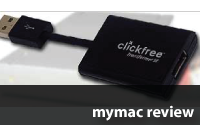
The Clickfree Transformer SE is a Fig Newton-sized USB “dongle” that turns your iPhone, iPod Touch, or USB drive into a backup device, no software required (backup software is built right in to the Transformer). And before you sci-fi movie buffs start asking, the answer is no, it does not morph from a Chevy Volt into the Autobot known as “Jolt” -it’s not that kind of Transformer.

Continue reading »

Trend Smart Surfing for Mac 1.0 – Review
On August 5, 2009, in Uncategorized, by Gil Poulsen


Trend Smart Surfing for Mac 1.0
Company: Trend Micro

Price: $49 for 12-month subscription
http://us.trendmicro.com

Working with Trend Micro’s Trend Smart Surfing for Mac security suite brought to mind my all-time favorite food prep appliance – the Showtime Grill from legendary inventor/huckster Ron Popeil. Like the Showtime, TSSM is pretty much a “set it and forget it” proposition that just works, a welcome entry into a field where security software is often difficult to configure, overly intrusive and CPU-intensive.

Trend Micro’s reviewer’s guide to TSSM asserts that it was built for Mac from the ground up, as opposed to simply porting a Windows app to the Mac. If you’ve read any of my other reviews, you’d know that approach scores big points with me, and based on my experience throughout the installation and setup process, I can confirm that TSSM is an upstanding Mac citizen from top to toe. But what most impressed me about this app is that, as previously noted, it truly does operate on a “set it and forget it” principle. As long as you’ve got a G4 or newer Mac, and you’re using OS X 10.4.11 or 10.5.5 or higher, you can just run the installer, then go about your business while TSSM watches out for malware, phishing scams, viruses, and malicious Web sites.


If you can operate a light switch, you can configure the basic protection settings for Trend Smart Surfing for Mac. The settings are password-protected using your Mac’s administrator account, saving you the trouble of having to memorize yet another password.

Then again, maybe you’re one of those people who just loves to immerse yourself in all the gory details of a program’s inner workings. If so, rest assured that TSSM will let you tinker with its settings to your heart’s content. If you’re not satisfied to simply accept the basic Web threat detection settings, or if you want to block specific sites from being accessed by other users of your Mac, a trip to the Web settings area will allow you to adjust precisely how aggressive you’d like TSSM to be when detecting Web threats. The Website Filter enables further customization by enabling you to block entire categories of sites from a broad spectrum of content areas including Adult (nudity, gambling, illegal drugs, violence), Social (personals, dating, occult, activist groups), Computers/Bandwidth (ringtones, software downloads) and many more. And if all that’s not enough, you can use the “Approved Websites…” and “Blocked Websites…” to configure access at the individual site level.


Using TSSM’s Website Filter, I’ve just blocked access to all online trading from my computer. Or, as TSSM puts it, in its breathlessly hyper-technical vernacular, I’ve prohibited viewing of “Sites that promote/provide information/means to trading of securities/investment of assets/insurance (online/offline)”.


I know what you’re thinking…Is TSSM really going to block me from visiting eTrade.com? How will it know how to do that? How will I know it’s working? Here’s the answer, in the form of a very polite, descriptive and helpful browser-based message that tells you what’s been blocked, why it’s been blocked, how to un-block it, and also how to request that the nice folks at Trend Micro confirm that the site truly should have been blocked in the first place.

Further customization of TSSM is available via the “Scans” settings area, which controls what gets scanned during the automatic, on-demand and scheduled scanning sessions that check for viruses and other assorted malware. The default “Smart Scan” setting “quickly checks for malicious software in the places where it tends to hide,” while the Custom Scan allows you to specify what gets scanned. The Full Scan checks your entire drive, the most thorough but most time-consuming option. The Scan Preferences button allows you to determine whether scanning will occur automatically whenever files are opened, when a scan is initiated manually by you, and/or according to a preset schedule. You can also decide how you want TSSM to deal with any infected files it discovers, specifying that they be deleted immediately, cleaned, quarantined or passed over, and you can even set first and second actions independently, meaning that you can have the program attempt to clean infected files first, then dispose of them if they can’t be rehabilitated.

In my testing, I set TSSM’s Automatic Scanning to first attempt to clean any infected files it found, then quarantine them if they couldn’t be cleaned. As I’m quite vigilant about viruses and malware, I didn’t expect any files to be flagged by the program, but sure enough, within a few moments TSSM located two Microsoft Word files from 2006 attached to a couple of old email messages, both of them still infected with the infamous W97M/Melissa.A virus. Unfortunately TSSM was unable to clean the files and I was forced to delete them, although they had long since outlived their usefulness to me anyway.


If at first you don’t succeed…TSSM lets you configure both a first and second action to take when scanning discovers a problematic file. In this case, I’ve set the On-Demand Scans to first attempt to “clean” the file, and if that’s unsuccessful, quarantine it so it can’t do any further damage.

At the risk of getting overly technical while reviewing a Mac security suite designed specifically for novices, I want to highlight two unique aspects of the approach that Trend Micro has taken with TSSM, because I think they represents a positive step forward in the battle to keep ahead of the miscreants that create this malware in the first place. First off, TSSM emphasizes protection from Web-based attacks like “phishing” scams which are far more apt to affect Mac users than viruses or spyware, and provides this protection regardless of which programs you happen to be using. TSSM accomplishes this feat by operating in the space between your applications and the Internet, at the system/network level. What that means to you is that no matter which programs you might be using at a particular time, TSSM is actively protecting you from Web-based threats, even from Web links embedded in instant messages or emails – with no need to install individual plug-ins or add-ons into programs like Safari, Apple Mail, FireFox or iChat.

The second aspect of TSSM’s protection mechanism that’s worth noting is that TSSM (along with all its Windows counterparts) uses a “next-generation cloud-based infrastructure for gathering and analyzing threat data” (a.k.a. the Trend Micro Smart Protection Network). In humanspeak, this simply means that Trend Micro stores up-to-the-minute data about Web-based security threats in an online “cloud,” and each time a Mac user running TSSM attempts to access a Web site via browser, the URL is checked – within the space of a few milliseconds – against the threat data in the cloud, and access is blocked if warranted. This means that you’re effectively protected against new threats the moment Trend Micro detects them; no need to wait for daily or weekly updates to be downloaded to your Mac, which can often come too late to prevent exposure to a brand-new exploit.

So, does TSSM really live up to my initial “set it and forget it” hype? Pretty much so, yes. I encountered a few minor problems with the automatic scanning putting the kibosh on my nightly backup routine; some detective work determined that the issue is actually related to the mounting of disk images followed by TSSM’s immediate attempt to scan them, since it interrupted another automated task that also involves the automated mounting of disk images. Although you can add specific directories and/or individual files to a scan exceptions list, you can’t exclude an entire drive from being scanned, something that would be useful in preventing these kinds of issues when entire volumes are mounted for automated backups or other purposes.

As you might expect, the scanning process impacts the Mac’s performance to some extent while running, but once the scan is completed performance immediately returns to normal. I could find no evidence of TSSM’s “Web Threat Protection” causing even the slightest impact on performance when visiting dozens of sites in rapid succession, even though every URL I visited was indeed checked at the Trend Micro cloud first (said activity confirmed by the ever-useful Little Snitch).

I was also a bit disappointed that TSSM was unable to “clean” the two infected Word files it found, given that most anti-virus utilities (Norton AntiVirus for Mac and Intego VirusBarrier, among others) are capable of repairing files containing infections like the Melissa virus and other macro viruses common to Microsoft products. As this is only a version 1.0 product, I’m hopeful that these issues can be rectified in a future release.

There’s no question that at this point in time, Mac users are far more susceptible to email and Web-based “phishing” threats then they are to spyware and viruses. Given that, I think TSSM just might be the most well-designed and complete protection suite currently available to Mac users, as its approach emphasizes up-to-the-second protection against social-engineering style dangers, while still providing solid virus and spyware protection in a package that has very minimal impact on the Mac’s performance.

Now if you’ll excuse me, I’ve got a 12-lb. turkey roasting in my Showtime Grill…

MyMac.com Rating: 4.5 out of 5

emailMyMac MagazineTwitterAdvertiseReviews ArchivePodcast


OWC On-The-Go Pro 500GB 7200RPM FW800/FW400/USB 2.0 Storage Solution – Review
On July 13, 2009, in Uncategorized, by Gil Poulsen


OWC On-The-Go Pro 500GB 7200RPM FW800/FW400/USB 2.0 Storage Solution
Company: Other World Computing

Price: $229.99
http://www.macsales.com/

How does that old adage go? “You want good, fast and cheap? Pick two.” OWC’s new 500GB 7200RPM Mercury On-The-Go Pro portable drive certainly has the “good” and the “fast” covered, although at $229 list, I can’t actually say this bus-powered, FireWire 400/800 and USB 1.1/2.0 drive is “cheap.” Still, it’s a remarkably reasonable price for this package, which includes connecting cables for all three interfaces and a handy carrying pouch, plus a software bundle for both Mac and Windows that contains backup and utility software along with nearly two gigabytes of Mac freeware, shareware, updates, icons and more.

As I’ve not yet encountered a portable (2.5") drive with both a FireWire 800 interface and a 7200RPM drive mechanism, I conducted a fairly exhaustive search to determine if this new Mercury On-The-Go (MOTG) model has any competition when compared “apples to apples” (sorry, couldn’t resist) with similar drives. The closest device I could find was LaCie’s 500GB “Rugged All-Terrain” triple-interface portable drive, and although the LaCie also comes with three connecting cables and features a very rugged-looking, shock-resistant case, the drive mechanism is only 5400RPM with an 8MB cache, as compared to the MOTG’s 7200RPM drive with its 16MB cache. So that puts the LaCie ($199.99 list; “street” pricing may be lower) at a decided disadvantage in terms of speed, at least based on personal experience working with and comparing the relative performance of 5400RPM to 7200RPM mechanisms.

Hey, I thought you said this was a triple-interface drive? Yes, even though this MOTG Pro sports only FireWire 800 and USB 2.0 interfaces, FW 800 supports both 800Mbps and 400Mbps connections, and the nice OWC folks were thoughtful enough to include a FireWire 800 to 400 converter cable. In fact, since the USB 2.0 port supports USB 1.1 as well, you could even say this was a quadruple interface drive.

While we’re on the subject of mechanisms, this particular MOTG model uses the Seagate Momentus 7200.4 SATA drive, with its aforementioned 16MB cache—already one of, if not the fastest, 2.5" SATA drives on the market today. Pair that with the FireWire 800 interface of this MOTG device, and you get an external drive that not only beats the pants off most other external portables, but rivals the performance of 7200RPM, 3.5" desktop mechanisms. Using OWC’s own QuickBench utility (thoughtfully provided on the included CD as part of the Intech SpeedTools package), I did some benchmarking and was very impressed with the read and write speeds of the MOTG, although I should note that I was unable to achieve the performance benchmarks posted on OWC’s Web site.


OWC’s published benchmarks show this MOTG Pro 7200RPM drive, when connected via FireWire 800, achieving read speeds of over 79MB/sec and write speeds on the near side of 77MB/sec. Although I was unable to match those benchmarks in my own testing, rest assured, folks—this drive is fast.

In my initial testing, with the drive connected via FireWire 800, QuickBench indicated that the MOTG 500GB was able to sustain an average read speed of 65MB/sec, and an average write of 53MB/sec, both quite remarkable for a bus-powered, 2.5" external drive. When compared to my trusty NewerTech miniStack v3, equipped with a 3.5" 7200RPM SATA mechanism and also connected via FireWire 800, I was even more impressed to discover that although the MOTG could not quite equal the performance of the miniStack’s 3.5" mechanism, it was certainly in the same ballpark in terms of both read and write speed (75MB/sec read and 59 MB/sec write for the miniStack, as compared to 65MB/sec read and 53MB/sec write for the MOTG).

As a final performance comparison, I elected to pit this MOTG against what I would consider a “typical” 2.5" portable drive; in this case, a Western Digital 320GB, 5400RPM My Passport Essential drive connected via USB 2.0. As you might have already guessed, the MOTG 500GB blew the doors off the Passport, with the WD 5400 RPM mechanism and USB 2 interface able to achieve only a 12MB/sec read and 11MB/sec write speed, approximately 1/5 of the MOTG’s benchmarked performance via FW 800. Even with the MOTG Pro connected via USB 2.0, it still easily bested the WD Passport, achieving 22MB/sec read and 18MB/sec write benchmarks.

At this point I think I’ve safely established that the drive is “fast,” although not necessarily “cheap,” so let’s focus on the “good.” In my experience, too many external drives listed as Mac-compatible come pre-formatted for Windows machines, and often without instructions on how to reformat them for your Mac. Not only does this MOTG Pro come with a printed owner’s manual, it also includes
printed “cheat sheets” that describe how to format the drive for Windows users and how to determine whether to use an APM or GUID partition if you want to use it for booting your Mac. They even include a bundle of custom drive icons to match each style of drive they offer, a special treat for those anal-retentive like me who simply must have the icon of every mounted drive look precisely like the physical drive it represents.


How much bundled software does the OWC MOTG Pro 500GB actually ship with? Enough that the OWC folks needed to provide an index to help you sort through it all.

The bundled software accompanying externals is often Windows-only as well, or a poorly-executed port of a Windows program included on the disk seemingly as an afterthought. Not so with OWC drives; the MOTG Pro comes with two backup applications (DataBackup from Prosoft and Carbon Copy Cloner, both excellent backup utilities), the Intech Speed Tools noted above, and so much additional Mac software that the OWC folks felt compelled to provide an index to all the goodies contained on the disk. Three interface cables are also included; as the drive has two FW 800 ports but no FW 400 ports, one cable serves as a FW800 to 400 converter, and the drive and cables all fit neatly into the included carrying pouch.

While we’re on the subject of cables, I should mention that I connected the MOTG Pro to two different laptops using both the FireWire 400 and USB 2.0 cables (still haven’t sprung for that FW800 laptop) in order to confirm that the drive operates normally while on bus power only. I’ve never had issues with a portable FireWire drive, but I’ve encountered numerous problems where a USB portable either required the dreaded “two-headed” USB cable (one for connectivity and one for power) to spin up, or would not spin up at all—regardless of cable type—due to lack of power. OWC does sell an optional AC adapter for this drive, but based on my testing you’ll never need it.

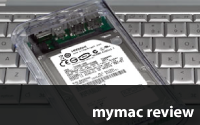
As I’ve gotten plenty of mileage out of the “Want it good/fast/cheap? Pick two” adage already, I’m going to segue into “the good, the bad and the ugly” for just a moment. We’ve clearly documented the “good,” and there’s really no “bad” to speak of with this device. But when it comes down to the clear acrylic enclosure itself, I think it’s time to talk “ugly.” Maybe it’s just me, but I find it really unattractive, to the point where I wouldn’t want it sitting on my desk. It forces me to look at the drive’s innards, it doesn’t complement any of my equipment, it looks “cheap,” and it frankly gives the impression that this is a prototype of an external hard drive for which the developers haven’t yet established the final case design.


Bottom view of the MOTG Pro showing the metal heat-sink (7200RPM drives generate quite a bit more heat than their slower 5400 RPM brethren). Am I the only one out there who thinks clear acrylic cases that show all of a drive’s innards are just plain ugly? In fact, with the sleek heat-sink obscuring all that nasty circuitry, I submit this drive actually looks better when turned upside-down.

But don’t let my rarified aesthetics dissuade you from making this your next external hard drive purchase. At this price point, with a Seagate 7200RPM mechanism, 500GB of storage space, support for three interfaces including FireWire 800, and a comprehensive package with cables/carrying pouch and tons of software that’s actually useful to Mac owners, this MOTG Pro is the only way to go if you’re looking for the ultimate in portable storage.

Oh, and did I mention that it’s fast?

MyMac.com Rating: 4.5 out of 5

emailMyMac MagazineTwitterAdvertiseReviews ArchivePodcast

Run Windows on your Mac without rebooting!  Parallels Desktop 4.0 for Mac provides the complete suite of essentials to run Windows on Mac the easy, fast and powerful way.


F-Secure Online Backup – Review

On June 30, 2009, in Uncategorized, by Gil Poulsen


F-Secure Online Backup
Company: F-Secure

Price: $49 for 12-month subscription
f-secure.com

Over the past 15 years I’ve purchased, used, reviewed and even trained other users in numerous applications that were “ported” from their Windows versions to run on the Macintosh platform. Some have been supremely Mac-like, showing little or no evidence they were originally written for an entirely different computing platform. Others appeared to be assembled with less regard for the Mac user, perhaps still sporting some Windows-specific close boxes or other user interface elements. Some contained references in the help system to the C:\ \ drive, or to files or directories that aren’t actually present on Macs.

Then there’s F-Secure’s Online Backup, the alleged Mac version.

Maybe it’s just me, but if I’m going to purchase a program I’ll be trusting to back up all the critical files on my Mac – and enable me to restore them easily and accurately – I’d like that program to at least appear to be created for the Macintosh platform. Not only is F-Secure Online Backup (hereinafter referred to as FSOB) the sloppiest port of a Windows application I’ve seen in recent memory, but it also appears designed to deliberately confuse the user right from the start in terms of which files are actually being backed up.

That’s unfortunate for the folks at F-Secure, because FSOB does indeed “work.” In my testing I was able to back up well over a gigabyte of data to their remote vault, then successfully restore various document types to my Mac in an intact and accessible state. But the program’s Byzantine file selection process makes for a great deal of head-scratching when it comes to designating files for backup, while the default settings inexplicably omit all music files, yet include all video files. Remarkably, FSOB even asserts that it will be protecting my Microsoft Outlook, Thunderbird or Windows Mail e-mail data, with no mention of Apple Mail or Entourage; that’s not the kind of interface screw-up that inspires confidence in a backup system.

My initial – and futile – attempt to fully grasp FSOB’s configuration process sent me scurrying back to the printed manual included in the box, only to discover that it contained exactly one page of Mac installation instructions and one page of uninstallation instructions. The downloadable PDF manual was much more revealing, providing a table that details how the default settings for the five categories in the file selection area operate, while at the same time confusing me beyond all rational measure. I’ll try to make some sense of the process as I go along, but there are some mysteries even an experienced writer/reviewer is incapable of unraveling.


The Backup tab provides info on which files are to be protected on F-Secure’s remote servers – or at least, it attempts to. The completely Windows-centric descriptions of the documents destined for backup make me question whether I’m truly using a Macintosh application. By default, the “Music” category is inexplicably turned off, while “Pictures and Videos” is enabled. Could F-Secure be refusing to back up my music because it’s detected the presence of The Partridge Family in my iTunes Library?

The file selection window, under the “Backup” tab, looks simple enough at first glance. Your files are grouped into five categories: Office documents, Pictures and videos, Music, E-mail, and My important files. The first three can be turned on or off, with no further configuration possible. The final two, “E-mail” and “My important files” both feature a “Change…” button to allow for manual file selection. So far so good, but here’s where it gets dicey.

“Office documents,” the first category, indicates that FSOB will back up “Microsoft Office and OpenOffice documents on the local drives.” OK, so that’s all my Word, PowerPoint and Excel stuff, right? Well, not exactly… According to the manual, “Office” doesn’t mean “Microsoft Office” or “OpenOffice” specifically, but rather an eclectic collection of files that includes InDesign, QuarkXPress, Pages, Keynote, and Numbers, along with files from a bunch of apps that don’t actually run on Macs, like Microsoft’s Project, Money, Publisher, Access and Vizio, plus a handful of files ending in .pz3 and .pzz, among others. PDF and text files are also thrown into the mix here. What’s troublesome about this is that FSOB appears to make its selections based strictly on file suffixes, so if you happen to be working with documents created by programs that aren’t included here by default (in my case, FileMaker Pro .fmp files and Multi-Ad Creator .crtr files, to name but a few), they simply won’t be backed up.


FSOB’s Settings window provides a few basic configuration options. Again the “office documents” confusion reigns here, as the “Save a version history of office documents” option is remarkably vague about which file types will have multiple versions preserved. Is it all “Office” documents, as in Microsoft Office, is it all documents included in the “Office documents” category, or does it refer to any changed files at all? Why would FSOB do this for the “Office documents” category, but not “My important files”? Or even “My unimportant files,” for that matter?

Moving along to “Pictures and Videos,” this category is turned on and enabled by default, ready to back up “Video and picture files on the local drive.” As previously noted, no further configuration is possible. So what exactly is a video or picture file where FSOB is concerned? The manual indicates that the usual suspects are covered (TIFFs, JPEGs, RAW files and others), plus “Creative application documents,” which encompasses another alphabet soup of file suffixes, some recognizable as belonging to Adobe Illustrator, Corel Draw, Freehand, and OmniGraffle, and some rather obscure (.wec, .xar). Indicating the application name that’s associated with these suffixes would go a long way towards helping the typical end user understand exactly what is – and isn’t – being backed up. The video file formats supported by default are even more problematic, as only .wmv, .mov and .3gp (some mobile phones capture video in this format) files are protected. So for those of us with Flash video, or .dv files, MPEGs, AVIs, etc., you’re apparently out of luck here, assuming the file selection is based entirely on the suffix.

Ditto for “Music,” with the additional caveat that this category is disabled by default. If that’s done for space considerations on F-Secure’s servers, I can understand, as iTunes music libraries can be quite large. But having noted that, the default settings in FSOB are set to back up every QuickTime (.mov) and Windows Media (.wmv) file on my local drive, which in my case could easily encompass 20 gigabytes. So why ignore music files? As it is, only .mp3, .m4a, .m4p, .wma, and .aac files are protected by FSOB; what if a user has a large collection of .wav or .aiff files? These three initial categories all have the potential to mislead the user into thinking that all music, video and picture files will be backed up, when a careful reading of the manual reveals that in fact that is not the case, and to me forcing a user to chase down an extensive list of file suffixes just to figure out what’s actually being backed up borders on the absurd.

And speaking of absurd, when was the last time you used Outlook or Windows Mail as the primary email client on your Mac, instead of Apple Mail or Entourage (leaving aside Windows emulators here)? Based on the fourth file selection category, “E-mail,” FSOB claims it will back up your Outlook Express, Thunderbird or Windows Mail files, with nary a mention of any of the two most popular Mac email clients. Clicking the “Change” button reveals a very Windows-looking selection dialog with a “Mac Mail” entry pre-selected; although I have Entourage 2004 on my test Mac as well, there’s no option to designate Entourage mail for backup. My guess is that FSOB respects the default email client as defined in Apple Mail and ignores any others, again not a healthy approach to backup. The manual states that Entourage and Apple Mail are both supported for backup; users of alternate email clients like PowerMail, GyazMail, or Thunderbird (Mac) need not apply, as there’s no way to manually direct the E-mail backup category to the data files for any mail program other than the default.

The final category, “My important files,” indicates that it will back up the “My Documents folder, Favorites, desktop files and selected files and folders.” Last time I checked, Macs don’t have a “My Documents” folder; only Windows users do. Macs have Desktop, Documents, Pictures, Music and Movies folders. Yet a click of the Change button shows me definitively that FSOB stands ready to begin backing up the “My Documents,” “My Pictures,” “My Music” and “My Videos” folders on my Mac, in spite of the fact that they don’t actually exist. Only “Desktop” and “My Documents” are selected by default, presumably because the first three file selection categories are enabled and already encompass pictures, movies and music (leaving aside all the unsupported formats noted previously).


File selection dialog for “My important files,” showing the various categories presented for backup including “My Videos” (aka the Movies directory). Given the folder icons and the fact that clicking the + (disclosure) button shows the files and folders within each directory, it’s easy for a user to be confused between the real directories on their Mac and the faux versions depicted here. Also note, there’s no specific provision for backing up Favorites (aka Safari/FireFox bookmarks) in spite of what the main Backup window suggests.

Here’s where the real confusion sets in. If I select “My Videos,” which appears to refer to the “Movies” folder in my user directory, my assumption is that everything in that directory will be backed up. But given that the “Pictures and videos” category is still selected, will my .mov files now be backed up twice? If I have a bunch of .flv (Flash video) files in “Movies,” will they not be backed up at all, because the .flv suffix is not designated for backup by FSOB? Or does that apply only to the first three selection categories?

Entourage is not selected in the “E-mail” backup category, but if it were, and “My Documents” (aka /Users/gil/Documents) is also selected under “My important files,” will my Entourage data also be duplicated in the backup, since it resides in the Documents folder? As far as “Favorites,” the manual indicates that refers specifically to Microsoft Internet Explorer favorites, a program that’s not only omitted from the standard Leopard installation, but can no longer even be downloaded from Microsoft’s Web site. There’s no mention of whether or not Safari and FireFox bookmarks are protected, and no option to manually select them from a “Bookmarks” selection dialog, even if you happened to know where they’re stored on your Mac.

That brings me to possibly the most glaring omission in terms of the default selection of files to be backed up – a user’s Library folder. In addition to Safari bookmarks, the Library directory stores all preference files, keychains, Safari bookmarks, Address Book and iCal data, downloaded Mail files, various support files for installed applications from both Apple and third party developers, Web browser plug-ins, and a host of other essential files. Yet it’s omitted from the default file selection, and nowhere is it suggested that you take the step to manually select it. Most if not all other backup systems simply pre-select the user directory (which encompasses the Library folder) and go from there; it’s unclear why F-Secure would elect to construct such an onerous, confusing and potentially incomplete file selection process based on file suffixes, rather than simply designate either the entire Users folder or the entire hard drive to be backed up (with the exception of the System folder), and let the user decide if they want to omit any file types in particular.

Unfortunately, even if FSOB did “do the right thing” with regards to file selection, there are a host of other inconsistencies and glitches that further blemish a program which, as I previously noted, is fully capable of basic backup and restoration. For one, backups won’t take place unless the program is running; there’s no background process that would allow you to use the app just for configuration purposes and then quit out of it. Conversely, there is a menu bar icon for FSOB, which does badge itself with a red X if the program is not currently backing up, but once you’ve quit FSOB, the icon disappears instead of retaining the warning icon, which would alert you to the fact that your backup’s not currently working and you need to relaunch the app.

And speaking of quitting, selecting Quit from the F-Secure Online Backup menu, or hitting Command-Q, instantly minimizes the FSOB window into the Dock, as if you’ve closed the window but not actually quit the app. Eventually the program does quit completely, and while this isn’t exactly a show-stopper, it epitomizes the half-hearted and sloppy effort involved in making this program a true Mac application.

I’ve used the word “windows” a lot here, both with a capital W and without, but my final beef with this program concerns the capital “W” variety. So much of the user interface and file selection process screams “Windows” that I fail to see how any self-respecting Mac programmer would have let this program out the door in the first place. In particular, the file selection dialogs in the “E-mail” and “My important documents” categories not only make me think I’m using a Wintel machine, but seem designed to make it nigh impossible to drill down and select files in subfolders. The extremely narrow window can’t be resized, and the Size and Date fields occupy half of the available space, so only about ten characters of any file or folder name are visible. Narrowing the Size and Date fields helps somewhat, but once you get about three levels deep in a folder you run into the same problem again. So you need to drag the horizontal scroll bar back and forth constantly just to read the names of your files, an endlessly frustrating process that tempts one to abandon the idea of manual file selection completely.


Any attempt to drill down to select subfolders is an exercise in frustration, as depicted here. Once you get about one level deep, you must constantly drag the Size and Date column headers to the right to compress them, and then use the horizontal scroll bar to navigate left to right in order to keep track of where you are in the folder hierarchy. The Mac OS X toolbox for developers provides lots of selection dialog options, like Column View or even a new window for each directory, but apparently the programmers at F-Secure felt they could do a better job by simply recycling the dialogs from the Windows version.

Were FSOB the only available option for remote offsite backup on a Mac, I’d grudgingly recommend that you purchase a copy, because it is capable of basic backup and restoration in spite of its myriad of flaws. But the competition in the online backup arena is keen, and there are numerous other options available to Macintosh users; these include (in no particular order), the ever-improving CrashPlan, see my review here, Carbonite, iDrive, Mozy, BackJack, iBackup and Twin, any one of which is more powerful, more polished and more Mac-like than the current version of FSOB.

I’ve noticed that more and more Mac users – myself included – have come to recognize the value of keeping copies of our files in a secure offsite location in the event disaster strikes, whether as our primary backup option or as an added layer of security on top of Time Machine or a similar “local” solution.

So, sure, we’ll do backup.

But we won’t do Windows.

MyMac.com Rating: 2 out of 5

emailMyMac MagazineTwitterAdvertiseReviews ArchivePodcast

Run Windows on your Mac without rebooting!  Parallels Desktop 4.0 for Mac provides the complete suite of essentials to run Windows on Mac the easy, fast and powerful way.


TechTool Pro 5 – Review

On June 16, 2009, in Uncategorized, by Gil Poulsen


TechTool Pro 5.0.4
Company: Micromat

Price: $98 (upgrade from any prior version, $59)
Micromat.com

As a very young boy, I can recall many a time when I’d try my darnedest to convince my Dad, a glazier, to take me to work with him. “Tell you what,” he’d say. “The day you can lift my toolbox, that’s the day you’ll be ready to come with me.” Of course at that age I couldn’t even budge it, and wouldn’t be able to for many more years, given its size and weight and the hundreds of tools contained therein. But I always figured if I could just carry that toolbox around with me, I’d be able to fix anything.

Thanks to Micromat’s TechTool Pro 5, I’ve finally got that toolbox – and the best part is, it’s all on a DVD that weighs less than an ounce. The comprehensive suite of diagnostic tests covers virtually every part of your Mac, the tools are capable of addressing a wide variety of disk-related problems, and the protection features provide early warnings for problems yet to come. Sure, there are a few tests whose usefulness is debatable, and some of the tools already exist as freeware or as part of the operating system itself, but after putting TTP through its paces on a selection of Macs both old and new, I’m convinced that this is one toolbox that’s coming with me on every job.

TechTool Pro 5 (hereinafter referred to as TTP) takes a three-pronged approach to Mac troubleshooting – tests, tools and protection. The Tests area of the program consists of diagnostic routines that check the “health” of your hard drive, memory, volumes and files as well as select components like the processor and USB bus. The Tools area of TTP provides the ability to repair disk directories, optimize files and volumes, recover deleted files and even securely “wipe” data from a drive. One unique aspect of TTP’s Tools is the eDrive feature, which allows you to create a separate bootable partition on your hard drive containing a copy of TTP, which can be used to boot up your Mac and attempt repairs in the event that your primary partition becomes damaged or unusable.

The third and final aspect of the TTP program are the Protection features which, when enabled, monitor the amount of free space on your hard drive, back up your disk directory, track deleted files and check the SMART (Self-Monitoring Analysis and Reporting Technology status of your drive. TTP will alert you if your free space drops below a specified threshold, or if the SMART reporting for your hard drive indicates a potential failure. You also have the option for email alerts to be sent out in case you don’t happen to be in front of your Mac when a potential problem rears its ugly head. While TTP can be run by booting from the DVD (OS X 10.5.5 is pre-installed), the protection features aren’t available until you actually install it on your Mac, and are controlled via a System Preferences pane, as shown in the illustration below.


The TechTool Protection preference pane allows you to enable or disable TTP’s protection features, as well as fine-tune some of the settings. Here, I’ve adjusted the threshold for the free space warning on our boot partition to 10% and the Check Interval to 30 minutes. Note that you can toggle individual TechTool Protection features like the Directory Backup on or off, in addition to enabling or disabling the entire suite all at once.

Let’s take a closer look at each of the three TTP areas, starting with Tests. Each time you fire up TTP, whether you’ve running it from the bootable DVD or your own hard drive, a series of automatic tests are initiated which check the cache, USB and FireWire busses, processor, and network (if connected wirelessly or via Ethernet) and provide the relevant specs for each. The results appear not as numerical displays or bar graphs, but as a series of readouts on the gauges of a faux instrument panel; it’s no wonder the system requirements for TTP 5 specify Quartz Extreme capability, a requirement that might seem, er, extreme for a troubleshooting utility. I’ll admit, I’m a sucker for over-the-top eye candy as much as anyone, and Micromat has included plenty of it in this package.


TTP’s Automatic tests display the critical specifications of my 2.0GHz MacBook using animated instrument panel gauges, an example of the over-the-top graphical displays that appear throughout the Tests and Tools areas. The program also identifies the specific model of Mac being tested, as well as when and where it was built. Strangely, while TTP identified my MacBook accurately, it labeled my PowerBook G4 12” 1.33GHz as a “PLG” and an ancient G4/533 tower as an “L8G,” although it was able to determine the correct system specs, build date and location for both G4 models.

Once the automatic tests have run, you have the option to initiate the “Check Computer” sequence, which steps through all the tests available, or you can select to conduct individual tests from the Test Selection menu. Any test can be cancelled at any time after being initiated, without incident, so you’re never locked into the last 03 minutes of any test should you elect to bail prior to completion.

The complete suite of tests include:

Memory Test – This runs a series of esoteric test routines like “Extended March C-” and “moving inversions” on all installed RAM, with the option to limit the duration of the testing to anywhere from one minute (the default) to 90 minutes. While having control over the duration of the testing is essential, I think the default should be at least five or ten minutes, as memory problems can be elusive and it’s very possible they would not be detected via a one-minute scan.


Testing RAM thoroughly can take a while, and in some cases problems appear only when your Mac’s internal temperature exceeds a certain point. If you want to give this test the best opportunity to find defective RAM chips, run the test for the maximum 90 minutes duration, and then run it again, just to be sure.

Surface Scan – Scans the entire hard drive for bad blocks. This test took approximately 50 minutes to run on my MacBook, and could take much longer for larger drives. Although the test will identify any files that reside in bad blocks, there’s nothing you can do at that point but back everything up and format the entire drive, since if the file is located in a bad block it’s probably not recoverable anyway. I would recommend skipping this test unless you’re working on a very old drive or a drive that seems to corrupt files on a regular basis, and even then I’d run it only after I’d run the Volume Structures check (see below) and “Volume Rebuild” from the Tools area.

SMART Check – As the name implies, checks the aforementioned SMART status of your drive. If any of the SMART parameters appear in red, you should consider backing everything up immediately and replacing your drive, as most problems revealed by the SMART system are indicative of a hard drive that is in imminent danger of failure. Hard drives are inexpensive enough these days that it’s not worth taking chances with your data.

Volume Structures – Basically, this test does what “Verify Disk” in Apple’s Disk Utility does – it checks the integrity of the disk directory, which keeps track of where everything on a particular volume is stored. If problems are found, you should reboot from the DVD and use TTP’s Volume Rebuild tool to repair the directory.

Video Memory – ”Exercises the VRAM” to check for problems with your video chipset. While it only takes about three seconds, it’s a throwaway in my opinion; if your video output was on the fritz you’d certainly know about it prior to running this test.

File Structures – Checks individual files for corruption; unfortunately it works only on a limited set of file types (.plist and .xml files, some image formats like JPEGs and TIFFs, MP3 files, and .TXT files) and isn’t able to repair the corruption, but simply alert you to it. In my testing it accurately detected a pair of AirPort configuration files with badly-formed XML and a corrupt PDF, but also flagged a couple of Photoshop sample files whose only crime was being in 16-bit TIFF format. Micromat claims TTP will support more file types in the future, and I’d suggest that support for Microsoft Office, QuarkXPress, and Adobe Illustrator/InDesign files would be most useful here.

Moving on to the Tools, we first encounter TTP’s eDrive, a truly innovative feature that’s phenomenally easy to set up and could prove to be phenomenally useful if the directory of your main volume is damaged. The eDrive is actually a separate partition containing a stripped-down, bootable version of whatever operating system is on your Mac, along with a working copy of TTP. In the event your Mac refuses to start up, you simply boot with the Option key held down, choose the eDrive icon as the boot drive, and then you can run the various TTP Tools from the eDrive in order to resurrect your Mac.

To create the eDrive partition, all you need do is boot from the TTP DVD and proceed to the eDrive option under Tools. You select the volume you want to “split” to create the eDrive, and you even have the option to choose a different drive from which to copy the system files (although in most cases you’ll want to use your boot drive for this, as you know for sure the system on there will boot your Mac). There’s no need to reformat your drive, or copy all your files to another volume; TTP creates the partition “on the fly” while employing some more nifty eye candy, as folders corresponding to each directory being installed march across the screen. In about 20 minutes, you’ve got a separate bootable partition, ready for the next Mac emergency. The manual states that a 12GB partition will be created, although mine was a more-efficient 7GB, with about 1.3GB of free space remaining. The eDrive is read-only, and does not mount during “normal” computer usage, both of these steps taken by Micromat to ensure that the eDrive remains intact and ready to assist.


Starting up from the eDrive results in a desktop studded with massive eDrive icons and a background color looking for all the world like a heaping helping of pure Florida orange juice. Apparently Micromat’s programmers wanted to ensure there’s no mistaking which partition you’ve booted from.

I was able to create eDrives on my other two test Macs as well, boot from them, and run the various tools successfully, although my venerable G4/533 tower struggled with some of the Quartz Extreme-dependent eye candy. Interestingly, the tower booted with the TTP Pro DVD running OS X 10.5.5, somewhat surprising given that Leopard can’t be installed on any G4 with a processor speed of less than 867MHz. So apparently even those of you with pre-Leopard compatible G4 Macs can still boot from the DVD and make use of the eDrive; according to Micromat the official system requirements for TTP are a G4 processor, OS X 10.4.9 or better, 512MB of RAM and, of course, a DVD drive. And for those of you who might be wondering, “What if I start running out of room on my boot drive, and I need the space back,” fear not. I was able to remove the eDrive partition successfully from all three test Macs, without incident or data loss, simply by booting from the TTP DVD and clicking “Remove eDrive.” Twenty minutes and an icon parade or two later, all the free space previously used by the eDrive was restored to the original volume.

The other available tools are as follows:

Volume Rebuild – Checks your disk directory structure for problems, creates a new directory, and presents you with comparison data so that you can decide whether or not to replace the original one. Changes to the original directory are indicated in green if they are “favorable” (in which case you should go ahead and replace the directory) and in red if they’re “unusual,” meaning that replacing your current directory might cause you to lose some data. The Volume Rebuild tool is basically a more sophisticated version of Disk Utility’s “Repair Disk,” though perhaps a less sophisticated version of Alsoft’s Disk Warrior in that unlike Disk Warrior, it does not allow you to mount a preview of the replacement directory as a disk and, if necessary, drag files from it in order to recover them from a severely damaged drive. I replaced the directories on all three test Macs successfully, though none indicated any “unusual” changes, so I can’t really say how well TTP’s Volume Recover would fare in a head-to-head-to-head competition with Disk Utility and Disk Warrior.

File Optimization/Volume Optimization – Although there are some who maintain that optimizing/defragmenting your drive does boost performance, the general consensus among Mac techs seems to be that defragmentation under OS X offers minimal benefits, and an Apple tech note states that for the most part, optimization is not necessary. I previewed TTP’s File Optimization on my MacBook, and out of a total of 469,397 files, the only fragmented file was my Windows XP partition running under Parallels Desktop. Granted, your mileage may vary, and I’ve no reason to think these tools won’t work as advertised, but given the questionable advantages of defragmentation, I wouldn’t bother with them.

Data Recovery – Assuming you have the TTP Protection features enabled (as noted earlier), you have three options for recovering lost or deleted files. When the Data Recovery tool is employed, the first option, under the Protection tab, contains a list of backups of your disk directory. You can search these backups individually to locate a particular file using a search string (like “Home Inventory”) and TTP will check every directory that’s available for a record of that file. The second option, the “Drives” tab, searches the current directory in the same manner. Files matching your search are listed by name and date, in black if they can be recovered, in red if they cannot. “Trash,” the third option, simply shows you all the deleted files that have been “remembered” by TTP in red, while files in black text are currently in the Trash. For all three of these options, not all files TTP finds will be fully recoverable, but for those that are, Data Recovery is a potential lifesaver. I deliberately trashed and recovered a Web location file and a PDF, both intact, but keep in mind that the more time elapsed since the file was deleted, the less likely your odds of recovering it, since there is greater potential for the deleted file to be overwritten by new data.


TTP’s “Data Recovery” tool can reach back into previous saved versions of your disk’s directory, giving you a much better chance of locating and recovering missing files. Here we’re narrowing the search to find only Web location files by entering .webloc as the search string and choosing “Ends with” as the search criteria.

Wipe Data/Volume Journaling/Disk Permissions – These tools seem to be included merely for convenience, as you can easily do a Secure Erase from the Finder instead of using the Wipe Data tool, you can repair Disk Permissions in Apple’s Disk Utility, and you can enable and disable journaling there as well (the command to disable journaling isn’t readily apparent; you need to hold down the Option key with any journaled volume selected and go to “File – >Disable Journaling”). In any case, it’s extremely unlikely that you would want or need to do this on a journaled volume anyway. By way of explanation, think of journaling as the disk keeping an actual journal of what happens to all the files, so that if you crash at an inopportune time (as if there is an opportune time), the condition of the disk at the time of the crash will be automatically reconstructed from the journal upon rebooting.

Video (Monitor calibration) – This is probably the most presumptuous of all the tools and tests in TTP. The “monitor calibration” merely displays a screen filled with one single primary color, with or without animation (sometimes helpful in detecting dead pixels), or it can present a test pattern, noise, repeating text, or animation featuring the word “Micromat” spinning, twisting and changing colors randomly. It doesn’t even come close to a tool that performs true monitor calibration, whether done via software in the “Displays” control panel, or with a dedicated hardware calibrator, so don’t be misled into thinking that TTP will actually calibrate your display.

Video (iSight verification) – This displays the input from your iSight camera, to confirm that the iSight is functional. It’s designed to assist in ruling out a software problem as the cause of your iSight not working correctly.

Audio – The Audio tool allows you to adjust the volume, frequency, balance and gain for the audio output by issuing a constant test tone. Typing text into the Speech Synthesis box and clicking the “Say Text” button will also confirm that text to speech is functioning as well, although this didn’t work when booted from the TTP DVD; only when the tool is run from the hard drive. Other that confirming that sound does comes out of the speaker(s), this one seems to be reserved for the audio geeks among us.

All in all, it’s quite the toolbox. Clearly some tests and tools are more useful or valuable than others, and some of TTP’s functions can be performed using software already supplied with the operating system. But having this multitude of testing and repair utilities all contained within a single program – on your startup drive, the eDrive partition, and on the bootable DVD – makes TTP the clear winner when it comes to a “total package” of troubleshooting utilities. I’m not convinced that the Volume Rebuild tool can replace the aforementioned DiskWarrior, a disk directory repair utility that has saved mine and my client’s bacon innumerable times, but since DW is pretty much a one-trick pony, TTP’s extensive tests and tools complement it perfectly.

Lest you get the impression that there’s no more room in the TTP toolbox for additional tools or improvements, rest assured that I have a few suggestions for Micromat along those lines. First off, I’d love to see a test for the PRAM battery; the remaining capacity would be very helpful info, but even just to know whether or not it’s functioning would be useful, as a dead PRAM battery can often prevent a machine from booting and is usually a cheap and simple repair. For laptops, why not a test for the battery itself? A lot of the info is available in System Profiler, so perhaps capturing that info and offering some commentary on whether it’s nearing the end of its life in terms of remaining charging capacity. There’s no modem test, either; while the vast majority of us most have graduated to wireless Internet access at this point, there are still plenty of Mac desktops and laptops with built-in modems out there and certainly some users who, even if they’re not stuck with dial-up Internet access, still employ their modems for FAX send/receive.

The Protection features, comprehensive as they are, don’t allow discrete settings for each volume on your Mac, meaning that the free space warning threshold, directory backup interval, days to keep Trash history and other settings apply to all connected drives at once, and can’t be customized for individual volumes. And while the windows displaying the results of directory searches and the Trash history allow you to sort by filename, created/modified date, etc., you can’t reverse the sort direction, something that would be very handy if you had thousands of files displayed as the result of a search and were using the “Created” or “Modified” date columns. Also absent from the Trash History window is a column with information as to whether the file will be recoverable or not, such as the percentage of the file that’s already been overwritten or a similar indicator.

None of these issues subtract in any significant way from the usefulness of this utility, and TTP is really in a class of its own, far eclipsing the old Norton Utilities of days gone by as an all-in-one troubleshooting package. As much as I wanted to accompany my Dad to his workplace and carry all those tools around as a young boy, I’m very appreciative that Micromat managed to fit all this functionality onto a DVD; nowadays I feel like I’m getting too old to be lugging around that huge toolbox.

MyMac.com Rating: 4.5 out of 5

emailMyMac MagazineTwitterAdvertiseReviews ArchivePodcast


HP OfficeJet Pro 8000 Wireless Printer – Review
On April 21, 2009, in Uncategorized, by Gil Poulsen

HP OfficeJet Pro 8000 Wireless Printer
Company: Hewlett-Packard

Price: $159.99
HP.com

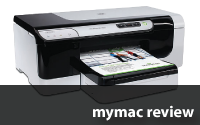
For a small office, choosing a color printer often means deciding whether to go the laser or the inkjet route. Typically, workgroup laser printers are more expensive to purchase up front but have lower overall consumable costs, while inkjets are cheaper to buy but when printing large numbers of documents, the consumables actually end up costing more. The HP OfficeJet Pro 8000 makes a pretty good argument for the inkjet side of things; it’s got remarkably fast print speeds for an inkjet, a 250-sheet paper tray with built-in duplexer, 32 MB of built-in RAM, USB/wireless/Ethernet connectivity, and (at least according to HP) a 50% lower cost per page than comparable laser printers when used with HP’s high-capacity cartridges. At only $159 list price, could this printer really be a viable alternative to a workgroup color laser?

One of the reality checks we’re faced with when it comes to inkjet printers is how quickly the cartridges need replacement-and how quickly that adds up, financially speaking. That’s one of the primary arguments for going with a laser if you’re planning on printing thousands and thousands of pages each month; even though each laser toner cartridge might cost upwards of $125 each, you will typically get a lot (as in thousands) more pages out of one than you will from a $19.95 inkjet cartridge. The OfficeJet Pro 8000’s color cartridges list for $19.95 but claim a page yield of 900 pages; the high-capacity versions will run you only $6 more but have a 1400-page yield (keep in mind that page yields normally assume 5% coverage). That’s very competitive when compared to laser toner costs vs. page yields, and when you consider that you can buy this printer today for only $159 (with street prices are as low as $127), it does seem a very attractive alternative to a laser printer.

For the environmentally-conscious among us, there’s even more to like. Not only is the 8000 ENERGY STAR® qualified, but HP claims it uses up to 50% less energy than color lasers. Because it’s got built-in duplexing (not typical of most inkjets), you can reduce paper consumption by 50%. Plus, HP actively promotes recycling of not only the toner cartridges but the printer itself through the “HP Planet Partners” recycling program.

I am compelled to point out, however, that for a “green” printer, the unboxing process sure created a large pile of rubbish on my office floor, all of which (except for the cardboard) I assumed would be headed for the waste stream. But even here, HP took the initiative to package the two printheads in recyclable plastic trays, very clearly indicated with a large “2” recyclable symbol. So, extra green points for that. Setup was pretty typical for an inkjet printer, although the initialization process, as the instructions warned, really did take upwards of 20 minutes. I’ve never seen any output device take anywhere near that long to initialize, but it’s a one-time thing, and the 8000 thoughtfully cranked out a page informing me that the printer was in fact initializing and that it could take up to twenty minutes, so all is forgiven.

The software installation was relatively straightforward. HP provides an illustrated full-color setup guide/poster as well as a separate “Wireless Getting Started Guide” booklet, a thoughtful inclusion but really not necessary as the installer guides you through the entire setup, whether you choose wireless, wired Ethernet or USB. The wireless setup first requires that you connect a USB cable to the printer (HP includes a USB cable, unlike some other printer manufacturers [are you listening, Epson?]), which actually makes perfect sense from my perspective. I’ve been confronted with wireless printers that force you to use their built-in control panel to configure wireless networking by arrowing up and down innumerable times to input IP addresses and subnet masks, a process which is tedious at best and painfully frustrating at worst. Oddly enough, the software prompted me to connect the 8000 to my wireless “n” network first, even though its wireless interface is b/g only. Once I redirected it to my “g” network and provided the password, it joined without any fuss.

As with other HP printers, the default installation installs a seemingly endless array of programs and utilities onto your Macintosh, but the 8000’s installer thoughtfully provides an option to install only the print driver and basic utilities, should you not wish to avail yourself of all the bundled HP software. If you do go ahead and install everything (which I did deliberately for purposes of this review)-only to regret it later when you see all the new HP icons crowded into your Dock-I can confirm that the included uninstaller works extremely well, removing virtually every item the installer installed, as well as uninstalling itself when it’s finished. For what it’s worth, the printer driver and software is fully compatible with OS X 10.5, as well as 10.4.11 (my test platform).

For those of you curious about the bundled software, it consists of the following:

• HP Photosmart Create: Create posters/banners/photo albums, iron-ons, etc.
• HP Photosmart Print: Additional printing options (think the standard Print dialog on steroids)
• HP Photosmart Share: Hooks you into HP’s online photo services (Snapfish, online albums, etc.)
• HP Photosmart Stitch: Creates panoramas from multiple images
• HP Photosmart Studio: Image organization and editing tools (think iPhoto)


The OfficeJet Pro 8000’s complete install gives you a multitude of image-related applications. Although these apps might be quite helpful for some users, I found the one at bottom right to be the most useful of all.

I certainly don’t mean to cast aspersions on HP’s included software bundle; in fact, I’ve seen “Mac-compatible” printers arrive with nothing but an outdated driver on a Windows-only CD. It’s just that I get kind of antsy when I see program after program after utility after utility being loaded onto my Mac, knowing that it’s highly unlikely I’ll ever make use of any of them. Of course, your mileage may vary, but when all is said and done, what really matters is whether or not the 8000 lives up to its promise of quick, economical printing over a USB, Ethernet or wireless connection. And after putting it though it paces, I can state unequivocally that it does.

Wireless printing is surprisingly quick; print jobs took no longer than a couple of seconds to move from the print queue on my Mac to the 8000, and the print speeds do come close to the posted specs. In “Draft” mode I was able to achieve 31 pages per minute with a black and white text document; that slowed to about 20 pages per minute in “Normal” mode, while in “Best” mode, which is what HP suggests you use if you’re trying to achieve laser-comparable output, I still got about 6 PPM, not quite as fast as a laser but certainly in the ballpark in terms of output speed. According to the specs, the 8000 can print at up to 1200 DPI in black ink and up to 4800 by 1200 DPI in color on HP Premium Plus photo papers.

As you might expect, print quality for text documents is, in my humble estimation, just slightly below that of laser output (specifically a PostScript laser printer), but “Best” mode provides print quality as good or better than any inkjet I’ve seen, and should satisfy all but the most demanding of consumers and business users. Photo output (as with most inkjets) using the highest possible settings is far superior to any laser printer, PostScript or otherwise, although as a high-volume business-type printer, most 8000s will doubtless be cranking out a lot more Word and PowerPoint files than photographs. Of course, graphic artists, accustomed as they are to true PostScript output and screen to print matching options, should probably look elsewhere.

Print speeds over USB and Ethernet were comparable to wireless, so unless you’re sending a massively large document to the 8000 wirelessly, the wireless printing option is quite usable. I did notice that you can’t have it working wirelessly and via Ethernet at the same time-plugging in the Ethernet cable disables the wireless interface-but I’m not sure why that would ever be a concern; if it’s wired to your router or switch via Ethernet, any Mac or Windows PC on your wireless network would be able to print to it anyway, and thus you wouldn’t need (or want) to have the 8000’s wireless networking activated.


The HP Printer Utility is accessible over any of the HP OfficeJet Pro 8000’s three interfaces and provides ink level status as well as cleaning and alignment options. There’s even a Dashboard widget to monitor ink levels without needing to launch the Utility, another of HP’s thoughtful nods to Mac users.

As far as the printer utilities and management are concerned, the HP Printer Utility (used for diagnostics, printhead cleaning, alignment and calibration) is quite capable and works just as well over the wireless connection as it does over USB or Ethernet. The 8000 also features a Bonjour-enabled Web interface, which means that the printer’s status, info and settings are available via Safari just by going to the Bookmarks menu and perusing the Bonjour bookmarks list for the OfficeJet Pro 8000. That sure beats frantically printing out various configuration pages trying to figure out what the printer’s IP address happens to be at the moment, and it shows that HP kept Mac users in mind when it engineered the 8000.


Usage reports and logs, accessible via the OfficeJet Pro 8000’s embedded Web server, let you peruse past print jobs to determine who’s to blame for using up all the magenta ink.

From the Web interface you can view usage reports and logs, set up email alerts to individuals or groups when problems occur (low ink, paper jams and the like), and enable enterprise-level IT options like Simple Network Management Protocol (SNMP) and Windows Internet Naming Service (WINS). While you may never need to utilize these features, much less even know what they are, they’re the kind of IT-friendly options that really put the “office” in “OfficeJet Pro 8000.”

At $159, I feel this printer is a remarkable value that basically does everything right; its price and wireless connectivity option even make it suitable for the home, while its enterprise management features, 15,000-page duty cycle and very reasonable consumables cost are ideal for small- to medium-sized offices. One minor omission for enterprise use is gigabit Ethernet, which is offered on many other HP printers, although not typically on inkjets.

My one real concern with this device is the physical size-at 19.5" wide and 24" deep with the paper catch tray at the front extended, it has a remarkably large footprint for a letter/legal sized printer. My HP OfficeJet Pro K850, which can handle paper sizes up to 13" x 19", is only about five inches wider than the 8000 and a mere 18" deep, while my ancient Brother B&W laser measures just 14" x 15".

So just make sure to clear a big space for this monster if you’re planning on introducing one into to your home or office; it may be a struggle to fit it onto your average desktop. But given that the OfficeJet Pro 8000 Wireless is an above-average printer, I think you’ll find it’s well worth the extra space.

ADDENDUM: While this applies to a great many HP printers, not just the 8000, I feel obligated to give a brief nod to HP’s free iPrint Photo application for the iPhone and iPod Touch, which lets you print any image from your device’s Camera Roll or Photo Library as a borderless 4" x 6" photo directly to any supported HP printer. The program automatically discovers your HP printer on the network, and even selects the photo paper tray if applicable. If you have a supported HP printer and an iPhone or iPod Touch, it’s absolutely worth a look.

MyMac.com Rating: 5 out of 5

emailMyMac MagazineTwitterAdvertiseReviews ArchivePodcast


Apples2Oranges – App Review

On February 10, 2009, in Uncategorized, by Gil Poulsen


Apples2Oranges
Company: Ilium Software

Price: $4.99
http://www.iliumsoft.com

Sure, the iPhone can make fart noises, via over 30 different apps, or even display Big Words on its tiny 3.5” screen. But now, thanks to Ilium Software’s Apples2Oranges, you can literally accomplish the impossible on your iPhone/iPod Touch. Yes, you can actually compare apples to oranges—without being reprimanded by your third-grade math teacher.

How did the folks at Ilium work this latter-day miracle? Basically, they created what I would classify as a unit converter on steroids. While standard converters simply allow one to determine, say, how much the U.S. dollar is worth in Euros, or how many miles one needs to run to finish a 10-kilometer race, Apples2Oranges (A2O) takes the conversion process one step further by allowing you to complete two conversions simultaneously, in order to determine calorie count, price, nutritional value, and numerous other parameters.

The best way to explain how A2O works is by way of example. Let’s say you’re in the local home center (assuming it hasn’t closed down yet) and you’re looking for some heavy-duty trash bags. Ah, here’s a box of 20 for $3.99. Sold. Oh, but wait, here’s a box of 50 on sale for $6.49. OK, so which one do I get? In those dark days prior to the iPhone and A2O, you would have had whip out the pocket calculator and determine the unit price per bag for both boxes manually in order to make a sensible choice.

But that was yesterday. By harnessing the power of A2O (while showing off your iPhone to envious shoppers in the process), you simply type 20 and 50 into the Size fields, 3.99 and 8.99 into the Price fields, touch “Compare,” and voilà—A20 reveals that the $3.99 box will run you $0.20 per bag, indicating that the $8.99 box is the better value at a mere $0.18 per.


Apples2Oranges just saved me $0.02 on each trash bag I buy. Considering how often I’m compelled to “throw my two cents in,” this could add up to big savings over time. But what’s with that Pachinko machine motif?

A2O doesn’t stop there—it also provides for more complex price comparisons based not merely on per item cost, but on per foot, meter, ounce—even units as esoteric as cubic yard or square meter—while allowing you to easily mix and match the units of measure, which is where the “apples to oranges” analogy really comes into play.

Look, here’s a box of common nails, 22 oz. for $8.99. Here’s another, this one’s 1.5 lbs. for $9.79. Now I’m forced to convert pounds to ounces (or ounces to pounds) first, so that I’m comparing apples to apples. Then I need to calculate the per oz. cost for each box, in order to determine the best value. As you might expect, A2O can handle this scenario without breaking a sweat, as it reveals that the true cost of both boxes happens to work out to exactly the same—$0.41 per ounce. So now I can buy the smaller box with a clear conscience, knowing I’m not missing out on the nail bargain of the century.

Let’s take one more example, this time to demonstrate the “Ingredients” function of A2O, which lets us determine quantities of vitamins, minerals, sodium, carbohydrates, etc. in two different foods, provided we know the serving size—even if one serving is given in ounces and the other in grams. This time, I’m in the supermarket buying some yogurt, and I notice that brand A, the American-made stuff, has 20 mg of sodium per 8 oz. serving. Hmmm…this European brand is more expensive (I already determined that using the Price function, thank you) but I wonder if it has more or less sodium? Unfortunately the serving size of this one is 250 grams, with 25 mg of sodium, and now my head hurts as I try to dope that one out.

Again, it’s A2O to the rescue—I simply enter 8 ounces/20 milligrams on the left, 250 grams/25 milligrams on the right, chant “Pins and needles, needles and pins, A happy shopper, is a shopper who grins” while touching “Compare,” and I am instantly rewarded with the knowledge that the American yogurt is slightly healthier—at least in terms of sodium content—with 2.5 mg per ounce, while its European counterpart contains 2.85 mg of sodium per ounce. Just a few hours with A2O, and I’ve suddenly become a bargain-shopping machine, while simultaneously making the healthiest choices almost effortlessly.


Dueling yogurt brands duke it out, with Brand A on the left accompanied by its 20 mg. of sodium per 8 oz serving. Meanwhile, Brand B has elected to befuddle the average shopper by offering a serving based on the inscrutable UK measurement unit of “grams,” but there’s no stopping A2O in its quest to reveal which brand is the true villain when it comes to inducing sodium-induced hypertension and bloating.

Lest you’ve gotten to thinking that all is perfect in the world of A2O, rest assured that I do have a few gripes. First off, the interface seems to be modeled after the love child of a diner jukebox and a Pachinko machine. It would be great to have 3 or 4 “skins” from which to choose in the settings, as the default and only interface leaves a bit to be desired, in my humble opinion. Next, while the strength and uniqueness of this app comes from the fact that it’s much more than a simple unit converter, why don’t the nice folks at Ilium actually include a basic converter in the mix? There are times when only a simple conversion is needed (how many fluid ounces are in a tablespoon?), but for that I need to leave A2O for another app. Seems like every type of measurement unit known to man (both English and metric) is already available, so a unit converter would make a wonderful and truly useful bonus.

In the course of doing various comparisons and conversions, I found it curious that although there is a dollar sign on the keyboard, entering one in price calculations neutralizes said calculation without any warning to the user. So typing “15.” or “15.00” as a price works as expected, but entering “$15” or “$15.00” results in “0.00” for whatever measurement unit you’ve chosen. Once I realized this I knew to steer clear of the “$”, but it might be helpful to disallow input of the “$” or provide a warning to that effect.

Finally, the unit of measurement entered on the left is considered the “primary” unit, so when the conversion results are displayed, they are displayed using that unit. Which is fine, but I’d like a button to “swap” the results so that I could see them in either unit, especially in cases where I entered “feet” on the left and “meters” on the right, realizing after the fact that I really wanted the end result displayed in feet.

All in all, I really like this little app. It does one thing, and does it well. Whether or not it actually “pays for itself with the money you’ll save,” as Ilium’s A2O product page proclaims proudly, it sure does save a lot of time on the pocket calculator—and a lot of head-scratching to boot.

MyMac.com Rating: 4 out of 5

emailMyMac MagazineTwitterAdvertiseReviews ArchivePodcast


Mac OS X Leopard Killer Tips – Review

On January 20, 2009, in Uncategorized, by Gil Poulsen


Mac OS X Leopard Killer Tips
by Scott Kelby & Dave Gales

New Riders Press
http://newriders.com/
December 2008, 456 pp.
ISBN-10: 0-321-50193-4
US $34.99

"Wouldn’t it be cool," suggests author Scott Kelby in this book’s introduction, "if there was a book where the whole book, cover to cover, was nothing but those little sidebar tips, but with graphics?" To me, the very concept of a computer-training book that skips the standard instructional content and contains only the sidebar "tips" seems almost overindulgent–kind of like eating the tops off all the muffins and leaving the rest.

But after exploring the book’s 15 chapters and 400-plus "killer tips," I can confirm that, yes, it is indeed pretty cool. Virtually every aspect of the Mac OS, as well as the iLife apps, is covered, and the sheer volume of tips is such that there are no less than 24 focused on the Dock alone, as well as an astonishing 44 tips on working with windows (with a lower-case "w," of course). While the information provided is largely focused on the intermediate to advanced OS X user, the authors have prepared "a secret special downloadable chapter of beginner tips", just so novice Leopard users aren’t left completely out in the cold.

Is every single tip contained in "Killer Tips" truly a "killer" tip? For the most part, yes, although the authors tend to kick off each section of the book with a tip that would seem patently obvious to even the rankest of beginners. For instance, the chapter on Spotlight begins with a tip that simply notes how useful Spotlight can be, followed by a tip that explains how you can do a Spotlight search by typing your search term in the Spotlight menu. Similarly, the three Time Machine tips simply note how to turn Time Machine on, set the preferences and restore files by launching the Time Machine application. These would seem to be more appropriately designated as "filler" rather than "killer," given that the authors’ own definition of "killer" states that each tip should be "so cool that after reading just a few you have to pick up the phone, call your Mac buddies, and totally tune them up with your newfound Mac OS X power."

OK, so perhaps not every tip lives up to the "killer" designation. But rest assured, there are plenty that do. I’ve been providing Mac OS consulting and troubleshooting services to my clients since 1989 or thereabouts, and I’ve been using the Mac since its System 6 days. Nonetheless, I picked up a wealth of both really useful info (in Address Book, hold down the option key when a contact is selected to see which group(s) he or she is in) as well as some more esoteric but still interesting tidbits (hold down option-shift while using the volume up and down keys, and the sound level will change by only 1/4 of a step at a time on the volume meter).

I also found "Killer Tips" to be very appealing from a design standpoint. Computer-centric books are often notoriously difficult to plod through, and the authors seemed to understand this by providing the reader with full-color screen grabs to accompany not merely some of the tips, but each and every one. Unfortunately, in their quest to keep things interesting, they also seemed to be working overtime to serve up their tips in an irreverent and edgy style, which I found to be more distracting than amusing. Closing out tips with gratuitous exclamations like "Sweet, huh? Gotta love it.", "That is over-the-top coolness!" or "Man, it doesn’t get much easier than that!" begins to wear on the reader after a while.

Further, employing pseudo-adjectives like "gigundo" or titling a Dictionary tip "Daniel Webster would be jealous" in spite of the fact that Daniel Webster (as in "The Devil And…") had absolutely nothing whatsoever to do with the establishment of the Merriam-Webster dictionary (that was Noah Webster, guys) indicate that this book would have benefitted from some tighter editing.

I found very little to quibble with regarding the validity and accuracy of the tips themselves; I tested scores of them and each performed precisely as advertised. I was a bit surprised by the "Set A Default Printer" tip, which indicated that the option to set a default printer did not exist prior to OS X 10.5 even though I’ve been doing that since version 10.3. Then again, for every minor inaccuracy or less-than-killer suggestion, there are five or six remarkably useful tips awaiting within the next couple of pages. The "Mac OS X Pranks" section doesn’t score very high on the useful scale ("Creating An Even More Terrifying Fake Dialog," anyone?), but after cranking out 400-plus tips in the first 14 chapters, I guess maybe the authors needed to blow off some steam.

So is "Killer Tips" appropriate for you? If you’re new to the Mac, and/or you’re looking for a helpful step-by-step reference guide to Leopard, this is not the book for you. If, however, you’re a more advanced Mac OS X 10.5 user who wants to find ways to work better, faster and smarter, you will find a lot to like in this book. From changing the order in which Spotlight result categories are displayed to creating a Stickies note from a PDF, there’s more than enough useful info here to satisfy even the geekiest of Leopard users among us.

MyMac.com Rating: 4 out of 5

emailMyMac MagazineTwitterAdvertiseReviews ArchivePodcast


AppleScript 1-2-3 – Review

On January 19, 2009, in Uncategorized, by Gil Poulsen


AppleScript 1-2-3
by Sal Soghoian & Bill Cheeseman

Peachpit Press
http://peachpit.com/
January 2009, 896 pp.
ISBN-10: 0-321-14931-9
US $49.99

"Can you build us an AppleScript to do that?"

That question has been put to me dozens of times over my ten-plus years doing Macintosh support, and in almost every instance, the answer has been "yes." AppleScript has literally helped me to earn my living, in the sense that I’ve been hired to build customized applications that–to name just a few–scan the entire content of a weekly newspaper and flag any prohibited words for later exclusion, pull records from a database and turn them into a fully-formatted 32-page pamphlet of health-specific Web sites, and convert the SGML-tagged text from a medical journal into XPress Tags coding for import into QuarkXPress.

I first got turned on to AppleScript at a Macworld Expo back in the 1990s, when I attended a presentation given by a very enthusiastic service bureau employee by the name of Sal Soghoian. Not a programmer by trade, Sal had discovered the joys of AppleScripting while trying to free himself from some of the redundant tasks he was faced with while outputting his client’s documents. I was so excited about what I saw him do with his QuarkXPress scripts that I ran up to him after his talk and starting peppering him with questions. Evidently recognizing my enthusiasm, he offered me a free copy of his "Sal’s AppleScript Snippets," a 3.5" floppy disk containing a few dozen simple QuarkXPress AppleScript routines and some brief but helpful documentation. From that point forward, I was hooked on AppleScript.

So who better to author an AppleScript training guide for beginning scripters? For the past eleven years, Sal has been the product manager for automation technologies at Apple, and his own enthusiasm for scripting has helped to create a community of AppleScripters who, like me, were exposed to his Macworld sessions and got turned on to all the possibilities AppleScript offers. Sal’s co-author, Bill Cheeseman, is no slouch either when it comes to scripting; a civil litigator and trial lawyer by day, he founded the AppleScript Sourcebook Web site (now MacScripter.net), an invaluable reference for scripters, way back in 1996.

Given this book’s pedigree, I was expecting it to be the best AppleScript book I’ve seen to date (at least six AppleScript reference manuals currently reside in my programming library) in terms of introducing the non-programmer to scripting. After reviewing the initial chapters and working through some of the hands-on exercises, I was not in the least bit disappointed. The book truly does begin at "square one" by walking the reader step-by-step through the creation of a Finder toolbar script that is actually useful for restoring your Desktop to a preferred (uncluttered) state, and moves on from there to essential concepts like object references, conditionals, loops, and error handlers. While these concepts might sound intimidating to the newly-initiated scripter, Sal and Bill do an excellent job of making them both understandable and accessible.

As an AppleScripter, I can confirm that documenting the many aspects of this scripting language presents a challenge to any author–note that this book weighs in just shy of 900 pages. Recognizing this, the authors have taken what I consider to be a unique approach to the overall structure of the book. The first twelve chapters, which they call "Instant AppleScript," cover the fundamentals of scripting in a linear fashion, providing enough of a foundation for the reader to get started with basic scripting. Chapters 13-30 serve as more of a reference guide, and are organized in a way that even intermediate and experienced scripters will find useful, with individual chapters on folder actions, scripting connections to network servers, unit coercions (converting distance/weight/temperature, etc.), date scripting, and using the Script Editor, the built-in application used to construct and compile AppleScripts. The third section (that’s the "3" in "AppleScript 1-2-3") refers to the downloadable content provided, which includes example scripts, updates, errata, and additional training materials.

Throughout the book, the writing is clear and concise, and each and every script is referenced with an ID, such as "SCRIPT 9.46," so that when multiple scripts appear on a single page or spread, there’s no doubt as to which script the text refers. Screen shots are used extensively where appropriate, and the 31-page index is not merely exhaustive, but contains individual entries for each of the symbols employed in AppleScript, not just the terms and concepts. Perhaps equally as helpful, however, was the publisher’s choice to use "lay-flat" binding for this book so that you can place it on your desk, open it to page 146, and actually have it remain open to that very page without flopping closed within a few seconds. This might seem like a small thing, but anyone who’s ever tried to complete a "hands-on" tutorial from a book that refuses to stay open knows precisely where I’m coming from.

I’ve found some room for improvement in pretty much every product or book I’ve reviewed to date, but try as I may I can’t really conjure up any creative criticism to offer the authors of "Apple Script 1-2-3." The best I can come up with is that I wish the included screen captures were a bit larger and in color, but that’s really a piddling complaint. The bottom line is, if you’re a beginner and you’re serious about learning how to write AppleScripts, you won’t find a better book out there.

Or, to sum up my review in a pseudo-AppleScript context:

set this_Book to "AppleScript 1-2-3"
tell individual "reader"
if (wants to get started with scripting) then
buy this_Book
end if
end tell

MyMac.com Rating: 5 out of 5

emailMyMac MagazineTwitterAdvertiseReviews ArchivePodcast


Giftory 3.0 – Review

On December 23, 2008, in Macintosh, Review, by Gil Poulsen

Giftory 3.0
Company: Infusions of Grandeur

Price: $19.95
http://www.infusionsofgrandeur.com/

We’ve all been taught that it’s better to give than to receive. Maybe so, but there’s no denying that gift-giving, especially during the holiday season, can be a downright hassle when it comes to finding all those things on everyone’s wish lists while trying to stick to a budget, and knowing exactly how much you’ve spent on each recipient without dragging out the calculator and a pile of crumpled sales receipts.

Continue reading »

Tagged with:  

Kensington ComboSaver Combination Portable Notebook Lock
Company: Kensington

Price: $24.99
kensington.com

In its promotional materials for the ComboSaver Combination Portable Notebook Lock, Kensington notes that in the U.S. a laptop computer is stolen every 53 seconds (this from a 2005 FBI/CSI survey). Other studies have shown mind-boggling statistics on laptops “lost” at airports, to the tune over 12,000 per week! Although many of those losses occur at security checkpoints, a number of them take place in common areas like concessions and lounges. Sure, some of these laptops may have been legitimately lost, but it’s hard not to argue that an ounce of prevention, in the form of a simple notebook lock, is worth at least a pound of cure when it comes to theft.

Continue reading »

Tagged with:  

Axio 13.3˝ Hardsleeve MacBook Pro – Review

On November 17, 2008, in Cases, Macintosh, by Gil Poulsen

Axio 13.3˝ Hardsleeve MacBook Pro
Company: Axio

Price: $99.99
http://drbott.com

As a Mac consultant/troubleshooter for the past fifteen years, I tend to carry a lot of baggage around with me. And not just the psychological kind, mind you. What with computer toolkits, innumerable CDs and DVDs, cables, chargers, adapters, product manuals and the like, I find it necessary to employ a big, bulky suitcase-style laptop bag in the course of completing my appointed rounds.

There are those times, however, when all I really need to have at the ready is my precious 13.3” black MacBook. And in those situations, I’m usually stuck lugging around that same big, bulky suitcase-style laptop bag, the better to shield the MacBook from the slings and arrows of outrageous fortune. Sure, it would be nice to have an alternate-and sleeker-option for protecting my laptop, but I’ve never been convinced that those neoprene “wetsuit”-style sleeves would offer a great deal in the way of protection-especially should my MacBook chance to encounter that most fearsome of all adversaries, the ubiquitous “hard, unyielding surface.”

Continue reading »

Stellar Phoenix Macintosh 3.0 – Review

On November 13, 2008, in Macintosh, Review, by Gil Poulsen

Stellar Phoenix Macintosh 3.0
Company: Stellar Information Systems Ltd.

Price: $129.95 single-user license
(see Web site for administrator and technician licensing options)
http://www.macintosh-data-recovery.com/

In my line of work, I’m often called upon by my clients to recover files they’ve accidentally deleted, or to attempt a complete recovery of their data from a crashed hard drive. Over time I’ve found that, just as you can’t be too rich or too thin, you can’t have too many data recovery programs at your disposal, as they each have their own particular strengths and weaknesses when it comes to saving your client’s bacon.

Recently I purchased a copy of Stellar Phoenix Macintosh, version 2, in an attempt to retrieve data from a very stubborn and badly-crashed hard drive that was exhibiting the “click of death” and generally refused to yield to other data recovery apps. To my surprise—and my client’s delight—Stellar Phoenix Macintosh allowed me to create a disk image file of the drive in question by reading around the bad sectors, and I was able to recover 99% of the data contained thereon. I did, however, encounter numerous problems with the software throughout the recovery process.

Continue reading »

ShareCentral 2 – Review

On August 18, 2008, in Uncategorized, by Gil Poulsen


ShareCentral 2
Company: Kensington

Price: $59.95
http://us.kensington.com

Just as it was tough sharing your popcorn–or your favorite toy–when you were a kid, it’s often tough to share USB devices between multiple computers without constantly plugging and unplugging cables. Kensington’s ShareCentral™ series of devices aim to make sharing printers, hard drives, memory cards and virtually any other USB peripheral a tad less painful, by enabling one-button access to any connected device from any two Macs or PCs.

The ShareCentral series comes in three flavors, according to the number of USB peripherals they’re capable of sharing. The ShareCentral 1 ($39.99) shares one device between 2 computers, while the ShareCentral 2 ($59.99) shares 2 devices. I’ll let you do the math for the ShareCentral 5 ($79.95). Each comes with a power adapter and the necessary USB cables to connect two computers to the unit, helpfully color-coded orange and white in an attempt to head off any possible confusion that might be encountered during the connection process.

The rear panel of the unit provides one USB "A" connection for each peripheral it’s capable of supporting. Since I was testing the ShareCentral 2 model, there were two USB ports to which I could connect my devices: my trusty but dated Olympus digital camera, and an 80 GB USB hard drive. I connected the ShareCentral to my 24" iMac and my MacBook prior to connecting my peripherals, and plugged in the AC adapter. On both Macs, the Keyboard Setup Assistant appeared instantly; it seems OS X recognizes the ShareCentral™ as an input device. I dismissed the assistant on both machines and it did not reappear in the course of my testing.

With my USB drive and camera connected, the unit worked as advertised, allowing me to mount both the camera’s memory card and the hard drive on either machine with one button press. Kensington thoughtfully provides alternate button covers with icons of typical USB peripherals, so instead of pressing button #1 or button #2, you can swap them for buttons with printer, scanner or hard drive icons, in order that you don’t have to ponder too deeply about which peripheral is cabled to port #1 and which is on port #2. The unit seemed to switch from one Mac’s USB bus to the other quite rapidly, as there was very little "lag" between ejecting the devices from the first Mac, pressing the button to switch them over and seeing them mount on the second Mac.

That being said, I think this device still has a few rough edges in a number of areas. First off, the top panel on which the switch buttons reside has orange LED indicators to show which device is currently switched to which Mac or PC. But for some reason, the LEDs for computer #2 occupy the entire left and bottom border of the panel, while the LEDs for computer #1 occupy only the top of the panel. Further, neither indicator is labeled as computer #1 or #2, so the user is forced to guess which is which based solely on the relative position of the indicators. It would have made far more sense to put #1 and #2 LED lights on each button, so that it would be clear at a glance which computer each of the peripherals was currently switched to.

Using the included "custom" buttons helps the user remember which button controls which peripheral (as long as your peripheral device is a printer, scanner or USB hard drive). But there’s nothing to assist one in divining which strip of LED lights represents computer #1 or computer #2; can you guess which computer is connected to the printer and which is connected to the USB drive? Answer: They’re both connected to computer #1. How do I know that? I had to go back to the instruction sheet, and then look at the connections on the back of the device one more time, and even then I wasn’t 100% sure.

My primary beef, however, is with the instructions–or lack of same. Although there was no shortage of 4-pt. legalese on the included instruction sheet, the setup and connection info itself did not provide a single word of explanation–information on setup and use was provided solely in the form of line drawings with supporting arrows and icons. I could certainly see many a user becoming befuddled over how the connections are supposed to be configured, especially given that the computer #2 connection is located on the left side of the device and computer #1 on the right, which to me seemed backward from the get-go, and when combined with the bizarre configuration of the LED indicators, only added to the confusion created by the lack of any written explanation.

Step 1A of the instructions did indicate that the user should insert the provided CD, which I assumed contained a PDF manual and possibly driver software. I was half right–there was no manual in sight, but there was a folder labeled "MacDriver_x86" which contained the ZIP archive "Kensington_Share_Central.zip." Again, no Read Me, no PDF, no indication whatsoever as to what I should do with this file. Assuming it to be a driver for the device, I double-clicked to uncompress it, upon which it created a file on my desktop called–not surprisingly–"Kensington_Share_Central."

The Finder’s "Get Info" window revealed this file to be a Universal application, so I went for broke and launched it. No Dock icon appeared, nor any change to the menu bar indicating that the software was running. A quick check via Activity Monitor showed an active process called "Share Central," but there was no way to know what it was or was not doing, and no way to quit it. If it actually was a driver for the ShareCentral, or something else entirely, I’ll never know. Whether or not it had anything to do with the "Auto/Manual" switch I discovered on the bottom of the unit will remain another of Life’s Great Mysteries, as the instructions did not make even a graphical reference to this option.

The mysterious "Auto/Manual" switch on the ventral surface of the ShareCentral 2. What does it do? Should I leave it on AUTO or switch it to MANUAL? Can I switch it while the devices are connected, or will that create a rip in the fabric of the space/time continuum? Will Luke and Laura ever get back together again? Don’t leave me hanging like this…

I’d like to give the ShareCentral high marks for doing what it claims to do, but the woefully inadequate attempt at an instruction sheet, the confusing layout of the device, the lack of any electronic manual, the mysterious "is it a driver or isn’t it" software on the included CD, and the even more mysterious and completely undocumented auto/manual switch on the bottom of the device all point to a lack of care and preparation on Kensington’s part. For my $60 I expect a more polished product, with functioning driver software and far better documentation than Kensington has chosen to provide.

Sure, it’s nice to share, but I feel that anyone who makes use of this device will share my opinion that Kensington has some more work to do here in order for the ShareCentral to earn its $60 price tag.

MyMac.com Rating: 3 out of 5

emailMyMac MagazineTwitterAdvertiseReviews ArchivePodcast


eWallet for iPhone – Review

On August 4, 2008, in Uncategorized, by Gil Poulsen


eWallet for iPhone
Company: Ilium Software

Price: $9.95
http://www.iliumsoft.com


Call it iPhone irony. Why is it that a program as powerful and versatile as this – which provides the ultimate in convenience for securely storing and accessing passwords, credit card numbers, PINs, memberships, bank account info, Web logins, and lots more-offers only the most inconvenient method of inputting all that data?

As I put eWallet through its paces, I found myself increasingly impressed with the sophistication of this information storage program, while becoming increasingly frustrated with having to input every bit of info using the iPhone’s keyboard. The developers at Ilium say desktop syncing is coming, so for now I’ll try to focus on those things that eWallet does well, which are many.

Though new to the iPhone, eWallet is by no means a new program-it’s existed on the Palm and Windows Mobile platforms for over 10 years, so the iPhone version clearly benefits from its extensive pedigree.The program works by storing cards containing your personal info in a virtual “wallet,” and you can create multiple wallets with multiple categories and cards in each.

What I was most impressed with were all the presets that are available right from the get-go-instead of just offering a basic data entry form with space for a name, password and description, eWallet presents you with customized icons and templates for both cards and categories that not only assist you with visual cues to organize your info, but help with the data entry and display for each type of card. The cards themselves look like actual cards with rounded corners and shiny faces that sit on a black reflective shelf, giving the app a very Mac-like appearance.


Here’s the American Express card I created for myself. It almost looks like the real thing except for the way the numbers were blurred to protect the innocent, and I could customize it even further if my thumbs weren’t already aching from all the data input.

Example: If you elect to create a credit card entry, let’s say for your VISA card, you can choose not only to use a VISA icon for your card, but also to choose the card type of VISA. This presents you with only those fields that make sense for entering your credit card information. If on the other hand you choose to create a card for your voicemail retrieval info, that card is pre-configured with fields for you to enter not just the voicemail number and PIN code, but also the touchpad commands for skipping, deleting and fast-forwarding your messages. There’s a passport card type pre-configured to handle all the essential data that exists on a typical passport, and a voter registration card that does the same.

And if all that’s not enough for you, each card allows for up to 10 additional data fields, along with a Notes field, beyond what’s presented in the card template, so you can customize to your heart’s content. You can add any photo from the iPhone’s photo library to a card, and you can even adjust the appearance of the card in terms of its glossiness, the rounded corner shape and more, if you’re so inclined.

Of course, all that helpful functionality and all those flashy icons won’t feed the Admiral’s cat if the data isn’t well-protected. As I entered more and more of my personal info, including numerous Web site logins, my bank accounts and my ATM card number and PIN, I couldn’t help but feel a tad queasy thinking how much of my digital life was now residing on an iPhone that seems so vulnerable to loss or theft.

Not to worry, though, eWallet’s got a lock on the situation-a 256-bit AES encryption lock, to be precise, considered sufficient to protect classified U.S. Government information up to the TOP SECRET tier (for more info on AES encryption, see the Wikipedia entry). So your PIN code and bank account numbers can now enjoy the same level of protection as classified CIA torture memos; not too shabby for a program that costs less than ten bucks.

Not so fast, I hear you saying. Suppose someone gets ahold of my iPhone while my “wallet” is still unlocked? What good does all that 265-bit gobbledygook do for me then, huh? Well, that’s where eWallet’s Security Settings come into play. From here you can enable the “Lock When Inactive” option and choose how much time elapses before the application auto-locks itself, from one minute up to one hour. You can also set it to limit the number of password attempts a user is allowed to make before eWallet will lock itself down and permit no further attempts at password entry.


The flexible Security Settings let you decide how quickly eWallet will lock itself up when inactive, and also how many times you-or a prospective data thief-can enter the wrong password before he or she is forced to try again at a later time. Shown here are the settings I eventually decided upon; your paranoia may vary.

A final point regarding the location of the data stored via eWallet: For better or worse (and I vote “better”), eWallet stores your data directly on your iPhone as opposed to an online database, as is the case with some other password and personal info managers. I can see online storage as advantageous if you need to access your data via multiple devices, but given that I don’t know where I might happen to be at any given moment or what kind of signal I’m likely to have there, I’d much prefer my data resident on the iPhone, thank you.

Overall I’m very impressed with the functionality and the polish of this program. In answer to my complaints about the lack of an alternate means of data entry, the folks at Ilium are promising a desktop version of eWallet by the fall of this year that will sync via iTunes. So for those of you who, like me, aren’t looking forward to thumb-typing in years of personal info, sit tight and keep checking the eWallet product page for further announcements.

In the meantime, I’ve got no choice but to give eWallet a hearty-what else?-“thumbs up.”

MyMac.com Rating: 4 out of 5

emailMyMac MagazineTwitterAdvertiseReviews ArchivePodcast


A.D.A.M. Symptom Navigator for the iPhone
Review

On July 2, 2008, in Review, by Gil Poulsen


A.D.A.M. Symptom Navigator for the iPhone
Company: A.D.A.M., Inc.

Price: Free
http://iphone.adam.com/

There’s no question that the Internet has become a valuable source of health information over the past few years. Sites like WebMD, Yahoo! Health, Google Health, and others attract over 60 million visitors each month. Now A.D.A.M. Inc., another online health information provider, has created an application that allows iPhone users to quickly and easily access data from their Health Encyclopedia using the iPhone’s touchscreen.

ADAM’s Symptom Navigator for the iPhone presents an image of the human body and prompts the visitor to tap the affected area of the body to receive a list of possible symptoms. For example, touching the abdominal area of the body image generates a menu of relevant symptoms including (but not limited to) pain, increased or decreased appetite, indigestion, nausea, and heartburn. Selecting a symptom guides the visitor through possible causes, options for home care, and whether a doctor should be consulted. Visitors can choose from a male or female body image—as well as a front or back view—to ensure that gender-specific symptoms, as well as those peculiar to any area of the body, can be addressed by the software.

Continue reading »

The C.E.O: Premiere for iPhone
Review

On May 27, 2008, in Cases, iPhone, Review, by Gil Poulsen

C.E.O: Premiere for iPhone
Company: Marware

Price: $29.99
http://www.marware.com

I have to admit it right up front-I’m quite partial to the “folio” style iPhone cases; those that clip to your belt and hold the iPhone in a horizontal (sideways) fashion. Sure, it’s a tad harder to extract a ringing phone from the case, but most of them provide a cutaway at the bottom so you can push the phone out quickly if necessary. Obviously if you’re using a wired or Bluetooth headset, it’s not much of a consideration.

The primary reason I prefer the folio style is because in my line of work (Mac support) I am constantly crawling under desks and behind workstations to access cables and connections or move equipment around. With the iPhone constantly clipped to my belt, a case with a vertical orientation would, each time I bent over, create a permanent dent in my lower ribcage, and/or cause the iPhone to pop off my belt and crash to the floor. Clearly, not acceptable. Further, these cases cover the front of the device completely with a thick hunk of leather, so even if I inadvertently scrape it against a metal table leg or mash it into the wall trying to extricate myself from behind an equipment rack, the iPhone emerges unscathed.

Continue reading »

Tagged with:  

Looking for something?

Use the form below to search the site:

Still not finding what you're looking for? Drop a comment on a post or contact us so we can take care of it!