64 GB Solid State Drive and On-The-Go case
Other World Computing
http://eshop.macsales.com/shop/firewire/on-the-go
$329.99

Other World Computing now offers an SSD (solid state drive) option for their On-The-Go line of external cases. While SSDs have not broken though to become the standard in storage technology, they’re rapidly becoming viable alternatives to users who want high performance drives. Solid State Drives are fast because they employ special memory chips instead of multiple motor-driven, rotating platters. SSDs read and (sometimes) write data much, much faster, than a conventional hard drive.
While a detailed explanation of SSD technology is beyond the scope of this review, Wikipedia can start you on the road to understanding how SSDs work, and why they’re great for certain types of hard drive requirements. If Wikipedia is a bit geeky for you, AnandTech has a great review of current SSD technology.
If you want a life-changing, consciousness-raising, mind-blowing personal computer experience, install a SSD as the boot drive in your Macintosh or PC. You’ll think you just bought a fast computer. A very fast computer.
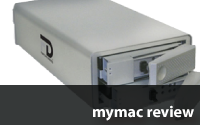
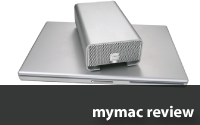
Other World Computing packages a 64 GB solid state drive in their clear On-The-Go case. The case is small, and its minimalist appearance is cool and sleek.

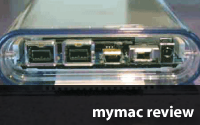
The back side reveals two FireWire 800 ports, and one USB 2 port, and an On-Off switch. OWC garners extra points for not requiring an external AC wall-wart adapter. The drive comes with a high-quality FireWire 800 and USB 2 cable, as well as a nice carrying case. You’re ready to go as soon as you unpack the drive.
OWC is a Mac outfit, so I was pleased but not surprised to find the drive came formatted as an HFS Plus journaled volume, and it’s got a great Mac desktop icon, as well. Most drive suppliers cater to PC users, and sell drives formatted for PC users. It’s nice to find Mac enthusiasts being catered to.
As an extra freebie, OWC includes a goodly selection of Macintosh free and shareware, as well as ProSoft Engineering’s Data Backup for Mac OS X.
But enough about the great case and the freebies; how does it perform?
When you connect it to your Mac, the first thing you’ll notice is that an SSD is silent. No motor noise, no fan, no nothing. Other than the purple Power light, you won’t know its working.
You’ll know it’s working when you get some data copied over to the drive. Write speeds are nothing to write home about, but SSD read performance is what you spent your money for. This drive is fast, Fast, FAST. I regularly search a 250MB DevonThink Pro database from my late 2008 unibody MacBook Pro. I copied the DevonThink application and database from the laptop internal drive to the OWC drive in 11.5 seconds. Copying it back the other way took longer: 14.5 seconds.
Launching DevonThink Pro and loading the database from the MacBook Pro took 8 seconds. The same operation from the OWC solid state drive less than 3. This got a "wow" from me.
Searching the database from the OWC drive for the word "pairing" yields 12067 hits in .367 seconds. Searching the database from laptop for the word "pairing" produces 12076 hits in 2.2 seconds. That’s almost six times longer. That speedup was extremely noticeable; another "wow."
When copied over to the SSD, applications launched incredibly fast; Safari would be running before the first "dock bounce" was over. Word 2008 was no longer agonizingly slow to start; it was now just slow.
Benchmark testing using Drive Genius 2.2 shows that the On-The-Go SSD mechanism performs exceptionally well with random reads. Write performance is not as good, but writes are far less common than reads for the average user.
This is a splendid little portable drive that raises only one concern. Is it worth the extra money to purchase an SSD for an external disk designed for portable use? You won’t be using this as your boot drive, and you almost certainly won’t be copying over your applications to the On-The-Go SSD. You’ll lose the blazingly short application launch time that come from having apps on the SSD. Having big data files on the external SSD is good, but not optimal. Noise is not usually a make or break issue with small portable external drives. People usually buy externals for portability, and for backups on the road. I’m not sure many people would need the SSD performance in an small external case.
OWC charges $329.99 for the 64 GB version. By comparison, a 750 GB conventional hard drive in the excellent On-The-Go case costs $249.99. That’s 11.5 times the storage space for 25% less cost.
Conclusion. This well-built portable Solid State Drive is fast, but it’s very expensive for the capacity. If you need the best performance you can find in a small capacity (64 GB) portable drive in a well-built case, get the SSD version of the On-The-Go. Purchasers whose needs run to a better price/performance ratio should stick with conventional hard drives in the On-The-Go case for the time being.
email – MyMac Magazine – Twitter – Advertise – Reviews Archive – Podcast

Kanex Mini DisplayPort Adapter To HDMI 1080p Video w/ Digital Audio
Company: Kanex, Inc.
Price: $69.99
http://kanexlive.com
Apple’s incorporation of the Mini DisplayPort in its newer computers has produced big changes for people who wish to send video and audio-out signals from the Macs to drive their HD televisions with an HDMI signal. Currently, the Unibody MacBook, MacBook Pro, MacBook Air, Mac Mini, and iMac all use Mini DisplayPort.
Continue reading »
Apple Support rocks! Here’s why.
Last Sunday, I went up the street to the local Tucson Apple Store, and pulled the trigger on a purchase of a new Mac Pro Quad-Core 2.66 computer. I had previously owned an original, first generation Mac Pro from 2006, so I’m very familiar with Mac Pros, especially the variable-speed fan system.
Back at the ranch, I toted the big cardboard box into the study, slid the Mac Pro out, and moved it into its new home. All of two minutes were needed to connect the monitor, printer, and backup hard drive.
My original plan was to boot from the external backup drive, and clone it onto the 640 GB in the new machine.
One quick press of the power button, hold down the Option key to select the external drive as the boot drive, and I’d be on my way.
But, as John Lennon said, "Life is what happens to you while you’re busy making other plans."
The Mac Pro started up, but the fans revved up to full speed, and stayed there, maxed out. If you’ve not heard a Mac Pro with fans at full-tilt, you’ve not heard a noisy computer. It’s hard to talk over what sounds like a small jet engine in your study.
Clearly, this was not right. A reboot didn’t change anything. Booting off the factory-installed drive did nothing. I went through the entire setup procedure, just in case. No dice. I did a clean installation to no avail. All the fans still ran at full speed.
At this point, I used my MacBook Pro to explore the Apple Knowledge Base for articles on Mac Pro fans. I found several that had various troubleshooting techniques involving resetting the SMC chip (Systems Management Controller). Nothing worked. Google turned up nothing that helped.
It’s now about 3 P.M. on Sunday afternoon. I called the Tucson Apple Store, and after a short wait, spoke with the Genius on duty. I told him the machine left his store about one hour ago, had a bad case of "fans gone wild" and I had followed the procedures in the various Apple Knowledge Base files.
He had me redo one of them, and concluded there was a problem. He was kind enough to transfer me right then and there to Level 1 AppleCare Support. I was very pleasantly surprised to learn that AppleCare was open on Sunday afternoon, but hey, it’s starting to look like paying the Apple tax has some benefits. After 30 minutes with Level 1, the agent escalates me to Level 2.
I repeated my tale of woe, and the agent asked some more questions about what I did and in what order. Soon he said, "yes, that fan behavior is not right, and it looks like a hardware fault."
I asked him if I can just go back to the Apple Store up the street, and exchange it for a new one. He checked the serial number, and says that since I bought it that day, he’d authorize an exchange. "Normally, we’d do this as a repair, but this machine is brand-new, so we’ll just swap it out."
By this time, it was minutes before store closing time, and I couldn’t get back in time. Mr. Level 2 called the store, and made arrangements for me to do the swap first thing the next day.
Monday at 10:00 A.M., I dragged the box bearing the bad computer into the store right after opening, planning on spending an hour or more waiting around. I was more than a little surprised to find the Genius expecting me. He had all the details, and the swap was already approved by the Powers That Be. A new Mac Pro Quad-Core was in my hands in five minutes, and I was out of the store in ten.
The new Quad worked perfectly from the first moment I powered it up, and has been trouble-free ever since.
Walking out of the store, I thought to myself "THIS is how computer warranty support ought to work!"
Apple warranty service may not always get it right, but it certainly did this time.
email – MyMac Magazine – Twitter – Advertise – Reviews Archive – Podcast
The Macintosh iLife ’09
By Jim Heid
Peachpit Press
http://www.peachpit.com
416 pages
ISBN-13: 978-0321601346
US $39.00
Just like the swallows returning to Capistrano, Jim Heid produces another fine instructional book each time Apple revises its iLife suite.
Yet again, he succeeds in assembling what I think is the best instructional book on iLife for the average Mac user. Heid has developed a proven formula, and it works once again with The Macintosh iLife ’09.
As Apple crams more features into each iLife application, each edition of The Macintosh iLife keeps pace, and this one tips the scales at 2.4 lbs and 412 pages, including a thorough index. You get great material on each iLife application; iPhoto, iMovie, iDVD, GarageBand, and iWeb.
For me, the big new features in iLife 09 were iPhoto’s Faces and Places. Naturally, Apple left more unexplained than explained in its support documents and Help files. Authors like Heid have to take the program by the horns to figure out exactly how each feature works, and then how to best explain it.
The iPhoto chapter takes up 162 pages, and if you read through them all, you’ll come away with a firm grasp of all the basic and intermediate features of iPhoto, including Faces and Places. You don’t have to be a digital photography expert to learn what Heid has to teach, as the book is targeted at beginner to intermediate level Mac users and digital photographers.
Each iLife app gets its fair share of space and detail, although the iWeb chapter is a bit skimpy. In recent years, Apple has de-emphasized iDVD in favor of adding movie sharing capabilities to iMovie. Since iDVD enjoys few, if any, new features, this chapter is much the same as its predecessors. But if you have any interest in learning how take best advantage of iDVD’s hard-to-figure-out features, spend some time with pages 252 to 282.
IMovie 09 gets better and better. Like many, I was taken aback by the radical interface change introduced by iMovie 08. In spite of many complaints, Apple has stayed the course, and the new interface persists in the 09 version. But like others, I do have to say it’s been improved. Not being an iMovie expert, I found this chapter taught me the most new tips and tricks.
The chapter on GarageBand got little time from me, as I have less than zero interest in making music.
While The Macintosh iLife ’09 is a great book, it could stand with a few improvements. Since many people have acquired basic competence with the various iLife apps over the years, it would be helpful to have a few pages on the important new changes and features since the previous iLife version. Right now, there’s no easy way for an experienced iLife user to find out about the new features without wading through each application’s chapter page by page. This would be especially appealing to serial purchasers of Heid’s book.
Lastly, kudos to Heid and Peachpit for providing a 45 day trial subscription to Safari Books Online, which allows online access to The Macintosh iLife ’09 and a half-gazillion other e-books. If you’re intrigued by the idea of subscribing to an e-book library, check out my review of Safari Books Online.
Conclusion.
Pros: As expected, Jim Heid has another winner in The Macintosh iLife ’09. The basic and intermediate level user gets lots of information in a clear and easy to understand style. The book layout makes reading comprehension that much easier.
Cons: Not many! The book would benefit from a “What’s new in this version” chapter. iWeb gets the least space, so this is not the book for you if need excruciatingly detailed iWeb coverage.
email – MyMac Magazine – Twitter – Advertise – Reviews Archive – Podcast
Fantom Drives DataDock II Quad Interface 1TB Quad Interface Dual Drive
MicroNet Technology
Price: $279.95
http://www.micronet.com/products/datadockii.htm
MicroNet’s DataDock II Quad Interface 1TB Quad Interface Dual Drive (say that name ten times quickly) has a lot of capability under the hood:
• Three types of RAID arrays,
• Four interfaces: USB 2, FireWire 400, FireWire 800, and eSATA,
• Hot-swappable drives,
• A solidly-built aluminum case.
Does the DataDock II deliver on its promise, or is is just another ordinary hard drive gussied up and marketed with a bunch of buzzwords?
The Weeks division of MyMac Labs used the DataDock II (DDII for short) for a long weekend of backing up, file copying, and general digital mayhem. Here’s what we found.
Out of the box, the DDII is a solid piece of kit, as the Brits would say. The brushed aluminum case is strong enough that I could not get it to flex noticeably without pressing hard with all ten fingers. Have no qualms if your setup requires the DDII to be at the bottom of a tall stack of computer gear.
The front of the case provides access to the two removable hard drives. Our demo unit came with two Seagate 500GB WD5000AAKS drives, each with a 16 MB cache. Upon pressing the Open button, the door comes ajar, and it’s easy to slide the drive out of the case. Depending on how you configure the DDII, you can hot-swap a drive while the other drive is still actively in use by your Macintosh or PC. We’ll look at RAID and hot-swapping later.
Most of our work was done using the eSATA interface on my ExpressHD 9550 computer. The ExpressHD 9550 is a generic PC equipped with an EFI-X dongle that lets the computer boot into Mac OS X 10.5 Leopard. Unlike all my previous Macs, the ExpressHD 9550 comes with two eSATA ports.
If you’re not familiar with eSATA, Wikipedia can help.
The DDII comes from the factory configured for RAID 1 (mirroring). This means that all data is written to each independent hard drive, so each drive becomes a mirror image of the other. If one drive fails, you can still use the identical data from the other drive.
You may also choose to configure the DataDock II in spanning mode, which simply treats the two physical disks as one big disk. If that’s not your preference, the last choice is RAID 0, also known as striping. Striped drives provide the fastest sustained read and write times, as our testing proved. The main drawback to RAID 0 is that if one drive fails, you’re dead in the water. Unlike RAID 1, if a RAID 0 setup fails, the data is lost.
For more details on RAID, Wikipedia to the rescue.
This drive comes pre-formatted as MS-DOS, which is not the best choice for most Macintosh users. You’ll need to use Disk Utility to reformat the drive and change the partition map. While the included instructions are generally adequate, Fantom recommends choosing Apple Partition Map. Unfortunately, APM may not be appropriate for many Mac owners. If you have an Intel-based Macintosh, you should choose GUID, as only this format will allow you to boot an Intel Mac from the DataDock II. For more details, checkout this Apple Support document.
In any event, Mac users will want to reformat and repartition the drive before use.
Also, be aware if you ever plan to change from one RAID mode to another, or to spanning, you’ll need to reformat and repartition again. It’s not possible to change RAID settings on the fly.
We began our testing in span mode, as I wished to clone my not-quite-full 1 TB drive. SuperDuper 2.5 filled the bill, and had no trouble copying over my zillions of files. We also used Carbon Copy Cloner successfully.
Right away, I noticed the DDII’s fan. With the DDII on the desktop right next to me, I was very aware of the fan noise. While not terribly noisy, this is not a silent drive. If you’re particular about noise, you may wish to it in a couple of feet away, or in a desk drawer, if possible. I kept my DDII stashed in a desk drawer, and found heat buildup to be negligible, as the noisy fan is quite effective in keeping the unit cool.
After proving that the DDII to be a solid performer, I wanted to to see how fast the eSATA interface was. For benchmarking tests, I used Drive Genius 2.2.1 Benchmark routines to see how fast the DDII various RAID modes perform.
Here’s what Drive Genius reports:
Factory configured GUID partitioned RAID 1 Mirrored

Note the peak sustained write speed of 216 MB/sec.
Below is the sustained read benchmark:
Note the peak write speed of 91 MB/sec
Now, the same test configured as a Striped array.
This shows a peak read speed of 164 MB/sec.

This shows a peak write speed of 226 MB/sec.
Here’s a table summarizing the tests:
Striped READ 164 MB/sec
Striped WRITE 226 MB/SEC
Mirror READ 91 MB/Sec
Mirror WRITE 216 MB/sec
Striping produces much faster reads, but not much faster writes.
For long-term usage, I would choose Striping, but I’d make perfectly sure that I had regular backups of the DataDock II, in case it ever burps.
Being able to change the RAID configuration is a nice feature, although I’m not sure how many users would actually do it in practice. Instead of spending $279 for the DDII and using it in Spanning mode, I’d spend a lot less and get a 1 TB drive, and not worry about the health of two drives. Why fool with RAID Spanning if all you want is a big disk. Consumer level drives exceeded 2 TBs a while back.
But if you want to be able to switch between RAID 1 Mirroring and RAID 2 Striping, then the DataDock II is the box for you. Just be aware that the Mirroring gives you a drive that’s 50% smaller than the Striped drive, and be sure to remember you must repartition to change RAID formats. Repartition means “I’m erasing all my data so I better have it backed up elsewhere!”
My last test was to see if Mirroring worked as advertised. After copying 300 GB of movies to the DDII in Mirrored mode, I simply removed the top drive from the slot with everything running. I then played a large DiVX movie (the recent James Bond “Casino Royale”). Even though normal operation is to be expected, I was still surprised to find the movie played perfectly, as though nothing was awry with the RAID array. Only the flashing amber RAID status light hinted at trouble.
But trouble did appear when I slid the removed drive back into its slot. The manual says the RAID rebuild process will take some time, but 40 minutes later the flashing amber light was still pulsing. The drive was still usable, but I could not get the rebuild process to finish. I turned to the manual for guidance, but there was none. I let the rebuild continue for a while longer, but eventually gave up.
Eventually, I simply reformatted the drives, but that wiped out my data. This inability to complete the rebuild process makes me wonder how secure the data on the DataDock II truly is.
I emailed my concerns about the rebuild problem to MicroNet Tech support, and got this reply to my question about how long it takes to rebuild a RAID 1 volume.
“The rebuild time is dependent upon drive capacity, not the amount of data, so this is normal. It’s simply rebuilding the volume. If you are not using it should be able to rebuild say over night, but remember it will do the entire drive not just the data so it will also reformat and mirror the installed drive.”
The moral of the story is to be patient. Very patient. Sleep on it.
Important information such as this should really be covered in the documentation. The small manual has little discussion of the pros and cons of different RAID modes, and has nothing about what happens when you change out a drive. If you don’t know what RAID is BEFORE you buy, and don’t already what kind of RAID array you want, then this product is not for you. In other words, if you have to ask about RAID, you don’t need this drive.
Conclusion.
The DataDock II is a solid, well-constructed unit that provides fast performance, especially when connected via eSATA. The DDII is not a bargain basement unit. Some users will be attracted to the choice of three different RAID array choices. It may not be the right drive for the average user to back up their data. The DDII deserves better documentation, as numerous important topics are not addressed.
email – MyMac Magazine – Twitter – Advertise – Reviews Archive – Podcast

Blurb BookSmart book publishing application

Company: Blurb
BookSmart software free. Book pricing varies with format and page count
http://www.blurb.com/
Apple’s marketing juggernaut has done a fine job of convincing iPhoto users that its book publishing feature is the only book publishing game in town. While iPhoto does a fine job of allowing even a novice book designer to produce a creditable looking book, many users crave more. Now there’s another option: Blurb.
Blurb is a online print shop for people who want to design, print, and perhaps sell their own books. While most of us won’t be selling copies of our vacation travelogues, Blurb’s store does allow you to sell your publication. For the rest of us, it provides an alternative to creating a book with iPhoto.
One of the most common complaints about iPhoto’s book creation process is the lack of design freedom. It’s hard to create an ugly book, as Apple has made most of the design decisions for you. iPhoto 9 has thirteen templates, and it’s not feasible for users to create new ones. The only customizing allowed is choosing page backgrounds and the number of photos per page. Text options are similarly limited. This means that you’ll probably produce a good looking book, but it may not be the book you want to create.
Blurb’s BookSmart application frees your inner designer. You can choose from more book formats than Apple provides; square, standard portrait, black and white text 5" x 8", standard landscape 10" x 8", and large format landscape 13" x 11". All formats are available in either hard or soft cover, except the large format landscape, which comes only in hardcover. Hardcover options include a dust jacket, or images printed on the cover itself.

Once you’ve chosen the book’s physical format, choose one of thirteen layouts. Not happy with any of BookSmart’s choices? You can design your layout from scratch, with very few restrictions on how your pages look. Be careful! To quote writer and cartoonist Stan Lee: <http://en.wikiquote.org/wiki/Stan_Lee> "With great power comes great responsibility." It’s easy to get carried away, and end up with a visual mess. Better designs may come from making minor changes to BookSmart’s pre-defined layouts. But if you wish, jump right into the deep end of the design pool.

BookSmart plays nicely with iPhoto; it sees your iPhoto library and albums, making it easy to choose photos.

Given that users may be creating works for sale, BookSmart provides a good selection of text editing tools. You can control horizontal and vertical justification, fonts, text color, photo borders, and many other text and photo attributes.
Photos are added via drag and drop into frames on each page. Text frames are easily added or resized. One nice touch not found in iPhoto is the ability to add page ornaments.

BookSmart provides templates for Title pages, Table of Contents, Introduction, Chapter titles, and Index pages.
Your photos will look much better if you use high resolution originals. If you choose a photograph whose resolution is too low, BookSmart warns you by displaying a small yellow warning triangle.
Editing text and photographs is easy. I was impressed at how the toolbar changes the available options when you select text or photographs. If you prefer, you can select the various editing commands via a right (Command) click. Photo editing is limited to zooming and cropping, flipping, and adding borders. If you need to edit the way the photo itself appears, you’ll need to use your regular photo editor.
Can’t spell? BookSmart includes a spell checker that can check a single page, or the entire book.
A list of all the options and choices BookSmart provides would be too long to print here. If you’ve got the chops, you can design at home a book that’s virtually indistinguishable from one created by a major publisher. But if you don’t have the skills, BookSmart’s wizard can lead you through the process as well or better than iPhoto.
When your masterwork is complete, BookSmart’s preview gives you a chance to see what you’re about to upload for publication. The preview labels each page, so you won’t be confused about which page is the outside front cover and which is the dust jacket. Previewing is essential; you don’t want to spend a lot of money on a book, only to have it come back with typos and poor formatting. Preview several times yourself, and then get a second (or third) pair of eyes to review your work.
BookSmart’s uploading and purchasing process is quick and easy. When you’re sure the book looks just the way you want, click the Order Book button. You’ll get a warning to review the book, and then the uploading process begins. Once complete, BookSmart sends you to the Blurb web site, where you complete the purchase.
Pricing depends primarily on the book’s format, which was chosen when the book creation process began, and the number of pages. Like Apple’s books, Blurb’s prices range from moderate to rather pricey. But given the quality of the product, the money is well-spent.
A 40 page 7" x 7" square book ranges from $12.95 for a softcover book, to $24.95 for a hardcover with an image on the cover. Premium paper adds a bit more, as does having a custom logo.
A 40 page large format landscape 13" x 11" starts at $54.95, with the usual extra cost for premium paper and custom logos.
If your book is text only, you can buy a 5" x 8" black and white 40 page softcover book for $4.95.
Tax and shipping are extra.
For this review, I created a standard landscape 10" x 8" book with dust jacket, totaling 31 pages. The base price was $29.95. I popped for two-day shipping, which cost $11.14, bringing the total to $45.09.
As expected, the book arrived two days later. I was highly impressed with both the quality of the printing and the book itself. Blurb’s books are easily a match for Apple’s books. The four color printing was crisp and clear. The title was printed on the dust jacket, and lined up perfectly over the book’s spine. The book has been read many times, and the binding continues to hold up. We had several friends do a side-by-side comparison with our Apple books, and everyone said the Blurb book was at least as impressive as Apple’s, if not more so.
Pros:
Blurb’s BookSmart is a fine alternative to creating books with iPhoto. BookSmart provides many more options for book layout and design. Even the supplied templates can be customized. The program is easy to learn, and the Help information is useful and easy to access. The quality of the books are excellent.
Cons:
Users need to employ restraint to avoid creating unattractive layouts, especially when creating a layout from scratch. Choosing photos from an iPhoto library, while easy, is not as seamless as with iPhoto. You need to use your web browser to complete the purchase process. Prices can be high if you purchase premium paper and images on the cover.
Conclusion:
Blurb’s BookSmart is an outstanding application for creating and purchasing books. BookSmart’s ability to provide much more control over layout and design is a powerful asset in the hands of a smart designer. Blurb’s production values are excellent.
email – MyMac Magazine – Twitter – Advertise – Reviews Archive – Podcast
G-Raid 3 Quad Interface Dual-Drive RAID 0 Array
Company: G-Technology, Inc.
Price: 2 TB model $499 3 TB model $649
http://www.g-technology.com/Products/g-raid3.cfm
Digital images, video and audio files are like the creature from Star Trek, consuming every free gigabyte it encounters. While consumer-level internal hard drive capacities have crossed the 2 TB barrier, many users need even more storage space, and they need it to be portable.
G-Tech’s G-RAID3 is one solution. MyMac Labs used it for several weeks; here are our impressions.
Before diving into the G-RAID3, a quick explanation of RAID 0 is in order.
If you didn’t wade through the entire article, there are a few take-away points about RAID 0:
1) RAID 0 provides no data redundancy.
2) RAID 0 is normally used to increase performance.
Why would one want to use a RAID 0 array? In my opinion, the driving reason to use a RAID 0 is that you have a single very large "logical" disk. The G-RAID3 appears as one disk (2 or 3 TB depending on the model), and you won’t have to deal with having to split your large data files across multiple disks. You may not see the "this disk is almost full" message during your natural lifetime!
$499 seems pricey for two hard drives in a nice aluminum case. What does the G-RAID3 provide for your heard-earned money?
• Quad interface eSATA, FireWire 400, FireWire 800, and USB 2.0. The G-RAID3 is capable of over 200 MB/second transfer rates when connected to any Mac or PC via eSATA. G-Tech notes that only FireWire 400 is supported in Mac OS 9.
• “Smart” fan for long life and reliable, nearly silent operation.
• The latest generation Oxford 936 chipset.
• (2) 7200 RPM SATA II drives each with up to 32MB cache.

To call the case "nice" is an understatement. You get your money’s worth with this enclosure. It’s a solid, nay, a heavy aluminum case that provides great protection for your valuable bits and bytes within. No cheap plastic substitutes here; the aluminum has a great finish to it. Even the power button has a satisfying "click" when depressed, and it flashes during disk activity, as well.
The Lab was pleased that G-Tech includes a one meter long cable for every port; FireWire 400, FreWire 800, USB 2.0, and eSATA. You won’t need to buy a cable after buying the G-RAID3, unless one meter is too short for your needs.
Alas, the G-RAID3 has an external power supply. I suspect there’s no easy way to use an internal power supply without the case getting hotter and more crowded.
If you’ve never used a large RAID array before, you don’t know how pleasing it is to find a vast expanse of virgin disk space awaiting you when you start the drive for the first time. The G-RAID3 popped up on the Desktop, and a Get Info showed 1.82 terabytes available. Ahhh, so much space for so many files. At this point, I waxed nostalgic, and I felt compelled to dig out my sole remaining 400K floppy disk, and gaze lovingly at it. Macintosh personal computers have progressed from 400K floppies to affordable multi-terabyte RAIDs in just over 25 years.

Once connected, there’s little to do wrong. If you have questions, G-Tech has a comprehensive FAQ online.
To load data on the G-RAID3, I used Carbon Copy Cloner 3.2 to clone my 1 TB boot drive to the G-RAID3. FireWire 400 pushed the data from the internal to the G-RAID3 at roughly 20 MB/second, depending on the size of the files being copied. I saw peak speeds if 35 MB/sec, as I watched the copy progress using Activity Monitor. Larger file chunks transfer more quickly than do smaller chunks. I regret that my Mac Pro has no eSATA card; eSATA is probably the fastest interface available for Macs. The G-RAID3 was nearly silent in operation, with the drive read/write sounds barely perceptible beneath the soft hum of the fan. We’re noise-sensitive, so the quiet operation of the G-RAID3 is a major plus.
I used the G-RAID3 as a backup device for several weeks. It performed its backup responsibilities very quickly, with no muss, no fuss.
As noted above, your data’s security in a RAID 0 array depends on both drives operating normally. If one drive kicks the proverbial (bit)bucket, your array is gone, and so is your data. The G-RAID3 comes with a three-year factory warranty, so the hardware is covered, but there’s no way to get a warranty replacement for your data. My opinion is that the risks of using RAID 0 are not as significant for a backup device as for primary boot drive. Backup drives are used for backup, and that means restoring data when needed. If you elect to employ the G-RAID3 as a primary boot or storage drive, make sure you maintain good backups, and use tools such as Alsoft’s Disk Warrior to keep the directory in top shape. Unfortunately, both Disk Warrior and Apple’s Disk Utility could not check the SMART status of the array ("unsupported"), so it appears this useful tool for monitoring hard drives can’t be used with a RAID 0.
Speaking personally, I have run a Mac Pro from a RAID 0 array for close to a year, with no troubles. Granted, that’s a short time, statistically speaking, but my experience with RAID 0 has been good. I keep comprehensive backups, and check the drives with Disk Warrior once a month, at a minimum.

Pros:
The G-RAID3 is a fine, high-capacity RAID 0 array. The case is one of the best I’ve ever seen. The G-RAID3 comes with a full set of cables. The hardware has a three-year warranty. Performance is very good.
Cons:
RAID 0 depends on both drives working; this additional risk may not be acceptable to some users. The G-RAID3 is expensive.
Conclusion:
The G-RAID3 is a classic example of paying a higher price for a top-of-the-line device. You can find cheaper, but you won’t find better.
email – MyMac Magazine – Twitter – Advertise – Reviews Archive – Podcast
FastMac IV iPhone Extended Battery and Portable Charger
FastMac.com
http://fastmac.com/iv.php
US $79.95
The Weeks Division of MyMac Labs has reviewed the Mophie Juice Pack and Richard Solo external iPhone batteries in our iPhone Battery Shootout. In 2008, long-time Mac accessory marketer FastMac joined the battery battles with its FastMac IV. The FastMac IV comes with a great reputation, as it won a Best of Macworld 2008 and 2009 award. We used it for several weeks, and here are our impressions.
In electrical engineering, as in life, there’s no such thing as a free lunch. Battery capacity isn’t free; it costs weight and space. FastMac has done an outstanding job of designing a slip-in case that maintains the basic iPhone shape, but there’s no doubt that the IV is big ‘n’ chunky. In return, you’re getting a screaming 3100 mAh of power! In comparison, the Mophie Juice Pack provides 1800 mAh. As of this writing, the FastMac IV has the most battery capacity of any external iPhone battery available.
At 2.4" wide x 5.3" high x .05" deep, this is the biggest of the three external iPhone batteries we’ve tested. It’s also the heaviest of the three, by a considerable margin. But don’t leave yet – let’s see what you get for toting around more weight.
Using the FastMac IV
When you liberate the IV from the shipping box, you’ll notice a tiny, narrow, paper insert. No, it’s not scrap paper; it’s the user manual. Points off here; not only is the insert far too small, and oddly shaped; the print is miniscule, as in "way to hard for a 52-year old to read." Even the downloadable PDF version has the same bizarre format and small print size. After getting my magnifying glass to read it, I learned FastMac recommends charging the IV for at least two hours prior to use. It needs about six hours to be fully recharged from a depleted condition. While that may seem long, you’re recharging a capacious battery.
The iPhone slips smoothly into the IV, and the IV makes a distinctive audio "chirp" when the iPhone connector clicks into the IV. It’s a firm fit, so push the iPhone right down, and learn to listen for the chirp. In early usage, I had one or two occasions when I didn’t seat the iPhone properly, didn’t hear the chirp, and later found the IV wasn’t charging the iPhone.
While the top end of the iPhone rises above the top of the IV, the screen does get a bit of protection from the top edges of the case. FastMac includes a screen protection film for free, and that’s a very nice touch. Also included at no extra charge is an iPhone headphone adapter cable. The iPhone headphone adapter cable gives you a microphone, iPod music controls and call mute capabilities just like Apple’s iPhone headphones. At the top of the IV is a cutout to allow the iPhone camera a good view of the world. A very noticeable design feature is the extension below the bottom of the iPhone; this is where the dock connector and USB port live. The IV is charged via a dock connection, and it provides a USB port that allows you to power/recharge both your iPhone and one additional USB-powered device. A twofer!
The back of the IV sports two buttons and a row of four LEDs. Push the button marked with the lightning bolt to display the remaining battery level via the LEDs. Push the right button with the On-Off symbol to turn on the IV. This ability to turn the IV on or off lets you decide when to recharge your iPhone.
FastMac claims the their charging circuit, coupled with the On/ Off button, lets users prolong the number of times you can charge with the IV. FastMac states the IV mimics the power profile of the AC adapter and lets you take advantage of rapid charge mode. This means in less than one hour, you can charge your iPhone to 80% power. We found that to be true. According to FastMac, the best way to use the IV is to let it start charging when you get the 20% or 10% warning, and stop charging after about 45 minutes. FastMac says you’ll notice that you can charge the iPhone more times this way than by simply leaving the IV turned on all day long.
If you use the IV to simply recharge the iPhone when discharged, a full IV (3100 mAh) can recharge a dead iPhone battery (1400 mAh), not once, but twice! This is, for me, the primary reason to use the FastMac IV; it’s one powerful battery!
Be careful, as the On/Off is too easy to push, and I experienced several times when I would toggle the IV on or off inadvertently. FastMac needs to add some resistance to the push button.
The little light at the top of the case is BRIGHT. I travel on business, and found the IV’s light to be a great night light. Sleeping in a different hotel every night makes for dangerous middle of the night strolls to the lavatory, and the IV’s light kept me from bumping into the furniture in the dark.

My iPhone’s camera doesn’t get much usage, but I did take some photos using the IV’s light. The iPhone camera is notorious for poor performance in low light conditions, and the IV’s light improved the photos significantly. It’s a cold light, and rather harsh, so you might not use it for a romantic portrait shot.
The extension below the iPhone bottom end contains not only the dock connector and USB port, but also channels to direct the speakerphone audio out through the bottom case. Surprisingly, I found the speakerphone audio volume and quality only slightly affected by the FastMac IV. Most callers usually reported my audio on their phones was no different than without the FastMac IV Some noticed a slightly muffled quality to my speech.
Real-world usage
Let’s look at the advertising claims, then compare them with my real-world results. FastMac says the IV provides:
• Up to 24 Hours of Talk Time
• Up to 72 Hours of Audio Playback
• Up to 21 Hours of Video Playback
• Up to 30 Days of Standby Time
While I do spend too much time on the cellphone, there’s no way to easily verify the various claims. My acid test is, "How much more iPhone usage do I get?"
When on the road, my iPhone usage style is lots of email, plenty of web access, (including streaming radio), some telephone, and very little iPod. Before the external battery era, I needed to recharge the iPhone each night. With the Richard Solo or the Mophie Juice Pack, I could get two days between charges.
With the FastMac IV, I could get close to four days of use before both the IV and the iPhone were totally depleted. This is a huge improvement over any other battery I’ve tried. As always, your mileage may vary. But there’s no doubt that the FastMac IV provides substantially more battery life than either the Mophie Juice Pack or the Richard Solo 1800.
The primary drawback to the FastMac IV is weight and size. There’s no getting around the fact that this is far and away the bulkiest and heaviest external iPhone battery. If you’ve been using your iPhone au naturel with no case, or with just a thin protective skin, the weight and size of the iPhone in a FastMac IV may be a bit of a shock. If you carry the FastMac IV in your front trousers/skirt pocket, it’s going to be very noticeable. When you hold it up to your ear, you’ll be very aware that you’re not using a stock iPhone. You’re not lifting weights, but it’s always noticeable. The IV’s larger size is much less of an issue to me, but several people who I gave the opportunity to try the IV found the extension below the bottom of the iPhone case to be objectionable.
Conclusion
The FastMac IV is two things: powerful and big. It’s the biggest external iPhone battery currently available. The 3100 mAh capacity will liberate you from having to find AC power to recharge your iPhone longer than the competition. But it’s also the biggest and heaviest external battery, and this can be a problem for some users who value the size and weight more than pure battery endurance.
This well-built, sturdy unit, with its included screen protector film and earbuds, is an outstanding value. It retails for $20 less than the 1800 mAh Mophie Juice Pack.
FastMac offers a money-back guarantee. If you are interested in the IV, but are concerned about the IV’s size or weight, I’d advise potential buyers try it out.
email – MyMac Magazine – Twitter – Advertise – Reviews Archive – Podcast
Kensington SlimBlade trackball
Kensington, Inc.
http://slimbladetrackball.com
US $129.00

When I was offered the opportunity to review the new Kensington SlimBlade trackball, I jumped at the chance. Eons ago, back in the mid to late 80′s, I owned and loved one of the earliest Kensington ADB trackballs. It finally was put out to pasture when Apple discontinued the Apple Desktop Bus, but I got my money’s worth from a great accessory.
The SlimBlade is not your grandfather’s trackball. This is a splendidly constructed mechanism, with a cherry-red trackball that rolls and spins effortlessly. The case is made of a subtly speckled grey plastic, but the material is substantial, and there’s no cheap feel to it. The unit sits firmly on the desk, on four grippy pads, and the cable is over 36" long, so it can reach almost anywhere. A nice touch is that the cable is wrapped in fabric, not plastic, so it has a good feel to it. At $129 the SlimBlade is pricey. Kensington has put together a great trackball, but how well does it work?
Unfortunately, the answer is "it works well, but it can be confusing to use."
The trackball ships with a very short paper insert that tells you the barest essentials of how to use the SlimBlade, and to go to http://slimbladetrackball.com/ to download the SlimBlade’s driver installer software. Make SURE you read the insert! If you don’t install the software, the SlimBlade’s two lower buttons will still work; the lower left button provides the "mouse click," and the lower right button pops up the normal Macintosh contextual menu. But who spends $129 for just a trackball with no extra features?
Why do you have to go the SlimBlade website to get the software? Why doesn’t Kensington ship and installer disk like everyone else? I posed this question to Kensington. They responded that they felt this is the simplest, easiest, and cheapest way to make sure the user always installs the most current version of the software. You don’t need to worry about getting an obsolete software version if the particular SlimBlade you purchase has been sitting on the shelf for a while.
I installed the software with nary a problem, except that after the installation I could not find any application software, no driver, no preference pane, or anything to tell me how to configure the SlimBlade. All you see after the installation is complete is a small SlimBlade icon in the Mac menu bar, and it’s easy to overlook. There is no separate configuration application to fool with, it’s all taken care of by the SlimBlade installer.
Unfortunately, I learned the SlimBlade software is not compatible with my 1st generation (2006) Mac Pro. To evaluate the SlimBlade, I had to install the software on my MacBook Pro. I discussed this at length with Kensington Technical support, but as of this writing, no fix had been published.
One click on the View Online Tutorial part of the SlimBlade icon in the menu bar took me to http://www.slimbladetrackball.com, where I learned how to use the SlimBlade’s two large and two small buttons. There is a lot more to using the SlimBlade trackball than is presented in the paper insert. Plan to spend time viewing the tutorial; if you don’t, you’ll probably have troubles.
Finally, I was making progress.
The SlimBlade has three main modes: Navigation, Media, and View.

You change between Navigation and Media modes by clicking the upper-left button. When you change modes, two things happen; the mode’s icon appears on screen for a few seconds, then fades out, and the menu bar icon changes to show what mode you’re in.
Navigation mode is the default mode for navigating and simply moving the cursor. Rolling the trackball moves the cursor around the screen, as expected with any trackball. Normal mouse clicks are done with the lower left button. A click on the lower right button pops up the contextual menu. Clicking and dragging works normally. Kensington’s new wrinkle is that rotating the ball scrolls the window up and down, as though you were clicking in the vertical scroll bar. Rotating counterclockwise scrolls up, and clockwise scrolls down. This can be done even without installing the SlimBlade software.
Media mode allows you to choose iTunes tracks, control volume and Pause/Play audio tracks. The best thing about Media mode is that iTunes doesn’t have to be the front most application, or "have focus" in geekspeak, to be controlled by the SlimBlade. While composing this review in Apple Mail, iTunes was playing in the background ("Memphis in the Meantime" by John Hiatt). Without leaving Mail, I could click the upper right button to switch from View to Media mode. Once in Media mode, rotating the trackball adjusts the volume. Successive clicks on the lower-left button cycled though Pause/Play, and clicking the lower right button stops playback.
Media mode also provides the ability to choose tracks in iTunes by rolling the ball side to side. This was confusing, as the ball has to be spun sideways rather quickly to change tracks. If you don’t spin the ball fast enough, nothing happens, so you double-check to see that you are truly in Media mode, then spin the ball faster to change tracks, and hope that it works.
View mode is entered by clicking the upper right button. View Mode allows zooming and panning in certain programs. Just click the upper-right button to cycle between Navigation and View modes in supported programs. In Adobe Photoshop Elements, rotating the trackball zooms in and out. Normal rolling motions pan the image up/down/right/left.
Unfortunately, I learned the hard way that Elements was supported. After failing to get View mode to work in iPhoto 8, I found it was not supported. I had to spend considerable time trolling the FAQ section of slimbladetrackball.com to discover which programs were supported, as there’s no list on the box or in the paper insert.
View Mode on the Macintosh OS supports the following applications:
Adobe Acrobat 9
Adobe Lightroom 2
Adobe Photoshop CS3
Adobe Photoshop Elements 6
Apple Numbers 08
Apple Pages 08
Apple Preview 4
Apple Safari 3
Microsoft Excel 2004 and 2008
Microsoft Word 2004 and 2008
Microsoft Internet Explorer 7
Mozilla Firefox 3
View mode worked nicely in Safari; rotating the ball clockwise zoomed in, and counterclockwise zoomed out. If you have a Safari window sized such that you have to scroll laterally to see all the content, rolling the ball sideways will pan from side to side.
If your favorite application is not listed, you won’t be able to enjoy View mode.
iTunes is the only Mac application that officially supports Media Mode, although I was able to adjust the volume in QuickTime Player. However, it would not respond to Play/Pause clicks.
The lower-right button will pop up the standard Mac contextual menu in both supported and unsupported applications.
I spent quite a while trying to get used to the SlimBlade software. Even after practice, I found it hard to recall exactly what mode I was in, and would then get unexpected results from clicks. You spend most of your time in Navigation mode, but if you click into Media mode to adjust the iTunes volume you need to remember to click back to Navigation mode. If you don’t, the normal trackball rolling action won’t work, and you’ll be adjusting the volume when you expect to scroll up and down.
You need to remember when in Navigation mode, the lower left button does nothing, but when in Media mode, it controls the volume. In Media mode, you have to click the upper left button twice to get to Navigation mode, as one click takes you to Media mode.
If this seems confusing, it is. Get into the habit of clicking right back to Navigation or View mode as soon as you’re done with Media mode. If you don’t you’re likely to get a bad case of mode confusion. However, the tutorials on the SlimBlade.com web site helped the learning process. If you are considering buying a SlimBlade, you owe it to yourself to check these out in advance of a purchase.
For me, even after practice, I never got comfortable enough to quickly switch between the various SlimBlade modes without regularly finding myself in the wrong mode.
Conclusion. The SlimBlade trackball is a fine piece of hardware, that suffers from difficult to use software, and poor documentation. More, and better, documentation should be provided in the box. The SlimBlade is not recommended unless you plan to practice enough to attain proficiency in changing modes, or you simply want an expensive, high-quality, plain-vanilla trackball to be used without the SlimBlade software.
email – MyMac Magazine – Twitter – Advertise – Reviews Archive – Podcast
Etymotic hf5 High-fidelity Noise-isolating earphones
Etymotic Research, Inc.
Price: $149.00
http://www.etymotic.com/ephp/hf5.aspx
Etymotic Research is a heavy hitter in the iPod earbud field. Their hf5 earbuds are a new addition to their wide selection of high-end earbuds. The Weeks Division of MyMac Labs spent some time with the hf5s. Here’s what we found.
If you judge quality by specifications alone, the hf5s should sound great. They have a frequency response of 20Hz-15KHz, which is quite good for such small drivers. On top of their wide frequency response, the hf5 can pump out 122 decibels, which is guaranteed to turn your eardrums into a quivering mass of bleeding tissue. Rest assured I did not try these at max power! In the interest of audio self-preservation, be careful that you check the iPod volume level before you hit Play.
Sound isolation is part of the name. The spec sheet shows the hf5s reduce sound by 35-42 dB; that’s a lot of noise reduction. More on this later.
The hf5 earbuds come in three colors; black, red, and blue. While the earbud color won’t color the sound output, it does allow you to make an ear fashion statement. Our review copy was red. My wife felt it looked more like a dark coppery-red, but she says I don’t know my colors.
Right off the bat, I liked the four foot long cord. Too many earbuds come with a cord that’s just a bit too short. This one has a clip to fasten the cord to your shirt or jacket, and a small cable slider to take up slack near your head.
For your $149, you get three sets of ear tips; foam, flanged, and rounded plastic. The real prize in the box is small pointy tool for removing ear wax from the ear tips. Wax be gone!
Proper fit is essential to get the most from any earbud, and the hf5 is no exception. If you can’t get a good eartip fit, you’ve wasted your money, and might as well use the stock Apple earbuds. Here’s where the problem started.
The hf5s come with the flanged eartips pre-installed. Try as I might, I could never get a comfy fit with the flanged eartips. Without a good fit, the sound was blah, with weak bass. Also, I kept feeling the buds were about to fall out of my ears.
Not wanting to give up too early, I watched the Etymotic video about proper eartip fitting. I was struck by the fact Etymotic recommends moistening the flanged eartips to get a good fit. The video shows the model dipping his finger into a glass of water. Since I figured the average user is not going to have a glass of water handy each, I did what anyone would do: I licked the eartips.
Doing reviews can be hazardous to your health, but since I don’t share my earbuds, I hoped I was not allergic to myself, and pressed on.
With a moist eartip, and then reaching over the head with one hand to stretch out the ear, while inserting the hf5 with the other, I got a tight seal needed. The difference in sound quality was extraordinary. The hf5s blossomed into full, rich, tight bass, crisp highs, and a wide sense of soundstage.
Unfortunately, my ears felt too full, as though they were overstuffed. I next tried the foam eartips. I’ve been using foam earplugs for hearing protection for 25 years, so I had not trouble with the "roll them between your fingers and quickly slide them into your ear canal" technique. My doctor was pleased that the foam eartips did not require licking them to get a good seal.
With the foam eartips, the sound quality was good, but qualitatively a bit darker. The sound was warmer, with less sense of glittery high frequency response. It was not lower quality, but it was different. The sense of a wide soundstage was still present. Also quite noticeable was the increase in noise reduction with the foam eartips. Noise reduction was good with properly sealed flanged tips, but was outstanding with foam. With foam eartips properly inserted, and a moderate volume level, you’re by yourself on another silent planet.
Just to hit all the bases, I tried the round plastic eartips. I instantly disliked them. They were not pliable enough to fit properly, and I soon went back to the foam eartips.
When you’ve got a good fit, the hf5s produce very high quality sound. If you’ve been using the Apple earbuds, you’ll never know that you’re not getting the most from your iPod/iPhone and music ripped at high bit rates. Good ear gear like the hf5s bring out the music that was hiding inside your music player.
I almost made the mistake of giving up too soon when trying to get a comfy fit. Stick with it until you do. The main drawback to needing a good fit is that you can’t really just drop the hf5s into your ears with one hand while striding down the sidewalk. Even with the right eartip, you need two hands to get the right fit. A one-handed insertion will work, but it won’t get the best sound from the hf5s. If you spend $149, take 30 seconds to get the quality you spent good money for.
I did not like the fact that the cord transmitted noise from friction. Whenever the cord touched my shirt, shirt collar, or jacket, I could hear the friction noise transmitted up the cord. I spent lots of time trying to find the best spot to clip the cord to minimize this annoying noise, but I never found a truly satisfactory answer. Oddly, my wife, who also spent time listening to the hf5s, did not notice this problem.
The hf5 earbuds work just perfectly with the iPhone. But you’re not going to be talking to anyone, as there is no microphone. Now, if Etymotic would just add a microphone, iPhone owners could enjoy the hf5s great sound and noise reduction. But they have! iPhone owners who want the sound of the Etymotic hf4 and have an in-line microphone can buy the hf2
Conclusion. The Etymotic hf5 earbuds are high quality earbuds that produce excellent sound while significantly reducing the ambient noise level. The hf5 comes with three very different eartips; take the time to test each pair. The main drawback is the requirement to use two hands to get a proper insertion. Improperly inserted, the hf5s are not much better than the Apple earbuds. If you just jam the hf5s into your ears, you’re wasting your money. But when they fit right, they’re golden. Between the three types of eartips supplied by Etymotic, most buyers will find a comfortable fit. If not, you can purchase other eartips from Etymotic.
MyMac.com rating 4.5 out of 5 Expensive, but produce great sound. Getting a good fit is critical. Some people find the cable transmits excessive noise from clothing friction.
email – MyMac Magazine – Twitter – Advertise – Reviews Archive – Podcast
Big Book of Apple Hacks
Chris Seibold
O’Reilly Media
http://oreilly.com
640 pages
US $34.99 CAN $34.99
ISBN 978-0596529826
Are you in the market for a real, honest-to-goodness Macintosh hacks book?
Accept no imitators! Unlike some of the competition’s books (are you listening, Scott Kelby?) that are mostly a rehash of help files, Chris Seibold’s Big Book of Apple Hacks is a bona fide collection of hacks, advanced hints, and tips.
Seibold’s 640 page tome (BBoAH, for short) falls just short of boat-anchor category, so it’s still manageable for easy chair, or (my favorite) bathtub reading. I spent many happy hours perusing it.
BBoAH has twelve chapters, covering a range of topics from Networking and Security Hacks, Maximizing Your Mac with Multiple Operating Systems, to Hack Some Hardware.
Here’s a short list of some of my favorite hacks:
Scrape the Web for images
Free up Gigabytes of data on your Hard Drive (and never miss the data)
Behold the Power of plist
Fun with MacFUSE
Starting and Stopping UNIX daemons
Run Classic Mac Applications with SheepShaver and Basilisk II
Hacks for Smart Homes
Dual Drive MacBook Pro
Build a Screaming Fast Darwin Machine for $935 (or less)!
Automate Your Download Folder
Resurrecting the IPFW Firewall in Leopard
Read Wikipedia on an iPod
and who would want to miss my most favorite BBoAH hack Awesome Mac Mini in a Car hack.
Seibold’s writing style is comfortable and easy to read. While he can be humorous, he avoids the Kelby-style groaners that wear you down after 20 pages. Each hack is rated Easy, Intermediate, or Expert, with a different icon for each level of complexity.
BBoAH is great for content and style, but it’s weak on production values. The font size is too small for my 52 year old eyes. Both the photographs and screen shots are all black-and-white, and many of the photos are muddy. New hacks often start in the middle of the page, when it would be easier reading if a new hack started on a new page. Laudably, Seibold includes plenty of code snippets, but I was unable to find anywhere to download them. This means you have to re-type all the code by hand, which is a huge inconvenience.
If you can wade through these annoyances, you’ll find a trove of great information. I wish BBoAH had enjoyed a larger production budget.
Conclusion. The Big Book of Apple Hacks has great content, but suffers from so-so production quality.
email – MyMac Magazine – Twitter – Advertise – Reviews Archive – Podcast
iPhone Pocket Guide, 3rd Edition
Christopher Breen
Peachpit Press
http://www.peachpit.com/store/product.aspx?isbn=0321564030
US $ 9.99
ISBN 978-0321564030
288 pages

iPhone The Missing Manual Second Edition (Covers the iPhone 3G)
David Pogue
US $24.99
ISBN 78-0596521677
376 pages
e-book edition available through iTunes Store $4.99 introductory price

The iPhone Book: How to Do the Most Important, Useful & Fun Stuff with Your iPhone, 2nd Edition
Scott Kelby and Terry White
Peachpit Press
http://www.peachpit.com/store/product.aspx?isbn=0321577833
US $19.99
ISBN 978-0321577832
336 pages
Adobe Reader PDF version for Mac and Windows only $15.99
RichardSolo 1800 for iPhone
Company: RichardSolo
Price:
$69.95
http://richardsolo.com/

mophie Juice Pack for iPhone 3G
Company: mophie
Price:$99.95
http://www.mophie.com

Ready, Set, Charge!
Continue reading »

Office 2008 for the Mac on Demand
By Steve Johnson
Que Publishing
http://www.informit.com/que
US $29.95
554 pages
ISBN 978-0-7897-3923-0
Microsoft released Office 2008 for the Mac back in January of 2008. While the initial flurry of books and manuals had slowed, new titles continue to arrive.
Prolific author (46 titles for Que alone) Steve Johnson’s new addition to the On Demand series is Office 2008 for the Mac On Demand. Is this the right help book for you? Let’s see.
Continue reading »

How Wikipedia Works
And How You Can Be a Part of It
Phoebe Ayers, Charles Matthews, and Ben Yates
September 2008, 536 pp.
No Starch Press
http://www.nostarch.com
US $29.95
ISBN-13 978-1-59327-176-3
Encyclopedias, those big books that have attempted to summarize all human knowledge, have been around since the time of the ancient Greeks. Pliny the Elder probably had an easy time of it, since the sum of all human knowledge was a bit smaller in his day than in ours. Denis Diderot, a now obscure French philosopher who lived in the 18th century, gave encyclopedia writing the ol’ college try. Most MyMac.com readers would be more familiar with Funk and Wagnalls, the World Book, and the Encyclopedia Britannica, if not their door-to-door salesmen.
Continue reading »

Waterfield Designs MacBook Air Suede Jacket Sleeve
Waterfield Designs
http://www.sfbags.com/products/laptopsuedejacket/laptopsuedejacket.htm
US $29.00
Waterfield Designs MacBook Pro SleeveCase
Waterfield Designs
http://www.sfbags.com/products/sleevecases/sleevecases.htm
US 42.00

CableJive iPhone and iPod Charge Converter
Company: CableJive
Price: $37.00
http://cablejive.com

Scosche passPORT
Company: Scosche Inc.
Price: $29.99
http://scosche.com
I was a Day One iPhone purchaser, and I loved it from the beginning. When the 3G iPhone was introduced, I was able, barely, to resist its siren song. I told myself that long wait times for some of my most-visited web sites to load was OK. I told myself that the fair-to-middling accuracy of the Map application without GPS was acceptable. iPhone version 1 forever! However, a good friend let me use his 3G iPhone for a couple of hours, and the siren song grew louder. I was able to resist for one reason only. Apple, in its infinite wisdom, changed the dock pinouts; original iPhones use 18 volt (FireWire) power, and 3G iPhones use 12 volt (USB) power.
Continue reading »

BlueAnt V1 Voice Control Bluetooth headset
Company: BlueAnt
$99.95 US
http://www.blueantwireless.com
While I’ve long been a cellphone user, I’ve never taken to using a Bluetooth headset. Each time I see a person with one stuck in an ear, my first reaction is that they have some horrible growth on the side of their head, and why don’t they get it surgically removed. However, the Weeks Division of MyMac Labs recently received an evaluation unit of BlueAnt’s V1 Voice Control headset. I swallowed my fashion concerns, and gave the V1 a try during a four-day business trip.
BlueAnt touts the V1 as the world’s first voice controlled Bluetooth headset. While I take any such “world’s first” claims with more than a pinch of salt, BlueAnt has created a fairly good Bluetooth headset.
Continue reading »

MacAlly PowerLink 3-In-1 Battery Pack/Data Sync/Flash Drive for iPhone and iPod
Company: MacAlly, Inc.
http://macally.com
US $49.99
Raise your hand if your iPhone battery does not last long enough, especially you iPhone 3G owners.
Have you ever been caught out in the wild with a dead, or nearly dead battery? Did you forget to bring the wall charger, or a cable to connect to your laptop to recharge? Do you need a flash drive to swap an important file with a co-worker?
If you answered yes to any of the above, take a look at MacAlly’s PowerLink for iPhone. It’s a small, easy to pack dongle that combines an emergency iPhone battery, a 2 GB flash drive, and a USB passthrough to connect the iPhone to a computer.


Comments. Be heard!
MyMac Podcast #403
Review
Review
Review