Download – Listen to the show here, or via iTunes
Listener Invite time! Matt Larson joins us to discuss his recent switch to the Mac, upgrading computers, Apple capturing over 90-percent of $1,000 computer sales, iPhone App Store approval process and decency standards, and technology in the church. Plus we have iPhone Picks of the week! Tim, Guy, and David host.

Macbook Upgrades from OWC!

iPhone App Picks:
Harbor Master $.99
Ragdoll Blaster $1.99
iMapMyRide $Free
Sentinel: Mars Defense $.99
Sentinel 2: Earth Defense $2.99

Links from the show:
www.jointheanthem.com
emailMyMac MagazineTwitterAdvertiseReviews ArchivePodcast

Run Windows on your Mac without rebooting!  Parallels Desktop 4.0 for Mac provides the complete suite of essentials to run Windows on Mac the easy, fast and powerful way.


PowerDuo Reserve – Review

On July 29, 2009, in Uncategorized, by Donny Yankellow


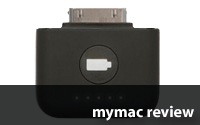
PowerDuo Reserve
Company:Griffin Technology

Price: $59.99
http://www.griffintechnology.com/products/powerduo-reserve

When it comes to iPod accessories one of the the first companies that comes to mind is Griffin Technology. In fact, the first car charger I bought was their PowerJolt for my iPod Mini. I just had to retire it because the firewire charger won’t work with my iPod Touch.

Of course, Griffin has updated the PowerJolt and added a new feature to it and its wall charger the PowerBlock. What feature could be added to a charger? How about a rechargeable/portable battery for your iPod!

That’s right a battery. Charing your iPod before you leave the car or house but don’t have a full charge yet? Take the battery with you and finish charging your iPod.

The battery slides into each unit magnetically and charger when the charger is connected to a power source. If you need the battery you slide it out and connect it to your iPod. The battery has indicator lights to let you know how much of a charge is left.

So is it any good?

Well, the PowerBlock and PowerJolt (both have USB ports for charging, by the way) work great. They have always been great iPod chargers and still are.

The rechargeable battery charges very quickly and gave my iPod Touch about an extra 3/4 battery charge in about 30 minutes when it was almost dead. The Griffin website says the battery provides “hours of additional time.” This is vague, but depending on how you use your iPod and what iPod it is you will see different results. Watching video is going to give you a lot less time then listing to podcasts.

The battery itself is very small and unobtrusive when connected. It even connected to my Touch with my iFrogz case still on it! That is a definite plus.

Overall, the PowerDuo Reserve is a fantastic idea. For $59.99 you get two chargers and one battery. A spare battery would be a nice addition. That way you could keep one in each unit or have a spare in case you lose the first.

You can also buy the PowerJolt Reserve individually for $39.99. The PowerBlock will be available soon at the same price. However, for $20 more you can have both.

The chargers will work with any iPod with a dock connecter. The battery will too, however on units with the headphone jack next to the dock connector you will have to remove the battery to access the headphone jack (i.e.. nanos, iPod Touch).

This is a must have for people on the go that need extra power in a small package.

MYMAC.COM RATING: 4.5 out of 5

emailMyMac MagazineTwitterAdvertiseReviews ArchivePodcast

Run Windows on your Mac without rebooting!  Parallels Desktop 4.0 for Mac provides the complete suite of essentials to run Windows on Mac the easy, fast and powerful way.


K518LE On-Ear Headphones – Review

On July 28, 2009, in Uncategorized, by John Nemerovski


K518LE On-Ear Headphones
Company: AKG

Price: $140
http://www.akg.com/

Amazon purchase

There is nothing wrong with a set of $140 headphones that a $250 set won’t cure. If your budget is $140, not $250, and you need on-ear headphones to be compact, folding, rich in bass, and strong in midrange, the "Limited Edition" K518LE series from AKG may satisfy your requirements.

The official description for this model is: "Closed-back earphones with isolating ear cups that attenuate ambient noise, keeping even quiet passages clearly audible." Try saying that a hundred times in rapid succession! It is accurate, to be fair.

What you get for $140 is attractive, stylish, well-built headphones in your choice of color accents: blue, fuscia, green, orange, red, white, or yellow. See photo below for the red version being evaluated.

Its folding, swiveling, padded ear cups are nicely engineered. The "R" and "L" to designate right and left ears are not easily located, which is ridiculous. Once you know where to look, you will remember which is which. Each earpiece slides out up to one extra inch, demarcated in ten increments, but if you have a large head, big hat, or a mountain of hair, the overall fit will be more snug than comfortable. The U-shaped headpiece is internally sprung, but not padded on its underside.

The rubbery cable is only three feet long, which is about three feet too short. Included accessories are a pull-string tote case and a 1/4 inch (6.3 mm) stereo plug adapter. AKG provides a two-year warranty.

Sound isolation is very good. Audio delivery is robust. Bass response is substantial. Midrange "punch" presence is well-focused. High-end is lacking, but these are not audiophile headphones. They are portable, DJ-style, geared to situations where flutes and piccolos are less in evidence than are rappers and pop artists.

If you don’t already know how to alter the Equalizer settings in iTunes, do yourself a favor and learn today: Window -> Equalizer. The best presets for optimum playback using K518LE are Dance, Piano, and Spoken Word. You’ll get much better high-end presence by customizing your Equalizer to something resembling the screen shot below, when using iTunes.

On a typical stereo receiver, keep the bass EQ at your standard "zero" setting, and boost the treble halfway between "zero" and maximum. On an iPod or other portable player, first try the three presets recommended in the paragraph above.

Careful equalizer tweaking can approximate the immersive, transparent, full-spectrum experience that arrives out of the box with more expensive headphones and earphones. In-ear phones in the $150-200 range sound roughly the same as these AKG on-ear ‘phones, but premium in-ear headphones in the $250-400 range vastly surpass K518LE.

For $140, these headphones are good value, well-constructed, attractive, and compact, with powerful bass/midrange audio presence. AKG is a top-tier European company, and MyMac welcomes them to the North American Harman International family of personal and professional products.

MyMac rating: 4 out of 5

Bonus! I wore K518LE On-Ear Headphones during a two-hour walk across and back the cold, windy Golden Gate Bridge. My ears remained warm and protected from wind gusts. Audio output was surprisingly thin, probably due to the relentless white noise interference of of a thousand cars roaring past, but the overall experience was positive. Sound isolation was quite good.

emailMyMac MagazineTwitterAdvertiseReviews ArchivePodcast

Run Windows on your Mac without rebooting!  Parallels Desktop 4.0 for Mac provides the complete suite of essentials to run Windows on Mac the easy, fast and powerful way.


Here are nine new affordable, innovative, portable products you’ve never seen, that are worth a good look. We present capsule reviews of: laptop USB cooler, phone and iPod battery booster, FM iPod tuner, noise isolating earphones, earbud foam tips, and laptop cases, with four photos.

- – - – - – - – - – - – - – - – -

Luxa2 USB Laptop Cooler Model M2
Company: Thermaltake

Price: $80
http://luxa2.com/products/laptopcooler/m2/design.html

Luxa2′s elegant, stylish, innovative, versatile M2 laptop cooler is a product you never knew you needed, but you’ll use it every day once you own it. Tightly tucked into its gorgeous, spring-loaded white leatherette case with magnetic top strap plus belt clip is a hinged, brushed metal gem of a USB-powered laptop riser. Its fan and heat absorbing panel are "made with crystalized Swarovski Elements." Rear laptop elevation is to just-right height for optimal viewing angle. Fan noise is a little louder than I prefer, but not a serious concern. The company provides a USB extension pass-through cable adapter that allows users to plug an additional device into M2′s same laptop port. Study the specifications page for additional product details. Summer or winter, your precious laptop runs better when it’s as cool as possible. Luxa2′s M2 clever cooler is a winner for all seasons.

Suggested improvements: Use a darker color than white for the carrying case, because white will get dirty quickly. Make the fan a little quieter, please.

MyMac rating: 4 out of 5

- – - – - – - – - – - – - – - -

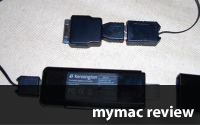
Rechargeable Pocket Booster for Mobile Phones and iPods
Company: Kensington
Price: $25 for booster
http://us.kensington.com/html/16635.html
$15 to $20 for tips
http://us.kensington.com/html/8438.html


Shown with iPod adapter tip

This versatile, tiny, 2-AAA rechargeable power pack can keep your mobile phones and iPods running when their onboard juice becomes depleted. Remove the batteries and use them to power a portable mouse or other device. Charge the booster via any USB port. The charging unit is so small and lightweight you’ll have it handy at all times when on the go. Remember that rechargeable batteries hold a charge for a long time, but they slowly trickle-down when they are not being used.

Suggested improvements: Change the spring-loaded extension cable, because it snags easily; add a battery-level indicator on the charging unit.

MyMac rating: 4 out of 5

- – - – - – - – - – - – - – - -

Navigate Inline Controller and FM Radio for iPod and iPhone
Company: Griffin Technology

Price: $60
http://www.griffintechnology.com/products/navigate

Plug Navigate into your iPod or iPhone, and you instantly have a clear, strong FM radio tuner with a convenient rear clip. Setup and button controls are a little confusing at first, but they are easy to manage by day three. Written instructions are provided in English, French, and Spanish. Having Navigate’s black navigation symbols embedded on black press keys is bad product design, and MyMac has complained to the company. Aside from that gripe, this FM iPod/iPhone tuner plays sweet music.

MyMac rating: 3.5 out of 5

- – - – - – - – - – - – - – - -

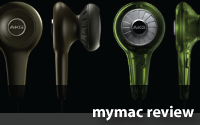
MetroFi Noise Isolating In-Ear Headphones
Company: Ultimate Ears

Price: $50 to 100 (see review for details)
http://ultimateears.com/_ultimateears/products/metrofi/index.php

Reviewer David Weeks begins our evaluation:

The Weeks Division of MyMac Labs spent some time with a pair of Ultimate Ears MetroFi earbuds for iPhone. I tested the "frequency-neutral" 170vi version of the UE’s for iPhone. As advertised, the frequency response is well-balanced. Audio quality is good; not great and not horrible. Microphone audio quality was good but not exceptional, as reported by most callers.

The earbud tips themselves are very comfortable, staying in place even when I was flailing away on the elliptical trainer at the gym. Goldilocks would be happy with the cord length; it’s just right, not too long and not too short. Unfortunately, there’s no clip to keep the cord from flopping, and one is needed.

I did not care for the fact that the length of the "Y" below the user’s chin is not adjustable. You can’t adjust the location where the two earbud wires join into one, and I would have preferred to have the "Y" closer to my chin. The Play/Pause/Next button is located below the "Y," and that location has it positioned it not far above my waist. It took me a while to get used to the button not being located by the jawbone, where the microphone is.

All in all, the Ultimate Ears MetroFi 170vi Earbuds are middle-of-the-road; you may not love them, but you probably won’t hate them.

John "Nemo" Nemerovski continues with additional comments:

There are two series of affordable MetroFi in-ear noise isolating headphones from Ultimate Ears. David tested the 170 series, and I tested the 220 series. Each model comes in two versions: one with an iPhone microphone, and one without. The microphones are identical on the different series.

The 170 (audio-only) costs $50, and the 170vi (with mic) is $60. If you like this model’s "frequency-neutral" sonic delivery, described above, MyMac recommends you pay the extra $10 even if you don’t have an iPhone, because one day you’ll be glad to have that inline microphone.

Prices for 220 models are $80 for audio-only, and $100 with mic. I did extensive listening tests of the 220, with a variety of music from both iPod and MacBook Pro. These earbuds have a very live sound, with especially strong bass. Midrange through treble are easily adjusted to your optimal preferences via the Equalizer in your portable device or computer. Without equalization, the 220′s audio spectrum is unbalanced, and does not provide a satisfactory listening experience.

Construction of the speaker driver components is more robust on MetroFi 220 than on 170. Casual users will be happy with the less expensive 170/170vi, which are priced very aggressively relative to the competition. More demanding listeners will prefer 220/220vi, which are still extremely affordable for Ultimate Ears monitors.

MyMac encourages the company to provide larger cases for their in-ear headphones. The included plastic cases are too small, and are difficult to use. Aside from that complaint, the comfort and audio delivery are well worth the prices for MetroFi 170 and 220, with and without inline microphones.

MyMac rating: 4 out of 5

- – - – - – - – - – - – - – - -

Comply Tx-Series Foam Tips
Company: Hearing Components

Price $20
http://www.complyfoam.com/

If you love your audio earbuds and you lose or don’t love the included ear tips, try Comply. Their newest generation of foam tips fit better, sound better, and have a new Wax-guard. The customer orders different black tips for different buds, in small, medium, or large size. On the package, Hearing Components advertises: "Soft Comfort, Noise Isolation, Enhanced Audio Performance, and Stay-In-Ear Fit." All are accurate.

MyMac rating: 4.5 out of 5

- – - – - – - – - – - – - – - -

Turtle Hard Shell Laptop Sleeve
Company: STM Bags

Price: $50
http://www.stmbags.com.au/

It’s a rough, tumble, existence for laptop computers. STM Bags’ Turtle will protect your computer from bumps and bruises, and from most encounters with inclement weather. Turtle is a rugged, semi-rigid, black drop-in sleeve that fastens via a pair of pull-tight bands and posts. Its interior is a soft, light pile surface. The computer is not held firmly in place within a Turtle, so don’t take it sky diving. Turtle’s styling is a combination of high-tech and retro that is difficult to describe. You won’t want to carry a MacBook Pro + Turtle in your hand as you traverse office or campus, because there is no handle, and the outside edges are severely ridged. You place your computer into the Turtle, then Turtle into backpack or tote case, and go about your daily chores without any further worries about the computer’s safety. You must try Turtle before you buy it, because it is a most unusual laptop sleeve.

MyMac rating: 3.5 out of 5

- – - – - – - – - – - – - – - -

Haptique Case for MacBook Aluminum
Company: Uniea

Price: $50
http://www.uniea.com

Uniea’s Haptique is a two-piece tight-fitting plastic shell that is the exact opposite of STM Bags’ Turtle. Haptique is available in six attractive colors. Its exterior is pleasant to touch, and its interior softly embraces your precious MacBook. The time required is less than ten seconds to affix or remove Haptique from a computer, but it stays firmly in place once snapped into position. The company’s web site provides all the information you need to decide if this case suits your needs and lifestyle. Priced at $50, it may seem to be a little expensive, but given its protective capability and port access, that cost is reasonable.

MyMac rating: 4 out of 5

emailMyMac MagazineTwitterAdvertiseReviews ArchivePodcast

Run Windows on your Mac without rebooting!  Parallels Desktop 4.0 for Mac provides the complete suite of essentials to run Windows on Mac the easy, fast and powerful way.


MyMac Podcast 250

On July 24, 2009, in Uncategorized, by MyMac PodCast


Download the show here, and subscribe via iTunes
Our 250th weekly episode of the MyMac Podcast! Rather than make a big deal of it, we instead look at the weeks happening in the Apple Universe. David gives us his impressions on his new 13-inch Macbook Pro, Apple quarterly report, replacing a HD in a MBP, and much more. And if you are interested in coming on the podcast as part of our Listener Invite, please email us!

From the show: Hard Drive for Macbook Pro

Review our show on iTunes Please!

emailMyMac MagazineTwitterAdvertiseReviews ArchivePodcast

Run Windows on your Mac without rebooting!  Parallels Desktop 4.0 for Mac provides the complete suite of essentials to run Windows on Mac the easy, fast and powerful way.


K 309 & K 311 Earbud style Headphones – Review

On July 23, 2009, in Uncategorized, by Mark Rudd


K 309 & K 311 Earbud style Headphones
Company: AKG

Price: $16.95 & $24.95
AKG K 309
AKG K 311

ADJUSTED EXPECTATIONS
I suppose this would be a good place to adjust our expectations. In terms of the AKG headphone product line, the K 309s and K 311s are at the bottom of the proverbial heap. It is important to remember that the retail pricing for these two products is low ($16.95 & $24.95). The street price for both is destined to be even lower. Therefore, going into the evaluation of these headphones, my expectations were realistic.

FEATURES
With the exception of an, "improved bass response" for the K 311s, both sets of headphones feature, according to AKG, a comfortable fit, included ear pads (recommended), and iPhone compatibility (a 3.5" plug). There is nothing that causes these headphones to stand out among the endless sea of low-end headphones. They are not feature rich. However, they are not expensive either. Jump to the product pages for more information and specs: K 309, K 311

DESIGN
The packaging, fit, and finish of these headphones are all on a par with the majority of AKG’s competitors in the space. 

USABILITY
In terms of comfort, I was very disappointed in these headphones. Granted, my expectations were not high considering the price point. The problem is in the diameter of the portion of the earpiece that actually fits into your ear. Using the generic Apple earbuds as a reference, the AKGs felt significantly larger. Subsequently, I could not fit the earbuds into my ear properly. They could only sit skewed within the ear opening. This was not only uncomfortable, but not conducive to an acceptable overall listening experience.

PERFORMANCE
The performance of K 309s and K 311s was what one would expect from this type of headphone. The quality of sound was, not unexpectedly, mediocre. having listened to all types of audio content through these headphones, I would say they are better suited for spoken word content, rather then music. I did notice a little better bass response from the K 311s. It is possible that, with a better fit, the sound could improve.

It is important to be fair to AKG. These are not meant to be high-end headphones. They are low-end headphones that carry a low-end price tag. If you are buying these headphones expecting to enjoy great comfort and audio quality, save your money and purchase a higher quality set of headphones.

It is possible that a person with a larger ear opening might be able to enjoy a better fit and subsequently a better sound quality. I would suggest an attempt to try before you buy!

MAKING THIS PRODUCT BETTER
At this price point, there is not a lot that can be done to improve these headphones. With that being said, reducing the diameter of the earpiece could improve the fit which would improve the sound quality accordingly. 

MyMac.com Rating:
If you are someone who has a larger ear opening that could fit the AKG K 309s or K 311s properly, and are in the market for a low-end pair of earbud styled headphones, then these might indeed "fit" your requirements. However, if you have the misfortune of having a normal sized ear opening and are looking for decent audio quality and comfort, you will need to look at some of AKG’s higher-end headphones and spend a little more money. With the hope of some needed future improvement, I am awarding this product a 2.5 out of 5 on our MyMac.com Rating System.

emailMyMac MagazineTwitterAdvertiseReviews ArchivePodcast

Run Windows on your Mac without rebooting!  Parallels Desktop 4.0 for Mac provides the complete suite of essentials to run Windows on Mac the easy, fast and powerful way.


Apple Store is down

On July 23, 2009, in Original Blog, by Rich Lefko

Usually, when the Apple Store goes down, Apple is either refreshing it’s product lines or adding something new.

I wonder what is up today?

Do you have any ideas?


AudioBoo iPhone Application
Company: BestBefore Media Ltd.

Price: Free
http://audioboo.fm/

Perhaps some of the audience of the MyMac.com podcast can recall Tim’s request several weeks ago for people who would like to write for the website. I’ve been listening to the podcast since 2006. In fact, Tim and his crew actually helped me make the decision to switch over to the Mac platform. After debating the idea for a bit, I decided that I might as well give it a try.

AudioBoo is a fairly new audio blogging application that is available free of charge both online at AudioBoo and on the iTunes Store. AudioBoo allows users to quickly and easily record audio blogs that are up to five minutes in length. Your blogs can then be heard at AudioBoo’s website and on the iPhone application, once it is linked to your free account. Simply create an account and you’re ready to “boo the night away.” Your picture, or avatar, comes from Gravatar, which allows you to set up a customized avatar for a number of other websites. AudioBoo is very similar to TweetMic, an app that Tim introduced us to a couple of weeks ago, except AudioBoo is free. It’s not like 99 cents is going to break the bank, but there are a lot of us out there who are cheapskates.


The first thing you’ll notice when you install the app on your iPhone is the icon. Its design is pretty sharp and eye-catching. The hot-pink color really catches your eye amongst the other icons on your phone. I would say that having such an eye-catching icon could be important because, let’s face it, we are all probably guilty of placing a ton of apps on our iPhones, and getting your attention is what developers are striving for. The application has a very simple and elegant interface. AudioBoo doesn’t have many bells and whistles, but what it does, it does very well.

Perhaps the first thing you’ll notice when you listen to “boos” from others or those that you have recorded yourself is the amazing sound quality that you get from the application. I think it allows you appreciate the capabilities your iPhone truly has as an audio device. From now on, any issues that I have with my iPhone regarding call quality will lie squarely on the shoulders of AT&T, for I now know what my iPhone is actually capable of.


I recorded my first boo as a review for MyMac.com. I recorded the boo in my front yard on a breezy afternoon. I intentionally wanted to hear how the sound quality would be in a real-world location away from the relative quiet of my man-cave at home. Aside from some wind noise, the sound quality was awesome! Give it a listen at the link above and post a comment with your impressions of it.


There exists a great deal of potential for this application when it comes to recording live news reports from the field, recording trip logs or reviews, and even for teachers like myself. I foresee using it as a way to communicate with the students in my high school Earth Science and Biology classes while at home without a lot of production effort. As a podcaster, I can appreciate the amount of time and effort that goes into preparing a decent product. Unfortunately, we don’t always have that kind of time available to us.

I don’t like the fact that the iPhone version of the application doesn’t have a search feature built into it. You can do so online at their website, but it would also be nice to be able to search on your mobile device. I did notice that the iPhone app can be a bit “buggy” at times, with it quitting on me several times as I first began to use it. I’m not sure if this is a function of the RAM in my iPhone running low or if it’s a problem with the app itself, but that’s always annoying when it happens — especially if you’ve just finished recording and are about to upload it! The app also doesn’t have a way to link your boos to FaceBook or Twitter directly from the iPhone. You can set it up to do so from their website, so if you do that just once you probably don’t need to concern yourself with it ever again.


One particularly interesting feature that I haven’t seen on other audio blogging apps is the ability to subscribe to AudioBoo uploads as a podcast on the iTunes Store. You can do this in one of two ways; you can receive the boos of everyone (yikes!!), or just the boos of people you have decided to follow. Innovative, but I’m uncertain whether or not it’s useful yet.

Well, that about wraps up my first attempt at writing for MyMac.com. Leave a comment to let me know your thoughts and ideas.

MyMac Rating 4.5 out of 5


emailMyMac MagazineTwitterAdvertiseReviews ArchivePodcast

Run Windows on your Mac without rebooting! Parallels Desktop 4.0 for Mac provides the complete suite of essentials to run Windows on Mac the easy, fast and powerful way.


Verbatim Portable Hard Drive
Company: Verbatim

Price: $70.31 USD at Amazon.Com
http://www.verbatim.com


It seems like every company that sells hard drives are coming out with “portable” hard drives. These drives are usually promoted as “pocket” drives, or drives that are easy to carry around. For the most part, they are, but some just don’t fit in a pocket, and I’d have to wonder why you’d carry one around in your pocket anyway.

Continue reading »

Tagged with:  

MyMac Podcast 249 – iProng Lee

On July 17, 2009, in Uncategorized, by MyMac PodCast


Download the show here, and subscribe via iTunes
Lee Givens and Bill Palmer join in the fun this week with Tim, David, and Guy. Topics include Michael Jackson dominating iTunes sales chart, third-party hardware for the iPhone, what’s new from AOL, TomTom for iPhone, Macworld Expo, reader feedback, hot iPhones, and much more. A really great show!

From the show: Superlux HD681 Wired Headphones

Review our show on iTunes Please!

Links from the show:
AOL.com
iProng Magazine

emailMyMac MagazineTwitterAdvertiseReviews ArchivePodcast

Run Windows on your Mac without rebooting!  Parallels Desktop 4.0 for Mac provides the complete suite of essentials to run Windows on Mac the easy, fast and powerful way.


OWC On-The-Go Pro 500GB 7200RPM FW800/FW400/USB 2.0 Storage Solution
Company: Other World Computing

Price: $229.99
http://www.macsales.com/

How does that old adage go? “You want good, fast and cheap? Pick two.” OWC’s new 500GB 7200RPM Mercury On-The-Go Pro portable drive certainly has the “good” and the “fast” covered, although at $229 list, I can’t actually say this bus-powered, FireWire 400/800 and USB 1.1/2.0 drive is “cheap.” Still, it’s a remarkably reasonable price for this package, which includes connecting cables for all three interfaces and a handy carrying pouch, plus a software bundle for both Mac and Windows that contains backup and utility software along with nearly two gigabytes of Mac freeware, shareware, updates, icons and more.

As I’ve not yet encountered a portable (2.5") drive with both a FireWire 800 interface and a 7200RPM drive mechanism, I conducted a fairly exhaustive search to determine if this new Mercury On-The-Go (MOTG) model has any competition when compared “apples to apples” (sorry, couldn’t resist) with similar drives. The closest device I could find was LaCie’s 500GB “Rugged All-Terrain” triple-interface portable drive, and although the LaCie also comes with three connecting cables and features a very rugged-looking, shock-resistant case, the drive mechanism is only 5400RPM with an 8MB cache, as compared to the MOTG’s 7200RPM drive with its 16MB cache. So that puts the LaCie ($199.99 list; “street” pricing may be lower) at a decided disadvantage in terms of speed, at least based on personal experience working with and comparing the relative performance of 5400RPM to 7200RPM mechanisms.

Hey, I thought you said this was a triple-interface drive? Yes, even though this MOTG Pro sports only FireWire 800 and USB 2.0 interfaces, FW 800 supports both 800Mbps and 400Mbps connections, and the nice OWC folks were thoughtful enough to include a FireWire 800 to 400 converter cable. In fact, since the USB 2.0 port supports USB 1.1 as well, you could even say this was a quadruple interface drive.

While we’re on the subject of mechanisms, this particular MOTG model uses the Seagate Momentus 7200.4 SATA drive, with its aforementioned 16MB cache—already one of, if not the fastest, 2.5" SATA drives on the market today. Pair that with the FireWire 800 interface of this MOTG device, and you get an external drive that not only beats the pants off most other external portables, but rivals the performance of 7200RPM, 3.5" desktop mechanisms. Using OWC’s own QuickBench utility (thoughtfully provided on the included CD as part of the Intech SpeedTools package), I did some benchmarking and was very impressed with the read and write speeds of the MOTG, although I should note that I was unable to achieve the performance benchmarks posted on OWC’s Web site.


OWC’s published benchmarks show this MOTG Pro 7200RPM drive, when connected via FireWire 800, achieving read speeds of over 79MB/sec and write speeds on the near side of 77MB/sec. Although I was unable to match those benchmarks in my own testing, rest assured, folks—this drive is fast.

In my initial testing, with the drive connected via FireWire 800, QuickBench indicated that the MOTG 500GB was able to sustain an average read speed of 65MB/sec, and an average write of 53MB/sec, both quite remarkable for a bus-powered, 2.5" external drive. When compared to my trusty NewerTech miniStack v3, equipped with a 3.5" 7200RPM SATA mechanism and also connected via FireWire 800, I was even more impressed to discover that although the MOTG could not quite equal the performance of the miniStack’s 3.5" mechanism, it was certainly in the same ballpark in terms of both read and write speed (75MB/sec read and 59 MB/sec write for the miniStack, as compared to 65MB/sec read and 53MB/sec write for the MOTG).

As a final performance comparison, I elected to pit this MOTG against what I would consider a “typical” 2.5" portable drive; in this case, a Western Digital 320GB, 5400RPM My Passport Essential drive connected via USB 2.0. As you might have already guessed, the MOTG 500GB blew the doors off the Passport, with the WD 5400 RPM mechanism and USB 2 interface able to achieve only a 12MB/sec read and 11MB/sec write speed, approximately 1/5 of the MOTG’s benchmarked performance via FW 800. Even with the MOTG Pro connected via USB 2.0, it still easily bested the WD Passport, achieving 22MB/sec read and 18MB/sec write benchmarks.

At this point I think I’ve safely established that the drive is “fast,” although not necessarily “cheap,” so let’s focus on the “good.” In my experience, too many external drives listed as Mac-compatible come pre-formatted for Windows machines, and often without instructions on how to reformat them for your Mac. Not only does this MOTG Pro come with a printed owner’s manual, it also includes
printed “cheat sheets” that describe how to format the drive for Windows users and how to determine whether to use an APM or GUID partition if you want to use it for booting your Mac. They even include a bundle of custom drive icons to match each style of drive they offer, a special treat for those anal-retentive like me who simply must have the icon of every mounted drive look precisely like the physical drive it represents.


How much bundled software does the OWC MOTG Pro 500GB actually ship with? Enough that the OWC folks needed to provide an index to help you sort through it all.

The bundled software accompanying externals is often Windows-only as well, or a poorly-executed port of a Windows program included on the disk seemingly as an afterthought. Not so with OWC drives; the MOTG Pro comes with two backup applications (DataBackup from Prosoft and Carbon Copy Cloner, both excellent backup utilities), the Intech Speed Tools noted above, and so much additional Mac software that the OWC folks felt compelled to provide an index to all the goodies contained on the disk. Three interface cables are also included; as the drive has two FW 800 ports but no FW 400 ports, one cable serves as a FW800 to 400 converter, and the drive and cables all fit neatly into the included carrying pouch.

While we’re on the subject of cables, I should mention that I connected the MOTG Pro to two different laptops using both the FireWire 400 and USB 2.0 cables (still haven’t sprung for that FW800 laptop) in order to confirm that the drive operates normally while on bus power only. I’ve never had issues with a portable FireWire drive, but I’ve encountered numerous problems where a USB portable either required the dreaded “two-headed” USB cable (one for connectivity and one for power) to spin up, or would not spin up at all—regardless of cable type—due to lack of power. OWC does sell an optional AC adapter for this drive, but based on my testing you’ll never need it.

As I’ve gotten plenty of mileage out of the “Want it good/fast/cheap? Pick two” adage already, I’m going to segue into “the good, the bad and the ugly” for just a moment. We’ve clearly documented the “good,” and there’s really no “bad” to speak of with this device. But when it comes down to the clear acrylic enclosure itself, I think it’s time to talk “ugly.” Maybe it’s just me, but I find it really unattractive, to the point where I wouldn’t want it sitting on my desk. It forces me to look at the drive’s innards, it doesn’t complement any of my equipment, it looks “cheap,” and it frankly gives the impression that this is a prototype of an external hard drive for which the developers haven’t yet established the final case design.


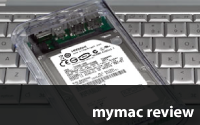
Bottom view of the MOTG Pro showing the metal heat-sink (7200RPM drives generate quite a bit more heat than their slower 5400 RPM brethren). Am I the only one out there who thinks clear acrylic cases that show all of a drive’s innards are just plain ugly? In fact, with the sleek heat-sink obscuring all that nasty circuitry, I submit this drive actually looks better when turned upside-down.

But don’t let my rarified aesthetics dissuade you from making this your next external hard drive purchase. At this price point, with a Seagate 7200RPM mechanism, 500GB of storage space, support for three interfaces including FireWire 800, and a comprehensive package with cables/carrying pouch and tons of software that’s actually useful to Mac owners, this MOTG Pro is the only way to go if you’re looking for the ultimate in portable storage.

Oh, and did I mention that it’s fast?

MyMac.com Rating: 4.5 out of 5

emailMyMac MagazineTwitterAdvertiseReviews ArchivePodcast

Run Windows on your Mac without rebooting!  Parallels Desktop 4.0 for Mac provides the complete suite of essentials to run Windows on Mac the easy, fast and powerful way.


MyMac Podcast 248 – Chromed

On July 10, 2009, in Uncategorized, by MyMac PodCast


Download the show here, and subscribe via iTunes
Tim, Guy, and David discuss the Google Chrome OS announcement, the news of Steve Jobs returning to Apple, more on Listener Invite, Networking Problems, MacSkull, LifeAfterAfter.com, and upgrading to a MacBook Pro.

From the show: OWC Express

Review our show on iTunes Please!

Links from the show:
MacSkull.com
MyLifeEverAfter.com
Google Chrome OS

emailMyMac MagazineTwitterAdvertiseReviews ArchivePodcast

Run Windows on your Mac without rebooting!  Parallels Desktop 4.0 for Mac provides the complete suite of essentials to run Windows on Mac the easy, fast and powerful way.


easy VHS to DVD for Mac – Review

On July 8, 2009, in Uncategorized, by Larry Grinnell

easy VHS to DVD for Mac
Company: Roxio

Price: $79.95
http://www.roxio.com

This review could have gone very, very badly, had it not been for Roxio’s excellent support website, and their intrepid PR person, who kept the dialog going when I was ready to wash my hands of the whole thing.

That said, the last thing I wanted to do was start yet another review with: "I really wanted to like this product, but…"

Over the last four months, when I unfortunately had a lot of time on my hands (a victim of the current economic unpleasantness, since resolved, and I am again very happily employed), I decided I needed to regain some storage space in my increasingly cramped townhouse. My collection of several hundred VHS tapes had to go. There were, however, 40-50 titles I wanted to keep and decided to put them on DVD. I had planned on doing this almost two years ago, and found a superior (and expensive!) analog to digital video converter, a Canopus ADVC-300, which I was able to find at a very acceptable price on eBay. I set up my VHS deck in my computer room, connected the video and audio outputs to the ADVC-300 inputs, and sent the output to my dual 2.0 GHz Mac G5 tower’s Firewire port (still running Mac OSX 10.4), and into my copy of iMovie HD (from iLife ’06). Each two hour tape took up 25 GB of disk space in the DV file format. I quickly trimmed unwanted video at the start and end, and inserted chapter markers when the tapes had multiple programs, or if I was putting two 1 hour tapes on a single two hour DVD. These chapter markers directly imported into iDVD where I picked a theme, edited the captions, and burned the final DVD. On my G5 tower, the process of rendering two hours of video before the DVD could be burned, took 4-6 hours.

I repeated this process on my black MacBook with a 2.0 GHz Core2Duo processor, and 3GB of RAM, and everything worked about the same, except the render time took a few hours less, thanks to the speedier processor.

Mostly, I started the recording process just before I went to bed. The next morning, I spent about 30-45 minutes editing the DV file, pushed it to iDVD, and let it render most of the day. By late afternoon, I had another DVD for my briefly empty shelves. It took about 6 weeks to finish the process and I was able to put all the gear away.

Enter MyMac.com’s own John Nemerovski (that’s Nemo to you…) who had heard about my project and thought he had a great review project that was right up my alley. Roxio had just released a Macintosh version of their popular easy VHS to DVD product and was looking for reviewers. In spite of my reputation for writing negative reviews on this site, he gave the job to me anyway…

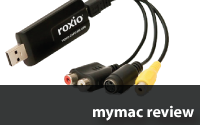
I received the package, which contained a CD, Getting Started Guide, a Roxio Video Capture USB Device (the brains of this outfit), a short USB to USB extension cable, and a breakout cable with stereo audio, composite video, and S-Video connectors. The CD contained the easy VHS to DVD for Mac software, as well as a (very) limited-feature version of Toast 9.

The Roxio Video Capture USB Device looked suspiciously like something from Elgato, makers of a number of magical video products that bring video content into your Mac via the USB 2.0 port. The big difference, however, is the software. The Elgato-branded device outputs MPEG-4 video, while the Roxio device outputs MPEG-2 files (the same format as commercial DVDs).

I installed the easy VHS to DVD software on my G5 tower, connected the Roxio Video Capture USB Device to the front USB 2.0 port, and connected the audio/video breakout connecting cable to cables from the output of my VHS recorder. When I launched the software, I was immediately directed to Roxio’s website to download and update the software, taking the revision level from version 1.0 to 1.0.1. I went through the easy setup procedure (more on that below), and tried to record some video. At the end of 2 hours, I clicked the stop button, and in the next window, clicked the "Send to iMovie" button. My Mac spent the next two or so hours converting the MPEG-2 file to an intermediate format, but instead of opening the file into iMovie as the instructions suggested they would, I got an error message stating the program could not find the iMovie program. Thinking I’d done something wrong, and tried it again (if I’d been just a little bit smarter, I’d have recorded five minutes of video, and not two hours!), and got the same results. After hunting around the hard drive, I found the MPEG-2 file in the Movies folder at the top level of my home directory. When I opened it in QuickTime Player, I immediately spotted a problem–a massive number of dropped frames. I then checked the size of the file–about 600k–it should have been somewhere around 5.4 GB!

I repeated the above step with my MacBook, and at least got a 5.4 GB MPEG-2 file with no evidence of dropped frames, but still got the iMovie error. I went to the Roxio support boards (excellent, by the way, with very responsive support people) and discovered many others were experiencing the same problem.

Thinking it was at least partly my fault, I bought an additional 2GB of RAM, and went to MegaMacs.com to buy a copy of iLife ’08 (I’m still using MacOS X 10.4–Tiger, which is not compatible with iLife ’09). I found a great deal for an OEM disk for around $40.00.

About a week later, another updater came out, version 1.0.2. Same problems with both issues: dropped frames on my G5, and no automatic opening of iMovie HD. Around this time, I was contacted by Roxio’s intrepid PR guy, wanting to know how things were going. Boy, did I tell him! In a couple of days, I was granted access to a beta version of an upcoming patch. I downloaded and installed it, and viola√°! No more dropped frames (though still no automatic opening of iMovie HD)! It also opened iMovie ’08 (part of the iLife ’08 package), which only served to remind me how evil iMovie ’08 really is. I had forgotten that Apple, in their infinite wisdom, eliminated the ability to enter chapter markers where you want to add them (since restored in iMovie ’09).

Here’s what I found from my research:

1. The easy VHS to DVD software is not compatible with iMovie HD. It will not automatically launch iMovie HD and load the finished movie into it. That function works fine on iMovie ’08, and while I personally didn’t have the chance to see it in action, it probably works equally well with iMovie ’09.

2. The dropped frame problem was almost universal among dual processor G5 users.

3. The beta patch resolved the dropped frame problem on dual-processor G5 machines, and permitted automatic launching of iMovie 08 (and iMovie 09).

4. As a workaround, you can make iMovie HD process the MPEG-2 file by manually dragging it from your Movies folder directly into the iMovie HD application window. It will take fair amount of time for iMovie and QuickTime to convert the file into something that iMovie better understands.

5. Roxio’s web support is very good. Their support staff monitors traffic on the message boards on a very regular basis.

I detailed this story to share my pain with the readers, knowing that most of you would not have had this much patience or persistence, and would likely have demanded your money back, weeks before I finally achieved success. But then again, I am a very tenacious problem solver, and tend not to give up easily.

Okay… Now that I’ve gotten that out of my system, I can tell you that with the latest beta release software, which will probably be finalized very soon and made available on their support site, it mostly works as advertised (other than the pesky iMovie HD issues).

Here’s how it works:

Launch the easy VHS to DVD for Mac software, and the first screen (above) is displayed. This is where you enter a name for your project, use a pull-down menu to set the approximate length of your video, and set the quality level for the file (standard or high) with another pull-down menu. When you click the Continue button, the next screen is displayed.

You are prompted to test your cabling to ensure your connections are functional. A small video monitor screen shows your video source (if everything is hooked up correctly). Click Continue.

The next screen repeats this process for audio, to ensure the software is decoding the audio from your source. Click Continue.

The overview screen continues previewing video and audio. If you don’t see the picture, or if you can’t hear anything coming out of your Mac’s speaker, you get one final opportunity to go back and fix the problems. Once you are satisfied, start your tape rolling and click the Start Recording button. That same button is used to stop recording when you are ready to do so. If you are operating this product unattended, you might want to click the handy checkbox that automatically stops recording, based upon the recording time you set in the first screen. The benefit of doing this is that you won’t totally fill your hard drive with garbage if you forget to come back and stop recording after an extended period of time. Remember, in the high quality mode, you are eating up disk space at the rate of 2.7GB per hour. In eight hours, you could wind up using over 20GB of disk space.

When you click the Stop Recording button, you are taken to the Finish Up screen, which gives you the option to automatically open Toast and begin the process of recording the video to DVD. The Edit with iMovie button starts a conversion process that takes an MPEG-2 video file into another intermediate file format before importing into iMovie ’08 or iMovie ’09. Send to QuickTime player converts the file to MPEG-4 format before opening the QuickTime player application. Note that the Edit with iMovie and Send to QuickTime Player functions require an additional hour or two to convert the video into compatible file formats.

Quality? In a word, it’s great, at least with VHS tapes that didn’t have a whole lot of quality to begin with. The better the source, the better the converted file will be. At $79.95 it beats the solution I had been using by many hundreds of dollars. This same product can be used nearly anywhere in the world, as it automatically detects and configures itself to output to the analog NTSC or PAL video standards.

This review could have gone a completely different way. Thank goodness it didn’t. After a few weeks of troublesome operation, the last software release solved nearly all the problems I was experiencing. In all likelihood, the copy you buy today will include the latest updates and you should have a wonderful experience with easy VHS to DVD for Mac. As with any video project, the faster your computer’s processor, the more RAM, and the more fast hard disk space, the more you will be satisfied with this and other video processing products. You will quickly learn that working with large video files requires a lot of patience while your computer, and I don’t care how fast it is, plows its way through the file(s).

Even with all the other difficulties, I will say that the software was always stable–it never crashed in the several weeks I used it.

Pros:
Low price brings video conversion to the masses.
Easy setup.
Saving files in MPEG-2 format reduces final rendering time.
Can save in MPEG-2, MPEG-4 formats.
Great quality.

Cons:
Initial problems with very buggy software.
Toast 9 Basic has very limited feature set.
Incompatibilities with iMovie HD in spite of advertised claims.
Processing time is slow, slow, slow, though not really Roxio’s fault. Video files are big and take a long time to process.

The final rating would have been higher had it not been for the problems I suffered through with the supplied software. I went through far more hoops than most customers would tolerate, even with the able assistance of Roxio’s PR guy–someone most customers would not have access to. In the end, it was worth the effort, and easy VHS to DVD for Mac is now a solid product.

MyMac rating: 3 out of 5.

emailMyMac MagazineTwitterAdvertiseReviews ArchivePodcast

Run Windows on your Mac without rebooting!  Parallels Desktop 4.0 for Mac provides the complete suite of essentials to run Windows on Mac the easy, fast and powerful way.


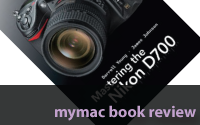
Mastering the Nikon D700 – Review

On July 8, 2009, in Uncategorized, by Artie Alinikoff


Mastering the Nikon D700
rockynook NikoniansPress

ISBN: 978-1-933952-23-9
www.rockynook.com
Price: US $39.95, CAN $47.95
244 pages

I got my Nikon D700 just in time for a trip to Norway with my band. I know it’s going to be a lot to lug around in comparison to my hip-hugging Fuji f100fd, but that’s the price you pay for wanting superior images.

Getting those images is challenging enough with learning how to use a new camera and thumbing through the manual to find out what this term and that term means. Many of them were totally unfamiliar to this old film winder. Then I got the book.

The book I refer to is the rockynook NikoniansPress publication, Mastering the Nikon D700, by Darrell Young and James Johnson.

Darrell Young’s Mastering the Nikon D300, also published by rockynook, was highly acclaimed for its "breadth of content, depth of coverage, and warmth of delivery," and this book on the D700 is evolved from that previously released publication. James Johnson has taken the lead set by Darrell Young and has done an admirable job in describing, explaining, and showing just how to use this dazzling camera. Both men are fine photographers in their own right and have many years of practical and teaching experience.

What is so effective about this book is the anecdotal examples throughout. The Nikon manual can be used in conjunction with Mastering the Nikon D700, and the authors refer to specific pages as we wend through the chapters and discover the many features of the camera. Where the manual gives you the nuts and bolts, Mastering the Nikon D700 takes you many steps further by giving you choices and situations which are practical and easy to understand, making it a lot more fun.

Because this camera (it’s a computer, really) has so many functions and features, more than once I have been stopped cold in my tracks as I meandered my way through the various menus just to "check it all out." I came upon terminology I’d never heard before. The Nikon manual might explain what the camera will do in a specific setting but there is no practical advice, and that’s where Mastering the Nikon D700 takes over.

The color photos used in the book are much easier to look at and read than the clinical gray and white charts in the manual. I sat reading with the book and the manual, along with the camera, as was suggested by the authors. Good idea. I referred to the manual if I felt the need, especially in unfamiliar territory. Sometimes it helps to have it there. All lessons in the book refer, by page, to the manual if you want to do that. But if you have the book and the camera together and you just simply read and follow what the authors are saying you will soon become an expert on that, and each subsequent, lesson.

Throughout, Young and Johnson have distributed practical areas of interest such as reviews and important notes, all of which are highlighted in gray to make sure you understand the why’s and wherefores. The authors obviously want to make sure that the reader is engaged in the practical aspects of the camera’s functions, not just the technical.

Surprisingly, there are relatively few real photographs in this book. The ones that are there are basically set up to introduce each new chapter. They reflect the chapter at hand and are beautifully photographed. Most of the images in the book are of the camera, the functional buttons, and the various menus, in clear full color just like you will see as you prompt through the various menu functions and commands. Each is explained in simple detail.

I had to reread some of the lessons’ paragraphs because this camera has the ability to do things I didn’t know cameras could do. Like having Custom Setting Banks which direct your camera in all aspects of exposure and focus. And then there are Shooting Menu Banks, which set up your D700 to be like several different cameras. When I first saw these terms I was sure I would never understand them. Boy, was I wrong. Not only do I understand them, but once they were clear it took me very little time to set up the parameters I wanted, name the Banks, the Custom Settings, and go outside to try it all out. They worked just like the authors said they would.

Maybe you’re an avid photographer who has had several Digital Single Lens Reflex cameras and you figure can muddle through the learning process with little trouble. I say to you that it’s worth the price of the book just to have these two guys in your pocket. Really! The book isn’t all that big, measuring 6" X 9" X 1/2", so you can carry it with you fairly easily. This camera is its own beast and needs that special attention to get the most out of it.

If you’re just starting out in the DSLR world you will be amazed how fast you can learn to use this fine instrument. There is no need to be intimidated. Just a few hours with this book and your camera and you’ll even be an expert in White Balance.

I would suppose that anyone willing to spend thousands of dollars for a camera, and then spend even more for the lenses, would want to get the most bang for their buck, get the best pictures they can get, and enjoy the almost unlimited photographic benefits this camera can generate. I doubt that there is a better, more informative, and easier to read publication on the D700 than Mastering the Nikon D700 from rockynook. Don’t even hesitate for one second. Get it, and you’ll have a lifetime of great picture taking at your fingertips.

MyMac.com Rating: 5 out of 5

emailMyMac MagazineTwitterAdvertiseReviews ArchivePodcast

Run Windows on your Mac without rebooting!  Parallels Desktop 4.0 for Mac provides the complete suite of essentials to run Windows on Mac the easy, fast and powerful way.


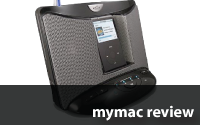
EOS Wireless iPod Speakers – Review

On July 6, 2009, in Uncategorized, by Tim Robertson


EOS Wireless iPod Speakers
Company: EOS Wireless

Price: $249.99 Base + $129.99 Additional Speakers
www.EOSwireless.com

I was looking forward to checking out the EOS Wireless iPod Speaker system. With all my music on my iPod, I wanted a complete solution for playing music in multiple rooms without having multiple iPod docking speakers. Does the EOS fit the bill? Read on!

First, the EOS cost $249.99, but that price is for the base station and one satellite speaker . The base station is an all-in-one iPod dock and speaker system that produces decent sound. I say decent when I compare it with the JBL SoundStage 400P that I recently reviewed with Mark Rudd on our weekly MyMac.com Podcast (#242 here http://www.mymac.com/showarticle.php?id=3674) The JBL SoundStage 400P sell at the same price-point, $249, but sound much better. In fact, if you don’t need a multi-room iPod speaker system, I would recommend the JBL speakers over the EOS 100% of the time. The difference in sound quality is apparent even to non-Audiophiles.

Still, many people have a need to wirelessly send their iPod music around the house, and while there are a few other solutions for doing so, none come within the price-range of the EOS.

The base station controls all the music, and you can buy additional wireless speakers for $129.99. They run on AC power only, and use a pretty innovative power plug that either connects directly to the speaker, or can be pulled out and used with the built-in power cord. While this system works well, it is unfortunate that the remote speakers don’t have an optional battery solution, so that you can take a speaker out into the yard for wireless music without dragging an extension cable along with you. I understand that combining wireless capabilities and playing music would be taxing on a battery, the fact that I don’t have that option is limiting.

The EOS can also work with the iPhone, although it is not officially supported.

You can connect up to four remote speakers to the EOS base station. Setup is a breeze, and in fact this was the easiest setup for any wireless product I have ever used, save for my iPhone. It really is simple, which is a big factor if you are thinking of giving these away as a gift to a non-tech person.

Another really great feature of the EOS is its AUX input. Yes, I know almost all iPod speaker systems have an AUX jack. But with the EOS, you can use the AUX input to route the audio from your Macintosh into the EOS, and then send that audio to any of the remote speakers. So rather than just an iPod speaker system, the EOS can work as a wireless speaker system for your Macintosh. Combine that with the Remote App on your iPod Touch or iPhone, and you have a pretty powerful wireless audio system in your home.

For me, the simplicity of the wireless setup and the innovative power cabling system is a winner. I also like the overall design of the unit as well. But the audio quality is simply lacking. EOS has taken the complicated and made it simple, but at the expense of great audio quality it seems. I would like to see them team-up with a company like JBL or BOSE to provide their networking technology with a company who does audio better. Low end bass is flat and cracks at higher volume, while the mid sounds decent but nothing spectacular.

Overall, I like the EOS Wireless iPod Speaker system, but until they up the audio quality, it won’t be a perfect solution for me.

MyMac.com rating: 3.5 out of 5

emailMyMac MagazineTwitterAdvertiseReviews ArchivePodcast

Run Windows on your Mac without rebooting!  Parallels Desktop 4.0 for Mac provides the complete suite of essentials to run Windows on Mac the easy, fast and powerful way.


Download the show here, and subscribe in iTunes here
Listener Invite 2! Dan Rodriguez joins Tim, David, and Guy for a lively one-hour chat about a ton of subjects, including how to record podcasts, Dan’s Beyond Diet Podcast, iPhones, Sony DVD Recorders and DRM, and much more.

From the show: Elgato Video Capture from Other World Computing

Review our show on iTunes Please!

Beyond Diet Podcast

emailMyMac MagazineTwitterAdvertiseReviews ArchivePodcast

Run Windows on your Mac without rebooting!  Parallels Desktop 4.0 for Mac provides the complete suite of essentials to run Windows on Mac the easy, fast and powerful way.


Looking for something?

Use the form below to search the site:

Still not finding what you're looking for? Drop a comment on a post or contact us so we can take care of it!