MyMac Podcast 242 – SoundStage Voyager

On May 29, 2009, in Uncategorized, by MyMac PodCast


Download the show here, or subscribe to us in iTunes!
We have a winner of the NewerTech Voyager! Congrats go out to Randy Cowling! Also, Sam Levin drops by for a long-overdue Cool Mac Picks, David, Guy, Mark, and Tim look at the Palm Pre and the Pystar story. Finally, Mark and Tim review the JBL SoundStage 400P.

Check out the Voyager from Newer Technology

Review our show on iTunes Please!

Links from the show:
Uniea Omniverse sleeves & pouches
Pure Digital Flip Ultra HD Camcorder
Western Digital WD TV HD Media Player
JBL SoundStage 400P
Palm Pre


emailMyMac MagazineTwitterAdvertiseReviews ArchivePodcast


Wacom Intuos 4 – Review

On May 28, 2009, in Uncategorized, by Donny Yankellow


Wacom Intuos 4
Company: Wacom

Price: $229-$789 (depending on the size)
http://www.wacom.com/intuos/

I’ve said this before, and I’ll say it again, when it comes to drawing tablets Wacom is what you want. I have had the opportunity to review the Bamboo Fun and the Intuos 3, and my students us the Graphire 4 tablets. Recently, Wacom released the Intuos 4 and along with the fantastic pen and drawing features you’d expect it comes with even more improvements.

First, let’s start with the design. The pen has a pen holder, as before, but now the pen holder holds all of the spare pen nibs. Nine different pens nibs are included. The tablet itself is now black, and supports left and right handed users. The USB cable is removable and you can flip the tablet and install the cable in one of two plugs.

As with other Wacom tablets, buttons are on the tablet. The Intuos 4 has 9 programable buttons and an iPod like scroll wheel. As I said, the icons are programable and the corresponding key lights up next to the button (see above, but my photo does not do it justice) on the tablet. By default, the first button gives a display on your screen of the buttons and how they are programmed. Even the display is cool looking.

Of course, all of this is just eye candy if the tablet is not good. However, this is a Wacom tablet and it performs beautifully. Whether you are using Corel Painter or Adobe Photoshop, the tablet will not disappoint.

Also included in the package is a TON of extras. You get your pick of software to download which includes Corel Paint SketchBook, Adobe Photoshop Elements, and more. You also get a premium account at CafePress for free for 5 years! If you haven’t tried CafePress, it is a great place to sell your art on products and make some extra money. Also included, as with any Wacom tablet, is the Wacom mouse. I have never found these mice to be useful, but they are a nice extra.

Overall, the new Intuos 4 is a fantastic tablet and a great step up from the Intuos 3. If you are in the market for a higher end tablet this is the one you want. If you want a less expensive tablet checkout Wacom’s Bamboo Fun. Either way you will not be disappointed.

MYMAC.COM RATING: 5 OUT OF 5

emailMyMac MagazineTwitterAdvertiseReviews ArchivePodcast


Direct Mail
Company: e3 Software

Price: Direct Mail Basic $59.99 – Direct Mail Pro $119.99
http://ethreesoftware.com/directmail/

Do you send out bulk emails? How about a newsletter or flyer to small or large groups of email addresses? Trying to manage this with Apple’s Mail program, or other mail programs, can be tough.

Today we’ll look at bulk mailing program Direct Mail which offers mailing list management and unique tracking capabilities for the Mac.

Continue reading »

Tagged with:  


Strategic Mobile Design – Creating Engaging Experiences
by Joseph Cartman and Richard Ting

http://www.peachpit.com
222 pages
ISBN: 978-0-321-58007-8
US $34.99, CAN $37.99, UK £22.99

The mobile devices industry is in turmoil–a statement that could be ripped from the headlines of any newspaper, magazine, or website. Not only is the economy in rough shape (something to which I can personally attest), but the traditional cellphone of yore is also undergoing radical changes.

It probably started with the first Palm Treo phones, which introduced the category of smart phone to the public, grew with the Windows Mobile and Blackberry platforms, and ultimately validated with the very successful Apple iPhone.

Many of you with mobile devices have likely suffered through the first and second generation WAP browsers with glacial speed (pre-3G) on phones with tiny screens, and almost wish you could plunge an ice-pick into your skull rather than have to suffer through another WAP browser session. I certainly felt that way, and I worked in the mobile devices industry! Engineers and marketing folks whom I worked with just couldn’t believe that I was being so negative about WAP. Guess I didn’t drink the Kook-Aid.

Enter 3G networks and smartphones. Larger screens, faster processors, and faster networks made it possible to greatly enhance the user experience, and therefore bring more profits to the carriers.

With bigger screens and improved bandwidth came new opportunities for website designers and information developers, and this is where this book comes in.

The authors refer to the shift in mediums from print to electronic (radio/TV), and the web, finally ending with mobile media–content designed expressly for the new mobile devices. They also delve into some of the challenges faced by designers for this new medium–screen sizes, while bigger, are not consistent, so adjustments need to be made to accommodate more than one size screen.

Creative strategy is a three-pronged approach to mobile media: concept, creative, and technology.

  • Concept relates to audience research and how mobile media might offer a solution to a perceived or real problem.
  • Creative relates to user interface design and how to translate this design to screen sizes varying from 176 x 128 pixels, up to 320 x 240 and even larger.
  • Technology relates to how these solutions are delivered to the user: SMS (Simple Message Service) or MMS (Multimedia Message Service), mobile web sites (web sites optimized for mobile devices), downloadable applications, rich technologies (such as Flash), and IVR (Interactive Voice Response).

The authors remind designers about global issues, and how some companies work with these issues. They also do a broad analysis of the Americas, Asia-Pacific, and EMEA (Europe, Middle East, Africa), discussing protocols used and unique issues, cultural and otherwise, within the regions, and help designers with appropriate strategies. For example, mobile users in Japan make extensive use of QR barcodes which users can "scan" with the cameras in their phones. Ultimately, pertinent information related to that barcode is provided to the user without having to type long URLs into their phones, which, if the user doesn’t have a QWERTY keyboard, can be a time-consuming and annoying process.

There are so many interesting mobile applications out there that are just now becoming available, such as:

  • Micropayment: Use a mobile device to pay for small purchases on the fly.
  • Interactive television.
  • Controlling digital billboards.
  • Google SMS
  • Amazon TextBuyIt
  • NY Times Real Estate

I never really understood the different modes of communication and how users can benefit from them.

  • Mobile to Mobile: Specialized mobile banner ads, cross-linking, SMS, live feeds.
  • Web to Mobile: Web to SMS (interact with websites via SMS), download and sync (downloaded apps with a live feed component), interactive voice response (IVR).
  • Out of Home (OOH) or Print to Mobile: SMS (get more information on goods and services via SMS) and subscribe to services, Bluetooth and WiFi, 2D Barcodes (QR and Scancode), Mobile Internet to Print, Broadcast to Mobile, Mobile Internet, Radio to Mobile, Podcasts and Audio Streaming, Multichannel.

Next, the authors discuss designing for the intended audience and their handsets and all the technical and design hurdles that need to be overcome.

Interaction design goes into the process of designing for the small screen, including an excellent section on the mobile interaction design process, and why mobile design projects really need process definitions to ensure program success.

Visual design is the fun part; determining what the user is going to see when they access your application or website. It delves into color selection and optimization, as no two mobile devices reproduce colors in the same way. Then there’s typography: can you read the content on the screen without eyestrain? Are you using standardized icons for commonly used symbols? Using page layout to define and standardize what the user sees and how they get from screen to screen. It also goes into the issues of integrating various types of media (video, audio, etc.), as well as file-type standards for efficient transmission over the mobile network.

Then the authors discuss some of the popular and cutting-edge tools used for developing mobile solutions.

The rest of the book details a number of interesting applications for mobile media technology in areas such as location-based shopping, the use of barcodes and RFID technologies, urban navigation with a touch of the social, use in academia, and use in art.

The authors cram a ton of thought-provoking information into this book’s 222 pages. It’s not so much a cookbook as a launching point for developers of applications and technologies being used (or planned for use) in mobile devices–to give them some ideas of what’s been done, and what can be done (the lack of Flash technologies in Apple iPhones notwithstanding). If you are in one of those categories, this is a must-have volume.

MyMac.com rating 4.5 out of 5.

emailMyMac MagazineTwitterAdvertiseReviews ArchivePodcast


LaCie DataShare
Company: LaCie

Price: $12.99 from Lacie.com
http://www.lacie.com

LaCie Flat Cable USB A to mini B
Company: LaCie

Price: $9.99 from LaCie.com
http://www.lacie.com

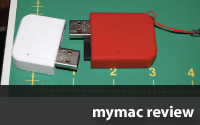
LaCie, the company known best for its hard drives, has also developed a reputation for stylishly designed accessories. The DataShare, for example, is little more than two card readers, the red side with an SD card slot, the white with a micro SD slot, but its designers clearly wanted something that was not only functional but attractive. When not in use, you plug the two units together and it makes a nice conversation piece.

It’s small enough to fit in a shirt pocket but you can also attach it to a key ring or drop it in your camera bag. If you choose, you can also use the red side for both the SD card and the micro SD because it comes with an adaptor. The adaptor looks like an ordinary SD card but look closely at its end and you’ll notice a tiny slot for a microSD. I say look closely because you’re not going to find anything on the package that explains the adaptor.

Slide the adaptor card into the red side and slide your microSD into the tiny slot at its end; then plug the unit into any USB 2.0 or USB 1.1 port. Like many similar products, you can use the DataShare and your SD card as a flash drive from which to upload and download files to and from your computer. The DataShare requires no software installation. Just insert your SD card and push the drive into any USB port. It also comes with a short USB extension. The device is compatible with Mac or Windows-based computers.

The card reader is fast, with a maximum transfer rate of up to 480Mbits/s. Supported formats include Secure Digital and micro Secure Digital (including SDHC).

A word of advice: If you pick one of these things up, ignore the dimensions listed under specifications on the back of the package. The drive is actually 2.7 X 1.3 X .51 inches. Oddly, the package containing the drive lists the dimensions of the box it ships in, rather than the dimensions of the drive itself.

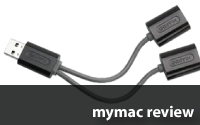
If you don’t need a card reader that will double as a flash drive, and all you want to do is upload photos from your camera to your computer, you can spend $9.99 for LaCie’s sleek blue flat USB A to mini B cable. Chances are your camera came with its own cable that enables you to transfer photos directly from the camera to the computer, but it if you lost it, or really want one that is flat and blue and attention-grabbing, this may be just what you’re looking for. It’s 3.9 feet long (1.2 cm).

The cable comes with 24 stick-on labels so if you have lots of gadgets in a hub you can tell at a glance which cable is connected to each device.

MyMac.com Rating (Both accessories): 5 out of 5

emailMyMac MagazineTwitterAdvertiseReviews ArchivePodcast


Corel Painter XI – Review

On May 27, 2009, in Uncategorized, by Donny Yankellow


Painter XI
Company: Corel

Price: $429.00 ($229.00 upgrade, $99.00 education)
Download pricing: $399 ($199 upgrade)
http://www.corel.com

Almost two years ago (actually almost exactly two years ago) I reviewed Corel Painter X. At the time I ended my review with the following statement: “Not all program upgrades are worth the money. Especially when your talking about programs that cost as much as Painter X. I’ve been known to skip versions of programs every now and then. However, Painter X is one of those upgrades that is well worth the investment.” That was then, and now Corel is back with Painter XI. Is it worth the price to upgrade this time around? Read on.

Let’s start with the two years between versions. Some people might think two years is too long to wait for a new program. I say it is better to wait two years and pack the software with a bunch of new features instead of rushing out a release every year. With software as costly as Painter, make it worth the money. Painter XI is PACKED with new features.

Let’s start with speed. Corel says Painter XI is 30% faster than Painter X. Painter X gave users a huge speed bump, and the speed bump of Painter XI is definitely noticeable. Painter XI takes advantage of computers with multiple cores giving even more of a boost. Of course, speed will vary depending on processor speed and memory.

Of course, Painter is about drawing and painting. Painter XI has forty new dry brushes, and a new marker brush which gives the feel of a Sharpie type of marker. For those that have a tablet that supports tilt (i.e.. Wacom Intuos III or the new IV which I will be reviewing shortly) Painter has full support for tilt and velocity recognition.

The velocity recognition is really cool. You know how your line can change based on the speed you draw? Well, now Painter will record those changes.

Many of the other new features focus on the user experience in Painter and being able to customize the interface. You can resize the color palette and color wheel for a more precise color picking feature. You can drag and drop tools and make your own customized tool palette. The one problem I had with the custom tool palette is that I could not rearrange the tools once they were dropped into the palette. So, if I put a tool on the wrong row by mistake it is stuck there.

One great new feature is the ability to email from within Painter. Instead of having to save an image and attach it to an email, Painter XI does that all for you. You choose the program, the file format, and the size of the file.

These are just some of the new great features of Painter XI. Visit here for more.

Two other “features” Corel has added to the new version of Painter is (1) that they are trying to make it more environmentally friendly. The box is much smaller (similar size to iLife boxes) and it is made of environmentally friendly materials. You can also forget the box, save a little money, and download Painter XI.

The second “feature” is for the education version. It is now the same packaging and content you would get with the full version. As a side note, the education price of $99 for Painter is an amazing price.

So, is Painter XI worth the upgrade? If you use Painter on a regular basis I say yes. It is worth the upgrade price. If you don’t have Painter and are looking for a natural painting program for the computer, and you have the money, nothing beats Painter and with Painter XI Corel has made it even better. To see if it is worth your money download the free demo from the Corel website.

MyMac.com rating 4.5 out of 5

emailMyMac MagazineTwitterAdvertiseReviews ArchivePodcast


Lacie USB Speakers – Review

On May 26, 2009, in Uncategorized, by Sam Negri


Lacie USB Speakers
Company: LaCie

Price: $29.99 from LaCie.com with free shipping
http://www.lacie.com

LaCie’s USB speakers are attractive to look at, small enough to fit into a small carrying case, and produce a clean clear sound that will not cause hearing impairments. If you want the kind of bass response that makes cars and apartment walls vibrate, these speakers are not for you. However, given their size, the sound is impressive and the separation is distinct and clear. In a world where competition did not exist, a $30 pair of speakers that sounds this good would seem like a gift.

But competition does exist. Several other companies, notably Altec Lansing and Logitech, make USB speakers comparable in price to the LaCie offering but with more features. Some come with a miniature subwoofer and volume controls handily accessible on the unit itself, neither of which is to be found in this LaCie USB system.

However, keep in mind the extra features may be seen as attributes to some users and as impediments to others. For example, I will use my LaCie speakers mainly in my camper. I don’t usually have access to electricity where I camp, so the fact they’re powered off the computer’s battery is a plus. I’ll plug them into a USB port on my iMac, crank up iTunes, and listen to some music or a podcast while I’m relaxing in the evening.

My camper is small and compact – not one of those motor homes the size of a Greyhound Bus. I have neither the space nor the need for a subwoofer. And the last thing I want are speakers big enough to scare off the elk bugling at the edge of the forest. When it’s time to move on, I’ll wrap the speaker cables into the storage space provided in the base of each unit, place the speakers in their tiny carrying case and tuck them away in a cupboard.

Obviously, my needs are modest, so the LaCie USB speakers are perfectly adequate. If I lived in an apartment and didn’t want to drive my neighbors nuts, I’d feel the same way. The only features I’d miss are volume, bass, and treble controls on the speakers themselves.
There’s no real setup with these speakers. There are no drivers to install. You plug one speaker into the other, then plug its USB cable into an empty USB port on your computer. If by chance you’re not getting any sound, click on the Apple at the top left of your screen and open System Preferences. Click on Sound and under the Output tab, select the USB speakers. That’s as complicated as it gets.

You can also connect your iPod to these speakers, but for that you’ll have to get an AC adaptor, sold separately. The lack of an AC adaptor made me cringe.

A cautionary note: If I were a gamer or someone who wanted the kind of sound you’d get from studio speakers, the LaCie speakers would strike me as annoyingly inadequate. There’s the dilemma for both manufacturers and consumers. The LaCie speakers are $29.99 and some consumers want them to sound like units that sell for $900 each. That’s not going to happen, though more powerful sound, equal or superior to the quality the LaCie speakers, is available in the same price range from several other manufacturers.

In short, think carefully about your needs and how you’ll use the speakers before deciding what to buy. The LaCie speakers are far superior to the raspy nightmares that some computers ship with; tones are full and clear throughout their range. But if you want a subwoofer and more boom for your buck, look to Logitech and Altec Lansing.

Specifications
2W audio; 1W per channel
Output Minimum : 2W audio; 1W per channel
Amplifier : Class D
Driver : High excursion neodymium driver (2 inches/5cm)
Signal Processing & Frequency : 16-bit / 48kHz
System Requirements : • Mac or PC with a USB port • Mac® OS X 10.3.5 or higher / Windows® 2000, Windows XP, Windows Vista
Frequency Response : 90Hz – 20kHz
Size : 5.31 x 3.94 x 3.54 in. / 135 x 100 x 90 mm

MyMac.com Rating: 3 out of 5

emailMyMac MagazineTwitterAdvertiseReviews ArchivePodcast


Download the show here, or via iTunes
Tim Robertson, Guy Serle, and Rich Lefko chat about WWDC, no Steve Jobs at the event, PC comfort level, Lego Batman, and we have a CONTEST! You can win a Voyager from Newer Technology! Listen to enter and win!

Check out the Voyager from Newer Technology

Review our show on iTunes Please!

emailMyMac MagazineTwitterAdvertiseReviews ArchivePodcast


LEGO Batman for Mac – Review

On May 21, 2009, in Uncategorized, by Tim Robertson


Lego Batman
Company: Feral

Price: $40
http://feralinteractive.com/game/legobatman

For this review, I cheated. I didn’t actually play LEGO Batman on the Mac all the way through. But before you form a mob to throw Apples at me in the nearest Apple Orchard, know that I have actually played this game to 100% completion. A contradiction? Not at all. My family has been playing Lego Batman for months on the Playstation 3. In fact, this is the first video game in years that my wife actually plays when I’m not even in the room. That in itself is a super-rare occasion. But that should also tell you something about both the quality of LEGO Batman and its fun factor.

So you see, I didn’t actually have to play the entire game on the Mac. I just needed to play enough of it to know it is of the same quality, stability, and as much fun as the console version. And, thankfully, it is.


What? BatGirl and the Riddler on a mission together? Nahh! It’s "free play" mode.

Feral has done a remarkable job of porting this game to the Macintosh platform. They did the same a year ago with LEGO Indiana Jones, another LEGO game I have played on both the Mac and the Xbox 360. And while some really like the Indy game, I found it a little boring for my taste. They also did the LEGO Star Wars game, which I have not played on the Mac, but really enjoy on the PS3.

I mention all the above to give you an idea of how well-done the LEGO Batman game is, and that the company behind it has a lot of experience in working on these games. Trust me, it shows.


The Penguin is thinking about attacking the pedestrian, while the Joker thinks of something funny to do.

LEGO Batman takes a light-hearted view of Gotham City. In it, you start off playing Batman and Robin, and your job sounds simple: take down the bad guys! But once you get far enough in the game, you are able to play as the bad guys, so you get to see the planning the bad guys went through to set up their diabolical schemes.

There is no dialog in the game at all. Characters communicate via gestures and facial expressions. This is done very well, and humor abounds in the antics of the various bad guys and Robin. (Batman, of course, is never funny. Hey, he IS the Dark Knight!) While the action can be fast and furious at times, everything is done in a fun, family setting. Sure, you beat-up bad guys, and bad guys beat up cops, but it is never over-the-top violence I know so many parents worry about when buying their children video games. My five-year-old daughter plays LEGO Batman, and loves it. Now, with LEGO Batman on the Mac, she can play it without monopolizing the television!

When I first started playing, I did have a crashing problem. However, thanks to the advice of the very helpful and attentive people at Feral, the problem was tracked to a bad install, which was easily remedied. Once that was out of the way, and having played the Mac version for four hours (with my daughter also logging in an additional two hours) I can say in all honesty that this game is fantastic on the Macintosh.


Free Play character choice screen!

Back to the game. Both the Hero and Villains get three different stories, or campaigns, and in each campaign there are six levels. That’s 36 levels altogether, and while that alone may not sound like very much, it is a ton. And here’s why.

After you play through a level in Story mode, you can go back on "Free Play" to unlock and explore many parts of each level you were not able to access in the Story mode. For instance, because neither Batman nor Robin can walk in the deadly green goo without dying, you missed out on entire parts of the level unless you go back and play the same level with a character that can go in the green goo. (Poison Ivy, for instance.)

The key to what make LEGO Batman a success, and why my wife is still hooked on the game even after playing it for months, is the collectables. On each level, there are ten hidden "Mini Kits" that you need to find. Also, even more hidden, are special "Red Bricks" that unlock special abilities that you can buy between levels. It is finding and unlocking items that has my wife so enamored with the game. She will spend an hour or more simply trying to figure out how to reach a Mini Kit or a Red Brick using various characters. And trust me, it’s not always easy or simple. To reach many of these items, you have to figure out how to solve a puzzle. It may sound daunting, and it is, but that is also the hook to the game which will keep you coming back time and again to revisit older levels.

A lot of the environment of LEGO Batman is breakable, which is a good thing. When you break stuff, such as a street light, plants, park benches, etc., those items drop coin-shaped lego pieces. These coins are the currency of the game, and you collect them so that you can purchase upgrades and items that you have unlocked during game play. For instance, one upgrade allows you to build items in the levels at two or three times normal speed. (A must-have, my wife tells me, and I agree.) You can also purchase different characters, different vehicles, and the like. Thus, the "collecting" aspect of the game.


Getting ready to play a mission.

There is so much more depth to LEGO Batman than I can convey in this review, I feel like I am cheating by not telling you all the great stuff in the game. But I don’t want to spoil too much, it’s up to you to discover it all.

For me, LEGO Batman is an almost perfect game. The controls are tight and accurate, the graphics are beautiful, the sound quality in pitch-perfect, and it’s a fun game to pick up and play for either fifteen minutes or two hours.

On a side note, I purchased a wired Xbox 360 USB controller a few years ago to use when playing video games on my Mac. (Or the PC via Bootcamp.) LEGO Batman is so well done, I didn’t have to do anything at all to use this controller. I just plugged it in and started playing LEGO Batman with it, no problems at all. It is a fantastic game controller, one of the all-time best, and I highly recommend it. While you can play LEGO Batman with the mouse and keyboard, as most of you will, it is actually much easier and more enjoyable to play it via a controller, probably due to the fact that it is a video game console game originally. It’s just more intuitive to play with a controller.

All in all, Feral deserves a hearty "Thank you!" for making (porting) such a great game for Macintosh users. It runs on almost any Intel Mac, including the Macbooks and Mac mini’s with the GMA graphics cards!


Is it scary that Batman has no pupils?

Requirements:
Processor: 1.8GHz
RAM: 512MB
Graphics: 128MB VRAM
Mac OS: 10.4.10
Hard Disk: 5GB
Drive: DVD
Input: Mouse

Recommended Requirements
Processor: 2.2GHz
RAM: 1GB
Graphics: 256MB VRAM
Mac OS: 10.5
Hard Disk: 5GB
Drive: DVD
Input: Game Pad

Intel Only (Sorry PowerPC Mac users. But hey, if you are a Mac gamer, time to upgrade to an Intel Mac anyway, right?)

MyMac.com Rating: 5 out of 5

emailMyMac MagazineTwitterAdvertiseReviews ArchivePodcast


Neat Receipts for Mac – Review

On May 19, 2009, in Uncategorized, by Owen Rubin


Neat Receipts for Mac
Company: Neat

Price: $229.95, on sale $199.95
http://www.neatco.com/products/neatreceipts-for-mac

I like to keep track of my expenses and bills using Quicken. I put EVERYTHING into Quicken. But one of the major drawbacks of doing that is getting all my receipts into Quicken easily, so they tend to pile up. Currently, I must hand copy each and every one of these little pieces of papers into Quicken, and then I am left with a large box of little slips of paper, which take up room and are not easy to manage over time. There has to be a better way.

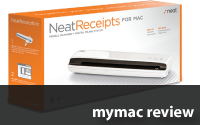
And now there just may be a better way of keeping track of your documents, business cards, and receipts. Save them on your computer. And this cool little product will make that job much easier. I was given a chance to review NeatReceipts for Mac by Neat, and I must say, this little gadget made the job of getting data into my computer and Quicken easier, and let me throw away all the little pieces of paper too.

The NeatReceipts for Mac is a small, slim USB-powered scanner (10.8”W x 1.6”D x 1.3”H) coupled with some clever software. The scanner can accept documents as wide as 8.5”, and just about any length, and scans at a maximum of 600 dpi. It can scan 3 to 4 small receipts per minute, or an 8.5 x 11 sheet in around 15 seconds in B&W, and 35 seconds in color. Neat recommends a G4 or better processor running 10.4.11 or later, 512K of RAM, and at least 1.25 GB of available space for program and user data. And, of course, a DVD or CD drive to allow installation of the software from the included CD.

After a simple install of the software, and a quick calibration of the scanner, you are ready to start scanning your receipts and documents. Scanning is quite simple actually, just insert the receipt or document face down into the scanner and press the scan button on the top of the scanner. The receipt or document will be scanned into the software, where it is analyzed, and placed into one of three categories: documents, receipt, or contact. If the automatic category is wrong, the user can easily change it.

After being analyzed and categorized, if the program determines the document was a receipt or a business card, an OCR pass will be made on the data to attempt to extract the content to fill in a number of items in a set of fields for each scan type. Each of these fields can then be changed or edited by hand if needed. Sadly, in my tests, they needed editing way too often, as OCR errors were commonplace.

When the program is first installed, your contact database is imported into the program. Scanned business cards will automatically fill in OCR data into the proper text fields, and then this scanned card can then be dragged directly to your contacts database from within the program. Sadly again, almost all business card scans required some editing before saving. The OCR was not very good here either, even on simple cards.

And, of course, you can scan any number of larger documents into your computer as well. And while the program says it performs an OCR on these large scans, I could find no way to access the OCR results on my machine. There is also a PDF button on the top of the scanner. Pressing this will pop-up a SAVE dialog on the computer, prompting for a place to save the file, and then scan the document into a PDF file saved at that location. The process here too says it is doing an OCR scan, but again, that data is not available as far as I could tell.

The program offers several view modes for reviewing scanned documents. The first shows an “Item View”, a three-part screen with a list of receipts, the OCR text data fields, and an image of the document. You can also choose to see an “Icon View” grid of thumbnails of document, and my favorite view, an “Image flow” display, showing the original scan and the text fields alongside in a cover-flow style display.

As for getting receipts into Quicken, my original goal, the process is simple, but not as straightforward as it could be. First, before scanning, you should create one or “collections” for scanned receipts. This will make keeping track of receipts easier, and allow you to separate receipts into functional groups, such as personal and business, for example, making separate exports to different Quicken files easier as well. As receipts are scanned, there are several text fields in the program for each receipt that you may need to fill in or edit by hand. The program will make a guess at these fields, and seems to learn with time, but may still need editing. One field, called “Category” must be filled in to match exactly the category used in Quicken (for example, “Business:meals”) for each receipt. The program will remember these categories as you add them, making scanning of future receipts much easier. Once scanned and edited, simply drag each scanned receipt into the proper collection.

After scanning all your receipts, you now need to export them to Quicken. When ready, you can export each collection all at once, or selected receipts only. If you pick a collection, the program remembers which receipts have been previously exported in that collection, and gives the user the option of exporting only new ones. When you select EXPORT, you will be presented with an Export Dialog. Choices for export are PDF, Quicken, or CSV files. The first and last are fairly obvious, but here, we need to select Quicken.

In this dialog, you must add one or more Quicken “accounts” to the export dialog to specify which account registers in Quicken the exported receipts will be imported to. Again, this name must match exactly the name in Quicken. These are also remembered for later use and can simply be selected next time. Press export, and the program will create a Quicken QIF file. This file can now be imported into Quicken using Quicken’s import function. Note that if the “account” field created in Neat does not exactly match any in Quicken, a new account register will be created in Quicken when you do the import.

While this all sounds confusing, it actually gets easier as you use the program more, and exporting receipts goes fairly quickly after a few sessions as more and more data is remembered by Neat.

So, how did this all work in reality? I had a stack of about 100 receipts waiting on my desk, ready to import to Quicken. So, I created a few collections, and starting scanning receipts 15 at a time. The scans went fast enough, but unfortunately, the OCR was not very good, and a lot of data needed to be corrected or added by hand. Once I set up the accounts and collections the first time, successive groups of 15 did indeed go faster than the previous group. The most annoying part was having to pause the scanning to switch to Quicken look up the exact category spelling I needed for the current receipt. However, over time, this too became less of a problem as more and more categories were added to the Neat program. However, I am not convinced this was actually any faster than if I had hand entered the data directly into Quicken by hand. But at least I now had scans of all my receipts, and no longer needed to keep the slips of paper.

All in all, this is a cool little device that will make handling various pieces of paper easier, and help remove the clutter. The more you use it the more it learns, and use becomes easier over time. Its small size means leaving it on your desk should not be a problem, so scanning receipts every day should be a fairly easy way to manage receipts, rather than collecting many for batch input. That said, there is room for improvement here. Sadly, the OCR needs improvement, and makes way too many errors, even on simple cards and receipts, meaning way too much hand editing. I would also like to see the program actually import categories from Quicken by reading my Quicken file, rather than having to add them one at a time as I need them, thus saving time and eliminating one large source of data error. Also, the program tends to crash quite a lot, and while I did not see any data loss, it is annoying. Lastly, it would be great if the buttons on the top of the scanner would launch the application when pressed. Currently, they do nothing if the program is not running, meaning I have to find the app and launch it each time. Lastly, this is a bit expensive for just a scanner in my opinion. Granted that it has some cool software, but for this same price you can buy an HP All-In-One printer that has a scanner, but also prints, copies, and faxes too and also comes with some cool software.

Pros: Small size, fairly fast scanning, no power brick needed, and direct export to Quicken.

Cons: Too expensive, poor OCR causing too much hand editing, crashes too often, and no Quicken category import.

MyMac.com rating: 3 out of 5.

emailMyMac MagazineTwitterAdvertiseReviews ArchivePodcast


U-Feel iPod Touch Case – Review

On May 19, 2009, in Uncategorized, by Owen Rubin


U-Feel iPod Touch Case
Company: Uniea

Price: $29.95
http://www.uniea.com/touch2g/u-feel.html

I love my iPod Touch. This is one of the greatest gadgets of all times. But for some reason, Apple insisted that the back of the device be made of a shiny chrome metal, which scratches easily. And when I say easily, just set it down on a table and it is scratched. And, the unit is somewhat fragile and could be easily broken if dropped from a low height or even just bumped. So, there is really only one choice, you must put it in a case.

Up to now, I have been a great fan of Speck cases, and in fact own two. A red, transparent hard plastic case, and a soft, purple one. Recently however, I found a new case I really like by Uneia, called the U-Feel.

The U-Feel is a hard Polycarbonate plastic case that comes in two colors, a dark grey and white. Like many iPod Touch cases, this one surrounds the entire back and sides of the case, protecting them from damage. But unlike many cases, this one also has a clear, one-piece “touch-through” cover to also protect the iPod’s touch surface. The only openings in this case are for the home button, the volume up/down controls, the power button, the headphone jack, and the bottom connector. Other than these openings, the case completely protects the unit.

In addition, this case also has a pop-out plug on the back that allows one to attach the included belt clip assembly. This comes in several pieces, and assembly is not exactly the easiest thing to put together. Getting the clip on the outside takes a lot of patience, but be patient, and you will get it to attach. Once attached, this clip can either be attached to your belt, or used as a stand. And the clip rotates 360 degrees, allowing it to stand on the long or short edge as well.

After putting it all together, I must say I had some concerns as to if the touch screen would continue to work as well as it should once put into the case. After all, placing a plastic shield over the touch screen might make it work less optimally, making the device fairly useless. I was pleased to see that this was not the case, and the touch screen worked just fine, although I did occasionally see a time where it missed a touch or two, but nothing significant.

I did have two problems with this case. First, the thickness of the case makes reaching the volume up and down buttons as well as the power button rather difficult. I had to use my thumbnail to actually reach both of them. While I do not use these controls often, this was still annoying. I also had issues with the docking port. Connecting a USB cable was fairly easy, but docking the unit was not so. They made the dock cutout rather large, but I can see where see where some docks might have problems.

Overall, this is a great case if you keep your iPod touch in a purse or pocket. The case will protect not only the back, but also the screen as well from scratches and bumps from things like coins, keys, and other sharp objects. And hanging on your belt there will be no worries about small bumps either.

Pros: Unique design, complete protection from nicks and scratches, and touch screen protection.

Cons: Button access issues, docking connector access, and difficult to assemble.

MyMac rating: 4 out of 5

emailMyMac MagazineTwitterAdvertiseReviews ArchivePodcast


Griffin SmartShare USB Hub – Review

On May 18, 2009, in Uncategorized, by Tom Schmidt


Griffin SmartShare USB Hub
Company: Griffin Technology

Price: $19.99
http://www.griffintechnology.com/

If you’re a typical Mac user, you’ve got more USB devices than USB ports. Usually that’s not a big deal. I mean it’s not like you’re going to leave your camera or iPod plugged in all the time. What do you do if you need to connect just one more thing? You get a Griffin SmartShare USB Hub.

There’s really not much that can be said about such a simple device. It either works or it doesn’t. At first glance the Griffin SmartShare USB Hub doesn’t look like a hub, but the System Profiler reveals an ultra-slim two port hub powered by a Genesys Logic hub chip. Being that it looks more like some kind of splitter cable, it gets all its power from your USB port rather than an AC adapter. The potential problem with an unpowered hub is that USB devices that need more power, like a hard disk or the MacBook Air’s SuperDrive, sometimes won’t work.

I’ve been using the the Griffin SmartShare USB Hub for 6 weeks. As long as the port I had it plugged in to provided full power (the front of a Mac Pro did not), all but one device I used worked. Hard disks, flash drives, iPods – you name it, it worked. The lone exception was the MacBook Air SuperDrive, which demands every bit of power provided and must be directly connected. Even a hard disk and a flash drive that sometimes brings built in USB ports to their knees worked flawlessly together.

The Griffin SmartShare USB Hub is a great device for Mac road warriors, especially if you have a MacBook Air and need to connect multiple USB devices. I have to give it 5 out of 5 because it just works.

Griffin SmartShare USB Hub – 5 out of 5
Pros - It just works. Very compact. Perfect for road warriors.
Cons – None. You knew it only had two ports. Can’t hold that against it.

emailMyMac MagazineTwitterAdvertiseReviews ArchivePodcast


Rick Sammon’s Digital Photography Secrets
by Rick Sammon

Wiley Publishing, Inc.
http://www.wiley.com/
ISBN: 978-0-470-42873-3
US $39.99, CDN $43.99
252 pages

This book is so poorly written I felt embarrassed for the author and his editor. While here and there it contains snippets of useful information, I suspect many adults will feel like they’re reading a script for an infomercial targeted at adolescents. Sammon undoubtedly understands cameras and photography. What he and his editors fail to understand is that some readers will grow weary of a book filled with so many plugs for one camera manufacturer (Canon) and gushing commercials for dozens of other name brand products from vests to tripods. I sure hope the profuse endorsements helped finance the cost of producing this glossy, well-illustrated book because it’s hard to believe it will compete well against a dozen similar books that readers can see for free at a public library.

The hype begins with the title. There are no "secrets" in this book that you won’t find in any other digital photography book by individuals like David Pogue, Bryan F. Peterson, or John Shaw, to name just a few. The major difference is that Pogue, Peterson, and Shaw write professional quality prose. Here are a few examples of Sammon’s writing style:

A page dealing with tripods begins this way: "Wowzie Zowie! Here you see a picture of two tripods and a picture of a tripod head." Presumably somebody worried that a reader might not be able to figure that out from the two photos that take up half the page.

On a section dealing with depth of field: "Hey, I know I could have added tips on creating depth in our photographs on the previous page, but it’s so important I wanted to give it its own topic. So let’s go!" Why, I wondered, didn’t someone tell Sammon that his motivational speaker-style preface added nothing to the reader’s understanding of the topic? Give us the information and let’s move on.

It’d be easy to provide a dozen more examples of anemic writing filled with hackneyed cliches and cartoonish exclamations, but I suspect most readers would overlook those elements if the book actually communicated practical information in a format that was clearer or more useful than it is in other digital photography books. I liked the format but not the content.

The format dedicates a single page to a single topic. Because each topic begins and ends on the same page, you would think precise information would hit you like bullets. Unfortunately, a lot of this valuable space is wasted by motivational gushes or information that will be plain useless to many readers.

For example, the author begins a discussion of an important topic labeled "F-stop info" by leaning on the shopworn advice he heard as a beginning photographer. The secret to good pictures is, "set your lens at f22 and have a good subject." You may have heard it, as I did, as "f22 and be there." Rather than follow that preface with some clear and concise information about exposure, Sammon tells us f22 is not always a good idea and then he steps out of the frame and provides us with an explanation from "my friend Rick Winston of Canon." And here’s what Rick has to say:

"What happens is this: The aperture blades have the potential to deflect and bend light as it passes by them and scatter it as it heads toward the digital image sensor. At fairly wide aperture settings, the vast majority of the light rays entering through the aperture are unaffected — only those on the outermost peripheries are impacted by the aperture blades. The wide opening means that nearly all the transmitted light continues on its way, sharply focused by the lens."

I immediately wondered how many ordinary photography buffs would find this a useful and interesting digital photography secret. This is Sammon’s book. Couldn’t he have said it better himself without falling back on an expert who will explain it in a style that will connect to few if any amateur photographers?

Quotes like the one above made me wonder what niche this book hoped to fill. Was it aimed at the beginning, the intermediate, or the advanced amateur? If the intended audience was the more sophisticated amateur photographer, would he or she need to told to avoid shooting in the harsh light of midday, that you get better photos at sunrise and sunset when the sun is low? That’s one of the secrets you’ll find in this book. Also, salt water is hard on cameras. Also, keep your equipment clean and dry. The truth is that there are as many "secrets" in this book as you will find in any other photography book, which is to say there are no secrets.

Learning to use your camera is a fundamental necessity. One of the best tips I found in an older digital photography book suggested that any time you buy a new camera, sit down and make up your own cheat sheet containing information about the features you may change most often. Start with a few, changing ISO, using exposure compensation, changing the metering method, how to use the self-timer. Most user manuals are close to useless. Write your own simple instructions, press this button to do this, that button to do that. Add to the cheat sheet as you become more familiar with the initial instructions.

Instant gratification is addictive, and most of us have heard that digital photography is a joy because we get to see our pictures as soon we’ve pressed that shutter button. But this is instantly gratifying only if you’re happy looking at a lot of bad pictures. Learning to take good pictures, to become sensitive to the interplay of light and shadow, cannot be learned overnight. Like any other skill, you learn the basics and then proceed to improve through trial and error. Eventually, the way your photos look and feel becomes an extension of who you are. True gratification comes from seeing the results of your journey through the learning process.

Part of that process requires that you sort through "How To" books. There are thousands on the market and very few worth a $40 price tag. Be very critical of these books. Make sure the author defines the terms he uses (rarely done in Sammon’s book) and that information is clearly presented. If the information is unclear, never believe it is only unclear to you. If the information and instructions are unclear, it’s the writer’s fault, not yours.

Equally important, look at one of these instructional books and ask yourself whether it’s about the person who wrote it or about the subject you’re trying to learn. The danger in writing an instructional guide book in the first person is clearly illustrated in Rick Sammon’s Digital Photography Secrets. If the book seems to be overflowing with self-congratulatory fluff and commercial zeal, as this one is, you may find the writer’s personality an unnecessarily intrusive layer separating you from the information you’re seeking.

MyMac rating: 1.5 out of 5

emailMyMac MagazineTwitterAdvertiseReviews ArchivePodcast


MyMac Podcast 240 – Why Mac

On May 15, 2009, in Uncategorized, by MyMac PodCast


Download the podcast here, or subscribe via iTunes
Rick Lefko joins the weekly podcast to chat with Tim and Guy to discuss the current state of the Macintosh, the Zune subscription model, Guy’s broken iMac, the Apple Store, Sony closing stores, Keynote, and Drive Genius 2.

Check out the Voyager from Newer Technology

Review our show on iTunes Please!

emailMyMac MagazineTwitterAdvertiseReviews ArchivePodcast


Canon 50D: From Snapshots to Great Shots
By Jeff Revell

http://peachpit.com
275 pages
ISBN: 978-0-321-61311-0
US $24.99 CAN $29.99 UK £14.99

The Canon 50D is the latest in the line of Canon’s prosumer cameras. It was released less than a year after the 40D, and sports some really great features for photo hobbyists and professionals. I’ve been using the camera for about four months now and have been very pleased with not only the quality of the photos, but more importantly the redesigned navigation features which help make shooting with the camera a lot easier.

As with any camera, the Canon 50D comes with a pocket size manual that explains all the functions of the camera. But for those new to digital photography and/or those who just purchased the 50D, the pocket size manual may not be enough to get great photos from the camera.

I always point out in digital photography workshops I conduct that it’s no point of paying a higher price for a 35mm DSLR camera only to use it like a point-and-shoot. Likewise shooting with a more expensive camera does not mean you’re going to get better quality photos. You have to know how to use the advance controls of a DSLR if you want to benefit from its advance features.

In this regard, photographer and author Jeff Revell takes a slightly different approach in his book, Canon 50D: From Snapshots to Great Shots. Instead of simply rewriting and expanding on what the camera’s manual says, Revell’s book focuses on how to take great photos by using selected camera features and functions of the Canon 50D. In other words, he doesn’t break down every feature of the camera, but instead focuses on how to get beyond the amateur automatic functions of the camera, using the more of the advance manual settings where you have more control as a photographer. 

Revell used his own photography and experience to write the book. All of the photos have a professional quality to them, ranging from largely landscape, to sports and portrait shots. This Peachpit book is well designed, and the writing is very concise and easy to understand. It’s much better to read than the manual that comes to with the camera. He does break down the amateur features of the camera, such as formatting a memory card, charging your battery, and using the automatic exposure settings of the camera. 

But he goes on to explain and break down more advance topics of digital photography using the Canon 50D, such as shooting RAW vs. JPEG, understanding the triangular relationship between aperture, shutter speed, and ISO settings to bring about an effective exposure, setting the correct White Balance, using program, shutter and aperture priority modes, metering for portraits, and taming bright skies with exposure compensation. Overall, Revell’s book is a nice introduction to both the digital photography and the Canon 50D.

However, depending how far you want to go with digital photography, his book may not be enough. Though I agree with Revell that camera owners can and should read the manual that comes with the camera, in my experience I find that many camera owners are very reluctant to read a dry technical manual. Thus, I think Revell’s book could have been a third or a half longer than it is. It would have been useful to explain and explore some of the many custom functions of the Canon 50D that might help those starting out in professional photography. When I first purchased the 50D, I blogged about five functions that are useful to 50D shooters. Revell, at the end of the book explains some of these features, but I personally would have perhaps highlighted and explored these features maybe at the beginning of the book, pointing out what makes the 50D different from its predecessors. 

Some of the book could be better illustrated. For example, the Highlight Alert, or as it’s called, the "blinkies" feature of the 50D can be very useful in helping 50D users recognize when parts of a shot are potentially overexposed and thus lacking detail that may not be recovered in post-processing. This is a common problem for shooters, and I think it would have been helpful to illustrate it more and show readers how they can address the problem. Likewise, though Revell points how briefly how to use other lenses in the camera, I think it would have been helpful to devote a chapter to the subject. Many novice shooters purchase a DSLR camera but don’t understand what difference it makes to invest in good "glass"-lenses that are better than the kit lens that comes with the camera. For example, the Canon 50mm f/1/4 is a very affordable and useful portrait lens that belongs in the camera bag of every serious Canon shooter. The same goes for a 70-200mm Canon lens that is great for say wedding and sports photography. 

But take my critique of the book as strictly supportive feedback. I think Revell’s book is a great resource for beginning and intermediate digital photographers. This book can be read in a weekend and then used as a resource for learning digital photography skills. Revell provides exercises and tips at the end of each chapter so that readers can put in practice what they learn from the book. While these exercises could also use some illustrative examples, just including them makes From Snapshots to Great Shots a great resource over other manuals/books of its kind.

MyMac.com Rating: 4 out of 5

emailMyMac MagazineTwitterAdvertiseReviews ArchivePodcast


Griffin Technology Roundup – Review

On May 13, 2009, in Uncategorized, by Mark Rudd

Griffin Technology Roundup
Company: Griffin Technology

http://www.griffintechnology.com

Elevator
Company: Griffin Technology

Price: $39.99
http://www.griffintechnology.com/products/elevator

The Elevator is a desktop stand for your portable computer. Just as its name implies, it elevates your laptop screen 5.5". Simply elevating the laptop in this manner will provide a better viewing angle, a more ergonomic working environment, better cooling, and free up valuable desktop space.

DESIGN
Simplistic and even a little minimalist (Steve would be so proud) in its design, the Elevator is both beautiful and elegant.

USABILITY
The Elevator delivered the goods. I noticed that the my MacBook Air was running much cooler than before. Enough to keep the fan, which had previously ran a great deal under load, relatively quiet.

My desktop was immediately transformed into a well organized and spacious work environment.

MyMac.com Rating:
The Elevator is a well designed and beautiful product that met and surpassed my expectations. Therefore, I am awarding this wonderful product a 5 out of 5.

***********

SmartTalk
Company: Griffin Technology

Price: $19.99
http://www.griffintechnology.com/products/smarttalk

SmartTalk brings together a high-sensitivity microphone, control button, and a 30" nylon braided cable in a "smart" looking package. This product was designed to allow the user to attach non-Apple headphones to the iPhone/iPod family of products.

The SmartTalk includes a high-sensitivity mic, and control button to allow iPhone users to answer calls and control the iPod functionality of the iPhone. The SmartTalk also allows you to connect your iPhone or iPod Touch to your auxiliary connector equipped car audio system.

USABILITY
The SmartTalk works well and as advertised. There are other products on the market that are similar to the SmartTalk. One thing that separates the SmartTalk from the pack is the quality cable. the nylon braided cable is pliable and easily maneuverable. This is a helpful feature when trying to fit the SmartTalk into a tight place within your car.  

MyMac.com Rating:
The SmartTalk is the best iPhone headphone adapter I have used. It incorporates all the features you need in a great package. I am awarding the SmartTalk a 5 out of 5 on our MyMac.com Rating: System <http://www.mymac.com/showarticle.php?id=1188>.

***********

Noise-reducing Audio Cable
Company: Griffin Technology

Price: $19.99
http://www.griffintechnology.com/products/noise-reducing-audio-cable

The Noise-reducing Audio Cable, let’s just call it the NRAC, includes an in-line dual-element noise filter for eliminating the electrical interference that can occur when you connect your iPhone/iPod to your car audio system.

USABILITY
After installing the NRAC, I noticed the noise that existed when the audio system is on but the iPhone/iPod is paused, was eliminated.

I was very impressed with the build quality of the NRAC. From the fit and finish to the quality of the materials used, the NRAC is another high quality product from Griffin.

MyMac.com Rating:
The Noise-reducing Audio Cable by Griffin is a high quality product that solves a universal problem when using your iPhone/iPod with your car audio system. For its quality and performance, I am awarding the Noise-reducing Audio Cable by Griffin a 5 out of 5 on our MyMac.com Rating: System.

***********

Charge Converter
Company: Griffin Technology

Price: $29.99
http://www.griffintechnology.com/products/firewire-to-usb-converter

If you are an iPhone 3G or 2G iPod Touch owner, you have no doubt realized that none of your older FireWire based charging systems work with your new "Precious."

Griffin has solved this problem with a product that is extremely simple and effective. The Charge Converter reroutes the FireWire circuitry of your older charging systems so that everything converts properly with the newer iPhone 3G/iPod Touch USB circuitry.

At $29.99, the Charge Converter feels a little expensive. I would love to see this product at the $19.99 price point.

USABILITY
I plugged the male end of the Charge Converter into my iPhone 3g and then my old FireWire car charger into the female end of the Charge Converter, and done.

The iPhone immediately sprung to life revealing that the phone was indeed charging. Very easy, simple, and useful. As many more people prepare to upgrade their first generation iPhones, this will prove to be a very useful technology.

MyMac.com Rating:
As with the other products reviewed in this roundup, the Griffin Charge Converter is simple and very effective. The more complicated the product, the more that can go wrong. While it is simple and effective, I feel the price point does detract somewhat from the product overall. Therefore, I am giving the Charge Converter by Griffin a 4.5 out of 5 on our MyMac.com Rating: System..

***********

emailMyMac MagazineTwitterAdvertiseReviews ArchivePodcast


Targus for Mac File Share Cable
Company: Targus

Price: $38.68 from Amazon.com
http://www.targus.com
(Web site link is a little confusing; hover your mouse and then click on File Share Cable image at the bottom of the page.)

This hardware/software no-install utility is amazing. Connect a File Share Cable via USB to two different computers, Mac or Windows, and then use the built-in EasySuite/EasyMacCopy interface to transfer or share data between the computers via drag and drop. Why wasn’t this invented twenty years ago? I can’t live or work without it, and there are weeks when I would pay ten times its modest price, it is so crucial to my professional training, tutoring, and troubleshooting.

Improbable as it sounds, Targus’ built-in software knows which operating system is on which computer, and opens up a Finder-like interface on both displays, without any installation necessary. The entire process is surprisingly quick and efficient. The procedure is a bit quirky or non-intuitive the first time, but subsequent times you are prepared mentally for what happens onscreen. Important: use your Energy Saver System Preference to turn off system sleep during the transfer process. Learn about this and more in the helpful included printed User Guide.

CASE HISTORY. The internal power unit died on a client’s old Dell laptop. I easily removed the Dell’s internal hard drive, and connected it to my Mac laptop using a <http://www.wiebetech.com/products/notebookdrivedock.php> WiebeTech FireWire Notebook Drive Dock. The Mac was attached via USB and the Targus for Mac File Share Cable to her brand new computer. Once the external laptop drive was mounted, I navigated to the folders that were to be transferred to the client’s new Toshiba laptop. Within minutes, I was populating the appropriate folders on her new PC laptop. USB transfer speed was faster than I expected.

How does an airplane fly? How does flour become bread? Why do rainbows exist? How can a simple USB cable + center blob activate software for such efficient cross-platform data transfers? It’s magic, and at an astonishing price. Strong recommendation. MyMac rating: 4.5 out of 5.

* * * * * * * *

Store ‘n’ Go Micro USB Drives
Company: Verbatim

Price: $22.39 online from Amazon.com for 4GB version (2GB and 8GB versions are also available)
http://www.verbatim.com

Verbatim claims this teensy weensy USB flash storage device is "resistant to everyday handling, dust, moisture, and static discharges." Carrying it in my pants pocket for two months has not diminished its performance. Long term? Check back with me in a year or two. I hope I don’t misplace the little critter before then. It is extremely small.

I like the bright green color of the 4GB model. Different size units have different colors, which we applaud. The included "cell phone lanyard for easy attachment to to cell phone or your key ring" is indispensable. Without that little loop, it would be impossible to keep track of a Store ‘n’ Go Micro.

Measuring 1.2 x 0.5 x .08 inches, or "half the size of a SD card," this flash drive is barely larger than the USB port into which it is inserted. Electronically efficient, it mounts instantly on a Mac, and eventually on a PC (the latter is standard). Data transfer is as close to immediate as we’ve ever experienced, as is volume ejection.

At cost per gigabyte, Verbatim’s three current Store ‘n’ Go Micro USB Drives are priced higher than most competitors, but are well worth the modest premium when size (or lack thereof) is a major consideration. Don’t lose it! No matter how you justify its purchase, you will be glad to have one or more of these ultra-small flash drives in your pocket, purse, or gadget bag.

There is nothing to criticize about this innovative storage product. We award it our highest score, with a hearty recommendation.

MyMac rating: 5 out of 5.

* * * * * * * *

iamaKey USB Flash Drive
Company: LaCie

Price: $23.42 for 4GB version, or $29.99 for 8GB version, from Amazon.com
http://www.lacie.com

Even more strange than Verbatim’s Store ‘n’ Go is LaCie’s iamaKey portable storage device. Looking very much like an ordinary house key blank with a most unusual tip, this flash drive is more difficult to lose than any competitor. The physical key is is shiny, sturdy, lightweight, and complete with a hefty slip-on ring, that I’m using to attach the aforementioned Verbatim competitor.

A transparent plastic tip-slip protects the key’s business end with its USB contacts. This tip cover should be colored bright pink or some similar bold color, because it’s easier to lose sight of than a black cat on a moonless night. The attached accessory identity blank is unneeded, and gets in the way. Even though iamaKey is "water- and scratch-resistant," potential damage to the gold contacts is way too easy when the blank is attached.

During typical plug and play usage, iamaKey performs flawlessly, as expected from this premier company. I’m using iamaKey several times a day to store and transfer data, without any problems during the two month evaluation period.

This product is a class act that is a class by itself. Best value is the 8GB model. Both sizes are recommended, with a MyMac rating of 4 out of 5.

* * * * * * * *

iPod Touch Armor Series Cases
Company: Otter Box

Price: $40 for 1st Gen, and $50 for 2nd Gen
http://www.otterbox.com/ipod-cases/ipod-touch-armor-case/
http://www.otterbox.com/ipod-cases/ipod-touch-2nd-gen-armor-case/

Regardless of which model of iPod Touch you own, for under $50 you can encase it with rugged protection from the world’s leading personal tech durable outerwear company. If you don’t know which generation iTouch you have, look at the upper left corner of the silver back plate. If the dark gray upper left inset has a right angle bottom corner, its a 1st Gen iTouch. A rounded shape indicates a 2nd Gen. The cases are not interchangeable, nor are they identical. Case design was modified from 1st Gen to 2nd Gen.

1st Gen on the left, 2nd Gen on the right

My 1st Gen iPod Touch is happy as a clam, being stored or played from within its Otter Box Armor Series Case. When I want to listen to music, I open the top-end snap clasp, press the iTouch’s power button to switch it on, then close it up in the case again. A clever transparent touch-sensitive membrane allows me to "slide to unlock" and then fully operate the iPod, with full protection from the elements.

Note: Otter Box told MyMac that I should be able to power the iPod on/off "through the grey button on the front of the case. That’s your on-off switch." On my case, this grey button did not get the iTouch to respond. When I was informed "You may have to press a little bit harder to get a response — it’s a pass through button, so if it works outside the case it should work just fine inside it," I determined that on my 1st Gen iPod Touch, I need to press the top edge power button to bring my iTouch to life. Later models should not have this problem.

The case is large, bulky, and heavy, adding substantial size and weight to your slim, lightweight portable player. The Armor Series Case is very sturdy and secure, and well worth its cost, when protection is paramount. A stereo mini plug inserts into the iPod’s audio headphone jack, transferring audio output to the bottom center of the external case. Aside from that, it’s business as usual in iTouchLand.

Where and how to carry your Armor Series Case? Its built-in belt clip is a little awkward at first, but it is very secure affixed to a belt. I’m wearing it now. After a few minutes, you’ll eventually get used to it. For hiking, commuting, gardening, walking in the rain or snow, and all other outdoor or potentially hazardous situations, this Otter Box case is as good as it gets.

Look at photos and tech specs on the company web site before you decide to purchase this recommended case for all iPod Touch models. MyMac rating: 4 out of 5.

* * * * * * * *

Ci10 Fit Wireless Notebook Laser Mouse
Company: Kensington

Price: $30
http://us.kensington.com/

Oh, no! Not another mouse review. Please, Nemo, do us a favor and make it brief.

Short and sweet: it’s a good mouse, but not a great mouse. Best features are speedy and accurate mouse tracking, responsive scroll wheel, pleasant fit in either hand, tuck-in bottom USB transceiver, low price, written manual in 3,691 languages (just kidding, but there are a lot) and versatile third party software. Possible annoyances are lack of any visible light from the laser, stubborn on/off laser cover switch, and non-standard operation with and without special software installation.

If you don’t mind the latter and want to take advantage of the former, you’ll enjoy this low-price, mid-size USB laser mouse. MyMac rating: 3.5 out of 5.

* * * * * * * *

kickBACK IP3GC iPhone and iPod Touch Case
Company: Scosche

Price: $30
http://scosche.com

Really short review: get this case for its landscape mode kickstand back panel for wide screen viewing. Every other feature on this clear, high impact, polycarbonate case is more similar than different to its competitors. With the kickstand, Scosche turns an iPhone or iTouch into a little widescreen portable movie or television viewer.

MyMac rating: 4 out of 5.

emailMyMac MagazineTwitterAdvertiseReviews ArchivePodcast


Klipsch Custom 3 Headphones – Review

On May 11, 2009, in Uncategorized, by Mark Rudd


Custom 3 Headphones
Company: Klipsch

Price: $299.99
http://www.klipsch.com

FEATURES
The audio engineers at Klipsch have included many state of the art technologies within the Custom 3s. With such features as oval ear tips and flexible over the ear wires for a greater level of comfort, tweeters and woofers engineered in combination with an electroacoustic crossover system, the Custom 3s are feature rich and ready to meet the demands of the audiophile searching for a mobile or in-studio headphone solution. For more information on the features of the Custom 3s, jump to the product page

DESIGN
Klipsch has done a nice job with the design of the Custom 3s.

Many comfort and convenience elements (five sets of oval ear tips with a cleaning tool, flexible over the ear wires, 50" anti-tangle cable, 1/4" and airplane adaptors, and a quality carrying case) have been expertly combined with the required high performance audio components (KG723 tweeters, KG731 woofers, an electroacoustic crossover system) to produce a professional level headphone system for the discerning audiophile. 

Indeed, all of this audio goodness comes at a price. However, when speaking about high end audio equipment, those who are finicky about their audio, are generally willing to pay a little more for quality. When compared with some of the other high end headphones on the market, the Custom 3s stack up nicely and, feature for feature, are a good value.

USABILITY
I found the Custom 3s to be very comfortable to use. The oval shaped ear tips fit nicely into the ear canal and produced a good seal every time. Unlike many of the round ear tips I have used, the oval tips allowed me to enjoy my audio content for hours at a time. 

PERFORMANCE
Of course all the comfort and added features mean nothing if the headphones do not produce the pure and discernible sound of each instrument as you listen to your favorite aria or symphony. To an audiophile, the headphones are a critical piece of the audio system that must be carefully selected to insure the highest quality and standards. Does a surgeon use a subpar scalpel, or a professional golfer, a subpar set of golf clubs? Of course not! Nor will an audiophile use a subpar set of headphones.

I set out to test the audio performance of the Custom 3s by listening to a wide range of audio content at different audio resolutions (the bit rate at which the content was recorded or imported). I have a reference playlist which allows me to put any piece of audio equipment through its paces. I listen to all of the content first at a bit rate of 128 kbps (Kilobits Per Second) and then 256 kbps.

At 128 kbps, the Custom 3s are neutral. Of course, much of the detail contained within Classical music, for instance, is not perceivable at 128 kbps because of compression. However, when the same content is played at 256 kbps, the Custom 3s come alive. The fidelity and overall tonal quality really improves.

At this higher bit rate, the promise of the Custom 3s are immediately realized. The lows are rich and the highs vibrant. The middles beautifully span the peaks and valleys. I found myself listening to a great deal more of my classical collection. With the Custom 3s, one may hear the delicate whisper of the flute, or the subtle resonance of the cello. 

As with any reference audio equipment, the Custom 3s were not designed with a bias towards the heavy bass, but rather, toward being neutral in order to give balance to the content. If you are looking for headphones to thump your brain, these are not for you. If you want a high quality set of neutrally tuned headphones, the Custom 3 Headphones from Klipsch would be a great choice.

MyMac.com RATING
I am very impressed with the Custom 3 Headphones. They combine many comfort and convenience features as well as everything needed for the high performance associated with the Klipsch brand. When compared with other products in this space, the Custom 3s provide a nice value as well. Therefore, I am awarding this outstanding product a 5 out of 5 on our MyMac Rating System.

emailMyMac MagazineTwitterAdvertiseReviews ArchivePodcast


MyMac Podcast 239 – Parenting

On May 8, 2009, in Uncategorized, by MyMac PodCast


Download the show here, and subscribe via iTunes
Parenting in the age of the internet, iPhones, iPods, and Macintosh is discussed on this special one-topic podcast. Tim Robertson, David Cohen, Mark Rudd, and Guy Serle.

Buy a Hard Drive from OWC!

Review our show on iTunes Please!

emailMyMac MagazineTwitterAdvertiseReviews ArchivePodcast


26-inch Multisync EA261WM
Company: NEC

Price: List: $747 – Street $585
http://www.nec-display.com

It’s tough buying a monitor.

The web is full of static pictures of monitors, and worse, when you go to brick and mortar stores to find the one you saw on the web, it often isn’t there. If you read the feedback on sites like Amazon, you’ll find that some people love a particular model while others think the same model is the worst viewing experience they ever had. Unfortunately, I don’t have an easy answer to this conundrum. I read those reviews posted on various sites and I try to get a feel for the monitors that have generally good feedback. Then I find a site that allows you to pick monitors and compare them side by side. In this way, I can get a cleaner picture of the various specifications. Using this methodology, I homed in on NEC’s 26” Multisync EA261WM. Yeah, not the most clever name, but all manufactures use numbers to name their monitors. This is a matte screen monitor.

Continue reading »

Tagged with:  

Looking for something?

Use the form below to search the site:

Still not finding what you're looking for? Drop a comment on a post or contact us so we can take care of it!