IDG World Expo Announces New Dates for Macworld 2010
Macworld Expo embarks on a new era; 2010 event scheduled February 9-13
Framingham, MA, March 30, 2009 – Macworld Expo® 2010 is scheduled to take place February 9 – 13, 2010, at the Moscone Center in San Francisco, IDG World Expo announced today. Responding to feedback from the Mac community of exhibitors, attendees, media and fans of the show, IDG World Expo is ushering in a new era for the event by shifting the show dates away from their historical early January timing. The new dates will give exhibitors and attendees more breathing room between the busy holiday season and the world’s largest event focused specifically on Apple products.
“Macworld is the largest global Mac-centric event of the year, and we are focused on making 2010 the most productive, efficient and content-rich event possible for our community of exhibitors, attendees and media,” said Mary Dolaher, chief executive officer of IDG World Expo, the owner of Macworld. “For 25 years, Macworld has been the pre-eminent event focused solely on the Apple products ecosystem, and with the recent evolution of the show we have been able to fully engage the Macworld community for input on the 2010 event. As we began the planning process, attendees and exhibitors made it clear that February in San Francisco was the time and location that worked best, so we listened. We firmly believe that these new dates will better meet the needs of everyone participating in Macworld, and are pleased to have been able this respond to this request from the community. The journey toward a new era for Macworld has begun and we are more excited about this ride than ever before.”
In addition to moving the event to February, Macworld 2010 will further break from tradition by shifting the expo portion of the event to include a Saturday. The Expo now is scheduled to take place Thursday, February 11, through Saturday, February 13. This shift will provide all attendees, including full-time professionals, with more flexible times and convenient weekend access to the show floor. The Macworld conference sessions will take place Tuesday, February 9, through Saturday, February 13.
“We are definitely going to Macworld 2010,” exclaimed Andrew Taylor, founder and CEO of MacSpeech, Inc. “Macworld is a time when customers can ask us questions and request features. Macworld is a time for us to make more people aware of what’s going on with MacSpeech Dictate. At the same time, we can interact with other developers in the Macintosh community. Macworld is an extremely efficient use of time for us. It’s a great time for the community to come together, see what everybody else is doing and use that information to help everybody improve.”
Macworld 2010 will bring together retailers, Mac enthusiasts, media, exhibitors, and, unlike other events, consumers for a week of education, professional development, face-to-face networking and product viewing. Exhibitors and attendees will gather to see, share, learn and experience the best and most innovative technologies, tools and toys for the Apple products ecosystem. Macworld is the only event where exhibitors and developers have the opportunity to speak directly to an audience that is interested specifically in their product category and in an environment where they can grab maximum mindshare in an uncluttered marketplace.
“Moving Macworld Expo from the awkward post-New Year dates makes tons of sense,” said Adam Engst, publisher, TIDBits. “Travel and lodging costs will likely be lower for developers and attendees alike, and developers won’t have to push as hard during the holiday season to finalize code and prepare booths.”
About Macworld
Owned and produced by Framingham Mass.-based IDG World Expo, Macworld showcases products and services for professionals involved in media and creative content development for corporate and home applications, as well as prosumers using the Mac at home. Macworld brings together audiences in creative services, education, application development, entertainment, small office/home office and Internet-based environments. Macworld offers professionals and prosumers alike the opportunity to discover the latest developments and hottest products these markets offer. For more information or to register for the event, please visit the website at http://www.macworldexpo.com, or call (800) 645-EXPO. For exhibiting opportunities, please contact Annie Rice McKnight at (508) 424-4839 amcknight@idgworldexpo.com, or Ron Moreau at (508) 424-4804 or rmoreau@idgworldexpo.com. For sponsorship opportunities contact Ellen Moorehead at (508) 988-7830, or emoorehead@idgworldexpo.com.
About IDG World Expo
IDG World Expo (www.idgworldexpo.com) is a leading producer of tradeshows and events for professionals and consumers seeking world-class education, strategic business relationships, and access to industry-leading products and services. IDG World Expo’s portfolio of conferences and events includes Macworld®, Electronic Entertainment Expo® (E3 Expo®), Next Generation Data Center™ (NGDC™), OpenSource World™, CloudWorld™ and REVEAL Los Angeles…The Fashion & Design Event™. IDG World Expo is a business unit of IDG, the world’s leading technology media, research and event company.
email – MyMac Magazine – Twitter – Advertise – Reviews Archive – Podcast

Download the show here, or via iTunes!
This week, Rick Kalman from Filemaker drops in to talk about all things FileMaker Pro 10. Then David Cohen and Tim Robertson are joined by John Nemo for a review of the Verbatim Speaker Keyboard. The final segment features Guy Serle and Owen Rubin talking about migrating to a new Macintosh.
Check out the new NewerTech Voyage at OWC!
Links:
FileMaker Pro
Verbatim
Take a moment and review our show in iTunes here!
email – MyMac Magazine – Twitter – Advertise – Reviews Archive – Podcast
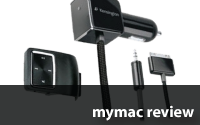
Liquid AUX and LiquidAUX Deluxe
Company: Kensington
Price: LiquidAUX Deluxe – $79.95 MSRP. LiquidAUX – $59.95 MSRP.
http://www.kensington.com/ (select Country, and the look under "Play" and then "Auxiliary Car Kits")
There are many devices for iPods that transmit your music from the iPod to your car stereo over a hopefully empty FM channel . There are several problems with this. First, you need to find an FM station that is empty, and in larger cities, this can be difficult. Second, I have tried several, and some do not work well at all or cannot be heard on any FM channel. Lastly, this is a radio channel, so it will be subject to interference and noise, and the music is limited to the bandwidth of the rather cheap FM transmitter, so sound quality typically suffers.
Sure, you can put on headphones, but that is actually illegal in many states as it blocks out surrounding noise which you might want to hear (like a siren for example), and is frankly, uncomfortable in my opinion. I hate the wire always getting in the way, getting caught on everything, and when you turn your head, you usually pull the iPod to the floor. Also, having to look down to find and control you iPod while driving is just outright dangerous.
You can solve the FM channel issue because more and more cars are now including an “AUX” input jack to let you connect your music player directly to your car stereo for excellent sound with no RF issues, but how to control the iPod?

These little gadgets from Kensington might just be the solution for you. Basically, these devices simply plug into any car power socket, like a cigarette lighter, and then have a wire that plugs into the aux audio input in your car. A small, wireless remote control then straps to your steering wheel and lets you control your iPod, giving you full control right at your fingertips, without having to remove your hands from the wheel or your eyes form the road. And while they paying your music, they are also charging your iPod or iPhone as well.

The first of these devices, the Kensington LiquidAUX Deluxe is very similar to the TuneFlex AUX with SmartClick, recently reviewed by Mark Rudd. Like TuneFlex, you plug this into the cigarette lighter socket and it has a flexible neck to hold the iPod at a convenient viewing angle. Also like the TuneFlex, this device includes a wireless remote control that can be strapped to the steering wheel to let you control your music.

But unlike the device Mark reviewed, the way this unit holds your iPod or iPhone in place is MUCH more simple, and seem a lot more secure. Here, there are no plastic sleeve adaptors to add or remove, no extra parts that you know will get lost. The Kensington device has a simple spring loaded, locking “clamp” jaw that holds the device snugly in place.

To insert your iPod, you press a button on the back of the clamp and the jaws snap open wide. You then insert your iPod, docking it to the connector on the bottom, and simply squeeze closed on the clamp to lock your iPod firmly in place.

To remove, simply press the button again and the jaws open for easy removal. Thankfully, it is very easy to install, because the included Instruction Guide is one of those books that uses only pictures, and might be confusing to some.
But their designers really need to find someone who owns a Prius and make a few small changes. The Prius was designed to accommodate just such a device in the center console. INSIDE the center console, there is a power outlet and an AUX port, an obvious place for this device. So, I plugged the LiquidAUX Deluxe into the power port, and its wire into the AUX port, and thought all would be really great. Except that the size of the console combined with the location of the power port (at the bottom edge) and the shortness and lack of real flexibility of the neck on the Kensington device make it almost impossible to turn and angle it so that the iPod correctly fits inside the box. In fact, it JUST barely fits, and sticks up slightly, meaning the cover of the console hits the iPod when you close it, and puts a lot of stress on the flexible neck as well. Like I said, it works great, but not in the one car that really seems to be made for it. However, if you have a dash cigarette lighter, and a nearby AUX port, this will work very well.
When I asked Kensington about my Prius issue, they responded, “Kensington offers two Auxiliary car kit models that are specifically designed for the aux ports in the dashboard or the center glove box/console. With a Prius, since the aux port is in the center console we would recommend using the Kensington LiquidAUX for iPhone and iPod SKU #33429US in place of the Deluxe edition. The first edition LiquidAUX does not feature the cradle that the Deluxe does which would make it easier to fit inside the center glove box. And you can keep it inside the glove box so you keep your car clutter free.”

So, that brings us to product two, the LiquidAUX. As you would expect, it works EXACTLY like the LiquidAUX Deluxe but it eliminates the cradle, replacing it with a simple power plug and a cable and connector much like the iPod Sync cable to attach to your iPod. Now, simply plug this in to any power plug, attach it to your iPod, and place the player in any convenient location and you are ready to go. Perfect for a glove box or center console that has power.

As for general operation, there is not much to it. Once either of these devices is installed, you then install the small remote and steering wheel adaptor (which can be removed from the steering wheel adaptor and carried in a pocket too) to your wheel, and you can then control you iPod. Controls let you pause, play, skip forward and back, and turn on and off shuffle mode right at your fingertips. And since the design of the remote allows it to be easily removed from the steering wheel adaptor, it makes it easy to mount the adaptor on either the left or right side of the wheel as well, and still have the iPod controls facing in the correct orientation. Simply pop it out of the adapter, move the strap to the other side of the wheel, rotate the remote 180 degrees, and pop it back in.
Control of the iPod was mostly flawless, however holding down on forward or back to enter fast scan mode did not always work so well, and often skipped to the next song rather than fast scan through the current music.
As for the audio quality, the music generally sounded great when the music was on louder passages. But on quieter passages, I was able to hear “noise” from my car, such as electric buzz, whine, and spark plug “ticking” coming through the audio of this device into my car stereo. I do not ever hear this same “noise” when using the car’s built-in CD player or radio, nor do I hear those sounds if I unplug this device from the power, so I am fairly sure the source is this device’s power supply. Noise was evident on both units I tried. Again, I asked Kensington what might cause this, or if the units were defective, and they said,
“It is most likely that your car model has a grounding issue with the power socket and therefore a car manufacturer issue. The best solution we can recommend to make our LiquidAUX product function to its optimal performance level would be to purchase an automotive "ground loop isolator" for your car. These can be purchased at any electronics store (i.e.. Radio Shack, Best Buy, Circuit City, etc.) for less than twenty dollars. You would also need to pick the proper connection cables so that it is compatible with a 3.5mm jack.”
Well, OK, but I am not sure I accept that as the only problem. Not only is it a fairly new car (only a few years old) but also the power socket and AUX input were designed specifically to accommodate music players, so I would expect them to be connected properly. And, of course, adding that device means the Deluxe for sure no longer fits in my glove box. In any case, rather than having to spend an additional $20, a bit of filtering in THEIR power supply could have solved this problem easily. And just to be sure, I tested my Palm Treo and my Tom Tom navigator, both powered from the same power socket, and their audio out connected to the same audio in spot as the LiquidAUX. Neither device exhibited any noise here, again leading me to believe the car is not all at fault. To be fair, I used a fairly decent USB power charger to power up both devices, so perhaps it has decent filtering inside?
All that said, this noise issue is minor one at best, and hardly distracts from the overall usefulness of this device unless, maybe, you listen to a lot of Classical music. But with audio controls right at your fingertips on the wheel and the iPod safely tucked away either in the clamp or glove box, playing music in the car has never been so easy.
Lastly, I would have loved to see this device include a (optional?) microphone for the iPhone so that phone calls could be easily answered via the remote and heard through the car stereo as well for easy hands free talking, but maybe in the next version?
Pros: Holds iPod securely, wireless remote control, easy install
Cons: Needs better power supply filtering, neck needs to be more flexible, better manual.
NOTE: As I finished this article I also noticed there is now a Bluetooth version to these devices as well. If you car accepts Bluetooth input, now you can use that to control your iPhone as well.
email – MyMac Magazine – Twitter – Advertise – Reviews Archive – Podcast
Drive Genius 2.1
Company: Prosoft Engineering
Price: $99.00 ($59 Upgrade from Drive Genius 1.x)
Requirements: G4, G5 or Intel Mac; 1 GHz processor or better
http://www.prosofteng.com/
Hard drive utilities are used to maintain, repair and configure hard drives. Since OS X already comes with a basic hard drive utility called Disk Utility, you might wonder what’s the point of buying a third-party program like Drive Genius.
The short answer is that third-party disk utilities offer more power and versatility. They provide more ways to optimize disk performance than Disk Utility, fix problems that Disk Utility can’t, and are more flexible than Disk Utility in the range of options available when formatting new hard drives.
There is a flip side to a program that offers power and versatility though. The more options there are, the more danger there is of the user choosing the wrong tool or using it in the wrong way. With hard drive utilities this risk is particularly dangerous: with the press of a few mouse buttons, a careless user can lose data, potentially irreversibly!
So for a disk utility to be safe as well as useful, it needs an interface that steps the user through the tools, making it clear what each one does, and preferably warns them before doing anything stupid.
Installation
The installation process couldn’t be simpler: all you need to do is drag the application from the CD to the Applications folder. It doesn’t seem to matter whether you choose the main Applications folder or the one in your Home folder. The first time you launch Drive Genius you will then be prompted for a serial number. Once that’s successfully entered, you’re presented with the main Drive Genius window, of which more will be said shortly.
But before looking at the interface, it should be stated clearly that several tools in the Drive Genius toolbox cannot be used on the hard drive with the currently active operating system. Normally this is the disk inside your computer, and the the copy of Drive Genius installed on your computer can only be used to examine this disk, not fix it. On the other hand, you can use your installed copy of Drive Genius to repair or format any other Mac-formatted hard drives connected to your computer via USB, FireWire, ATA or SCSI.
However, unlike Disk Utility, you cannot use Drive Genius to produce FAT-32 formatted disks or partitions usable by Microsoft Windows. Whether this matters to you will depend on how much you use Boot Camp or virtualization software such as Parallels Desktop. Perhaps more surprisingly, Drive Genius doesn’t support iPods, even iPods with hard drives as opposed to flash memory inside them. You can certainly use some of the tools to examine and perhaps even optimize your iPod; the disk fragmentation tool for example works without any problems at all. But you can’t use Drive Genius to repair or format an iPod.
The main Drive Genius window is an animated Tool Arena from where you can launch whichever tool you need.
User interface
Prosoft Engineering products tend to sport distinctly non-standard interfaces, and Drive Genius is no exception. In this case, while some aspects might be mere eye candy, on the whole the interface does in fact make some kind of sense.
When the user launches the application, the main Drive Genius window contains a gently curved, three-dimensional arrangement of six tool icons followed by a green arrow. Clicking on the green arrow ‘spins’ the view, so that six additional tool icons revolve into view. A curved yellow arrow spins you back. When the mouse pointer moves over a particular icon, an animation moves that icon into the centre of the window and the name of that tool appears above it.

It’s hard to see how Drive Genius could be any more explicit about the risks involved when using certain tools!
This arrangement of tools in what Prosoft calls the Tool Arena is a bit weird, but it works. The first six tools are probably the ones the majority of users will use most often. These tools are all to do with repairing and analyzing disks. The second six tools are mostly concerned with editing, erasing and duplicating disks. These tools are likely to be used a lot less frequently than the others, so placing them out of view does help to keep the interface uncluttered. This second set of tools also includes those likely to cause the most damage if used improperly.
Once a tool is launched, the window changes to suit whichever tool is in use. A column along the left of the window lists the available hard drives, while most of the rest of the window is given over to various options, status displays, and of course the buttons used for starting or canceling operations.
While the tools are running an animation plays, but before that happens, a splash screen will appear if the chosen tool has the potential to cause data loss. This prevents the user from going further without explicitly choosing to do so.
Further reducing the risk of misuse, a few lines of text at the bottom of the Drive Genius window explain the purpose of each tool, both within the Tool Arena window and once that particular tool has been launched. If that still isn’t enough information, a link under the Help menu opens a PDF version of the user manual.
Personally, I much prefer PDF versions of user manuals to HTML files or standalone applications; PDF files are easy to read, easy to search, and easy to print. So while the lack of a printed manual is always regrettable, in this instance, it’s no big deal.
The tools
The six tools that appear in the first set of six are a disk information tool, a defragmentation tool, a disk space recovery tool, a disk repair tool, a benchmark testing tool, and a byte-by-byte scanning tool that can reveal certain types of hardware problem.
The second set of tools contains a tool for checking disk integrity, a tool for initializing disks, a tool for partitioning disks, a tool for duplicating disks, a tool for securely erasing data, and a sector editing tool.
All of the tools provided will be useful to certain people, though some will have much wider usefulness than others. At one extreme, the sector-editing tool Sector Edit is a very specialized tool that the vast majority of Mac users will have no use for at all. But several tools will be useful to almost all Mac users, and those are the ones worth looking at in more depth.
Obviously the disk repair tool, Repair, is of premier importance. Superficially at least it is similar to Disk Utility, running in a two-step process that involves a verification stage to begin with, and then the actual repair stage afterwards. It’s difficult to know what the differences are between Repair and Disk Utility, since most of the words that come up in the status windows of both applications are the same.
The disk defragmentation tool Defrag works well, but Macs and their hard drives are so fast nowadays that most users won’t find any appreciable difference in speed. It used to be that waiting for your Macintosh to find space on a fragmented hard drive was significant bottleneck in terms of speed, but this doesn’t seem to be the case anymore. The process of defragmentation does take some time: expect to set aside a few hours for Defrag to perform its magic. Whether or not you’ll ever make up that time through having a much faster Mac is debatable!
DriveSlim is intended to recover disk space by removing duplicate and unnecessary files. For obvious reasons it’s wise to back up your data before using this tool, but beyond that, it seems to work well.
By default, DriveSlim flags five types of file as being possibly worth deleting: large files that haven’t been used for more than 30 days; duplicate files; unused localization files such as language files; the redundant parts of Universal Binary applications; and temporary (cache) files. You can choose whether or not to include each of these categories in your search, and at least some categories have configurable settings, such as minimum file sizes or the time since the file was last accessed.
Although not available by default, advanced users can switch on a ‘hidden’ setting in the Expert Preferences panel that makes it possible to choose a sixth type of file as well, orphaned files.
Once DriveSlim has complied its list of possibly wasteful files, it arranges them into the five (or six) categories allowing you to sort through them and choose which ones, if any, you’d like to delete.
The partitioning tool, Repartition, is another useful tool. Unlike Disk Utility, you can use Repartition to resize your hard drive without formatting it first. This is obviously very handy if you need to partition the built-in hard drive in your Macintosh and don’t want to go through the performance of formatting it, reinstalling the system software, and then reinstalling all your applications and files.
The last tool worth mentioning is Shred, a tool that securely deletes unwanted file. OS X 10.5 does of course come with a built-in Secure Delete option, but it’s a one-size-fits-all approach, and Apple are (for some reason) a bit cagey about precisely how secure Secure Delete actually is. Be that as it may, Shred provides Mac users with a quick way to delete files, folders or volumes at a variety of security levels including US Department of Defense standards.
Bugs, performance and stability
On the whole Drive Genius worked flawlessly. The only real problem was a peculiar one: on my 1.83 GHz MacBook Pro, the copy of the application on the hard drive refused to get past the initialization screen when I was logged into the administrator account. It ran just fine from the DVD as well as from any other accounts, including guest accounts. Clearly there was a conflict between the application and something in the administrator’s home folder, and while working with the Prosoft engineers, our suspicions were directed at the Safari 4 Beta. In this case, it isn’t the browser itself that causes problems, but with the Java core Safari 4 installs. After reinstalling the operating system and sticking with the currently shipping version of Safari, Drive Genius launched and worked perfectly.
Performance will vary depending on the tool and the hardware, but even in the worst case situations things weren’t too bad. In the case of a 1 GHz PowerBook G4, defragmenting a moderately fragmented 60 GB drive took a bit over two hours; while that sounds a long time, it’s actually about the going rate for what is a complex and laborious task.
One last thing: if you buy a copy of Drive Genius 2 that’s been sitting on the shelf for a while, it might not boot the latest Apple hardware. If that’s the case, contact Prosoft within 30 days of purchase and they’ll send you out a free replacement DVD. Otherwise, you can download the DVD Boot Image, though at a charge of $5.
Summary
It’s hard not to like Drive Genius. It does precisely what it should do, delivering a wide range of useful tools in a safe, simple to use environment. Couple that with a very good reputation for after-sales service, and Drive Genius looks a lot like the disk utility of choice for a great many Mac users. Highly recommended.
email – MyMac Magazine – Twitter – Advertise – Reviews Archive – Podcast
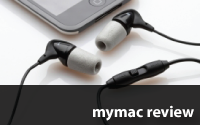
Comply NR-10i High Tech Noise Reduction Earphone w/ Mic
COMPANY: Hearing Components
PRICE: $79.95
www.complyfoam.com

In what seems to be an overcrowded market for music devices and accessories, we have another set of earphones for the purpose of sound isolation while listening to your fave raves. These particular phones should not be taken lightly, or even with a grain of salt.
Comply has done ample research into the materials and manufacture of a quality set of isolation phones. That is the real purpose of these little beauties.
They are comfortable right off the bat. To me this is a godsend. They’re easy to insert and they’re not uncomfortable. They’re in-ear buds and I’ve never worn a set yet that I would call comfortable. Kudos to Comply for their research and engineering in the fit and comfort department.
The Comply NR-10i’s have a very smooth sound and good volume. Compared to some of the other phones we’ve evaluated, the Comply offering is somewhere in the middle of the field in the sound department. That’s not a bad place to be. Some companies tout their products as being "the best" or "high end" and charge prices that are, in our opinion, simply not justified.
The Comply NR-10i’s are priced right. They do not have the highs and brightness of the Future Sonic Atrio M8′s, reviewed July 8, 2008. Compared to the Sure SE 110 Isolating Earphones, the NR-10i’s are a little bassier, not quite as bright, with the mids of the SE 110′s being more apparent. But the NR-10i’s have the best isolation of any of the other isolating phones I have evaluated so far.
Comply’s Noise Reduction testing claims a score of NRR 29dB, which is better than most "active" noise canceling headphones. They really do cut out most of the ambient noises of the room, or the road noise while in a vehicle. DO NOT drive while using these phones. That would be dangerous because it’s entirely possible you would not be able to hear a police siren or an ambulance. It’s never a good idea to use headphones of any kind while driving.
If isolation is your main concern, Comply has done an admirable job using the right materials. The Comply foam tips "are made of high-tech viscoelastic polyurethane foam." They take the shape of your ear canal by gently expanding. And they will stay in place.
The NR-10i’s come with an integrated microphone and function switch right on the cable, which allows users to answer or end calls on your iPhone or any other phone/music player, or play, pause, and skip songs with the touch of a button.
Note: I listened to a variety of music, from Jazz to Rock, to get some context for these phones. Jazz (Coltraine’s "Best of Traine", Miles Davis’ "Kind of Blue") could have used a bit more bite in the mids, while the Rock (The Beatles "Love" and "Blood, Sweat and Tears Greatest Hits") sounded quite balanced. The overall volume was good throughout my listening experience.
email – MyMac Magazine – Twitter – Advertise – Reviews Archive – Podcast
FastMac IV iPhone Extended Battery and Portable Charger
FastMac.com
http://fastmac.com/iv.php
US $79.95
The Weeks Division of MyMac Labs has reviewed the Mophie Juice Pack and Richard Solo external iPhone batteries in our iPhone Battery Shootout. In 2008, long-time Mac accessory marketer FastMac joined the battery battles with its FastMac IV. The FastMac IV comes with a great reputation, as it won a Best of Macworld 2008 and 2009 award. We used it for several weeks, and here are our impressions.
In electrical engineering, as in life, there’s no such thing as a free lunch. Battery capacity isn’t free; it costs weight and space. FastMac has done an outstanding job of designing a slip-in case that maintains the basic iPhone shape, but there’s no doubt that the IV is big ‘n’ chunky. In return, you’re getting a screaming 3100 mAh of power! In comparison, the Mophie Juice Pack provides 1800 mAh. As of this writing, the FastMac IV has the most battery capacity of any external iPhone battery available.
At 2.4" wide x 5.3" high x .05" deep, this is the biggest of the three external iPhone batteries we’ve tested. It’s also the heaviest of the three, by a considerable margin. But don’t leave yet – let’s see what you get for toting around more weight.
Using the FastMac IV
When you liberate the IV from the shipping box, you’ll notice a tiny, narrow, paper insert. No, it’s not scrap paper; it’s the user manual. Points off here; not only is the insert far too small, and oddly shaped; the print is miniscule, as in "way to hard for a 52-year old to read." Even the downloadable PDF version has the same bizarre format and small print size. After getting my magnifying glass to read it, I learned FastMac recommends charging the IV for at least two hours prior to use. It needs about six hours to be fully recharged from a depleted condition. While that may seem long, you’re recharging a capacious battery.
The iPhone slips smoothly into the IV, and the IV makes a distinctive audio "chirp" when the iPhone connector clicks into the IV. It’s a firm fit, so push the iPhone right down, and learn to listen for the chirp. In early usage, I had one or two occasions when I didn’t seat the iPhone properly, didn’t hear the chirp, and later found the IV wasn’t charging the iPhone.
While the top end of the iPhone rises above the top of the IV, the screen does get a bit of protection from the top edges of the case. FastMac includes a screen protection film for free, and that’s a very nice touch. Also included at no extra charge is an iPhone headphone adapter cable. The iPhone headphone adapter cable gives you a microphone, iPod music controls and call mute capabilities just like Apple’s iPhone headphones. At the top of the IV is a cutout to allow the iPhone camera a good view of the world. A very noticeable design feature is the extension below the bottom of the iPhone; this is where the dock connector and USB port live. The IV is charged via a dock connection, and it provides a USB port that allows you to power/recharge both your iPhone and one additional USB-powered device. A twofer!
The back of the IV sports two buttons and a row of four LEDs. Push the button marked with the lightning bolt to display the remaining battery level via the LEDs. Push the right button with the On-Off symbol to turn on the IV. This ability to turn the IV on or off lets you decide when to recharge your iPhone.
FastMac claims the their charging circuit, coupled with the On/ Off button, lets users prolong the number of times you can charge with the IV. FastMac states the IV mimics the power profile of the AC adapter and lets you take advantage of rapid charge mode. This means in less than one hour, you can charge your iPhone to 80% power. We found that to be true. According to FastMac, the best way to use the IV is to let it start charging when you get the 20% or 10% warning, and stop charging after about 45 minutes. FastMac says you’ll notice that you can charge the iPhone more times this way than by simply leaving the IV turned on all day long.
If you use the IV to simply recharge the iPhone when discharged, a full IV (3100 mAh) can recharge a dead iPhone battery (1400 mAh), not once, but twice! This is, for me, the primary reason to use the FastMac IV; it’s one powerful battery!
Be careful, as the On/Off is too easy to push, and I experienced several times when I would toggle the IV on or off inadvertently. FastMac needs to add some resistance to the push button.
The little light at the top of the case is BRIGHT. I travel on business, and found the IV’s light to be a great night light. Sleeping in a different hotel every night makes for dangerous middle of the night strolls to the lavatory, and the IV’s light kept me from bumping into the furniture in the dark.

My iPhone’s camera doesn’t get much usage, but I did take some photos using the IV’s light. The iPhone camera is notorious for poor performance in low light conditions, and the IV’s light improved the photos significantly. It’s a cold light, and rather harsh, so you might not use it for a romantic portrait shot.
The extension below the iPhone bottom end contains not only the dock connector and USB port, but also channels to direct the speakerphone audio out through the bottom case. Surprisingly, I found the speakerphone audio volume and quality only slightly affected by the FastMac IV. Most callers usually reported my audio on their phones was no different than without the FastMac IV Some noticed a slightly muffled quality to my speech.
Real-world usage
Let’s look at the advertising claims, then compare them with my real-world results. FastMac says the IV provides:
• Up to 24 Hours of Talk Time
• Up to 72 Hours of Audio Playback
• Up to 21 Hours of Video Playback
• Up to 30 Days of Standby Time
While I do spend too much time on the cellphone, there’s no way to easily verify the various claims. My acid test is, "How much more iPhone usage do I get?"
When on the road, my iPhone usage style is lots of email, plenty of web access, (including streaming radio), some telephone, and very little iPod. Before the external battery era, I needed to recharge the iPhone each night. With the Richard Solo or the Mophie Juice Pack, I could get two days between charges.
With the FastMac IV, I could get close to four days of use before both the IV and the iPhone were totally depleted. This is a huge improvement over any other battery I’ve tried. As always, your mileage may vary. But there’s no doubt that the FastMac IV provides substantially more battery life than either the Mophie Juice Pack or the Richard Solo 1800.
The primary drawback to the FastMac IV is weight and size. There’s no getting around the fact that this is far and away the bulkiest and heaviest external iPhone battery. If you’ve been using your iPhone au naturel with no case, or with just a thin protective skin, the weight and size of the iPhone in a FastMac IV may be a bit of a shock. If you carry the FastMac IV in your front trousers/skirt pocket, it’s going to be very noticeable. When you hold it up to your ear, you’ll be very aware that you’re not using a stock iPhone. You’re not lifting weights, but it’s always noticeable. The IV’s larger size is much less of an issue to me, but several people who I gave the opportunity to try the IV found the extension below the bottom of the iPhone case to be objectionable.
Conclusion
The FastMac IV is two things: powerful and big. It’s the biggest external iPhone battery currently available. The 3100 mAh capacity will liberate you from having to find AC power to recharge your iPhone longer than the competition. But it’s also the biggest and heaviest external battery, and this can be a problem for some users who value the size and weight more than pure battery endurance.
This well-built, sturdy unit, with its included screen protector film and earbuds, is an outstanding value. It retails for $20 less than the 1800 mAh Mophie Juice Pack.
FastMac offers a money-back guarantee. If you are interested in the IV, but are concerned about the IV’s size or weight, I’d advise potential buyers try it out.
email – MyMac Magazine – Twitter – Advertise – Reviews Archive – Podcast
Download the show here, or via iTunes.
This week, Guy Serle, Tim Robertson, and Mark Rudd look at iPhone 3.0, the system profiler application, and the all-new, button-less iPod Shuffle.
Check out the M-Audio MobilePre USB from Other World Computing!
email – MyMac Magazine – Twitter – Advertise – Reviews Archive – Podcast
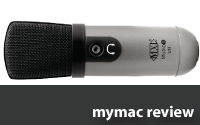
MXL Studio 1 Desktop Recording Kit
Company: Marshall Electronics
Price: $99.95 Amazon
http://www.mxlmics.com
RSS FEEDING FRENZY
With the advent of RSS (Really Simple Syndication), which allows anyone to offer their content freely within content aggregators such as the iTunes Music Store, iPodder, and NetNewsWire to name a few, the barrier to someone producing and publishing their own podcast has been all but erased. However, the gulf between the professionally produced podcast and one which is somewhat lacking in the area of production quality, is wide and cavernous.
Setting talent, elocution, and content aside for a moment, the above mentioned gulf can be substantially narrowed through the use of professional level audio equipment. Improving the audio quality of your podcast is one of the easiest ways to improve the overall production value of your content. Companies like Marshall Electronics, the parent of MXL, have seen the writing on the wall (or the sales numbers for the iPod/iPhone and the related RSS content) and have brought their considerable expertise to the masses.
FEATURES
The Studio 1 offers a great combination of features to allow the new podcaster to get started, literally, right out of the box.

The included carrying case is a nice addition to an already strong product offering. With the Studio 1, you can take your show on the road and podcast from just about anywhere. In addition to the carrying case, the Studio 1 Desktop Recording Kit includes: a desktop microphone (see the Technical Specs on the product page for the details) with a built in monitoring jack, desktop stand and adapter, and a 10′ USB cable.
I really like the combination of equipment at this price point. High marks to MXL for producing a well equipped desktop recording kit that will fit the needs of most new podcasters and produce immediate dividends in terms of production quality. For additional information regarding the features of the Studio 1 jump to the product page.
USABILITY
Most professional podcasters will use a pro level condenser or cardioid based Mic that employs an XLR connector (professional level audio connection system) which is then plugged into an audio mixer board and then digitized through some sort of USB based digital converter. The newly converted digital signal is then routed into the computer via the USB port where a program like Audacity or GarageBand can record the digital audio signal.
This can be a very complicated process involving expensive equipment, different drivers required to allow the computer to recognize the connected equipment, and a great deal of configuration. Yes, the result will be deep rich audio that brings a professional broadcast quality to your project, but at what cost? This solution is not for those who are light of cash or technical acumen.
MXL has eliminated the exorbitant expense and configuration issues of the traditional Mic setup by manufacturing an entry level pro Mic that leverages the USB audio systems built into today’s operating systems. By building the USB technology into the hardware of the Studio 1, MXL has produced an entry level pro Mic that is truly Plug & Play. All you need to record great audio, is a computer with a USB port, a recording application (more on this later), and a pair of headphones for monitoring.
Assembling the Studio 1 was a breeze. Simply screw on the adaptor to the bottom of the mic,

then the stand into the bottom of the adaptor,

plug the USB cable into the bottom of the Mic,
and finally, the other end of the USB cable into your computer.

The next step was to select the Studio 1 in the Sound Preferences Panel.


Now you are ready to use your favorite recording application such as GarageBand or the free Audacity.

You can plug in your favorite pair of headphones and monitor your recording through the convenient headphone jack located on the front of the Studio 1. The location of the headphone jack can be a little difficult to deal with if you use a 1/8" to 1/4" adaptor or if you install a pop screen (more on this latter).
I found the audio quality of the Studio 1 to be rich and possess a tonal quality above the many consumer level USB headsets which most amateur podcasters use. A word of caution, this is a very sensitive Mic, so a quiet location free from ambient noise (dogs barking etc.) should be used for the best results.
In my comparison tests between the Studio 1 and two different USB headsets, the Studio 1 produced significantly superior audio both in direct recording applications (Audacity and GarageBand) as well as Skype. However, to produce the best quality within Skype, the auto volume control must be disabled. In my tests, I found that the auto volume control reduced the input signal significantly and subsequently erased some of the benefits of using the superior Studio 1.
The overall quality of this Mic is improved through its ease of use. One would have to purchase and configure an XLR type of solution similar to the one described above, in order to match the Studio 1 in audio quality. Granted, an XLR solution would in most cases exceed the quality of the Studio 1. However, for the money, this is an outstanding combination of Audio quality and easy of use. I can highly recommend the Studio 1 to any beginner to intermediate podcaster wanting to improve the over quality of their production.
MAKING A GOOD PRODUCT BETTER
While the Studio 1 is a great value, there are a couple of areas that, if addressed by MXL, could improve the product in terms of its usability out of the box. The location of the headphone jack presents some difficulties if one attaches a headphone adaptor or uses a pop screen attachment. Additionally, the inclusion of a slip on pop screen would help the new podcaster eliminate those moments of adrenaline when the mouth moves a little too close to the Mic.
email – MyMac Magazine – Twitter – Advertise – Reviews Archive – Podcast
Kensington SlimBlade trackball
Kensington, Inc.
http://slimbladetrackball.com
US $129.00

When I was offered the opportunity to review the new Kensington SlimBlade trackball, I jumped at the chance. Eons ago, back in the mid to late 80′s, I owned and loved one of the earliest Kensington ADB trackballs. It finally was put out to pasture when Apple discontinued the Apple Desktop Bus, but I got my money’s worth from a great accessory.
The SlimBlade is not your grandfather’s trackball. This is a splendidly constructed mechanism, with a cherry-red trackball that rolls and spins effortlessly. The case is made of a subtly speckled grey plastic, but the material is substantial, and there’s no cheap feel to it. The unit sits firmly on the desk, on four grippy pads, and the cable is over 36" long, so it can reach almost anywhere. A nice touch is that the cable is wrapped in fabric, not plastic, so it has a good feel to it. At $129 the SlimBlade is pricey. Kensington has put together a great trackball, but how well does it work?
Unfortunately, the answer is "it works well, but it can be confusing to use."
The trackball ships with a very short paper insert that tells you the barest essentials of how to use the SlimBlade, and to go to http://slimbladetrackball.com/ to download the SlimBlade’s driver installer software. Make SURE you read the insert! If you don’t install the software, the SlimBlade’s two lower buttons will still work; the lower left button provides the "mouse click," and the lower right button pops up the normal Macintosh contextual menu. But who spends $129 for just a trackball with no extra features?
Why do you have to go the SlimBlade website to get the software? Why doesn’t Kensington ship and installer disk like everyone else? I posed this question to Kensington. They responded that they felt this is the simplest, easiest, and cheapest way to make sure the user always installs the most current version of the software. You don’t need to worry about getting an obsolete software version if the particular SlimBlade you purchase has been sitting on the shelf for a while.
I installed the software with nary a problem, except that after the installation I could not find any application software, no driver, no preference pane, or anything to tell me how to configure the SlimBlade. All you see after the installation is complete is a small SlimBlade icon in the Mac menu bar, and it’s easy to overlook. There is no separate configuration application to fool with, it’s all taken care of by the SlimBlade installer.
Unfortunately, I learned the SlimBlade software is not compatible with my 1st generation (2006) Mac Pro. To evaluate the SlimBlade, I had to install the software on my MacBook Pro. I discussed this at length with Kensington Technical support, but as of this writing, no fix had been published.
One click on the View Online Tutorial part of the SlimBlade icon in the menu bar took me to http://www.slimbladetrackball.com, where I learned how to use the SlimBlade’s two large and two small buttons. There is a lot more to using the SlimBlade trackball than is presented in the paper insert. Plan to spend time viewing the tutorial; if you don’t, you’ll probably have troubles.
Finally, I was making progress.
The SlimBlade has three main modes: Navigation, Media, and View.

You change between Navigation and Media modes by clicking the upper-left button. When you change modes, two things happen; the mode’s icon appears on screen for a few seconds, then fades out, and the menu bar icon changes to show what mode you’re in.
Navigation mode is the default mode for navigating and simply moving the cursor. Rolling the trackball moves the cursor around the screen, as expected with any trackball. Normal mouse clicks are done with the lower left button. A click on the lower right button pops up the contextual menu. Clicking and dragging works normally. Kensington’s new wrinkle is that rotating the ball scrolls the window up and down, as though you were clicking in the vertical scroll bar. Rotating counterclockwise scrolls up, and clockwise scrolls down. This can be done even without installing the SlimBlade software.
Media mode allows you to choose iTunes tracks, control volume and Pause/Play audio tracks. The best thing about Media mode is that iTunes doesn’t have to be the front most application, or "have focus" in geekspeak, to be controlled by the SlimBlade. While composing this review in Apple Mail, iTunes was playing in the background ("Memphis in the Meantime" by John Hiatt). Without leaving Mail, I could click the upper right button to switch from View to Media mode. Once in Media mode, rotating the trackball adjusts the volume. Successive clicks on the lower-left button cycled though Pause/Play, and clicking the lower right button stops playback.
Media mode also provides the ability to choose tracks in iTunes by rolling the ball side to side. This was confusing, as the ball has to be spun sideways rather quickly to change tracks. If you don’t spin the ball fast enough, nothing happens, so you double-check to see that you are truly in Media mode, then spin the ball faster to change tracks, and hope that it works.
View mode is entered by clicking the upper right button. View Mode allows zooming and panning in certain programs. Just click the upper-right button to cycle between Navigation and View modes in supported programs. In Adobe Photoshop Elements, rotating the trackball zooms in and out. Normal rolling motions pan the image up/down/right/left.
Unfortunately, I learned the hard way that Elements was supported. After failing to get View mode to work in iPhoto 8, I found it was not supported. I had to spend considerable time trolling the FAQ section of slimbladetrackball.com to discover which programs were supported, as there’s no list on the box or in the paper insert.
View Mode on the Macintosh OS supports the following applications:
Adobe Acrobat 9
Adobe Lightroom 2
Adobe Photoshop CS3
Adobe Photoshop Elements 6
Apple Numbers 08
Apple Pages 08
Apple Preview 4
Apple Safari 3
Microsoft Excel 2004 and 2008
Microsoft Word 2004 and 2008
Microsoft Internet Explorer 7
Mozilla Firefox 3
View mode worked nicely in Safari; rotating the ball clockwise zoomed in, and counterclockwise zoomed out. If you have a Safari window sized such that you have to scroll laterally to see all the content, rolling the ball sideways will pan from side to side.
If your favorite application is not listed, you won’t be able to enjoy View mode.
iTunes is the only Mac application that officially supports Media Mode, although I was able to adjust the volume in QuickTime Player. However, it would not respond to Play/Pause clicks.
The lower-right button will pop up the standard Mac contextual menu in both supported and unsupported applications.
I spent quite a while trying to get used to the SlimBlade software. Even after practice, I found it hard to recall exactly what mode I was in, and would then get unexpected results from clicks. You spend most of your time in Navigation mode, but if you click into Media mode to adjust the iTunes volume you need to remember to click back to Navigation mode. If you don’t, the normal trackball rolling action won’t work, and you’ll be adjusting the volume when you expect to scroll up and down.
You need to remember when in Navigation mode, the lower left button does nothing, but when in Media mode, it controls the volume. In Media mode, you have to click the upper left button twice to get to Navigation mode, as one click takes you to Media mode.
If this seems confusing, it is. Get into the habit of clicking right back to Navigation or View mode as soon as you’re done with Media mode. If you don’t you’re likely to get a bad case of mode confusion. However, the tutorials on the SlimBlade.com web site helped the learning process. If you are considering buying a SlimBlade, you owe it to yourself to check these out in advance of a purchase.
For me, even after practice, I never got comfortable enough to quickly switch between the various SlimBlade modes without regularly finding myself in the wrong mode.
Conclusion. The SlimBlade trackball is a fine piece of hardware, that suffers from difficult to use software, and poor documentation. More, and better, documentation should be provided in the box. The SlimBlade is not recommended unless you plan to practice enough to attain proficiency in changing modes, or you simply want an expensive, high-quality, plain-vanilla trackball to be used without the SlimBlade software.
email – MyMac Magazine – Twitter – Advertise – Reviews Archive – Podcast
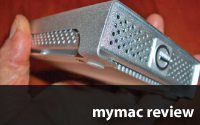
G-DRIVE mini Portable External High-Speed Triple Interface Hard Drive
Company: G-Technology
Price: $239 US for 500GB/5400RPM model
http://www.g-technology.com
G-Tech’s newest high-capacity, high-speed, high-value portable external drive now has two Nemo nicknames. The first one is "WithMeAtAllTimes," which speaks for itself. The second one, an acronym, is a "TOED-YEN," which means "The Only External Drive You’ll Ever Need." It’s true, it’s affordable, and it’s a screamer.
The mini’s dimensions are roughly 5" long by 3" wide by 1" thick, and just under nine ounces in weight. An overall impression of a light, sleek, solid piece of practical hardware comes to mind when holding a G-DRIVE mini in your hand.

Our 500GB/5400RPM evaluation unit is the best choice from the current company lineup of five available drives. It’s fast enough that you’ll utilize its higher capacity much more than the additional speed of the G-Tech’s current 7200RPM drives. Slower drives run cooler, which can prolong their lifespan.
My first task was to use Apple’s included Disk Utility software to partition the actual 465.8 physical gigabytes into eight volumes: two for Senuti backups of my iPods, four for SuperDuper backups of my computers, one for a Time Machine backup of my business laptop, and one for overflow music tracks.

Over a three day period, I backed up every computer and iPod, and loaded in a few thousand songs. This bus-powered G-DRIVE mini is the quietest, coolest, fastest, easiest to use portable external drive we’ve reviewed. I previously carried five smaller capacity FireWire/USB drives on my professional rounds as peripatetic computer tutor and digital photo instructor. Now I only need to take this gem from G-Tech.

Its squared-off brushed aluminum shock-resistant case is stylishly geeky. Short, white, FireWire 400, 800, and USB cables are provided, as is a supplementary USB bus power cable. You’ll need to purchase a FireWire 400-to-800 cable for occasional use with older Macs. No AC power is required, but some older laptops with low-power USB ports don’t have enough muscle to power this drive via USB. This isn’t a problem, because all such computers have FireWire port(s).
MyMac applauds G-Tech’s three-year warranty. That’s good. No written instructions are provided. That’s bad. A product CD with instructions for Mac and Windows is included. Experienced Macintoshers will get straight to work using G-DRIVE mini, and they probably will never look at the CD.
The included leatherette and elastic protective case is unusual. It fits the drive v-e-r-y snugly. I wonder if G-DRIVE mini is able to remain in its case during operation, with the drive’s rear end facing forward for instant port access. Probably not, except for short duration usage. The case’s coverage nullifies this drive’s well-engineered fan-less heat dissipation. Excessive heat is a potential killer to all digital devices. Advice to G-Tech: redesign the case so it has a little looser fit, and also provide a compact gadget bag or companion case to contain all four cables.
Company comments to MyMac include: "Industrial design complements MacBook Pro. We do not integrate backup software [because] Time Machine is a beautiful app and works perfectly. There’s no reason for us to buy software, load it on the drive, and charge the consumer. We put a lot of quality and care into our products – all aluminum enclosure, fastest and most reliable internal hard drives, the best components, and cooling technology, which is a must. Because of this, our G-Technology drives command a slight premium. You get what you pay for!"
Yes, there are less expensive competitors available that will serve you well for many years. G-Tech’s high-performance G-DRIVE mini jumps to the top of our recommended list.
LINKS:
Senuti by Fadingred Software
SuperDuper by Shirt Pocket Software
email – MyMac Magazine – Twitter – Advertise – Reviews Archive – Podcast
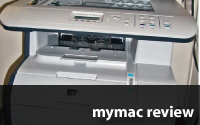
Color LaserJet CM2320n Multifunction Printer Copier Scanner
Company: HP
Price: $600
www.hp.com
There are two major reasons to choose a laser multifunction printer over a much less expensive inkjet competitor: print output speed and quantity. You may not save money on CM2320′s hardware and/or supplies compared to a basic or mid-range inkjet multifunction unit, but you will save a huge amount of time, especially when printing many pages. Because your time is valuable, you will value this printer highly.

HP’s Color LaserJet CM2320n Multifunction’s $600 price tag is respectable for this small-office-or-home-office (SOHO) printer/copier/scanner. It’s physically heavy, but light on stress during Macintosh installation and setup for either USB or network printing. Whether printing directly from a cable or wirelessly over a network, "first print" times are a good to very good 20 – 30 seconds, and successive print times are remarkable: two seconds!

Written instructions are minimal, and a comprehensive PDF manual is available from the company’s web site. Print it out, and make extra copies of its most relevant pages. There are many hidden and less-obvious features and settings to understand that will make the user experience much more productive.

HP ships this unit with toner cartridges installed. That’s the good news. Toner levels are half full out of the box. That’s the bad news. The company justifies this sin of omission as valid for keeping the purchase price low relative to the marketplace. The deal is sweetened with a $100 cash back offer on the printer. MyMac urges HP to give customers full toner cartridges. A complete replacement set of the four toner colors costs $120 each, or $480 total. Yikes. You can obtain a terrific wireless SOHO inkjet printer and a bathtub full of cartridges for around $1,000.

Why consider buying this CM2320 Multifunction Printer (MFP) at all? In a SOHO situation, you need your first print pronto, and your successive prints double pronto. This is where the new generation of HP Color LaserJets excel. Their prints are beautiful, and they appear quickly.
Paper stock for laser toner printers keeps getting better, but glossy photo paper is still unavailable. Presentation and text documents are gorgeous in black and/or color from this MFP, and are equal or superior to similar prints from an inkjet MFP that prints much more slowly.

The installation CD provided in the carton should go straight into the dumpster. Instead, download the new installer from HP’s web site. MyMac gives this advice to purchasers of all HP gear. You have been advised.

Color accuracy is potentially problematic when printing from Photoshop screen images. A color management utility is part of the software installation, but is beyond the scope of this review. Our Photoshop printing experience has required brightness tweaking due to dark prints from CM2320, using a full range of profiles. If your eyes are starting to glaze over thinking about digging through arcane settings, don’t worry. Most prints, most of the time, are splendid.
Scanning and copying are so straightforward that it’s not necessary to review them in depth. A standard HP Scan application is included in the software installation, and it operates similarly to all other scanners from this company, except it’s a lot faster! Ditto for the copier, which can handle both flatbed and sheet-fed originals.
To summarize:
PROS are speedy, high-volume printing of most documents with exceptional quality; plus excellent copying and scanning included.

CONS are some color management issues, and half-full original laser toner cartridges.

MyMac rating: strong 4 out of 5 recommendation for this terrific multifunction machine.
FYI link to another review, with a bit more tech jargon.
email – MyMac Magazine – Twitter – Advertise – Reviews Archive – Podcast
Download the show here, or via iTunes
Tim, Guy, David, and Mark discuss: BluRay on the Mac, MobleMe, and a report that says iPhone Apps are deleted by their owners after 30 days.
This episode is sponsored by Other World Computing
Why not grab a great Dell monitor at a even better price?
email – MyMac Magazine – Twitter – Advertise – Reviews Archive – Podcast
Adobe InDesign CS4
Adobe Systems Inc.
InDesign Price: Buy $699, Upgrade $199
www.Adobe.com
Usually I feel very strongly one way or the other before I start the actual physical writing part of writing a product review. Not that InDesign CS4 isn’t a great upgrade; it is. I’m just not all that excited about an application for print publishing when we all know where that industry is headed.
That said, let me tell about the new features that I find myself using on a daily basis. One common element to all of the Adobe Creative Suite CS4 applications is the new tabbed interface. At first it took some getting used to before I realized how much easier it was to toggle through my open documents. Yes I do still on occasion find myself fishing with my mouse to the lower right side of my InDesign window searching for the other document I have open. However, that occasion is becoming more rare and I prefer the cleaner look of my desktop. There is another element of the new user interface I like as well. It’s called the “Arrange Documents”. This new feature allows you to quickly compare multiple open documents side by side. I found this to be a huge time saver when shifting page elements from one document to another.

By far my favorite new features in InDesign CS4 are the Smart Guides and Smart Align features. These features alone are worth the price of the upgrade. How many times have you set guides to align, space, or rotate items on a page? I could easily say that I have about a billion times over the last 25 years. Well those days are long gone now. The new Smart Guides/Align option(s) automatically display as you move, shift, or rotate items on a page. As you move an item the smart guides let you know when the items alignment matches other elements on the page. This not only saves you time from having to place guides on your page but also keeps your work space clear of guide build-up.
The new Links panel has been greatly improved as well. Now you can update all instances of an image appearing multiple times in a layout with one click. Moreover, the Links panel display much more detailed information then it did in the past. Now with scale and resolution displayed all in one place I can quickly see if I need to resize any of my images before I go to press. If needed you can even view the metadata of a placed item. Although I didn’t have any practical use for seeing the metadata, I did think it was cool.

If you do layout for print publications such as books or magazines you may like the new Cross-Reference text function. Although I did little more then play with this feature I can see where it could be extremely useful. Cross-Referenced text is text linked to other text that appears in other places in your layout. Imagine a story headline, this headline appears on the title page of an article, than it’s also repeated in the header and/footer of any subsequent article pages, as well as the table of contents. Well if the article title changes how many times do you need to edit that text in your layout? If you use Cross-Referenced text you only need to change it once. Once the text is linked when ever you make a change to any instance of linked text all of the other text can be instantly updated on the fly.
Over all I like the new InDesign CS4 but I have run into a speed bump or two at times. The only complaint I have with the new InDesign is backward compatibility, since I am the only CS4 user in my office environment and need to share my documents with other InDesign CS3 users. I have found in some instances, not all, where an InDesign CS3 user could not open a file saved backwards for them to use. This is more than a headache when it happens. As I write this review, Adobe released an update for InDesign CS4. I do not know nor have I tested the new patch to see if it resolves my issue.
email – MyMac Magazine – Twitter – Advertise – Reviews Archive – Podcast
TuneBuds Mobile for iPhone
Company: Griffin Technology
www.griffintechnology.com
Retail: $39.99
I think I need to start this by saying thanks to our editor-and-chief for allowing me to borrow his iPhone 1G to test the functionality of Griffin’s TunebBuds Mobile earbuds. Without his assistance this review wouldn’t be complete, and if this review wasn’t complete, it wouldn’t be fair.
So why do I say that? Well, to be frank, the sound quality of the TuneBuds is less than stellar. While I’m not a hardcore audiophile, I do enjoy a full range of sound from my audio equipment, and in the case of the TuneBuds, I found that the low-end response was almost non-existent. Now the mid-range and upper-range is fine, which is okay if you plan to use the TuneBuds as a headset for your iPhone, and I think this really is the market that the folks at Griffin are targeting.
So to clarify a few things before I go any further, testing for the TuneBuds Mobile earbuds was conducted using an iPhone 1G (a la Tim Robertson) and a 16 GB iPod Touch 1G (mine). For all you first generation (1G) iPod Touch owners, this is not the product for you. The basic functionality of the TuneBuds Mobile is not supported by the 1G Touch, and the sound quality of the TuneBuds Mobile doesn’t match that of the stock earbuds provided by Apple. I also need to point out that the Griffin has posted the compatibility information on the TuneBuds Mobile page of their website, and the 1G iPod Touch is not on that list.
Now, having said all that, I’m not saying that this product is bad. I own several products from Griffin Technology and enjoy them all. Were I looking for an affordable head set for my iPhone, or a set of earbuds with a built-in control dongle and microphone for my 2G iPod Touch, the TuneBuds Mobile are an effective, affordable solution.
So what is there to like about this product?
First of all, product presentation. Griffin has sheathed the cable for the TuneBuds Mobile in a braided nylon material. This does a great job of reducing the tangling and gives them a cloth-like feel that reminds me of a pair of boot laces – good boot laces – not the cheapo ones that fray and break after a few months wear and tear. They also provide three different sizes of interchangeable ear cushions, so you can pick the size that fits best for you. Finally it also comes with a coin pouch-sized zippered storage case, so you can keep the extra ear cushions and earbuds in your pocket without worrying about getting them tangled up in key chains and pocket lint.
Secondly, I really like the simplicity of the control dongle/microphone. The dongle has only one button, but with it you can do most of the functions you need to control your iPhone. If you’re listening to music, one touch will pause and play the current track. If you don’t like the current track, double click the control button to hear the next track. If a phone call comes in while your listening to a song or podcast, single click to answer the call. Don’t feel like having a phone conversation? Simple hold the control button for 2 seconds and the call we be sent to voice mail. And while I didn’t actually hear the how I sounded on the other end of the conversation while I was testing the TuneBuds Mobile, I was told by the listener on the other end of the conversation that the sound quality of the microphone was fine.
So overall, the TuneBuds Mobile earbuds works as-advertised, and offer an affordable headset/earbud solution for iPhone users, albeit at a compromised sound quality.
Mymac.com rating: 2.5 out of 5.
email – MyMac Magazine – Twitter – Advertise – Reviews Archive – Podcast
MYMAC: How did you and Ben Levy happen to create Rapid Repair, Aaron?
RAPID REPAIR: Ben had an original 1st Gen. 5GB iPod that he was messing around with it (because that’s what tech curious guys do) and broke it. When he looked to see if there was someone who had parts or any other assistance for iPods all he found were other iPod owners in basically the same situation. Since we both have a background in computers (worked in IT for a Fortune 500 company), Ben decided to collect and repair some. I was living on his couch at the time (literally) and we realized that this need wasn’t a one-shot deal, it was real consumer demand. In March of 2004 the first website, iPodMods.com, went online. At the same time, we were lucky to land a repair contract for a large refurbished goods dealer and that cash flow, experience, and parts helped us launch in a big way.
MYMAC: Is it an asset or a liability to be located in the rust belt, near the cereal capital?
RAPID REPAIR: Michigan has a great public education system including one of the top five public universities in the country, so even though many of its major manufacturing employers have struggled my entire adult life, it has been a major producer and exporter of skilled workers. That has actually made it pretty easy to attract and retain knowledge workers, who have the talent, but don’t want to move out-of-state to use it.
Along the same lines, we don’t have the opportunity to attract as much local or walk-in business as we would in a more modern metropolitan area such as New York, Chicago, or L.A., but the improvements in technology and infrastructure have made our business easily extend beyond the physical limits that applied even 15 years ago.
MYMAC: How do you obtain your parts and supplies to repair iPods and other hand held equipment?

RAPID REPAIR: Apple does not officially endorse or supply for repair of customers’ iPods, meaning we have to obtain our Apple OEM parts from array of third parties which and often includes de-manufactured new units. Our refurbished iPods are built from tested and certified parts from used iPods which makes them the most environmentally friendly option because they just re-use goods that were previously manufactured.
MYMAC: What distinguishes Rapid Repair from your competitors?
RAPID REPAIR: Rapid Repair is the oldest and largest end-user electronics repair company who started with a focus on repairing iPods. As such we have a keen focus and love of these devices. While many of our smaller competitors have faltered with issues of customer service or other problems we have continued to be run as a professional organization with this important tenet guiding us:
The purpose of a business is to create value for its shareholders, employees, and customers. If you fail on any of these, you can not succeed.
MYMAC: Who is your number one competitor?
RAPID REPAIR: This may sound evasive, but truthfully it’s the trash bin! It’s a general sense from people that iPod repair doesn’t exist, or it’s too expensive, or it’s too much effort to be worth it. While we certainly have other companies in our line of business, our number one goal when devising marketing strategies is not to fight over the people who have decided to get their iPod repaired. Instead we try to inform and attract the millions who will otherwise just throw this technology away.
MYMAC: Are you able to keep sufficient inventory in house to maintain a steady workflow for your customers?
RAPID REPAIR: This is the biggest area where much of our competition has failed, and we pride ourselves on being in-stock for over 95% of the items in our catalog. In fact, this is often our deciding factor when considering whether to add support for a new device or model, “will we have the supply to fill our customer orders?”
MYMAC: Are your iPod and other device parts third party, or original factory equipment?
RAPID REPAIR: All but a few parts (most notably our eXtended Life Batteries) are original, but it is clearly stated in the product description if they are not.
MYMAC: How do Apple’s new touch screen iPods and iPhones alter your business, internally and with your customer base?
RAPID REPAIR: For the most part, the devices we service have gotten more compact and complex ever since we started. However device models including the iPod Classic (6th Gen. iPod), Nano 3rd Gen., Touch 1st Gen., iPhone, and all models since have really attained a new level of complexity in what it takes to service them. As a result, we have gone to a specialization model where each technician only services 2-3 different devices for 6 months at a time. This has allowed each to really be a true expert of their models improving efficiency and quality.
MYMAC: Is it possible to stay ahead of the incoming gear for repair, and still be profitable?
RAPID REPAIR: It’s a perpetual challenge, but the day you wake up and don’t look forward to it, is the day you’re done. At one point a basic iPod cost $400 and the most expensive model was $600 (iPod Photo 60GB, late 2004.) During that time most repairs only took 10 minutes or less to complete and only moderate skill was required, and with 8-9 significant replaceable parts it was easy to make an economical repair out of almost anything.
Now, the iPod Nano starts at $150, can easily take 30 minutes just to service one, and the main board has all major system functions including storage integrated, so the cost of the part plus labor make extremely difficult to compete with just buying new. Despite this, there is still ample opportunity to run a business that creates value for everyone as long as you are efficient and carefully balance all the ingredients.
MYMAC: What is your knowledge base? How do you figure out how to work on brand new technology?
RAPID REPAIR: Many of us have a background in computer repair, A+ certifications, have worked in desk-side service for corporations, and a general love of technology. However, we have found the most important pre-requisite for a successful technician is a mechanical aptitude and desire. Even with no experience, if you have the ability to analyze and understand how a machine works, then disassemble and put it back together, you have what it takes. Typically, when we take apart a new device we are forging new territory, our success depends on people with this aptitude and innate sense of electronics — and often times we still break the first one! (Nobody said it was easy.)
MYMAC: What about game consoles? Are they easier or harder to work on than iPods/iPhones?

RAPID REPAIR: Different; more screws, more glue and more complex hardware, which occasionally lead to some really hard to solve problems. On the other side there is also more space to work with and besides the occasional odd nut, the failures are usually easily recognized from a short list of 2-3 for each model.
MYMAC: What percentage of your customer repairs are iPhones, iPods, or other-ware?
RAPID REPAIR: When we started it was 100% iPods, currently, we are approximately 40% iPods, 20% iPhones, 20% Zunes, and 20% consoles.
MYMAC: Why should people repair used, old, broken iPods/iPhones, when they can buy new ones so easily and affordably?
RAPID REPAIR: Two good reasons, 1 – it’s cheaper. Yes, new ones may not break the bank, but most repairs cost between 25-60% of the cost of replacing the device and especially in tough times like these, $100 savings can be a lot. 2 – It makes sense socially and technologically. Our business of reusing, repairing, and refurbishing saves over 10,000 pounds of (sometimes hazardous) electronics waste from hitting the landfill every year. Also, spending the short dollar now, to make your current device last 1-2 more years usually means that next time you’ll buy something more advanced at a lower price.
MYMAC: Do you also sell refurbs? Are you mostly sales or repair, and where is the trend going?
RAPID REPAIR: We resisted for a long time, insisting that your device repair is a refurb. But the customer is always right and building certified refurbished iPods makes better use of all the broken units that people sell to us. At this point, we are about 90% repairs and 10% refurbs, but the needle definitely continues to move towards more refurbs. In many ways this makes sense, because we can build up a stock of tested good devices which are ready to ship, and avoid the lead time in processing devices one-off.
MYMAC: What are your return, exchange, and warranty policies?
RAPID REPAIR: Basic synopsis is it’s 90 days on parts and labor for all repairs we do. We accept returns with no fee if something is wrong with the part/repair, and if you decide you want something different we will exchange for something else with 100% item credit in the first 30 days. For full details of our policies see, http://www.rapidrepair.com/policies.htm (with links to the most important along the top of that frame.)
email – MyMac Magazine – Twitter – Advertise – Reviews Archive – Podcast
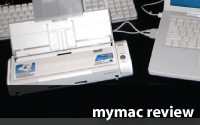
Fujitsu ScanSnap S300M
Company: Fujitsu
Price: $295.00
http://www.fujitsu.com/us/services/computing/peripherals/scanners/scansnap/s300.html
FIRST IMPRESSIONS
When I first unboxed the ScanSnap, I was impressed by the size of the scanner.

With the ADF (Automatic Document Feeder) folded down, the unit measures 11.2-by-3.7-by-3.0. While this is not the smallest mobile scanner on the market, it is very compact. Adding to the wonder of the S300M is the fact that, at this size, the unit includes an ADF. While its size is diminutive, it has clearly been manufactured to a high standard of quality. The fit and finish is pleasing to the eyes and substantive when held in the hands. Fujitsu has included pretty much everything you will need to get started right out of the box.

Yes, for the money one will spend on this unit, these items should be included. However, I would prefer to spend a little more and own a quality product with all the cables etc., included.
FEATURES
With such features as, One button scanning, automatic PDF creation, an ADF, and the ability to operate on USB bus power, the S300M brings a lot to the mobile scanning table. For additional details regarding the features of the S300M, jump to the product page
USABILITY
Once you have installed the included software, plugged in the USB cable and either the USB bus power cable, or the AC power adapter, you are ready to start scanning.

A quick scan of the manual (yes, Geeks read manuals) and you realize that there are two scanning operational modes: the Quick Menu Mode (factory default),

and the Profile Mode.

Quick Menu Mode is the simplest way to use the S300M. Simply insert a document(s) into the ADF and press the scan button. Once the document has been scanned, one can choose one of the choices on the ScanSnap Quick Menu window and done. Quick and easy.
If you want a little more control over how your scans are processed, go to the ScanSnap Manager program, select the ScanSnap Manager on the menu bar and uncheck the Use Quick Menu option. Once you have switched modes, you will need to configure the scan and save settings within the Scan and Save Settings window. This window is accessed by selecting the Settings option under the ScanSnap Manager on the menu bar.

The options will be familiar to the experienced scanner. Everyone will use this a little differently. I found it best to select the Scan to Folder option under the Application tab. Once I created the folder in the path where I wanted the scanned files to reside, everything was in once place where I could then organize, send for OCR, edit, archive, or print.
One of the great features of the S300M is the auto PDF (Portable Document Format) creation. Creating a PDF allows you to store your content in a searchable format which can be very useful later when you need that one receipt from that one business trip.
Place your documents face down in the ADF, press the scan button and watch the S330M do its thing.

The ScanSnap Manager displays a status window keeping you informed as to where the scanner is within the process.
Once you have scanned your business cards, you can open the files in the included Cardiris3 for Macintosh program. This great little program will OCR (Optical Character Recognition) your business card PDFs, place the data in their proper fields, and allow you to export that data as vCards which can be imported into Address Book.
If you are going to scan pictures, you can configure the program to save the images into iPhoto as jpegs. This option along with the ADF, automates the whole process allowing you to finally get those old photos (you never scanned because you did not want to go through the slow and boring one by one process) scanned into your iPhoto library. The ADF is rated for 10 sheets of paper, however, your milage will vary when you are scanning photos (they are thicker–thus fewer can fit into the ADF).
With its adapter, the S300M tips the scales at 3.10 pounds, however, most will opt to leave the adapter at home and just bring along the two USB cables needed for bus powered scanning. Using the S300M in this way really makes this a mobile solution. Indeed, there are some lighter, less hearty, options on the market. However, when you add up the size, weight, features (ADF), and build quality of the S300M, this product is a great value for the traveler with a hankering to stay digitized.
MAKING A GOOD PRODUCT BETTER
As it stands right now, the S300M is a great product that addresses most of the needs for those seeking a mobile scanning solution. The one short fall is in the area of document OCR. It is true, many scanning solutions, mobile or otherwise, do not include a document OCR program. However, if a light version of Readiris for the Mac could be bundled along with Cardiris, this would be a complete scanning solution for the mobile masses.
MYMAC RATING
The Fujitsu ScanSnap S300M is a great product that marries the size and weight of a mobile scanner with the features of a home scanning solution. The build quality is solid and sturdy. With the addition of a document OCR program this solution would be complete. We can rate this great solution with no less than a 4.5 out of 5 on our MyMac Rating System . Great job Fujitsu!
email – MyMac Magazine – Twitter – Advertise – Reviews Archive – Podcast
iStik Hands-free 4th generation iPod Nano case and holder
Company: iStik
Price: $24.95 (US)
Also available for 2nd and 3rd generation iPod Nano
http://www.goistik.com
Ever not realize there’s a problem until someone comes up with a solution for it? If you own a 4th generation Apple iPod Nano and are physically active while using it (you know..the “E” word, exercise), then you probably have some kind of case with a clip or a loop or some other less than convenient way of securing it. Whether your thing is Transcendental Meditation or jumping out of perfectly good airplanes with nothing between you and certain death but a thin cloth, if you use an iPod Nano while doing it you’ve probably run into a situation where the iPod is just in the way. The iStik allows you to put your iPod just about anywhere you wear clothes.
Here’s what the iStik is; you have a clear case that the iPod fits into snugly with easy access to the click wheel and the hold switch. You also have a second piece of unattached plastic. What holds them together is four magnets on each located on the corners. WHAT?!? EIGHT FRIGGING MAGNETS NEXT TO MY ELECTRONICS! Relax, the iPod Nano does not use hard drives to store your content like the iPod Classic though you need to make sure you don’t get it too close to your computer unless it’s a MacBook Air. with an SSD drive for storage Also if you have a heart pacemaker or any other medical devices that can be affected by magnets this is probably not a product you want to get.

How does it work? Simplicity itself. Take the plastic piece that doesn’t have an iPod in it and position it inside some part of your clothes that is near where you want to carry your it. Then place the the piece WITH the iPod somewhere near it. The magnets which are very strong will do the rest. How strong are they? I placed the iPod with the iStik near the magnet base between two layers of a very thick sweatshirt and it held it firmly in place. Relatively thin sweaters were also no match for the holding power of the iStik.

The iStik besides being a holding case for your iPod on the go also protects really well. The only exposed areas are the iPod’s click-wheel, the hold switch, and the dock connector/ headphone jack. Naturally it adds some bulk to the device, but not so much to make a difference. Plus being a clear-case, it doesn’t take away from what still is a good looking iPod unlike many other cases that completely enclose the device.

One criticism I have about the product is be that it can be difficult to remove the iPod from the case. There is a small groove near one edge that you stick a coin into (these are the instructions as given by the iStik folks) and twist. There is the possibility of scratching your iPod if you put on and take off the iStik a lot. Putting the iPod back in and closing the two piece enclosure isn’t as easy as it could be. Also putting it back together can be somewhat problematic if the iPod is not inside. Some plastic guides or grooves would be a nice addition to the next version.
This is a great product if you jog, bike or have some kind of fitness program where you don’t want your iPod hanging down or in the way.
email – MyMac Magazine – Twitter – Advertise – Reviews Archive – Podcast
ArtRage Deluxe
Company: Smith Micro
Price: $49.99
http://www.smithmicro.com
A couple of years ago I had the chance to review ArtRage 2 by Ambient Design and it is one of my favorite, low priced, paint programs for the Mac. For $25 you get a fantastic Painter like program.
Since that review came out, ArtRage 2.5 has been released, and many new features have been added. It was time for an updated review!
My favorite new feature is stencils. Stencils acts just as you would expect. You pick a stencil and paint the inside/opening just like a stencil would be used in the “real world.”

I mention stencils, because additional stencils is one of the features in the new Artrage Deluxe offered by Smith Micro. ArtRage Deluxe is the same ArtRage I love with a lot more for $49.99. It is available as a download or in boxed format.
In addition to the stencils, you get the following: more stock images to trace (tracing is another cool feature where you trace your photo and it becomes a painting), more tutorials than the standard ArtRage, sample paintings, and videos of painting being created. You also have a DVD that works on Mac and Windows.
So the question is as follows: Is it worth an extra $25 for all of the extras in the deluxe version? You’ll have to make that decision on your own. The stencils are very cool. Additional tracing images are nice, but if you are going to trace an image for a painting you’ll probably want to trace your own photo.
If you are an ArtRage power user and want to get the most out of ArtRage, the videos and tutorials would be for you. You’ll learn a lot and really make your paintings betters.
I use ArtRage in my classroom, and the deluxe version would be great for my students. They love ArtRage, and the more stencils the better! Also, the videos are great motivators for the students to create, and the tutorials are great projects for the kids!
So, as I said, the decision is yours. An extra $25 is a lot of money for some stencils and some videos. However, if it is something you will find use for it is definitely worth the money. Even at $50 you are not going to find a better paint program than ArtRage at that price.
email – MyMac Magazine – Twitter – Advertise – Reviews Archive – Podcast
Download the show here, or subscribe via iTunes
This week, Guy, David, and Tim host a lively discussion on the latest newest Mac mini, iMac, and Mac Pro. Then we look at the controversial new Safari 4 beta having spent a week with the new version. And finally, we look at what Microsoft is doing with Windows 7, and compare that with what Apple has historically done with its Operating System releases.
This show is sponsored by Other World Computing
Check out the Dell 24" monitor for only $249!
email – MyMac Magazine – Twitter – Advertise – Reviews Archive – Podcast
Title: Session Drumming by Russ Kunkel
Instrument: Drums
Instructor: Russ Kunkel
Skill Level: Intermediate
Price: $7.49
Title: Get It Right the First Time by Billy Joel
Instrument: Drums
Instructor: Liberty DeVitto
Skill Level: Intermediate
Price: $9.99
ivideosongs.com
ivideosongs had a great idea when they decided to enlist the aid of accomplished musicians to give their various perspectives on how to approach playing your instrument of choice. Who better to teach you than the players of the stars? Russ Kunkel and Liberty DeVitto are two of the most recorded and accomplished players in music today.
First let me say that the production of these videos is very professional and top-notch. They’re clear, the sound is very good, and the presentation in general is focused and pithy.
Russ Kunkel has long been a favorite drummer of mine. Steeped in the LA studio scene, he started back in the early 60′s with artists like Jackson Browne and James Taylor. His simple and open approach to the songs allowed the other instruments to breathe, and the lyrical content of the music to shine through. His list of clients is virtually a who’s who of pop and rock singers and songwriters.


Liberty DeVitto is also an accomplished session drummer cutting his teeth on New Jersey and New York bands from the 70′s, and becoming Billy Joel’s drummer even before Joel’s ascension to stardom, playing on all his innumerable hits. His approach may be different from Kunkel’s, but respect for the song and the writer is the common thread that makes these two players tops in their class.
Kunkel’s approach to the video I watched was conversational, easy going, but almost too slow. For Doctor My Eyes, a Jackson Browne tune, he talks about building the song from the ground up starting first with Browne’s guitar, vocal, and Kunkel laying down a simple conga drum track just for feel. Then they went back in and layered the other instruments including piano, bass, drums (trap set), and more guitars. As you know, the finished product became a seminal song that, even today, remains an example of one of the best 1960′s California light rock offerings melded with folk.
I watched and listened with interest even though Kunkel’s narrative sounded a bit unemotional, almost too relaxed. But maybe that’s just him. DeVitto’s narrative was much more emotionally inclusive and ad-libbed. Part of the Kunkel video was devoted to tuning the drums. This took way too long. He tuned every drum whereas tuning one drum with clear instruction would have sufficed for most of them. Bass drums and snares are often tuned differently than tom toms so adjustments could have been made for those, but tuning each tom tom individually was, I felt, unnecessary and redundant.
Kunkel’s playing was stellar, of course. His shuffle rhythm is one of the best in the business and a lot can be learned by watching his hands, the way he hits the drum, where he hits it, and how hard.
Devito’s lesson was fun to watch because he took the instruction as more anecdotal rather than technical. His stories about how he started out with his friends, first bands, first auditions, and finally his introduction to Billy Joel were fun to hear. I know these stories mirror many young musicians’ first experiences in the business. Some of the lessons were hard-learned, successes hard-earned, and the novice player could avoid many mistakes by listening closely to what experts like DeVitto and Kunkel have to offer.


Both players talk about their philosophies and approaches to music. DeVitto’s approach tells about how he created drum parts for some of Joel’s biggest hits. He shows how he went through several variations of the part until he settled on what became the final recording.
Listening to these two guys talk about music is, well, music to my ears. They are very professional, and very accomplished. Can a rank beginner learn from these videos? Of course. Can a seasoned player get something good out of them? Sure. Can a wanna-be with little or no talent accomplish great things through these, or any videos for that matter? I suppose anything is possible but I have to doubt that. Practice can increase what little abilities you might have, but if there isn’t much there to begin with, well, it’s like beating a dead horse. No matter how hard you hit him he ain’t going nowhere.
One of the things these two players have in common is a real talent and love for what they do. Learning to play an instrument is not all cerebral schooling and practice. There is truly an intangible "feel" to music that everyone recognizes but can’t quite put their finger on. It’s the real genius behind the music. Not everyone has this feel. As a matter of fact lots of players don’t. But they keep playing anyway. Why? because they love it. It’s a "have to" kind of thing rather than a "want-to." Will they ever be great players. Probably not. Do they care? Probably not. They’re doing something they love. Many good players have day jobs and play nights or weekends. They don’t give it up. They just keep it where it belongs.
On the other side of that philosophy is something we’ve all heard many times. "Success is 1% inspiration and 99% perspiration." So I say to those who would use these videos as study aids—glean all you can from these tools. If you want to become fluent on your instrument practice a lot. Get a good teacher. Listen to as much music as you can. Play with as many people as you can find. Play often. And above all, have fun.
It is our view that, while very entertaining, if a student were to pick these videos as their only instruction they would have many more questions than answers. If a student wanted more detailed and constructive instruction they would have to seek it elsewhere, which is not a bad thing. I don’t believe that ivideosongs makes these videos as a complete musical education in themselves. After all, anyone who is serious about learning an art will take instruction from many sources. In their own way these ivideosongs videos would be a very important asset in the overall education of a musician-to-be.
Many thanks to ivideosongs.com for their great effort and truly professional production.
email – MyMac Magazine – Twitter – Advertise – Reviews Archive – Podcast


Comments. Be heard!