Download the show here, or subscribe via iTunes
This week, Tim welcomes David Cohen, Bill Dudney, and Sam Levin to the podcast. First up, Bill talks about his new iPhone App, Code Breaker. We also look at the VC funding that seems to be trying to pour itself into the App market. Sam Levin returns with a party-theme Cool Mac Picks, and a new contest thanks to PosiMotion!Be sure to listen to win two ten-dollars iTunes gift cards! To wrap up the show, David and Tim look at all the negative publicity surrounding Apple over the last few weeks, MacSales RAM, and cleaning your Mac. A full and fun show, ready for your downloading pleasure!
MacSales Pick of the Week:
iMac RAM
Links from the show:
AppMinute.com
Code Breaker game
PosiMotion
Voltaic Systems Solar backpacks
iZotope iDrum App for iPhone


iTrip AutoPilot
Griffin Technology
Price: $99.00
www.griffintechnology.com
Need an FM transmitter so you can play songs from your iPod through your car radio? How about one that charges your iPod AND transmits data to RDS (read on to discover what “RDS” is all about) enabled car radios. Look no further than the iTrip AutoPilot from Griffin Technology.
I wanted to take the iTrip AutoPilot (IA) out for a spin because I have a new 2007 automobile (well, 8 months old now) that has an RDS (Radio Data System) enabled radio. The thought of being able to see what my iPod was playing on the LCD screen in my car was very exciting. Read on to find out how well this works.
The IA is used like any other FM transmitter on the market. You plug the unit into a cigarette lighter or power port in your car, tune in a frequency on your radio that has no music, tune in the same frequency on the IA, then plug in your iPod and the music plays out of your car speakers. However, the IA has a few tricks up its sleeve.
First, the IA will automatically scan for empty frequencies and display them on a very easy to read LCD. This “Smart scan” technology is supposed to find the three “clearest” frequencies and places them into the LCD’s presets. In practice, Smart scan found three frequencies that still had some distant radio stations transmitting through them. However, this isn’t a problem because you can manually tune in any frequencies you desire.
I like the fact that you can set up three preset stations. If you’ve ever used FM transmitters while driving medium to long distances, you know that the frequency you picked at point A might have a radio station transmitting at that frequency when you get to point B. Being able to simply push a button to change the station is a nice feature.
I found the transmitter strength to be a bit weaker than I liked. I had to move the cable around a bit to get really good reception. The IA comes with a nice long cable, which I found to be a plus.

Another plus is the IA power-plug. This innovative plug glows green if your iPod is charged, and red when it’s not. The power plug also acts as a controller. Press the plug in the middle and you can pause or restart your iPod. Press the edge to skip to the next song, or the opposite edge to play a song over or skip back. I liked this controller quite a bit, however, in my car I don’t have a cigarette lighter, or power port, right on my dashboard. I have a power port next to my glove compartment alongside the console, so I can’t see the power plug at all, rendering this feature useless for me. I wish Griffin has placed a controller near the LCD instead.

RDS (Radio Data System) enabled radios show data transmitted by radio stations. When I’m using my radio, I can see the station call letters, and sometimes words like, “Classic Rock,” or “Country Hits,” will appear. The IA advertises that the RDS feature will show the current song info when you iPod is plugged in and transmitting. After plugging in the unit I watched the screen in my dashboard—and watched—and watched. Nothing appeared? I was using my old iPod mini and thought perhaps the iPod itself was too old for this. (The IA supports ALL past and present iPods including the Touch and iPhone) I went and borrowed my son’s new 3G iPod nano, but still nothing showed on the screen.
Then I picked up the transmitter unit, the one with the station LEDs, and held it up in the air, in front of the radio, suddenly words began to scroll in one line across the screen. If the song had more than ten characters, it would break up the name. I would see “Blinded by t “ then the past text would scroll off and, “he light” would appear. Not exactly what I was hoping to see. The RDS worked the same way with my mini as long as I held the transmitter close to the radio. I was very disappointed with both the RDS data display and the fact that I had to hold the transmitter up to make it work.
This is a capable FM transmitter with some nice features that may work very well for those with an automobile that has a power-port or cigarette lighter port close to their radio and easily accessible from the drivers seat.
email – MyMac Magazine – Twitter – Advertise – Reviews Archive – Podcast

Rage Sitemap Automator
Company: Rage Software
Price: $29.95
http://www.ragesw.com/
Do you have a website? Have you been wondering why some of your web pages don’t show up in Google or other search engines? Or why less important site pages show up while the pages you think are more important do not? There is something you can do about that. You can use Rage Sitemap Automator (RSA) to create an XML sitemap and help the major search engines find your most important site content.
How do search engines like Google find sites and add pages to their vast indexes? They use “web-crawlers.” Web-crawling or “spidering” is a program, or automated script that browses the web in a methodical manner creating a copy of the pages it finds, which are added to the search engine’s index.
Google uses a “Googlebot” to find and index pages. From Wikipedia, “Googlebot discovers pages by harvesting all of the links on every page it finds. It then follows these links to other web pages. New web pages must be linked to or from another known page on the web in order to be crawled and indexed.”
The problem with just waiting for Google, or the other search engines, to find your pages is the hit and miss nature of the process. Also, the data collected doesn’t tell the search bot how important one page might be over another, or how often a particular page is updated. Also, the longer a search bot is crawling your site, the more bandwidth it sucks up.
This is where RSA comes to the rescue. RSA creates a properly formatted XML sitemap that the search bot can easily read, and it contains important information such as which pages are more important than others, and the frequency that a particular page is updated.
RSA is fairly intuitive to use and it comes with a good set of instructions, which was a good thing, since I did have to refer to them quite a bit to understand some of the numerous options RSA offers.

Launch RSA and type your web site’s URL in the box provided. RSA goes out to your site and begins to index all of your pages. This may take a while if you have many pages. A good time to go get a cup of coffee. RSA indexes everything on your site, not just items ending in “.html.” RSA will collect URLs for anything with a link, including graphics that link to something else and URLs that end in .css, .jpg, and .gif for example. You’ll use RSA’s excellent filters to get rid of those URLs.

After scanning and indexing your site, you’ll use RSA’s filters to get rid of stuff you don’t want in your sitemap. These filters are quite powerful and fairly easy to use. I started with 1,253 items indexed. After using the filters to get rid of stuff I squeezed that number down to 321 items. The ability to save these filters and use them again and again is a great feature.

Some of the other data you can tweak is the “Change Frequency,” and the “Priority” settings for each page. Under the frequency column a drop down box appears for each page where you can designate how often the content is refreshed using tags such as “daily” or “never.” Under the “Priority” tab you use a scale of .1 to 1.0, where 1.0 designates a page as very important on your site.

Using the “Publish Sitemap” tab, you upload the sitemap you created to your host server. Rage has even made RSA easy to use with your iDisk if you are using iWeb to maintain a website.

After that the instructions give you a URL to set up a Google Webmaster Tools account. I didn’t even know that such a thing existed. The account has all kinds of information about your site, like the last time it was crawled and other stats.


Once this account is set up, press the “Submit Sitemap” button and you’ll get a message stating that Google, Yahoo, Ask.com, and MSN have all been notified that a sitemap has been published to your site. Updating your sitemap and re-submissions are simply a matter of pressing the “submit” button.

Having a correctly formatted XML sitemap should help increase the chance that people looking for your content, using search engines, will have a better shot at finding your website.
It’s been too early for me to conclude that adding a sitemap has increased my site traffic through search engines, but I’ll be watching the stats to see what happens. A big plus was setting up the Google Webmaster Tools account and browsing through the data it has on file.
You’ll need the documentation that comes with the program, I did. Rage Sitemap Automator should be in every web masters toolkit.
email – MyMac Magazine – Twitter – Advertise – Reviews Archive – Podcast
Download the show here, or subscribe and download via iTunes
Lee Givens returns after a month and a half hiatus to join Tim, Guy, and David for a lively discussion. Topics include Microsoft Office 08, Jerry Seinfeld pimping Windows with Bill Gates, and a ton more. Plus, Sam Levin joins in with a Cool Mac Picks, and we announce the two winners of our PosiMotion contest!
MacSales.com Pick of the Week
11-Piece Portable Toolkit
Cool Mac Picks of the Week
Pangea Enigmo, $9.99 & Cro-Mag Rally, $5.99
Crazy Mouth $.99 (and free Lite version)
Links from the show:
PosiMotion

Download the show here, or subscribe and download via iTunes
MyMac Podcast host Tim Robertson visits TechSmith, the company behind Camtasia Studio, SnagIt, UserVue, ScreenCast.com, and more. Interviews include President Bill Hamilton, Tony Dunckel, Dave McCollom, Dave Cheng, Troy Stein, and Amy Hagerstrom. This is a special episode of the MyMac.com podcast.
Links from the show:
TechSmith.com
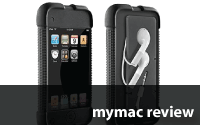
Three iPod Touch Leather and Silicone Cases
Company: DLO Digital Lifestyle Outfitters
http://www.dlo.com

Hip Case Leather Folio
Cost: $30

Jam Jacket Silicone Case with Earphone Management
Cost: $20

Jam Jacket Silicone Case with Multiclip
Cost: $20
Our guest reviewer, Howard "Big Nemo" Nemerovski, received an iPod Touch for his latest birthday. DLO provided three cases for his MyMac evaluation. Howard has a little to say about two of them, and a lot of praise for the third case. In his own words:
DLO has created three outstanding products. Their design and quality are first rate, with exceptional value pricing.
The silicone Jam Jacket with earphone management is a very creative solution to the problem of losing or damaging your earphones. The earbuds fit neatly into the recesses at the rear of the case, and the cord wraps securely in place. Design, style, and materials are excellent, and I believe the case should protect the iPod Touch from most falls and impacts. This earphone-friendly silicone Jam Jacket is an fine product. It would be my first choice if I hadn’t fallen in love with the the company’s Hip Case Leather Folio.
DLO’s multiclip silicone Jam Jacket is my third choice, because the clip isn’t important to me, and because the design doesn’t solve the problem of full earphone storage. This silicone case also is well-made, and I believe it should provide protection similar to that discussed above.
Now for my favorite, DLO’s Hip Case Leather Folio. It’s very stylish, and the magnetically-secured flap provides additional protection for the iPod’s face. I carry this leather folio in my shirt pocket or briefcase, and therefore the multi clip is not important to me. (I realize that the multi clip is important to many "normal" users.) This leather case is very solid, and I believe it also should provide protection for the iPod Touch similar to that discussed above. The only suggestion I’d make is to add a pouch or recesses for ear phones and cord (Apple or third party). That could be facilitated by eliminating the credit card/business card pocket; the modest increase in the thickness of the leather case would be a worthwhile price to pay for the convenience of having your earphones close at hand.
email – MyMac Magazine – Twitter – Advertise – Reviews Archive – Podcast
ShareCentral 2
Company: Kensington
Price: $59.95
http://us.kensington.com
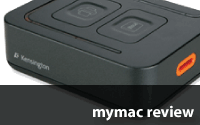
Just as it was tough sharing your popcorn–or your favorite toy–when you were a kid, it’s often tough to share USB devices between multiple computers without constantly plugging and unplugging cables. Kensington’s ShareCentral™ series of devices aim to make sharing printers, hard drives, memory cards and virtually any other USB peripheral a tad less painful, by enabling one-button access to any connected device from any two Macs or PCs.
The ShareCentral series comes in three flavors, according to the number of USB peripherals they’re capable of sharing. The ShareCentral 1 ($39.99) shares one device between 2 computers, while the ShareCentral 2 ($59.99) shares 2 devices. I’ll let you do the math for the ShareCentral 5 ($79.95). Each comes with a power adapter and the necessary USB cables to connect two computers to the unit, helpfully color-coded orange and white in an attempt to head off any possible confusion that might be encountered during the connection process.
The rear panel of the unit provides one USB "A" connection for each peripheral it’s capable of supporting. Since I was testing the ShareCentral 2 model, there were two USB ports to which I could connect my devices: my trusty but dated Olympus digital camera, and an 80 GB USB hard drive. I connected the ShareCentral to my 24" iMac and my MacBook prior to connecting my peripherals, and plugged in the AC adapter. On both Macs, the Keyboard Setup Assistant appeared instantly; it seems OS X recognizes the ShareCentral™ as an input device. I dismissed the assistant on both machines and it did not reappear in the course of my testing.
With my USB drive and camera connected, the unit worked as advertised, allowing me to mount both the camera’s memory card and the hard drive on either machine with one button press. Kensington thoughtfully provides alternate button covers with icons of typical USB peripherals, so instead of pressing button #1 or button #2, you can swap them for buttons with printer, scanner or hard drive icons, in order that you don’t have to ponder too deeply about which peripheral is cabled to port #1 and which is on port #2. The unit seemed to switch from one Mac’s USB bus to the other quite rapidly, as there was very little "lag" between ejecting the devices from the first Mac, pressing the button to switch them over and seeing them mount on the second Mac.
That being said, I think this device still has a few rough edges in a number of areas. First off, the top panel on which the switch buttons reside has orange LED indicators to show which device is currently switched to which Mac or PC. But for some reason, the LEDs for computer #2 occupy the entire left and bottom border of the panel, while the LEDs for computer #1 occupy only the top of the panel. Further, neither indicator is labeled as computer #1 or #2, so the user is forced to guess which is which based solely on the relative position of the indicators. It would have made far more sense to put #1 and #2 LED lights on each button, so that it would be clear at a glance which computer each of the peripherals was currently switched to.

Using the included "custom" buttons helps the user remember which button controls which peripheral (as long as your peripheral device is a printer, scanner or USB hard drive). But there’s nothing to assist one in divining which strip of LED lights represents computer #1 or computer #2; can you guess which computer is connected to the printer and which is connected to the USB drive? Answer: They’re both connected to computer #1. How do I know that? I had to go back to the instruction sheet, and then look at the connections on the back of the device one more time, and even then I wasn’t 100% sure.
My primary beef, however, is with the instructions–or lack of same. Although there was no shortage of 4-pt. legalese on the included instruction sheet, the setup and connection info itself did not provide a single word of explanation–information on setup and use was provided solely in the form of line drawings with supporting arrows and icons. I could certainly see many a user becoming befuddled over how the connections are supposed to be configured, especially given that the computer #2 connection is located on the left side of the device and computer #1 on the right, which to me seemed backward from the get-go, and when combined with the bizarre configuration of the LED indicators, only added to the confusion created by the lack of any written explanation.
Step 1A of the instructions did indicate that the user should insert the provided CD, which I assumed contained a PDF manual and possibly driver software. I was half right–there was no manual in sight, but there was a folder labeled "MacDriver_x86" which contained the ZIP archive "Kensington_Share_Central.zip." Again, no Read Me, no PDF, no indication whatsoever as to what I should do with this file. Assuming it to be a driver for the device, I double-clicked to uncompress it, upon which it created a file on my desktop called–not surprisingly–"Kensington_Share_Central."
The Finder’s "Get Info" window revealed this file to be a Universal application, so I went for broke and launched it. No Dock icon appeared, nor any change to the menu bar indicating that the software was running. A quick check via Activity Monitor showed an active process called "Share Central," but there was no way to know what it was or was not doing, and no way to quit it. If it actually was a driver for the ShareCentral, or something else entirely, I’ll never know. Whether or not it had anything to do with the "Auto/Manual" switch I discovered on the bottom of the unit will remain another of Life’s Great Mysteries, as the instructions did not make even a graphical reference to this option.

The mysterious "Auto/Manual" switch on the ventral surface of the ShareCentral 2. What does it do? Should I leave it on AUTO or switch it to MANUAL? Can I switch it while the devices are connected, or will that create a rip in the fabric of the space/time continuum? Will Luke and Laura ever get back together again? Don’t leave me hanging like this…
I’d like to give the ShareCentral high marks for doing what it claims to do, but the woefully inadequate attempt at an instruction sheet, the confusing layout of the device, the lack of any electronic manual, the mysterious "is it a driver or isn’t it" software on the included CD, and the even more mysterious and completely undocumented auto/manual switch on the bottom of the device all point to a lack of care and preparation on Kensington’s part. For my $60 I expect a more polished product, with functioning driver software and far better documentation than Kensington has chosen to provide.
Sure, it’s nice to share, but I feel that anyone who makes use of this device will share my opinion that Kensington has some more work to do here in order for the ShareCentral to earn its $60 price tag.
email – MyMac Magazine – Twitter – Advertise – Reviews Archive – Podcast

Download the show here, and subscribe via iTunes.
Contest Time! Listen to the podcast this week for your chance to win iTunes Gift Cards, courtesy of PosiMotion. Sam Levin comes on with a new Cool Mac Picks, while Tim and Guy fight it out over whether Apple should be more compatible with Microsoft. Plus the weeks Mac news, and the launch of AppMinute.com.
MacSales Pick of the Week:
Mercury Elite-AL Pro Dual-Drive USB 2.0 + USB 2.0 Powered Hub
Links from the show:
PosiMotion
AppMinute.com
Smile On My Mac Textexpander
JBL on stage IIIp loudspeaker
Fun Friends iPhone, iPod animal covers
AppMinute.com pick; iLightr
Data Backup 3.0.5
Company: Prosoft Engineering
Price: $59.00
Time Machine 1.0
Company: Apple
Price: Comes with OS X 10.5
The value of good backup software cannot be overstated. In its latest iteration, the Mac OS comes with a built-in backup program called Time Machine that creates incremental backups on external drives. It is designed to operate in the background with little interaction from the user, and should the need arise to recover lost or damaged files, the Time Machine interface is intuitive and simple to navigate.
This begs the question: why bother with third party software?
The short answer is that as good as Time Machine is, it is an inflexible tool designed to be used in just one way. Third party programs offer much more flexibility, in particular over the type of backups performed and the range of devices to which your data is written. One of the best backup programs in the Macintosh marketplace is Data Backup, a program we reviewed late last year.
So let’s put Time Machine and Data Backup head to head and figure out their differences. Once you understand where each application scores best, you’ll be better able to decide whether to fork out the $60 for Data Backup or stick with the copy of Time Machine you got with OS X Leopard.
Backup destinations
Time Machine is designed to back up files either to an external drive (via USB or Firewire) or else to a specific type of network drive produced by Apple called a Time Capsule. What Time Machine cannot do is back up your files to non-Apple branded network drives, WebDAV devices such as the iDisk, or optical devices such as CD-Rs or DVDs.
By contrast Data Backup will not only write to external drives, but also to networked drives, the iDisk, and to writable CDs and DVDs. So in terms of flexibility, Data Backup scores here much more strongly than Time Machine.

Data Backup operates through an application window offering a plethora of options
That said, in practice some of these options may be of more notional than practical value. While Data Backup copied files across to the iDisk happily enough, the iDisk itself is usually so glacially slow as to make it almost worthless for backing up anything over a few megabytes. Backing up your entire Home folder would likely take many, many hours. Moreover, after completing the backup, errors were reported by Data Backup. Opening up the Log revealed nothing even remotely explicable to me (and likely not to most other Mac users either) so without going through the backed up files on the iDisk manually, there’s no easy way to check if they’d been copied across safely. Seemingly the errors have more to do with operating system housekeeping than the content of document files themselves, with Word documents and various graphic files copying across just fine. The only files in my limited testing that consistently failed to copy properly were text clippings.
Backing up to CDs or DVDs is increasingly seen as a old school approach, in part because of the limited amount of data that can be placed on each disk. But CDs and DVDs are cheap and easy to use, and consequently remain very popular among less demanding users. Time Machine can’t use either type of disk, but Data Backup handles them quite nicely. If your backups are small, then you can write multiple sessions to one CD (for some reason DVDs can’t be used this way). If you have a lot of data to backup, then Data Backup will split your files and arrange them across multiple disks.
Backup types
Time Machine is limited to a single type of backup, known as an incremental backup. Essentially this works by first creating a copy of your Home folder and then with each update it keeps track of any changes. Outdated files aren’t deleted but retained, so that the user can go back in time through the Time Machine interface and recover old copies of files from different points in time. The Time Machine metaphor plays upon this idea, putting across to the user the idea that it isn’t files that are being backed up or recovered, but what was on the user’s Macintosh at the time a particular backup was made.
Data Backup offers four different types of backup: simple copies, clones, versioned backups, and synchronized backups. Let’s look at those in turn before passing judgement on how this compares with Time Machine’s one trick pony.

The Data Backup Restore window is minimalist but functional
Simple copies are just that, copies. First time around Data Backup copies across all your files and folders, and after that it removes deleted files and folders while updating or moving those that have changed. On the plus side, simple copy backups are very efficient in terms of speed and disk space usage. But the big negative is the lack of a "time axis". Unlike incremental backups the keep copies of files that were deleted on your computer, simple backups do not keep copies of such files. If a file wasn’t present on your computer the last time you did a backup, it won’t be in your backup either. Data Backup does offset this disadvantage by offering both data encryption and file compression, making this approach useful for doing one-off archives to CDs and DVDs, for example.
Clones copy not just the files and folders but also the hidden files that makes the hard drive in your computer a bootable drive. The prime value to this is where you need a perfect copy of your hard drive including the operating system and applications. It’s useful to have a cloned copy of your computer if you have a lot of applications and system add-ons installed. Should your computer crash and the hard drive need reformatting or replacing, copying everything back from the cloned drive will be a lot easier than installing everything from all their different disks. Mac users working in lab environments or classrooms will find this very useful because they tend to have to work with dozens of computers with (at least initially) similar hard drives containing the same operating system and applications.
Versioned backups are how Data Backup does incremental backups. While there’s no fancy interface as there is with Time Machine, the functionality is the same.
The final option available to users of Data Backup is the synchronized backup. This is not so much a backup as a way of merging the contents of two different drives. It’s a special sort of simply copy backup in the sense that there’s only one version and outdated files are removed. But instead of one set of files, the backup, being copied from the master set of files on the computer, Data Backup synchronizes both sets of files so that deleted files are removed from both and the newest version of a file is copied to both. The classic example of where synchronization is useful is where someone wants to work on one set of documents in two different places, using a portable hard drive (like an iPod or USB jump drive) to shuttle files between the computer at home and the computer at work.
So, which is best? For most users, the versioned (or incremental) backup is the best, and both Time Machine and Data Backup offer this option. The other types of backup have more specific uses and will be attractive to only a subset of Mac users, so their absence from Time Machine will quite likely go unnoticed.
Scheduling
Time Machine and Data Backup are very different in how they approach backup schedules. Time Machine essentially only has a single configuration, and whenever the external drive is plugged in, it will follow a strict timetable involving hourly backups for the first day, daily backups for the past month, and weekly backups thereafter until the drive is filled.
Data Backup is much more flexible. Backups can be schedules to take place on specific days; after particular intervals of time (measured in anything from minutes to weeks); when certain things happen (e.g., after system startup or when a particular drive is plugged in); or at certain times each day or on specific days within the week. Unlike Time Machine, which stores incremental backups until your external drive is filled, Data Backup can be configured to keep only a certain number of versions, allowing the user to trim away really old stuff more easily.
Data Backup can also be run in association with Apple Scripts and Automator Actions. This is a great feature that makes it possible to automate tasks such as quitting other applications, emptying the trash, or removing application and browser cache files before the backup is started. You can also set scripts to run after the backup is finished.
Unquestionably Data Backup provides many more options than Time Machine, so again, if the Time Machine default doesn’t suit you, Data Backup will be a lot more useful.
Interface
Time Machine is fairly harmless in its backing up mode, being an invisible application that runs in the background of OS X and is configured through a pane in the System Preferences.
But once you switch to recovery mode things become crazy. Crazy in a good way, but crazy nonetheless. A single Finder window animates onto a swirling galaxy background while the rest of the Finder, including the Desktop and menu bar, slide downwards and off the screen.

Time Machine is configured via a simple Preferences pane
Once there you’re presented with sort of linear Rolodex of Finder windows through which you can flip backwards through time to locate files that as they were when a certain backup was made. Now, it has to be said that the interface uses a lot of non-standard buttons and general eye candy. But the non-standard purpose also serves a purpose by making it clear that the user is "going back in time" pulling files out from earlier backups.
How does this compare with Data Backup? In this case the application uses one of the all-grey windows that Prosoft seem to like so much. Although it won’t win any prizes for looks, its basically laid out in a simple and reasonably intuitive way. Pull-down menus give quick access to the key options, things like backup type and destination media type. Various other options can be accessed via tabbed windows and other buttons.

Restoring files in Time Machine is a funky but intuitive experience
Recovering files in Data Backup is relatively straightforward if a bit less intuitive than Time Machine. The Restore window steps you through a series of options where you choose disks and select folders and files until you’ve selected everything you want. You’re then able to choose where you want to put the recovered file, and then off you go. Some of the interface elements are a bit vague, but nothing too serious. For example when it comes to choosing folders and files to restore, the check boxes are either empty or selected, there’s no intermediate state that shows you that some of the things in a certain folder have been selected, but not all of them. (You’ll have seen these three way radio boxes if you’ve ever configured an OS X installation, where radio boxes are either empty, struck through with horizontal line if partially selected, or ticked if everything in that set of options was selected.)
Speed and stability
A while back I reviewed Data Backup 2.1 for Macworld UK, and was a bit disappointed with its speed and stability. In its latest incarnation Data Backup is dramatically better, working smoothly and rapidly. When performing the same sort of incremental backup as Time Machine to the same external hard drive, it was noticeably quicker. But that said, both applications work efficiently and reliably, so there’s really not much to choose between them in this regard.
Conclusion
So how do you choose between them? It’s really this simple: Time Machine is a great application that does precisely what it promises with minimal fuss. If your backup plan fits what Time Machine offers, then this is a no-brainer: stick with it. However, for a lot of users Time Machine will be limited and inefficient. If you want to backup only certain files, or use a wider range of media, or need to configure your backups around a specific schedule, Data Backup is an infinitely more flexible alternative.
Data Backup 3.0.5
Pros: Flexible backup options; can write to CDs/DVDs
Cons: Built-in help can’t be searched; flaky behavior with iDisk
Price: $59.00
System requirements: Mac OS X 10.2.8 or higher; Universal Binary.
Time Machine 1.0
Pros: Simple to use; neatly fits into OS X
Cons: Very little flexibility
Price: N/A
System requirements: Mac OS X 10.5
email – MyMac Magazine – Twitter – Advertise – Reviews Archive – Podcast
Essentials Range Cases and Covers
Company: STM Bags
http://www.stmbags.com
SLIP 15" Laptop Sleeve – $40
Backpack RAIN COAT – $20
Flat Screen 20 inch Monitor MASK – $20
3-Pack SORT Organizer – $25
&

Travel Case
Company: WaterField Designs/SFBags.com
Cost: $35 – $39
http://www.sfbags.com
You don’t need to spend a ton of money to achieve a high standard of protection for your valuable computers and portable digital devices.
WaterField’s TRAVEL CASE comes in three sizes/prices and six colors. Its padded pockets safely and securely hold cameras, iPods, chargers, cables, and quite a bit more. Construction is durable, stylish, washable, and weatherproof. This company is new to MyMac, so we hope to evaluate more of their diverse products.
Here are two photos of my WaterField TRAVEL CASE, loaded with digital goodies.
I intentionally overstuffed this large size $39 Travel Case to demonstrate its capacity. In actual use, I pack it more carefully, so it can zip tightly. In the above pictures, the case has an iPod, charging cable, camera, charging dock and cables, card reader with cable, USB hard drive with cable, plus phone. You get the idea.
WaterField’s Travel Case is a class act. Using it daily for several weeks, I keep challenging it to disappoint. No dice, Nemo. This is a multipurpose product that achieves our highest 5 out of 5 MyMac recommendation.
The company offers a FAQ here.
- – - – - – - – - – - – - – - -
STM’s $40 SLIP light weight laptop shoulder bag comes in 17", 15", and 13" sizes. We are reviewing the black 15" SLIP. It is a spacious compartment for your computer, with basic handle and padded strap, plus a small exterior zippered compartment and a very small interior velcro storage space. There is a large, rear, drop-in space for papers and magazines.
What makes SLIP special is its zippers, which unzip to create a padded lap-top or desk-top work space for you and your portable computer. See the photo below.
I’m typing now, using SLIP to hold my 15" Mac laptop comfortably and safely. MyMac likes this sleeve. We recommend it with a 4 out of 5 rating. SLIP would achieve a perfect score if the handle and strap were more cushy and ergonomic. If those improvements added $10 or $15 to SLIP’s price tag, that would not be a problem for most purchasers.

I am a hardcore urban backpacker, as loyal readers know. When my computer backpack and I are outdoors during a downpour, we both get anxious. Never again. STM’s $20 silver RAINCOAT offers a one-size "wet weather backpack protection" for all the company’s packs. RAINCOAT will also fit many other companies’ packs. Bravo!
This product has elastic draw strings for a secure, tight fit over your pack, and it comes in its own clever carrying case. I haven’t tested it in a storm yet, but I splashed water all over RAINCOAT and my pack remained dry. Nuff said. Get one today. MyMac rating is 4.5 out of 5.
Without an iMac or Apple Cinema Display handy, I can’t do justice to MASK from STM. This attractive monitor "tea cozy" covers and protects a display from dust and scratches. Fit appears to be comfortable, and not too tight.
I come from the school of behavior where I clean my Cinema Display every year or so, whether it needs it or not. My office isn’t especially dusty, but yours may be filthy. As soon as I return to Arizona from my current assignment in California, I’ll place the padded MASK over my 20" display for visitors to admire.
STM makes individual MASKS for the different sizes of Apple monitors. Color selection is limited, so consider your decor before placing your order. MyMac says $20 to protect your precious 20 inch iMac or Cinema Display is a bargain that is foolish to ignore.
We’ll award a provisional 4 out of 5 for MASK, until it’s actually in place on my personal monitor.
- – - – - – - – - – - – - – - -
Last item from STM is SORT, a three-in-one $25 storage/travel set. STM calls it a "padded cable case in 3 sizes." One each orange (small) and red (medium) zippered, padded pouch fits perfectly into a black (medium-plus) rectangular tote that has a clear front panel. Each of the three cases has a basic handle and soft interior material.
The trio that comprises SORT first appears to be more of a personal effects or makeup set than storage for techie gear. Guess what: you can use either/all three cases for whatever you want, and STM won’t complain.
I’m planning to place iPod-related items into the smallest, orange piece; camera-related equipment into the medium size, red piece; and as many cables as I can cram safely into the larger, black-with-clear-front tote. The latter has three narrow velcro bands to help keep loose wires in place, which is a nice touch.
In a few weeks I can provide a real life evaluation of SORT. Until then, our provisional MyMac rating is 4 out of 5.
- – - – - – - – - – - – - – - -
Below are the specific URLs for the four STM products mentioned above, with photos:
I have a suggestion for STM. This company appears to limit customers’ color choices by dictating which color SLIP or MASK is designed for which size product. I may be missing the obvious, but most people want more choices, not fewer, when colors are offered. My honorary doctorate in Marketing Strategy hasn’t yet arrived, so you can take this suggestion any way you want.
- – - – - – - – - – - – - – - -
P.S. What’s a tea cozy?
David Cohen reports from England:
The Tea Cosy (or Cozy) has somewhat fallen out of favour in a Britain obsessed with imported American coffee houses and the Big Mac.
It was an expedient device, usually hand-knitted from wool, that was designed to fit over a teapot to insulate it and keep the tea warm while it ‘brewed’ or ‘steeped’. This was at a time when teapots were fairly uniform in size and shape, and the art of serving tea – giving it enough time to disseminate to correct strength in the pot, and serving at the correct, drinkable temperature – was a practice well understood by British men and women.
The death knell of the tea cosy was sounded in Britain in the mid-to-late Fifties. A post-war Britain, finally free from the shackles of supply rationing (which lasted well after the war ended), and anxiously looking forward to a modernist future, rapidly embraced rampant consumerism and never looked back. That standard teapot was lost in a raft of new-age design, and knitted wool products became outmoded in the wake of space-age new fabrics such as rayon and nylon. Once the swinging Sixties hit, the pace of life began to step up, and the concept of sitting down waiting for tea to brew in a pot became increasingly outmoded, with the tea cosy doubly so.
Most of the tea drinkers I know nowadays use a single mug and a tea bag on a string. And coffee drinkers predominate. How sad!
email – MyMac Magazine – Twitter – Advertise – Reviews Archive – Podcast
I have never been a fan of extended warranties. They always seem to get you in the end. However, the one extended warranty that I do buy and I do believe in is Applecare. Applecare is more than worth the money for any Mac you buy, and for most iPods (for iPods you have to weigh the cost of Applecare vs. the cost of a new iPod). This Macspiration is about Applecare for your Mac and why I am a believer.
First, letʼs lay out the basics. A Mac comes with a one year warranty. Once the year is up you are on your own. Applecare extends that warranty to three years. It also stretches phone support from ninety days to three years. As an experiences user I typically donʼt use phone support, but I have taken computers in for warranty service. In fact that is where this story starts (and this is the short version).
Back in January I was having problems with my first generation Intel iMac. I took it to the Apple Store twice and they found nothing wrong with it. I then found a local Apple reseller/repair place. I took it there. Several trips later they replaced the motherboard, the DVD drive, and a cable connecting the drive to the computer. It seemed like the machine was working normally.
Fast forward to June. I bought a new iMac and gave the old iMac to my parents. Almost instantly they complained that the power button was not working. I thought they were crazy, until I experienced it for myself. I unplugged the machine and dragged it to the repair shop. They found nothing wrong. Took it home and it happened again. Took it back, and this time it was discovered that the contacts for the power button were not working properly and it was fixed.
I took the machine back to my parents and the power button was working fine.
Keep in mind that the cost of repairs on this machine would have been hundreds,probably over $1000, if I did not have Applecare.
Back to the story. The machine developed another issue where it sounded like the fan was still running when it was shut down. Instead of running back to the shop I called Applecare. I spoke to a great specialist who I told I was tired of taking the machine back and forth for repairs and I wanted to know when it was going to be replaced. He said due to excessive repairs on the unit that would not be a problem!
Hereʼs the good part: Since the machine was no longer being sold it was replaced with a brand new 20” iMac! The model that is currently the “bottom of the line” model in iMacs. I forgot to mention the original machine was a 17” model. Not only is the screen larger, but the processor is like going from a standard car to rocket fuel!
Of course, I said go for it. Apple emailed me a shipping label for the old machine, I shipped it that day, and in less than a week the new machine was at my doorstep.
Believe it or not, this is not the first time this has happened to my parents. The originally had a blue iMac. It had major issues and was eventually replaced and upgraded to an eMac! My Intel machine replaced the eMac, and now they have the brand new 20” machine.
So when people ask me if they should buy AppleCare, my answer is YES! You donʼt even have to buy it right away. Apple gives you a year to buy the warranty. You can even buy it for refurbished units.
I only wish the replacement happened BEFORE I bought myself the new machine. Oh well.
email – MyMac Magazine – Twitter – Advertise – Reviews Archive – Podcast
Comic Boom
Toon Boom Animation, Inc
Price: $19.99
http://kids.toonboom.com

The folks at Toon Boom are at it again. In January they released a kid friendly animation software called Flip Boom (review). Now, they have released another great program call Comic Boom for making comic strips.
Like Flip Boom, Comic Boom is incredibly easy to use. The drawing tools are your basic tools for drawing and painting tied into a very simple and kid friendly user interface.
Comic Boom works like this: You make your comic strip panels one by one. They are arranged in order on the bottom of the screen. You can have as few or as many as your want. To help make the comic strip there are included images that can be used (like clip art). These images include speech bubbles, words, and even characters and props.
When you are finished making your panels you can publish the comic strip in numerous formats. You pick the format or arrangement of the panels and Comic Boom assembles the comic strip for you. You can then export the final strip as a pdf, jpg, an html page, or print the strip.
As I mentioned earlier, this program is incredibly easy and user friendly. My one and only complaint about Comic Boom is that you cannot import images to your strip. So there is not way to put a photo of yourself into a panel, for example.
Overall, Comic Boom is a fantastic program for making Comic Strips on your Mac. It is a steal at $19.99. Artists of all ages will love it.
System Requirements:
▪ PowerPC G5 (Minimum) or Intel® Core™ processors (recommended)
▪ Mac OS X 10.4.x or later
▪ 512 MB Ram (Recommended), 256 MB (Minimum)
▪ 120 MB of available hard disk space
▪ Wacom Tablet (Recommended)
email – MyMac Magazine – Twitter – Advertise – Reviews Archive – Podcast

SlimBlade Bluetooth Presenter Mouse
Company: Kensington
Price: $49.99 USD
http://www.kensington.com
About two months ago, I had to sit and take another work related training class. The instructor was utilizing a laptop with a USB wired mouse to move her PowerPoint demonstration through each slide. She forgot she was wired to the laptop and began to move away while she talked. Thankfully, another fellow sufferer sitting through this class saw what was happening and was able to grab the laptop before it fell to the floor.
The old way of doing presentations by sitting near the laptop so you can scroll through the slides has long been overdue for a change. Yes, there have been wireless mice using a USB wireless dongle to do wireless presentations but they still used a USB port to do it. Kensington’s SlimBlade Bluetooth Presenter Mouse changes the old way of doing things. Open up the package, follow the simple instructions, sync your SlimBlade to your Mac or PC via Bluetooth and get to work.
I had absolutely no problems in setting up the SlimBlade BT mouse for use with my MacBook. Press the power button that is hidden under the slidable trim and look for the green power indicator on the opposite side to glow solid green for three seconds, then depress the mode switch that is located at the scroll wheel for three seconds and you’re ready to go for regular use as a mouse. The SlimBlade is a full featured laser mouse that just performs two functions, both very well.
If you want to use the SlimBlade™ Bluetooth® Presenter Mouse in presentation mode, you simply click on the mode switch twice and you will see ten flashes on the left and right buttons on the mouse and you are now ready to work with your presentation. Click the right button to move forward, click the left button to go back. Need to come out of presentation mode, just double click on the mode button and you’re back in normal mouse mode.
I used the mouse performing “normal” mouse duties and used it in presentation mode. Switching between the two modes is simple and easy. For someone who does Powerpoint or Keynote presentations, and who does not want to be chained to the laptop by a mouse cord or by utilizing one of a limited number of USB ports, the Kensington SlimBlade Bluetooth mouse offers the user the best approach to being mobile and to making use of what your laptop has to offer.
What I considered to be its most useful aspect is its small size. I can hold the mouse in my hand and no one would really even notice that it’s even there. As you can see below, it readily fits in the palm of my hand and allows me to control a presentation through the magic of bluetooth. There is no additional transmitter plug-in that you have to carry around with you and possibly lose. Another nice point of this mouse is that when your laptop goes to sleep, so does the SlimBlade.

I tested out the range of the mouse and it does have about a 30 foot range. Why anyone would need a Bluetooth mouse with a range greater than 30 feet is beyond me unless they’re working in a really large auditorium. Since it uses two AAA batteries with a useful life of well over three months, the SlimBlade seems to have all the bases covered. I’m using it straight out of the box, no software installation needed.
Dimensions: 3 1/2″ L x 2 1/4″ W x 3/4″ H
So to review:
Pro: Mac/PC compatible, easy to set up and use, Bluetooth frees up a USB port for other uses, no additional items need to be used for connectivity, small size. When your laptop goes to sleep, so does the mouse. SlimBlade has about a 30’ range. Bluetooth connectivity was easy, SlimBlade looks and feels good in use.
Con: The instruction sheet that came with the mouse is the most limited instruction sheet I’ve encountered, unless the detailed instructions are printed in one of the other languages on the sheet rather than in English.
Warranty: Kensington limited 5-Year Warranty and free technical support.
Highly recommended!
email – MyMac Magazine – Twitter – Advertise – Reviews Archive – Podcast
Download the show here MP3, or subscribe via iTunes
Bill Dudney returns to cohost this week along with the usual gang of Tim, David, Guy, and Sam. Not a lot of Mac news this week, but we look at the state of the AppStore and much more. Sam joins in with a new Cool Mac Picks, including iPhone apps and a cool backpack.
We would love to hear from you! Email tim@mymac.com
MacSales product of the week – Marshall – MXL.006 microphone
Links from the show
GalaFactory Software
SkullCandy Audio Link Pack
‘A Level’ from Posimotion
Chimps Ahoy!
Blackjack 21
Trism Puzzle Game
Trism YouTube links from David Cohen
Sam Levin
AppMinute.com
email – MyMac Magazine – Twitter – Advertise – Reviews Archive – Podcast
IceCam2
Company: Macally
Price: $39.99
www.macally.com
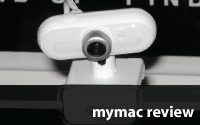
Most Macs come with built-in iSight cameras nowadays. However, if you have a Mac Mini or a tower, you don’t get a camera. You are on your own to find one. The IceCam2 is an affordable solution to that missing piece of your computer. Even those with a built-in camera might want to give this one a look.
The IceCam2 is a huge improvement over the original IceCam. The IceCam2 rotates left to right and up and down. This makes it a very attractive option for those with built-in cameras that have a limit to how much they can be adjusted. Since my baby was born in March I have been doing a lot of video chatting. It is very difficult getting him into the picture by tilting the iMac screen or holding him up to the exact spot. The IceCam2 makes that A LOT easier. I just have to clip it right onto my iMac and aim at the baby.

Advertisement —>
Thanks to testking, now any mcitp or mcts professional can go for comptia certification as well as ccda without over exerting oneself.
<----Advertisement
With a resolution of 640×480, the picture quality is great, and it also has a built-in microphone (a great addition for those on the Mini or towers).
Set up is a piece of cake. It is plug and play so you plug it in and go. No drivers are needed (unlike the original IceCam). With a 5 foot long USB cable, there is plenty of room for play in setting it up. When you open iChat the IceCam2 automatically becomes the default camera and default microphone. Unplug the camera and it is back to your built in iSight (if you have one).
The IceCam2 does not work with Photo Booth, but if you think about it you really need the built-in camera for that. Photo Booth uses the screen as a flash and you have to have the camera pointed directly at you. I’m not even sure Photo Booth comes with the machines without the built-in cameras.
At $39.99 the IceCam2 is a bargain for those needing a camera for their computer. The price also makes it very attractive and affordable for those wanting a second option to the built-in iSights.
email – MyMac Magazine – Twitter – Advertise – Reviews Archive – Podcast
MotionX Poker
Company: Fullpower Technologies, Inc.
Price: $4.99
http://www.motionx.com
iTunes URL
With so many poker games available in the iTunes App Store how do you know which one to buy? You read reviews like this one.
MotionX Poker is one of those poker games in the App Store. However, MotionX Poker is not your typical poker game. Think poker meets Yahtzee. You see, instead of using a deck of cards, you play with dice. You get three rolls of the dice to get the best hand possible to beat the dealer.
Playing with dice is the key to making MotionX Poker so much fun. Instead of tapping cards, or waiting for cards to be dealt, you shake your iPod Touch/iPhone like you would as if you had real dice in your hands. When you stop shaking, the dice roll. This works perfectly, and is REALLY cool! Once your dice are rolled you choose what you want to keep and roll again, and again.
As you play you can unlock other tables and other sets of dice. You can also win gems as you beat certain challenges.
The game also has a mode called Zen Roll. This allows you to use the game as a set of dice to play any other dice game using five dice. The game will not keep score. Think of it as electronic dice. So, if you happen to have a Yahtzee score card with you and you and your buddy want to play, you can use Zen mode.
MotionX Poker is a steal at $4.99 and what a game from the App Store should be like. It takes full advantage of this accelerometer technology and it is a lot of fun. If you want a poker game with a twist, this is the one to buy!
I would love to see the company produce a Yahtzee game with the same quality. I’d be the first to buy it!
email – MyMac Magazine – Twitter – Advertise – Reviews Archive – Podcast
Animation-ish
Fablevision
Price: $59.95
www.animationish.com
When I was in middle school and high school I was always looking for an animation program for my computer. I never found one. They were always to juvenile, or too advanced and expensive. If Animation-ish was around then, I would have found what I was looking for.
Animation-ish is a great new animation program for kids of all ages. It teaches the beginner how to animate and progress to a more complex animation, and it allows the more advanced user to make a complex animation in a user friendly environment.
The program is powered by the great Toon Boom Animation program, which I recently reviewed. It has three levels of animation:
Wiggledoodle-ish : learn how to animate with by creating two step animations
FlipBook-ish : take the next step by creating animations with more than two images
Advanced-ish : Graduate to the advanced stage with two layer animation, and a more Toon Boom -like interface (although no where near as complicated).
All three have simple tools to use in creating your creation (which can be exported in numerous formats). More tools are added as you advance to each level.
You might ask “What is with the ish?” Well Animation-ish is inspired by best selling author/illustrator Peter Reynolds. One of his children’s books is called “Ish.” Peter is the teacher in the online videos that you gain access to when you set up the program.
Two editions are available, a Home Edition and a Classroom Edition. The Classroom edition has lessons and curriculum activities. Samples can be found here.
At $59.95 Animation-ish is a great deal. If you think about it you are getting three animation programs for the price of one! The only thing you can’t do is add sound. You will need to import the final animation into a third party program for that.
If you are like I was growing up and have a strong interest in animation and are looking for the right animation program that won’t break your budget, and isn’t too childish Animation-ish is for you. Download the demo from the website and give it a try.
email – MyMac Magazine – Twitter – Advertise – Reviews Archive – Podcast
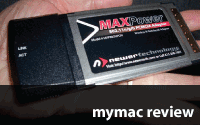
MAXPower 802.11n/g/b Wireless PCMCIA Laptop Cardbus Adapter
Company: NewerTech
Cost: $50
http://www.newertech.com
MyMac is having good results with NewerTech’s MAXPower Wireless products. First came David Weeks’ review of the MAXPower 802.11n/g/b Wireless Router, and then Rich Lefko reviewed the company’s MAXPower Wireless USB 2.0 Stick Adapter and Extension Cradle. Take a few minutes to read those evaluations, because NewerTech’s affordable wifi gear can enhance your computing and commuting experiences.
PowerBook users who need extra wireless range can insert a MAXPower 802.11n/g/b Wireless PCMCIA Laptop Cardbus Adapter into the slot on their laptop. A utility application called WirelessUtilityCardbusPCI launches by itself. Within seconds, all nearby networks are displayed, along with their security requirements.
You set up a profile for each different location, then evaluate the Link Status.
Best connection results are obtained when the link is strong. Then you can situate the computer farther from the wireless source. If you attempt to connect when a link is weak, you may not succeed. Snoop around the different tabs at the top of the utility window to learn more about any given signal.
If you are fairly experienced with technical software, you won’t be intimidated by the WirelessUtilityCardbusPCI application. Newbies can call or email NewerTech for assistance. This is not software that will win any interface awards, but it works as advertised, and it is included with the excellent hardware PCMCIA adapter.
When I asked NewerTech if a Menu Bar icon was hidden in plain sight, to check on signal strength without having to open the WirelessUtility window, I was told it was under consideration. There are technical issues that are beyond the scope of this evaluation, so we can let that matter rest for now.
Next I wondered how PCMCIA wifi adapters compare to built-in laptop Airport equipment. Grant from NewerTech explained:
"Any third party adapter ‘n’ will be stronger than a built in airport signal in a PRE-Intel notebook, since the adapters have ‘n’ capability and pre-Intels do not."
I can confirm the truth of that statement. During months of real world testing of NewerTech’s MAXPower 802.11n/g/b Wireless PCMCIA Laptop Cardbus Adapter in my G4 Aluminum PowerBook, I was getting a strong wireless signal using the adapter at the threshold dropoff distance of the PowerBook’s built-in AirPort card. Signal strength is constantly changing, but it’s fair to expect up to a 2X response using this MAXPower card. In some situations without physical barriers, I achieved up to a 4X response.
It’s easy to recommend this Cardbus Adapter for PowerBookers who need extra wifi range. Users can become familiar with the software in a day or two. The physical card is sturdy enough to endure hundreds of insertions/removals from the slot. The reasonable price tag is a definite plus. MyMac lowers the score by a full point for the somewhat confusing Wireless Utility interface, then adds back half a point for affordability, for an overall recommendation at 4.5 out of 5.
Thinking about how NewerTech is helping the Macintosh community stay up to speed, the company tells MyMac: "Do other products offer ‘legacy’ Macs the ability to upgrade to the latest standard like MAXPower does? With Mac setup software right from the box and a variety of adapter types, G4 notebook and desktop owners aren’t left behind."
As a peripatetic professional, I can’t live without this product. I use it nearly every day. I would buy one in a second if I lost mine.
email – MyMac Magazine – Twitter – Advertise – Reviews Archive – Podcast
i2i Stream
Company: Aerielle Technologies
Cost: $120 for two-pack
http://www.i2igear.com
It’s not often my wife laughs out loud watching me review items for MyMac Magazine. It happened during the test drive of Aerielle Technologies’ i2i Stream audio transmitter/receiver two-pack.
Jim Dicker and I were playing "name that tune," with me asking him to identify jazz artists or songs from my iPod. We were both listening to the same song at the same time, at optimum audio quality, BUT !! Jim was twenty feet away from where I was sitting. The music was streaming from my iPod to Jim’s headphones, both of which were attached to different units from a two-pack of the remarkable i2i Stream.
Barbara says it was hilarious: "It was ridiculous, John, but you two were having such a great time playing a silly game. Two men were sitting a room apart, headphones attached to some contraption, listening to music you easily could have played on the stereo. But that’s what men do, I guess." She is correct, and it was a load of fun.
i2i Stream is a device that’s easier to demonstrate than explain. Here is the company’s official description:
"The i2i Stream is a wireless digital audio device that allows you to broadcast your favorite music to all your friends that also have i2i Streams. i2i Streams can send or receive CD quality sound up to 30 feet wirelessly. You can plug any MP3 player into one end of the i2i Stream and your favorite earphones into the other end and choose one of seven colored channels to start broadcasting. Experience and share your music like never before with the new i2i Stream."
Do you get suspicious reading promotional material such as that? I do. But in this case, the reality is superior to the imagination. There are ENDLESS ways to use i2i Stream with small or large numbers of listeners. The color-coded channels are simple to navigate and activate. The physical device is small, cute, and ridiculously easy to learn.

Neck and pocket straps are included, as are USB charging cables and two lengths of audio cables from i2i Stream to iPod or other music source. Clever accessories are available directly from Aerielle Technologies, all at affordable pricing. MyMac will obtain and evaluate these other goodies as soon as we can. You can learn much more here.
A small printed User Guide is included. Study it before you get up to the batter’s box. Otherwise you may not have a clue how to get to first base with i2i Stream. Advice: place everything that ships with i2i into a small Ziploc bag, because no case is included. Every component, cable, and strap is tiny, and you don’t want your dog to eat a $60 gizmo for an appetizer.

Sixty dollars? Does that seem a little expensive? Nemo the Marketing Genius would place the street pricing of i2i Stream at $49 for one, $89 for two-pack, and $159 for a four-pack, but that’s why I’m not in business. This product is not a casual or impulse purchase at $60 each, but with outstanding audio quality and user functionality, it’s a reasonable cost.
Aerielle Technologies should sponsor a contest for most unusual and creative uses of i2i Stream. Some suggestions could be:
• In a plane, train, or bus
• Riding in different vehicles
• Classrooms and lecture halls
• During a parade
• Seated at a sporting event
• At a birthday party
• Dance partners, or dancing individuals
and those came to mind in about two minutes of imaginative thinking. I’m sure hundreds more appropriate situations for i2i Stream are possible.
I will continue to try i2i Stream as many ways as I can. Two college students are visiting for a few days. It will be fun to see them experiment and innovate.
Out of a possible perfect score of 5, we knock down Aerielle’s i2i Stream by two half points, one each for lack of protective case and high price. MyMac recommends this product, with a strong rating of 4 out of 5.
email – MyMac Magazine – Twitter – Advertise – Reviews Archive – Podcast


Comments. Be heard!