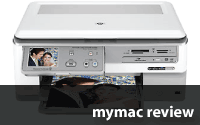
Hewlett-Packard Photosmart C8180 All-In-One Printer
Company: HP
http://www.hp.com
US $399.99
I’ve been a happy user of my HP 7280 all-in-one unit for a number of months. After I reluctantly returned the C7280 review unit, I put my money where my review mouth was, bought one, and have had no regrets.
HP asked me to review the C8180, and here’s what I found after using on it for quite a while.
First off, the 8180 is not simply a 7280 with HP’s revisions du jour; it has a higher resolution scanner and printer. According to HP, the additional sensors that make up the 96 bit scanner sensor produce better color accuracy as well as reduced noise and grain from negatives. It is more obvious when scanning certain colors, like saturated reds and greens, and scanning certain types of originals, like offset press or inkjet prints. As we’ll see, actually producing a 96 bit scan is awkward.
However, the 8180 has no fax capability at all. It has the same abilities to read from various types of camera memory cards, and it also can print via USB, Ethernet, or 802.11b/g wireless. It has no 802.11n capability. It also has the same print engine that uses six separate ink cartridges.
One important new addition is a CD/DVD burner with LightScribe capability. LightScribe allows you to print custom images or text on the face of LightScribe-compatible blanks. In addition to being controlled by the 8180 itself, the burner can be shared with your computer, and any application can print to the LightScribe print driver.
The 8180 comes with a sheet feeder capable of handling various paper sizes and quantities, although my review unit did not have one.
Given the flawless performance of the feeder on my 7280, I predict that the 8180′s will function just as well.
The 8180′s appearance has been updated. Whereas the tall and chunky 7280 had a control panel that was festooned with buttons, and a keypad, the 8180 is low-slung and streamlined. With no built-in fax, there’s little need for a keypad, as its bigger LCD screen is used for controlling almost all functions. The 8180 is wider, due to the CD/DVD burner on the right side.
Advertisement:
There aren’t many web hosting companies that actually offer dedicated servers as well as domain registration. The best you can get out of the others is a cheap default website design and a moderate server.
End Advertisement
Software install is generally easy, although HP presents an excessive number of reminders to register the unit, and sign up for various emails that’ll drive you crazy. It’s not possible to complete the installation process without having the installer get the last word in by launching your web browser and teleporting you to the HP registration page, even though you’ve already screamed “NOOO” as loud as you can.
Once installed, you’ll get the usual complement of HP applications allowing you to scan to OCR, scan pictures, or make copies. A standard installation includes HP Photosmart Studio, which is a jack-of-all-trades (yet master of none) program to manage your scans and photos. iPhoto or Adobe Photoshop Elements will far better serve Macintosh users. HP includes ReadIRIS 11 for optical character reading. ReadIRIS is a capable program that deserves its own review.
During the setup, you select your connection method. I tested USB, and network (Ethernet) connections. I did not try the Bluetooth capability. HP advertises that Bluetooth will allow printing from a cellphone. I had no problem connecting the 8180 to my 801.11g wireless network. With the printer located only a few feet from the base station, network throughput was not an issue. However, a USB connection is always faster than a network connection, and that’s most noticeable when scanning.
After the installation is complete, the 8180 goes through a time-consuming and somewhat noisy setup and calibration process. If the 8180 does not get regular use, the unit will occasionally spring to life, as it checks for proper calibration. If you even so much as open the lid to gaze inside, the printer goes through its 45 second or so “Printer preparation in progress…do not interrupt” routine.
HP’s scanning software is reasonably easy to use. Scanning is controlled via the HP Device Manager, a small application that allows access to the various 8180 functions. You can scan to Preview, or save an image file to disk for editing with any image editor of your choice. If you don’t have a capable editor (there’s no excuse not to), the scanning software allows for choosing the desired resolution, color adjustment, scratch and dust removal, and restoring faded colors. I found the color restoration feature worked well. I could do better in Photoshop Elements, but HP did a creditable job nonetheless.
To my non-programmer’s eye, the scanning software appears the same as for the 7280. The 8180 scanner specifications say it’s a 96 bit scanner, while 7280′s scanner is 48 bit. One would think the 8180 scanner would produce a greater range of tones and colors, but I was not able to notice any significant differences. Upon further investigation (lots of point and clicking to discover hidden options) the resolution options setting of the scanner driver for the 8180 maxed out at 48 bits/millions of colors. I was unable to find any setting to allow me to scan at greater than 48 bits. What’s the point of having a better scanner if the software won’t take advantage of it?
If all else fails, read the manual. Unfortunately, the manual was unavailing. At wit’s end, I emailed HP, and got the following answer describing how to enable 96 bit scans. I include it so anyone who ends up purchasing an 8180 does not spend the time looking for this needle in the HP documentation haystack; it’s not there (and it should be).
“Launch the HP Solutions Center application. Under Scan Settings / Scan Preferences is a “Quality vs. Speed” tab. On that dialog there are two selections that must be made, (a) scan at maximum bit depth, and (b) 6-color scan. For the 8180 both are necessary to enable 96-bit scanning. That’s it. Subsequent scans will be 96-bit.”
Bit depth notwithstanding, the scan quality was good.
Print quality was very impressive. This is truly a photo-quality printer. If you use HP brand papers, the 8180 will sense the paper type, and set the printer to take best advantage of the paper type. The 8180 uses five separate inks plus black, each in its own cartridge. In the old days, HP used bigger three color carts, with yellow, magenta, and cyan all in one. If you emptied one color, you had to replace the whole shebang, even if there was plenty of one or more of the other colors remaining. Now, you need only replace the needed color.
The 8180 will print borderless prints up to 8.5″ x 11″ and it also has a convenient second tray to fit 4″ x 5″ photo paper.
Front panel controls are a feature of the 8180. At 3.5″, the LCD is bigger than on the 7280. While most users will generally control the 8180 from their computer, you can do quite a bit from the front panel itself. You can print from camera image storage cards, print from photos on CDs or DVDs, and make copies.
I made a good number of copies of both paper documents and photos, and the the quality was uniformly excellent. I also tried making a contact sheet of images from my image storage card, and it worked as advertised with no troubles.
One curious feature that you access only through the front panel is the 8180′s ability to save images from a camera storage card and save them to a USB flash drive plugged into the 8180′s front USB port. This allows you to back up the card without having to use your computer. This worked perfectly.
You can also read from the camera card and burn them to a CD/DVD using the built-in burner. Unfortunately, I could not get the 8180′s built-in burner to recognize a blank CD, even though I tried three different types of CD blank. Oddly, I had no trouble using the LightScribe feature of the drive (more on that later).
The front panel allows for basic editing of photos prior to printing. You can fix red-eye, crop, add a border, and do “automatic fixing.” These features worked as advertised. I do all my editing on the Mac, but others may not. Front panel editing may be just the feature you’re looking for.
LightScribe is a HP-developed technology that allows CD/DVD burners to use inkjet technology to print images on the front of special CD/DVD media. You can burn a DVD of your favorite images, and use the LightScribe-capable burner in the 8180 to “print” your favorite image on the front of the disc. LightScribe does not print a full-color image; it resembles a sepia toned black and white photo.
HP included a sample LightScribe DVD blank. I had no trouble installing the LightScribe printer driver, and then choosing, editing, and printing the image to the front of the blank disc. I was worried that I’d waste my one blank disc, but the process was easy and trouble-free. Given that LightScribe blanks cost more than plain blanks (prices may vary widely), this is a nice way to customize your photo CD/DVD media.
Conclusion
The HP PhotoSmart 8180 is very good, but not great, multi-function printer/scanner/copier. The software is typical HP, which is to say it’s merely adequate. The large front panel LCD is nice, and the built-in editing features are available to those who who don’t want to have to use their computer for a quick edit and print. The 8180 can read almost any type of camera memory card.
I was not able to burn CDs/DVDs, although LightScribe worked properly.
If you need fax capability, this is not the unit for you.
The real reason to buy the 8180 is for its fine print and scan quality. Whether you do 48 bit scans, or delve into hard-to-find settings to enable 96 bit scans, the scanner’s output is very good. HP paper sensing is a great feature, and the HP ink technology is outstanding.
MyMac.com rating: 3 out of 5. It’s a fine printer and scanner, but you pay a premium for some features you may never use.
email – MyMac Magazine – Twitter – Advertise – Reviews Archive – Podcast
Storyist
Company: Storyist Software
Price: (Download + CD) — $69.00
(Download Only) — $59.00
http://www.storyist.com/
With Apple’s continued success with artists it’s no surprise that an abundance of writing tools are written for the platform. Storyist is a unique tool that really takes advantage of OSX and is geared towards creative writers. Storylist is an organization tool, word processor, and format template for novelists and screen writers. But the question that I ask myself when confronted with one of these organization aids is, will this be better than a standard spreadsheet?
The real power of Storyist comes from the organization ability it gives writers. It breaks your manuscript down into chapters and then your chapters down into scenes, allowing the writer to assign specific characters and settings to specific plot points.
Advertisement —>
In microsoft training, an mcp is trained up to the level of mcdst, putting any other security training behind you.
<----Advertisement
Breaking down the organizational categories we get; Setting, Characters, and Plot. A writer can sit down with the software and write out each character he or she wants to include in the story, each setting where the story will take place, and then an outline of events. Once you have items in these lists you can assign them to a section. A section, again, is a scene in a chapter. You create a link to the plot point, the character, and the setting in the section sheet creating a reference sheet to help you while writing the story.

An example of a Storyist Section Sheet
You group section sheets by chapter. Once this is done the section dividers appear on the manuscript, ready for you to fill in prose. An outline of your chapter allows you to easily reorganize the sequence of sections in a chapter, or offers a visual outline where your section sheets show up as index cards tacked to a cork-board. For characters or settings the index cards are replaced with a piece of artwork. This gives you the ability to use a picture of a hotel for a setting sheet that describes a hotel in your novel. These visual aids can help you quickly find what information you need.
Each category allows two levels of organization to allow grouping similar notes together. For example, you can create a list of characters and fill out their character sheets, then separate them into groups such as “Heroes” and “Villains.” For even further organization you can also create subgroups by dragging one group into another. This gives the author the power to organize setting and characters into as many subgroups as he wishes. Under the Heroes category you can make a “Police” folder and only include those character that are also members of the police. This might seem an obviously point, but when you have a list of dozens or hundreds of characters the ability to group them as specifically as possible is important. Unfortunately you can’t do this under Manuscript, the only organization you can do is by chapter and section.

An example of how Storyist organizes your notes
One cool aspect of these “story sheets” are the fields you can add. The Character Sheet, for example, starts off prompting you for “Age, Gender, Eye Color, Hair Color, and Build” but you can swap out or add other preset fields or make up your own, offering a customizable experience.
Storyist allows you to easily export your manuscript in RTF format. It’s a little hard to export characters or scenes, but it’s possible to create a template and leave the information you want to move into new projects inside it. This is good for someone who wants to write a sequel but doesn’t want to rewrite all the characters and setting files. Or if the organization of sections and chapters becomes too unruly, which in large novels it might, and the author wants to cut his novel into two different Storyist files.
Usability of Storyist is as expected from any native OSX program. If you have a section selected, clicking the “+” will create a new section sheet, similar to adding a new play list in iTunes. The User Interface is intuitive and the learning curve is almost nothing. Everything is presented clearly and it’s obvious how the features work. But if you have problems an easy step-by-step help file is included. I assumed I was missing some features but after checking the help file I realized that I had learned the software by just playing around for a few minutes. That’s the sign of good design decisions.
Storyist is a powerful program, but for some writers it might be too powerful. As an organic writer I’m kind of overwhelmed that it asks me to chop up my chapters into sections and document everything I’m going to be putting into the story. But for some writers that might be what they are looking for, and every writer works differently. Storyist is a fun program to play with, but you need to try it out before deciding if it’s going to be useful for you. Some authors might not want to leave the standard word processor, or might not want to relay completely on proprietary software to store all their notes.
Even if you aren’t going to use all of the features of Storyist I find the fact that my manuscripts will be perfectly formated and ready for submission, and the character organization features alone to be enough to convince me to use Storyist. But the price is Storyists greatest weakness. At $60 for the download version it’ll be hard to justify unless you are absolutely desperate for precise organization.
I can’t blankly recommend Storyist to every writer but I recommend downloading the 15 day free trial and playing with it. With the fully functional 15-day trial, users who are new to the program should have plenty of time to decide if the software will be useful or not. Even if you don’t think the whole suite will be useful I guarantee that you’ll find at least one feature that’ll be hard to live without.
Overall Storyist is a solid piece of software. Users who take advantage of it will find they cannot live without it after a short period of time. Some small flaws are the limited way you can export your notes, characters, plots, and settings. Plus the fact that Storyist files are not an open standard making it impossible to move to a different organization program in the future.
email – MyMac Magazine – Twitter – Advertise – Reviews Archive – Podcast
Recommending a good book for newcomers to the Mac platform is always tricky. You want to recommend something that doesn’t just cover all the basics but also has some depth as well. A book that only covers the simplest aspects of the Mac interface like how to copy files or connect to the Internet will quickly become obsolete as the user’s skills increase. So the best sort of beginner’s book is one that doesn’t just cover the interface and the operating system but also explains how to use the supplied programs to complete a variety of different projects.
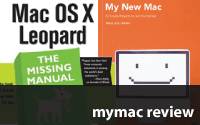
Mac OS X Leopard Edition: The Missing Manual by David Pogue (O’Reilly, $34.99) and My New Mac by Wallace Wang (No Starch Press, $29.95) are books that meet this challenge in completely different ways. Pogue’s book essentially takes an OS-centric view, running through all the different utilities and applications, explaining what they do and how you can use them. Along the way he reveals all kinds of tips and tricks that will make a Mac user’s life easier and more productive. Wang’s book takes a different approach, focusing instead on specific projects and describes how they can be done (mostly) using just the stuff that comes as part of the Macintosh OS. By steadily ramping up the complexity of each project, Wang expands the reader’s skills so that by the end of the book pretty much every major aspect of the Mac OS will have been used in one way or another.

Both books are very well put together. The ‘Missing Manual’ series needs very little introduction, being familiar to practically every computer user in the western world. While there’s some variation among the different titles, they all share the same high production values and although a little pricey, at almost 900 pages you do get a lot for your money. Pogue certainly knows the Mac OS inside-out, and his list of books on the subject could be best described as prolific.
Wang is another experienced tech writer, albeit one less known in Mac circles. His others books have included titles on Visual Basic and file sharing technology. The overall look and feel of My New Mac is on par with other No Starch books, with a clear, open format the delivers a lighter feel to the Missing Manual. The result is something that comes across as a bit less intimidating than the average computer book, certainly something that works in the book’s favour when its target audience is considered.
Give that both books are competently written and nicely produced, choosing between them comes down to deciding whether Pogue’s approach or Wang’s is the best.

Absolute beginners
Both books have sections that cover the very basic stuff like moving files and emptying the Trash. Both books also make allowances for switchers from Windows platforms, Wang by making illustrated comparisons and Pogue by providing a Windows-to-Mac directory at the back of his book.
Pogue unarguably provides more depth in both regards, so that both newcomers to computing and switchers from Windows should be able to find the information they need to succeed. But Wang is much less laboured about how he teaches the reader these basics, and manages to cram in quite a lot of essential stuff into just a few, easily understood projects. It’s very much the learn-by-doing approach, and it works quite well. By contrast readers of Pogue’s book will have ploughed through over 350 pages before they even open up their first useful application. That’s 350 pages of top-notch content, but it’s still 350 pages.
Of course one criticism of using a project- rather than function-based way of learning the Mac OS is that knowing how to perform a particular project doesn’t necessarily help much if you’re trying to troubleshoot some aspect of the computer’s functionality. For Wang’s system to work it needs a decent Index that will let you head straight to the relevant project so that you can understand how a particular function works. Thankfully, Wang’s book is very well indexed, with many aspects having multiple entries.. For example, if you wanted to figure out how to delete a folder, you could look under either Delete (Folders) or Folders (Deleting) and get the relevant page number.
So while this is a tough call, for the reasonably smart (if not necessarily computer-savvy) newcomer to the Mac platform, My New Mac gets the nod from me as being more succinct, easier to read, and just plain more inviting.
Home/Office
Both books could earn their keep in the home, covering the topics most relevant to home users in some depth, albeit in different ways. But Pogue’s book does rather assume that the user already knows which applications to use to perform what function; Wang’s book starts from other end of things, offering a variety of projects and then explaining which applications you need to use to complete them. This makes Wang’s book altogether easier to navigate and ultimately to use. Less experienced computer users especially will appreciate the step-by-step projects describing setting up e-mail accounts, sharing files, backing up data and so on. So for the home user with limited demands, My New Mac definitely scores very well.
In the small or home office, Wang’s book will also be popular, especially with switchers from Windows looking to quickly tackle basic office tasks. There are several projects that involve Mail and iCal, all carefully chose and well explained. Pogue’s book also tackles these issues well, and in terms of usefulness both books would be appropriate for the small or home office. Neither covers productivity applications like Word, so choosing between them really comes down to personal taste.
Longevity
Pogue’s book scores highly here because of its depth. Even once its basic use as an introductory manual is done with, readers will keep coming back to the book as a troubleshooting guide. Even putting apart the countless tip boxes scattered about, there are several thorough appendices at the end of the book containing a variety of troubleshooting topics such as dealing with frozen computers, fixing disks and so on.
This isn’t to say that Wang’s book lacks value in the long term. There are some excellent projects such as troubleshooting printers and ejecting stuck CDs that comfortably fit into a troubleshooting rather than productivity category. On the other hand the project that describes basic disk maintenance methods is brief, at best adequate in terms of giving a beginner some idea of how to keep their Macintosh in good shape. When all is said and done, Wang’s book isn’t a troubleshooting manual.
Pogue’s book also does well in having power-user projects including chapters on AppleScript, Automator and UNIX; Wang’s book barely mentions UNIX and skips AppleScript and Automator entirely. Now one might well argue that these topics have no place in a book for beginners anyway, being pretty complex topics that easily deserve entire books of their own, let alone chapters. Taken from that perspective, the lack of coverage in Wang’s book is no big deal. But even allowing for that, The Missing Manual is easily the choice for the reader wanting to make a long-term investment and unlikely to buy a second, more in-depth book down the line.
Conclusion
Balancing up these books is difficult because they are ultimately catering to different markets. Mac OS X Leopard Edition: The Missing Manual will undoubtedly be the book of choice for potential power users (or experienced Windows users making the switch). It’s also the one IT support centres will want to have in their tech book collections. It’s a tried and trusted book with depth as well as breadth. So in situations where the new Mac in question is going to be working hard, then this is the book to put beside the hardworking Mac user.
My New Mac on the other hand is breezy and takes a refreshing new approach to the whole computer training process. It doesn’t require any background knowledge, and the projects described are firmly placed at the consumer and SoHo segments of the market. If you’re looking for something to give to family member with their first Macintosh, My New Mac makes a very compelling alternative to the usual OS-centric books and manuals.
email – MyMac Magazine – Twitter – Advertise – Reviews Archive – Podcast
Kensington Ci70 Keyboard with USB Ports
Company: Kensington
Price: $49.99 USD
http://www.kensington.com
I’m a pretty fast typist but the one thing I kept hearing while I was typing at home was “Why are you typing so loudly?” Hey, it wasn’t me, it was just the keyboard responding to my fingers flying over the keys. I’ve always, for the most part, used an Apple keyboard hooked up to my Macs. You know, the big, almost sounds like a typewriter, keyboards.

Now when I purchased and started to use my new MacBook in January, there were no longer any complaints of my banging the keyboard to death. Why, maybe because of the change in the keyboard style from the larger keys to the shorter, chicklet-like, keys on the MacBook. So when the chance came around to get a new Kensington Keyboard, with added USB ports, for my regular desktop Mac, I couldn’t resist.
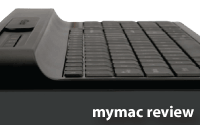
Kensington’s new Ci70 keyboard (wired) provides the user with a smaller footprint than most of the other keyboards. The keyboard has been reduced in size by 35% and presents a lower and much more laptop-like keyboard for the user. The keyboard is very lightweight, comes only in black and typing is easy and enjoyable. One thing you have got to know from the start, Kensington decided that one model fits all, so the keyboard also has Window keys (or to a PC user, it has Mac keys) and it has also been tweaked to prevent any wasted space. If you take a look at the picture below, you’ll get a good idea of what I’m talking about in regards to there not being an inch of wasted space.

Here’s the other interesting point of Kensington’s Ci70 keyboard… they’ve added USB ports to the keyboard. I know, even Apple has USB ports on their keyboards. But Kensington’s keyboard, besides the two standard USB ports (one on top, one on the back) also has a mini-USB cable that hides on the top of the keyboard under a sliding cover that permits a digital camera user to hook up directly to the keyboard without having to go searching for their USB cable to hook up and download pictures. Kensington has put the cable right up on top for you to hook up, download, disconnect and then continue with whatever you were typing.
Under the same sliding cover, you will also find five control buttons that, from left to right, permit one to open up their CD/DVD drive, conduct a search of their Mac, open up the default email program, open up the default web browser, and finally, open up iTunes, or whatever your default music app is. Speaking of iTunes, Kensington also has five controls on the right side of the keyboard, right above the number pad, allowing you to start/pause your music app, move up and down your playlist and finally, raise or lower your volume.

As you can see above, the keyboard presents a very low profile. There are two small feet on the back of the keyboard to raise up the board, but it will no be well off the desk. However, I found it very easy to get used to and it did not present a problem at all.
Using the keyboard is great, it produces very little key noise. (scissor-key mechanism) Once you get used to the compressed keyboard, you’ll really enjoy it. The one thing that threw me for a loop was the fact that there is no Caps Lock indicator. I thought maybe I had a bad keyboard so I checked. It seems the caps lock function was intentionally left out in the keyboard’s design of a 35% smaller footprint. Once you get by that, unless you’re typing in a password and you’ve inadvertently now gone into Upper case and you can’t access what you need, it’s okay and not a big deal. Hooking up a camera to the mini-USB cable is fast and simple, just be aware it’s only five inches long so it will be close to your keyboard or on the top portion. I encountered no problems with syncing my iPod to my Mac. All in all, a great little keyboard.
So to review:
Pro: Easy to use, Mac/PC compatible, low profile, reduced size, provides 2 USB ports and one mini-USB cable. Looks good. Keyboard size: L 16.0″ x W 7.0″ x H 0.25″-1″
Cons: The only problem that I had with the keyboard was the lack of a Caps Lock indicator. (You’ll adjust to it)
Warranty: Kensington 5-Year Warranty and free technical support.
Highly recommended!
My Mac rating: 4 out of 5
email – MyMac Magazine – Twitter – Advertise – Reviews Archive – Podcast
Ever since Steve Jobs got up in front of the World Wide Developer Conference and announced "yes – the rumours are true!" and thereby ushered in the Intel Macintosh age, many of us were tantalized by two diverse possibilities.
The first was the possibility of running Windows natively on a Mac. After all, switching to the Intel architecture meant that a Mac would effectively be a PC, and with some fairly minor differences this has proven to be the case. he existence of Apple’s officially approved Boot Camp software for installing and running Microsoft Windows confirms this, and the clever solutions from Parallels and VMWare allow Windows to run as virtual machines under OS X. But what about the opposite? If Apple had redeveloped OS X to run on the Intel architecture, how easy would it be to run that same OS X on a standard PC designed to run Windows?
It turned out that it would be very easy indeed – principally because the development platform Apple made available to allow programmers to test their work under Intel OS X were in fact standard PCs. Naturally, as soon as the first real Intel Macs were launched, attempts were made to install OS X on conventional PCs.A thriving community and a formal project (knows as OSX86) has worked since the release of the first Intel Macs to provide simple and reliable methods to get OS X working on ordinary PCs.
The issue with achieving this is not overcoming Apple’s inbuilt checks to ensure that a genuine Mac is being used – these are fairly simple to overcome. However, unlike Apple’s strictly controlled and formalised hardware and driver model, the PC market is awash with variable hardware, often engineered down to a price. Drivers are often of poor quality, and of course are typically written only for the Windows platform.
No wonder, then, that the OSX86 movement is a hacker’s dream come true. Hardcore geek fu is often required if you want to take a specific PC and get Leopard running on it reliably – tracking down spurious Linux drivers and recompiling will be the order of the day. Also, to get a PC-capable copy of OS X, you need to hit the torrent sites to get a modified copy of the operating system, and so you are running pirate software as well as breaching Apple’s license agreement.
Little wonder that when Florida PC outfit Psystar started selling plain PCs with OS X Leopardpre-installed (and this week, Apple finally let slip its legal dogs of war on them), the warranty terms in the case of ANY service required the whole machine to be returned to them.
So, in short, it’s not worth doing then? Well, that depends. I recently purchased an MSI Wind, a tiny and cheapsub-notebook computer inspired by the remarkable Asus Eee PC. Despite its £280 ($560) price, the Wind comes with a 10" widescreen display, 1Gb of RAM, 80Gb of hard disk storage and a powerful yet frugal 1.6Ghz single core Intel Atom processor, all packed into a tiny 3-pound chassis.
It turns out it is pretty simple to get OS X 10.5 Leopard on this machine. It took me about two hours to do this afternoon – I added some extra RAM before I started, and while I was in there I swapped the WiFi controller from the default one (which will not work with OS X) to a Dell WiFi card ($25 on eBay) that appears to OS X as an airport card.
Once the hardware was taken care of, I used a USB DVD drive to boot the Wind to a modified OS X 10.5.2 Install disk (known as the Kalyway distribution). Some specific customizations were required, and to get up to a fully working 10.5.4 required careful patching and some specific drivers. However, all of the required work in terms of files and drivers has already been done and made available, as well as step-by-step instructions.
Pretty much everything on the machine now works as if it was made by Apple, with the exception of the 3.5mm audio ports. The Wind sports Intel GMA950 graphics, which are the same as in the MacBook, so Leopard Core Image works fine. Overall performance is actually pretty snappy, and it will even support VMWare Fusion running Windows!
To me, this is a much sweeter machine than the MacBook Air – just as portable, but a fair bit more capable than the thinster. If Apple were to take the Intel Atom and wrap a Jonathan Ive aluminum case creation around it, I think they could easily get away with charging double what MSI wants for it, even without dual-core processing and a full-size keyboard and screen.
And that’s what I find most interesting about the whole OSX86 scene. If you want a reliable, comprehensive and legal computing experience then you should buy a real Mac from Apple – but if you want an insight into how Apple’s products might develop in the future, take a browse through the community forums of the OSX86 project and see what they are up to.
email – MyMac Magazine – Twitter – Advertise – Reviews Archive – Podcast

LAbesace Lime Drop MacBook Laptop Bag
Company: Be.ez
http://www.be-ez.com
Retail: $69.99
With out wishing to stereotype the typical MyMac magazine reader, let me ask you a question. Have you ever shopped for a handbag? If not for yourself, perhaps accompanied a loved one or friend? It is a frankly bewildering experience. They come in so many different shapes, colors, sizes and prices that I had no idea how my wife was ever going to be able settle on just one.

Laptop bags are a little like that too. You can pick up a cheap no-brand generic black bag from your local superstore, or you can spend substantially more on something with a particular design focus or features. Where to start? Be.ez, the French laptop bag specialist, reckon they have you covered with a wide range of bag styles and colors that stand out from the crowd. I reviewed their plum-colored LEvertigo messenger bag a while back, and found it much to my liking. This time round, I am looking at the LAbesace bag, sized for the 13.3-inch MacBook.
The base characteristics of the Be-ez range are common across all of their products, having seen a few of them now. Very high quality ballistic nylon construction and superb stitching and finishing is the order of the day, as well as a broad shoulder strap made of ‘seatbelt’ material. Annoyingly, the lack of a carry handle or a shoulder strap cushion also appear to be a common trait.
The top flap is zippered the whole way round nice and securely. With the Lime Drop model, the sober gray of the outside is offset by an acid green interior (though other colors are available of that doesn’t float your boat!). The arrangement of the MacBook in the bag is conventional – the machine goes into a suspended pocket at the back, retained by an elasticated strap. There is another pocket in front of that, and then a set pen, card and disk holders. However, the bag is not short of room – the bottom of the bag is stiff and curves up and out from the back, meaning that there is plenty of room in front of the pocket section for bulkier items like the power supply or a mouse. This feature makes the bag one of the most useable I have come across.
It also has plenty of zippered oddment pockets – a large one on the inside of the flap, a smaller one on the main inside section, and two external pockets on the top and back.
Padding is always a balance between bulk and protection, and I think the LAbesace gets it about right. The back is well padded, as that is where the laptop is in direct contact with the outside, and for other areas the suspended pocket acts as the primary protection from impact.

Overall, the LAbesace bag hits all of the right marks for me. There are still those couple of minor niggles around the lack of a handle and the comfort of the shoulder strap, but these don’t detract too much for me from the overall utility and quality of the bag, and it is much more stylish than your generic superstore cheapy. On a value for money front, the quality of design and construction make it a worthwhile purchase in my opinion.
email – MyMac Magazine – Twitter – Advertise – Reviews Archive – Podcast

Download the show here, or subscribe via iTunes
Tim, Guy, David, and Sam talk about the latest happenings in the Macintosh world. A great discussion about Microsoft wraps the show. Plus, Nemo chats with Jim Dicker.
Sponsored by Other World Computing. Check them out!
Links from the show:
Griffin PowerDock2
Posimotion Apps for iPhone
iPhone Developer Camp

email – MyMac Magazine – Twitter – Advertise – Reviews Archive – Podcast
Jumsoft iWeb Themes
Company: Jumsoft
Price: $9.99 or all ten themes for $69.99
http://www.jumsoft.com
Requirements: iWeb 2 from iLife 08
As a long time user of iWeb I have become somewhat jaded with the themes that Apple supplies with their easy to use website creation program. So much so that I did a series of articles on how to use it and make your site look anything OTHER than yet another iWeb site. It’s relatively easy to do so, cut this piece there, add a little here, not entirely unlike gourmet cooking but with a Betty Crocker Easy-Bake oven.
This is not to say that Apple’s own themes aren’t beautiful and iWeb can make using them not only simple, but quite pleasant to look at. After awhile though, when you start seeing the same themes applied over and over again, whatever the message the creator is trying to convey can be lost in the dullness of repetition. As I stated, you can take those same Apple themes and make them look different, but the same methods used to do so must be applied again and again to keep the theme consistent within the site. My series of articles explained how to take some of the grunt work out of it, but I won’t pretend it doesn’t take extra work beyond that of just selecting a new page.
So, what to do? There are companies that will sell you new themes but installing them and having them easily work within the framework of iWeb isn’t something that the average person who just wants to make a website will want to tackle. Enter Jumsoft.
Jumsoft is a European company with dedicated people that have difficult to pronounce names for my uncultured American tongue. That notwithstanding, what they do is show a great commitment to the Mac platform and support for some of the wonderful productivity programs available, some exclusively, for our preferred OS. These include Rapid Weaver, Pages, Keynote, and Aperture amongst others. Mostly along the lines of applied themes to help users of these programs get started, or to provide a framework for them to get their message or content out without having to worry about the front end. If this was all they brought to the table, we would do a polite golf clap, give them a cookie, and be on our way, but Jumsoft decided to do a little more work than that. With every iWeb template, they also include an installer so that when you open iWeb and create a new page or site, the Jumsoft template you purchased is included along with Apple’s templates. No fuss, no muss, use the template just like any other.
The templates themselves have the necessary pages for each type of iWeb page. Movies, pictures, podcasts, blogs, they are all there. Some are in my opinion more attractive and useful than others, but there is a wide variety in which to choose from. You can purchase each one separately for $9.99 each or buy them all (10 actually) in one pack for $69.99. My only complaint about the themes is that some elements are fixed in width and cannot be altered so if you decide that you want a site to wider than what is standard for that theme, those elements cannot be changed to accommodate.
Here’s the bottom line. If you use iWeb on a regular basis, you need to take the time to go to Jumsoft and see what they have available. They have great looking themes and have made it drop dead simple to add them to iWeb. Simplicity is the cornerstone of a program like iWeb. Jumsoft seems to understand that and have made the necessary strides to continue in that vein. I would have given them a 5 out of 5 if it wasn’t for the fixed elements in some themes so ½ point removed for that.
MyMac rating: 4.5 stars out of 5
email – MyMac Magazine – Twitter – Advertise – Reviews Archive – Podcast

FS100 Digital Video Camera
Company: Canon
Price: $323.23 (Amazon.com)
http://www.usa.canon.com
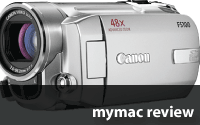
I’ve been avoiding buying a new camcorder to replace the 8 year old DVC tape unit for awhile now. There were plenty of tempting offerings, but none matched the feature set and price point that I was looking for until I happened upon Canon’s FS100 model at an Apple Store. While giving it a once over there, I liked the light weight, the responsive and variable zoom, the microphone input, and that at $399, it was still very much reasonable in price. I almost bought it right there at the Apple Store, but resolved to sleep on it first and check out what other people were saying about it. I’m glad I did, and afterwards I almost gave it a miss but decided that no other camcorder available currently in the this price range would meet my needs.

Let me say what I liked about it first. As said before, It’s lightweight and small enough to fit in most pants pockets (or are you just happy to see me?) without making you walk funny. The unit measures 2.3-inches wide, 2.4-inches high, and 4.9-inches deep. It weighs about 9.2 ounces. It starts up almost instantly and is ready to record within a few seconds. It has a large 2.7-inch LCD display that is clear. It has a relatively easy menu system for setting up some of the various built-in features all of which a clearly displayed on the LCD. It has a variable zoom that can be as fast or as slow as the user might wish and there are some settings in the menu that allow you to adjust this even more. The battery lasted almost 2 hours of near continuous use for me (your usage will vary dependent on a number of factors). In it’s highest video resolution mode, you can get nearly 2 hours of video from an 8GB SDHC memory card, though Canon states that you can get over 5 hours of video from the same card at a lower resolution. Keep in mind that while this camcorder does record in either 4:3 or 16:9, it isn’t true high definition and if that’s something you must have in a camcorder, keep on looking.

There are a number of effects available from the FS100’s menus, like fade-in/fade-out, Sepia, and Black and white recording modes, Mosaic, and a few others of varying effectiveness. Most of these probably sound like nice additions, but I doubt you’ll use them more than once. There are a number of Automatic Exposure settings as well (AE in the menu) including TV, Portrait, Sports, Night, Snow, Fireworks, etc. Chances are unless you have specific needs, the Auto setting will work just fine in most conditions. You can manually set the White Balance as well as the unit having Auto, Daylight, and Tungsten presets.
Canon does not supply any memory for this camera (though essentially the same camera models FS10 and FS11 has 8GB and 16GB built-in respectively for a higher price), so an SD (preferable an SDHC card) will be required. I put in an 8GB SDHC card from Transcend that cost roughly about $31 and if even more storage is needed the camcorder accepts 16GB cards as well.
One of the main reasons I bought this camcorder was that it had a microphone input. The input uses an industry standard 3.5mm jack (there are adapters available for other sized inputs from places like Radio Shack) and as long as Phantom power is not required, the FS100 should be able to use nearly any non-XLR microphone. The built-in microphone is very sensitive and does a pretty good job, but is subject to some wind noise as most built-in microphones are.
Now some of the things I don’t like about this camcorder. The image sensor is only a little more than 1 megapixel. Still images look a little washed out and with both video and still images. The FS100 also does not do so well in low-light situations. I’ve used it now under some different lighting conditions and have had varied results. Fireworks seemed OK. The FS100 quickly adjusted itself from almost total darkness to bright bursts withe little effort. Also the FS100 had little trouble with typical stadium lighting, but any constant low-light situation was not that great.

The FS100 does take still pictures as well as video and it can shoot up to 5 frames a second. The image sensor as I said is only 1 megapixel so this is more like a stop-gap convergence answer for digital photography than a dedicated point and shoot. If your main focus is taking pictures and you want them to scale well in various sizes, the FS100 is not the answer for you.
The included software seemed next to useless to me or most likely any other Mac user that already has iPhoto for digital images. Once you have the camera plugged into a USB port and it mounts on your desktop, iPhoto should (depending on your settings) automatically start up. Downloading your still images using iPhoto is pretty straight forward like most digital cameras.
OK, let’s talk about what this kind of stuff this unit is really meant for: video. Honestly, even with the complaining I’ve done (and I’m not through yet), I liked the video this camera put out. While low-light certainly isn’t a strong point, it does pretty well in every other situation and I liked what I saw. Here’s what I didn’t like though, .MOD files. Know what those are? Apparently they’re some kind of modified mpeg-2 format that Canon uses. iMovie 06 and QuickTime 7 had no idea what to do with these files and it took a little research to find a solution.
A company called Squared5 makes a software converter called MPEG Steamclip that is an absolute free download and that will take those .MOD files and make them QuickTime compatible files (in a variety of formats). Also iMovie 08 will import them as well.
One other minor complaint is that if you want to download the content off the camera, you’ll either need to remove the card and put it in a reader or connect the camera via USB. No big deal in itself, but if you connect the camera directly, you MUST have the power cable connected and supplying power as well. If you’re out and about, that may not be easy. You might be better of having a few other memory cards to use until you offload them later. Also no battery charger is included so the only way to charge the batter right out of the box is to have it inside the camera and connected to power.
I really like this camera even with all the complaining I’ve done and it will be my main family shooter for at least a few years. I can live with its shortcomings as it is light, easy to use, takes great non-HD video and it has an external microphone connection.
email – MyMac Magazine – Twitter – Advertise – Reviews Archive – Podcast
SCOTTEVEST/SeV Essential Jacket-Men’s
Company: SCOTTEVEST, Inc.
Price: $120.00
http://www.scottevest.com
IT WAS JUST before 7:00 AM when I got the call. I grabbed my laptop bag and my various and sundry gadgets and hurried over to HQ.
Pennymoney flashed her usual smile for me as I entered. “They’re waiting for you in there, Gil. Looks important.”
“You know there’s nothing more important to me than you, Pennymoney,” I assured her. She rolled her eyes and buzzed me into the conference room.
“You sent for me, sir?”
“Sit down, double-O zero, and try to pay attention for once.”
“L,” the head of AltiM@c Computer Consulting, was in no mood for pleasantries.
“We’ve received an urgent distress call from a design group located in Newark, N.J. What do you know about a company called Tritonic, LLC?”
“Tritonic, LLC…yes…three principal officers, now upwards of 12 employees. Grown astoundingly quickly in the past few years. Entirely Mac-based except for, I believe, their telephone system. Upgraded to Mac OS X 10.5 Tiger before it was even fashionable to do so. Remarkable blend of talent and enthusiasm…Nunzio is a great dresser although he could probably use a haircut based on our most recent surveillance photos, which also show—”
L looked pained and cut me off before I could finish.
“We’ve hardly the time for your tonsorial assessments, double-O zero. The point is, their in-house FTP server is down, and three of the staff designers are having difficulties with the Helvetica and Futura font families. We need you to get over there immediately and restore their studio to working order.”
Understanding that time was of the essence if I was to find a parking space for the Aston Martin near the studio, I turned towards the door, only to find “P” standing directly in my path. No doubt he had just completed another troubleshooting gadget to add to my already formidable arsenal. Of course, I’d still get the usual lecture about returning it to HQ in one piece.
“Hold on now, will you, double-O zero? We need you to put this on. Now turn around.”
I turned my back to P and extended my arms as he helped me don what appeared to be a rather ordinary-looking jacket. At first glance I perceived it to be of a brushed cotton blend, Teflon-treated to resist moisture and stains.
“Very classy, P. And I like the color, too, but normally I prefer to choose my own—”
“Don’t interrupt me while I’m working, double-O zero. This is the SeV Essential Jacket, the latest in a line of Technology Enabled Clothing from Scottevest. It’s got 19 pockets and compartments custom-configured to hold and protect digital cameras, MP3 players, cellphones, pens/stylii, documents, memory cards, keys, water bottles, loose change, headphones and whatever else you feel the need to carry with you. This is now standard issue for all our consultants in the field.”
“Yes, very innovative, P. But if I stuff all those pockets with all these gadgets of mine, won’t I look like I just spent the morning shoplifting at The Apple Store?”
“Hardly, double-O zero. The unique design of the No-Bulge Pockets™ creates a streamlined look, so items in your pockets don’t create unsightly bulges. And special designs and fabrics in the shoulder area evenly distribute the added weight of your devices, resulting in more comfort and less hassle.”
I was starting to warm up to this jacket, but I had another question for P.
“What about my iPod? How can I listen to my own theme music if it’s all tucked away and protected in one of those 19 pockets?”
“Do try to give me some credit, double-O zero. The jacket uses a Personal Area Network™ that allows you to channel your wires through the lining in order to wire and connect your MP3 player or other device. In fact, the personal audio device pocket is uniquely designed so that you can control your iPod right through the fabric.”
The special iPod pocket (actually, there are two to accommodate various sized-iPods or other MP3 players) is so thin in front you can feel and manipulate the controls right though the fabric.
I had to admit, I was quite impressed with P’s latest discovery. The jacket was surprisingly light and comfortable even after loading it with my troubleshooting technology arsenal. But I had one last concern about wearing this garment on a mission.
“You know, P, I often find myself in some, shall we say, compromising positions in my line of work. How do I make sure nothing falls out of these 19 pockets if I’m crawling beneath a desk, or leaning over to reach around the back of a quad-core tower?”
“You are become tiresome, double-O zero. The Essential jacket has magnetic closures for pockets and flaps so they’re easily opened and closed, while still holding your devices securely. And before you ask, no, they won’t repel bullets…Although in your case, I really don’t see that as a problem.”
I took that as my cue to set off on my mission, but L had one last request.
“Make sure to return the jacket—and yourself—to us in one piece after you’ve completed your mission, double-O zero. Good luck, and Godspeed.”
“And do try to keep the jacket free of bullet holes…” added P.
“I’ll do my best, gentlemen,” I assured them.
Outside, I fired up the Aston Martin DB5’s 4-liter, 282-horsepower motor and set off for Newark, secure in the knowledge that whatever troubleshooting gadgetry I might need to employ in the course of this mission, this SCOTTEVEST Essential jacket would be more than up to the challenge.
—
Well, after spending some time with the Essential jacket, I’m happy to report that I did manage to keep it from being damaged—in spite of the ever-present danger common to my line of work. Unfortunately, here in central New Jersey at this time of year it tends to be a bit warm for jackets, so I was pleasantly surprised to discover that the jacket has zip-off sleeves, allowing me to get a little more mileage out of it before the dog days of summer set in. Plus, even with all those trademarked features and innovations, it’s still fully machine-washable.
One of the almost surreal things about wearing and using this jacket is that simply knowing how to use a zipper or button, which most of us mastered in preschool, just doesn’t cut it here. With 19 special purpose pockets, you really need to invest some time in learning about all the different functions in order to use them to their fullest potential. But let’s face facts—who wants to actually read a manual for a jacket?
Understanding this, the SCOTTEVEST folks took the initiative to create what I would call individualized “cheat sheets,” in the form of business-card sized instructions placed in each pocket. These miniature manuals are unique to each specialized pocket, so each time you reach your hand into a new pocket or storage area you are provided with detailed information on its function and use. Sure, it borders on the obsessive/compulsive, but this step tells me how seriously they take the innovations represented in their clothing line. Their Web site even includes a features glossary, so if you want to make sure you can recite the finer details of your garment’s Personal Area Network™ or MyMemory™ pocket to incredulous friends and associates, your edification is but a mere click or two away.
Arrows indicate the path of the Personal Area Network™, which gives you a way to channel your headphones through the lining of the jacket and up to your ears without creating a tangled mess of wire. It’s as if you installed your headphones into the jacket itself.
Above all else, what really impressed me is that for all its Gear Management Clothing innovations, its 19 pockets, its BudBuckets and CollarConnect™ and Weight Management System and all the other trademarked features,, the Essential jacket still manages to look like a sensible and practical lightweight jacket on the outside, offering little indication of all the technology that’s being transported within, and I think that’s where the jacket’s considerable price tag is justified. It’s really unfair to compare it to any ordinary jacket in terms of the thought and preparation that the SCOTTEVEST people have invested in it.
So what’s the bottom line with this jacket? At $120, it’s no small investment, and you can surely find a similar-looking jacket, with three or four plain old-fashioned “pockets,” in the $40-$50 range. But there’s no doubt that if you do carry around a lot of gadgets, there is a huge advantage to this jacket over any other in terms of protection and convenience, as well as the sheer geek coolness factor (if such a thing can be said to exist). Just be prepared to take some time to familiarize yourself with all the options and the unique functionality of each of the pockets so that you can take full advantage of all the thought that’s gone into creating it.
In other words, I recommend you take some time to, er, “Bond” with it…
MyMac.com Rating: 4.5 out of 5
email – MyMac Magazine – Twitter – Advertise – Reviews Archive – Podcast

The Moment It Clicks
By Joe McNally
O’Reilly
256 pages
US $54.99, CAN $59.99, UK £29.99
http://www.PeachPit.com
ISBN-13 978-0-321-54408-7
If you’re a serious a photographer who keeps up with what’s going on in the photography industry, you’ve no doubt heard about acclaimed photographer Joe McNally’s recently published book, The Moment It Clicks. It has been blogged and reviewed aplenty on many websites. His friend and editor, Photoshop guru Scott Kelby, has promoted the book on his blog and other places, and there’s been a healthy debate amongst Amazon.com reviewers about how useful the book is or isn’t to learning McNally’s awesome photography techniques.
I’m not here to necessarily write a review of the book. There’s plenty of reviews already published. I want to respond with my own personal likes and dislikes of what some readers are calling a great guide book, while others claiming it’s basically a great coffee table photography with little to learn from. First off, when I saw it in the bookstore, I simply wanted it for the awesome photos and the creative energy the images convey. I could tell that with the sparse amount of text that there wouldn’t be a wealth of how-to information in the book, so I wasn’t expecting that.
Plus, when I saw and briefly read the four pages of pictures and lists of McNally’s lighting and photography gear, I had no inclinations that I would be able to pull off the type of work that he does with my meager camera bag of gear.
So for me, this book was about inspiration. I know I’ll probably never shoot the subjects that McNally has. He’s done portrait shots of James Brown (days before his death), to weird location shots of a skier atop the Empire State Building looking over Manhattan, to a nine camera field shot of a NASA shuttle launch in which he got one perfect shot, despite a storm hitting the area just before liftoff – destroying his and other photographers’ equipment.
You no doubt can guess that someone who has shot for the likes of Time, Sports Illustrated, Life and National Geographic has some awesome stories to tell about his work. In fact, much of what he says about his photos are stories behind the images. The how-to parts get thrown in for extra measure. But this doesn’t mean you can’t learn from what he has to offer.
I discovered as I read the book, that McNally took and made many of his photos with his knowledge of simple lighting techniques. While his gear includes thousand dollar Elinchrom Octa studio lights, Butterfly Foldaway Frames, and Lastolite Skylite Kits, many of his images are shot using existing natural light or a strobe or two. It’s amazing what shots can be produced simply by using window light or colored gel over a strobe. Other photos simply required a fill flash to offset direct sunlight.
By actually reading through the book I discovered that it’s not all about the gear, but more about discovering clickable moments and knowing what to do to capture them. Of course, it does help that you can work and get paid to visit all sorts events and locations throughout the world to capture amazing, once in a lifetime moments, but on the other hand, there’s also the challenge of making amazing photographs of people and surroundings in your own life.
If someone ask me for whom is The Moment It Clicks is written for, I’d say that it’s for those who appreciate powerful photographic images. So whether you’re a professional photographer, a serious hobbyists, or an admirer of this art form, The Moment It Clicks should appeal to you. The sheer variety of images and the stories behind them make for a great Summer read and an essential book for any photographer’s library.
The only missing aspect of this book, which is a little surprising, is that McNally doesn’t share any of his post-production strategies. As amazing as his work is, we know that his photos certainly don’t come out of the camera well sharpened, saturated, and color corrected. So it would have been useful for him to share some tips and strategies in his post-production process. To be fair, though, the book doesn’t promise to provide anything about Photoshop strategies and the like.
The Moment It Clicks is about capturing great photos at an opportune moments. You won’t find too many other contemporary books like it around today.
email – MyMac Magazine – Twitter – Advertise – Reviews Archive – Podcast
LaCie 1TB external Hard Drive, design by Neil Poulton
Company: Lacie
Price: $269
www.lacie.com
Hardware Requirements: G3/4/5 PowerPC/ Intel Mac with open USB1.1/2, FireWire 400, or eSATA port
Designer hard drives. Has it really come to this? A hard drive should be utilitarian, be robust and have oodles of space for all the stuff we want to put on it. Considering that we rarely look at them except over whatever icon is assigned to them (or that we assign to them ourselves) on our desktops to access information and data, who cares what they look like and I’ll be damned, DAMNED I say if I’ll buy a drive based on looks alone.
Except…

This drive looks cool. It’s all black in a Monolith/ 2001: A Space Odyssey kind of way. When it came in for review, my first impression was to dismiss it in the same way I dismissed those Ferrari-branded laptops from some time ago. The outside packaging gave me no reason to believe that this wasn’t just another average hard drive with pretensions.
Then I removed it from the packaging. It slid out of an all-white sheath like a sword being drawn. It immediately grabbed my attention and I said, “OOOoooooo!” All the light seemed sucked out of the room by its blackness. Except for the logo on the side, some small vents and naturally the ports to connect it with on the back, the darkness was unbroken.
I reluctantly turned my eyes away from the drive to examine what other goodies it came with and I was pleasantly surprised that a USB cable, A FireWire 400 cable, and an eSATA cable was included. No quick trip to a computer/ office supply store was required to connect this unit right away. I don’t have an eSATA port on my iMac, so I connected the power supply and FireWire cable and turned it on. Almost silent other than an extremely quiet fan. A dark blue light emanated from the bottom front to announce its presence. I half expected “Also Sprach Zarathustra” to start playing and was mildly disappointed when it didn’t.
The drive’s performance itself was unremarkable, certainly up to par for other drives this size. It has a 16MB cache which is typical for most mid-range hard drives of this size. It’s price is a little higher than what you’d pay for a similar USB-only drive, but most drives that have multiple connection options are going to be priced about the same. The included Mac backup software is 10.4 only according to LaCie’s website and since I have 10.5 on all my computers, I didn’t try it. There is Windows software as well, but most people would be better served with a dedicated backup solution as compared to what LaCie (or any other drive maker) includes. The drive is backed by LaCie with a 2-year limited warranty.
You can most likely find cheaper hard drives. Especially if you don’t need to connect via FireWire or eSATA and LaCie sells this same drive with USB only as well. What you won’t find is a drive with more WOW in the way it looks. Its simplistic, almost hypnotic design was worth an additional ½ ratings point to me.
And I am damned.
MyMac rating: 4 stars out of 5
email – MyMac Magazine – Twitter – Advertise – Reviews Archive – Podcast
Drive Genius 2 (Version 2.0.3)
Company: Prosoft Engineering, Inc.
Price: $99.00
http://www.prosofteng.com/
Prosoft bills Drive Genius as "THE industry standard disk utility for the Mac platform." That’s a big claim, so I thought I’d have a look at the latest Leopard-compatible version, Drive Genius 2, to see if I could improve the performance of my 1.83 GHz MacBook. Short answer? Yes! Long answer? Read on…
OVERVIEW:
I sometimes tutor Mac users and offer help when things go wrong. Most problems I encounter are simply due to lack of knowledge, not hardware issues. I’ve also found over the years that average users hardly have a clue when it comes to disk maintenance. Most of them get by just fine, thanks to Apple engineering and the general level of component quality. That could change, though, as more and more people fill up their hard drives with digital media files.
Power users already know what I’m talking about: when you flog your Mac long enough, you may need a disk utility, and this one is truly comprehensive. Drive Genius 2 offers a suite of tools to keep hard drives running smoothly and dependably, including disk defrag, directory repair, repartition on-the-fly, device/volume cloning, integrity testing, benchmarking, secure erase, sector editing, and more. (Much more than I can cover in this review.) ProSoft says the app’s target audience is "anyone with a Mac who is interested in improving the speed and performance of their Mac," but casual users won’t appreciate all this can do.
According to the manufacturer, "Drive Genius’s most popular feature is disk defrag. Drive Genius will optimize the drive by combining all the empty free space together into one contiguous block. This in turns improves the overall speed and performance of the drive." Music to my ears, so for the purposes of this review, I decided to concentrate on defragmenting the hard drive to see if I could speed things up.
The test machine is an original 1.83 GHz MacBook with 2 MB of DDR2 SDRAM and a 160 GB Hitachi 7200 rpm hard drive with 67 GB of free space remaining, running OS X 10.5.4 with all current software updates, including applications. To get started, I installed Drive Genius 2, then cloned the disk to an external hard drive — not with Drive Genius, although I could have. The software comes on a bootable DVD, but I booted from the clone to optimize and test the MacBook. (Much faster that way.) And here is the app’s graphic representation of the MacBook’s hard drive before I started, with free space shown in lavender. This is a disk that according to Apple needs no optimizing, as I’ll elaborate:
OPTIMIZING PROS & CONS:
That’s an unsettling image, but is what you see really a problem? In the years before OS X, periodically optimizing or "defragging" one’s hard drive was required maintenance, or should have been: I learned long ago the hard way by letting our old LCII’s drive get so fragmented, it actually died. This isn’t strictly necessary any more — Apple says you "probably won’t need to optimize at all if you use Mac OS X" and declares "there is little benefit to defragmenting." Prosoft, on the other hand, argues that "OS X only optimizes files under 20MB. It also only optimizes the files not the drive, so even though the smaller files are optimized there can be empty space in between the files themselves." Since Drive Genius 2 (or any other defragging utility) will combine those empty spaces into one contiguous block, one might reasonably expect at least a small performance gain because the drive head doesn’t have to hop around so much. Prosoft goes on to say that "Drive Genius 2 is also used at Apple’s Genius Bar in their Apple ProCare program for this primary feature." Hmm.
So where does that leave you as a Mac user?
OS X does defragment files on its own, up to a certain point, and Apple says not to bother. Furthermore, defragging can cause problems in some cases — any time you perform digital voodoo on a drive, you flirt with the unknown, so BACK UP FIRST! I can tell you right now that I did defrag with zero agony, however. Besides, I like the idea of organizing data and free space into contiguous blocks. It feels better to me and ought to be more efficient. Since I’d cloned the MacBook’s hard drive and also backed up on another drive with Time Machine, I figured there was little risk.
BEFORE & AFTER:
Using Drive Genius 2′s benchmarking tool, I ran a few tests before I started. Chosen for a screenshot only because it was the last operation displayed, below you’ll see a bar graph of the random write test compared to results from a more recent 2.2 GHz Core Duo 2 MacBook with the identical 2 GB of memory, my results in green:
Yes, my older MacBook beats the newer one, probably thanks to that 7,200 rpm Hitachi drive. (Let that be a lesson to you if you’re thinking of upgrading, which incidentally is absurdly easy on a MacBook.) After defragging — which took about 80 minutes — the same test looked like this:
Very similar, but not the same. Let’s make those easier to compare: the red lines show obvious speed improvements, but some data took longer to write after optimizing… If you read the fine print, however, you’ll see that while the maximum and minimum write speeds are the same for both, the average speed before optimizing is 70.05 MB/s and 70.90 MB/s after:
An average random write speed increase of .85 MB/s may not sound like a lot, and a comparison using other test categories might be more relevant, but it is an increase. Benchmarks aren’t the only kind of measurements I took, however.
REAL-WORLD PERFORMANCE TESTS:
This is where the rubber meets the road: in actual use, would the MacBook actually run faster after defragging? Using a stopwatch, I timed each of the following operations three times, shutting down between each run, and averaged the results for startup, main app launches, and calculating folder sizes. Some small differences are no doubt attributable to operating the stopwatch and might escape one’s notice, but the shorter launch time for large apps is something else. Have a look:
Startup (cold boot): 36.8 seconds. before, 36.27 after
Safari: 2.88 seconds before, 3.12 after (?)
PS CS3: 13.5 seconds before, 11.79 after
iTunes: 8.35 seconds before, 7.76 after
Mail: 5.86 seconds before, 3.74 after
Calculate folder sizes:
Documents (8.5 GB): 5.21 seconds before, 3.79 after
Applications (9.61 GB): 31.32 seconds before, 30.77 after
Finally, here are some "hot" launch time comparisons (repeated launches w/o restarting):
Safari: 2.22 seconds before, 1.98 after
PS CS3: 6.82 seconds before, 3.96 after
iTunes: 4.06 seconds before, 2.69 after
Mail: 1.56 seconds before, 1.21 after
EVALUATION OF TEST RESULTS:
I can unequivocally state that optimizing the MacBook’s hard drive (defragging) did result in an empirically-demonstrable performance boost. The distinction may be technical, but the machine does boot up more quickly and app launch times are consistently shorter. Not by much, but the results confirm Prosoft’s claim that optimizing speeds up the Mac, and I didn’t break anything. Your mileage may vary, as the saying goes, and whatever you do, BACK UP FIRST!
Does my MacBook feel faster? Well, yes — but that was my expectation, and the timings cited above are only rough measurements. Would I optimize again? Absolutely! Shaving even half a second off an app’s launch time is reward enough for me, and knowing I’ve done everything I can to increase efficiency is very satisfying. The psychology may sell more copies of Drive Genius than anything else, but numbers are numbers, and I’m not complaining.
FINAL THOUGHTS & RATING:
Drive Genius 2 is a powerful disk utility that does much more than defragment hard drives, and I very much regret not having the space or time to go into more detail on the other features. There’s a comprehensive PDF manual on the DVD, and based on my experience with an earlier version of the software, customer support should be top-notch. The app has what I consider to be a cool animated interface (you can turn this off if desired), ran without a single hitch, and fairly reeks of quality software engineering. There wasn’t a moment when I thought it was overpriced, and I’m glad to have it in my toolbox. System requirements are fairly standard: Mac OS 10.4.9 or newer, a DVD drive, 256mb RAM, and a 1.0 GHz processor minimum, while the user interface animations require Quartz Extreme support (G4 or newer).
Defragging is just the beginning, and hopefully I won’t ever need to use Drive Genius to find out why my MacBook died. Based on what I’ve learned so far, I happily give this app a 4 out of 5 MyMac rating.
email – MyMac Magazine – Twitter – Advertise – Reviews Archive – Podcast
DIY Upgrade Bundle
Other World Computing
Price: $162.99 (320GB Samsung 5400 RPM+ OWC On-The-Go USB 2.0/eSATA enclosure)
www.macsales.com
When I bought my MacBook it came with a “spacious” 80GB hard drive (HD). That HD filled up pretty quick and I moved to a 160 GB HD which was the largest 2.5” drive (that is the thickness HD measurement that fits in a portable) available at the time. Now I’ve filled that up. After watching HD capacity grow over the past year (it’s up to 500 GB now) I decided to upgrade my MacBook drive.
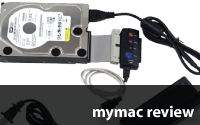
One of the things I thought about was what would I do with the 160 GB drive I was going to yank out of my MacBook? I could use my Newer Technology Universal Drive adapter to access the drive.

This is a great tool, but it’s not really designed for constant use, and frankly, I’d like to use this drive as a portable external pocket drive.
While browsing the OWC site I came across this DIY Upgrade Bundle.

OWC sells various configurations which include a new HD plus a HD enclosure so you can put that old drive to good use as an external portable drive. Wow. This solves both of my problems.
The enclosure comes with the OWC utility disk with Intech Speedtools and Prosoft’s DataBackup 3 as well as all cables and a handy carry pouch. The one I chose has a USB 2 and eSata interfaces.

I’m going to describe how I went about doing this DIY installation. There are many methods you could use to accomplish this task, so my way is just one way. To accomplish this project you will need an external hard drive of at least equal size to the drive you are about to replace, and a back up program capable of producing a copy of your existing drive. This project isn’t terribly difficult and there are instructional movies and PDFs that I will include links to within this article that will make the job fairly straightforward. Believe me, you can do this.
Let’s begin by making a working clone of your existing HD. I use SuperDuper! to make my clones. SuperDuper! is a great program and is easy to use.
What is a clone? A clone is an exact copy of the drive already in your MacBook. What you are doing is making an exact bootable, duplicate, copy of the HD you are about to replace. Making the clone bootable is very important because you are going to start up from that clone and copy it over to the new drive. So make sure you choose to make the SuperDuper! clone bootable.

Also, set up SuperDuper! to restart from the clone once it is created. This is extremely important. You must be able to start up from the external clone to complete the new drive installation. So test it and make sure your MacBook starts up from the external drive.
After the clone is all set and ready to go, shut down your MacBook and get ready to pull the old HD out. The good folks at OWC have a terrific video tutorial that explains exactly how to remove your old HD and put the new one in.
You’ll find that video here.
Make sure you download the video and watch it before you begin. Take notes because you won’t be able to view it once you shut your MacBook down unless you have another Mac.
At this point you should have successfully replaced your old HD with the new one. Plug in the MacBook so it is running on AC power, and also plug in your external cloned drive, and power it up. You can now start up your MacBook. The Mac OS should start up from the clone by itself. If it does not, you’ll need to choose it.
After your MacBook starts up, you’ll see a message telling you the Mac OS doesn’t recognize the internal drive and asking if you want to initialize it.

You can dismiss this box and launch Disk Utility, which can be found in your “utilities” folder within your “Applications” folder, or just click on the “initialize” button. You will use Disk Utility to format your new internal HD so the Mac OS can “see” it. Choose the “Erase” option tab in Disk Utility and under “Volume Format” choose “Mac OS Extended (Journaled).” If you want to partition your drive, this would be the time to do it, otherwise give your new drive a name and click on “Erase.”

Disk Utility performs the initialization operation very quickly. Your new drive should mount almost instantaneously on the desktop. Launch SuperDuper! and set up to clone your backup drive to your freshly formatted internal HD. This may take several hours if you have lots of data on the old drive. If you set up SuperDuper! to boot off your new HD installation, and I highly recommend you do, when the program finishes copying your data to the new drive, your MacBook should automatically restart from your new internal hard drive.
Now you have a couple of hours to kill. What shall we do with this time? Catch up on stuff you recorded on TIVO, step out into the sunshine and do a little yard work? Nah. Let’s work the other half of the DIY bundle.
You’ve successfully installed, initialized, and copied your data to your new internal HD, so now it’s time to decide what you want to do with the old one. You could keep it as a back up of the current drive and just stash it for now, but you’ll need a bigger back up HD at some point since you just installed a larger HD in your MacBook. We’ll use the external drive enclosure that comes with the OWC DIY Bundle to make this old HD into a pocket external drive.

The DIY bundle includes a 2.5” external drive enclosure, and following these directions (PDF File), I installed my old HD into the enclosure.
This a fairly straightforward installation. There is a printed circuit board (PCB) inside the enclosure that simply slides out. You plug your old drive into the connector on the PCB, attach it to the sled by installing four supplied screws, and just slide the whole thing back into the enclosure. Add the end cap and two additional screws and your are all set. Make sure you are grounded while performing this operation. At the very least, touch something metal before you begin. This will discharge any static electricity and don’t walk around carrying the PCB or HD unless they are in a static bag.
The nice thing about these enclosures is they get power directly from the USB cable. While they do come with an external power cord, you really don’t need to use it. They also have an on/off switch, something some external enclosures are missing. This particular unit has both USB and eSATA connections. There are other DIY bundles that come with different ports on the enclosure. Just make sure you pick an enclosure that will accept a SATA drive inside.
Once you’ve got your old drive installed, and you have a good back up on another drive, you can safely erase this drive using Apple’s Disk Utility program and begin to use it as a pocket drive. I use mine for travel. I rip movies to it so I don’t need to carry the DVDs when I travel. I also use the drive for transferring files–really, the number of ways you can use this drive are endless.
The entire process took an afternoon with most of that time making the cloned drives. The actual removal of the drives and installation into the MacBook and the external enclosure was pretty fast. The OWC tech support area that supplies the instructions was just great and makes the whole process easy, even for folks who may not be mechanically inclined. While the instructions are clear and well documented, I had to go find them on the OWC website. Since OWC includes a CD with the free programs on it, I’d like to see them include the PDF instruction set for the enclosure and the HD replacement movie there as well. I rated this product down slightly due to this omission. This is a great product.
Believe me, you can do this.
email – MyMac Magazine – Twitter – Advertise – Reviews Archive – Podcast

Download the show here, or via iTunes
What went wrong? Apple’s launch of the iPhone 3G, Moble Me, iPhone 2.0, and the App Store were fraught with problems, and Tim, Guy, and David look into it. We also talk with Bill Dudney from GalaFacatory Software, an iPhone software developer. And Sam Levin drops in for a Cool Mac Picks.
OWC Deal of the week:
Asus/Addlogix WL-167g USB 2.0 Wireless
Links from the show:
GalaFactory Software
Kensington’s Mini Battery Pack and Charger for iPhone and iPod
Innovelis BudFits for Apple iPod/iPhone earbuds
Freeverse Moto Racer for iPhone
Example:
My gas station down the road has gas priced at $4.00 per gallon. (I wish)
It is reported on the news that the price of a barrel of oil goes up $3. The next day, that gas station is selling gas at $4.03.
Isn’t that the SAME gas that was in the tank yesterday, that sold for $4/gal?!?! How could that gas now cost more???
On Tuesday of this week, the price of a barrel of oil dropped $6, before that, the gas station had a price of $4.09.
Today, Thursday, the price is STILL $4.09?!?!?
How can it shoot up and NOT go back down at the same pace?
I am sick of oil companies, oil speculators and the greed.
I’m buying a horse.

Brenthaven Prolite 1 Computer Bag
Company: Brenthaven
Price: $99.95
Available from Dr. Bott
When I bought my MacBook I got a free bag. I thought this was great, since I wouldn’t have to spend more money on yet another accessory. I’ve been using this bag for the better part of a year now, and I must say, it is the worst piece of crap I’ve ever owned. I’ve hated this bag since day one and recently at a business meeting, the flap opened up and the bag “threw up” all over a conference table. I had reached the limits of my patience.
I started researching computer bags and quickly realized there are somewhere near one bazillion of them for sale. Even worse, going to an Apple Store, Best Buy, or any computer store only gave me access to about four or five different brands. That left one bazillion minus five left to look at. This was not going to be easy.
At this point I started visiting Amazon and other sites, reading reviews that others had posted, and asking anyone that had a bag over their shoulder what they thought of it. Funny how I found that most of the people I asked hated their bags as well. Someone should really do a study on computer bag compatibility, “How much do you hate your bag?” on a sliding scale.
However, there was one standout, Brenthaven bags. Brenthaven bags have this legendary reputation for style, protection, and comfort. The problem was finding one I could touch? I searched PC stores in my area as well as independent shops. No luck. So I decided to just order a bag from the Dr. Bott online store.

This Brenthaven bag for the MacBook, the Prolite 1 (P1), is made of “ballistic” nylon. What exactly is “ballistic” nylon? Whenever I hear that term I think of Intercontinental Ballistic Missiles which compelled me to do a web search on ballistic nylon just to make sure there would not be any plutonium in my bag when it arrived.
As it turns out, Wikipedia had a good description of this material, “Ballistic nylon is a thick, tough, synthetic nylon fabric used for a variety of applications. Ballistic nylon was originally developed by the DuPont corporation as a material for flak jackets to be worn by World War II airmen. The term ballistic nylon takes its name from the fact that it was intended to protect its wearers from flying debris and shrapnel caused by bullet or artillery shell impacts. It was not an effective defense against most pistol or rifle rounds. Ballistic nylon was succeeded by Kevlar and other, more effective, bullet resistant fabrics.
Modern applications of ballistic nylon include luggage, cave packs, tool belts, police duty belts, motorcycle jackets, and skin-on-frame kayaks.”
This is pretty tough stuff and Brenthaven backs this up by offering a lifetime guarantee if you are not satisfied at anytime during the life of the product. The bag feels substantial and tough, but it is not heavy or bulky. Unless you plan on stopping bullets, the P1 should survive just about anything you can throw at it. I was looking for a bag that had many compartments and the P1 does not disappoint.
Let’s look at some of the features:
The front organizer panel has a dedicated iPod pocket and lots of other pockets for cell phones, mice, cameras and just about anything else you can think of.

There is a felt lined quick access pocket that you can slip your sunglasses, pocket change, and any other metal objects into before you get to the security line at the airport.

The computer compartment features five sided foam protection and really offers a snug protective envelope for your computer.

I really like the dedicated AC adapter pocket in the front of the bag. This is a great place to keep other cables as well. I wish it was a tad deeper though.

Overall, this bag is light and compact and has ample storage room for all of the junk I need to carry. I wish the power-cord compartment was a bit deeper, and it would have been nice to be able to velcro the handles together. I’d also like a water-bottle holder on the outside somewhere. It feels plenty tough and I’m sure it will last a long time. Big plus, no plutonium!
The Prolite series of bags fits laptops from 13” all the way to the 17” MacBook Pro.
I highly recommend this bag.
MyMac Rating: A solid 4 out of 5
email – MyMac Magazine – Twitter – Advertise – Reviews Archive – Podcast

Unison i-XD
Company: Cygnett
Price: $49.99
www.cygnett.com
The Unison i-XD is a multi-function dock for charging, syncing, connecting speaker systems to your iPod for audio, and playing video from your iPod to a TV (5th gen iPods only).
The unit supports audio on the Touch, all Nanos, the iPod Classic, and 5th gen iPods. Video out is supported on the 5th gen iPods, but none of the newer models.
What you get
The unit itself is a nice looking and compact dock that takes up very little space. It is about 1 inch high, and a little larger than a business card for width and height. It comes with adapters for the various iPod models, and it also comes with all of the cables you would need for any of the connections. No need to run out and buy cables
Also included is a slim remote that is very comfortable to hold and very easy to use. The buttons are soft and spaced nicely so that even a person with larger hands can easily use it. The remote gives you all of the functionality you would use controlling the iPod with the click wheel, or other controls.
Setup and Usage
Setup for the i-XD is a piece of cake. You connect the cables to the back of the unit that you want to use, and connect them to the system you want to use the dock with. You then plug in the power cord and away you go.
Once connected you can navigate through the iPod with the remote, or the click wheel. If you are using the video feature you still have to navigate from the iPod. There is no menu display for navigating that will appear on the TV.
As I mentioned earlier, the remote is very easy to use. However, my only problem with the remote is that you have to be in a direct line-of-sight with the dock. It does not work off to the side and forget about using it from another room.
The video quality transmitted from my 5th gen iPod was fantastic on my TV. I was very happy with the results. Sound quality was also fine. I suspect the sound quality results will vary depending on the speaker system used. Not only can you use the i-XD to transmit audio and video, it also works like a typical iPod dock. With the included USB connector you can connect the dock to your computer and sync to iTunes. It also charges the iPod.
The Verdict
I really like the i-XD. It is easy to setup and easy to use. It looks great while taking up very little space.
At $49.99 the i-XD is the same price as the Apple Dock, but the i-XD comes with all the cables. If you search the internet, you can find it for less. I found it at Buy.com for under $30! Similar units from other companies which I have reviewed cost more.
If you are looking for a dock for your iPod, you might want to give this a look.
email – MyMac Magazine – Twitter – Advertise – Reviews Archive – Podcast

Download the show here, or subscribe via iTunes
Time to look at some of the iPhone / iPod Touch apps. David tries to sell his iPhone on ebay and runs into problems. Plus a GREAT deal we found on MacSales.com.
Other World Computing pick of the week:
Apple iBook G3/800MHz – $159!
We would love your feedback! Email us at MyMacPodcast@gmail.com or leave a voice message at 1-801-938-5559
The HP All-In-One L7590 Printer
Company: HP
List: $299 Street: $199
http://www.hp.com
I am a fan of the multi-function printing device. They take up less space than four machines combined (obviously) and I only need to buy supplies for one machine. Time was, however, when owning one meant compromise on all functions. However, about 8 years ago, the first of what I considered good devices in this class started showing up from companies like Cannon, Brother, and HP, and their abilities continue to grow.
I own an older HP G85xi All-In-One. This is a full color, full duplex (with adapter), 4-ink printer, copier (with sheet feeder), scanner, and fax machine all in one reasonably sized device. It was not cheap 8 years ago, at almost $700, and to use it on a network with both Macs and PCs, I had to add a $300 Jetdirect 300X network interface box, as that printer was USB and parallel only. So, for nearly $1000, I had one device of amazing quality that took up little space, and now, almost 8 years later, is still working fairly well. Except…
With the release of Leopard, it is no longer supported by HP software. Oh sure, I can still use the machine stand alone for fax and copies, but all the scanning and faxing from my Mac directly to the printer are gone in Leopard (but not Tiger), basically removing a major reason to own an All-In-One device. Leopard printing is reduced to a no-frills Unix driver that only prints in high quality as well.
When complaining to HP about the lack of Leopard support, they informed me that my printer was actually over 8 years old and no longer supported (rightfully so), and for about 30% of what I paid for my original machine and interface, I could replace it with a new multi-function machine that was a better at all functions and had networking built in. Today, the HP All-In-One L7590 multifunction device arrived at my front door, and I was excited to get started. At way less than $300, I wanted to check it out.

THE SETUP
Setting up the hardware was fairly straight forward following the simple graphical set up instructions. All in all, it took about 10 minutes to unpack and assemble, and some assembly is required. Handle the fragile plastic pieces carefully, they seem like they could easily break.
Upon turning it on, you are instructed to pick a language, and then the unit goes into self-diagnostic and set up, about 12 minutes of clicking, buzzing, and humming. OK, time for coffee.
Upon returning, the machine was now asking for paper. I loaded it up, pressed OK, and was told that another 10 minutes of time was needed for it to align the print heads. It started to hum, buzz, and click again, and I went away for another 10 minutes. When I returned, 3 pieces of paper sat in the output tray with various test patterns printed (and checked internally,) and the display confirmed that all was set up and ready to go. Those 30 minutes seemed like a long time to get a printer ready, and it is not truly ready yet, but they assure excellent print quality.
THE SOFTWARE
Next is installing the software from the included CD, except the CD in the box is not ready for Leopard (10.5). Uh, didn’t they tell me this was a Leopard ready printer? No problem, off to HP’s website, which is rather good for finding drivers and software updates, and locate the newest drivers. So, maybe not so good after all, as the choices were a bit confusing. There was a download dated 04-2008 marked version 8.0.1. But, there was also another one, dated 2 months earlier, with version 9.7.1. So which to pick, the newest revision or latest date? Turns out, take the highest revision number and you will be OK. If you are not on a high speed internet however, you may want to call HP and see if they will send you a CD, as this download is 225.44 Meg, which took over 10 minutes on my 6 Mbps DSL line and will take an hour or more on a 1.5 Mbps DSL., up to 6 hours if you have 384K standard DSL, and a VERY long time on dial-up internet.
Leopard Install
Install is a bit convoluted. The installer will take you through the basic install of the HP software just fine, but then you are instructed to manually add the printer to the computer using Apple’s Print & Fax program. And here things get a little complicated. You are instructed to open Print & Fax, and when it opens, your printer will not show up. So, press the + to add a new printer (you may have to unlock the dialog by entering your password first) and you will be presented with the add printer dialog. Press DEFAULT, and almost immediately this printer will appear in the list of printers as a “Bonjour” printer. DO NOT SELECT THAT ONE! You have to wait for the IP version of this printer to show up (which the instructions do not tell you), which it will eventually (30 seconds to several minutes) using a cryptic name like HPF628FD, but listed as an HP IP printer. That is the one you want to select. If you choose the Bonjour printer to proceed, things will not go well, and you may have to start all over again.
Now, select the IP version of the printer, give it a more usable name if you like, and press Add. The program will query the printer for options (which takes a minute or so) and then adds it to your list of printers as the default. You should be done. Well, you should be, but you are not. Now you need to close this window and return to the installer dialog, which is waiting for you to do all that stuff, and finish. There are a few steps for registering the printer, and then you are done. When the big green check circle appears, you should be ready to go.
Not exactly the simplest device I have ever installed, and the software install took a rather long time too, as this All-In-One comes with a lot of great supporting software for faxing and scanning in addition to printing and photo management. And, if you make a mistake during this install, you will end up with a lot of software that will not work correctly, and may require that you delete it all and try again to make it right. This was not a novice install process, and not very Mac friendly.
Tiger Install
On several computers running 10.4, all was not well with the install using the included CD either, hanging half way through the install. I did a force-quit and tried again with similar results. Long story short, it seems that other HP software may get in the way and stop or corrupt this install. On one machine, for example, that had an HP photo printer installed, this new printer would only allow me to print on Photo Glossy paper after installing this printer. Bottom line, if the install fails, try uninstalling ALL other HP products, reboot, and try again, as this fixed it for me on Tiger and Leopard. I did not retry the install with the downloaded installer on Tiger as it was now working, but perhaps they fixed some of these issues.
As a side note while playing with the installers: Once the printer was powered on and on the network, I did notice that Bonjour recognized the printer in the Printer Browser dialog on both Tiger and Leopard. However, Tiger could not find a driver to use for the printer and failed to install. While Leopard did find and recognize the printer in Bonjour, and said it had a driver, it refused to actually print anything after installing with this method. The printer “application” would launch, but failed to open any windows, or print.
I spent a great deal of time with HP on the phone, and after a lot of work, and their latest release of the software, removing ALL HP software already on my machine, it all seemed to install just fine. So now, after all this “fun”, how does it actually work?
THE HARDWARE

Physically, the printer seems less “sturdy” than my previous HP model, and while fairly heavy, still seems to creek, shake and rattle a lot when printing. It also shakes the table quite a bit (a large, solid wood kitchen table), a factor I chalk up to the speed of the printing. The print heads are moving so fast, they tend to impart inertia into the table, so be sure to put it on a sturdy surface. The sheet feeder for copying is also noisy, and the whole unit seems a bit more “clunky” as my wife put it, than our previous printer. The printer overall is a LOT noisier than my previous G85 too. So much so, that printing while talking on the phone was impossible. This is a real problem in my view, because this will typically sit in the office near where you work. It also takes up a bit more desk space, but not a significant amount, sitting in at 20.67” x 18.35” x 14.02” and 34.26 lbs.
Some of the plastic parts also worry my a bit. For example, the input sheet feeder tray easily pops off the printer if you press on it lightly, and feels as if moving it will break it. The same is true for the sheet tray for output, and the doors for the ink cartridges. In fact, when replacing an ink cartridge on one of the printers we tried, the door for the ink bay did break off, and had to be taped back in place.
The front panel control panel is good, with separate button for each of the Copy, Fax, and Scan functions, as well as a set of general control buttons. The front LCD display is reasonable enough, showing the remaining ink in each cartridge, as well as the printer status, fax phone number, and other status info. This display is also for displaying preferences when setting them from the panel buttons. More expensive versions of this printer family include a color LCD display for viewing photos as well. All versions have built in Ethernet, and work with Windows and Mac at the same time. The top end of this line (L7780) also has 802.11 wireless is built in, but save your money here. I tested two L7780 printers, and both had serious 802.11 radio problems making the feature worthless.
COPYING
My first test was to put a full color picture on the scanner glass and copy it. I tried it in draft, normal, and best modes, each mode taking longer than the previous to copy the picture, and each producing much better results than the one before. The first improvement I noticed over previous models was that the copier stopped copying as soon as it reached the end of the photo, instead of copying the entire empty glass as well. And in draft mode, I got a reasonably good copy (albeit a bit light in color) with great resolution in less than 10 seconds. In ‘best” mode, the copy was amazing, and very close to the original. A full-page copy of text, my second test, took less than 5 seconds to copy in B&W draft mode, and was truly indistinguishable from the original. The top fully opens on this device to make copying books and large items on the glass very easy.
Copying a stack of documents with the sheet feeder works well enough too, but the mechanics of the sheet feeder are slow compared to printing, and again, quite noisy. But now this unit will do true two sided copying in various modes, including all 1 sided pages to 2 sided pages, 2 sided pages to 1 sided pages, 2 sided pages to 2 sided pages, and of course, 1 sided pages to 1 sided pages. And while the paper handler is slow and noisy, do you really care if you do not have to feed it by hand? As for handling the paper, it did it flawlessly.
PRINTING
Printing on this device is truly amazing, and just about makes up for all the other problems. Just about. The quality of this printer is well above any printer I have used in a similar price range, and it is amazingly fast, especially in draft mode, which prints good quality pages using very little ink, and lightning speeds of up to 35 ppm black or 34 ppm color. In the normal and best mode, the printer takes longer per page, but the print quality is even better. On photo paper, the prints looked very good as well. Using HP paper with factory inks, photo results were outstanding and are supposed to have a very long shelf life as well.
Two-sided printing works well enough, but it does slow the printing considerably, as the first side has to dry before printing the second side. Flipping the page also takes a while. That said, using two sides printing does save a lot of paper, and in draft mode, can still print both sides in 20 to 30 seconds.
FAX
The fax functions are on par with a stand-alone fax machine, and faxing can take place from the sheet feeder, the glass., or directly from your computer using “print to fax.” If using the sheet feeder, you can even choose to send 2-sided fax pages preceded by a 1-sided cover page, a nice option. The fax includes all the usual auto-redial, variable speed, and HP’s color fax system that make this a complete fax solution.
On the incoming fax side, there are a great number of features, including (if you have caller ID) a junk fax blocking control. Faxes will print straight away, or if out of paper or ink, hold in the unit. But my favorite feature is the ability to use this machine on a single shared voice/fax phone line. If you have distinctive ring, this machine can answer when it hears the proper ring pattern. But better still, when you phone is “off hook”, this machine listens to the phone line, and the touch-tone code “1” “2” “3” instructs this device to start receiving a fax. What that means is your answering machine message can now tell callers to punch 1, 2, 3 and start their fax, and the fax machine will take over the call. Or, if you happen to answer the phone and hear a fax tone, simply press 1, 2, 3 on your own phone, and the fax machine will take the call and start receiving the fax. Of course, if on its own phone line, you can have the fax machine automatically answer after a preset number of rings.
INK

Another thing I truly appreciate about this printer is that it uses 4 separate ink cartridges that come in both standard and extra large capacity sizes. This means no more throwing away two partially full colors because one color went empty on a single 3-color cartridge. In addition, the cartridges do NOT contain print heads, so refills are significantly less expensive. But fear not, while you should not need to replace the print heads any time soon, both heads (one for black and yellow, and one for cyan and magenta) can be replaced separately if needed.
SOFTWARE
The few software issues aside, this printer comes with a fairly good set of printer utilities., way too many to cover in detail here. They include uploading images from the built in memory card reader, scanning a picture, scanning to an OCR program (included), scanning directly to a PDF, sending a Fax from your computer, and viewing printer messages remotely, and a number of utility programs for maintaining and setting the printer options.
HP’s software still appears to uses printer polling, meaning that your computer is constantly asking the printer if all is OK, which means there is a small amount of overhead when this printer is installed, but insignificant most of the time. And because each computer is polling all the time, each will also tell you when a printer “problem” occurs, which I find annoying. For example, when the printer runs out of paper or ink, EVERYONE who is running the HP Device Manager gets a message about this “problem.” Even simply opening the scanner top causes everyone to see a “Printer Top Is Open” message. Dumb!

There is also an embedded web server in the printer for setting options, checking ink, and using the scanner, should you want to access this printer from a machine that does not have the software installed.
Overall
Overall, this printer disappointed me. HP usually makes great printers, and the new features on this one over my older All-in-One sounded fantastic. But in reality, the loudness of the device coupled with the “flimsiness” in feel made this printer less desirable for me. I could have forgiven most of this had it worked flawlessly, but serious issues with the Mac software were also a negative in my view. As a standalone copy and fax machine, this device is truly amazing, and as I said, the print quality is better than any printer I have tried, especially at this price. From Windows (XP) it worked flawlessly, but from my Macs, the software still needs some work in my view. Bottom line, if you can deal with the noise, and HP’s newer software releases resolves these issues (given HP’s track record, I believe they will), then this is an amazing printer for the money and will work well for you.
MyMac Rating: 3 out of 5.
Pros: Amazing printing quality and speed. Good scanner. Great fax features. Separate color tanks for each color. Separate print head from ink refill keeps refill prices lower. Inexpensive price for an All-In-One.
Cons: Noisy. Cheap feel due to plastic used in construction. Issues with software installing as well as software conflicts if any other HP products were installed on your Mac. Annoying messages when not using printer. Slow, noisy sheet feeder. Oh, and did I mention it was noisy?
Conclusion: A large number of features for the money, great copy, fax and print functions and quality, but noisy, clunky, and software problems are an issue.
email – MyMac Magazine – Twitter – Advertise – Reviews Archive – Podcast


Comments. Be heard!