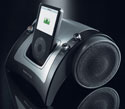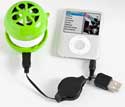
iFrogz Vibez Speaker System
Company: iFrogz

www.ifrogz.com
Price: $24.99

There I was, in the conference room setting up for a presentation. I needed sound for a clip within my Keynote presentation. They had one of those mounted overhead projectors all wired up with sound. I reached behind the Windows machine and unplugged the audio and video cables and plugged them into my MacBook. The video came up, but no sound. Beads of sweat formed on my brow as I tried in vain to get sound out of that system. The presentation was set to start in less than ten minutes and some early birds had already arrived. Read on to find out what I did.

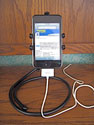
What would you think if I told you I found a speaker system for my iPod that was so small I could pop it in my pocket? Amazing, right? Yeah, that was what I thought. The Vibez speaker system from iFrogz is an amazingly small “hamburger” type speaker.
http://ifrogz.com/proddetail.php?prod=vibez

In its closed state the Vibez is an almost round ball a little bigger than a large egg, but smaller than a tennis ball. It does fit in your pocket.

You can use the Vibez in this “closed” fashion by attaching the clever self-winding cable that comes with it. This cable has an audio plug and USB connector on one end, and a mini USB connector on the other end. The mini-connector end plugs directly into the Vibez, bringing audio and power to the unit. A rechargeable battery powers the unit.

The Vibez has a small switch on its side that turns the speaker on in the middle position, or when switched to the third position, boosts the audio sound output. To get more bass-response you twist the Vibez and it opens, revealing a baffled sound chamber that delivers a deeper bass experience. Let’s remember that this is a very small speaker, so the bass response is not going to give you high fidelity, but the speaker does sound remarkably rich for something so tiny.

To close the unit, you simply squeeze it together, like an accordion, and twist it.
Sometimes you have to play with the Vibez alignment a bit to get the unit to close. There are markings on the side, which point in the direction you need to twist to open or close it.

In conclusion:
The Vibez comes with a rechargeable battery already installed in the unit. It recharges whenever it is plugged into a USB port. However, it does not have to be plugged into USB port. It has three tiny rubber “feet” that keep the unit from sliding, but it is very light in weight (50g). It also has a power LED on the bottom so you can tell when it’s turned on. I like the clever USB charging/audio one-piece cable with retractable cable reel. The sound is very good. It’s not high fidelity with rich bass, but for the size of the Vibez and the power, it sounds quite impressive.

MyMac Rating: 4 out of 5

So what happened at my conference? As I dug through my bag looking for another audio cable to try, I found the Vibez. I had dropped it in my case intending to put it through some sound trials. I fished it out and plugged it into the MacBook.

Anyone who owns a MacBook knows how weak the sound volume can be. So weak in fact, that using the MacBook speakers for sound, even in a small conference room like the one I was in, was out of the question. So I plugged the Vibez in and laid it on a table in front of the podium pointed towards the dozen people who had gathered.

I launched iTunes to do a sound check, and believe it or not, that little speaker was loud enough to be heard fairly well in the conference room. The folks in the room did have to be quiet, but they heard what I wanted them to hear. This probably would not have worked in a larger room, but fortunately it did work in this room.

That little speaker saved my presentation that day.

Tagged with:  

Listen to MyMac 177 or subscribe via iTunes.
A big show this week, with Dave Hamilton of The Mac Observer and the Mac Geek Gab joining Tim, David, and Guy for a lively interview. Sam Levin joins us for a new Cool Mac Picks, while Nemo and David Weeks chat about the Macbook Air. Lee Givens also dials in for a chat about the AppleTV and other happenings around the Mac world. All that, plus a special report from Robert Hazelrigg fills us in after his meeting and demo of the new Adobe Photoshop Express site.

Links from the show:
The Mac Observer
Mac Geek Gab Podcast
Adobe Photoshop Express
i-Luv 1155 DVD and iPod player
Keyspan Presentation Remote Pro
Kensington Portable Power Pack
MCE Technologies QuickStream DV/HDV


Naja King Stand for iPod Touch – Review

On March 27, 2008, in Uncategorized, by Chad Perry


Naja King Stand for iPod Touch
Company: Thoughtout

www.thoughtout.biz
Retail: $39.99

If you have an iPod Touch, you know that the little plastic stand that Apple includes in the box barely meets the needs of the average user. First, it looks like something broken off a plastic pants hanger from the local department store/superstore. Second, you can’t attach the data cable to your Touch unless you’ve got it lying on it’s side in the stand. Third, because it is so small and light, it’s easy to misplace, or for someone else to mistake for a piece of plastic from a pants hanger and file it in the circular drawer.

I need to quit griping now. Frankly, I’m glad that I even got a little plastic stand with my iPod Touch to begin with.

But that doesn’t mean I wasn’t looking out for something better. When I was contacted to review Thoughtout’s Naja King stand for the iPod Touch, I was more than happy to do the review. I remember seeing the Ped3 iPhone stand at Tim’s when he was reviewing it, and I thought it was a great design. Very sleek, very sturdy, and it looked like some robotic manipulator was holding your iPhone – which I thought was very cool.

Thoughtout brings that same cool look to us iPod Touch users with the Naja King. To start with, the Naja King looks like a snake, which only makes sense, since the name naja is the genus name for the snakes in the cobra family.


The stand itself is comprised of two parts. The first is the body, which is a three-foot heavy-duty cable coated in a thick black flexible polymer. The other part is the "head", which mounts on the end of the body on a rubber fastener and holds the iPod in its six rubber-coated fingers. The head is crafted from steel, and is powder coated black to match the body.


The first thing about the Naja King that impressed me was its construction. Both the head and body of the stand are very sturdy, and you feel like you are getting your money’s worth just by the quality of the components. The head fits securely to the body, but can be easily rotated to allow you to view your Touch either vertically or horizontally. The rubber fingers on head hold the iPod Touch securely in place, regardless of the position you have it in.


What really impressed me was the strength of the slender, flexible body. Just to test how strong it was, I decided to mold it into a configuration that would extend it up as far as it would go and still have balance (about 2 feet high). I thought for sure that with a vertical extension of that height, I would get some "drooping" as the weight of the Touch in the head forced the body to bow down to the force of gravity. But the Naja King didn’t budge, and had no problem holding up the iPod like a cobra coming out of a snakecharmer’s basket.

Personally, I prefer to keep the Naja King tightly coiled, with the iPod held about a foot off the desktop. That way I can fit it under the credenza, and still have room to plug in my iPod cable.

What’s nice about the Naja King is that you can pretty much bend it to whatever configuration you want, within limits. So what are the limits? Well, you can’t really make a hairpin turn or a sharp angle with the body, so if you were planning to bend it into, say, a square or triangular shaped base, there is not enough "give" in the body to do that. This leaves you pretty much limited to bending it into circular or elliptical shapes. For folks who have a bent towards design and want the ability to twist the Naja King into all sorts of geometric shapes, this could be a drawback.

But the real seller on this stand is that it’s more that just a cool conversation piece for your desktop. If you’ve had any kind of handheld media device, you know how uncomfortable they can be when viewing video for an extended period of time. If you’re like me, you usually assume a semi-Buddhist position of contemplation; with your head slightly bowed, staring into your hands, which are resting in your lap cradling your device. This works okay for a five minute You-Tube trailer, but not so comfortable for a half-hour sitcom or a full-length movie. Here’s where the Naja King can help.

Twisting the body into a shepherds staff, I looped it around my neck to create a hands-free media viewer. The Naja King held the iPod at the perfect viewing distance (as least for me), and I could still comfortably interact with my iPod to browse through media or surf the internet.


For you iPod Touch owners who are regular travelers, this stand is a great dual-purpose solution for both storing your Touch on your desk or watching it for an extended period on a plane or riding in a car. It can be easily separated into it’s component parts and packed into a purse, carry on bag, computer bag, or glove compartment for safe keeping. Heck, if you’re Guy Serle, you can even wear and watch it while driving through D.C. traffic (personally, I don’t endorse this practice).

So are there any other drawbacks to the Naja King? Well, if you have a clamshell style case for your iPod Touch, you may not be able to squeeze it into the fingers on the Naja King head to hold it securely. I currently have such a case for my iPod Touch, and while I can’t force it into the stand, I can still set it in securely enough to hold it in place while I dock it or just leave it for the night. I don’t view this as a drawback, and don’t expect Thoughtout to try to anticipate and compensate for every possible iPod Touch case design into their own product.

My overall opinion is that the folks at Thoughtout have done a fantastic job at creating a very simple, elegant, versatile solution for holding and displaying your iPod Touch and allowing you to use it hands-free while traveling or at home.

Mymac.com Rating: 4.5 out of 5.


iPod Repair QuickSteps – Review

On March 27, 2008, in Uncategorized, by David Weeks


iPod Repair QuickSteps
Brandon Jones and Marc Campbell

McGraw Hill Osborne
http://www.osborne.com
161 pages
ISBN 978-0-07-149866-1
US $19.95
CA $23.95

iPods have become one of the most popular symbols of today’s digital culture. iPods are seen on Wall Street, Main Street, the South Bronx, and down on the farm.

The original iPod, with all of 5GB of storage space, retailed for $399. Today, you can buy a 4 GB nano for $149. A 160 GB iPod (that’s 32 times the original’s storage capacity) costs $349, $50 less than the original.

With the inexorable drops in price for all iPod models, they’ve certainly become ubiquitous. But have they become disposable? What if the battery gives out? What if it won’t start up? Toss it, or fix it?

Apple, of course, will replace your battery, and any other broken part that may have succumbed to various indignities that portable electronics have to endure. But Apple charges a lot. Can you change the battery yourself? Can you fix a more serious problem on your own?

Jones and Campbell may have the answer. iPod Repair QuickSteps is a wide-format book of text and photos that leads you through most any iPod repair. First, the reader is told exactly how to identify each version of iPod and iPod Nano, as each repair differs, depending on the unit you have. Battery swaps are only the starting point; the authors provide guidance for replacing broken screens, bad logic boards, inoperative audio jacks, toasted hard drives, and more.

The book is well designed. Each topic, Replacing the Logic Board, for example, is divided into sections for each generation of iPod and Nano. Each repair is rated for difficulty, from Easy to Moderate to Hard, to Not Recommended. The book is brimming with photos of each critical step, and the text explanations are generally clear and concise.

While I was impressed with iPod Repair QuickSteps, I have one concern. If you’ve never opened up a piece of consumer electronics before, you may quail when you actually get it opened, and are staring at a bunch of wires and circuits that somehow no longer looks like the photos in the book.

Panic may set in! Don’t panic. My own personal fright was from the first time I changed to battery in my 4G iPod. After reading the instructions (not from iPod Repair QuickSteps) I still was nervous about the amount of force I needed to use to open the iPod. I got it open, but I was afraid I’d ruin the case.

This fear is one thing a book like iPod Repair QuickSteps may not be able to address. I for one would NEVER make a logic board replacement or a screen swap my first iPod repair. Work your way in gradually, perhaps starting with a battery swap.

That’s my second concern with iPod Repair QuickSteps. The book provides good instructions for even the most complex repairs, and makes them seem easy. Many of them are easy, But if you choose to jump into the deep end of the iPod repair pool your first time, keep your cool if it looks like you’re over your head.

But if your iPod was dead to begin with, one could say that you have nothing to lose, so why not? If you botch the repair, you can always send it out to a professional iPod repair shop, and those are plentiful.

Conclusion
iPod Repair QuickSteps is a great resource for people who want to repair a broken iPod. Be aware that many repairs are not suited to novice Podworkers, even though the authors make even the hardest work looks easy.

MyMac.com rating: 4 out of 5


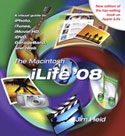
The Macintosh iLife 08 – Review

On March 26, 2008, in Uncategorized, by David Weeks


The Macintosh iLife ’08
Jim Heid

Peachpit Press
http://www.peachpit.com
421 pages
ISBN-13: 978-0321501905
US$ 39.95 CA$ 443.99

One thing is certain about Apple: each revision of their iApps (iPhoto, iTunes, iMovie, iDVD, and GarageBand) brings new features and new frustrations.

It’s also a certainty that author Jim Heid will write a new edition of The Macintosh iLife to help Mac users learn what’s new with the iApps, how best to use those new features, and how to deal with any new limitations or frustrations that Apple introduced.

If you’re wondering t yourself "did I already read this review?" you probably have. The Macintosh iLife ’08 marks the fourth edition of Heid’s book I’ve reviewed. This is gonna sound like a broken record, but yes, the book is better than ever. Technically, this is the sixth edition, but who’s counting?

Here are my previous reviews;

The original flavor

Round Two; iLife 05

Still on Top; iLife 06

I’m known to not like picture instruction books; the Visual Quickstart Guide series leaves me cold. But Heid finds the right balance between graphic and text. I never felt that I needed a picture to clear up confusing text, nor did I ever feel that it was drowning in a sea of screenshots.

My previous lament for the long-lost instructional DVD continues. It was one of the highlights of the first two editions of the book. I realize costs go up, but that DVD will always have a place in my heart. The book is longer than ever. With Apple stuffing more and more into the iApps, Heid has more to write about. It’s up to 421 pages, so I guess the extra content will make up for some of the loss of the DVD.

In iLife ’08, Heid will walk you through the ins and outs of each application. He uses the right blend of screen snapshots and text to convey what you need to know.

Here’s a brief list (courtesy of Peachpit) of topics:

• Shop ’til you drop at the iTunes Store—and wirelessly with the iPhone and iPod touch
• Create a digital media center with Apple TV and your widescreen TV set
• Improve your photography and video-shooting techniques
• Produce spectacular slide shows, photo books, calendars, and greeting cards
• Refine your photos to perfection with iPhoto’s new editing tools
• Share photos via email, .Mac Web Gallery, DVD slide shows, and more
• Assemble a video library with the all-new iMovie—and share your creations on YouTube
• Record and arrange your own music with GarageBand
• Create and publish your own Web sites, blogs, and podcasts
• Preserve the past: digitize old records, photos, and movies

If you’re wondering how good Heid really is, and does he really know what he’s talking about, be advised that Apple tapped his talents to write the tutorials published at http://www.apple.com/ilife/tutorials/

Conclusion
If you are going to buy only one book about the iApps, The Macintosh iLife ’08 should be the one to buy.

MyMac rating 5 out of 5


iPod Classic Case Roundup Review

On March 26, 2008, in Uncategorized, by John Nemerovski


iPod Classic Case Roundup Review
Companies: ShadesCases, Agent18, XtremeMac

Prices: $17 – $30

Special thanks to Evee Goodyear, who assisted on this review.

Note: Almost all of the following cases are also available for other iPods and the iPhone, so check the companies’ web sites if you are interested in obtaining a sleeve or case for your specific iPod/iPhone. Some products ship with/without belt clips and arm bands, FYI, so make sure you’re ordering the best model for your lifestyle.

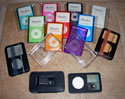
ShadesCases
$17

ShadesCases come in a zillion different explosive, vibrant colors. These tight fitting sleeves protect your iPod Classic, but have minimum cushioning against impact damage. Display visibility is good, and scroll wheel operation is acceptable. Port access is excellent. ShadesCases are reasonably durable, because their fit is so snug as to become the de facto iPod exterior surface. I was skeptical when I first read about and saw them, but during several weeks of nonstop usage, I was impressed with ShadesCases’ very tight, flexible grip on my iPod.

MyMac rating: 3.5 out of 5

Agent18 Shield and Kit
$25 and $30

Agent18′s clear, rigid case is a no-nonsense way to protect and use an iPod Classic. Both the 80GB and 160GB models ship in the same package, which is a bonus. One front fits all, and a separate back is used for each model, with their different thicknesses. Pay the extra $5 for the Kit, which adds a tilting rear leg to the basic Shield, for ease in watching movies, shows, photos, and songs with the iPod standing up. Agent18′s case is clear, sleek, firm, and snug. Not much impact cushioning, but solid protection. Very good wheel and port access. Be careful when removing an iPod from this case or the one reviewed below, because your iPod could go flying out of control while you are gently !! attempting to pry it away from the cases’ protective backs.

MyMac rating: 4 out of 5

XtremeMac Microshield
$20

Microshield is a slightly slimmer but almost identical competitor to Agent18′s clear Shield case, reviewed above. For the same money, if you want a little less bulk with a bit more flexibility, Microshield will be fine. I don’t use Microshield as frequently as I do Agent18′s Classic case, because I prefer the extra heft of the latter, but this is a personal choice. Both 80GB and 160GB iPods can be covered from the same purchase (one at a time), as with the Agent18 Shield case.

MyMac rating: 3.5 out of 5

XtremeMac Tuffwrap
$20

Tuffwrap is my personal favorite from all the cases being evaluated in this combo review. It is almost identical to the ezSkin Classic, reviewed here <http://www.mymac.com/showarticle.php?id=3105>. A major difference is full tactile access to your iPod’s scroll wheel, which we applaud. Tuffwrap is a well-constructed slip-in rubber cover. The material is soft, attractive, and easy on the hands. Front panel is black, and rear area is dark grey. A Tuffwrap-encased iPod does not call attention to itself, which is a definite security feature. Cushioning is good, and port access is excellent, with (bravo!) a durable flap to cover an iPod’s dock port.

MyMac rating: 4.5 out of 5

XtremeMac Verona Sleeve
$25

Verona Sleeve is constructed of high-quality, durable semi-rigid leather, and is designed with vertical stripes in each different color choice. Your iPod slips in from the top. Cushioning is good, with fur-like interior padding. Port access is slightly awkward due to the physical thickness of the firm leather. MyMac has never fully warmed to this "original concept" iPod case design, but it remains extremely popular.

MyMac rating: 3 out of 5

XtremeMac Verona Holster
$30

Verona Holster is a cushy, premium leather version of the belt case that was included with many of Apple’s early iPod top-tier models. The iPod slips in for safe, comfortable storage and travel, without any access to display or wheel. The attention to detail on this $30 case is exceptional, but most users will not be happy pulling their iPods out of a holster for even the most basic operation. If you are an executive who listens to a playlist, and you don’t care to handle your iPod during a commute, you should consider XtremeMac’s Verona Holster.

MyMac rating: 3 out of 5


Microsoft Office 2008, Word 2008 Review and First impression
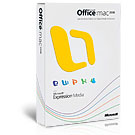
Company: Microsoft

Price: $149 to $499 depending on version and upgrade status
http://www.microsoft.com

I did not install my copy of Office 2008 when it first arrived, letting it rather sit on my desk for weeks. That is because I am still running on PPC machines, and the web was buzzing about just how buggy this product was on them. But there was also talk of a major fix coming out in March that would solve all this, so I waited.

OK, so the fix has finally arrived, but sadly not without some problems of it’s own (see Tim’s post and my post about problems actually getting the update to even work. But finally, with all the updated installed, I am ready to see just what Office 2008 (or version 12.0.1 as Microsoft calls it) has to offer.

Having waited almost four years for an update, I was truly hoping from something ground breaking, and at first look, I was not seeing it. Upon launching Word, I was still presented with that damn Microsoft Project box. It even has an application icon of it own now just in case you can’t get enough. So tell me, really, does anyone out there truly use this? Do you really have issues with knowing which of the Office applications to launch for a given task? Sure, this gives you a place to start any application, just in case you opened the wrong one, but I think most of us know the difference between Excel, Word, Power Point and Entourage by now. (If you do not, tell me.) And strangely, it looks JUST like it did before. By the way, if this thing annoys you as much as me, and you just want to get on with the application you selected, the next time it opens, click on the Settings tab, and uncheck the “Show Project Gallery at startup” box. Poof, it is gone. Next!

WORD

I started with Word, which is what I am writing this on now. It will look familiar if you are using Office 2004, but has a few differences. Most notably is the addition of “Vista like” icon buttons as part of the top of the document window. These “toolbars” are for common menu items like New, Open, Save, Print, etc. Gone from Office 2008 are the individual, small, separate “window” toolbars you could select and drag to anywhere on the screen YOU liked. While you can still select what “toolbars” you want to show in this version, they are now always attached to the document window itself, taking up space for the actual viewing of the document. There are, however, still some toolbars that ONLY show up as separate windows (speech, background, color, movie, etc) and if you open them all, you are going to need a VERY big screen. I am not sure why some were separated out while some were incorporated into the window itself. Confusing. Do not worry though, you can turn them all OFF, and as far as I can tell, almost everything is still available via menu items or the single tools palette.

Like it’s Windows counterpart, the “toolbox” has appeared, which is YET ANOTHER small, separate window that contains 7 new “palettes” of tools. The default palette contains things like Font, Styles, Alignment, Bullets and Numbering, Borders and Shading, and Margins. Strangely, it appears all these can be viewed as a toolbar item as well, so you have some choices on how to use the tools. The other 6 buttons across the top to change what this small window can display, and include the object, citations, scrapbook, reference tools, compatibility report, and project palettes.

Adding pictures, shapes and graphics to word got much easier using the object palette (see picture above, shown in picture mode.) It contains a large array of shapes, arrows, and callouts, as well as a large selection of clip art and symbols. Best of all, clicking on the small icon of a camera displays your iPhoto library right inside the palette in a small, resizable thumbnail view much like iPhoto. Simple drag the picture to your document and you are done! I really liked this feature.

Also new at the top of the document are 5 “tabs” that contain new “helper” features, some of which look as if they “borrowed” them right out of Pages. While clicking on them takes up even more document space with the presentation of its helper content, there are some real gems in this list. The first, the “Documents Elements” displays a gallery of document templates, some of which may be useful than others, including cover pages, table of contents, headers, footers, and bibliographies. Other buttons give you access to quick tables, importing charts from Excel, graphics, and word art. I can dig into these features more if you request it below, but the ability to quickly access some features that were always troublesome to find and use before, like TOCs and bibliographies, seems like a great addition here.

Word also contains some new layout modes. If you use Word for taking notes or publishing a newsletter, your job just got much easier. The Notebook view was one of my favorites, and it turns Word into an electronic notebook, and includes tools for adding text notes, audio notes, scribbles, and images all in a notebook style:


Microsoft did a great job here. You can add items and move them around the page, and if you get to the bottom of the page, the page just gets longer so you can keep going. If using a laptop, you could, for example, record the audio of a talk or lecture and take notes and draw images as the talk is being recorded.

There is also a new Publishing layout view, where some of the biggest changes in this version of Word seem to have taken place. While trying to sell itself in the past as a true WYSIWYG editor, we all know it did not work out quite that way all the time. But with this view, it seems to work very well. Included in this view are a good number of templates for newsletters, brochures, flyers, invitations, programs, postcards, catalogs, awards, menus, posters, signs and CD labels (seriously missing templates for all the standard sticky labels!) To get started on one, simply select the one you like and start editing. These 3D looking templates give you a great starting place, and the tools give you the ability to add pictures, text, and effects for a great looking document. Also in this layout, you can “place” your pictures along the side of the document, having them ready to use when you need them, rather than having to search for them every time you want one.

As for the standard stuff you expect from Word, including Track Changes, formatting, styles, and the old wizards, they all seem to be right there in the menus, just as in Word 2004.

There is one major change that must be mentioned before ending here. Office 2008 now supports a new “standard” for documents called Office Open XML, OOXML. If you have not been following the news, a battle has started for a “standard” for documents, pushed mainly by government customers both here and in Europe. The standard to date has been something called Open Document Format, or ODF, and has been accepted by many organizations to date. However, Microsoft is making a big push to have OOXML accepted as a new standard as well, and as such, both Office 2007 for Windows, and Office 2008 for Mac have this as the native format. Yes, you can still open documents from previous versions of Word, and you can also save in those previous formats as well, but you have to remember to do so.

Now, to make matters even more complicated, Word’s default is no longer the DOC format either (Excel and PowerPoint also have new formats.) The default here is the new DOCX format, which also cannot be read by older versions of Word. If you are planning on sharing your document, be careful before just pressing SAVE, as you may wish to select SAVE AS and chose a format compatible for others. In the Save As dialog, you can now choose to save a document in DOCX, DOC (the old Office format), DOTX, DOT, RTF, TXT, HTM, and PDF (saving as PDF is new in this version as well.)

Users of older versions of Microsoft Office can download a free update that allows them to import these new formats, but unless they do, if you save in the new document format, they will not be able to read your document.

Word 2008 also has a preferences panel that looks very Macintosh indeed. You can change a good amount of the default actions taken by word here, including the default “Save” format. If you share a lot of documents, I suggest setting it to “Word 97-2004 .doc” format will eliminate these headaches for the time being. Other preferences that can be changed can be seen below:


Lastly, I will point out that I wrote this entire article in Office 2008, on a PPC G5 machine, saving quite often I will add, and the program did not crash once. And I was opening and closing many documents, trying all the features, and playing with most of the menu and tool items. So far, this is version is quite solid. I understand that the program is also Intel native now, but I cannot tell you at this time how that effects its performance, only that I noted that this version seems a bit sluggish compared to Office 2004 on the same PPC machine.

In conclusion, if you are a simple Word user that just opens a document, types a bit and save it, you probably will not need this update, as you will see little difference between this and the previous version. However, if you are someone who has struggled to use Word for things like note taking, writing a book, publishing a newsletter, or adding a lot of pictures and graphics to your document, then this version will be a great improvement for you and has some great tools to make those jobs easier. And the new notebook layout is really a great feature too, especially for people like me who like to take notes first before writing up a report.

For Word in Office 2008, a Mymac.com rating of 4 out of 5.


BodyGuardz for iPhone – Review

On March 25, 2008, in Uncategorized, by David Weeks


BodyGuardz for iPhone
NLU Products

Price: $24.95
http://www.bodyguardz.com

BodyGuardz for iPhone review Part I

When I unpacked my iPhone on iPhone Day One. the first thing I said to myself was "this is one smooth little slab of technology." I then handed the new iPhone to my wife, who promptly let it slip right through her hands onto the tile floor, thus making my prophecy come true. Immediately, the iPhone was slid into its leather case cocoon, rarely emerging into the light of day.

But, unlike me, many users prefer to have their iPhone live "au naturel" and not be swaddled in some big ugly case.

However, going commando can leave your precious slab of technology prone to scrapes and scratches. NLU Products, the maker of BodyGuardz feels it has the solution for those who want to let their iPhone live wild and free, yet protect it from the hard knocks of life.

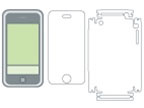
BodyGuardz for iPhone is a very thin transparent protective film that bonds to your iPhone. The plastic film takes the hard knocks, not your iPhone screen or aluminum back case.

David Cohen: The film is incredibly tough – it is the same type of material used to protect the front of cars from stone chips. It will easily protect your iPhone from hard objects like keys rubbing against it while in a pocket. Unlike some of the others on the market, the BodyGuardz variant is characterised by a slightly different appearance – it appears less obvious and more transparent, and has less of the ‘dimpled’ texture that is visible on products like the InvisibleShield.

The Weeks division of MyMac Labs tested BodyGuardz for iPhone. Part I covers the application process, and Part II discusses how well BodyGuardz works.

If you’ve ever applied window tinting film, you’ll feel right at home applying BodyGuardz. The process is virtually identical. It’s easier than window tinting in that you don’t have to struggle handling large sheets of window film, trying to keep each sheet from sticking to itself. But applying BodyGuardz is harder than window film in that the pieces for iPhone have numerous holes and cutouts for the various switches and slots, thus requiring you to line the film up quite precisely. No cutting excess film with an X-Acto knife allowed!

The kit includes two complete sets (very nice touch!) of precut iPhone film, a spray bottle of application solution, a small plastic squeegee.

While the printed instructions were detailed, BodyGuardz provided a link to an instructional video designed to illustrate the process. Unfortunately, the link was to the wrong video. After a call to Customer Support, I was provided with the right link. To the company’s credit, the phone was answered immediately, and I had the right information, as well as a promise to immediately fix the web link, in just a few minutes. Extra credit for responsive tech support offsets a ding for linking the wrong video.

Watching the six minute video answered all the questions I had. Now, I just had to apply the film as well as the demonstrator did.

I was able to apply the back side film with no trouble at all. The front side film, in contrast, has many small flaps and cutout sections. While the main part of the film applied easily, I had difficulty getting the corners to stay attached. This is a known issue, and BodyGuardz even provides a second video showing how to use a hairdryer later on to get the corners to stay down.

The instructions say to let the iPhone rest for 48 hours to let the application solution dry and become transparent.

Part II in 48 hours!

(time passes very slowly)

I left the newly encased iPhone in a warm (but not too hot) location overnight. Like a nine-year old at Christmas, I was too impatient to wait. I mean, who’s actually going to not touch the iPhone for 48 whole hours?

After only a sixteen hour drying time, the film was fully transparent, and had firmly sealed to the iPhone. Three of the four corners had set properly, but the upper-right corner had two little flaps sticking up just the tiniest amount. Given that small imperfection, I congratulated myself for getting the film to align with all the various sliders, jacks, ports, and rocker switches. The corner bonding issue is common enough to warrant its own video on the BodyGuardz web site. The video calls for using a hair dryer to soften the film to help it mold to the corners. I’ll have to try this technique sometime soon.

With BodyGuardz applied, the screen’s tactile feel was just the slightest bit different, with perhaps a hint more friction. But the sensation was barely noticeable, and after a few minutes of tapping and sliding around the screen, I no longer noticed the film at all. The screen brightness was unaffected.

David Cohen: That slight increase in friction does help in another regard – it is much less likely that your iPhone will slip from yur hands once it is encased in BodyGuardz.

The BodyGuardz film now surrounds my entire iPhone. I plan to continune to use my UNIA iPhone belt case, but I’ll feel more protected when the iPhone is running loose in the hostile world. For me, the film is an extra layer of insurance to keep the little slab of technology looking pristine.

If you don’t use a case, you can be quite confident BodyGuardz will keep naked iPhones from scratches, dents, and dings.

MyMac rating 5 out of 5


AppleTV – Review

On March 24, 2008, in Uncategorized, by Scott Spaziani


AppleTV Take2
Company: Apple Inc.

Price: $229 for 40 Gigs, $329 for 160 Gigs
http://www.apple.com/appletv/

Steve Jobs did something during Macworld Expo 2008 that Apple customers have rarely seen him do. He admitted that he might have, maybe, made a small mistake in the AppleTV. The result is the free to download software update dubbed AppleTV Take2. The update changes the AppleTV from a simple bridge between your iTunes library and your television and turns the device into a much more powerful tool.

The way I used to describe the AppleTV is that it was an iPod for your television. It worked just like an iPod, allowing you to sync movies, TV shows, music, and podcasts to the device though iTunes, to the device. Customers didn’t seem to be interested in that style of device, although I was very happy with the AppleTV before the update. Take2 takes the AppleTV to the next level allowing you to rent movies, buy music and TV shows, and download podcasts on the device itself. These are features that should have been included since day one. The update makes the AppleTV feel like a much more complete device.

Movie Rentals
The newest addition to the iTunes store is the ability to rent movies. Movie Rentals range from $3 for older titles to $5 for HD content. Rentals last for 30 days after purchase and 24 hours after you begin watching the movie. Movie rentals from the AppleTV work beautifully. The movies are displayed by showing the artwork in rows allowing you to quickly glance though nearly 800 titles at the time of this review. HD content is still lacking, however, with fewer than 100 titles.

Each of the four movies that I rented was available to watch in under a minute. The AppleTV is able to gauge the speed of your connection and estimate how long it will take for the movie to download, and then it tells you when you can start watching. If the AppleTV is correct you will never notice that the movie is still downloading as you watch it, and I haven’t yet run into the situation where I could not continue watching the movie because it had not cached enough of the film.

There is a downside to renting movies on the AppleTV. While you can send movies you have rented from your computer to the AppleTV, this does not work the other way around. If you happened to queue up a few movies you plan to watch on the AppleTV and want to instead watch them on your Mac or your iPod, you’re out of luck. Also, for some reason I cannot figure out, you are not able to buy movies on your AppleTV. This turns into a problem, for example, when I rented “Stardust.” I would have preferred to buy it for the full $15 but did not know the option existed. You can tell this is an agreement Apple was forced to make with the movie studios. Apple would not go out of their way to limit the functionality of their device.


TV Shows and Music

The new menu system is the same as movie rentals. Other than that, no new features are gained in the iTunes store itself. However, the experience with TV Shows and Music are in ways superior to that of movies. You are able to buy individual episodes, whole series, and season passes directly from the AppleTV, then sync the content back to your computer.

Podcasts
Apple aided the rise in the popularity of audio podcasts when they added podcasts to the iTunes store. Adding the ability to browse and download podcasts directly to the AppleTV feels like Apple is attempting to do the same thing for video podcasts. I’ve gotten the most use from AppleTV by watching video podcasts. I’m able to sit down in the morning or during my lunch break and watch great free content. I only really understood short form video content on iPods after I got the iPhone and was able to watch three or four minute shows like RocketBoom or Geekbrief.TV when I had a few minutes of idle time. The AppleTV does something similar. When you have that ten or fifteen minutes before you need to leave the house, having short form content makes sense. I used to take advantage of that time sitting on my computer, and putting it on a large flat screen TV makes the experience that much better.

The AppleTV puts video podcasts on the same level as movies or TV Shows. The feature that really upsets me about the AppleTV’s podcast functionality is that you cannot subscribe to a podcast on the AppleTV. There are HD versions of podcasts I watch that are too large to keep on my hard drive and too large to play on the iPhone. I don’t want them on my computer before sending them over to the AppleTV. You can favorite a podcast, which is essentially bookmarking its location in the iTunes store, but you still have to manually download or stream the content, eliminating the purpose of using an RSS feed. Still, the slick menu system makes discovering new podcasts enjoyable, but they need to add an RSS Feed Reader for me to take advantage of access to the iTunes podcast directory though the Apple TV.


Problems

Lack of support for some of the more common video formats such as Dvix is an inconvenience. Much of the content I’ve collected on my computer is in .avi format. Apple needs to consider either supporting more of these common formats or make it easier to apply a codex to the device. Other media extender devices such as Microsoft’s Xbox360 have adopted Dvix support. If AppleTV doesn’t allow support for Dvix and other common video formats then Apple is going to miss a major audience for the device.

There are some wireless syncing issues that make the process of getting content to the AppleTV frustrating at times. After a few minutes of syncing the AppleTV will drop out of iTunes but continue to sync at least the last file it was working on before the drop out. To get AppleTV back into iTunes requires a restart of the program or even reboot of the machine. I did not encounter these problems when over a wired connection. It may be that my router and the AppleTV just do not want to play nicely together.

Overall
The Take2 software update is a great improvement over the original AppleTV by making the features that I enjoyed about the original device better. The direct access to the iTunes store and Movie Rentals enhance the overall experience, eliminating the need to use a computer to get content onto the device. The functionality that it lacks, even though minor, hurts the overall experience and at times makes using the device frustrating.

The AppleTV is going to be the beginning of the end of hard media. The idea of having a massive library of TV Shows, podcasts, and a decent sized library of movies available without leaving your living room couch is going to begin a mental change in the way that the average person thinks of video content. Just as the iPod changed the way the average person thinks about audio content.

MyMac Rating: 4 out of 5


Two iPhone Books Reviewed

On March 24, 2008, in Uncategorized, by David Weeks


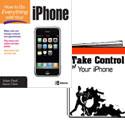
How to Do Everything with Your iPhone
Jason Chen and Adam Pash

McGraw Hill Osborne
http://www.osborne.com
$24.99 US $28.95 CDN
ISBN 978-0-07-149790-9
296 pages


Take Control of Your iPhone v 1.01 ebook
Ted Landau

TidBITS Electronic Publishing
http://www.takecontrolbooks.com/
US $15.00 online purchases only
195 pages

Steve Jobs envisioned the Macintosh as a consumer device along the lines of a toaster; a computer that’s so easy to use it would require virtually no complex instructions. You don’t read the manual when you buy a toaster, right? Since 1984, the Mac has evolved to become a powerful and complex computing environment, and most people have to read the manual. A little bit, anyways.

In contrast, landline telephones made more than ten or fifteen years ago are perhaps the ultimate consumer devices; you pick up the handset, hear a dial tone, and dial. Using a phone was easier than using a toaster, because you don’t have to adjust the heat to get the desired brownness for the toast.

Nowadays, cell phones do far more than your (or your father’s, or your grandfather’s) black Western Electric telephone ever did. Cell phone manuals need to be read so you can (try to) master the thousand-and-one features most phones come with.

Now comes the iPhone. Apple says it’s “the Internet in your pocket.” Does it need a manual? Absolutely. Apple’s documentation is too skimpy.

The problem is that most (not Apple’s) cell phone user guides are:

1) Printed on tiny pieces of paper, in even tinier type.

2) Written for English readers by Japanese engineers in Japanese, then translated from Japanese into English by native Kazakh speakers who learned English as a second language.

Both How to Do Everything with Your iPhone and Take Control of Your iPhone v 1.01 attempt to provide useful and readable instruction manuals for the iPhone. They go into far more detail than Apple does, yet do it in a manner far superior to any other cell phone manual.

Why does the iPhone need a manual? Even though its arguably the simplest to use yet most capable and powerful smartphone ever, most people will need some help learning how to use it. Users will certainly need help to figure out what to do if the darned thing doesn’t work as advertised. Since it’s more than half computer, and computers by nature misbehave, a good well-written manual is worth more than it’s weight in gold.

How to Do Everything with Your iPhone, written by Jason Chen and Adam Pash, is an easy to read book that’s targeted at a mass audience. To be sure, virtually everyone who owns an iPhone has a computer, so owners have some familiarity with how to run iTunes. Even so, many new iPhone owners are relative novices who need to start and end with the basics.

Chapter One, “Get Your iPhone Up and Running,” starts with the basics of turning on and activating the phone. If you don’t know what a USB cable is, the authors tell you. They don’t dwell on technical details like the difference between USB 2.0 and 1.1, but simply tell readers to check their computer’s manual, and that USB 2 is faster.

That’s the tone of the book. Pash and Chen have written a book that covers all the iPhone features without bogging down the reader with a level of detail that many will not need or desire. The book doesn’t skimp on coverage; important tidbits like battery conditioning are mentioned, as are numerous good customization tips.

The bulk of How to Do Everything with Your iPhone relates to using the normal, standard features of the iPhone. If you’re looking for neat hacks, or how to jailbreak the phone, or exotic “I didn’t know the iPhone could do that” techniques, this is not the book for you.

How to Do Everything with Your iPhone is a good book for the non-techie user who just wants to learn how to get their money’s worth from the iPhone, and not have to wade through pages of useless (to them) technical detail. My only caveat is that even for Mom and Pop, some of the information could be more detailed.

The book does have a troubleshooting section, but it’s basic, as you’d expect. This is not the book’s strong point. If you need an industrial-strength solution to iPhone operation, read on.

Ted Landau is a Macintosh writer who made his reputation by creating the MacFixit web site. He’s also written the popular Peachpit title Sad Macs, Bombs and Other Disasters.

Given his preferred subject matter, I have to admit I wonder from time to time if Ted’s Macs ever work properly.

Landau’s Take Control of Your iPhone is at the opposite end of the spectrum from How to Do Everything with Your iPhone. That’s not to say it is better. It’s written to address high-end troubleshooting and usage of the iPhone. It’s not directed at those who want to learn how to surf with their iPhone. It’s written more for those who want to know what to do if they can’t surf with their iPhone!

If you don’t have a good working familiarity with normal iPhone operation, Take Control of Your iPhone is not going to teach you. It does include in-depth discussion of more advanced techniques such as Master the Onscreen Keyboard, Manage Syncing with Multiple Computers, Use a VPN Network, and more.

But the focus of the ebook is on troubleshooting. Hardly a page is turned without seeing the word “problem,” as the word appears 214 times in 195 pages! Personally, I’ve not experienced the great majority of the problems Landau describes, but I’m comforted to know that solutions exist if I am so unlucky as to need to learn to use iPhone Recovery Mode.

One section I found especially informative was iPhone Networking. Landau goes into useful detail on understanding Edge versus Wi-Fi. It’s full of useful hints and tips about networking settings I did not know existed.

Do you need a copy of Take Control of Your iPhone? My iPhone has been bullet-proof, never acting up when I needed it. Apart from AppleTV, iPhone is the most toaster-like product to come out of Cupertino in quite a while. But while it’s a phone, it’s more than half a computer. As the ancient Chinese philosopher said; “Computers are like dogs. They’re generally friendly, but if they smell fear, they’ll turn on you.”

Take Control of Your iPhone costs only $15.00. That’s cheap insurance if you do have problem the night before you take your iPhone on a long trip out of town.

Conclusions
Both How to Do Everything with Your iPhone and Take Control of Your iPhone are well-written books. If you’re looking for a comprehensive book geared towards Mom and Pop, I can recommend How to Do Everything with Your iPhone.

MyMac rating 4.5 out of 5

If you’re more of a power-user who pushes your iPhone right to the brink (or beyond), you’ll want Take Control of Your iPhone.

MyMac rating 4.5 out of 5.


MyMac Podcast 176 – Don McAllister

On March 21, 2008, in Uncategorized, by MyMac PodCast

Play MyMac 176, or via iTunes.

Don McAllister of ScreenCastOnline and the Mac Roundtable Podcast joined Tim, Guy, and David this week for a great chat. We cover podcasting, how Don got started, and his switch from the PC to the Mac. We have Robert Hazelrigg chatting about his AppleCare ordeal, and then Tim, Guy, and David wrap up the show with some MyMac news, Apple news, and audio books worth buying on AudiblePodcast.com/mymac

Please visit our sponsor for this episode!
AudiblePodcast.com/mymac

We would love your feedback!
MyMacPodcast@Gmail.com or 1-801-938-5559

Links from the show
ScreenCastOnline.com
Mac Roundtable Podcast
ScreenFlow


Thumpz Audiowrapz for iPod nano
Company: iFrogz

Price: Set: $27.99, Wrap:$24.99, Screenz: $6.99
www.ifrogz.com

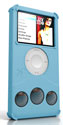
Looking for a unique iPod case for your 3G nano? How about some speakers with that case? Look no further than the iFrogz Audiowrapz speaker case. The Audiowrapz (AWZ) from iFrogz is an interesting case, in that it covers two functions most iPod nano owners might be looking for: iPod protection and integrated speakers. The AWZ case itself is 100% silicone and covers the nano almost completely. The corners are reinforced side bumpers and appear to offer good shock absorbing protection.

There are many colors to choose from:

The only exposed parts are the screen and the click wheel. There is also access to the headphone plug on the bottom of the cover via an opening. However, to charge your unit, you have to remove it from the case. A couple of nice bonuses that come with the AWZ are a clear screen shield you can place over the exposed screen and a “Screenz” cover that fits over the click wheel. Note: you can buy the AWZ as a “set” with cover and Sceenz or not.

There are many “Screenz” covers for the click wheel that you can choose from. You can even buy these separately after you’ve purchased your AW from iFrogz.

At the bottom of the case you see three small speakers. To insert your nano into the case you peel back the top and slide your nano down a plastic tray that is built into the case. You push your nano down to the bottom and the dock connector plugs into the speaker connector at the bottom. Note: there are NO instructions anywhere to be found, so you’ll need to spend a few minutes looking things over and peeling things back.

Once your nano is inserted into the case, you just turn it on and music flows from the speakers. The speakers draw power from the nano so no batteries or external power sources are required.

Let’s talk about the sound quality for a moment. These are tiny little speakers that won’t carry much fidelity or bass response. Yes, they sound a bit tinny. At full volume they can be overwhelmed by heavy metal type music, but I think for the size and ease of use, they sound pretty good. In a way, it turns your nano into a radio like device. As I write this review the Nano AWZ case is standing up on my desk with a song playing…no headphones required.

In conclusion:
The raised molded silicon around the click wheel makes it a bit more difficult to get at the wheel. I wish the AWZ came with some instructions, but it’s not difficult to figure it out. Access to the dock connector would be welcome. I like the complete protection offered by the Audiowrapz. The nano fits snugly into the case and I think it protects the unit quite well. The speakers are small, and lack any strong bass response, but they are welcome and handy. When you plug in headphones, the speakers are disabled.
Using the iFrogz website to configure your case and screenz is easy. As you choose your combination the pictures change to show you what your final choices will look like.

Also note that this case won a Best of Show Award at MacWorld for 2008.

MyMac Rating: 3.5 out of 5

Tagged with:  

The Impact of iPhone on Gaming

On March 19, 2008, in Uncategorized, by Tim Robertson


I’ve been thinking about the upcoming iPhone store, the openness of the iPhone software development, and the level playing field those two things bring. Combine that with the three video games that Apple showcased during the iPhone SDK event, and I feel that the iPhone and Apple, Inc. will have a significant impact on gaming.

First, let’s look at the current state of video games.


PC and Mac gaming

There was a time, not too long ago, that every great game could be found on the PC side of computing, and these games were selling in the millions. It was a huge industry, and the best games were PC games. Mac users, long forgotten in the video game world, were left with either buying a Windows machine just to play games on, or forgoing them altogether.

My, how things have changed.

Sure, gaming on the Macintosh is getting better. Companies like EA, Feral Interactive, Aspyr, and more are creating (and porting) many great games to the Macintosh. We also now have the luxury of running games on our Macs simply by booting them up in Windows via BootCamp or the virtualization software makers, and play them that way. It’s not ideal, but it works.

The freeware, shareware, and other small publishers are also out there creating some really terrific games for the Mac. But none of them are changing the gaming industry one whit, and in fact sales of PC games are down significantly over the last few years. (Blizzard’s World of WarCraft notwithstanding.) PC games sales are going down, and many publishers blame the rampant theft of games online. One company recently complained that while their latest title only sold a few hundred thousand copies, three times that number are somehow playing the game online. How can more people be playing a game than actually purchased it? Pirated copies.

What hasn’t changed for the PC game makers is the distribution model. PC gamers have been both buying games on the retail shelf and downloading them online for years. Nothing new there. And developing games on the PC, or Mac, is not easy or quick. And even if it were, how do you get your games in front of potential buyers?

So while the PC and Mac game development is somewhat cheap to get into, it is by no means easy. And getting people to buy your games is much harder than actually creating the game in the first place for the game developers.

Console Gaming: PlayStation 3, Wii, XBOX 360
All three offer great gaming options for both the game developer and the game buyer. At this point in time, far and away the best games to be had are on the video game consoles. They are selling record number of consoles and games. Each have some form or another of online gaming. Both the XBOX 360 and the PS3 have games that look better than almost any PC game. The Wii’s claim to fame is its innovative controllers, and it seems to have captured the casual gaming market.

With games like Halo 3 selling over 8.1 million copies in only three months, Nintendo’s Wii selling almost twenty-one million units in under two years, and the XBOX 360 game attachment rate at over seven games per console*, this generation of home video game consoles look to be the most lucrative yet.


So what is the problem with the consoles? They are closed systems, meaning it is both expensive and difficult to develop games for them. A small game manufacturer may look at the number of Wii’s in the market and think that it would be easy to make and sell a game for the system. The problem is, at least with the Wii, the only titles that do really well for the system are those created by Nintendo themselves. (Super Mario World, Zelda, Smash Brothers, etc.) Third party games don’t come close to selling as many units. And for all the hype surrounding the system, most third party games on the Wii are terrible, and the buying public is less likely to buy them. Most are still too busy playing Wii Bowling.

The online gaming world for the Wii is dismal, while the XBOX 360 has a thriving community of online play. Most games released for the Microsoft box has one form or another of online play, but to take advantage of that, XBOX 360 owners have to shell out $50 a year for XBOX Live, as well as a high-speed internet connection. Taking a page from Vista, Microsoft has also created a number of different SKU’s of the system, some with hard drives, some not. Some have HDMI ports, while others do not. Microsoft has the best library of titles at the moment in this new generation of consoles, but the console itself has been plagued by system failures and an annoyingly loud sound when the DVD drive is working.


XBOX Live is a very good system, unmatched as of yet by Sony’s PlayStation online. But there is a fee to use it, and developers looking to get their games sold there have historically gone through a very long process to get their games approved. While there have been some pretty decent online games released exclusively through XBOX Live (Pac Man Championship edition comes to mind) most are either casual titles or classic games. And again, the process to actually sell games on XBOX Live is not the most friendly system. This may change soon with the XNA initiative, but only time will tell.


The PlayStation 3 has huge potential, but at this moment is missing a key ingredient: games. There is simply very few really compelling games for the PS3, and some of the best titles are also available on the XBOX 360. Their online service is free, and is expected to get a major, and much needed, overhaul sometime this year. With each PS3 shipping standard with a Blu-Ray player built-in, and great games in the pipeline coming soon, the future of the PS3 looks very bright.

The problem is developing games for the system. Because the PS3 is a very high-end platform, and gamers are expecting better graphics and bigger play, developing for the PS3 is neither cheap nor easy. Big developers have already complained about the difficulty of programming on the system. Many credible gaming news outlets have reported that the biggest game this year, Grand Theft Auto 4, was delayed a full half-year because of problems getting the game done correctly on the PS3, while the XBOX 360 version has been both easier to develop for, and in fact was the lead SKU the game was created on.

So far, very few really original games have been released exclusively on the PS3 Online service. Those that have are either regular games that you could buy in a store (WarHawk) or retreads of older games.

Developing any game for these three consoles is a long, expensive, and risky proposition.

DS / PSP
Imagine developing a game for an inexpensive handheld computer with an installed base (as of the end of 2007) of 65 Million units. Sounds like a good idea, no? The Nintendo DS is a dual-screen heavyweight in the portable gaming world. There are a ton of games available, and some are very good. It’s popular with both boys (14 million copies of Super Mario World) and girls (18 million copies of Nintendogs.) Its touch screen has been a hit with everyone, and sales don’t look ready to slow down anytime soon.


The big problem with development on the DS is it is easy to get lost in the crowd. Quality does not always rise to the top of the sales charts. You are somewhat limited on the pure horsepower of the system. It sports a 67 MHz ARM chip, and a 33MHz ARM7TDMI and 4MB of RAM. In 2008, those are paltry numbers to say the least. The two separate screens are 3" at 256X192 pixels. On the upside, it has built-in Wi-Fi (802.11b/g) for online gaming. Currently, you cannot buy games over the internet for the DS, just cartridges.


On the other hand, the Sony PSP is more iPhone than the DS is. It has a much more powerful processor, a 333MHz MIPS R4000, as well as built-in Wi-Fi. Sony has plans for an online store for PSP games, and has already started to release original PlayStation games for it via the PS3 online store.

There are a few good games for the PSP, but not many. It launched in December 2004, and has played second fiddle to the DS ever since. It is technically a much more powerful system, and while sales are not bad at 26 million units sold, it still has not really caught on fire as Sony had hoped.

Like many other Sony products, they decided to use a propriety and often buggy storage medium for their games, the disc-based UMD. Load times are slow, and game discs have been known to easily get damaged. Still and all, the PSP could have a very bright future.


Other Cell Phones
Wow, should we even go here? Games on Cell Phone are, almost without exception, extremely bad. Horrible. Small screen, clunky interface, and horrible graphics make playing games on a regular cell phone, well, not fun. They are also, for what you actually get, expensive and many times buggy. You can only buy games via the wireless carriers online gaming service, there are no demo of games (or very limited) and it’s impossible to know what you are actually buying until after you have done so and it’s on your phone.

Video games on cell phones are almost a joke. People buy them, I think, because it is easy to do so, and (usually) kids want something else on their phone besides the default applications. While the profits from game sales on cell phones are a windfall for the carriers, it is obvious by the lack of quality games and attention to detail that it is not worth big developers resources to make them. As for small game publishers, forget it.

iPhone / iPod Touch
And now we come to the Apple iPhone. A brand-new platform that has both huge potential in innovation, and an open development community backed by Apple. With an online store on every iPhone, as well iTunes, this puts small game developers on an equal footing with the likes of EA or Sega. Apple is giving away the NDK for iPhone development. Buyers will be able to purchase games using their iTunes account, which translates to millions of iTunes users. Apple is acting as a gatekeeper, but in their own words, they are only disallowing porn and the like on the iPhone. Apple is keeping 30% of each sale, true, but how much money do you think a game developer on the DS, PSP, XBOX 360, etc. earn per game sold? It is much less than 70%.

The iPhone represents a new way for game developers, both big and more importantly, small, to reach a vibrant, growing community of users eager and starving for their product. Apple predicts selling 10 million iPhones this year, and if the third-party software development is as popular as it looks to become, they will probably pass that prediction.

The iPhone did not start out as a gaming machine, but it is becoming one. The Sony PSP started out as a gaming machine, but is trying to become something more. Which do you think has the greatest chance for success?

Unlike the PSP, there is a huge development movement towards the iPhone, while third party software titles (non-games) on the PSP are pretty nonexistent. The big news for the PSP is Skype coming to the unit. No AIM, a crappy web browser, and a failed attempt to get PSP owners to use it as an MP3 player means the iPhone has already passed it in terms of technology and adoption. As for Skype, Apple has already said they would allow VoIP on the iPhone, so I expect to see Skype as one of the first applications ready when the iPhone 2.0 update rolls out.

What makes the iPhone so appealing is how easy it should be for users to buy content. It will be a simple touch or two. You won’t have to go out and find software for it, it will be right there on the phone, wherever you are. Buying a game up to this point, with the possible exception of the PC user, usually entails going to a store, or Amazon, and buying a physical disc. All three consoles now have online stores, but you have to be sitting on your couch in your living room to buy one. You have to use a credit card with all three services. With the iPhone, anything you buy is tied to your iTunes account, which you can set up to use PayPal. Impulse buys will account for a huge segment of iPhone game (and other software) titles. It will be almost too easy.

For the developers, they will be able to release a game on the iPhone and immediately reach millions of customers. If they sell their game for ten dollars, and one million iPhone users buy it, they will make seven million dollars. Imagine a kid pounding away on the iPhone SDK and cranking out a cool, simple game. Imagine that just this year alone, ten percent of iPhones buy his ten dollar game. Imagine his parents with a new house, college paid for, etc. Think this isn’t possible? Think again. Not only is it possible, it’s probable. Now imagine the same kid making a ten dollar shareware game for the PC, and uploading it to his personal website. How many people will find it? How many will actually buy it? Imagine the same kid trying to create a game for the PS3, the Wii, or the DS. How long before he finishes the game until his product hits the store shelves? It probably never will, but even if it does, how much money will he actually make on it?

The iPhone will change everything for buyers, developers, and everyone in between. Look for many new millionaires over the next two years.

* Attach rate is how many games an owner of a game system owns. In this case, based on NPD numbers, each XBOX 360 buyer owns at least seven games.


Newer Technology miniStack NAS – Review

On March 19, 2008, in Uncategorized, by Larry Grinnell


Newer Technology miniStack NAS
750 GB model tested

http://www.newertech.com
Price: $329.99

After my disappointing experience with a NAS I tested a few weeks ago, I was really looking forward to evaluating this unit. To recap, a network attached storage (NAS) device is a shared disk drive that uses your internal network, or in some cases the internet to share data with multiple computers. It’s a great place to store backups, large media files (such as for home theater systems), archived multimedia projects, or anything else that requires larger than average amounts of storage space.

The miniStack NAS from Newer Technology is a variation on this theme. By variation, it means that the technology used in this device does things a little differently. Let’s get past tehe few things the miniStack NAS can’t do, especially because for most of you, these limitations won’t be important to your particular applications:

1. Most NAS devices can share their resources across LANs (local area network) and WANs (wide area network). The miniStack NAS can only share data on an internal LAN.

2. A limitation only imposed on Macintosh computers is that only one Mac on the LAN is permitted to read and write to the miniStack NAS (up to 20 Windows computers can be configured with read-write functionality). All other Macs on your LAN must be configured for read-only access to the NAS (if any Windows machines on your LAN are set for read-write, all Macs must be configured for read-only).

3. At present, because of Leopard’s Time Machine feature not working with network attached drives other than Apple’s own Time Capsule, miniStack NAS will only run Time Machine when connected via USB as a single computer external drive.

The first item is not really a biggie unless you need to access your NAS from a location away from where it is installed (i.e., using the internet to access your NAS). Frankly, opening a storage device to a wide area network (the internet) can be one big, fat security hole, and not being able to access your NAS outside of your LAN is, for the vast majority of users, a really good thing.

The second item, well, I’m sure there’s a valid reason for this, but I could see there could be times when I might want more than one machine on my network to have read-write capability.

The third item could be a deal-breaker if you need to upgrade (or have already upgraded) to Leopard (MacOS X 10.5). However, I’m sure that fixing this is a high priority with Ximeta, the developer of the NDAS chipset (see below). The good news is that until such time as those drivers or that functionality becomes available, you can connect the miniStack NAS to your primary machine as an external USB 2.0 drive, and run Time Machine like any other external USB drive. I was personally unable to test this because I am still running Tiger (Mac OS X 10.4.x) on all of my Macs.

The miniStack NAS doesn’t use conventional TCP/IP connectivity, instead using a technology called NDAS, developed by Ximeta. Because it doesn’t use conventional networking technologies, the creators of this protocol were able to design for maximum throughput, so even though it does not have a gigabit network interface, most of you will never notice it. My own home network is a mishmash of things, including 802.11g wireless, and Netgear power line ethernet adapters (which I use to get a fast LAN connection to my Mac mini media server in my living room). When playing a ripped DVD stored on the miniStack NAS, I never saw any frames drop or other evidence that network performance was suffering. I copied my 76 GB iTunes Music folder to the miniStack NAS in roughly three hours. That’s almost as fast as copying a similar sized folder to a USB 2.0 external disk. Newer Technology claims this device can move files up to six times faster than a more conventional network file sharing techniques. I viewed the same movie wirelessly on my MacBook didn’t see any dropped frames.

One thing I really like about the miniStack NAS is that it appears on your desktop as if it were a local drive–not a network drive. This is important because unlike most NAS devices, the miniStack NAS doesn’t have a web interface for configuring. Instead, you can partition, format, and maintain the drive just as if it were an internal or external FireWire/USB drive. Very cool and very convenient.


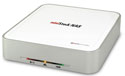
Front View of miniStack NAS

The front panel has multiple indicator lights, including 100 megabit connection, power, and drive status.


Rear View of miniStack NAS

The back panel has a power switch, power socket, two DIP (dual inline package) switches to configure the cooling fan, a 10/100 ethernet jack, and a USB connector (yes, you can also connect the miniStack NAS to your computer via a USB 2.0 connection, but not at the same time as the ethernet cable is connected–the manual is very explicit on that point).

The miniStack NAS comes bundled with a number of excellent applications, including MyMac.com sponsor Prosoft Engineering’s DataBackup 3 (which I reviewed a few months ago on this site), Intech Hard Disk Speed Tools, and for Windows users, Novastor’s Novabackup. Another 2 gigabytes of shareware and freeware is located on the drive in a .dmg installer package.

Newer Technology offers the miniStack NAS in a number of configurations from a drive enclosure with no disk for $79.95–$89.95 with the software bundle), up to the $329.95 750 GB drive, as this device was configured. I suspect this enclosure will be upgraded sometime soon, as it still uses a parallel ATA (PATA) interface, and PATA drives are becoming harder to find, having been superseded in most cases by the much faster serial ATA (SATA) disks. Again, this is not really a negative thing if you buy a reconfigured drive from Newer Technology. Who cares what’s inside the box if the box performs to your satisfaction.

I was debating mentioning this, but I always try to put myself in the place of a typical Mac user, going through what my employers refer to as the "box opening experience." Frankly, setting this device up was a tad inconvenient, as the Macintosh drivers were not included on the installation CD (it only had the Windows drivers) packed with the drive sent to me, and they are not available for download from Newer’s website. Resourceful person that I am, I did a Google search, and found the installer at Ximeta’s website. Once I installed the drivers (I was later provided a link to the drivers by Newer’s tech support, and the drivers I downloaded were identical to what I previously downloaded from Ximeta’s site) and rebooted my G5 tower, setup couldn’t have been easier. The multi-character ID code and the Write key code were on a label attached to the product packaging, as well as on the bottom of the device itself. The manual is well-written and attractively designed using lots of color when needed–something more economical to do these days, thanks to digital presses.

As Rich Lefko did a review last October of a similar device from OWC, I won’t include screen caps of the installer software. Suffice it to say, it was really easy to do.

I also have Parallels running on my MacBook, so I installed the miniStack NAS Windows drivers, which took a while (there was some brief confusion with NDAS SCSI drivers), and after making certain my G5 desktop machine was reset to Read Only, I attempted to connect to the miniStack NAS from Windows XP on my MacBook. No good. The software kept telling me the disk was mounted, but I sure couldn’t see it. Finally, MCSE (lapsed) holder that I am, I had one of those very special aha moments. The disk was formatted completely for the Macintosh! In its present state, there was no way it could appear on the Windows desktop! Doh! Stupid Larry! Stupid Larry! I went back upstairs to my computer room, launched the NDAS utility to reconfigure my G5 as a read/write source, then went to the Applications>Utilities folder, and launched Apple’s Disk Utility application (this operation could also have been performed with the bundled SpeedTools Utilities application, which includes a module called "Drive PC"–your choice). Once I partitioned the disk, formatting the one partition for Mac and another for Windows, I relaunched Parallels (and Windows XP Pro) on my MacBook and once I performed the necessary device registration, the Windows partition of the miniStack NAS popped up just as nice as you please. I copied a ripped DVD file to the Windows partition and viewed it, routed through my 802.11g wireless router, on my MacBook, using VNC with nary a missed frame or any artifacts that would indicate the miniStack (or my wireless network) couldn’t keep up with the demands of DVD video.

In summary, the miniStack NAS is a viable alternative to a conventional NAS, as long as you understand and accept up front some of the minimal limitations, in particular the inability to connect more than one Mac at a time in a read-write configuration. It’s fast, stable, and whisper quiet. I never missed the fact that the drive didn’t support Gigabit ethernet, the parallel ATA disk was plenty fast enough in real world conditions, and the bundled software was first-rate. You can’t ask for more than that. My MyMac.com rating reflects the connection limitations, and that the Mac drivers were not included in the package (after a series of email exchanges with Newer Technology, it was determined that I was given an early production model whose driver CD was incorrectly configured). It’s up to you to decide if these minor issues might affect your buying decision.

MyMac.com rating 4 out of 5


Take Control of Permissions in Leopard – Review

On March 18, 2008, in Uncategorized, by David Weeks


Take Control of Permissions in Leopard
Brian Tanaka

TidBITS Electronic Publishing
http://www.takecontrolbooks.com/leopard-permissions.html
US $10.00 online purchases only
87 pages

Brian Tanaka’s Take Control of Permissions in Leopard (TCOP for short) is a recent addition to TidBIT’s Take Control library. I’ve reviewed numerous Take Control publications before; let’s see how this new ebook compares to its brethren.

Veteran (pre OS X) Macintosh aficionados will remember the wailing and gnashing of teeth that accompanied the introduction of permissions when OS X rolled into town. OS 9 users had no need to learn who is an Administrator, or a User, what is an Account, or who is a member of a Group. "It’s MY Mac, and I don’t care about multiple users and all that bother."

Given the UNIX foundation of OS X, those wails went unheeded in Cupertino. You gotta pay to play, as they say, and permissions are part and parcel of OS X. You can’t have the multiple user accounts and security of OS X without employing UNIX permissions.

As I read Tanaka’s ebook, I was in a bit of a quandary. After the first several pages, I could tell this ebook wasn’t part of the Missing Manual series! Who is he writing for? Permissions are a complex subject, and the author delves deep into the details of OS X permissions. Apple has done its best to paper over as much UNIXness as possible, so what will the average user learn from TCOP? What problems can the average user solve after reading TCOP?

If he’s not writing for the average Mac Joe or Jane, what does Tanaka have to offer the power user?

Here’s what TCOP has to offer:

Introduction
Permissions Quick Start
Problems and Solutions.
About Permissions
The Anatomy of Permissions
Choose a Method of Setting Permissions
Set Permissions Using the Info Window
Set Permissions Using Third-Party Tools
Use Access Control Lists
Understand Default Permissions
Work with User Names, UIDs, and GIDs
Understand Ignore Ownership
Repair Permissions with Disk Utility
Learn Advanced Unix Techniques
Learn More
Appendix A: Fixes for Common Problems
Appendix B: Converting To Octal
Appendix C: Use the man Command
About This Book

It’s clear TCOP’s 87 pages are densely packed with information. Some topics are obviously targeted for the advanced reader; I know that I won’t be converting base 10 numbers to octal tomorrow, or even the next day. Advanced UNIX techniques leave me cold.

For the average reader like myself, much of the usefulness of TCOP comes from the sections About Permissions, The Anatomy of Permissions, Understand Ignore Ownership, and Repair Permissions with Disk Utility.

The first two sections gave me a grasp of the fundamentals of OS X permissions. I didn’t follow the deepest, darkest, most technical discussions about umasks, sticky bits, global bit masks and deprecated rcp. I did come away with an understanding of how and why permissions work as they do, and that’s the most important thing. I know that I could always come back to TCOP if I had to scope out some bizarre permissions problem that I couldn’t get help with.

Understand Ignore Ownership, and Repair Permissions with Disk Utility are important because they discuss issues which everyday users frequently see. If you plug in someone else’s external hard drive to your Mac, are permissions going to give you trouble when you copy or add files to your Mac or the external drive? How will you handle problems? Knowing the basics of what happens when you check the Ignore Permissions checkbox will save you much hair-pulling when the time comes!

The only question I had on this topic that Tanaka did not address was why repairing permissions using Disk Utility in Leopard takes so much longer than in Tiger. Inquiring minds want to know!

Repair Permissions is to OS X as Rebuild the Desktop was to OS 9; it has become the universal panacea for all odd OS X problems; "…and after you’ve run DiskWarrior, don’t forget to Repair Permissions!" Tanaka sets the record straight on what repairing permissions does, and when it will and will not help.

Conclusion

Much of TCOP is over the head of the average user. Some of the information will be useful, if you’re not scared off by complex concepts. But if you’re the adventurous type, or wish to move up a level in your Macintosh/UNIX knowledge, then Take Control of Permissions in Leopard is a fine, detailed explanation of permissions.

MyMac rating: TCOP is not for Joe or Jane Mac user, but if you’re a member of the target audience I rate it 5 out of 5


The Apple Training Series: iWork ’08 – Review

On March 18, 2008, in Uncategorized, by David Graham


Apple Training Series: iWork ‘08
by Richard Harrington and RHED Pixel

Peachpit Press
http://www.peachpit.com
ISBN-13: 978-0-321-50185-1
ISBN-10: 0-321-50185-3
418 pages, paper, full color
US: $39.99, CAN: $45.99, UK: £28.99

Apple’s iWork applications are quite easy to use. However, if users want to go beyond the meager instructions given in the little pamphlets that come in the box with the software, Apple Training Series: iWork ‘08 is a great way to extend their knowledge of the software.

The applications in the iWork suite are designed to be easy to use from the get-go. Install, launch, poke around a little, do a little dragging and dropping, enter some text, and …Shazam!.. get surprisingly good results. However, the ease with which users can use the software initially might prevent many from realizing the full potential of the iWork apps. Working through the lessons in Harrington’s manual, The Apple Training Series: iWork ’08, will take users to the next level.

Reviewer’s Note: The author and copyright holder of The Apple Training Series: iWork ’08 is Richard Harrington. RHED Pixel, shown as co-author on the book cover and title page, is a visual communications company that Harrington owns. I mention it here to warn that it is probably not a good idea to name your first born RHED, as intriguing as the name sounds.

Although the iWork suite of applications consists of Keynote, Pages, and Numbers, The Apple Training Series: iWork ’08 incorporates the use of other Apple software into the lessons. Apple justifiably takes pride in the way its software applications work together seamlessly, and that is definitely in evidence here. Applications such as Address Book, GarageBand, iTunes, iWeb, QuickTime, Automator, iPhoto, and Aperture, are integrated into the workflow of relevant projects. A .Mac account is recommended for completing some of the lessons. Importing data from non-Apple applications such as Microsoft Word and Powerpoint, and making use of Adobe Photoshop are also covered – no nepotism here.

As part of the Apple-Certified Training Series, this book and the accompanying DVD-ROM lesson files are part of the official curriculum of Apple’s training and certification program. Each lesson contains step-by-step instructions for attaining the desired results. Each tutorial provides an estimate of the time needed to complete it. Each tutorial ends with lesson-review questions with answers right below rather than at the back of the book.

The DVD-ROM that accompanies The Apple Training Series: iWork ’08 is well organized, with folders and subfolders clearly labeled with corresponding lesson numbers. The disk is meant to be copied to a user’s hard drive for easy access to the contents while working through the lessons. The back cover of the book suggests that there also is a companion website but I was unable to access it even after registering the product with Peachpit. As the book was just released, perhaps the website will show up in due time.

The Apple Training Series: iWork ’08 is a pretty serious read, with lots of valuable training for readers with a desire to expand their expertise. The total estimated time to complete lessons 1 – 12 and bonus lessons 13 and 14 on the DVD-ROM is given as 21 hours.

Though not mandatory, it seemed like this book was meant to be worked through from start to finish, rather than jumping to later sections. Some of the skills presented in early lessons (which are devoted to Keynote) seemed to be called into use in later lessons dealing with the other applications. The Apple Training Series: iWork ’08 is best viewed as a textbook, with skills being built sequentially, rather than as the type of tutorial that can be flipped open at any page. Used as a textbook, the reader is more likely to learn to take full advantage of all that iWork has to offer. With diligence comes expertise.

Anyone who has seen a Steve Jobs Keynote Address at Macworld Expo, produced using, umm, Keynote, knows that the application is capable of producing informative and interesting presentations of the highest professional quality. Lessons 1 – 6 are designed to help users achieve similar results. Of the three iWork applications, Keynote may be the most demanding to master and it receives the most coverage in The Apple Training Series: iWork ’08.

Lessons 1 and 2 cover creating a basic presentation, adding media, including still photos, video, and sound. Small but important points are in evidence, such as the need for fonts used in the presentation to also be installed on the machine to be utilized for presentation. Neglecting things like this could lead to a big oops, if a user created a presentation on his desktop machine, then transferred it to a laptop without giving it a trial run before the big day. Good to know that The Apple Training Series: iWork ’08 is trying to keep users from making common errors like this.

Lesson 3 is a tutorial on adding animation and some important considerations for viewing a presentation, such as turning off Exposé and Dashboard and configuring mouse behavior. Giving a presentation in some settings could be nerve-wracking enough, so it is well worth getting everything set up right before the premier.

Lesson 4 is titled “Converting a PowerPoint Presentation,” but actually covers other important topics as well, such as rehearsing a presentation and creating a self-running slideshow. Converting and restyling a PowerPoint presentation and importing content from Microsoft Word is a necessary evil for many users and this chapter takes some of the uncertainty out of the process.

Lesson 5 is devoted to working with themes, graphics, and hyperlinks. Incorporating Adobe Photoshop files into a presentation and using Photoshop to create special graphics is covered in this tutorial. Also covered are topics such as embedding a web page or QuickTime movie into a Keynote slideshow, and setting up a self-running kiosk-style presentation.

Lesson 6 has solid information on publishing and giving a Keynote slideshow. It covers various export options, such as QuickTime, PowerPoint, PDF, Flash, HTML, and sending to YouTube. Nitty-gritty information about connecting a laptop to an external monitor or projector is given. Absent a traveling IT entourage, this is important for anyone needing to give presentations on the road.

The new version of Pages that is included with iWork ‘08 has suddenly blossomed into a bona-fide alternative to the Big Name word processor (and you know which one I’m referring to) for most users. Previous versions were already dandy for doing page layouts, but less useful for hard-core word processing.

Pages ‘08 has added features that make it a much-improved word processor while retaining its layout-making strengths. Lessons 7–9 of The Apple Training Series: iWork ’08 are devoted to using Pages, both as a word processor and as a page-layout application.

Topics such as formatting, adding graphics, using change tracking, and making a table of contents are included in Lesson 7, which is devoted to word processing. Using the page-layout strengths of Pages is covered in Lesson 8 by way of an exercise for creating a newsletter. Lesson 9 goes a step further by showing how to use Pages to create a professional-looking marketing package with various elements such as poster, postcard, and one-sheet promo having consistent design. The capability of Pages to create polished documents is well covered in The Apple Training Series: iWork ’08.

Numbers is a brand new application in iWork ‘08. Lessons 10 and 11 of The Apple Training Series: iWork ’08 seem like a great way to become familiar with the many features of Numbers. If creating spreadsheets sounds like a dry topic, Numbers may change your mind. Along with keeping track of the digits and calculations, Numbers is capable of creating graphically-rich spreadsheets that make the typical spreadsheets created with the popular alternative look about as interesting as graph paper. Photos, movies, and sounds can even be embedded in a Numbers document.

Because Numbers documents can be so graphically rich, Apple seems to prefer to use the term “canvas” rather than “spreadsheet” to describe them. Yes, Excel spreadsheets can be imported, enhanced, and then exported as an Excel document, though some of the graphics may be lost. Numbers documents can also be exported as PDFs, of course, and published directly to an iWeb blog or podcast. Step-by-step instructions are given for each option.

Lesson 12 of The Apple Training Series: iWork ’08 is pretty much a graduation exercise, with projects that make use of Keynote, Pages, and Numbers to highlight how they can be used in an integrated way in professional situations. A section on publishing a presentation to .Mac demonstrates one easy way to avoid issues when clients may not have access to Keynote or fonts that have been used in the iWork applications.

And that’s not all! There are bonus lessons 13 and 14 on the DVD-ROM. These lessons are titled “Creating a Three-Panel Brochure” and “For the Power User.” These tutorials follow the same format as those in the book but are available as PDF files rather than printed in the book. Also on the DVD-ROM is an unnumbered bonus lesson for creating a photo cutout using Photoshop.

Richard Harrington has come up with a real winner for Mac users who are serious about developing new and valuable skills with The Apple Training Series: iWork ’08, though it may be overkill for casual users of the iWork applications.

MyMac rating of 4 out of 5


Sabre Femme and Homme iPod Speaker

On March 17, 2008, in Uncategorized, by John Nemerovski


Sabre Femme and Homme iPod Speaker
Company: Boynq

Price: $60 – 70 range online
http://www.boynq.com/

Boynq’s Sabre speaker is curvaceous, but it’s no gender bender. The company markets the black version for "homme" (guys), and the pink version for "femme" (gals). The latter is the unit we received for review. If you buy one of each, you can be both in the pink and in the black. Is there a femme or homme in your musical future?

MyMac’s reviews are original creations, but this one is a minor exception. While looking for some reference information on Boynq’s Sabre speaker duet, I first encountered a comprehensive review here by our friend Ilene Hoffman. If you want to read Ilene’s review, or one by any of our other webpals (including one by Bob LeVitus), that’s fine with your trusted MyMac reviewer. Together we say it all, many times over. My favorite comment from Ilene is: "The Sabre is a lightweight iPod stereo speaker that weighs only 1.63 pounds, so it’s very portable, but does not have a battery compartment. It looks a bit like an unrolled tube of paper, with the dock sitting on the front flap."

Good news: Sabre looks weird. Bad news: Sabre looks weird. Good news: black is boring. Bad news: pink is yucky. Good news: there are many helpful included cables and ports. Bad news: most purchasers won’t know or want to take advantage of these extras. Good news: speaker volume is loud. Bad news: there is no remote control. Good news: treble and bass knobs are responsive. Bad news: knob level indicators are too small to see. Good news: informative product web site. Bad news: strange JAVA or other coding makes Boynq’s web site annoying and slow. Good news: plenty of images and text to help you learn about Sabre at its official URL. Bad news: text is small, white on pink, and is difficult to read.

Good news: Sabre’s dock connector and audio cable allow it to be used with iPods and every other portable (and most stationary) music players and computers. This really is good news, as is the lineup of versatile ports and cables that are provided.

Sonic delivery is concentrated in the full midrange, with crisp treble at the high end and nothing special from the bass. Top volume is plenty loud, and distortion should not be a problem. Stereo separation is acceptable, but unremarkable.

Pricing is confusing, because other web sites report Sabre’s suggested retail cost to be from $99 to $129, but Amazon.com lists "homme" at just under $60 and "femme" at just over $70. Target.com sells "homme" for $60. At style+sound value for money, Sabre is not exceptional, unless you groove on its peculiar design, "femme’s" color, or the very rich midrange output.

I did another sneak peek at a couple of online reviews, to see if I missed anything important. There is a consistent approach to all the writing, with most reviewers wanting to like Sabre more than they are able to do. This is not a review-of-reviews, but you’ll learn a lot by doing a Google search for "boynq sabre review" (quotation marks not needed). There are some fine reviewers and web sites for low-end consumer audio products, so take advantage of them.

MyMac.com agrees with Ilene Hoffman that 3.5 out of 5 is a fair rating for our unusual Boynq "femme" Sabre one-piece-with-inserts-and-cables speaker unit. If you can pick one up (guy or gal model) for around $60, you’ll like its sound-per-dollar. Black is probably a better choice for most MyMac readers. Sabre is versatile, and can be enjoyed by different generations, if not different sexes.


Listen to MyMac 175, or subscribe via iTunes

Sam Levin returns with an all-new Cool Mac Picks. Tim has serious networking and computer hardware problems, so David, Lee, and Guy get a week off while Tim puts the show together. John Nemo has a retooled segment titled All Over The Mac, and kicks it off with guest Sheila Bender from WritingItReal.com

Support MyMac.com by visiting our Sponsor!
Audiblepodcast.com/mymac

Links from the show:
Writing It Real
Iomega eGo 250GB FireWire+USB 2.0 Portable Drive
Aliph Jawbone Bluetooth Headset
Thoughtout’s NAJA King – Flexible Rotating Stand for iPhone and iPod touch


Sena Cases’s Elega Pouch for iPhone 1G
Company: Sena Cases

Price: $39.99
www.DrBott.com

Watch the video below, or click here for a much better QuickTime version.
*Please note it is a larger file, give it time to load.

This is Julia’s first MyMac.com review, look for more soon!


Harman Kardon Drive + Play 2 – Review

On March 12, 2008, in Uncategorized, by Tim Robertson


Harman Kardon Drive + Play 2
Company: Harman Kardon

Price:
www.Harmankardon.com

In the summer of 2006, with the help of Chad Perry, we did a video segment for the original Drive + Play from Harman Kardon. Almost 5,000 people watched that video on YouTube, not to mention those who received it via our Podcast iTunes feed. While I liked it a lot, and gave it a 4 out of 5 at the time, there were a few shortcomings with the device. No color screen and no support for the iTunes and iPod features added after version 4.7 of iTunes. (Such as reading the podcast directory on the iPod.) But the first version of the Drive + Play stayed in my car ever since, and was still, for me, the best solution for controlling the iPod in a car.

You can watch the video here

When I was setting up some appointments at Macworld Expo 2008, Harman Kardon was at the top of the list. I really wanted to check out the Drive + Play 2, which was advertised to have fixed or addressed the main problems I had with the first version. Rather than wait for me to check it out at the Expo, Harman Kardon shipped a unit to me the week before so I would have some actual hands-on time with the unit before talking with them. And am I glad they did!

Let’s start with what the Drive + Play 2 does, and why I think it is one of the most elegant and practical solutions for iPod control in an automobile.

To control an iPod while driving is not an easy thing. In fact, if there was one gripe I had with the iPod (and even more so with the iPod Touch and iPhone) it is that they are not easy to control by touch, that is, to select songs, playlists, or podcasts, without actually looking at the screen. CD’s were simple, you only had to click the Next or Previous button. But with a 12-track CD, there was not much to listen to anyway. The iPod, with thousands of songs and multiple user created playlists, the listener has many more options on what they want to hear, and how they want to hear it. So controlling and selecting the music is a huge strength for the iPod, but not when you are driving down the freeway at 70MPH.

The Drive + Play 2 solves this problem by allowing you to both control the iPod by touch, via the wireless controller, and without looking away from the front window, via a 3.5″ color display.

The Drive + Play 2 (heretofore the DP2), while not perfect, represents years of work by Harman Kardon, and it shows. They really seem to understand how an iPod user would want to interact with their music, and how controlling the iPod remotely should work.

The DP2 consists of only three items; the wireless controller knob, the color display, and the media hub. (A forth if you need the FM Transmitter) This is a trimmed down component list than the last version of the hardware, and much less wires. It is also very simple to install, which should be a welcome note for the less technically inclined among us. If your car stereo has an audio input, like mine does, there are only a total of two wires needed to connect the DP2. If you need to use the optional FM transmitter, it is only one wire. (Direct connection sounds ten times better, and if you really enjoy your music and good sound quality, that is really the only route to go.)

The media hub has a cigarette adapter on one end, and the actual media hub on the other. It is a small unit, so much better than the clunky and confusing media controller box of the first generation.

The media hub is the hidden brains behind the entire unit. It interacts with the wireless controller and the color screen. It also has inputs to control music from a USB Flash Drive, other MP3 player, Sirius Satellite radio, and even has a Bluetooth adapter. The name Media Hub really does apply here. But for this review, I will focus solely on the iPod.

The wireless controller, which requires a small watch-like battery to operate, is really what makes the DP2 work so well. With it, you can control virtually every aspect of your iPod music library. (Sorry, you cannot use the DP2 to play your iPod games, nor watch videos. Hey, you are supposed to be driving anyway!) You can select different playlists, or go for artists, or albums, or songs. It really is like using an iPod. Once nice feature is located on the default home page of the DP2: a “Shuffle Songs” option without having to drill down into the iPod settings itself. I use it often when not listening to podcasts.

There is some concern on my part about how long the battery will last in the controller knob. I would hate to get into my car one cold morning to find a dead battery, and be unable to listen to my iPod. I have been using it for two months now, and the battery that shipped with the unit is still going strong. I have noticed that, on occasion, the control knob will not work until after the second button push when first plugging in my iPod. It is kind of annoying, but not a deal breaker for me.

The DP2 is upgradeable via Firmware Updates, which is great. What is not so great is that the Firmware Update requires either XP or Vista to do so. Sure, I’m running both via VMWare Fusion on my iMac, but that will not be the case for many Macintosh users. Why Harman/Kardon does not support the Mac for such a simple feature is beyond me. I hope this is addressed soon. This is really made for the iPod, which will in all likelihood represent 98% of everyone buying the Drive+Play 2, and the company who makes the iPod is Apple. Yet they don’t support the Mac OS. Odd.

The 3.5″ color screen is a vast improvement over the last generation greyscale screen. If you’re used to controlling an iPod, the screen will be a no-brainer for you. One nice feature is that album art is also displayed during a song, but the artwork can take a few seconds to display when clicking through songs. Also, I don’t know if the screen is simply low-res or if it is not displaying artwork correctly, but album art that looks fantastic on the iPod screen (or within iTunes) looks pixelated and ungainly on the DP2 screen. But that still beats the first generation Drive + Play by a long-shot.

Another minor gripe, but one that becomes more and more apparent as time goes by, is that the DP2 takes a lot longer to boot up than one would think. The problem here is, if you are listening to a podcast or in the middle of a playlist, and you leave the iPod (or iPhone / iPod touch, it works well with both) connected, the DP2 forgets what was playing and you have to reselect it. A workaround is to simply unplug the iPod, and reconnect it once the DP2 has booted up again. It’s annoying, but I don’t know if the real problem is in the DP2 or the iPod. The DP2, I suspect.

All in all, I’m very pleased with the DP2, its few shortcomings notwithstanding. As I said, it is the most elegant solution to controlling an iPod in your car. While there are some minor problems with the unit, I haven’t used another solution that is as compelling and intuitive as this.

MyMac.com rating: 4.5 out of 5


Looking for something?

Use the form below to search the site:

Still not finding what you're looking for? Drop a comment on a post or contact us so we can take care of it!