Download the show here, or listen in Odeo player above

Ever wonder how a new podcast takes root from an idea to an actual show? This week, listen to the early ideas for a NEW podcast by Tim. Apple Q3 financial results are in, and we report all the good news. Plus, Dvorak writes about the Mac, and likes it. Also, creating backups of Virtual Machines by David Cohen.
1-938-5559 and leave a message, or send email to mymacpodcast@gmail.com

Subscribe to us in iTunes.

Podcast-only RSS feed for all other RSS Podcast readers

My Odeo Channel (odeo/4d65cdee48ec8d8f)
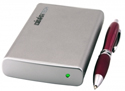


ToughTech XE Mini — Portable Pocket External Multi-Port Hard Drives
Company: WiebeTech

Prices: $120 – $425, depending on enclosure, speed, and capacity
http://www.wiebetech.com

This review has three parts: past, present, and future. The PAST was covered in David Weeks’ evaluation of the first generation of WiebeTech’s ToughTech Mini series drives, posted here. David’s conclusion was FireWire 800 doesn’t offer improved file transfer speed on this model, but every other aspect of this premium pocket drive is first rate.

The PRESENT is now, while I’m using and testing the XE series of ToughTech Mini. All WiebeTech XE models have three obvious ports on the rear, business end. What isn’t obvious is that the left-most port is dual-purpose: the same slot accommodates either a USB or an eSATA cable. I tested this new combo-port, and it works perfectly, when the drive has incoming AC electrical power.

FIREWIRE BUS ON ALL CYLINDERS

FireWire bus speeds are improved over David’s unit, so WiebeTech’s other two obvious ports are now both FW800. Not obvious is how easy it is to connect either FW800 port to any FW400 “traditional” FireWire computer jack via the included FW800-to-400 cable. I’m using every permutation of FW800/400 cables and ports on a daily basis, and the flexibility is grand. Be aware that using the included electrical power cable is a good idea if you’re pushing any external bus-powered drive to the limits of operation, whenever AC power is available.

WiebeTech’s support manager explains to MyMac.com: “Losing power for even a split second during a data transfer can cause data corruption. Unfortunately, AC power is becoming more necessary due to the increasing power requirements of newer hard drives and decreasing bus power provided by Intel-based Macs. Bus powering still works for a lot of configurations, but we include the AC adapter for those situations that require it.”

Hint: if you wonder why Apple places FW800 ports only on their professional machines and not on their amateur Macs, the next time you need to operate two or more simultaneous FireWire connections at different FW bus speeds, you’ll quickly understand the reason.

Suggestion: spend the extra money to buy larger, more powerful laptop and desktop Macs, and you’ll be glad you took the plunge, if you’re a power user or multi-external-drive person.

SOFT LOOK AT A HARD CASE

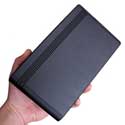
Before we examine performance of ToughTech XE Mini (or “TTXEM“), let’s take a brief detour to comment on WiebeTech’s new Pocket Drive Case that snugly fits and protects TTXEM. In the past, WiebeTech provided low-quality cases that were almost useless. Their new case is superb, constructed from stylish, thick, top-grain black leatherette (if such a thing exists) plus Velcro, and embossed with the company logo in bold-but-discreet orange color to match the hue on the WiebeTech.com web site. This $15.00 case is included when you purchase a TTXEM that contains a hard drive (as opposed to an empty shell enclosure), and will add to the envy-factor of your jealous colleagues and friends who are not wise or affluent enough to be able to buy a TTXEM — yet.

Important: do NOT attempt to operate your precious TTXEM when it is inside its case. The ports are not exposed, and, more important, this fan-free drive needs to have air circulation so it doesn’t become overheated. It gets w-a-r-m enough out in the open during extended usage.

OFF TO THE RACES

MyMac.com is not going to disassemble either of the two TTXEM units provided for our inspection. You can learn everything you need to know about them from the company’s web site or from email/phone communications with WiebeTech. Our goal here is to assess performance, styling, and value, not the circuitry.

Good news, pals: FW800 data transfers to/from TTXEM are 90-plus percent the speed of the much larger, faster, ToughTech WiebeTech desktop equipment, which received our very highest MyMac.com recommendation here. Give me real world, mission critical comparisons over benchmark lab tests any day of the week.

I created partitions on each of the two evaluation TTXEM units, corresponding to how my desktop ToughTech 400 and 800 drives (one each) are configured for weekly and monthly backups and data archives. Then I did side-by-side copying and backing up using both Finder select-drag-copy, and Super Duper cloning (from Shirt Pocket Software), which is my disk duping application of choice. Results are splendid, and surprising.

Speed checking was straightforward. My G4 PowerBook is a workhorse, and I can’t live without it. Four times on each of four days I SuperDuped the entire PowerBook back and forth between each of the four FW ports total on my pair of TTXEMs. Fastest time using FW800 was 31:36 and slowest time was 34:20, less than a three minute or ten percent time span. Average transfer time for the 14GB of my bazillion files was 33:33. Important: there was no quantitative difference in speed between WiebeTech’s 7200RPM/100GB unit and its 5400/160GB sibling. This is statistically improbable, but useful for customers, because 7200RPM external drives are more expensive than are 5400RPM ones. FW400-to-400 duplication timing ranged between 35:00 and 38:00 minutes, which is darn fast and consistent with previous FW400 experience.

MyMac.com asked Bill Head, technical director for WiebeTech, for a nuts and bolts explanation, and he wrote:

The theory behind 7200 RPM drives vs. 5400 RPM drives is that faster-spinning platters reduce seek times and latency because the read/write heads spend less time ‘waiting’ for the next bit of data to come around. However, as you’ve discovered, this isn’t always the case in a real world application. In a long, sequential data transfer such as a drive duplication, the faster access times offered by a 7200 RPM drive are less important. However, if you’re using the drive as a boot drive or running applications off of it, the 7200 RPM drive would probably feel more responsive.

Looking at WiebeTech’s catalog page for TTXEM, their 160GB/5400RPM model at $246 is only three dollars (yippee!) more expensive than the 100GB/7200RPM we reviewed, that should be faster but really isn’t. So at $1.50 per gigabyte of lightweight, impact-resistant, stylish, state-of-the-tech, bus-powered, FW800/400 storage, MyMac.com suggests you go for capacity over (alleged) speed. The 5400RPM drive runs a little cooler too, but that’s not a deal maker by itself.

eSATA FOR YOUR DATA

Let’s get back to that combination eSATA/USB2 port, which is starting to feel lonesome with all the emphasis on high-speed FireWire data transfers. We are familiar with USB, and you can read an extensive explanation of it, including a comparison with FireWire, here, but it may put you to sleep. Punch line: FireWire is much MUCH faster than USB on TTXEM and all other external drives we’ve examined at MyMac.com, but USB does come in handy as an optional second (or third) interface from time to time.

eSATA is not a native port on any portable Macintosh yet. Here’s a brain-numbing description of this new technology standard, that is supposed to surpass FireWire for transfer speeds. This was not our experience, using TTXEM’s eSATA port and cable. An eSATA connection must be powered using electricity, as opposed to a FireWire-powered AC-free connection. Being a first gen product, we’ll hope for accelerated eSATA rates as the technology develops.

Bill from WiebeTech explains to us: “eSATA is really just a connector type. The root technology is just plain SATA. In other words, an eSATA cable is the same as an internal SATA cable, but with more shielding and a different connector type. The Oxford 924 chip inside the ToughTech XE mini actively controls the FireWire and USB connections, but for eSATA it is just a straight pass-through from the drive to the port. Thus, the eSATA connection should be exactly the same speed as if the drive were installed inside the computer, assuming your eSATA host can also keep up.

“We suspect that the reason your eSATA speeds weren’t higher is that you were already getting the maximum speed of the drive itself. [Laptop] 2.5″ drives are typically too slow to saturate even the FW800 bus, let alone eSATA. You want a connection that’s fast enough to give you the full benefit of the drive’s speed, but anything extra won’t give you an added benefit. An eSATA port is a nice feature for people who have already invested in eSATA hosts, but speed-wise it won’t be any faster than FW800 for a single 2.5″ drive. Where eSATA becomes a necessity is with multi-drive products employing RAID technology.”

My G4 PowerBook required an inserted 32-bit CardBus that adds two eSATAII ports via the card slot on a PowerBook’s left side. Different PowerBooks and MacBook Pros all use very different eSATA cards, so consult with WiebeTech for your specific model of Mac laptop. MacBooks and iBooks need not apply (sorry — no slots). An included CD installer walks you through a slightly confusing installation of software for your eSATA card, and WiebeTech phone support was very helpful when I had problems. WiebeTech does not manufacture these eSATA cards, and there is no brand name on mine.

eSATA is the FUTURE mentioned at the beginning of this review. You’ll be reading, hearing, and seeing more about it every month. I have very little experience and no special knowledge of it, but I know that having two more ports on any laptop is terrific, even though lab speeds don’t translate into actual file transfer speeds.

CONCLUSION

ToughTech XE Mini equals or surpasses all previous external hard drives we’ve reviewed at MyMac.com by WiebeTech or any other manufacturer. It’s not the cheapest, but it’s very close to being the fastest, sleekest, most durable and flexible unit of all. Special praise for its excellent Pocket Drive Case, but a tiny demerit for confusion installing the CardBus software.

MyMac.com rating: 4.5 out of 5


Hopefully, you have never gotten a message on your computer telling you that your scratch disk is full and you need to delete some files. If you do get this message it will bring your productivity to a halt. You won’t be able to burn a CD, you might not be able to save a project, and a slew of other things can happen.

What is this thing called a scratch disk? In most cases it is just your hard drive. When you run a program temporary files need to be stored someplace in order for everything to run properly . If you are burning a CD the contents of that CD or DVD need to be stored someplace while the burn takes place. All of this storage is done on your hard drive. Even if you have 1 or 2 gigabytes of space left while you aren’t doing anything, these last few gigabytes can be quickly eaten up by opening several files at once in Photoshop, for example.

So what do you do if you get this message? Well, there are several things to try.

1. Close any unneeded applications and documents and try to save what you are working on.

2. Go to the Finder menu and choose Empty Trash. Sending something to the trash does not delete it from your hard drive. You have to empty the trash on a regular basis. Those items can be wasting valuable drive space.

3. Check your "Podcasts" folder for old and undeleted podcasts. (see Macspiration 93)

4. My next step would be to go through my Applications folder looking for anything I never use. There might be applications that came installed with your computer that you have never even opened. Drag these applications to the trash (make sure you empty it!).

5. In addition to the Applications folder, go through your Documents folder. Look for anything you might be able to trash (and empty) in there.

6. Hopefully, by now you have cleared enough drive space for a temporary reprieve. If so, skip to step 7. If not go to step 6.

7. This next step will only work if you have enough space clear to burn a CD. If you do, burn any old documents to a CD or DVD. Make sure the burn was a success, and then delete and empty those documents you just put on a CD/DVD.

8. It is probably a good idea to invest in an external hard drive. They come in two varieties: USB and Firewire. I like Firewire. These drive also come in all sorts of storage sizes. I suggest getting a storage size that is at least the size of your computer’s hard drive. Better yet, get one that is double that size (if possible). Basically, get what you can afford, but try to get something that leaves room to grow.

You can find external hard drives all over the place. Best Buy, Circuit City, Amazon.com. I like Other World Computing.

Wherever you go, make sure the drive is Mac compatible. Most drive are these days.

Once you have your drive connect it to your computer and turn it on. It should show up on your Desktop. Many drives will be ready to go right out of the box. Some will have factory installed stuff on the drive.

To clear our this factory installed stuff you want to format the drive. To do this open Disk Utility located in the Utilities folder and follow these steps from Disk Utility’s Help menu:

1. If you want to erase an external disk, connect the disk to your computer.
2. In Disk Utility, select the disk or volume in the list on the left.
3. Click Erase.
4. Choose a format from the Volume Format pop-up menu. Usually you will choose Mac OS Extended (Journaled).
5. Type a name for the disk or volume.
6. If you’re erasing a disk and plan to use the disk with Mac OS 9, select the checkbox to install the Mac OS 9 drivers.

You do not need to install the Mac OS 9 drivers to use the disk with the Classic environment.

7. If you want to erase the entire contents of the disk by writing zeros, click Security Options, then select the option you want and click OK.
8. Click Erase.

Once erased you can now drag and drop documents from your Hard Drive to the external one.

Whatever you copy to the new drive, delete it from the old drive. I’ve said it over and over again, make sure you empty the trash!

From now on save all documents to your external drive, instead of your computer’s hard drive. If the external ever fills up, you can always buy another, and another, and another…..You get the point.

Once all of that is complete, you should have plenty of space on your “Scratch Disk” to get back to work.

External drives are also great for backing up your computer’s hard drive, but that is another article.

Leave you comments below.


Nemo Memo – Travels with Techie, v2007.2

On July 25, 2007, in Uncategorized, by John Nemerovski


Part two of our series. You can read part one here.

A small, portable two-button scrolling mouse is handy when traveling with a laptop, especially if you’re accustomed to using a mouse back at home or office. Iogear makes the best mini-mice, and you can read our reviews of their first edition porta-mice, posted many years ago, here and here, complete with photos. Newer versions of these mice are available from Iogear.com. Warning: older laptops don’t send out enough USB power to work with Iogear’s original USB wireless mice, but newer Mac laptops should not have this problem. RATING = 4 out of 5

My cousin Jim provided a Netgear 54 Mbps Wireless Router for our use during the San Francisco housesitting part of our current vacation. Setup procedure is confusing, but I eventually figured out how to secure the router and its wireless signal from casual intruders. Linksys wireless routers are still my first choice, but you can’t beat free, so thank you again, Jim. Extra thanks to David Weeks, for helping create and verify our security settings. RATING = 3 out of 5

FireLite FireWire 400 portable pocket hard drives are among the best in the business, but the SmartDisk company appears to be leaving the business completely. I use my FireLite almost daily for temporary backups and file transfers, and it is one fine piece of equipment. Look for these gems on eBay and other aftermarket shopping sites. Read our review here, posted an eternity ago and still valid. RATING = 5 out of 5

David Weeks purchased a cheapo multi-format photo storage card reader at Fry’s Electronics in Phoenix for me at the beginning of 2007, and I use it very frequently. I don’t care which brand of combo card reader you own, but one day you’ll be glad I insist you get one and keep it and its USB cable WITH your digital camera. Send Nemo a thank you note when you’ve used it for the hundredth time. RATING = 4 out of 5

Do a web search for "canon digital rebel" and you’ll come face to face with the camera I borrowed from my uncle to photograph a family event last weekend. Photos are consistently great. I have helped several clients who possess digital single lens reflex (DSLR) cameras, but I don’t own one. The Digital Rebel is a good entry-level DSLR that can be used with a zillion Canon-mount lenses, new and old. Hint: get a lens hood or shade for bright daylight or early/late day photography, to keep flare and glare out of your photos. RATING = 4 out of 5

i.Sound Max is the most versatile compact portable iPod docking or mini-jack speaker we’ve had for review at MyMac.com. Our full evaluation will be posted in a few weeks. Become familiar with this dandy device here. List price is $100, and Amazon.com sells it for $85, which is a screaming deal. Every person who sees and hears my Max speaker is impressed. Poolside? In the car? Bedroom? Dorm? Kitchen? Wherever, whenever, whoever, wowever — Max delivers splendid sound. RATING = 4.5 out of 5 [provisional]

Glance is great. I’m addicted to it, as a tutor, troubleshooter, and helping hand, even on vacation. Try for free before you buy, read our description of it here, and then use Glance to see and be seen by the favorite computers in your life, Mac or Windows. RATING = 4.5 out of 5

SX70 ultraEars in-ear headphones by ezGear are the best under-$50 earphones we’ve heard. Read about them and several competitors here. For that price, buy several sets, one each for car, house, friends to borrow, and dog to chew. I use mine daily on vacation. SX70 provides comfortable, quality audio for every type of music and talk, even the MyMac.com Podcast. RATING = 4.5 out of 5

After a long period of silence, WiebeTech is again shouting about their great new portable pocket hard drives. I’m midway through a review of their ToughTech XE mini combo-port premium drives, and they are the most versatile we’ve ever seen at MyMac.com. If you need durability along with style and portability, save your money for the highest-capacity TouchTech unit you can afford. Learn about them here. RATING = 4.5 out of 5 [provisional]

New York Times crossword puzzles can be played online or downloaded and printed for offline puzzling. I’m a Monday-Friday newspaper subscriber, so I quality for Times Select and some premium puzzle access, but I think everybody can at least play the daily crossword and/or "classic" puzzles from the past. Here is the link to the Times’ puzzle page, containing all pertinent info plus instructions for Across Lite, the software that displays and plays/prints crossword puzzles on your Mac. You may need to register here, but it’s free and non-invasive. RATING = 4 out of 5

[Part Three is coming later in the summer.]


Macspiration 93: Podcast Spring Cleaning

On July 25, 2007, in Uncategorized, by Donny Yankellow


Have you ever deleted a podcast from iTunes and you are asked if you want want to move the deleted files to the trash?

I always say yes, thinking I would be recovering a lot of hard drive space. Well, it turns out I was wrong.

I don’t know why, but I recently decided to look into my “Podcasts” folder. (To do this go to your hard drive, open “Users,” open your username, open “Music,” open “iTunes,” open "iTunes Music," and open “Podcasts.”) What did I find? A ton of audio and video files from podcasts I deleted ages ago. Some where old episodes from podcasts I still subscribe to, and some were podcasts I don’t subscribe to and I thought I deleted through iTunes.

I proceeded to delete all of these “previously thought to be deleted” files and cleared out 5GB of space! Yes, I said 5gb of space!

So what is the moral of this Macspiration? If you need more hard drive space, check your “Podcasts” folder. You never know what you might find there.


MyMac.com Podcast 137

On July 23, 2007, in Uncategorized, by MyMac PodCast


Download the show here, or listen in player above
Is the iPhone changing the cell phone industry? Some say yes, some say no. Tim, Chad, and Guy chime in with their opinion on the subject. Plus, David Cohen talks about the most recent version of VMWare’s virtualization software Fusion.

We would love to hear from you. Call 801-938-5559 and leave a message, or send email to mymacpodcast@gmail.com

Subscribe to us in iTunes.

Podcast-only RSS feed for all other RSS Podcast readers

Links from this show
vmware


Macspiration 92: Some Downloads for You

On July 20, 2007, in Uncategorized, by Donny Yankellow

It has been a while since I suggested a bunch of downloads, so I figured it was time. Here’s a few freebies for you to check out. Some of these apps are donationware, so if you like them you might want to consider donating to the developer.


Speedmail by 1802
Speedmail does what the name implies. It makes Mail (the application) faster. It won’t download mail faster, but when you double-click an email message it appears on the screen a lot faster. This is one of those you have to try to see.


PixelWalker by hartungdesign.net
If you can’t wait for Leopard and Quickview, PixelWalker is worth a try. It will give you a preview of all the images in a folder. Once you find the image you are looking for it can show you the icon in the Finder, where you can double click to access the file.


Deeper by Joel Barriere
Deeper is from the maker of a great utility called Onyx (http://www.titanium.free.fr/pgs2/english/onyx_tiger.html). Deeper allows you to tweak hidden features of your Finder, Dashboard, Safari, Dock and more.


RapidoSerial by app4mac
Do you have tons of applications that require serial numbers? RapidoSerial is a utility that will store all of those serial numbers for you in one spot. No more hunting for that email with the serial numbers, or typing in those 25 digit activation codes when you reinstall something. Just copy and paste it with RapidoSerial.

That will do it for today. If you have any great apps to recommend list them below, or send me an email.


The Macintosh desktop is a special place. It’s the default target for incoming files, and things accumulate there. That is a good thing and a bad thing.

It’s good because it’s a handy place to put what you’re working on. It’s bad because the Mac keeps a constant watch on your desktop and if there are too many items there, it’ll actually slow down your computer.

Take a look at the screenshot below. Drag it to your desktop (If you can find a clear place to put it) for a bigger view.

Problem #1 — The desktop is cluttered.

In a nutshell, here’s how we’ll solve the problem:

1. In your documents folder, make a new folder "Desktop of 7-7-7" or some other name that will make sense to you.
2. put an alias of this folder on your desktop (one of the few things that will go there.)

This becomes your "active" desktop . . . a place you can clutter up to your heart’s content without slowing down your Mac. When something appears on your desktop, just move it over to your Desktop of 7-7-7 window

So — In Mac Simple style — we’ll solve the problem by breaking it down into several easy steps

Step #1 — Prepare to make a target

Your "Documents" folder is the proper place for all those files that you accumulate.

Yes, I know you’ll lose them in there but I’m here to make sure that doesn’t happen.

Make it easy on yourself to do things the right way. Put your Documents folder on the dock. Drag it just to the right of the divider line. Now . . . no matter what windows are closed, you’re one click away from all your stuff. Open up the documents folder, switch to list view and sort by date (click on the column heading, Date)

Why?
a) No matter how many files are in your Documents folder, the most recent are on the top of the list. You don’t care that files from 1998 are at the bottom.
b) If disaster strikes, all your important stuff is in one spot. Recovery is made simpler because of that.

I’ll show you how to find lost files in "Mac Simple #3"

Step #2 — Make your template Desktop folder

(Control-Shift-n or pull down File to New Folder) will make a new folder in your Documents. Name it, "Desktop Template."

Open it and pull down View:Show View Options from the menu and pick a pleasing background.
Notice I have Show Item Info and Show Icon Preview checked.

Why?

a) This is a template you will use instead of going through all the motions every time.
b) Choose a pleasing background since you’ll be looking at it constantly. There’s nothing to prevent you from using a scene from Where’s Waldo, but the idea is to be able to see your icons.

c) Checking Show Item Info and Show Icon Preview will put a thumbnail pic on your icons and show the size of art files. This is valuable info if you have several versions of a picture, for instance. The one off the camera might be 3072 x 2304 pixels and several magabytes in size. Too large to send to Grandma. 640 x 480 is the one you want to email. But I digress.

Step #3 — Make the current Desktop folder

Now we’ll make the one you’re going to use. In the Documents folder, click once on Desktop Template and click File:Duplicate, creating Desktop Template copy. Rename it Desktop of 07-07-07 or whatever.

You can make an alias and drag it to the desktop. But there’s an easier way. Simultaneously hold down Command and Option and drag the folder to the desktop, creating an alias on the desktop with the same name as it’s parent (originating) file.

Double click on the alias and position the window so you can see around the edges . . . especially under your hard drive icons. This is where new additions to the desktop will arrive; easily seen and obvious, instead of buried in a morass of desktop icons and open windows.

There are several additional benefits to this system. When this get too cluttered, make a new Desktop-of folder and retire this one.

You can also use this system for special or current projects. Lots and lots of files all neatly dumped helter-skelter into their very own folder — the parent of which is in your Documents folder, where it belongs.


HP G4010 Flatbed Scanner – Review

On July 18, 2007, in Uncategorized, by Art Schwartz


Hewlett Packard G4010 Flatbed Scanner
Company: Hewlett-Packard

Price: $180
http://www.shopping.hp.com

My name is Art Schwartz and this my first MyMac.com review. I’m a Mac convert, a wannabe photographer, and a recovering academic. By “recovering academic” I mean I: (a) spent the greater part of my career pontificating to disinterested undergraduate students; and (b) am really trying recover my ability to communicate in a manner that is accurate, interesting and informative.

When I was contacted about reviewing an affordable flatbed scanner that did six color scanning up to 9600 dpi, I jumped at the opportunity. Since my Minolta Dimage 5400 scanner died and left me with the problem of still needing to digitize more than 5,000 images, I have been searching for a scanner that produces quality scans in a reasonable amount of time, that didn’t require a graduate degree in engineering to learn to operate, and wouldn’t require a home-equity loan to purchase. Therefore, I approached learning to use the HP G4010 to scan pictures, documents, film and slides with high hopes and great enthusiasm.

Almost everything you ever wanted to know about the HP 4010 itself

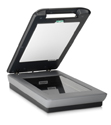
First, let me cover some essential stuff about the G4010 itself and then I’ll get into how it performs. The G4010 includes the scanner, USB cable, power supply, a short — actually, cursory —Setup and Support Guide (in four languages, no less), and the scanning software CDs. As you can tell from Figure 1, it’s a pretty sleek looking scanner with a top-hinged cover.

Notice the slot in the underside of the lid? That’s what HP calls a TMA (transparent materials adapter) for slides and film. Weighing in 9.6 pounds and measuring roughly 12 x 20 x 3.8 inches, it’s going to take some space on your desk or countertop. What you can’t see in this picture are the four buttons on the top of the lid that activate scan or copy functions.

Introduced earlier this year, the Hewlett Packard G4010 is one of the first flatbed scanners in its price range ($180 USD list; $125-150 USD street price) to offer the option of scanning in six-colors/96-bit scan with a resolution of 4800 x 9600 dpi resolution. When scanning with the six-color option, the G4010 employs an additional light source effectively adding three extra samples for each pixel. Scanned images are “truer in color, richer in color depth, and crisper.” The G4010 Product Specification on HP’s website describes the G4010 is a flexible, multi-featured, easy-to-use flatbed color scanner that performs a number of scanning and image editing functions.

The CD for the G4010 contains two programs (the HP Device Manager and the HP Photosmart Studio) for scanning, editing and managing documents, images and even objects. The HP Device Manager is the actual nuts-and-bolts software that offers an impressive array of features for scanning and editing images. In addition to being able to customize color, the Device Manager software offers tools for manipulating image resolution (72 – 19,200 dpi) sharpening, dust and scratch removal, restoring faded color, adaptive lighting (enhancing shadow areas) and controlling output dimensions. For slides and film, additional adjustments can be made to tweak highlights, shadows, midtones, and gamma .

But wait — in addition to its major function of managing folders and files, the second program (HP Photosmart Studio) also activates the scanning functions of the HP Device Manager. Furthermore, Photosmart Studio has the capability to stitch image files, create a slide show, or email an image.

With all these features I just couldn’t wait to install the programs, fire-up the G4010 and scan all those piles of documents and boxes of slides and negatives that I had shoved in the drawers of my desk. Wow! With a toolkit of goodies like that, I was ready to become a scanmeister. All these features make it tempting to turn your back on the old maxim that there’s a difference between having a feature, accessing a feature, and being able to use a feature.

Installation was straightforward and simple. No surprises — simply pop the CD in the drawer, follow the directions and the icons for HP Device Manager and HP Photosmart Studio pop up on your Dock. One nice aspect of the installation routine is that the software adds the HP G4010 to your list of plugins in Photoshop.

Almost everything you ever wanted to know about scanning photos, documents and even objects

The scanfest began by clicking on HP Device Manager. The vaunted six-color scans, the adjustments to resolution and sharpness, the restoration of faded colors and the dust and scratch removal features were of greater interest to me than the scanning speed and file size. I naturally presumed, that since the software ran on a Mac that it would be fairly transparent, logical and straightforward.

When you click on the HP Device Manager icon, you will see the pop-up screen containing a task list shown in Figure 2. I clicked on “Scan Picture” and watched for the action to begin. At first, it appears as if nothing is happening. After several seconds, an unobrustive light gray whirling circle appears and begins spinning.

After at least 30 seconds (trust me, I timed this several times), you can hear the scanner begin to work and the scanned image appears on the screen. The image, surrounded by “crawling ants” for cropping appears on the screen. The cropping option, is kind of tricky. You’ve got to place the mouse cursor exactly on the line to grab it. It takes practice, but by the 10th or 12th time you’ve done it you’ll be able to get it.

Once the image is cropped you can zoom-in and begin making adjustments. Figure 3 shows some of the notable array of adjustment options.

I tried the “Restore Faded Color” adjustment and was impressed with the marked increase in color saturation. “Remove Dust and Scratches” didn’t make an appreciable improvement in an ancient black-and-white photo I scanned. Given the time for the scan and the minimal changes, it would be better to remove the blemishes with the tools such as the Adobe Photoshop’s clone stamp or healing brush after scanning the image.

Six-color scanning is one of the most enticing features of the HP G4010, so my next project for this review was to examine six-color scans for color accuracy, richness, and crispness. I discovered that you have to go to the “Preferences” options in the drop down menu of the HP Scan Pro (that is HP Device Manager software) and check the box for six-color scanning.

It would have been nice if the authors of both the printed and online documentation had mentioned that the default setting is three-color and to take advantage of six-color capabilities you need to make manual adjustments. I couldn’t see much of a difference between three-color and six-color scans. After all the time and effort figuring out that six-color was an option, finding it, and getting it turned on, I was saddened.

The G4010 also offers the option of scanning with HP Photosmart Studio. The program does enable you to stitch and to create a slide show with scanned images. Those are two options not available in the HP Device Manager, so that may further justify the existence of HP Photosmart Studio.

The HP G4010 does a decent job at scanning documents and pictures although the software is less than intuitive, somewhat problematic and more than cranky. A few of the features are really neat and some aren’t as exciting as I thought.

Other features – such as the 30-40 second delay while the HP Device Manager calibrates itself or the difficulty grabbing and moving the crawling ants for cropping – will test your patience and dexterity. Scans at 300 dpi do not require unreasonable time or disk space. Unless you plan to make big enlargements most experts suggest that 300 dpi scans for documents are sufficient.

Almost everything you ever wanted to know about scanning slides and film

What is unique about the HP G4010 when it comes to slides film is how you get the original(s) positioned to be scanned. With many flatbeds or dedicated scanners, you use an adapter or tray to hold the original. Not so with the G4010. Look at Figure 4 and you will see a built in slide adapter, called TMA (Transport Materials Adapter), on the underside of the lid. It can hold up to five 35 mm slides or up to six negatives. Ergonomically, it’s a little awkward inserting/removing the slides or negatives.

The bruises and abrasions on my head are still there from beating my head against the wall as I repeatedly scanned slides and film using the HP G4010. Disastrous might be an overstatement, but terrible would be a more accurate description of those episodes.

Ultimately, I discovered that there are five steps to follow to get each image ready for scanning: (1) click on the slide you want to edit to “activate” it; (2) click on the “+ View” button at the top of the window to actually activate it; (3) click on the options key at the upper right corner of the window to make adjustments; (4) adjust color, color, quality and make corrections as needed; (5) click on the “- View” button at the top of the window to go back to the list and go to your next image. Do not, repeat DO NOT, click on the “Accept” button in the lower right corner until you have completed the edits on all the slides. If you skip Step 5, you’ll really be sorry.

Should you ignore this advice and click on the “Accept” button before you have finished cropping and editing all the images in the series: (a) the nonintuitive, user-friendless software will beginning scanning ALL the images in the tray at the settings you made, and (b) the crops on individual images may slip. Once the scan begins, a dialogue box will appear telling you to press the command key to if you want scan. Just just press the command key. Hold it down. After a minute or so, everything might stop. By the time it stops, at least three images have been saved with wrong settings and you will have to locate those images, delete them, and start the process over again.

Make this mistake once and you won’t forget it. Better yet, follow my advice on Step 5 and click on the “- View” button at the top of the window after you have done your cropping and editing on the image. Click on the “Accept” button ONLY – repeat ONLY – after you have finished cropping and editing all the images you’ve put in the tray. Even better yet, put only one slide or negative in the TMA to be scanned one-at-a-time. You decide — it’s a trade-off between getting the image scanned and efficiency.

To be fair and thorough, a strip of black and white was pre-scanned and each was cropped and adjusted before actually scanning. During the scan, the crops and adjustments slipped so I had to toss them out and start again. Being both inquisitive and wanting to give HP the benefit of the doubt, I did a crop and adjustment on the only image I wanted to scan.

The software promptly proceeded to scan all the negatives on the strip. Like HAL in the movie 2001, this software seems to have a mind of its own. This is inexcusable in this day and age and from a company the caliber of HP.

Finally, everything you want to know about what I’ve concluded from 40+ hours working with the HP G4010

I’ve worked with enough scanners, both flatbed and dedicated, to know that their technical capacities often exceed the code that was written to operate them, that the software is often nonintuitive, and that these devices can be cranky. But, is the quality of the scan worth the effort to learn and operate? And, is the quality of the scan worth the cost? If so, it’s worth putting up with the idiosyncrasies of the device.

Although the G4010 produces decent quality scans of documents, I question whether the hassles are worth it. It does a fairly decent job of preparing and scanning slides to be worked on in a real editing program. Scanning black and white or color film, is somewhere between worthless and a waste of time because of the software’s idiosyncrasies. Given the struggles to make it work, the cost, and competing scanners, I also question whether the G4010 is a real value.

In many respects, scanning with the G4010 reminds me of an academic administrative assistant where I used to work. If you groveled sufficiently, and were willing to put up with her crankiness at doing a task that was part of her job, she might condescend to do the task when she could see fit to fit it into her schedule. The product of her efforts was usually passable, but it typically wasn’t worth the hassle.

That almost wraps up the first review I’ve been asked to do for MyMac.com. As I worked on the last couple of paragraphs of this debut review, I’ve realized that because of my rather negative impressions, this might also be a retirement review. When I introduced myself at the beginning of this review I called myself a recovering academic. I guess, candidly, I’m still an academic, because I still have to call things by the right name.

MyMac Rating: 2.5 out of 5


Seagate Shared Storage II network drive
Company: Seagate

Price: $499
http://www.maxstore.com/product.asp?sku=3338670
(1 TB version reviewed)

Nowadays, people have more networked computers in their homes and small offices, so the need for backing up all their files has become far more important. Add in the increasing file size of photographs and video files, and you’ll want a "network attached storage" device. NAS is the acronym of choice for these gadgets.

NAS devices are hard drives that can be accessed over a Local Area Network (LAN), to eliminate the problem of having to move hard drives from one computer to another, or to have a separate hard drive dedicated to backup for each computer. The NAS can have accounts for individual users, or the files can be open to all.

Seagate (formerly Maxtor) loaned a 1 terabyte Shared Storage II to the Weeks Division of MyMac Labs.

Let’s see how the Shared Storage II (SSII) fared in Weeks’ very small office setup of a Mac Pro, a MacBook Pro, and an old beater Gateway PC.

First impressions:

How big is a terabyte? It’s 1024 Gigabytes or 2^40 Bytes. I can’t count that high.

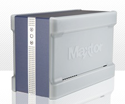
The unit is solidly constructed; it more resembles an aluminum ingot than a network storage device. This case will be able to take any and all abuse you can possibly dish out. Fellow reviewer John Nemo will chime in with his own comments below.

It’s not too big and not too small: 5.4 x 3.9 x 8.5 inches (136 x 97.5 x 217mm), and it tips the scales at 6 lbs.

The unit contains two 500GB drives, spinning at 7200 RPM, with 16 MB of cache. You can use the SSII as two 500 GB drives, or as one 1 GB drive.

For network connectivity, $499 dollars gets you:

1 – 10/100/1000 RJ-45 Gigabit Ethernet port 2 – USB 2.0 ports for printer sharing, storage, expansion or offsite data rotation

Once unpacked and cabled up, we ran the Maxtor EasyManage software from the installer CD. It installs the software itself, as well as a kernel extension that allows you to have the host computer wake from either sleep or shutdown to run unattended backups. A restart is required to take advantage of the wakeup features.

Setup involves creating either private or public accounts. Public accounts allow access to anyone, and private accounts are user specific. I used a public account for testing, as this is how many SOHO users would configure the drive.

Network volumes do not automatically mount when you boot your Mac or log in, but EasyManage can be set to auto mount a volume. If you wish to manually mount a volume on the desktop, you need to use the EasyManage software. I found EasyManage less than intuitive. The user interface requires too much pointing and clicking, and it’s not obvious to figure out how to mount a volume on the Desktop. Easy Manage also uses your web browser, not EasyManage itself, to setup, configure and test the SSII unit. It proved to be Safari-compatible, which was a plus.

Once you have setup your accounts, public or private, you can configure EasyManage with your backup choices. You can choose which drives or folder to backup and how often. One nice EasyManage feature is the ability to keep up to ten earlier versions of files, to establish a version history.

Automated backups can be set for a given time and day of the week. Manual backups can be done at any time.

Advanced options include waking the Mac from sleep, and starting from a shutdown state. You can choose to have the Mac shutdown after the backup is completed.

Once you’ve waded through EasyManage’s confusing interface, and have configured your backup, you’re ready to have the SSII get to work.

Here’s where the SSII proves to be Mac-unfriendly.

The SSII’s network volumes are accessed via a Windows file sharing protocol named CIFS (Common Internet File System). Mac OS X is fully capable of reading and writing via CIFS.

One of the nice things about the Mac is its ability to have long, descriptive filenames. The only character that’s not allowed under OS X is a colon (:).

The hitch with SSII, and it’s so big that it’s a deal-breaker for me, is that the CIFS protocol does not permit filenames to be longer than 31 characters, nor does it permit filenames to use many characters that are allowed in the Macintosh world. For example, you cannot have filenames containing ? [ ] / \ = + < > : ; " , * |. Nor can the name be longer than 31 characters, even if they are all legal.

So, EasyManage will be merrily copying files, then will rudely interrupt you with an error dialog box saying "the file was not copied – there may be an invalid character" (that is, /\|:*?<>) in the file or folder name.

You have the option of skipping this file or folder, or skipping ALL files/folders with these characters.

The other problematic error message is: Bad Filename: This may be because the destination disk doesn’t allow names longer than 31 characters.

Again, you can skip the offending file/folder, or skip them all.

In my first full backup, I had well over a hundred files that could not be copied. If I elected to "Skip all" I would have no idea of which files were not copied. If I watched the backup to note individual files with illegal filenames, I’d be watching for hours.

As a Macintosh user, this limitation is unacceptable. I realize it’s a fundamental part of CIFS, but I’m not willing to use tools like "A Better Finder Rename" to change my filenames to make them Windows-compatible. I LIKE my Mac filenames, and don’t want to change them.

I did create a workaround, however. I created a disk image on my network volume with a Windows friendly filename. Next, I mounted the disk image, and copied all my files into the disk image. I used both the Finder, as well as Synchronize Pro. Using a Macintosh disk image avoids any problems with illegal characters, but it also prevents you from using the automated backup capabilities of EasyManage. I did it to see if it would work; it’s not practicable on a day-to-day basis.

The other deal breaker for me was slow copying speed. While the SSII has Gigabit Ethernet, the overhead associated with CIFS takes a terrible toll on copy performance. I can copy files between my Mac Pro and MacBook Pro at speeds averaging 25 MB/sec for large files. The SSII never managed more than 15, and usually transferred the same large files at about 10 MB/sec. Small files always copy more slowly, even in the Mac world, but the SSII copy speed was far slower than my Mac Pro to MacBook Pro copy speed.

It’s too bad that the SSII has the CIFS filename limitations, and slow read/write speeds, as it has plenty of good features.

I used the shared media feature to run both my iPhoto library and iTunes library from the SSII. I was able to stream music to my SliMP3 (http://www.slimdevices.com) with no trouble, and sharing the iPhoto library to both wired and wireless Macs went with nary a snag.

I tested, albeit briefly, the wakeup and shutdown features for automated backup, and all worked flawlessly.

Additional comments by John Nemerovski:

Seagate Maxtor provided a second non-working SSII drive to MyMac.com, giving me permission to take it apart and examine its internal organs. Not being an engineer or supergeek, I used a small screwdriver to remove screws and a large screwdriver to pry the case open. Do NOT try this at home or office. It will void your warranty and ruin your expensive unit.

After fifteen minutes, the components were divided into uneven piles, for: the metal casing, lightweight, stylish, and strong; blue rubber gaskets that held everything very snugly in place; the aforementioned screws; a small but impressive circuit board, power supply, and fan; a bunch of miscellaneous wires, tape, and assorted thingamabobs; and two beautiful 500GB high speed SATA drives.

I was impressed with how well everything had fit together, sleek and strong, and how much inherent hardware value the company provided for $500. David and I have had similar mixed results with Maxtor’s software in the past, and we urge them to develop more Mac-friendly utilites in the future.

Conclusion:
The Seagate Shared Storage II is a splendid unit for PC users, but it is not well suited for day-to-day Macintosh usage. The CIFS limits on filenames prevent many Mac files from being copied to the shared drive. Copy speed is far slower than Gigabit copies from Macintosh to Macintosh. The EasyManage software, while fully featured, is somewhat confusing. The Shared Storage II does work well as a shared media server, assuming all the medeveia filenames are CIFS-compatible.

MyMac rating: 2 out of 5


The Case for Cases

On July 17, 2007, in Uncategorized, by Dan Robinson


There are two markets for a phone case (the brand of phone is immaterial).

There’s the holster; then there’s the purse model.

If you’re like most men — and don’t carry a purse — you go for the holster type, which is further divided into the horizontal and vertical. As phones get bigger again thanks to increased screen size, the holster orientation becomes a factor.

It is at this point the physiognomy of the wearer comes into play. As much as we hate to admit it, we gots love handles and thighs. This means there is a limited amount of space for a cell phone on our belts. Too far forward and it get squooshed uncomfortably between belly and thigh . . . too far back and it get dislodged by seat belts and chair backs.

Some guys put them in pockets, but they are generally the tight jeans crowd and don’t use a case anyhow. After a month of use their flip phones look like Willy Nelson’s guitar. The scratches add character and are a sign that their phones "is just gettin’ broke in good."

The urbanite? Phones in shirt and jacket pockets create an unsightly bulge. Just too, too gauche doncha know, so they tend to lay their phones on desks. Kinda defeating the concept of a cell phone.

Right-brained, looks-conscious, purse people tend toward style over substance. Looking good is all-important. The fact that it’s hard to open and clumsy to extract the phone is secondary. Pink leather with contrasting stitching? It is to swoon!

Personally, I am so far to the left, it’s hard to find a decent cell phone case. I require that it be horizontal, and in a quick-draw design reminiscent of the gunfighters of old. When that sucker rings, I want it out of the holster and thumbed to life in two seconds flat . . . or less. I don’t want to fumble putting it back either. The case is ugly and black? Who cares! I actually practice opening the case with index finger while the second finger pushes the phone out via the conveniently placed hole on the underside. This puts the phone in my palm — placed so my thumb is over the screen slider as I whip it up into talk position.

If I could twirl it around my finger like a six-shooter to re-holster . . . I would.

——

All this is to preface a task.

I’ve been asked to review cases and accessories for the iPhone. To fairly point out the features and flaws of each, I’ll grade them on three criteria:

Style, Substance, Utility

Style points will be based on design, looks and workmanship.

Substance will also use workmanship, but will include how well suited a case will be to its task. How well is it made? Does it protect your iPhone? How well? Does it stay on your belt or does it fall on the floor every time you sit down?

Utility will be ease of use. Can you whip it out with a minimum of fuss an bother or must you shake out your phone like ketchup from a long-neck bottle?

The iPhone presents several design challenges as well as removing some others (such as flip phone cases). It will be interesting to see how the cases meet the challenge.


MyMac Podcast 136

On July 16, 2007, in Uncategorized, by MyMac PodCast


Download the show here, or listen above

This week, with scant Mac news, and tiring of iPhone chat, the guys host a pretty informal show. In the second feature, Robert talks about the Adobe CS3 Creative License Conference he attended in New York.

We would love to hear from you. Call 801-938-5559 and leave a message, or send email to mymacpodcast@gmail.com

Subscribe to us in iTunes.

Podcast-only RSS feed for all other RSS Podcast readers

Links from this show
Adobe Live Events


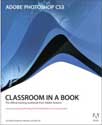
Adobe Photoshop CS3: Classroom in a Book
By Andrew Faulkner and Judy Walthers von Alten

http://www.AdobePress.com
ISBN 13: 978-0-321-49202-9, 478 pages, soft cover
$54.99 US, $68.99 CN

If you’ve never had the pleasure of leafing through one of these Adobe Press “Classroom” books, you really should take a look at what they offer. Written with direct access to Adobe, these books are a great reference and training aid and are part of the Adobe official training series.

Adobe Photoshop CS3: Classroom in a Book contains fourteen lessons from: compositing images into artistic montages, to processing camera raw digital photographs, to producing web animations. Adobe Photoshop CS3: Classroom in a Book also covers everything that is new to Photoshop CS3. Each lesson provides step-by-step instructions for creating a specific project, and they all conclude with a review section and summation. This volume also includes a CD that contains the files for each lesson, tutorial movies in QuickTime, fonts, and stock photos.

I especially like the QT movies. It’s great to see a concept demonstrated as well as hear the authors talk about what they are doing step-by-step.

For example, working through Chapter Three, Retouching and Repairing, starts you off with a lesson overview, instructions on which samples to load, and how to find them using “Bridge.”

Then you work through a step-by-step repair using the clone tool. As you can see in the screen shots, I had to put grass in the lower left corner of the picture.

This section also walks you through the use of the healing brush tool, and even explains how to retouch on a separate layer. For this lesson you use the healing brush to remove the sprinkler heads in the picture.

Each chapter in this book is that thorough. There are too many chapters to mention here, but some of the major areas covered are: Layer Basics, Masks and Channels, Correcting and Enhancing Digital Photographs, Advanced Layering and Compositing, Preparing Files for the Web, and a chapter on printing.

I wish the CD included more QT tutorial movies. I am a visual learner and I find that style very helpful.

Overall, Adobe Photoshop CS3: Classroom in a Book is very good, and very easy to work with. I understand the amount of work involved in producing this series, but I wish these books were not so expensive.


MYMAC.COM rating: 4.0 out of 5


Tagged with:  

Nemo Memo – Travels with Techie, v2007.1

On July 11, 2007, in Uncategorized, by John Nemerovski

* * * * *

Packing for summer vacation ain’t what it used to be. With less than a square foot available within our VW Beetle for technology gear, I had to be very precise when preparing for a long journey, followed by weeks of house sitting a thousand miles from Tucson, Arizona.

Using the “one of everything” rule is good, but what about redundant backups, or missing cables at the California house? I made lists. I made piles. I sorted into Ziploc bags. I pruned and culled. I told Barbara we were bringing MUCH LESS equipment than in previous years.

I purchased nothing new of consequence, figuring if I didn’t already own a piece of equipment, I could buy it in San Francisco, but I probably hadn’t needed it anyway. Here’s a rundown of what I’ve been using so far, with links (when available) to our MyMac.com reviews of the products, and an approximate 1 – 5 score of what I would rate it if doing a review today.

* * * * *

My 30GB iPod, third generation, travels within a Matias iPod Armor hard metal case. The more I use iPod Armor, the more I value its padded, rugged protection. It’s not perfect, but it keeps the iPod snug and safe. RATING = 3.5

I needed a new audio cassette adapter to play my iPod through the VW Beetle’s stereo system, so I purchased an overpriced $25 Monster unit from our Tucson Apple Store. These adapters should only cost $10, and any brand will suffice, so I won’t give Monster a link. RATING = 3.0

Spire’s Dart Sleeve contains my stash of iSight, hard drives, cables, and accessories. Dart is better for miscellaneous storage than I originally thought, and well worth a high score for good construction, plenty of space, and multiple vertical pockets. RATING = 4.5

FastMac’s TruePower supply charges my PowerBook and my wife’s iBook. I noticed a frightening buzz coming from TruePower’s central electrical briquette. Michael from FastMac sent a replacement unit to me in California, with a much quieter and safer hum. Whew. That was a little scary.
We were approaching the 4th of July, but I didn’t want fireworks blasting my computer into bits. RATING = 4.0

AOL/XM Radio and Audio Hijack Pro work perfectly together to record Bob Dylan’s “Theme Time Radio Hour” wherever I happen to be. If you like Bob, appreciate idiosyncratic choices of music, and have a quirky sense of humor, you have nine opportunities each week to listen and record this one-of-a-kind program. RATINGS = 4.5 for AOL/XM and 5.0 for AHPro, respectively.

PowerBook and iBook each travel within their own MaxSleeve from MaxUpgrades. We prefer and use the models with handles. Sleeve padding is firm, size and weight are minimal, and protection is first rate. RATING = 4.5

I’m still in love with Casio’s tiny EXILIM-EX-Z-50 pocket digital still camera. Small and fast, it’s a reliable workhorse that takes decent photos and movies, year after year. Use the wrist strap, don’t drop the camera, and consider it indispensable. RATING = 5.0

David Every hated his Motorola RAZR cellular phone, but I still am happy with mine. Wherever and whenever I need to make or receive a call or text message, RAZR is reliable. Its speakerphone is very good, which is my top priority. RAZR may by eclipsed by iPhone, but Motorola makes a darn good mobile phone that takes up almost no space in my pants pocket and doesn’t need a special carrying case. RATING = 4.0

How many Ethernet cables must accompany the traveling techie? I have one each yellow, blue, and green, two being six feet in length and one is three feet long. I’m using them all. Any brand will be okay, as long as it’s CAT-5-E standard.

[Part Two coming soon.]


If you are like most people you get SPAM (email not the food). Even the smallest amount of SPAM drives me crazy. I don’t even want to see it in a SPAM folder in my mail program. In my battle against SPAM I have started filtering my email through Google’s Gmail. Gmail has one of the best SPAM filters I have seen. It is very rare that a piece slips through.

In order for this process to work you’ll need a Gmail account. Sign up for a free account here.

Once you have your account made, you need to set it up as a filter system for your email account. I’ll describe two options for doing this.


Method 1

In the Gmail settings you can set your account to check email from another account. To do this click "Settings" in the upper right, and click "Accounts." Once the window that opens click "Add another mail account" in the section that is called "Get mail from other mail accounts."

Enter your email address and follow the steps.

Now you have to change your POP settings in your email program to match Gmail. These settings can be found here. You can keep your smtp settings the same.

You might also choose to check you email through Gmail’s web interface. If so, you can set Gmail to send email to look like your other account instead of the gmail address. This is also done in "Settings" under "Accounts." At the top of this section there is an option to "Send mail as." Add an account here. I check off the option which replies to emails with the same email address that the email was sent to.


Method 2

If your email service has email forwarding, you can choose the following method to filter your email. In fact, I like this method better. Set your email address to forward all email to your new Gmail account. This will be different for different providers, so I suggest contacting your provider for instructions. I won’t get into details here. All email will now get sent from your primary account to your Gmail account.

You might want to check the settings to make sure forwarded email is deleted from your original account. If it is not, and there is not setting for this, the first method might be better for you. If the forwarded email are not periodically deleted, your account will fill and cause other issues.

Once this is set up, you can set up your Gmail POP information in your email program and you can also set Gmail to send emails as your main address. Use the steps I mentioned above to do this.

As in method 1, you can keep the SMTP settings the same as they were before using Gmail, and you can also use www.gmail.com to check your email.


That’s it!

Keep in mind that there might be a slight lag in receiving emails with either method since you are fetching or forwarding your email from your provider to Gmail.

I have been filtering my email through a Gmail account for a few months now, and it works great. There is no reason why it won’t work great for you, too.

Look for more Gmail tips in the future! Leave your comments below.


PowerBlock Travel – PowerDuo Travel Review

On July 10, 2007, in Uncategorized, by David Cohen


PowerBlock Travel/PowerDuo Travel
Company: Griffin Technology

Price: PowerBlock Travel $34.99, PowerDuo Travel $39.99
www.griffintechnology.com

I bought my first iPod around three years ago – a second generation 10 gigabyte model. Back then, USB support was a twinkle in Steve Jobs’ eye, and it was Firewire that was the interface du jour. More importantly, the iPod also shipped with an AC charger.

Nowadays, you don’t get Firewire support or a charger. USB 2.0 is an adequate data transfer interface, but it is not a good way to charge a power-hungry device with a colour screen. It is fairly low voltage, so it charges an iPod very slowly – and in fact, on my machine it won’t charge at all (due to the number of devices on my USB hub). And I hate having to sync my iPod just to charge it! Apple do offer an AC charger for the iPod range – a small block with a USB port. However, all you get is the charger, so you have to use your existing iPod data cable, which is not very convenient if you have it hooked up to the back of your Mac.

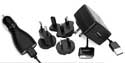
Griffin Technologies think they can do better with the PowerBlock and PowerDuo travel chargers. PowerBlock supplies a small black USB charger, a set of interchangeable plugs to cover all the countries of the world (US/Japan, UK/Hong Kong, Singapore, Continental Europe, Australia and New Zealand) and a matching 48” USB dock cable. PowerDuo is the same offering but with the inclusion of an auto charger.

The chargers are naturally multi-voltage, and have USB ports on them for the dock cable. This means you can use them to charge other devices if you have a USB cable. As you might imagine, charging time is far superior to a computer USB port – though Apple’s charger could do the job in the same time.

Criticisms? Well, one thing I did note was that if you left the charger plugged in without an iPod on charge, it made a high-pitched whining sound. Similarly, charging an iPod while listening to it in the car produced some audio interference. Also, while the blade connectors for the international plugs make the whole unit very compact, they are completely proprietary – if you forget one, you are not going to be able to hook up the charger using another cable (unlike Apple’s charger, that uses the same figure-of-eight connector as the Mac laptops and can often be found on electric razor and radio power cables). Finally, direct support is limited to 4G and 5G iPods or the 1G Shuffle. 2G Shuffles can be charged, but you’ll need to supply our own dock or dock cable.

Despite these niggles, the Griffin solution really scores on value, however. Looking at the PowerBlock travel, you get it for $34.99 from Griffin. To get equivalent Apple accessories, you need an charger at $29, a World Travel Kit at $39, and a dock cable at $19. If you want the PowerDuo with the auto charger, it is only $5 more than PowerBlock at $39.99.

As a charger for your late model iPod, I think you could do a lot worse than these. There are a lot of cheap Chinese chargers on eBay, but you really don’t know what you are getting quality-wise in that situation. For not very much money, you get International power support if you ever need it, and a spare dock cable too. Despite the criticisms I identified, I would recommend these chargers.

MyMac.com rating: 3.5 out of 5


OWC Mercury PowerBook G4 SuperDrive – Review

On July 10, 2007, in Uncategorized, by Tom Schmidt


OWC Mercury PowerBook G4 SuperDrive – Review
Company: Other World Computing

Price: $109.99
http://eshop.macsales.com

When I bought my PowerBook G4 a couple years ago, I purchased the lower priced 15" model with the combo drive. I figured if I wanted to burn a DVD I’d just do it at work. Early this year, I got the incentive to upgrade – I replaced my slightly dodgy DVD player with a DVD recorder that supports DVD-RAM discs and dual layer DVDs. Combo drives can’t read DVD-RAM. What you can do with DVD-RAM and a Mac will be the subject of a follow up article.

Whatever gives you cause to upgrade (upgrade from a combo drive, dual layer support, or just faster burning), there are a few options to choose from. Most of the available PowerBook upgrades include a Panasonic drive mechanism, the most commonly used brand in laptops, so while this will be a hardware review it will also touch on the support provided by OWC.

Included in the box was a Panasonic UJ-85J-B DVD-RAM drive (exact model may vary) with instructions for installing the drive into an older Titanium (400 MHz-1 GHz) 15" PowerBook G4. If you have an Aluminum model PowerBook G4, OWC recommends professional installation and offers installation service. Not including installation instructions provided the perfect opportunity to test OWC tech support.

I’ve disassembled a number of PowerBooks over the years as a service tech, so I tried to approach the call as a less experienced user. I reached a live person quickly and asked about installation instructions for an Aluminum 15" PowerBook G4. I wasn’t surprised with the answer I received, but it wasn’t what I hoped they would say. The tech recommended professional installation, but also stated that I should be able to find disassembly instructions using Google. I also asked a few other questions about burn support, all of which were answered accurately.

The most likely reason the Aluminum PowerBook G4 instructions are not included is liability, but that doesn’t explain why the older Titanium PowerBook G4 instructions are included. Even with three times as many screws, the difficulty of installation in a 15" or 17" Aluminum PowerBook G4 is about the same as the older Titanium. If you have a 12" PowerBook G4, don’t try to install it yourself as removal of nearly every part inside is required – including the logic board.

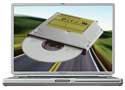
The Panasonic UJ-85J-B is fully supported by Mac OS X 10.4. 10.3 down to 9.1 require installation of additional software. Read and write speeds are on par with, and in some ways surpass, the drives included with the current MacBook Pro. CD read speed is 24x and DVD is 8x. Record speed for CD-R is 24x, 8x for DVD±R, and 4x for DVD±R DL. Rewriteable speeds are 16x for CD-RW, 6x DVD-RW, 8x DVD+RW, and 5x DVD-RAM. Tests with a variety of media had no failures.

If you’ve been thinking of upgrading your PowerBook’s disc drive you would be hard pressed to do better than this fast, reliable drive. While I understand why OWC likely didn’t include install instructions for 15" and 17" Aluminum PowerBook G4s, it’s still a disappointment. I would have given 5 out of 5 with complete instructions. As it is, it rates 4.5 out of 5.

One last thing – I’ve seen many ruined computers from badly done self installs over the years. If you’re going to install anything yourself, find a good, correct set of instructions with photos and follow them carefully. If you don’t feel comfortable, have a professional do it for you.

Pros: Fast, reliable, supports all CD/DVD media including DVD-RAM.
Cons: None really, but install instructions for a wider range of models would be nice.


MyMac Podcast 135 – B2Stuff

On July 9, 2007, in Uncategorized, by MyMac PodCast


Download the MP3 here, or listen in player above
This week, both Guy Serle returns after a months long sabbatical (okay, a two week vacation, but it seemed like a couple months) and we wrap up our B2Stuff.com contest by calling and talking to three winners! Check it out.

Subscribe to us in iTunes.

Podcast-only RSS feed for all other RSS Podcast readers

Links from this show
b2stuff.com


I’ve received several positive comments on my use of a written email signature. Nemo suggested I share the technique; to which I responded . . .

Not being flippant or anything. It really is that simple. But then I considered that there were several additional steps after all. Steps that might not be obvious to the regular Mac User.

So . . . let’s break it down to "Mac Simple."


Step #1 — Write your Signature

Obvious? Sure! But this is where the first potential problem arises.

Don’t write it really big with a ball-point pen. When it’s reduced to the final size, that fine line will all but disappear. Instead, write your FIRST NAME ONLY about four inches wide, with a thick black felt-tip, on a blank sheet of paper.

Why?
a) you don’t want people to have your full, real signature.
b) Four inches is a good size for your signature to be smooth and detailed instead of shaky and blotto.
c) you don’t need to erase a bunch of superfluous stuff.


Step #2 — Scan It In

A little education. Monitors (for which this is designed) are assumed to be 72 pixels (dots) per inch. Print shops want at least 300 d.p.i.

So . . . set your scanner for Grayscale, 33% size, at 72 d.p.i. and scan in your signature. Save it as "Signature" where you can find it. (Preferably your Documents Folder)

Why?
a) You can do it in color if you want to, but this way the file size will be smaller. Remember, you’ll be sending this graphic every time you email.
b) At 33%, Your signature will be the right size for your email signature.
c) Don’t save it on your desktop. You want your desktop to be neat and clean. (That will be Mac Simple #2 wherein we’ll show you how to have a messy desktop without having a messy desktop . . . and why a messy desktop is a bad thing.)

Step #3 — Trim it

Open "Signature" in Preview. Crop the image by using the cross-hair cursor to select only the part of the image you want; then pull down ‘Tools’ to Crop.


Step #4 — Save It

Pull down ‘File’ to Save As. Title the file "Email Signature" and don’t forget to set the format as ‘GIF’ . . . in your Documents Folder, of course.

Why?
a) If your Documents Folder is list view and sorted by Date Modified, everything we’ve done is at the top of the list and, by definition . . . not lost.
b) Gif files of this type are incredibly small. In the above sample, 564 bytes!


Step #5 — Create Your Signature

NOW we get to actually make your signature.

In "Mail" pull down ‘Mail’ to Preferences and choose Signatures

Drag "Email Signature.gif" from the Documents Folder to the right hand pane and type whatever else you may want. Notice you can choose fonts, sizes, and colors for the type. Make sure you use Arial or Times New Roman for your signature fonts.

Why?
a) Yes, other fonts will look classier. But in this case you want everyone to see your signature the way you formatted it. And everyone has Arial and Times New Roman on their computers. Also, many people have ‘Display Images’ turned off on their email. This way, even though your signature image may not show, at least some of your formatting does — unless they have HTML turned off also. In which case you may want to associate with a better class of people — like Mac Users, who are not so paranoid.
b) Special formatting and styles are like Karaoke and HipHop. Just because you can, doesn’t mean you should! I’ll stick with basic black, thank you.

———————————-

That’s it. You now have a signature that graces your emails.

Enjoy,


320GB eSATA, Firewire 800/400, USB 2 External Hard Drive
Oyen Digital

Price: $169.99
http://www.oyendigital.com

If you’ve read some of my past reviews, you know that I have lots of external storage. To recap, I own six OWC Mercury Elite Pro HD enclosures, as well as an OWC Mercury Elite AL Dual enclosure. In addition, I also own an OWC Mercury On-The-Go 2.5” SATA enclosure, and finally, a MacAlly 2.5” IDE enclosure.

I was very interested in reviewing this hard drive from Oyen Digital. Oyen has been around for about two years and is an innovative developer and manufacturer in the portable storage industry, specializing in fast, secure storage of all forms of information including digital video, audio, and system files. They have some interesting hard drive solutions on their website, so make sure you pop on over there and take a look at what they offer.
http://www.oyendigital.com

The drive I am reviewing today is a 320 GB model. The drive enclosure is black in color and sleek looking. On the back of the drive you’ll find two Firewire 800 ports, one eSATA port, and a USB 2 port. There is a jack for the power supply, and an on/off switch. This drive comes with all of the cables you need for the connection types, plus the power supply. The cables are black to match the enclosure and all come in 5’ to 6’ lengths, which is nice to see since many drives ship with short cables. This includes a FW 800 to FW 400 cable.
This drive ships with NO software. I have been told that Oyen will begin including Prosoft Engineering’s “Data Backup 3” software, which will begin shipping with the drives on July 1st. The drive has no feet, so it could possibly slide around on your desk.

Operation:
I took the drive out of the box and plugged in the power supply, hooked it up via the FW 800 port and fired it up. The drive icon popped up on my desktop almost immediately. The drive is formatted in FAT32 so I launched disk utility and reformatted the drive to HFS+ format.
The first thing I noticed was how quiet this drive is. It has an amber power light on the front, but I still wasn’t sure if the drive was powered on. I picked up the drive at one point and put it up to my ear to see if it was working. This drive is exceptionally quiet! This may well be the quietest drive I’ve ever used. Even when writing to this drive it is better than whisper quiet.
For reading/writing testing I copied a 2.94GB file to the drive using the various connections.

The results are as follows:
Using the FW 800 to FW 800 connection: 52 seconds
Using the FW 400 to FW 800 connection: 1:38 seconds
Using the USB 2 connection: 4:19 seconds

Then I copied a 10.59GB folder with over 3,000 small files within. The copy speeds were as follows:
Using the FW 800 to FW 800 connection: 3:46 seconds
Using the FW 400 to FW 800 connection: 6:31 seconds
Using the USB 2 connection: 15:12 seconds

These speeds are very respectable and of particular note was how fast the USB 2 connection was. Really impressive. This drive uses the Oxford 924 chipset that is a very fast controller. Small files copy so fast, the copy window barely has time to open.

I don’t have an eSATA connection on my computer. I did some research and found that the current implementation of eSATA would make the Read/Write speed comparable to the FW 800 to FW 800 connection speed. However, the potential of this emerging technology has theoretical speeds of 375 MBps/second as opposed to FW 800s theoretical top speed of 100 MBps/second. So if eSATA is the future, this drive is ready for it.

Reviewer John Nemo will have more to say in a forthcoming article on eSATA.

Summary:
What I liked:
Full-length cables
Very fast copy speeds
Black enclosure
Super quiet
What I didn’t like:
No software (Prosoft Data Backup comes included in July)
No feet on the bottom of the drive, and if you want to save desk space you can’t stand the drive on its side
Power light faintly indicates when the drive is reading and writing.

Over all: I was very impressed with this drive. I highly recommend you take a look at Oyen offerings if you are in the market for external storage.

MYMAC.COM Rating: A solid 4 out of 5


Tagged with:  

Looking for something?

Use the form below to search the site:

Still not finding what you're looking for? Drop a comment on a post or contact us so we can take care of it!