Moho 5.4 – Review

On June 30, 2006, in Uncategorized, by Donny Yankellow


Product: Moho 5.4
Company: Lost Marble

Price: $99

www.lostmarble.com

(PowerPC and Intel compatible)

When people think 2-D animation program on a computer, they probably think Flash. From this point forward, when I think 2-D animation program on a computer, I’m going to think Moho, by Lost Marble. Moho is a 2-D vector animation program with some really cool features, and a really nice price. There are too many features to talk about in this review, so I’m just going to touch on some.

Interface and Drawing Tools
When you first open Moho, your gut reaction might be to think that the program is too complicated. The interface is very intimidating. You are presented with the workspace, a ton of tools, and several other windows. However, once you catch your breath and start playing with Moho, you see how much fun, and easy, the program really is.

For people, like myself, who are used to Illustrator and/or Flash, it will take a little adjusting to the tools, their names, and how they work. Just because they look like a selection tool in Illustrator does not mean it is a selection tool in Moho. However, each set of tools is related to help make it easier to find what you need. Plus, the name of the tool pops up when you hold the pointer over it. There are drawing tools, fill tools, bone tools (more on bones later), layer tools, and others.
As an illustrator/cartoonist that uses the computer for some artwork, I really like the drawing tools. They are very smooth and responsive, and I’d love to see some of the features in the next version of Adobe Illustrator.

Moho comes with a fantastic tutorial that explains all of these tools, and others. It is definitely the way to get your feet wet in the program.


The Basics You’d Expect

Like Flash, Moho animation is based on keyframes. When you make a keyframe animation, each keyframe contains the main positions of an object as it moves. For example, if I was going to animate a person waving, the first keyframe would be the down. The second keyframe would be the person’s arm up.

In Moho I can draw the keyframes and Moho will automatically fill in the animation between them, making a smooth animation. I really like this feature. You can also choose to animate the traditional way and draw every “inbetween” image. Just like other animation programs, the frames are organized on a traditional timeline under the workspace.

Another feature that should be in every animation program, and is in Moho, is onion skinning. This allows you to see your previous frame(s) underneath the current frame you are working on. The onion skin feature helps the animator know where the drawing in the current frame should be.

Moho also allows you to import audio tracks into your animation. It can be speech, music, or sound effects. They also have a link on the Lost Marble website to a program called Papagayo, which will make adding speech to your characters a lot easier. Plus, its free!


Bones

My favorite part of animating in Moho has to be bones. Bones makes animation so much easier, quicker, and more natural looking.

In simple terms, bones let you take a drawing of a character or object and turn it into a marionette. By adding bones you are able to add joints to any part of an object or character. Here’s an example I made. The first animation does not use bones, while the second animation does. Both have the same number of keyframes.


In order to get the first movie to look like the second, I would have to draw a lot more keyframes. I also would have had to invest a lot of time.


Special Effects

Have you ever tried animated smoke or snow? It can take hours. Moho saves you those hours by having these special effects and others ready to go for you. All you have to do is add them to your cartoon.


Camera

Moho’s camera controls are great. You can zoom in and out, as you’d expect. You can also pan left and right. A feature I’ve never seen before is the ability to create a 3-D world in a 2-D program. You can move in and through the world you are creating with the camera.


Import and Export

If you have an image you made in Illustrator that you want to use in your animation Moho can import it for you. It will also import EPS, JPG, BMP, Targa, GIF, PNG. and 3d objects from modeling programs. You can also import Quicktime movie files.

Moho does not export in hundreds of formats, but you can export your final movie in Quicktime and Shockwave Flash format. For most people that will be fine. It will also export still images.


Flash or Moho?

If you are only interested in making an animated movie, I would definitely go with Moho. It is a lot cheaper, and in my opinion easier to use (once you get used to it). With bones, the special effects, and other features, it is more focussed on making a movie/cartoon than Flash is.

If you want to make an interactive animation or game with buttons and mouse overs, then Flash is the way to go. As I just mentioned, Moho is more focussed on the animation. There are no button features or interactive features you can add to the animation in Moho.


A Great Program

I could go on and on about Moho. I know I’m forgetting something I wanted to mention.
If you are really interested in more information, check out the features page of the Moho website: http://lostmarble.com/moho/features/index.shtml. Many samples of the features I mentioned, and more, can be found there. You can also find the link to download the free demo.

As you can guess, I really like Moho. It is a great program for the traditional animator who wants to get into using the computer for animation. It has complex features for the more advanced animator, but it is easy enough for beginners. I am considering using it with my students in the upcoming school year.

MyMac.com rating: 5 out of 5

Two of the movies I made using the tutorial I mentioned are below. Each of these animations took 3-5 minutes to make.


Kibbles and Bytes – 472

On June 30, 2006, in Uncategorized, by SmallDog


We’ve had nearly two months of rain! I went out to look at my strawberry bed and while the plants are covered in delicious strawberries, there are little rivers running between the rows. I don’t think I have ever had to wear mud boots to pick strawberries before. It was raining so hard earlier this week that the Mad River left its banks at the bend in the river that I can see out of my office window. I watched as our neighbor’s hay field filled with water and noticed a fawn scurrying back and forth looking for a way out of the rapidly expanding river. We tried to figure out a way to save the fawn, but there was a rushing river in our way. The fawn finally found a strip of land that led to dry ground and took off into the woods.

Back to strawberries. Strawberries flown in from California or Florida during the winter are mere shadows of real strawberries. I bit into the first ripe strawberries off the vines this year and realized that I’d been eating faux strawberries, because the flavor and the texture were as different as Macs and PCs.  It is the time of the year where local produce is becoming available, so get out to your local farm stand and support local agriculture. Your taste buds will thank you!

Strawberry time means Fourth of July. Once again my hometown Warren will be putting on a big parade and celebration. Hammerhead and I will be in the parade with the Mad River Rally folks and this year Grace is taking Fantail on her bike, too. Hammer was the hit of the parade last year even though my motorcycle ran out of battery in the middle of the parade. The bike is ready to go this year and Hammer will be in the sidecar for the celebration of our country’s independence.

+—————-+

Why dotMac Is Better than AOL By Don @ Smalldog.com

One of my oldest friends came to visit this week. He’s pretty hard on his computers, so he brought me three broken Macs. Two were TiBooks and one was an iMac. There were a number of physical issues on the TiBooks and a corrupted hard drive on the iMac. When I say he’s hard on his machines I mean both physically (it appeared that both of the TiBooks had been dropped) and mentally. You see, my friend Charley Littman is an AOL addict.

The TiBooks still functioned even though the cases were cracked and one of them had the prong from the AC adapter broken off in the port. But Charley’s biggest complaint was that AOL crashed on him constantly and AOL Instant Messenger did, too. I convinced him to replace both TiBooks with a black MacBook for himself and a MacBook Pro for his daughter. We also took a look at the old machines and discovered a few things.

Most importantly – and probably responsible for many of his frustrations – both TiBooks had small hard drives that were filled to the gills. He had zero available space. We recommend to our customers that they leave a minimum of 10% of the hard drive space free at all times. Many applications create temporary and invisible files and if there is no space on the hard drive to create these files, unpredictable results may occur.

Once we had Charley set up with his new MacBook, he discovered that he was still having problems with AOL. I’ve been telling him for years to get rid of AOL and find a real ISP, but, as I said, he’s an AOL addict. We solved his problems by deleting AOL, finding all the scattered and hidden AOL preferences (don’t forget the preferences in Shared Libraries), and then downloading and installing the latest version of AOL.

Before I go into my reasons to abandon AOL for dotMac, I should disclose that I have a fondness for AOL that goes to the very core of Small Dog Electronics’s existence. When I first started Small Dog Electronics, I bought Macs at public auctions and resold them in the AOL classifieds section. In fact, I was an "adrep" ("adrepdon") and I traded classified section maintenance work for a free AOL account. When Hapy joined the company, he became "adrephapy" and we used AOL for our sales channel for several months. So in all likelihood Small Dog Electronics would not be here today but for America OnLine.

We quickly abandoned AOL when we built our first, bloglike website. While I do still maintain an AOL account (donmayer is my not-too- cryptic screen name), I seldom visit AOL except to troubleshoot customer’s Macs. AOL has a host of problems that makes it not a very good choice as an ISP or as a gateway to the internet for mail or browsing. I think that a local ISP and dotMac is a much better solution than AOL with today’s technology.

Mail One of the advantages of AOL is that you can sign on from anywhere and retrieve your mail. That is a great feature, but it comes with some side effects. The most significant is that AOL does some non- standard things with its email. AOL does not handle multiple attachments per message in a very useful manner. Multiple attachments are combined using MIME encoding, which makes them unreadable by many recipients. Perhaps even more annoying is that AOL mail is the recipient of more spam than any other domain of which I am aware.

AOL also has email filtering rules that seem to delete many legitimate newsletters and messages as spam, and there have been reports of AOL email being deleted or never delivered based upon the CONTENT of the email, such as containing a link to a non-AOL website or one that AOL has on a banned list. I found over 60 million articles when I searched for AOL mail problems. Spam and AOL go hand in hand because there is no good way to hide your email address when you are an AOL member. If you participate in AOL "community" sections, it is easy for bots to gather your email address since it is the same as your username.

One of the most versatile features of a dotMac account is the powerful email system. You can receive your email from your dotMac account using just about any email client (trying doing that with AOL) dotMac mail is available from any computer connected to the internet. The dotMac mail interface is very familiar if you are using Mac OS X mail. If you sync your Mac to your dotMac account, you will also have access to your address book anywhere, anytime. Attach multiple files? No problem!

You can add your picture or a text signature with dotMac. Email aliases are another benefit of a dotMac account. The longer you have an email account, the greater your chances are of receiving junk mail. Fortunately, in dotMac Mail there are ways to minimize the amount of junk mail you receive. DotMac Mail allows you to create temporary email addresses, also known as aliases. You give your dotMac address to friends and family and create alias email addresses for those times you have to give your email address to strangers. This way, if you start getting junk mail, you can delete the aliases and eliminate the junk mail.

Advantage dotMac!

Advertising

AOL is advertising on line. AOL users are drowned in a deluge of ads by AOL every time they sign on. AOL is an advertising juggernaut rolling over its subscribers from the initial "Welcome" to the awful "Goodbye" when they get disconnected. DotMac is doesn’t bother you with ads – no voices, no popups.  It is your club and your service!

Advantage dotMac

I could go on and on about the issues with AOL, however, they mostly boil down to buggy client software, poor mail service, and non- standard interfaces. But let’s talk for a bit about  the advantages of dotMac.

Here’s what you get with a .Mac membership:

1) Easily publish your website, blog, or podcast. Using the new iWeb in iLife 06, you can easily create your own personal website and publish it to your .Mac account with one click.  Sharing has never been easier!

Key Features

- Create attractive web pages with dotMac’s templates. – Publish your websites with a single click – no configuration necessary. – Post blogs and podcasts without the confusion of creating RSS feeds. – Add online slideshows to your photo albums automatically. – Set a password to keep sites private.

2) Share full-resolution photos with new Photocasting. Share an album in iPhoto 6 and it magically appears in iPhoto on another person’s Mac just like any other album.

Key Features

- Publish your photo albums using dotMac and invite anyone to subscribe. – Subscribers receive your full quality photos directly within iPhoto 6 or RSS reader on a Mac or PC. – Use a subscribed photocast like any iPhoto album in your library. – Subscribed photocasts automatically stay updated. – Exchange documents using iDisk

3) Store files on your personal iDisk online storage space that’s now accessible any time from any computer – Mac or PC.

Key Features

- Use storage space on Apple’s secure servers. – View files and folders on your desktop. – Drag files to your Public folder. – Invite colleagues to download your documents. – Access iDisk from a Mac or a PC. – Protect your Public folder with a password. – Store up to 1GB; upgradeable to 4GB.

4) Protect your precious files and memories with Backup 3 software (worth the price of admission alone!). Create custom backup plans for all the important files on your drive.

Key Features

- Automatically back up iLife files and others in a single step. – Back up files to your dotMac iDisk, external drives, or CDs and DVDs. – Quickly save only what changed since your last backup. – Easy file restoration puts files back right where you want them. – Communicate Apple style with dotMac Mail and iChat

5) Keep in touch with friends, family, and colleagues with ad-free email.

Key Features

- Mail is accessible from your mail application and from a web browser. – Virus protection is built into .Mac Mail for messages sent to your Mac.com address. – Use your Mac.com member name to chat and video conference with iChat AV (compatible hardware required). – Stay in sync with dotMac Sync.

6) Synchronize your personal data to dotMac and have the same contacts, bookmarks, calendars, and more on all your Mac computers.

Key Features

- Sync your contacts, calendars, and bookmarks between your Mac computers ~ Mac OS X Tiger users can also sync Mail accounts, rules, and smart mailboxes. – Access your contacts or bookmarks through a web browser. – Set schedules for automatic syncing, or sync manually. – Organize group activities with dotMac Groups

7) Communicate, coordinate, and stay connected with your club, team, or organization.

Key Features

- A private, ad-free web site serves as the control center, complete with message board, photo slideshow, and easy file sharing. – Publish calendars from iCal for group members to view on the group page or subscribe to in their own iCal. – Invite members directly from your dotMac Address Book. – With iWeb, publish web pages and blogs directly to dotMac Groups.

8) Hone your skills in the Learning Center. Realize the full power of your Mac with step-by-step tutorials on the applications you use most. Especially useful for new Mac users.

Key Features

- Receive expert instruction on Mac OS X Tiger, iLife, and more. – Follow along with QuickTime movies and text instructions. – Try out your new skills on sample files.

This week we are offering Kibbles & Bytes readers a special value on a new or renewal (same product) dotMac subscription. You can buy either the dotMac single or dotMac family pack and get $14 off this week using coupon code "dotmacrules". That makes your actual cost $85 for the single and $165 for the family pack. Save another $30 if you buy dotMac on the same invoice as a new Mac!

+———————+

Taking Better Photos By Holly @ smalldog.com

It never fails. Someone gives you a picture of yourself from a recent get-together but the top of your head is cut off (or in the case of my grandmother, most of my body is cut off!). Too often when taking a picture people just point and shoot and think they’ll make the photo better in a photo-editing program. Sure, you can change a lot of things in a program like Photoshop, but why not take advantage of the digital camera’s LCD and create a great shot when you take it?

Here are some pointers from a class I taught a a few years back:

Learning to See

Decide how you can best capture the shot by choosing a suitable viewpoint and controlling what appears in the final picture. A photograph is merely a two-dimensional image of what we saw/see. Our eyes work in completely different ways; each eye offers a slightly different view. The two views together gives a strong impression of depth and spatial relationship.

Example: Focus on something in the room, close your left eye, and look at the object. Repeat with the right eye. Note the different perspective you get from each eye.

Successful composition is dependent on your ability to look at a scene and decide exactly what to point the camera at so the images recorded can capture the drama and grandeur of the broader view. The human eye is drawn to specific things. Here are the items that will capture the attention of your viewer, listed in order of importance:

Movement: Our eyes naturally go to even the slightest movement in a still frame. If there are several moving objects, our eyes jump among them. A good rule is to have just one new thing happening at a time to lead the viewer’s eye around the frame.

Color Differences: One small patch of bright color against a dark background draws the eye into it. In general, warm colors attract the eye more than cool ones.

Weight of Objects in Frame: Objects with more size get more attention, but this can be manipulated. Big objects in the distance have less weight than smaller objects in the foreground that take up more screen space.

Creating Balance

Where you position the focal point in the frame is important because that will determine if the picture appears visually balanced. Use the rule of thirds: divide your camera~s viewfinder using two imaginary horizontal and vertical lines so a grid is formed. The focal point may be positioned at one of the four intersection points created by the grid. The rule of thirds can be applied to any subject: portrait, still life, wildlife photography, architecture, and landscape.

A slight tilt of the camera will shift the balance. Move downward to emphasize the landscape and foreground; move upward to make a feature of an interesting sky. The horizon is generally best positioned either a third up from the base of the image or a third down from the top to give a more balanced image. Never try to force a picture to comply with the rule of thirds, but more often than not you will find that it can be applied in some way.

Leading the Eye

Look for and find lines. Lines can be used to divide, to add a strong graphic element, or even as the main focus of composition.

Horizontal lines echo the horizon and the force of gravity. Vertical lines are more active than horizontal. They produce dynamic compositions with a stronger sense of direction.

Tip: To maximize the effect, shoot in the upright format so the eye has further to travel from the bottom of the frame to the top.

Diagonal lines have great directional value and add depth by suggesting distance and perspective. They can also contrast strongly with the previous types of lines to create dynamic compositions that catch and hold the eye.

Converging lines are the most powerful. When included in a photo, they add a very strong sense of depth.

Example: Railroad tracks. If you stand in the middle and look down in the distance, the parallel lines appear to move closer together until they eventually seem to vanish.

Filling the Foreground

By exploiting the area of a scene closest to the camera (the foreground), you can create a strong composition. Anything can be used as foreground interest: roads, fences, rivers, streams, paths, rocks on the shore, a flower bed. Natural features tend to make the composition most interesting. Shadows can be used as foreground interest

Composing for Impact

Take a few steps closer. Get in the habit of asking yourself if moving closer to the subject would improve the composition. Photos of people will be more intimate. Action shots will be full of drama. Landscapes will lack empty space. Explore your subject from all angles – don’t assume your photos have to be taken at eye level. Take photos at an elevated position. Bend down/stretch out on your stomach. Compose with color, which lends strong aesthetic power

Example: Bold, contrasting colors such as blue and yellow, or red and green, will produce a photo that’s exciting to look at.

Use your camera on its side. By using the camera in a vertical position, you can include much more foreground or sky. This makes the eye travel further from the top to bottom, leading to an active composition.

Web Site Resources

BetterPhoto.com features online photography courses, digital camera ratings and reviews, great tips for improving photographic technique, camera comparisons, photo contests, Q&A, free email newsletters, and expert help with all aspects of beginning photography.

http://www.betterphoto.com

Shortcourses.com is a complete guide to digital cameras, digital photography, and digital video.

http://www.shortcourses.com

Travel and learn with world-renowned digital photographers Vincent Versace and Moose Peterson and photograph the great landscapes of North America.

http://www.digitallandscape.org

+—————-+

TextEdit Unveiled By Ed @ smalldog.com

The following article about TextEdit started as blog post on Small Dog’s blog, Barkings. You can read Barkings here:

http://blog.smalldog.com/

If you’ve recently purchased a new Mac, you might be surprised that Appleworks is no longer included with the bundled software. The only dedicated word processor is TextEdit, which, if you’re used to Word, Pages, or BBEdit, seems a little cheap and limited.

However, TextEdit is a fairly robust program. It’s also fast, stable, and easy to use. I use TextEdit for the majority of my writing, and have discovered that it contain some advanced features that are not necessarily obvious to the casual user.

I always recommend poking around in the menu bar of any application, particularly in the Preference pane. This can help you set up TextEdit to your liking. For example, when TextEdit launches, I always choose Format >Wrap to Page and Format >Rich Text. This makes TextEdit feel like a "real" word processor and gives me a preview of how my printed document will look. These options can be set as the default settings for TextEdit under File > Preferences.

The text formating menu in TextEdit is worth exploring. Access this by holding down the command key (the one with the Apple on it) and the T key at the same time. A menu will pop up that allows you to choose fonts, font sizes, and font colors. You can also use this menu to adjust space between lines, underline or strike out words, give words drop shadows, set kerning (the space between letters), and more. At the bottom left of the Formating Menu is a little icon that looks like a gear, which Apple calls the action menu. When you click on this, one of the options is "Show Preview." If you select this, you will get a a preview of exactly how the font style will look when it is applied to your document.

You can also use the action menu to designate a favorite font. For example, I keep a list of favorite fonts in TextEdit for web design and another list of favorite fonts for formal letter writing.

You can use TextEdit to open and edit Rich Text documents (.RTF), Simple Text documents, Word documents, and even HTML pages. You can open and edit HTML pages in a "what you see is what you get" format, or as raw HTML code. By default TextEdit opens HTML documents in the "what you see is what you get" rich format. Go to TextEdit’s Preferences, and select "Ignore rich commands in HTML files." Now TextEdit will open HTML files as plain text files, allowing you to edit the raw code – perfect for basic HTML markup.

TextEdit can make tables; simply browse to Format > Text > Table to insert a table.

Until recently, the only reason I used Microsoft Word was to get an accurate word count for our radio scripts. However, I haven’t used Word since I discovered a nifty little program called NanoCount, which counts words as you type in TextEdit. Read about NanoCount here:

http://blog.paulgorman.org/?p=113

And yes, I did write this using TextEdit. Now, if TextEdit would only write for me.

+—————-+

New Products

I.R.I.S. IRISCard mini Business card Scanner – $119 Quickly and easily scan your business cards with the IRISCard Mini and capture all the information they contain. A one-touch export button allows you to send your contacts to your favorite electronic address book! IRISCard Mini is robust and affordable business card scanning solution for less demanding contact management needs. It is recommended for most users.

http://www.smalldog.com/product/40816

I.R.I.S. IRISCard Pro Business card Scanner – $185 Quickly and easily scan your business cards with the IRISCard Pro and capture all the information they contain. A one-touch export button allows you to send your contacts to your favorite electronic address book!

http://www.smalldog.com/product/40817

I.R.I.S. IRISPen Executive Pen Scanner – $185 The IRISPen is an outstanding and professional text recognition pen scanner. It instantaneously retypes any printed information in your word processor, email software, online databases, etc. and in ANY Windows or Mac applications

http://www.smalldog.com/product/40815

I.R.I.S. IRISPen Express Pen Scanner – $119 The IRISPen Express is a powerful text recognition pen scanner. It instantaneously retypes any printed information in your word processor, email software, online databases, etc. and in ANY Windows or Mac applications.

http://www.smalldog.com/product/40818

MarketCircle DayLite 3 Customer Relationship Management CRM – $125 Designed for the unique needs of Mac-based businesses of 1 to 50 people, Daylite 3 is a new generation of productivity management software that includes such time-saving features as shared calendars, seamless integration with Apple Mail, project and activity delegation and much more. It’s all about helping you stay organized and focused so you can be more productive in your work. So whether you need to schedule meetings, delegate, share calendars, plan tasks, stay on top of multiple projects or even just keep track of contacts and dates – Daylite’s productivity power is working for you.

http://www.smalldog.com/product/40830

iPlayMusic Beginner Guitar Lessons MAC – $43 PlayMusic Beginner guitar lessons for the Mac is the first guitar learning software product optimized for the Macintosh and iLife suite of applications. iPlayMusic teaches users how to play guitar, play popular songs and then record and share their own performances. iPlayMusic lessons can be exported to iTunes and played on a Video iPod- so users can learn and play anytime, anywhere. iPlayMusic makes it easy and fun to learn.

http://www.smalldog.com/product/40814

+———————————————————+

Specials!

Here are the specials for this week, valid through July 7 or while on- hand supplies last. Be sure to use the wag URL to get this special pricing.

+—————-+

EZQuest Monsoon 300gb FireWire 400/USB 2.0 Drive – $152

To order: http://www.smalldog.com/wag16782/mymac

+—————-+

Miglia TVMicro USB TV Tuner and DVR with remote – $84

To order: http://www.smalldog.com/wag16781/mymac

+—————-+

Apple iPod 40gb Clickwheel with Dock, Griffin iTrip LCD, Kensington Case – $224!

To order: http://www.smalldog.com/wag16778/mymac

+—————-+

PowerBook 15-inch G4/1.67GHz 512/80/Super/AP/BT (r), MS Office 2004 – $1479 PLUS $50 Rebate!

To order: http://www.smalldog.com/wag16779/mymac

+—————-+

MacBook Pro 15-inch 2.0GHz 2GB RAM/100/SuperDrive (r) – $2029!

To order: http://www.smalldog.com/wag16777/mymac

+—————-+

$50 Rebate: Microsoft Office 2004 for Mac Student and Teacher Edition

To order: http://www.smalldog.com/specials/12652219/mymac

+—————-+

PowerBook 15-inch G4/1.67GHz 512/80/Super/AP/BT – $1345

To order: http://www.smalldog.com/product/39659/mymac

+—————-+

Apple Pro Training Series: Aperture – $29!

To order: http://www.smalldog.com/wag16783/mymac

+—————-+

We hope you will have a happy and safe Independence Day. Our retail store will be open on Saturday and Monday. The offices will be open on Monday, too. We will be closed on Tuesday, July 4. Of course, our websites will be up and running 24/7 for your shopping pleasure.

I’ll be in the Warren Fourth of July parade, but my favorite time on July 4th is the nap I take between the parade and the early afternoon, when friends and family generally show up for croquet and strawberry daiquiris.

Thank you for reading Kibbles & Bytes!

Your Kibbles Team,

Don, Ed, and Holly


Neil Ticktin of MacTech Magazine joins Tim and Chad to chat about MacTech, the Intel transition, and much more. Along with the latest in Apple and Macintosh news, Robert Hazelrigg returns with a Speedy review of the iSkin iPod protector, and Nemo has a new NoSnooze Review of two CS2 books.

Leave audio feedback by calling 801-938-5559

This podcast is sponsored by SmallDog.com, RamJet.com, and Inno-Tech.com.

Get the show from these links:
Direct MP3 download link
iTunes Link
Podcast-only RSS Feed

Links from the show

MacTech Magazine
iSkin
Adobe Creative Suite 2 Workflow ISBN: 0-596-10236-4
Photoshop CS2 Visual Encyclopedia ISBN: 0-7645-9860-0


Tech Tails 321

On June 28, 2006, in Uncategorized, by SmallDog


Another summer week has flown by and we have seen hot temperatures, high humidity, and much rain over the past few days. Our pond behind the warehouse filled up again when the river overflowed its banks for the third or fourth time this year. The weather certainly has been swinging between the extremes around the world which reinforces theories about global warming and its affect on our atmosphere.

The Discovery Channel is launching a special on July 16 at 9:00 pm EST focusing on global warming. Tom Brokaw hosts a show looking for clues worldwide and presenting the facts surrounding the current theories on the status of this important topic. As global warming is brought to the forefront in the worldwide forum, political leaders can begin to take meaningful action to stabilize the situation for future generations.

Tune in on July 16!

+—————-+

Proper iPod Diagnosis By Art @ Smalldog.com

Anyone can be an iPod expert. It’s easy once you find the right information about how to isolate an iPod’s failure.

Don Mayer wrote an excellent piece on the five "R’s" of iPod restore this last week in Kibbles & Bytes #471. Taken mostly from Apple’s Knowledge Base on their support site, these instructions will aid you in figuring out if your iPod needs to be dispatched to Apple for repair/replacement.

If your iPod isn’t merrily playing music to your ear,s give these five steps a try:

NOTE: Please make sure that your iPod is fully charged and then toggle the Hold switch on and off before performing these steps.

1) Reset your iPod, iPod nano, iPod mini, or iPod shuffle.

2) Retry your iPod with a different USB or FireWire port on your computer. (The latest iPods can only be synced through USB.)

3) Restart your computer and make sure that you have the latest software updates installed.

4) Reinstall your iPod and iTunes software. You can download the latest versions of iPod Updater <http://docs.info.apple.com/ipod/ download/> and iTunes <http://docs.info.apple.com/itunes/download/> from Apple’s website.

5) Restore your iPod using the latest iPod Updater. IMPORTANT: Please note that restoring an iPod will erase all songs and files on your iPod and restore it back to its original settings. Make a backup of any files on your iPod before restoring it. After restoring, you can transfer your music and files from your computer to your iPod.

Here’s a QuickTime movie that shows the 5 R’s in action:

http://www.apple.com/support/ipod/tutorial/ip_gettingstarted_t16.html

If none of the R’s work and the iPod is still under Apple warranty or AppleCare Protection Plan, you can go to Apple’s iPod support site to schedule service for your iPod.

http://depot.info.apple.com/ipod/

You will need your iPod’s serial number to get service. If you have trouble reading the tiny serial number on your iPod, don’t go running out to the drugstore for reading glasses. Just launch iTunes (iTunes 6 and later) and you will be able to find the serial number even if your iPod is not connected to your computer.

How to find your iPod serial number using iTunes 6:

1) Launch iTunes.

2) Open iTunes Preferences from under the iTunes menu item in the menu bar.

3) Select the "iPod" tab.

4) If your iPod is connected, click on the Version Number in the right corner of the iPod preference screen and it will display your serial number.

5) If your iPod is not connected, click on the "No iPod is Connected" message in the center of the screen and it will display the serial number of the LAST iPOD THAT WAS CONNECTED.

Check out our blog <blog.smalldog.com> for more details.

+—————-+

Becoming an Apple Certified Desktop and Portable Technician By Scott @ Smalldog.com

I am happy to announce that I am now both an Apple Certified Desktop and Portable Technician. With the departure of Troy, it couldn’t have come at a better time.

Some of our readers have expressed interest in the process of becoming a certified Apple tech. The best place to investigate the available certifications is the following link:

http://train.apple.com/certification/

Here you will find overviews of the different certifications, training locations, pricing, and overall requirements.

Apple has three basic categories of certifications. Server Administration and Help Desk, Hardware, and Pro Applications. The Server and Help Desk certifications and training prepare you for managing small to large networks and troubleshooting individual user issues. The Portables and Desktop hardware certifications enable you to work on under-warranty computers if employed by an Apple Authorized Service Provider and recognize the skills needed to do so. The Pro Applications Certifications certify in-depth knowledge of specific Apple software such as Logic or Final Cut Pro.

All you need to do to become certified is pass the required exams. Passing grades vary by exam, but on average require a grade of 70% or better. Most certifications require multiple exams, and most exams cost about $150. The catch here is that they require a very specific depth of knowledge.

For me to get my ACDT (Apple Certified Desktop Technician) and ACPT (Apple Certified Portables Technician) I had to pass a total of three exams. Both certifications required me to pass a Mac OS X exam and a specific hardware exam. While there are books and courses you can purchase, because I work for Small Dog, an Authorized Apple Service Provider, a variety of resources was available to me. Even with my extensive experience working with OS X and doing repairs with Troy and Jon, there was still a good bit to learn.

During the past couple of months I got into the habit of going to a local WiFi coffee shop almost every weekend morning to study the online materials. At the end of last month I set up the testing dates. Apple subcontracts a company called Prometric to do their certification testing. I set up my OS and Portables exams for Monday, June 5, and my Desktop exam for Monday, June 9, at the closest testing facility in Nashua, New Hampshire. Everything went well and here I am. In a way it was fitting that our first day without Troy was was the day I completed the requirements to be a fully certified Apple technician.

My personal goal – and I’m sure that of much of the tech-minded community as well – is to always keep learning. Things are quite busy here at Small Dog, but I’m still going to be making time to learn more. I hope to have my ACHDS (Apple Certified Help Desk Specialist) and ACTC (Apple Certified Technical Coordinator) by the end of the summer. Come fall, I’ll once again be juggling Small Dog full time while attending classes for my Computer Networking degree.

+—————-+

Macs at Work By Art
@ Smalldog.com

I have been drawn to the Mac@work section of Apple.com during the past several weeks. There are many creative methods for using your Mac in the workplace, and with so many great applications written for the Mac OS, there’s really no mystery as to why.

The Small Business section of Mac@work focuses on Mac and PC compatibility and the streamlining of communications standards. It’s now so easy to share common applications, data, and files that there are virtually no roadblocks to operating one type of computer vs. another.

If you ever had a question about how to exchange files, share peripherals, or use a Mac on a PC network (or vice versa), check out the topics linked here:

http://www.apple.com/business/mac_pc/

+—————-+

Art’s Widget of the Week By Art @ smalldog.com

This week’s Dashboard Widget is Optical Illusion of the Day. There is something mystical about optical illusions. Why do some work better than others? Why do some give me a headache? How do they think up all these visual conflicts?

Written by a random blogger guy, this widget displays a daily optical illusion from the Mighty Optical Illusions website.

Here is a link to this fun widget:

http://www.apple.com/downloads/dashboard/games/ opticalillusionoftheday.html

For those who just want to peek at the illusions all at once, here is a link to the corresponding website:

http://mightyillusions.blogspot.com/

+———————————————————+

Specials!

Here are the specials for this week, valid through July 4 or while on- hand supplies last. Be sure to use the wag URL to get this special pricing.

+—————-+

EZQuest Monsoon 300gb FireWire 400/USB 2.0 Drive – $152

To order: http://www.smalldog.com/wag16782/mymac

+—————-+

Apple iPod 40gb Clickwheel with Dock, Griffin iTrip LCD (Dock connector) FM – $224!

To order: http://www.smalldog.com/wag16778/mymac

+—————-+

PowerBook 15-inch G4/1.67GHz 512/80/Super/AP/BT (r), MS Office 2004 – $1479 PLUS $50 Rebate!

To order: http://www.smalldog.com/wag16779/mymac

+—————-+

MacBook Pro 15-inch 2.0GHz 2GB RAM/100/SuperDrive (r) – $2029!

To order: http://www.smalldog.com/wag16777/mymac

+—————-+

$50 Rebate: Microsoft Office 2004 for Mac Student and Teacher Edition

To order: http://www.smalldog.com/specials/12652219/mymac

+—————-+

Miglia TVMicro USB TV Tuner and DVR with remote – $84

To order: http://www.smalldog.com/wag16781/mymac

+—————-+

PowerBook 15-inch G4/1.67GHz 512/80/Super/AP/BT – $1345

To order: http://www.smalldog.com/product/39659/mymac

+—————-+

Apple Pro Training Series: Aperture – $29!

To order: http://www.smalldog.com/wag16783/mymac

+—————-+

That’s it for this week’s Tech Tails! Thank you for supporting Small Dog Electronics.

Art, Scott, and Ed


handle-it – Hardware Review – updated

On June 28, 2006, in Uncategorized, by David Weeks


handle-it
Company: Case-Mate

Price: $49.99
http://www.case-mate.net

You MacBook Pro and PowerBook owners need to get a grip.

On your laptop, that is.

I’ve owned various and sundry incarnations of Apple laptops, starting with the PowerBook 100, and the only times I’ve had near-drop experiences has been while carrying them around. I’ve never had slippery fingers when taking the computer out of the carrying bag. But I’ve had several exciting experiences while toting my mobile Mac from room to room.

I’ve been using a review copy of Case-mate’s handle-it (why do both the company name and the product name use hyphens?) for a week, and love it.

handle-it is a convenient carrying handle that attaches to the hinge end of your MacBook Pro or PowerBook with four screws. Case-mate includes the proper screwdriver. Simply remove the four screws from the bottom case, hold the handle in place, and screw in the four screws from Case-mate. If this is too complicated for you, then you probably can’t run a can opener.

The handle is hinged, so it folds under the computer to equally well as a stand to raise the bottom of the laptop 3/4″ off whatever surface you’re working on. MacBook Pro owners especially will like this, as raising the laptop helps air circulate under the computer, and keeps this hot-running computer a bit cooler.

When installed, you get a hinged handle that allows for easy and secure carrying, and it doubles as a stand.

The only problem I had was that one of the two hinge nuts had come off during shipping. I screwed it back on, and it’s been fine ever since.

For those who also use carrying bags, the addition of the handle-it did not interfere with the MacBook’s fit in my 15″ Brenthaven carrying bag.

There’s really not too much more to say, save that this is a good piece of gear!

MyMac rating 5 out of 5.

Handle-it follow up.

In a curious display of synchronicity, I got the following email from my contact person at Case Mate (the handle-it distributor) about the same time as I began having problems with my handle-it attachment nuts coming loose from time to time. A broken handle could cause real damage to an expensive laptop.

"On the 15" handle-it, since we sent out our review samples, we have made one change. We noticed in the first batch, with use, the screws tend to loosen. While they can be tightened with an allen wrench, we have since incorporated a special tightening solution into our production of handle-it. If for any reason, you have a problem with your handle, we would be happy to send you a new one."

The note went on to say that Case Mate would be sending out new handles free of charge to owners of first-generation handles.

That’s fine customer service! Kudos to Case Mate.


WiebeTech FireWire and USB DriveDocks – Review

On June 27, 2006, in Uncategorized, by John Nemerovski


FireWire and USB DriveDocks (Fourth Generation) for SATA, IDE, and notebook drives
Company: WiebeTech

Price: $75 – 230 (see below for details)
http://www.wiebetech.com

Only ten percent of MyMac.com readers will ever need to use a DriveDock to mount a bare hard drive, but you know who you are, and I hope you’re paying attention. WiebeTech DriveDocks allow you to connect any computer to an exposed drive, one that typically is outside of a case, enclosure, or other computer.

Why would some otherwise normal person want to do such a ridiculous thing? Techies and power users frequently need to retrieve data from hard disks that were in a previously-active computer. Geeks know that bare drives are not expensive, and they can get a huge bang for their buck when function is more important than form.

In my case, I often have to swap drives into and out of clients’ computers, or transfer data from one hard drive to another, outside of any computer enclosure. WiebeTech DriveDocks are my geekware of choice, as they have been from the early days of this innovative Kansas techno-company.

To prepare for an evaluation and review of WiebeTech’s new Fourth Generation Drive Docks, I read CEO James Wiebe’s lengthy white papers relating to the topic. I find them to be mind-expanding reading, but you may want to make sure you’ve had an additional cup of coffee and walked a couple of extra miles before plowing through them, because you’ll need all your brainpower and energy to maintain mental acuity throughout each lengthy treatise.

See: http://www.wiebetech.com/whitepapers/

In correspondence with Bill Head, Support Manager for WiebeTech, I learned the following about bare drives versus encased drives, in response to James’ latest 28-page PDF white paper on "Storage Enclosure Reliability."

See: http://www.wiebetech.com/whitepapers/Storage_Enclosure_Reliability.pdf

WiebeTech tells MyMac.com:

1. The failure probability of a drive connected to a WiebeTech DriveDock would be equivalent to that of a fixed, single-drive enclosure (such as our ToughTech 800). The main difference between the products is that the enclosure encases the drive in a protective covering. There are certain factors that may change the equation, however:

a) The materials used in construction of the enclosure. Plastic cases provide poor heat dissipation (unless a fan is incorporated), which could reduce the life span of the drive. Aluminum cases provide much better heat dissipation. With a DriveDock, heat dissipation is rarely a problem, especially when the drive is mounted on a metal bottom plate with rubber bumpers (included with our docks).

b) On the other hand, drives used with a DriveDock are more likely to be attached and removed frequently than those inside a fixed enclosure. This could potentially wear out the drive interface over time. For this reason, DriveDocks are best used in situations where several different drives are accessed. An example would be a technician who works with different customer’s hard drives every day.

c) If the drive is going to be carried around to different locations, the protective covering of an enclosure helps protect the drive against damage, thus prolonging its life span. The ToughTech, for example, has FlexMount ™ shock protectors to cushion the drive in case it is dropped, in addition to a sturdy aluminum shell.

Because I was unfamiliar with all the interface possibilities of Serial ATA (SATA) hard drives, Bill Head explained:

2. If your new SATA DriveDock is the full-size SATADock (SDK), then you can connect it to the computer via FireWire or USB. If it’s the mini SATADock (MSD), then it only connects via SATA. The ideal usage is to connect to a SATA host card. It also works with eSATA hosts if you use a SATA to eSATA converter cable (such as our Cable-41). If you don’t have a SATA host card, but have a computer with SATA drive ports built into the motherboard, you can remove one of the metal PCI slot covers and run the cable through the resulting opening to connect to those ports.

I was curious about the design and engineering of WiebeTech’s DriveDocks, so Bill provided the details:

3. Most of the original design of the docks is done in-house. The amount varies between models. Sometimes, we’ll create a very specific set of features and parameters, then let an overseas OEM [original equipment] manufacturer work out the specific engineering details. Other docks are entirely home grown and manufactured. For our bus-powered units, the design and manufacturing of the power boards is done entirely in-house. Part of the reason is to protect our proprietary technology. Similarly, the write-blocking technology in our forensic docks is designed and implemented in-house.

AC-powered DriveDocks are potentially more reliable, but bus-powered docks are a lot more convenient. These Fourth Generation DriveDocks are (with exceptions noted in the review below) AC-powered, so I wondered if they were replacing the company’s existing line of successful bus-powered hardware. Bill continued:

4. Our v4 dock family currently consists of read/write AC-powered docks only. Bus-powered versions require additional engineering, so they are usually released several months later. We will probably announce bus-powered versions of the v4 docks later this summer. In the meantime, we are still selling the bus-powered units with the original form factor.

[Note: bus-powered units are starting to appear on the company's web site, so consider the paragraph above a motivator to look before you leap. In general, bus-powered docks are great!]

And then he reminded our readers to:

Take our 2-minute survey and register to win a free ToughTech with drive.

Michael Gaskins, International Sales Manager for WiebeTech, reminds our readers not to overlook: the feature of our V4 DriveDocks that allow them to be used inside of a computer. Let’s suppose you need to access a drive and really do not want to remove it from the host computer. The dock can connect to the drive via the ribbon cable and get power by attaching one of the host computer’s spare Molex power connectors to the DriveDock. Use DC power instead of AC power. Turn on the power to the host and now you can access the drive.

* * * * *

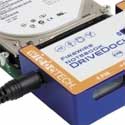
Depending upon which DriveDock you purchase from WiebeTech, you will note different physical details, but their v4 family, in general, features new LED indicators to "let users know that all the bells and whistles are operational." Dock hardware is bright blue durable, lightweight aluminum, plus connectors, fittings, ports, and cables that are generic black on most units. High performance Oxford 922, 911+, or 924 FireWire bridges are built in, for rapid data transfer and performance.

We’ll look at each specific DriveDock sent to MyMac.com by WiebeTech, starting with three SATA docks for bare drives:

SATADock (Part #SDKV4) $230
http://www.wiebetech.com/products/satadock.php


After unpacking and examining the contents of the package, I attached the included silver base plate to my new 160GB Hitachi bare SATA drive. Screws and self-adhesive bottom bumpers are provided for this purpose, but no screwdriver. Suggestion to WiebeTech: throw a small screwdriver into each package to assist your users with this out of box experience. They will really appreciate this extra touch.

I unwrapped the blue aluminum SATADock, its USB2 and FireWire 800 cables, plus a two-stage power cable, and then attached SATADock to my bare SATA hard disk via the special SATA connector cable that is hard-wired into SATADock. FireWire 800 connected my G5 to SATADock, and I switched the unit on.

LEDs flashed on SATADock, and my computer display told me this new SATA "disk not readable," after which I initialized and partitioned it using Apple’s Disk Utility application. I was now ready to proceed as advertised.

Data transfer was faster than I had ever experienced with an external drive, and overall performance was flawless. All cables and ports work perfectly, but the physical DriveDock is a bit tricky to position. Its own cables are either too long or too short, depending upon the space available, and I recommend a redesign to allow SATADock to sit upright or lay flat, instead of hanging at a peculiar angle.

Our MyMac.com rating for SATADock is tops for performance and okay for physicality, with a final score of 4 out of 5. In one word, I call it: good!

Mini USBDock (Part #MBD) $100
http://www.wiebetech.com/products/miniDockis.php


Connecting and mounting with this cute little blue gem is effortless and efficient, but the physical interface is a bit wobbly. I reiterate from previous correspondence with WiebeTech they should design some sort of elastic or metal band or clamp to hold the dock firmly in place while attached to a bare drive. MBD’s on/off switch is in an inconvenient spot on the tiny drive, and should be moved to the upper left corner for improved accessibility. MyMac.com rating for Mini USBDock is 4 out of 5. In a word, it’s: convenient!

Mini SATADock (Part #MSD) $75 is also available. It connects via a SATA cable to the host computer. For supergeeks only; to be tested by MyMac.com when I have an appropriate interface available. Provisional rating is 4 out of 5.

Next comes an instant favorite:

Notebook DriveDock v4 (Part #NBDDV4) $150
http://www.wiebetech.com/products/notebookdrivedock.php


I’m completely new to handling small internal drives from laptops, and I’m sold on the experience. In a couple of minutes I quickly inserted a loose notebook drive into NBDDV4, screwed in its protective plate and affixed its rubber bumpers, attached a FireWire 400 cable to the dock, switched it on, watched some lights flash, and was transferring data back’n'forth like lightning.

Cable options include two FireWire and one USB-2 port. NBDDV4 is powered directly from FireWire when available. Additional power options are via AC adapter or 4-pin Molex, when bus power is not handy. The two FW400 ports are daisy-chain-able (is that a real word?).

MyMac.com rates Notebook DriveDock v4 as 5 out of 5. Let’s call it: terrific!

Old favorites reappear in new colors:

FireWire DriveDock v4 (Part #FWDDV4) $150
http://www.wiebetech.com/products/firewiredrivedock.php
and
ComboDock v4 (Part #CDKV4) $170
http://www.wiebetech.com/products/combodock.php


These two units are more similar than different, except ComboDock has two FireWire 800 ports and no FireWire 400 port. The FireWire 800 ports are backwards compatible with FireWire 400 hosts, however, when used with the included converter cable (Cable-11). The two FireWire 800 ports can allow daisy-chaining. That also applies to the SDKV4.

FW800 is a personal favorite, and I use it as often as I can on my G5 PowerMac and G4 PowerBook. MyMac.com recommends you spend the extra $20 for CDKV4 over FWDDV4, because FW800 is here to stay, as seen on Apple’s new 17" MacBook Pro. Way to go, Apple and WiebeTech! FW800-to-400 cables are easy to obtain from Wiebe and other locations.

Ribbon cables allow for a secure fit between bare drive and dock. The connection is very firm, but dock+drive placement can be a bit awkward on your physical desk or worktable.

MyMac.com’s rating is 4.5 for both FireWire DriveDock and ComboDock, so choose whichever one is best for your purpose. I call FWDDV4 "good" and CDKV4 "even better."

* * * * *

Minor gripes and suggestions aside, MyMac.com applauds WiebeTech for making good products even better, and for giving our readers and Podcast listeners early looks at the company’s extensive lineup of hardware goodies.


Video Editing – In Your Mind

On June 27, 2006, in Uncategorized, by Mazen Al-Angary


WARNING: The following article could be caused by internet connection deprival, that the author was forced to experienced lately, or it could be caused by the fact that the author has to check 9 email accounts daily. The author does not claim he can see the future, and that he is merely guessing.

I have recently been offline for over five days!

To a technosexual (chic geek) like myself, that is a very long time offline. I managed to survive by checking my essential 4 email accounts through my Treo 650, in case I got any urgent emails I had to reply to. I usually check 9 different email accounts daily on my computer if you’re wondering. But the main reason why I was offline for so long was because I was taking a small step towards a faster internet connection. I have installed a new wireless DSL line, and now I am surfing the web at higher speeds.

Now I won’t begin to compare DSL to a true Broadband connection, but it’s okay for now. Who am I kidding, we don’t have broadband in Saudi Arabia anyway.

All this internet deprival has caused me to stay online for hours since I got my new connection up and running. I even used both my laptops at the same time, like an octopus who has discovered the availability of internet connection on the ocean bed, downloading tons of data, as if there were no tomorrow.

Thirst is a good example you can relate all this to, if you remember a time where you have been so thirsty, by the time you got a cool drink, you kept on drinking till your belly pops out. This is how Data thirst feels like to me.

I think the next step of technology will take won’t be rolling out a new PC, jam-packed with what have you features; I think the next big thing will be software you download or install to your brain memory, and I personally prefer external storage. So your brain won’t get infected with a computer virus, the world has enough biological viruses that would last us for another millennia.

Think about it for a minute, it makes perfect sense. Big Brother wants it to happen sooner then later. A clear sign would be the under-skin injected RFID chip.

I can imagine the ads for this new technology:

"Capture and create your own videos from the locations you visited, add high-resolution eye captured pictures, crisp recorded sounds, add live vocal comments, integrate all your senses to create a new digital life and share your experience." 

"Send it and share with your loved ones over advance short range telepathy (next Bluetooth-like technology), or even upload it directly to your dot Mac account, or even dot Net if you get it to work"

"Blog or podcast directly to thousands, all over the world"

"Download college textbooks directly to your brain’ memory banks, and learn in seconds".

The whole world will experience a new bubble with Start-ups offering users a place to store their data on it, instead of storing all this info on your external brain memory (or internal if you like to take the risk).

"Send mental images to your loved ones through our reliable psychic networks"

But what would be fun is to see the release of the next brain operating systems, like Windows Psychic, or Mac iThink, or even Linux Open Mind that has to run on your own brain cells.

You will hear people saying "I have just upgraded my memory to such and such", or even "I have just finished installing a patch file for my new brain OS".

Would the rules be the same in this new world? Would you still have to buy anti-virus? and where would you get it from? The pharmacy or the software store?

You think I am going off a deep end, and all this sounds crazy, but let’s hop on a time machine together (or our imagination for now) and travel 50 years back and tell anyone we meet on the street that people will be using small communication devices (cell phones , PDAs, or iPods) to talk, hear music, watch videos, place video calls, email, send text messages, podcast, or even blog, what do you think would they say about all this? They will be saying the same thing you’re thinking of saying right now.

Today computers, PDAs, and cell phones are extensions to our brains, we hear our selves saying “Oh I have that file you wanted, but let me get back to my computer to see where I stored it”, we can’t imagine our world without them anymore, we have became so dependent on them lately, that a day won’t pass without reverting to them and working on them. 

But we will have to wait and see what the future of technology has to offer, then decide what our next digital religion will be, and by then it will truly be a digital religion because it will control our brains.

The moral of all this is: Don’t stay offline for long.


If there is a worst part of getting a new computer (except for the price) it is setting it up to your liking. You have to install your applications, get your documents on the computer, transfer music and photos, change all of the settings, etc. If your old computer is a working Mac with a firewire port, Apple takes the frustration out of this process and makes it really easy with the Migration Assistant. All you need is the old computer, the new computer, and a firewire cable.

When you first boot the new computer you will go through the set-up process. At some point you will be presented with the following screen. This gives you with the opportunity to transfer data from the old Mac to the new one:

You also have the option to transfer data from another partition, or section of your hard drive. You’ll want to choose the first option and click continue.

The next two screens will take you through the process of connecting the old Mac to the new one. This will involve booting the old Mac into Target mode.

If you do everything right, the display of the old Mac should have a firewire logo bouncing around the screen:

Once the new machine makes the connection to the old machine you will be able to continue. On the next screen you can choose what you want to transfer from the old computer to the new one.

Your options will include which accounts you want to transfer, applications, network (or internet) settings, and files and folders (documents). While you can choose which accounts to transfer, you cannot choose which applications or documents to transfer. In these two cases it is all or nothing. Check and uncheck the appropriate boxes, and click continue.

The transfer process will then begin. The process could take several hours. The time depends on how much data is being transferred.

When the transfer is complete you will be presented with the following screen:

Here you will be given directions for disconnecting the old computer. This is as easy as removing the firewire cable, and pressing the power button to turn it off. Click continue. You’re done!

A few important notes:
1. Transferring applications will not erase any of the applications that may be included with your new computer. You are not replacing the Applications folder, just adding to it.

2. The really nice thing about this process is all of your preference files and serial numbers will transfer. You will not have to retype them, like you would if you installed the applications from CD/DVD. You might have to reactivate an application over an internet connection, but that is no big deal. Also, all of your photos will be in iPhoto with your albums, and your iTunes playlists will be in iTunes. Even your desktop and customized icons will transfer to the new computer.

3. Finally, if you don’t want to go through this process when you first turn on your computer, you can always use the Migration Assistant at a later date. This is found in the Utilities folder.

If you decide to use this transfer process with your new computer, you’ll save yourself a lot of time. All of those hours which would have been spent transferring and installing and adjusting settings can now be spent playing on your new Mac.

Enjoy!


Kibbles and Bytes – 471

On June 24, 2006, in Uncategorized, by SmallDog


I was meeting with Artie yesterday and we commented on the fact that it was the longest day of the year – the summer solstice.  Actually, what we said was, "I guess we’ve broken the back of summer." Winter is always right around the corner here in the north country, but we have some more fun yet to go this summer, including the new bocce season now that the NHL and NBA playoffs are done.

Today is "Take your Dog to Work Day." I got a kick out of the press release from one of our competitors that talks about the two dogs that are at their offices. Every day is take your dog to work day at Small Dog Electronics. In addition to our working dogs, our customers often bring their dogs when they come to visit our retail store. Everyone shares in watching out for the pups and the dogs make sure we are doing okay, too. I can watch the dogs move from desk to desk in our open office environment, searching out a pat on the head, a butt scratch, or if they are really lucky a treat. But it is clearly a two-way street. We have a very busy office and as the dogs move around the room they act as a stress relief valve. I can see the stress move from an employee to the dog he or she is petting and then be dissipated with a wag of the tail.

We have quite a few dogs that come to work each day – on some days there may be as many as a dozen dogs of all sizes and shapes. The dogs seem to find their own areas: we have warehouse dogs, sales room dogs, main office dogs, and showroom dogs. Fantail acts as the doorbell. I don’t know what we would have to do if we doubled our staff size and had 25 dogs here, but we are committed to not only providing the best in customer service to our Mac-using customers but also to remaining a place where every day is take your dog to work day!

+———————————————————+

New Pawcast Featuring an Interview with Adam Engst By Ed @ smalldog.com

We have a very special Pawcast this week. Don interviews Adam Engst, publisher of TidBits and the Take Control series of ebooks. All Macintosh users should subscribe to the TidBits newsletter. Week after week, year after year, it continues to be one of the premier sources of useful Mac information. It’s free to subscribe. You can read more about TidBits and subscribe here:

http://www.tidbits.com

This is a mobile Pawcast. Instead of sitting in the "studio," I walked around like a field biologist, documenting Small Dog employees at their desks, in their native habitat. I used Griffin’s $15 lavaliere mic, which would have gone with the Griffin iTalk (which has been discontinued).

You can listen to the Pawcast at blog.smalldog.com or through the Podcast directory in the iTunes music store. Search for "Small Dog Electronics" or follow this link:

http://phobos.apple.com/WebObjects/MZStore.woa/wa/viewPodcast? id=128728210

+———————————————————+

What the Heck Is Photocasting? By Ed @ smalldog.com

Photocasting is a technology that will make you rich and famous. Well, maybe not, but it is an great tool that allows you to easily share high-quality copies of your digital photos with anyone with an RSS reader or RSS-compatible browser. According to Steve Jobs, "photocasting is like Podcasting for photos."

You are ready to Photocast if you have iPhoto 6 (part of iLife 06), a .Mac subscription, and an internet connection. It’s easier and faster to make a Photocast than it is to make a new web page of photos. It’s also much faster to add or remove photos from a Photocast.

RSS stands for Really Simple Syndication, and it’s typically used publish brief notices when web content is updated or changed. These brief notices can be read through a web browser, such as Safari, or through an RSS aggregator, a couple of which I recommend below. A person typically subscribes to a website’s RSS feed and then uses an aggregator to learn when the website has been updated and whether any of the updates are worth reading. I have a couple dozen subscriptions that I refresh throughout the day for websites such as nytimes.com, versiontracker.com, bbcnews.com, and even Small Dog’s blog, "Barkings."

Photocasting harnesses the power of RSS to syndicate digital photos instead of web content.

How it works:

1. In iPhoto 6, select an album you’d like to Photocast, or create a new album and fill it with photos you’d like to Photocast. The name of the album will be the name of the RSS feed.

2. When you are connected to the internet, select the album you’d like to Photocast and then either select the orange and purple Photocast icon or go to Share > Photocast in iPhoto’s menu.

A box will pop up, asking what size photos you’d like to share. Choosing "Actual Size" will send out potentially huge photos, so only do this if you know the recipient wants the full-resolution photos (for quality printing or detailed editing, for example) or at least has a high-speed connection. I usually choose medium or small in my Photocasts; I can always email a full-resolution photo if needed.

You also have the option of password-protecting your photos. Your photos will be online and potentially might show up in a Google search. Those photos of you imitating the boss? They might need a password.

Now click publish. It may take a few minutes for the photos to publish online. You then have the option to send an email announcing your Photocast. I always at least send one to myself so I can keep track of the URL where the photos are displayed on my .Mac account. You can send out the email again at a later time by selecting the photocast album, clicking the "i" button in the lower left corner of iPhoto, and then clicking on "url" in the information box that appears.

3. Every time you add or remove a photo from your Photocast album, iPhoto will update the RSS feed and upload the new photos to your .Mac. account. You can also click on the broadcast icon in the title of the album you are Photocasting to force the RSS feed to update.

Here’s a Photocast feed I set up for this article:

feed://web.mac.com/edwardshepard/iPhoto/demo-photocast/index.rss

You can cut and paste this link into your browser or enter it into the RSS reader of your choice to see Photocasting in action. For fun, I’ll update the photos over the weekend.

You can click on the small photos to open the full-size photo in a new window. Remember, I’ve opted to publish these photos at the smallest size.

Finally, for RSS readers, I recommend Ranchero’s NetNewsLite or Newsfire. Both work well. I use NetNewsLite, but many of my peers use Newsfire. You can also read RSS feeds in Safari by bookmarking a website’s RSS page, but I prefer the stand-alone aggregators.

+———————————————————+

Apple Certified Refurbished Products By Don @ smalldog.com

We have a good selection of Apple factory-refurbished products in stock and arriving over the next couple of weeks. Apple now calls these products Apple Certified Refurbished products to distinguish them from reseller-refurbished products. After a 30-second discussion, Ed and I have decided to adopt Apple’s new moniker for these products.

So just what are these products and why should you consider an Apple Certified Refurbished product?

Apple Certified Refurbished products are pre-owned Apple products that undergo Apple’s stringent refurbishment process before being offered for sale. Artie and I visited the Apple refurbishment center in Sacramento a couple years back and we can verify that the refurbishment process is thorough and professional. We came away from that visit awed by the sheer volume of work being done at that facility (it was also the Power Mac G5 factory) and with a lot of new ideas for our own facility and procedures.

Products that enter this program have been returned to Apple under Apple’s return and refund policies.  Some have technical issues, while others may have been returned for other reasons, such as buyer’s remorse. Nevertheless, Apple puts them all through a complete refurbishment process which follows the same basic technical guidelines as Apple’s finished goods testing procedures.

Each Apple Certified Refurbished product:

-  Is fully tested (including full burn-in testing). – Is refurbished with replacement parts for any defective modules identified in testing. – Is put through a thorough cleaning process and inspection. – Is repackaged (including appropriate manuals, cables, new boxes, etc.). – Includes the operating software originally shipped with the unit and the custom software offered with that system. – Is given a new refurbished part number and serial number. – Undergoes a final QA inspection before being added to sellable refurbished stock.

The resulting products carry the same 1-year Apple warranty as new product and are eligible for AppleCare Protection Plans on the same basis as new machines.

+———————————————————+

Why Buy Apple Certified Refurbished Products from Small Dog Electronics? By Don @ smalldog.com

I know that you have a choice of where to buy your Apple Certified Refurbished products. Apple is both our most important supplier and our most significant competitor. The prices you pay are likely to be about the same, so Small Dog Electronics has to give you a bunch of good reasons to give us your business rather than going straight to Apple for the same product.

While prices will be close, we are going to strive to be just a little better both because we charge sales tax only in Vermont and because we ship our products via UPS 3-day orange label service while Apple ships ground. We charge our actual shipping charge, which is almost always less than the cost of sales tax.

Good reasons to buy from Small Dog:

1) Have it your way. Small Dog has a greater selection of upgrades and peripherals than Apple does. We will upgrade your memory for the cost of the memory with no additional charge for installation. Apple does not offer memory upgrades for Apple Certified Refurbished Products

2) Small Dog provides technical support to supplement Apple. Depending on the value of your product, we provide two or three free incident calls with your purchase of an Apple Certified Refurbished product.

3) Dog treats!  With your purchase, you are automatically a member of our Top Dog Club and will begin to accumulate "treats" with each purchase. These treats can be redeemed for products at Small Dog Electronics. The process is automatic, so there is no need to sign up for the Top Dog Club to begin to earn treats.

4) Good things come in small packages!  When you deal with Small Dog Electronics, you are dealing with the "mom and pop" Mac store of the net. We take no customers for granted and we are committed to making YOU a Small Dog customer for life.

5) Support a socially responsible business. Small Dog Electronics is a business that measures its success by multiple bottom lines. While profit for our shareholders is an important measure of success, we firmly believe that our success is also measured in how we treat our employees, how we treat our vendors, how we treat the environment, and how we responsibly act as a member of our community.

6) Free Small Dogs with every order! Does Apple send you any dogs? No way!

+———————————————————+

iPhoto 6.0.4 By Holly @ smalldog.com

Last week I mentioned that the season of celebrations (graduations, weddings, etc.) is upon us. This week I want to continue that theme and discuss an iLife application – iPhoto 6.0.4 – that can be used in many ways to accentuate these celebrations. Today I’m going to discuss the iPhoto books.

Next month my family is celebrating the 90th birthday of my paternal grandmother. A 90th birthday is a momentous event, so in honor of the occasion I decided to create an iPhoto book for her. It includes pictures of her and her late husband, photos of my father as a child, pictures of my sister and me as children, and current pictures of the whole family.

The part that takes the longest is collecting the photos. If all my pictures had been in my iPhoto library, it would have taken a lot less time, but 65 years ago there were no digital cameras so I had to scan half the photos I used in the book. Once the pictures were in an album in iPhoto, I chose the "create new book" icon. The photos showed up above the book and I just clicked and dragged the photos into the empty photo slots. From this point I could let the software take care of it with "autoflow" or let my creativity run wild. (I ran wild!)

There are twelve new styles (picture book, modern lines, formal, travel, watercolor, photo corners, contemporary, folio, family album, crayon, baby boy, and baby girl) and seven old themes (picture book, classic, story book, collage, portfolio, yearbook, and catalog).

Tips:

- Make sure your images have a resolution of 300dpi or better for best results. If a photo has a lower resolution, iPhoto will let you know by placing a yellow triangle with a black exclamation point in it signifying that the photo may print at too low a quality.

- Decide beforehand what size of book you want (large, medium, or small). I didn’t see an option for changing your mind once you have started creating a book, so if you like the layout you have but don’t have enough pictures, you’ll need to start over. On the other hand, you could print the book with your printer and use the printout to re- create it in a new book.

- You can’t delete the set number of pages in a book, but you can change the number of photos per page. Choose among 1, 2, 3, 4, 6, 7, or blank page. You can add pages if you need to. The cost for an extra page varies among the different sizes of books.

- Once you import your photos into the book, you can’t duplicate the photos there. If you want to use the same photo more than once in the same book, you will need to create a duplicate in your library and then drag the duplicate into the album/book.

- You can switch between viewing the pages in the book on the upper bar (above the book itself) and viewing the unplaced photos. I found this helpful because I could look at the book as a whole and see how the pictures flowed.

- You can turn off the page numbers in Settings, which is located along the bottom bar of iPhoto. At the bottom of the dialogue box that comes up are two choices with check boxes. If you uncheck the box for "Show page numbers," the book will not be numbered.

These books make wonderful gifts or keepsakes. I think my grandmother will really like the book. With the different sizes, there’s a book for almost every budget. In fact, I may make two more books – one for each of my dogs!

For more information on the iPhoto books:

http://www.apple.com/ilife/iphoto/features/books.html

For pricing:

http://www.apple.com/ilife/iphoto/features/pricing.html

Apple has released the iPhoto 6.0.4 update in the Mac OS X Software Update. This update to iPhoto contains a variety of new Greeting Card and Postcard themes for use with Apple print services, including invite and thank you card designs for summer parties, weddings, birthdays, etc.

+———————————————————+

The iPod 5 R’s By Don @ smalldog.com

This is from Apple’s Knowledge base, and I think it is an important article to repeat here. Many of our technical support phone calls involve problems with the iPod that can be solved by following these 5 R’s.

If your iPod isn’t merrily playing music to your ears give these 5 steps a try:

NOTE: Please make sure that your iPod is fully charged and then toggle the Hold switch on and off before performing these steps.

1) Reset your iPod, iPod nano, iPod mini, or iPod shuffle.

2) Retry your iPod with a different USB or FireWire port on your computer. (The latest iPods can only be synced through USB.)

3) Restart your computer and make sure that you have the latest software updates installed.

4) Reinstall your iPod and iTunes software. You can download the latest versions of iPod Updater <http://docs.info.apple.com/ipod/ download/> and iTunes <http://docs.info.apple.com/itunes/download/> from Apple’s website.

5) Restore your iPod using the latest iPod Updater. IMPORTANT: Please note that restoring an iPod will erase all songs and files on your iPod and restore it back to its original settings. Make a backup of any files on your iPod before restoring it. After restoring, you can transfer your music and files from your computer to your iPod.

Here’s a QuickTime movie that shows the 5 R’s in action:

http://www.apple.com/support/ipod/tutorial/ip_gettingstarted_t16.html

If none of the R’s work and the iPod is still under Apple warranty or AppleCare Protection Plan, you can go to Apple’s iPod support site to schedule service for your iPod.

http://depot.info.apple.com/ipod/

You will need your iPod’s serial number to get service. If you have trouble reading the tiny serial number on your iPod, don’t go running out to the drugstore for reading glasses. Just launch iTunes (iTunes 6 and later) and you will be able to find the serial number even if your iPod is not connected to your computer.

How to find your iPod serial number using iTunes 6:

1) Launch iTunes.

2) Open iTunes Preferences from under the iTunes menu item in the menu bar.

3) Select the "iPod" tab.

4) If your iPod is connected, click on the Version Number in the right corner of the iPod preference screen and it will display your serial number.

5) If your iPod is not connected, click on the "No iPod is Connected" message in the center of the screen and it will display the serial number of the LAST iPOD THAT WAS CONNECTED.

Check out our blog <blog.smalldog.com> for more details.

+———————————————————+

Small Dog Electronics Forms Board of Advisors By Don @ smalldog.com

Hapy and I have formed a board of advisors for our company. It is our way of finding some diverse expertise to help guide our company to the next level. We are having our first meeting on Friday. I thought I would introduce these folks to you briefly:

Larz Barber: Larz, an old friend of mine and also a Small Dog customer, works as a financial advisor for Merrill Lynch in Burlington. Larz uses a MacBook Pro and runs both Mac OS X and Windows XP on his Mac.

Mark Englehardt: You probably know Mark because he has been with Small Dog from our humble beginnings. (He once ran the whole office for a week by himself while Art, Hapy, and I went to golf school in New Orleans. No, the golf school did not help our games!) Mark is also on our board of directors and is our website architect. He lives on his boat in Benicia, California.

John Osgood: John is our neighbor here in Waitsfield and owns a number of business ventures. We trade him internet access for access for our employees to the "Not Too Athletic Club" located here on our campus. John is a developer of residential and commercial real estate and has been developing landfill gas to energy projects for the past decade. We had to put him on the advisory board because we are constantly asking him for advice when he drops in for a cup of espresso.

David Garfinkle: David runs a second-generation family business in Montreal that manufactures corrugated boxes and displays and other packaging materials. He met Hapy at the MIT Birthing of Giants program several years back and is Hapy’s Habs ticket connection.

Keith Rinzler: Keith is an entrepreneur from Atlanta who was also a part of the MIT Birthing of Giants program. He has a broad entrepreneurial background, including the development of the concept of "Truckside Advertising." (You might remember our truck from a couple of Macworld Expos.) His patented system was eventually purchased by GE Capital and renamed MediaVehicles.

Leslie Nulty: Leslie is the vice-chair of Vermont Businesses for Social Responsibility and is a financial management consultant with an economics degree from Cambridge and a rich history of business and nonprofit experience.

John Keenan: John is the Director of Sales for the East Coast and Canada for SonicWALL corporation and has been in the industry for as long as I have. I met John when he was a manufacturer’s rep for a number of Mac-related companies and have found his advice invaluable over the years. He is an unabashed Red Sox and Patriots fan, so he fits in well with our crew up here in Vermont.

Steve Magowan: Steve is a lawyer with Gravel & Shea, PC. I first met Steve when he gave a presentation on employee ownership at a conference in Burlington. He one of a very few experts in employee stock ownership plans and he counts expertise in business transition planning among his other skills. I kept running into Steve on airplanes and we discovered that we share similar opinions on health care reform as we worked on the campaign for Scudder Parker for governor of Vermont.

Hapy and I have been filling these people’s inboxes with information to get them up to speed on Small Dog. Keith sent me a long analysis of our business and one of his statements was particularly perceptive. Here’s what he had to say:

"It is your customers that hold the answers to all of your most pressing questions about the future of SD.   Your customers, not your officers, your Board of Directors, or even your esteemed Board of Advisors. If you devote your marketing energy and resources toward harnessing that knowledge, you will not only become much more valuable to Apple. YOU MIGHT BE THE NEXT APPLE!"

I doubt that we will ever match the greatest success story in American business history, but Keith confirms what we have known for some time: the strength of Small Dog Electronics is you!

I have always thought that through Kibbles & Bytes I have a board of advisors that helps to make Small Dog Electronics a stronger company. You are part of our advisory committee, and I will always value the comments and suggestions that you offer. We have a unique opportunity to communicate with our customers every week and those of us who write for Kibbles & Bytes take this quite seriously.

+———————————————————+

Your Feedback Is Needed! By Ed @ smalldog.com

First, a mea culpa. I apologize to the handful of people who have emailed me about a Tech Tails or Kibbles article and have not received a response. I do try and write back to everyone, but this doesn’t always happen for a variety of reasons. This is something we will improve, so that everyone always receives a response.

Your feedback is invaluable to us. It drives our company. We’ll be soliciting feedback on specific new and upcoming projects in the future.

Again, thank you for your feedback, and keep it coming!

+———————————————————+

Specials!

Here are the specials for this week, valid through June 29 or while on-hand supplies last. Be sure to use the wag URL to get this special pricing.

+—————-+

EZQuest Monsoon 300gb 7200RPM Firewire 400/USB 2.0 – Free Shipping – $175!

To order: http://www.smalldog.com/wag16774/mymac

+—————-+

PowerBook 15in G4/1.67GHz 512/80/Super/AP/BT w/ FREE Sleeve – $1345!

To order: http://www.smalldog.com/wag16773/mymac

+—————-+

FREE Shipping On All Premium Stitched Leather iPod Cases!

To order: http://www.smalldog.com/wag16756/wag16753/wag16755/wag16750/ mymac

+—————-+

iPod 20gb (color display) with FREE Kensington case and FREE shipping, for $225.00!

To order: http://www.smalldog.com/wag16768/mymac

+—————-+

LaCie 4gb Carte Orange USB Key drive – $84!

To order: http://www.smalldog.com/wag16744/mymac

+—————-+

Airport Extreme Base Station w/Modem And Antenna Port (r) – FREE SHIPPING – $179!

To order: http://www.smalldog.com/wag16769/mymac

+—————-+

PowerMac G5 DC/2.3GHz (r), 23" Apple Cinema Display (r), 3 year AppleCare Plan for both G5 and Dsiplay – $3399!

To order: http://www.smalldog.com/wag16767/mymac

+—————-+

MacBook Pro 15in 2.0GHz 1gb/100/Superdrive (r), XP Pro w/ Bootcamp, Take Control eBook – $2039!

To order: http://www.smalldog.com/wag16772/mymac

+—————-+

Congratulations to the Miami Heat and the Carolina Hurricanes for the exciting NBA and NHL championships!  With the Cubs in the cellar yet again, I think I am free from most sports until the fall. Rob and I are already betting on the Patriots vs. Bears game in Foxboro in November, and we are scheming to find some tickets (hint, hint).

The Small Dog softball team is playing again this year on the renovated field. Artie has taken on the pitching duty and a bulked-up Hapy is aiming for the fences. Our own bocce tournament is back this year, too.

Thank you for reading Kibbles & Bytes. Have a great weekend!

Your Kibbles & Bytes team,

Don, Ed, and Holly


CoverScout – Software Review

On June 23, 2006, in Uncategorized, by Donny Yankellow


CoverScout
Company: equinux

Price: $19.95 ($15.95 until July 1, 2006)
www.equinox.com

It is always nice when a piece of software does exactly what the developer says it is going to do. CoverScout is one of those pieces of software, and it is very easy to use.

Basically, CoverScout is an iTunes utility that will seek out and apply cover art for you music tracks. Yes, purchases from the iTunes music store have cover art on them, but what about songs that you import into iTunes from other sources (i.e.. CDs). These imported tracks will not have cover art. You can seek out the artwork yourself, and cut and past each one, or you can use a utility like CoverScout.

When you open CoverScout you are presented with a display that will show your albums on the left, tracks on the right, and cover art on the bottom of the window. Your iTunes catalog will be imported automatically. A system of three icons will let you know if the album has or does not have cover art, or if just part of the album has cover art.

You can choose to only see albums from your Library that are missing cover art, have incomplete cover art, have complete cover art, or just view the entire library. Why would you want to list albums that already have cover art? CoverScout will remove art from an album and let you apply a new one. Maybe you want that special edition cover instead of the standard one.

You are not only limited to entire albums. You can also apply art to individual tracks of an album. If you like, you can have every track of an album have different artwork.

To find the cover art for your albums you need an internet connection. CoverScout uses Amazon.com, Google, and the iTunes Music Store to search for album art. Searching for artwork is as easy as double clicking the item in your library you want to search for. Results will be displayed in the artwork pane, and double clicking the artwork you want will instantly apply it to the selected tracks. Did not find what you were looking for? Use another of the three search sources. I found that Amazon.com was the best resource. The only problems I had finding artwork in the three sources were with local music that may not even have a web presence.

CoverScout also allows you to apply the artwork found automatically based on parameters you set. You have the options of automatically applying artwork if only one cover is found, if the album name matches, or both.

One of the nicest features of CoverScout is that once you choose the artwork you want to use, the program quickly applies it to the selected tracks. You will not be sitting around for hours as the program completes its task. Of course, the more tracks you need art for, the longer it will take; and the search time will depend on the speed of your internet connection.

For those who only need to use CoverScout for a few tracks, CoverScout’s price of $19.95 may not be worth the money. For a limited time you can purchase CoverScout for $15.95, but that still may be a little pricey for something that is not going to be used much. There are free options out there that will find album art, but they will not be as feature filled as CoverScout.

Is cover art on an iTunes track going to change the world? No. However, it is nice eye candy (especially in an iPod), and CoverScout is a great “candy shop” to make getting the cover art easier. I definitely recommend CoverScout for those that have a bunch of iTunes tracks without cover art on them. It will save you a lot of time that could be wasted searching for the art on your own, and then cutting and pasting one at a time.

MyMac.com Rating: 4.5 out of 5.

Pros: Does exactly what it says it will do, and does it well.
A lot of great features make CoverScout easy to use.

Cons: A little pricey, especially if you only need art for a few tracks.


SR225 Headphones – Review

On June 23, 2006, in Uncategorized, by John Nemerovski


SR225 Headphones
Company: Grado Labs

Price: $200 approximately
http://www.gradolabs.com/

What’s in the box? Not much, when you open a carton containing your new Grado Labs SR225 Prestige Series untraditional over-ear headphones. You get a set of lightweight headphones attached to a thick cable, and, if necessary, an adapter plug to allow you to listen to your iPod or portable music player, because Grado phones are manufactured with a 1/4" stereo plug, not the newer 1/8" style. Or, as our Grado PR contact says, "The 225 does not come with an adapter for portable electronics."

Where is the elegant leather carrying case and 40-page instruction manual? Or the modular ear cups in enough sizes and colors to satisfy the largest linebacker or the tiniest toddler? No accessories? Who does Grado think they are kidding for two hundred bucks?

Nobody, once you start listening. Do a Google search for "grado 225" (quotation marks not necessary), follow a few links, and you’ll quickly get a superlative sense of how serious music lovers appreciate these premium headphones. Grado produces a few higher- and lower-spec models, which we have not yet sampled at MyMac.com, but my hunch is that SR225 hits a sweet spot for quality and value that will be difficult to match for most people.

Not long ago, $200 headphones were a luxury many music lovers would think twice about buying, but those days are long gone. With $400 iPods and $300 in-ear headphones now commonplace, what’s a modest $200 in exchange for booming bass, marvelous midrange, and terrific treble tones?

Earpieces are O-shaped flexible foam. You’ll have to get used to them if fit and comfort are not immediately perfect, especially if you wear glasses. My ears are now accustomed to the feel of the Grado SR225, after less than a week of off-and-on enjoyable listening. Construction and durability are neither robust nor flimsy, but don’t leave your new headphones within range of your poochie, kitten, child, furnace, plumbing, or pot of pasta sauce. Cable is tangle-free, thick yet flexible, securely fastened both to earpieces and phone plug.

Audio quality is G-R-E-A-T, friends. You’ll have to spend at least 50 percent more for a comparable in-ear-phone experience (we’re working on those product reviews over the summer months), and then you are stuck in the ear (literally) with the perils and pleasures that accompany such newfangled doodads. Grado Labs’ SR225 is elegantly simple and minimalist in physical design, but hidden from sight is audio engineering that quickly will make you want to get back to your tracks as soon as you can.

Because your ears are enclosed with open-cell foam, you are "in the room" wherever you happen to be listening, not isolated from your physical environment. This is a big deal that will either send you into ambient ecstasy or get on your nerves when a bus passes outside. I suggest you consider Grado SR225 headphones to be ideal for indoor listening, as opposed to in an airplane cabin or a subway car. You get the idea.

Let’s try a live listening test. You’ll have to use a little imagination:

• CLASSICAL CHAMBER ENSEMBLE Nuove Musiche — full-spectrum audio, no peaks or distortion, subtle appreciation of every instrument’s tonality, with balance, clarity, and separation.

• JAZZ GUITAR DUO Al Di Meola and John McLaughlin — a live recording that places me at the lip of the stage, between performers and audience, with a sense of the individual fingering and strumming that I never heard during twenty years of prior listening through audiophile speakers.

• CLASSIC ROCKER Bob Seger — I stop writing, start pounding my feet on the floor, singing at full voice until the neighbors call 911 because they think I’m having a post-psychedelic freak-out.

• COUNTRY SCHMALTZ Dixie Chicks — brilliant precision of harmonies and accompaniment, even at MP3 compression.

I’ve spent a lot of time in recording studios and professional performance situations, and the overall experience I’m having with Grado Labs’ SR225 headphones is equal to "working the booth" or "grabbing the live feed" from a performance. If audio excellence is your goal, and $200 is within your budget, and open-cell foam fits your ears and lifestyle, you’ll agree with our strong 4 out 5 rating.

Bravo, Grado, and we can’t wait to test your other headphones. The lower-priced models will have to be really good to compare to SR225, and the three units that range up to $1,000 already have serious competition from these affordable gems.

FOOTNOTES:


Live-test comments by David Weeks, MyMac.comrade and recovering audiophile:

"This is good stuff, Nemo! They take me back to my audiophile days. I know Grado makes high-quality, mid-priced headphones. Bass is great, so is midrange, much better than any in-ear phones I’ve listened to. You can wear these Grados for hours without any ear fatigue. Fit is tight, so they won’t come off while you’re moving around the house. Construction is light weight, with a good quality cable. If you live in the Bronx and work in Midtown, use noise-isolating in-ear phones, but for listening at home, Grados are tops. How much do these cost? About $450 I’ll guess."


Nemo’s wife Barbara, at the other extreme from being an audio geeker:

"They don’t adjust to my head, John. Are they meant only for men, or everyone? They are kind of heavy for my small head, and maybe a little big too. But the audio is reeeaaallllly good! I never heard such detail in the background before in this song I’ve listened to a thousand times."


Graeme Gibson, studio engineer and musician:

"I’d agree with your comments, John. The only error is: ‘Grado phones are manufactured with a 1/4" stereo plug, not the newer 1/8" style.’ This is true for your 225′s and some other higher models, but the less expensive 60′s, and 80′s come with 1/8" tips and 1/4" adapters. Same goes for the ear pads, the 60′s and 80′s have full pads rather than the donut style ones.

"I heard these phones in the mid 90′s. My high school jazz teacher had a pair from when he worked at a hi-fi store. Grado’s been around for a surprising amount of time."


MyMac Podcast 87 – Al Luckow

On June 22, 2006, in Uncategorized, by MyMac PodCast


Tim and Chad talks to new media architect Al Luckow. From riding a Segway, Fire Knife Dancing, and designing Woz.org website, Al is a very talented man and a fun person to talk with. Also in this episode, The Dashboard Minute, Speedy Review, and NoSnooze.

Leave audio feedback by calling 801-938-5559

This podcast is sponsored by SmallDog.com, RamJet.com, and Inno-Tech.com.

Get the show from these links:
Direct MP3 download link
iTunes Link
Podcast-only RSS Feed

Links from the show

Luckow Design Studio
Al Luckow Fire Knife Dancing
Woz.org
ER 4 microPro Headphones
Hurricane Tracker
iCliplite
Monster iCarPlay Cassette Adapter


EyeCandy iMovie Animated Themes – Review

On June 21, 2006, in Uncategorized, by Tim Robertson


EyeCandy
Company: sidicom

Price: See Below

http://www.ilearnfast.com

When Apple released the latest version of iMovie 6, the real big news was Themes. Similar to the themes found in iDVD, iMovie Themes were designed to work within your movie, rather than as menu items on a DVD. While the stock themes supplied by Apple with iMovie 6 are great, I knew it would only be a matter of time before an intrepid software developer would jump in with third-party themes. I was right, and Sidicom was one of the first.

EyeCandy Animated Themes for iMovie 6 are professionally done themes that work very well within iMovie 6. They are each sold separately, and prices vary. Let’s look at the EyeCandy Themes I used for this review.


World Cup
$26
Obviously the designers are soccer fans. The World Cup theme uses a very cool blue motion theme with up to six different themes as part of the overall World Cup. The Open option gives you up to three-drop zones for pictures of video, and three text titles. The overall movement is fast paced and fluid. The second option is Bumper, which is very similar to Open, but with different video motion. The same is true of Chapter as well. Lower Third-HD gives you a wide-screen aspect ratio World Cup theme, but with only on video drop zone and two text tiles. Lower Third-SD is the same as the HD version, just in standard format. And credits gives you the overall look of the entire World Cup theme, but are for text only, of which you have up to four text titles.

Overall, I really like World Cup. The six different types of sub-themes within the theme are very professionally done, and I can vouch they look great within a video project. On the downside, the sub-themes that give you the ability to input multiple video or picture drop zones leave a grey video box if you don’t use it in the project. There is no way to turn off unneeded video drop zones. The same is true of the iMovie built-in themes.

World Cup rating: 4 out of 5

Folding Cards
$35
This theme actually has eight different sub-themes, and all are pretty cool. What’s more, this is a multi-palette theme, meaning you can have up to three different colors in this theme, including Red, Blue, and shades of green/gold. To change the color scheme, the first “Title” selection is used to input a number, 0, 1, or 2, and the color for that theme will change. Don’t worry; the numbered text won’t be in the theme itself.

As the name implies, each sub-theme has card-like solid colors that slide back and forth. Some have video drop-zones, while a few are for text only.

I like all of the Folding Cards sub-themes, but they are a bit limited. While I do think the color choices the developer uses are nice and professional enough, I would rather have much more control over the color choices. A color wheel for each individual color would have been better, as would the ability to chance the size or spacing of the text. What you see if what you get, and what you see here are eight nice themes.

Folding Cards rating: 3.5 out of 5

Picture-In-Picture
$5.95
This is the free version that is given away when you purchase any of the themes, and it is a nice added bonus, albeit a limited one.

Picture-In-Picture does just that, giving you the ability to have two different videos on screen at the same time. The user interface is simplicity itself; you drop two video files onto the drop-zone, and instant picture in picture. Unfortunately, this free version has two sub-themes, Bottom Left – 10 Sec and Bottom Right – 10 Sec. So you can only have picture in picture in either the bottom left or right side of your screen, and only for ten seconds. Worse yet, there is a boarder all around the smaller of the videos, and while you can change the color of the border, you can’t get rid of it. A good idea for a theme, true, but too limited. This theme is much better implemented in GeeThree.com’s Slick Transitions and Effects Volume 4. http://www.geethree.com/slick/V_04.html

Picture-in-Picture rating: 2 out of 5

All in all, I like the fact that sidicom has stepped into the void for aftermarket iMovie themes. I like choice, and I only hope they continue to develop new and creative themes. On the downside, I experienced many more iMovie crashes when these themes were installed. iMovie would quit or hang at application launch, but the problems went away when I removed the Eye Candy themes (installed at Library / Application Support / iMovie / Themes) This is a problem, but one I expect sidicom will fix as time goes on.


Lexmark P4350 Printer – Review

On June 20, 2006, in Uncategorized, by Tim Robertson


Lexmark P4350
Company; Lexmark

Price: $129.99
www.lexmark.com

Buying a color printer is usually one of the first things a new computer owner will do. It is a natural add-on for any computer user. A computer without a printer is like a television without a remote. And if you are looking to buy your first printer, or replace your existing color printer with something a little more modern, the Lexmark P4350 may be right up your alley, providing you don’t need Intel Mac print drivers.

The P4350 is an All-In-One (AIO) printer, meaning it not only prints color, but it is also a scanner and a memory card reader for digital cameras. It can also fax, but needs the computers modem to do so. I did not test the faxing capabilities for this review.

The P4350 is not a new printer; it has been on the market for almost a year now. So why review it this late? Because it still sells, and is advertised as a Macintosh printer. I see these at all the big-box resellers, and I wanted to find out how well it works. I have been reviewing Lexmark printers for years, and I usually enjoy the print quality of their printers.

Print quality is the first factor in any printer buying decision. How nice a printed page, be it text, a PDF, or a glossy photo, usually trumps any other factor. Sure, being able to scan and use a card reader are nice features, but printing is key. In this regard, the P4350 does a nice job. While it is not a post-script printer, it does do a very nice job of giving you quality photo prints using glossy paper. It does have a nasty habit, as many inexpensive ink-jet printers do, of using a LOT of ink when printing full-page photos.

The P4350 has two ink-jet cartridges, one a tri-color cartridge for cyan, yellow, and magenta, and a photo cartridge with light cyan, light magenta, and black. This in effect gives you a six-color printer. Nice! You can replace the photo cartridges with a black-only, which will save you money for when you want to print more documents than color. I have found replacement ink for this printer from $19.99 for the black up to $56.99 for the tri-color. Not cheap, but in the same ballpark of its competitors. Honestly, if both colors ran out at roughly the same time, it may actually be cheaper to just buy an entirely new printer.

As for print quality, as I said, the output was nice. You can print either from the computer, or inset a memory card (from a digital camera) into the front of the printer, and print directly from there. It has a small, built-in 1.7-inch LCD that allows you to view the photos on the cards before printing. The LCD is also used for scanning options, menu, and much more. While the included software works fine, I actually preferred to control the printer from the front of the unit when scanning or copying. Very responsive and, for the most part, intuitive controls.

The flatbed scanner works well. It will allow you to scan a document or photo directly to your computer, using either the printers’ own controls, or the included Lexmark software. What’s nice about the P4350 is that the top cover of the scanner actually comes off very easily. This makes scanning a thicker object, like a book, magazine, or oversized paper (newspaper) much easier. There is also a blue light on the corner of the scanner, so you can easily figure out where the corner is when scanning a document. This was handing for late-night scan jobs.

One problem I do have with the P4350 is that the print drivers are not Intel Mac ready. In other words, they are not universal binaries. While the printer has been on the market almost a half-year before the first Intel Macs were released, Lexmark still sells this model all over the place; so not having updated drivers is inexcusable. At the very least, there should be updated drivers on their website, but a quick visit there shows the latest Mac OS X driver to be from a year ago. Intel Mac users will still be able to use the P4350, as there is a work around. Installing the PowerPC driver, going to Printer Setup, and choosing “Open using Rosetta” will work great, after a restart. So while it works, it is not the ideal situation, and the Lexmark control software itself is still pre-Intel code only. For such a large company like Lexmark to leave Intel Mac owner in the dark is simply bad business.

The built-in card reader supports CompactFlash, SmartMedia, Secure Digital, Memory Stick and xD cards. I tested both a CompactFlash and an SD card, using the LCD to preview and send print commands, and the process was very intuitive. I prefer, however, to print from my Mac so that I have much more output control, as well as being able to clean up photos in iPhoto or Adobe Photoshop. Still, some will find the feature of printing from a card handy.

The Lexmark P4350 is a nice printer. I would have scored it a 4 out of 5, but after a year on the market, and still no Intel Mac OS drivers, I can only give it a solid 3 out of 5.


Tech Tails 320

On June 20, 2006, in Uncategorized, by SmallDog

This week signals a new era for the Small Dog Electronics Service and Tech support staff. If you read last week’s newsletter, then you know that Troy Kingsbury has left our ranks to pursue a life as a convenience store owner. We have no doubt he will be successful in his endeavors, as Troy’s energy and enthusiasm are infectious. His teary departure last week showed us how much he loved his co-workers and the challenge of fixing people’s computers. Life has taken him in another direction, and we wish Troy and his family all the best.

We are working quickly to find a qualified replacement who can accurately repair machines, handle support over the  phone and via email, and be able to provide practical knowledge on the use and care of the Mac computer.

In the meantime, the remainder of our service and tech support staff are dedicated and refocused on answering all call backs and email support inquiries as promptly as is possible. We do not anticipate Troy’s departure having a wholly negative affect in our performance as a group. We will provide the same level of repair and support with our existing staffers and hope to add another competent member to our team as soon as possible.

If interested, and Apple repair certified, email resumes and cover letter to Don @ smalldog.com

By Art @ smalldog.com

+—————-+

My Airport Doesn’t Seem to Have it’s Full Range By Jon @ smalldog.com

Quite often, we answer telephone and email questions about Airport Base Station range. People want to know what to expect, and also what would qualify as poor range. In terms of trouble shooting, many people do not realize that common household items can cause issues with the Airport Base Station signal.

To begin, Apple Airport, or 802.11 compliant wireless network operates in a range of public access frequencies. Those frequencies range from 2.4GHz to 2.4835GHz, in 11 channels of 11MHz each. Many devices use this frequency range, are in the public domain, and are not regulated by the FCC. For example, 2.4GHz cordless handsets and baby monitors broadcast in this range, and can often interfere with your Airport Base Station. These items directly compete for the open channels in the narrow range of frequencies of the wireless devices.

Microwave Ovens and DSS or Satellite Receivers connected via coax to your TV Devices  do not directly broadcast in this range, but increase the Signal to Noise ratio and can cause interference. These items, while not broadcasting an RF Signal can produce RF leakage that will interfere.

Lastly, have you ever noticed that driving under large metal bridges your car radio tends to lose signal? As the same for terrestrial broadcast, metal decrease signal and increase back round and noise in a wireless system. Metal studs in your  office walls, metal tables and other metal objects can also significantly decrease range and signal strength. While these function on a line of sight principal, they can deflect the signal making a larger dead zone then expected.

+—————-+

Parallels: Shared Folders By Jimmy @ smalldog.com

I know I’ve been talking alot about Parallels lately. If you haven’t noticed, you should check out the Small Dog Blog (http:// blog.smalldog.com).

For those of you who don’t know what Parallels is, Parallels allows you to run Windows, Linux and other operating systems on your Intel- based Mac. It’s sort of like Boot Camp but it allows you to run Windows, Linux, etc, still while in Mac OS X.

While all this is very cool, there’s one feature that I’m just starting to use, but absolutely love. This is having Shared Folders. In short, it allows me to access files on the Mac OS X side from within WIndows XP. If you’re familiar with connecting to a network share, this is basically how it works.

At first I thought being able to run Mac OS X, Windows XP and Linux side-by-side at the same time was great but now that I can easily move files and share them between operating systems, well now this is my holy grail!

I’d also like to mention that Parallels has gone final and you can purchase a copy of this wonderful piece of software or download a trial version right from their website. If you’re someone who works in both or more worlds, Parallels is something I really recommend you try out.

http://www.parallels.com/

+—————-+

Right Click on Older MacBooks By Scott @ smalldog.com

For those who haven’t heard or already discovered, the new MacBooks and 17" MacBook Pros are shipping with a right click.  Though there is still physically only one button, Apple used their two finger scroll technology to implement the right click.  This function is built into the 17" MacBook Pros and 13" MacBooks  but is disabled by default.  To enable it, go the System Preferences and select Keyboard & Mouse. In the trackpad section you will find an option "place two fingers on trackpad and click button for secondary click".  Click the checkbox and you’re all set.

So what about all the people (including myself) who have a 15" MacBook Pro?  There is hope!  There is an add on that appears to be the same program used in the other Intel Mac portable machines.  It is a link in the following forum:

http://forum.osx86project.org/index.php? showtopic=17685&st=20&p=118012&#entry118012

There are a couple things to note however if you choose to run this program.  The first is that there are a few bugs.  Most notably is the fact that after coming up from sleep or after being turned on the two finger right click will not work.  You must go to the System Preferences disable and then re-enable the right click option for it to work again.  Another bug that I ran into had to do with "Ignore trackpad when mouse is present" option.

I was waiting outside of the testing facility in Nashua, NH in between my OS X and Portables certification exams.  I booted my MacBook Pro 15" and went to re-enable the right click option.  There appeared to be an issue having the two-finger right click and Ignore trackpad when mouse is present options both enabled at the same time.  As soon as I reselected the right-click option I was locked out of using the trackpad.  I wasn’t able to regain control of my mac until I got a mouse to deselect the ignore trackpad option.

The second and potentially very important note to keep in mind is to hang on to the uninstaller.  From what information I have been able to gather it sounds like a bug-free fully functioning version will be included when Apple releases the 10.4.7 update.  If this turns out to be true an uninstall may be required to run the version in the official update.  When running Software Update an installer looks for specific files to add to or make adjustments to.  If those system files are altered or not present there could be potential install issues.  For this reason, it would be a good idea to run the uninstaller before using Software Update when the 10.4.7 patch is released.

What I would really like to see from Apple are some Windows side applications that can perform the two finger scroll and two finger right click options.  After all, Apple has developed iPod, AirPort and Quicktime software for Windows.  Will Apple implement more options for utilizing hardware through Boot Camp with the release of Leopard?  Though 95% of what I do is through OS X, I sure hope so!

+—————-+

Art’s Widget of the Week

This week’s widget is cut and dry. If you are a World Cup Soccer fanatic, you must have the latest goal count from Germany.

World Cup Live Scores simply lists the latest scores from the beautiful soccer pitches in Deutschland.

Did you know that there are a dozen cities hosting soccer games? Berlin, Dortmond, Frankfurt, Gelsenkirchen, Hamburg, Hanover, Kaiserslautern, Cologne, Leipzig, Munich, Nuremberg, and Stuttgart.

Here’s a link to this Dashboard Widget by Coloroworks;

http://www.apple.com/downloads/dashboard/sports/worldcuplivescores.html

+—————-+

Apple’s Expansive Support Site By Art @ Smalldog.com

As most people know, Apple’s website is huge and has many links to click through, such as QuickTime trailers, hardware and software specifications, Apple News stories, the online Apple Store, and links to third-party sites (like ours, Smalldog.com.)

We still find one of the more frequently used sections to be the Support section. Apple provides a rich assortment of tips for troubleshooting, software updates to download, and discussion boards for asking others for help.

There is a web page in the support section that lists topics by category. We hope you find it useful when looking online for help in solving a computer problem.

Here is a link to Apple’s Support Site map;

http://www.apple.com/support/find/

Please make note of the bottom section called "Contact Support."

Here is a link with many Apple contact phone numbers:

http://www.apple.com/contact/phone_contacts.html

We hope you find the Apple Support website as expansive and helpful as we do.

+———————————————————+

Specials!

Here are the specials for this week, valid through June 27 or while on-hand supplies last. Be sure to use the wag URL to get this special pricing.

+—————-+

FREE Shipping On All Premium Stitched Leather iPod Cases!

To order: http://www.smalldog.com/wag16756/wag16753/wag16755/wag16750/ mymac

+—————-+

iPod 20gb (color display) with FREE Kensington case and FREE shipping, for $225.00!

To order: http://www.smalldog.com/wag16768/mymac +—————-+

LaCie 4gb Carte Orange USB Key drive – $84!

To order: http://www.smalldog.com/wag16744/mymac

+—————-+

Airport Extreme Base Station w/Modem And Antenna (r) – FREE SHIPPING – $179!

To order: http://www.smalldog.com/wag16769/mymac

+—————-+

LaCie 160gb 7200RPM FireWire P3 Porsche – $99

To order: http://www.smalldog.com/wag16247/mymac

+—————-+

PowerMac G5 DC/2.3GHz with 2.5 GB RAM/250 GH HD/Superdrive/GeF6600, LaCie 20" LCD for $2949!

To order: http://www.smalldog.com/wag16765/mymac

+—————-+

PowerMac G5 DC/2.3GHz (r), 23" Apple Cinema Display (r), 3 year Applecare plan for both – $3399!

To order: http://www.smalldog.com/wag16767/mymac

+—————-+

MacBook Pro 15in 2.0GHz 1gb/100/Superdrive, Applecare for MacBook Pro – $2219!

To order: http://www.smalldog.com/wag16762/mymac

+—————-+

That’s it for this week’s Tech Tails! Thank you for supporting Small Dog Electronics.

Art, Jimmy, Scott, and Jon


Do you want programs like Dreamweaver, Illustrator, Photoshop, or Office, but their prices don’t fit into your budget? If so, the programs listed below are all FREE open source alternatives to these programs (and others).

NeoOffice- the Office alternative
www.neooffice.org

There are several open source Office alternatives out there, but NeoOffice is my favorite.

The core of NeoOffice is the word processor. Besides opening Word files and other text files, NeoOffice can open WordPerfect files (Windows and Mac formats!). It also saves into all of these formats. NeoOffice is a lifesaver at my school, where we are slowly converting to Macs and a lot of older files were done in WordPerfect. With NeoOffice we can open all of these old files.
Besides the word processor, NeoOffice also has a presentation program, a spreadsheet, drawing tools, and more.
Version 2.0 was just released, and an Intel version is due out next month. It runs a little slow, especially on older machines.


NVU- the WYSIWYG Dreamweaver/GoLive alternative


www.nvu.com

NVU is a great alternative to Dreamweaver and GoLive. It doesn’t have all of the features of those two programs, but if you need a program for designing websites and you are on a budget, try NVU.
Currently, NVU is PowerPC only.

Gimp- the Photoshop alternative
Gimp-app.sourceforge.net/

Gimp might be one of the more well known pieces of open source software. It is a great alternative to Photoshop, and a universal binary version was just released allowing it to run natively on a PowerPC or an Intel machine.

Gimp does require X11 on your computer. Running X11 is similar to running Classic in OSX. It is basically a virtual operating system running in OSX. If you have it installed you would find it in your utilities folder. If it is not there it can be downloaded from Apple here. For those who want a version of Gimp with a more Photoshop-like appearance, try GimpShop at http://plasticbugs.com/?page_id=294.


InkScape- The Illustrator Alternative

http://www.inkscape.org/

Like Gimp, InkScape requires X11 to run, and it is a universal binary. Once running, you will have a nice alternative to Illustrator. Does it have all the cool features of Illustrator like “Live Paint” and “Live Trace?” No, but for free you get a nice program.

Blender- for those into 3D graphics and animation

http://www.blender3d.org

I can’t comment on this too much, since I’m more of a 2D illustrator. I’ve never been able to get into the world of 3D graphics. For those that are, Blender is worth a try. Like NVU, Blender is PowerPC only.

To see what Blender can do check out the movie “Elephant’s Dream,” which was produced entirely in Blender: http://www.elephantsdream.org/. Even if you are not interested in Blender, I recommend checking out “Elephant’s Dream.” It is pretty impressive.

Like I have said, all of the programs above are free. While they may lack certain features of the big titles, you can’t beat the price. Download and give them a try. You can always send them to the trash if you don’t like them.

Have any free programs you can’t live without? Send me an email, and it might show up in a future Download Drawer.


Looking for something?

Use the form below to search the site:

Still not finding what you're looking for? Drop a comment on a post or contact us so we can take care of it!