Macs in the Saudi Arabia

On March 31, 2006, in Uncategorized, by Mazen Al-Angary


Macs in the Saudi Arabia

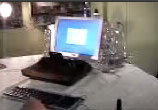
Sitting in a local Starbucks in Jeddah, Saudi Arabia, surfing the web while downloading my favorite Podcast, a young man approaches me, apologizing for the interruption.

"Do you work with Apple?" He asked.

"No, why?!" I reply.

"Well I was watching you working on this Apple notebook, I assumed that you might be working with them." He says.

"I am a Mac fan, but I don’t work for Apple." I said smiling.

"I am planning to switch to a Mac machine, are their computers any good? Can I use it for everything?" He asks.

I would have been a millionaire by now if I got a dime for every time someone asks me such questions.

People in the Middle-East see Apple products as a commodity, and a high-status symbol; using a Mac in cafes is such a prestigious in your face type of public statement. The only problem is that Apple has done little to support all those switchers. New users simply don’t know if they can use Macs the same way they would use a normal PC, or they believe in myths like using a Mac would get them stranded on a lonely digital island by themselves. In this part of the world we have to depend on unofficial Mac user groups, mostly created by a bunch of friends who own Macs, to spread the awareness of using Apple computers.

One of the things Apple should really consider is launching a mid-east region iTunes Music Store, as almost everyone owns an iPod around here, but they only use them to rip audio CDs. If Apple launches an iTunes store here people will find it extremely cheep to buy songs, and Apple would reach two billion songs in no time.

"iPods simply sell out as soon as we put them on display, it takes us a day or two max, to sell all of them" Said an electronic store salesman to me once I asked about the availability of an iPod Shuffle, which was sold out on the second day they released it.

In Dubai, UAE you can find Apple products sold virtually in every mall or electronic store around. There is only one lonely Apple store, owned by an official Apple franchise dealer located in Ibn Battuta Mall. You can also find Apple products sold at all Virgin stores around the city, and they even designated sections in their stores exclusively to sell Macs and iPods (I personally consider those places as Mac shrines).

Last Christmas I visited Dubai working on a travel article, and while there I thought I might as well get my fiancée a new iPod nano, since her 20GB 4th Generation iPod died on her. I searched everywhere for one, but not a single one could be found, and every time I asked a store clerk they tell me that they are sold out, and not getting any units shipped till January 2006.

"The nano is so cute, people can’t help themselves but to buy one or two as a perfect Christmas gift" said one stores salesman.

Back in Saudi Arabia, more and more people are starting their switching to Macs over PCs, and enjoy the process of doing so. "How can such a great solid operating system be out there without being noticed by the public" Said a switching friend to me once "I have wasted my time using PCs, I wish people can see this fact like I did."

The Mac community is growing day after day in Saudi Arabia and the middle-east region. Some people get interested in Apple computers after seeing a Mac machine in action in-front of their own eyes, but most people get hooked up simply by using iPods, which proves that the halo effect does exist.

I know a lot of people who have recently switched to the Mac platform, and bought their second Mac machines to use in their homes. In most cases they would buy a Mac mini as a second system, to store their entire music library on and share it over Airport.

"Is this a full computer?" asked a friend when we laid our eyes for the first time on the Mac mini.

"To tell you the truth, I don’t know why people still buy BUBs." I said wondering.

(BUBs: Big Ugly Box).

© 2006 Mazen Al-Angary


MacDesign out of the box,
by Jim Elferdink

Inside Mac Press/Pearson Education
ISBN 0-321-37574-2
252 pages
US $29.99 CAN $41.99 UK £21.99
http://peachpit.com

Part of the purpose of the MyMac Design for Non-Designers is to show that Apple’s consumer applications, particularly iLife applications, provide enough tools for basic and some advance level design work. Just as I started this series, I discovered that Andrew Shalat’s book, MacDesign out of the box would soon be published. It’s a book that is exactly in line with what I’m writing about this series.

In his book, Shalat proves that there’s enough tools inside any freshly bought Mac computer to accomplish all kinds of design and multimedia work. If you want to design a business card, a flier, a small website, or produce a short movie or song, the applications that come with any Mac computer can enable you to do so.

Shalat’s approach is to introduce to you to how you can use AppleWorks, TextEdit, or iWork applications, Pages and Keynote, to produce basically the same designs but with different applications. The second half of the book introduces you to how to integrate Apple’s famous iMovie and GarageBand for additional multimedia productions. Personally, I would not have included the latter applications, and instead fattened up the design technique coverage in using the former applications.

Nevertheless, the tone and approach of this book is very accessible and easy to follow. Honestly, if you have iLife 4, 5, or 6, you won’t have to buy any additional applications to get started with the exercises in this book. If you have Apple’s iLife software suite and TextEdit, but not AppleWorks or iWorks programs, you could still make use of this book. You won’t even need a digital camera to do the iMovie exercises.

When you first flip through the pages of this book, you may wonder where does Shalat get all the neat graphics for the designs. Well they’re nothing less than OS X’s desktop images or wallpaper. Control click on your desktop and select Change Desktop Background. If you don’t know already, you’ll get a bunch of useful background designs that you can not only use for your desktop, but also use for creating a quick flier, website, or business card. Shalat shows how Apple’s other well-known applications also have template designs that will get you started.

As designer and writer for the last 25 years, Shalat integrates the how-to parts of his book with his philosophy about how to approach to good design. In nutshell, he calls it "Andrews Rules of Thumb: 1. Consider our message 2. Consider our target audience 3. Organize and prioritize all design elements to express that message and reach that audience."

With this design theory in mind, you can learn how to use Keynote to make a Flash file for your website, how to storyboard with iPhoto, and how to lay down some background music in GarageBand. We’re talking multimedia production for under $100.

But you may be saying, "I don’t have website to upload to." No problem, Shalat shows you how to practice some Mac-based web development using a trial version of .Mac in which you can create a personal website.

Of course, this book was published before iLife 6, so Shalat is probably writing a new edition now with more iLife tools to choose from.

But if you need a comprehensive, easy to read, book to help you get started with some design basics for your business, organization, club, or personal communication, MacDesign out of the box is a good introduction.

MyMac.com rating: 4 out of 5


MyMac Podcast 75 iPort Contest Winner

On March 30, 2006, in Uncategorized, by MyMac PodCast


Tim and Chad talk to our contest winner of the iPort FS2. Also new, we now have a feedback phone number. Call and leave feedback at 801-938-5559. We look at the latest happening of the Apple vs. Apple lawsuit in the U.K., and the new volume control update for the iPod.

Download the show
Direct Download
iTunes Music Store
Podcast RSS-Only Feed
Check out our listings at YaHoo, Podcast Pickle, or Podcast Alley.

The show is sponsored by SmallDog.com and Inno-Tech.com. Want to sponsor the show? Email us.

Links from the show

Wayne State University


ThoughtOut.Biz
iPortMusic.com
 

NEC MultiSync 20WMGX2 Display – Review

On March 29, 2006, in Uncategorized, by John Nemerovski


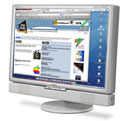
NEC MultiSync 20WMGX2 Display (for both computer and video)
Company: NEC

Price: $799 (with $50 rebate available through April, 2006)
http://www.necdisplay.com

When new Macintosh owners leave the store, they’re usually toting Apple Cinema Displays in their shopping carts. But many people don’t know there are alternative choices for LCD displays, many of which are quite competitive in both price and quality.

MyMac Labs’ Nemo+Weeks duo has been testing a NEC MultiSync 20WMGX2 20" display, and found it to be a worthy alternative to the 20" Apple Cinema Display. Image quality is equal (at least) to Apple’s, and feature set per dollar is superior.

Once freed from its Styrofoam and plastic cocoon, the NEC is roughly the same physical size as an Apple 20" Cinema Display, and resolution is identical (1680 x 1050 on our computers). A built-in set of speakers runs along the bottom of the bezel. Don’t throw out your Harmon-Kardon Sound Sticks, though.

* * * * *

Weeks says:

I conducted my initial tests using a dual 2.0 GHz G5 PowerMac. I discovered one significant difference between NEC and Apple displays: the NEC ships with DVI and VGA connectors, but no ADC connectors. Nemo has more to say about this in his comments. With only one ADC and one DVI socket on my Power Mac, I had to punt.

Impatient geek that I am, I unhooked my Dell 2405 monitor from the G5′s DVI socket, and connected the NEC. Since the NEC has built-in speakers and four USB 2.0 ports, I attached the various USB and audio plugs to the G5′s sockets.

I found the various plug locations on the NEC hard to access. Located under the support arm attachment, the plugs are awkward to reach, and the labels are hard to read. Once attached, there’s a slip-on plastic cover that nicely hides the various ports. Most users will have to do this only once, so you won’t be dealing with poor ergonomics very often.

For any gadget, the moment of truth comes when you press the "On" button. The NEC came to life in full living color. Where did I put my Ray-Bans? This monitor is BRIGHT. Really bright. At maximum brightness, the NEC is noticeably brighter than an Apple 20" Cinema Display. You can use this monitor in any room, no matter how brightly lit it may be. I found it most comfortable to set the display at 75-80%. In the long run, having to squint at an overly bright monitor leads to eye fatigue. At night, you’ll certainly want to reduce the brightness, which is easy using NEC’s physical "Menu/Exit" button and NaViKey or four-directional joystick, immediately below the NEC logo at bottom of the display.

The quality of the screen is distinctly different than Apple displays. NEC uses what it calls OptiClear technology to give the screen a glossy appearance. Images and text have more contrast and crispness. Unfortunately, it also makes the screen more prone to show reflections from other objects in the room. If you can properly orient the display, you’ll enjoy the glossy look, otherwise you may find the reflections distracting.

The 20WMGX2 is a landscape display. I prefer portrait orientation, but this is simply a matter of taste. Audio quality was good, but the speakers had little oomph. If you don’t already have a set of speakers, you may find these OK, but almost any external set will produce better sound.

After a couple of hours of using the NEC, real life interfered, and I had to pass the unit to Nemo to complete the review. I was not able to test the various TV and picture-in-picture functions, as I don’t have a cable TV outlet near my computer.

I liked the unit. It’s got candlepower to spare, fair speakers, a good selection of USB ports. The video is more configurable than Apple’s displays, and the front panel controls are easy to use. For the same price as an Apple 20", you have plenty to think about before you buy.

* * * * *

Nemo continues:

Using side-by-side visual comparisons between Apple’s current 20" Cinema Display and NEC’s versatile, affordable new 20" MultiSync flat panel model is illuminating, at the very least. My test computer is a dual 1.8 GHz G5 with 2 GB of memory, running OS X Tiger 10.4.5, the latest and greatest. I put both displays into mirror mode, so what you see is what you get, identically, left and right. See photo below:

Let’s get a couple of minor grumbles out of the way first, to balance the praise we’ll be handing out further down the page:

• Contortion? Some of the many connector ports on the NEC are a bit tricky to reach, as David mentions, being tucked underneath the rear housing. There is a major difference between how an engineering design department decides to place ports and how your typical home or office user wants access to them.
• Quietude? Audio output from the computer is feeble through NEC’s built-in under mounted speakers, although volume is nice and loud when the display is in TV or video mode. How strange.
• Glare! NEC’s glass OptiClear front provides impressive text and image clarity, but because it is g-l-a-s-s, you need to make sure there is no window or other bright light source directly behind you.
• Profusion of riches! This monitor has so many features and options that a typical user won’t be aware of 90 percent of them, much less try to figure them out. We recommend you have a resident geeker on hand to help you determine which of the many settings are most pertinent, in each of NEC’s many native computer and video modes.
• Manual too brief? The printed manual is substantial, but as noted above you’ll need a techie to help you comprehend most of it, which is not a complaint. In fact, if the manual was twice as long it would be twice as useful. The English portion of the English/French manual is 30 pages, as is the French section.
• Remote out of control? Don’t lose NEC’s custom remote control, or you are sunk! The display remembers previous settings, so when you migrate from TV to computer, only the handheld remote will allow you to change viewing modes. Is this a bug disguised as a feature?

* * * * *

What’s on TV, Nemo?

While I was waiting for NEC’s DVI/ADC adapter to arrive, my wife and I used the NEC as our home video screen, instead of our prehistoric Panasonic traditional television. We were immediately impressed with the clarity of its presentation of full-screen DVD and VHS video programs, all with ample audio volume.

Not being TV people, we don’t have a cable television subscription, and our analog rabbit ears RF antenna for generic TV channels doesn’t produce a clear signal on the NEC. Most of you are cable TV watchers, so this won’t concern you.

Videos, in contrast, are great, and we doubled our Netflix quantity from one at a time to two, so we’re never more than a day away from watching a movie on the NEC. Traditional VHS movies appear much better on the NEC than on our television. Your mileage will vary on all of the above, depending upon your equipment at home or office.

There are many potential uses for NEC’s picture-in-picture (PIP) modes, as well as its variety of video display configurations. This review concentrates on using MultiSync 20WMGX2 for your primary or secondary computer monitor. Additional reviewers will contribute to the discussion as this model achieves greater exposure. Depending upon how long Weeks and I are able to borrow this unit, we may prepare a Phase II review on its video capabilities.

Please take a few minutes to visit the web site, to see all its abundant specs and download a PDF and complete bilingual manual, if you are interested in learning about all its attributes. NEC does a nice job with this published material.

* * * * *

Side By Side, But Which Side?

David’s narrative above doesn’t fully explain the DVI/ADC connector situation. All current Apple computers are inherently capable of connecting to DVI displays. G5 PowerMac towers have two monitor ports, one each for DVI and ADC, which was the previous interface. To compare NEC and Apple displays, I needed to obtain a DVI-to-ADC connector cable, allowing me to run both monitors simultaneously. These adapter cables are available online for roughly $50, and NEC provided one to assist us during the review period. NEC’s MultiSync 20WMGX2 can easily be plugged into any Apple DVI port, exactly like a Cinema Display.

Persistence paid off, because I wasn’t sure at first how to use the ADC/DVI adapter I received from NEC. The final configuration, which works perfectly, allows users to have either display be primary or secondary, whether to the left or to the right, or have them mirror one another, meaning both show the same screen content.

On a G5 PowerMac tower, for Apple Cinema Display to be primary, connect the adapter to it, and insert it into the ADC side (right rear, when looking at the ports). Then connect NEC’s native DVI cable to your G5′s DVI port, restart your computer, and use your Displays Preferences panel in System Preferences to set up the Arrangement to your personal requirements.

The actual doing took me only a minute or two, but coming up with this configuration of cables and connectors took me a little while to determine. To eliminate glare in my home office, my glare-free Apple Cinema Display faces me full frontal, and the NEC unit is to my left, facing the monitors, at a slight angle off center, with lower bezel corners touching.

NEC is a little shorter in stature than is Apple (the displays, not the companies), so two titles from Peachpit Press (awaiting review) elevate NEC to the exact height of Apple, which is on the movable base made by MaxUpgrades.com

MultiSync 20WMGX2 has its own rotating base, which is wonderful, and comes with a full three-year warranty, which is terrific. The company provides worldwide phone and email tech support, that we did not need to use during our review period.

* * * * *

And the Winner Is?

[Still Nemo speaking] NEC is going to have to wrestle with this lean, mean reviewer to get me to return their MultiSync 20WMGX2 monitor. The video/audio qualities alone make it an attractive, high-end VHS/DVD addition to my living room. For computer display purposes, it’s at least the equal of Apple’s $800 stock Cinema Display, and NEC’s has a lot more features (except a FireWire hub) for the same price. Angle of view is superior on the NEC.

Graphics professionals won’t rush to purchase MultiSync 20WMGX2, because it’s not a reference standard display, although NEC does make such monitors (watch MyMac.com for future reviews). In my personal Photoshop tests, colors are bold, accurate, and exciting on this review NEC, and I’m using it daily with equal results to the Apple display. Whites are really white, and colors appear with brilliance.

For expanded real estate, you may be able to buy the same number of pixels from Dell or elsewhere for less money, but you won’t easily be able to match NEC’s combination of features and styling. Our silver-grey review unit looks great adjacent to Apple’s polished Cinema Display, and the NEC also comes in black.

David Weeks and I agree on a strong 4 out of 5 for our MyMac.com rating. This NEC MultiSync 20WMGX2 would receive a perfect score if its computer audio was louder, and its chassis port access was more convenient. For simple plug and play of computer/video, it’s a winner.


A Tale of Two Video Capture Utilities – Review

On March 29, 2006, in Uncategorized, by Donny Yankellow


ScreenRecord
Company: Mien Software

Price: $20
http://www.miensoftware.com

SnapzProX2
Company: Ambrosia Software

Price: $69.00
http://www.ambrosiasw.com

I get phone calls and emails from family and friends all of the time asking “How do I…on the computer?” I do the best I can to walk them through it, or I might email them one of my Macspiration articles. Most of the time, I end up going to that person’s house and showing him/her what to do in person. In the winter, I can’t really go down to Florida on a moment’s notice and help my grandmother when she is on her annual trip south. Wouldn’t it be nice to send my grandmother, and my other family and friends, a video to show them how to solve their Mac problem, without leaving the house? The two pieces of software I am going to review in this article can help me, and anyone else in the same situation, do exactly that.

ScreenRecord
ScreenRecord is a great, entry-level, screen recording software for those on a budget.

The program is very straight forward, and most people could figure out the basics without reading any manual. In addition, the program has little pop-ups that guide you along the way.

Basically you open the program, make any adjustments to the settings (screen size, camera movement, audio on or off, frame per second, and more). You can even choose to replace your arrow cursor with a hand or another built-in option. Once your settings are in place, you click “Record” and the image on your monitor fades. Here you adjust the area of your screen that you want to record, and follow the steps in the pop-up directions. Starting and stopping recording is done by a key combination that you can set in the advanced settings. Once you have finished recording, the file is automatically saved to the folder you designate in the main window.

When recording your video you have the option of 29 different formats. This includes mpeg-4 and H.264.

You might have noticed that I mentioned an audio setting. Yes, ScreenRecord allows you to record an audio track and it does it well. The quality of the audio recorded in my tests was fantastic. It was clear, and the volume was perfect.

When it comes to recording your actions on the screen, the results are what you would expect from a $20 program. While the recording follows your movements every step of the way, the resulting video is very choppy. It has a flipbook feel to it. If you don’t move your cursor slow enough while recording, you can lose the cursor due to a skip in the video when viewing the final product. Even with a high frames per second setting andthe highest quality turned on, the resulting video was still very choppy.

Here is a movie sample from screen record. There is no audio to keep the file size down.
View movie by clicking HERE.

SnapzProX2

For those looking for a higher quality video, and who are willing to spend some more money, SnapzProX2 is the way to go.

Like ScreenRecord, Snapz will record your action on the screen into just as many file formats, and you can include audio. You can even record audio without video. While the audio recording needs some work (the volume is too soft), the video results are outstanding. Even at the lower settings, the recording looks smooth and is easy to follow, but I’m getting ahead of myself.

Before using Snapz, I highly recommend reading the manual, which is easy to understand. Unlike ScreenRecord, reading the manual was a must for me. Without it I was lost. With it I new exactly what to do.

As great as the video in Snapz is, the user interface needs some improvement. When you open Snapz, you get a splash screen of the logo, and then nothing. You must use a key combination to activate the Snapz interface. Once the interface is on the screen, you are locked out of anything else on your computer. The reason for this is that recording starts right where your screen/mouse was when you activated the interface.

This is really annoying. Before activating Snapz, you have to make sure all of you windows are setup, your mouse is in the correct position, and you are ready to go. If you want to make an adjustment, you have to get out of Snapz and adjust your screen, and reactivate the interface. Plus, the fact that you have to be ready to go as soon as recording is activated is frustrating. I prefer the option of a key command to start recording, and to be able to get my mouse in position that way.

Snapz also has the option of taking screen captures. You can shoot the entire screen, a selection of the screen, and windows/objects on your screen. While this is a nice touch, there are better screen capture utilities out there, and for free (check out FreeSnap by eFrtiz.net). I had some problems when I tried to snap a picture of a window that was behind another window. Instead of capturing the single highlighted window, it was unable to separate the front window from the hidden window I was trying to snap. Snapz could stand alone without this feature.

Even with the problems I mentioned above, SnapzProX2 is a fantastic program for capturing video of your screen. If you want professional, high quality, results in video, it is the way to go.

Here is a sample video from SnapzProX2, minus the audio. As in the video above, there is no audio to keep the file size down. Click here to view movie


Summary

In summary, if you are looking for an inexpensive option for capturing video of your screen, then ScreenRecord is for you. Even though the video is choppy, it does the job. If you want more professional and smooth looking video, and you can spend some more money, SnapzProX2 is the right option for you.

One note – In the sample videos you might have noticed that there is a spotlight surrounding my cursor. This is not an option in either program, but it should be. This is done with a piece of free software called Mousepose by Boinx Software. If you are going to do any type of video with these two programs, or another program, I highly recommend it. It makes following your mouse so much easier.


ScreenRecord

MyMac.com rating 3.5 out of 5

Pros:
Inexpensive
Easy to use
Great audio recording
Saves in numerous file formats
Cons:
Video is very choppy at any setting
Should have a Mousepose-like feature


SnapzProX2

MyMac.com Rating: 4 out of 5

Pros:
Fantastic Video Quality
Easy to understand user manual
Ability to save in numerous file formats

Cons:
User interface needs some work. I did not like being locked out of the rest of my computer when interacting with Snapz.
A little pricey
Screen Capture utilities are not needed and there are better free options
Should have a Mousepose-like feature


With the 30th Anniversary of Apple coming up on April 1st, we thought that we might talk with Owen Linzmayer, author of Apple Confidential and Apple Confidential 2.0, the insider stories of the company called Apple Computer. So sit back and relax.

My Mac: Mr. Linzmayer, thank you for taking the time to speak with us about Apple Computer. Can you provide us with some background on you and your association with all things Apple/Mac?

Owen L: My interaction with Apple began back when I was a teenager in the early 1980s. I was working at Creative Computing magazine, covering the Apple II. Over the years, I wrote for every major Apple II magazine, then made the jump to covering the Macintosh in the late 1980s. I’ve been writing about the Mac exclusively since that time, having worked at and contributing to most of the major Mac magazines. I have also authored a number of books about the Macintosh and Apple itself, including Apple Confidential 2.0.

My Mac: Because of Apple’s innovation, it has continued to survive long past the point that most folks predicted. What do you believe Apple needs to do to continue on?

Owen L: Apple needs only to continue creating excellent products. The company survived many bone-headed managerial blunders on the strength of their products. Apple’s customers are incredibly loyal, and as long as the company keeps cranking out updates to Mac OS X, great new creative applications, and drool-worthy hardware, it will retain its customer base.

My Mac: Apple’s move to Intel – your take on the switch?

Owen L: Right now, it’s no big deal because the new Intel-based Macs are indistinguishable from their PowerPC predecessors. Physically they look the same, and they run the same software, albeit faster if the program has been updated to Universal Binary. However, in the future, the move to Intel may be a turning point for Apple. If users can choose to boot Mac OS X or Windows, or they can run be simultaneously, then there’s no longer any reason why people shouldn’t buy an Apple. In the past, many people who were attracted to Apple’s products wouldn’t buy a Mac because they absolutely had to use a Windows application in their business. With Intels inside Macs, that barrier may soon be removed.

My Mac: Where is Apple heading?

Owen L: It’s foolish to try to predict where Apple will be in the future. Just look at its past. Time and again, so-called experts opined that Apple was going out of business, or would dominate such-and-such industry. They are almost always wrong. The great thing about Apple is that it has the capability to reinvent itself every so often. I look forward to the next big thing to come out of Cupertino. I’m sure it will be as big a surprise when it happens as the iPod was a few years ago.

My Mac: Apple’s iPod and iTunes… too much focus on the music?

Owen L: Not at all. Whatever is good for Apple is good for the Macintosh. The iPod’s success feeds Apple’s bottom line, and that can be poured into R&D to create other cool products.

My Mac: Apple’s moves into the music and now the digital media markets are causing ripples throughout the industries. It’s time for change – is Apple up to leading the change?

Owen L: Apple has already lead the change. The music industry didn’t know how to respond to the threat of piracy, and Apple showed it that the way to combat piracy was not with lawyers, but rather, with a legal alternative that was well designed and reasonably priced. Now that the music industry has had success with the iTunes Music Store, they want to squeeze the golden goose, and are threatening to tamper with the simple pricing model that has a proven record.

The question is whether Apple will be able to dominate digital distribution of video as well. I think Hollywood is loathe to cede to Apple the sort of control it enjoys over music sales. Doubly so now that Jobs is the largest stockholder in Disney, which competes with many of them directly in the movie market. But Apple’s ace up its sleeve is its proven success with music. Clearly it knows better than most what consumers want, and how to deliver content to them with a business model that is profitable for both the content providers and Apple.

My Mac: Is Apple losing its focus on Macs and the OS?

Owen L: Certainly that’s a danger. Over the years, there has always been one “cool” project that attracted the best talent at Apple, with the rest of the employees made to feel like what they were doing wasn’t as important. When the Apple II was raking in the lion’s share of cash for Apple, it was scorned in favor of the Macintosh. Then the Mac was allowed to wither as the best and brightest toiled on the Newton. It’s possible that the lure of Hollywood movies and the music industry will siphon resources away from the Mac, but that hasn’t been the case yet.

My Mac: The Mac users “air of superiority” still continues on. After 30 years, is it still justified?

Owen L: By most accounts, Mac OS X is far more stable, secure, and easy to use than Windows XP. Not even Vista, when it finally ships in 2007, is said to be as good. That’s not just me talking. It’s the opinion of many experts who are not exactly Mac addicts. So, yes, I think Mac users are justified in their feeling of superiority. But that shouldn’t lead to complacency. There is still a lot of room for improvement in the Mac user interface, and we should be willing to adopt new ideas regardless of where they come from. Remember, computers are tools, not religions.

My Mac: Despite the forecasts of the imminent demise of Apple over the past 10 years, Apple continues to sell more products then ever before. Yet people still look at market share as the basis for judging Apple and its products. Do you think that Apple can take what it has done with the iPod and do the same thing with a new Mac?

Owen L: I don’t think anyone has speculated that Apple is going out of business since the iMac first turned things around. Since then the company has been on a roll and enjoyed its best financial results ever.

As to market share, yes, Apple’s slice of the computing pie remains very small. But the company has great influence on the larger world of computing and I don’t think market share really matters so much these days. After all, there aren’t a lot of Windows-only applications that don’t have Mac equivalents. The Internet is the most important application to most users these days, and it’s mostly platform agnostic since it relies on standards that are common to Windows and Mac OS X.

I hope that Apple can grow its computer market share since what is good for Apple is good for its users. Also, all switchers will benefit because they will be using a better system, and need not worry about malware that infests the Windows world. But I don’t think it really matters too much if Apple’s market share remains at 5 percent or doubles to 10 percent.

My Mac: If Apple could build you the computer of your dreams, what would it be and what would it be able to do?

Owen L: From a physical standpoint, it would probably look a lot like the iMac G5 I have in front of me right now. The specs aren’t necessarily important nor interesting. Of course, over time processor speeds will increase, storage capacities will grow, and memory prices will fall. The real advances will come in user interface design and ease of use. What these will be, I can’t say. I am hoping that some day soon, Apple will make a leap that makes today’s Macs OS X look like DOS in 1984.

My Mac: Apple computers are no different then other computers in that they permit the user to do things: read email, search the web, share photos, prepare reports, listen to music. Yet people continue to be drawn to Apple’s computers. What is it that makes them so attractive to people?

Owen L: Great industrial design, for one thing. Macs are more beautiful than Windows boxes. Look at a sleek PowerBook and contrast that to a clunky Wintel laptop, usually festooned with all sorts of distracting marketing stickers prompting Intel inside, and rows of blinking lights for all sorts of functions. Compare the simple lines of the iMac G5 to the ugly stuff put out by Dell. No contest.

My Mac: What do you believe to be the spark behind Apple’s innovation? Is it the drive of the leadership of the company or is it the people behind the scenes (that we never see) who work and produce the OS, the hardware, the applications that go along with the hardware or the look and feel of Apple’s products that differs from similar products produced by other computer companies?

Owen L: The drive behind Apple’s innovation has differed over the years. Of course it would foolish to discount the role played by Steve Jobs, who has been a ruthless taskmaster early in the company’s history, as well as of late. He is extremely demanding, and many employees fear disappointing him, so they give their all to whatever they do.

During the “dark ages” of the mid to late 1990s, fear of the company failing helped focus everyone’s attention on doing their best work possible.

Also, since the company has had such tremendous hits and is known for clever products, employees have a higher bar to reach with whatever they do. Good enough doesn’t cut it. It has to have that special Apple polish. Apple employees are motivated to impress one another, which is hard to do since the company has many very smart people working for it now.

My Mac: What do you think accounts for the remarkable customer loyalty that Mac users display towards Apple?

Owen L: Mac users have invested a tremendous amount of time in learning the “Mac way” of doing things, and spent a lot of money on hardware and proprietary software. That locks them into the platform, just as Windows users are locked into Windows. But what makes them different is that Mac users truly believe that their way is the better way, and so they stick by the company through thick and thin. Ultimately, it comes down to loyalty due to superior products.

My Mac: What do you consider to be the best moves that Apple has made over the years? The worst?

Owen L: The best move was the popularization of the graphical user interface. Command lines were too threatening to the public, and the Mac’s GUI made computing accessible and enjoyable. The focus on ease of use has been its greatest contribution to computing.

Unfortunately, by failing to license the Mac OS early on, Apple’s management almost drove the company out of business. They gave the mass market to Windows, which was a poor imitation of the Mac. The high-tech industry will never again see a company enjoy the sort of huge technological lead Apple had in 1984.

My Mac: A final question for you. Mac OS X is now 5 years old. Where does Apple need to take OS X next or what does Apple need to do for the next Apple OS?

Owen L: I think Apple should focus on two things: simplicity and security. OS X pretty much works very reliably, but it has grown to be rather complex, and some features don’t work as easily as they could. Rather than add new features, I’d like to see Apple think about how to streamline the existing features.

And since security is such an overwhelming problem with Windows, Apple should try to gain market share by courting Windows users with the promise that Mac OS X is rock solid stable and unassailable. Of course, before they do that, they have to make sure that all back doors and security holes have been plugged. I think the world would be much more productive if they could just focus on working on their computers, rather than trying to worry about viruses, Trojan horses, spyware, etc.

Macspiration 28 – Even More Quick Tips

On March 28, 2006, in Uncategorized, by Donny Yankellow


For this week’s Macspiration, here’s another list of tips that are too short for an entire article on their own, but are still worth mentioning.

1. What’s Today’s Date?
Ever have the need to find out what today’s date is? Sure, you can open iCal and find the date that way. However, if you only want to know today’s date, just click the time at the top of your screen. A small menu will come down with the date at the top.

2. Printer Sharing
Do you have more than on computer, and only one printer? Are you always transferring files to the computer connected to the printer for printing? If so, this tip is for you. By changing one system preference you can print to your printer from both computers.

To turn on Printer Sharing go to “System Preferences” in the Apple Menu. Choose “Sharing.” Click the box next to “Printer Sharing” to turn printer sharing on.

That’s it! You can now print directly to the printer from any Mac OS X computer. You don’t even have to install any more drivers! To print from the computer without the printer, just choose "Print" from the file menu. At the top of the “Print” window is a “Printers” list. Click that and go to “Shared Printers." Choose your printer (it will probably be the only one on the list), and click "Print."

The computer with the printer does have to be turned on for this to work. Also, you have to be on the same network as the second computer (wired or wireless).

3. Switching Between Programs Without Using the Dock
The Dock is a great way to switch between running programs. However, sometimes you are in a program that will not allow you access to your Dock, and you need to switch programs without quitting the one you are in.

To do this, hold the Apple Key with the Tab key. This will present a horizontal list of running applications, with a box around the one you are currently in. Continually pressing tab will allow you to switch to another program. When you are at the program you want, depress the keys, and you will be switched to the chosen application. If you need to go to the Finder, choose the Finder icon (the face). To get back to the program you started in, you can use this method or click the corresponding Dock icon.

4. Combo Updates
A combo update is a software update from Apple that combines previous system updates into one little (actually big) package (i.e. 10.4.1-10.4.5). I like to download combo updaters and keep them in a safe place, like on a backup CD. This serves two purposes. First, if I ever have to reinstall my OS from the CD, I have the updates ready to go. Second, I have found the combo updaters are a good “fix” when things aren’t working right on my computer. I have had the rare time when I thought I would have to reinstall my operating system and start over. Before doing that, I have run the combo updater and it fixed the problem.

To download the combo updater you need visit this part of Apple’s website: http://www.apple.com/support/downloads/. In the search pane, type combo. A list of combo updaters will appear. Download the one you need.

5. Setting Your Default Web Browser
If you are like me, you use something other than Safari to surf the web. I use Camino. However, unless you tell the computer to use this alternate browser as your default, it will always open Safari when you click a link outside of your web browser. For example, if you get a link in an email and you click it, Safari (not your regular web browser) will open and go to that website.

Choosing a default browser used to be possible in the "Internet" preference pane in older versions of OSX. However, for some reason Apple has now made this part of Safari’s preferences. To find this setting, open Safari and choose “Preferences” from the “Safari” menu. Click the “General” tab. At the top of this tab will be a pull down menu next to “Default Web Browser.” Clicking this list will show you all the browsers installed on your computer. Choose the one you regularly use, and quit Safari. Now when you click those links from an email, the browser you just chose will open, and not Safari (unless you chose Safari).

That’s it for now. Look for more tips in future Macspirations.


VirusBarrier X4
Company: Intego

Price: $69.95 US

http://www.intego.com/home.asp

Worms, trojans, malicious code and viruses, oh my! In the midst of the turmoil of the past several weeks, here I sat with VirusBarrier X4 running on my system, an upgrade to Intego’s previous version.

The question of viruses, worms, trojans and malware items for the Mac is an important point to consider. Truth- how long has it been since there has really been a virus specifically designed to impact the Mac OS… almost 10 years I believe. The impact of that item… minimal, thanks to mostly “free” antiviral software that dealt with problems like that quickly and without fuss. Problem is, times have changed, the OS has changed and so have the players.

The little guys, for the most part, have disappeared from the scene, the ones that provided the protection for free. Major companies have sprung up and now provide you protection… for a price. (Yes, I know that there are still some freebies out there)

And as time has progressed, so has the Mac attitude that “nothing bothers me” because it’s a Mac and besides, it’s basically a Windows problem. Sad to say, but even Mac users become unwilling participants when our Windows using friends, and there are tons of them, don’t keep up on their anti-viral software or a new PC virus/worm/trojan rears its ugly head and suddenly your PC friend has a virus that now has accessed his/her address book and is replicating itself through cyberspace, even to your Mac. No, you don’t get impacted other then you can become an unwilling participant as it hitches itself to your outgoing email to your PC friends and it starts all over again.

Intego’s VirusBarrier X4 is an easy to install, easy-to-use anti-virus software application that monitors your Mac, working in the background while you do your normal activities. Automatic or manual scanning with VB X4 is quick and easy, including checking your email and attachments and any new media as in a CD. It can be set to display an alert, email you or play a warning sound. With VB X4 you can even set up a “Secure Zone” where either a volume or folder would be checked automatically if something changes in it. You can set up a Download folder on your hard drive and whenever you download something, VB X4 would automatically check because a change occurred.

As you can see by the screen shot above, VB X4 presents a very simple, easy to use interface. Selection allows you to pick the particular drive, folder or file that you want to scan. Scheduling allows you to set the date(s) and time that you want VB X4 to scan your system or particular folders/files. NetUpdate lets you check for the latest updates, when your last update was and when your subscription ends…. Yes, I said ends. At least Intego is up front about their year long subscription to their products and that you will have to update (and pay) to continue to have the latest product and virus definitions available. (The same applies to all Intego products, a basic one-year subscription that will have to be renewed) The Log Button shows all the dates and times of your manual scans and any infected or damaged files located by the scan.

If you have VB X4 installed, you can have an icon in the Dock and drag and drop files/folder onto the icon and a manual scan will be done or you can just click, select scan after choosing the item you want scanned and let it do its job. If a virus is detected, the green orb in the center of the display will change to red and the log panel will open up, displaying the name of the infected file and the name of the virus it contains. By preferences, VB X4 can just find and not repair or find and repair any problems. My system is normally set to scan and repair, and I’ve been amazed at the number of PC viruses that have made their way through email systems to my computer (yes, from PC user friends) and that have been caught and repaired. My normal reaction is to immediately email the person to let them know what I received and to let them know they need to check their system.

All in all, Intego’s VB X4 is a smooth running, behind the scenes app that has not impacted upon my system, has not slowed things down or caused major problems as other programs have done. I have found it to be straight forward and easy to use. The decision to use an anti-viral program on your Mac is up to you. Sometimes it’s better to be prepared for the worst than to try and deal with the aftermath.

Because of the media hoopla over the recent incidents that have raised public awareness of Mac OS X and the chance that users can be hit by surprise, I contacted Intego and asked some questions regarding VirusBarrier X4 that were graciously answered by Jack Nahon, Vice President of Business Development for Intego globally.

***********

MyMac: How many PC viruses and macro-viruses will Virus Barrier protect a Mac user from?

Mr. Nahon: VirusBarrier detects recent worms that affect Windows. VirusBarrier has two types of virus detection (i. behaviour, ii. heuristic) that enable it to eradicate more that 10,000 Macro viruses.

MyMac: How many PC viruses and macro-viruses will Virus Barrier prevent a Mac user from passing on unwittingly to a PC user?

Mr. Nahon: It is difficult to evaluate and state an exact number as VirusBarrier detects all virus types that can be transmitted to the Mac. These are mainly transmitted through email.

In addition to the two VirusBarrier detection methods (above), Intego watches over known OS X faults and anticipates any attacks that could be exploited from these.

Intego also detects the origination of any faults, viruses, and macro-viruses in order to prevent them being exploited by anyone else.

MyMac: Why should Mac users purchase anti-viral software?

Mr. Nahon: Mac users should purchase an antivirus software to be protected against current viruses and upcoming ones. If a major Mac virus threat appears, the risk of pandemic will be very high and it will be too late to protect the Mac users.

PC viruses can be sent to Mac computers via email, where they do not have an affect, and then sent on to other PCs, where they can cause damage. Anti-viral software helps prevent viruses being spread from PC – Mac – PC.

***********

Good Points- Easy to set up and use, the 100-plus page pdf manual covers what you need to know about the program. Capable of monitoring everything that is coming to your computer. I have found the response of the tech staff to be quick to answer questions regarding their product or questions regarding viruses/worms/etc. VB X4 does exactly what it is supposed to do, prevent infection of your computer system.

Cons- Price on the initial outlay for the program is not that bad but many will balk at the continual yearly subscription price. Questions about the need for an anti-viral program for the Mac continue to be raised by Mac users.

System Requirements:
Mac OS X 10.2.8 or higher (Jaguar, Panther and Tiger)
40 MB free hard disk space

Recommendation: Download the 30-day demo of VirusBarrier X4 and give it a try. The product is capable of scanning your system and detecting any problems but will not repair anything. This will at least give you some time to try it out and see how it goes.

My Mac Rating: 4 out of 5

Tagged with:  

MacMod Video Show– The Atari 2600 Macintosh

On March 26, 2006, in Uncategorized, by Tim Robertson

MacMod – The Atari 2600 Macintosh

Building the iAtariMac

What the heck is this? Actually, it is the LONG overdue, been sitting in development hell purgatory, first MacMod.

What is MacMod? An idea and concept that sprung to life in the minds of Tim Robertson and Chad Perry way back in the summer of 2003. The idea? Wouldn’t it be cool if there were a video show online that was like a combination of American Chopper and Junkyard Wars, but about Macs?

What? You don’t think that is a cool idea? Obviously, we did, so we actually did it. We created a show, named it MacMod, and filmed the whole thing over a six-week period starting October 2003 and finishing December 2003.

The goal? Turning a vintage 1970’s Atari 2600 game consol into a Macintosh computer, running the latest and greatest Mac OS X. The catch? Try and keep the Atari looking stock, up to a point.

The problem? Neither Chad nor Tim had ever done anything like this before. Not just “how to build it” but “how to film and present it” were questions they pretty much made up the answers to as they went along.

Firstly, they had to obtain both an Atari 2600 and a Macintosh. The first was easy, Tim already had two Atari 2600’s, and they used one of those. The second was not as easy. Neither Tim nor Chad wanted to part with a perfectly good computer to use and, probably, destroy. Neither was confident that the build would be successful, and it was asking too much for either of them to give up a working Macintosh for this show.

The solution? A sponsor! Enter Tekserve! Who is Tekserve? Only one of the best Macintosh resellers in the world, located in New York City, but servicing clients worldwide. They started out as a Mac service company, but have grown well beyond those humble beginnings. Today, they sport over 125 employees!

Tekserve became the silent partner during filming MacMod. Without them, this project could not have happened. It was Tekserve who supplied us with the needed Macintosh to use for this project. Please visit their website today for more information, and be sure to tell them it was MyMac.com who sent you.

This project should have been online a year ago, but it was not meant to be. We ran into many more problems after filming wrapped than we want to go into here. Suffice it to say, we did finish the project, but not alone. Special thanks go to Jim Allard, who was present every day during filming. While you the viewer never see or hear Jim, he was the invisible third man of the show. This would not have happened without him. Tad Scheeler was the talent behind our animated opening, as well as helping film during day two. MacMod would not look the same, or have whatever polish is present, without Tad. Adam Karneboge lent his help in technical matters, as well as providing a part we sorely needed. And Chris Seibold stepped in at the last minute to provide the over-the-top narration the show needed. Without these people, MacMod would never have happened.

Now you can watch, in four parts, the entire build process. There is both a large and small version of each episode. If you are bandwidth challenged, view the smaller one. If you don’t mind downloading a large file, enjoy the better detail in the larger ones. And if you would rather have a DVD copy of all four episodes, email us and we can give you more details. (Detail may be posted here in the future if there is enough interest.)

Warning! You will either think this is either really neat, or really stupid. If you think it is stupid, that is Tim and Chad’s fault, not those who helped us.

QuickTime is required to view MacMod

Links below are working again. Enjoy!

Small Version View Episode 1 (Length 8:50 – Size 10.7MB)
Large Version View Episode 1 (Length 8:50 – Size 48.2 MB)

Small Version View Episode 2 (Length 18:27 – Size 19.7MB)
Large Version View Episode 2 (Length 18:27 – Size 98.7MB)

Small Version View Episode 3 (Length 11:47 – Size 11.4MB)
Large Version View Episode 3 (Length 11:47 – 63MB)

Small Version View Episode 4 (Length 21:28 – Size 20.8MB)
Large Version View Episode 4 (Length 21:28 – Size 109.7MB)


MacMOD iAtariMac DVD!

For only $10 (plus $3 shipping) you can own the complete MacMOD iAtariMac build on DVD. This DVD includes all FOUR episodes, plus a close-up Inside Look of the final build as well.

Full screen, this DVD presents MacMOD in a much higher quality than you can view on the web. Watch the iAtariMac build in the quality it was filmed in! Simply click the button below, and we will burn and ship your DVD within 24 hours!


Kibbles and Bytes – 458

On March 25, 2006, in Uncategorized, by SmallDog


March is steadily marching on! We haven’t yet had any of that spring weather that makes one want to throw open windows and rid the home of stale winter air, but its only a matter of time now. The forecast keeps hinting that it will be here soon, barring any late snowstorms.

The big technology news over the past week is that Microsoft reported that their next operating system, code named Vista, won’t be released until 2007, well after the holiday buying season. This has analysts predicting widespread effects for all of the tech companies except for Apple. Apple, they predict, will benefit from the additional delays as computer users compare the wait for new Windows software with the stability of Mac OS X.

This brings up the discussion of how different the companies are in how they deal with software upgrades. Microsoft XP was released in October 2001 and since then Microsoft has released two service packs to update it. Apple released Mac OS X 10.1 in fall 2001. By the time MS actually has Vista ready to ship, Apple will have done four major upgrades (OS X 10.5 should ship about the time Vista does), each major upgrade having approximately eight version upgrades.

One could argue that the slow rate at which Microsoft updates their products saves their users money. After all, XP Pro (which sells for $299 on its own) has lasted for six years. Apple users, on the other hand, may have spent as much as $516 to keep up with the latest software. But I’m going to argue that although Windows users may save money on software upgrades, they probably upgrade their hardware more often then Apple users. How did I come up with this? Well, my findings are more anecdotal than fact. I searched for the average life span of computers and couldn’t find a definitive study. Using personal experience and stories from customers, I’m going to roughly put the Mac life span at about four years and contrast this to reports I found online that the average life span of a desktop computer is about two years.

I’m just happy that Vista will be delayed and that it may work in Apple’s favor. I’d like to see more people experience how great computing can be when using a rock solid operating system.

+———————————————————+


iWork at Work

I haven’t had a chance to talk about iWork ’06 since its introduction back in January, which is a shame since I love using both Pages and Keynote. I often wish that I could make presentations, just so I could fire up Keynote 3. I’ve stopped using Microsoft Word to create documents. Everything that I would have done in Word, I’m now doing in Pages.

Let’s start with Pages. As I mentioned, I use it instead of using Word, though I do use Word to read any Word documents that are sent to me. Pages will easily open Word documents (as well as all text and HTML documents), but I find that I just double-click the icon as opposed to opening it in Pages. At this point, though, I could stop using MS Word and I probably wouldn’t miss it.

The templates that are included with Pages 2 include categories such as Newsletters, Journals, Flyers, Posters, Invitations, Stationery, Resumes, Business, Marketing, Creative, and Education. Within each category, there are between three and nine different options from which to choose. Each template has several different pages layouts included, such as cover pages, tables of content, multi-column layouts, etc. Once you choose a template, it is very easy to modify the template to fit your personal needs. You may also choose to start with a blank page.

Here’s how quick it is to create a personalized fax cover sheet starting with the Business Letter template and save it for future use. Just follow these steps:

1. Create a new document and choose Business Letter (under stationery) as the template to edit. You’ll notice that this document is pre-populated with information that is taken from your Address Book card. (If this info isn’t correct, modify the Address Book record marked “me” in Address Book for a permanent change.)

2. If you want to include your logo, drag it onto the “logo” on the page.

3. Make any changes that you want to this file. For example, I put Fax in large letters and changed the info to be modified each time I use it to: To, Fax Number, Date, Number of pages. I also added my signature, which I scanned.

4. Choose “Save as Template…” from the File menu. Give the file a name and save it to the My Templates folder. Now your fax cover sheet is ready to use all the time!

One of the new features in Pages 2 is Mail Merge with Address Book. All of the stationery layouts (letters and envelopes) are set up with Address Book fields already added. To print letters to an individual or a group, just drag and drop the address or group card to the document. It truly is that easy. To add an Address Book field, just choose “Address Book Field” from the Insert menu and use the Inspector to select the field.

The other new features of Pages 2 that I’ve put to use are the ability to add comments and to create tables with calculations included. I also like the new shapes that are included (star, conversation bubble, etc.), but I don’t often need to use them. I also don’t have much use for 3-D charts, although if I did this would be a really cool feature as they look gorgeous.

Export options for Pages include PDF (in Good, Better, Best modes), HTML, Word, RTF, and Plain text. The different qualities of PDF can result in smaller file sizes, which addresses a complaint about the first version.

Though I have replaced Word, I haven’t yet been able to replace InDesign for page layout, though I am close. My problems always seem to involve non-letter size formats. Every time I make a custom-size document, I can’t print it. The printer continues to wait for its abnormal-sized paper. I’m sure it’s a setting that’s off somewhere, but it’s a pain to figure out as it involves changing the paper size in the printer.

+—————-+

I have been in love with Keynote since it first came out. I immediately found it easy to use and my finished product looked beautiful. The very first time I did a presentation using Keynote was as part of a group of speakers. My three-dimensional transitions and beautiful colors blew away the static, boring PowerPoint presentations of my fellow speakers.

Keynote is even better in version three, with new themes, 3-D charts, tables with calculations, and the ability to add comments. My favorite improvement is the ability to set the view to “Light Table.” This allows you to view all of your slides in a grid, as if they were laid on a light table. The 3-D charts are absolutely gorgeous and they allow you to do some really creative builds.

The big problem with Keynote is that it can do so much, it’s difficult to not make a presentation too heavy in special effects. Those of us without self-control will quickly have pictures and letters flying all over the place then splitting apart and disappearing!

I can’t wait to make another presentation!

+—————-+

At $79, iWork is one of the best commercial software values on the market. To make it even more of a value, it’s bundled here with a Kingston Data Traveler 512mb USB Flash Drive for $99

To order: http://www.smalldog.com/wag16524/mymac

+———————————————————+

More on the Intel Transition Ed @ Smalldog.com

Are you tired of hearing about Apple’s PowerPC-to-Intel transition yet? At a party a couple of weeks ago, several people discovered I worked for an Apple reseller and spent most of the night asking me questions about the transition. Other than the beer, it was like being at work. These are the questions I hear every day: “Can I boot XP on a Mac Book Pro?” (yes) “Should I buy a PowerBook G4 before they are gone forever?” (maybe) “Is it truly really actually fast?” (yes, when using Universal applications) “Can you get me a deal?” (errrr…).

The Internet is abuzz with tests demonstrating the speed of the MacBook Pro dual core 2.0. Slashdot, Digg, The Register, PC Magazine, Macrumors, MacWorld, TUAW.com, and hundreds of other sites have great articles about this subject. One of my favorite websites, www.barefeats.com, has the most in-depth speed tests. They compare not only the general speed of various machines, but also the speed differences between components such as the processor, hard drive, RAM, and video cards.

Interestingly, the MacBook Pro runs the Windows version of Photoshop CS faster than any other dual core laptop on the market — as long as you can get your MacBook Pro to boot into Windows XP. This means that the the next version of Adobe CS, which will be a Universal application, should be very fast on the MacBook Pro.

The Mac version of the Adobe Creative Suite is not Universal. Rosetta has to translate the Mac version of the Adobe CS on the Intel-based Macs. That’s because the Adobe CS has not been released in a Universal binary, and won’t be until sometime next winter. Thus the G4 PowerBook still runs many Photoshop actions faster than the MacBook Pro.

I’m still a big fan of the PowerBook. It’s plenty fast (though no longer the fastest Mac laptop on Earth), has Classic mode so older OS 9 apps can still run, and has regular PCMCIA card slots and a native FireWire 800 port. They’ve been around for a couple of years, so the bugs have been worked out. As time goes on and more and more apps are released in a Universal format, I’ll eventually upgrade to the MacBook Pro. That won’t be for a while. For now, I’m just enjoying reading other people’s experiences with the new machines.

Here’s a bundle that I created based on what I’m currently using as a computer:

PowerBook 15-inch G4/1.67GHz 512/80/SuperDrive/AP/BT with Silver iPod mini and Ogio Jackpack Redline Messenger Bag – $1749

To order: http://www.smalldog.com/wag16522/mymac

+———————————————————+

Technology: Making Life a Little Easier By Holly Buttura (Holly @ smalldog.com)

Today’s technology can make your life easier, more productive, and more in control. If you listened to the SDE Podcast in today’s Kibbles, you know I recently put my condo up for sale. It’s a great place, wonderful location, but it’s just not working anymore with my two large dogs. While I probably could sell my condo on my own, because I am so busy I decided to work with a realtor. However, I still want as much input/control as I can in the process.

One way to stay in control is to provide my own pictures of my place. I’m sure most of us have looked at listings before and been amazed by the photos. I’m not talking just about the obvious great photo. Have you ever gone to see a property and been stunned when you actually saw the place? Recently I went to go look at some houses I’d seen online and when I got there all I could think about was “How in the world did they take the photo? It looks nothing like this!” When I listed my condo, I hadn’t taken any photos so my realtor took a few. Once I saw them, I thought, “Yeesh, he’s not very good with the camera!” So I spent some time staging my house and took my own photos.

One of the other things you would have heard me say in the podcast is how intuitive I feel Macs are. I used to think working on my PC was a chore. With all the Apple software, using my Mac is fun and I continually look for ways it can help me simplify my life. How can it help me sell my condo? Using my Canon PowerShot digital camera, iPhoto, iWeb, and a .Mac Internet account, I was able to quickly put together a web page with the description and photo. It was all very easy.

What I really like about the digital cameras is their large LCDs. I’m pretty confident using photo-imaging software, but if you can get the angle and crop you want while taking the picture, why not do it? With a 2- or 2.5-inch LCD I can crop the shot just how I want it. (No more using your hands to make a rectangle frame!) Even better, with a digital camera if I don’t like how the shot turns out, I can delete it right then and there. (No more wasted film!)

Once I felt I had the right pictures, I imported them directly into iPhoto from the camera. I took the photos for my condo last night and while I had all the lights on and used the camera flash, they still came out a smidgen on the dark side and with a yellow cast. The yellow cast I kinda like — it captures the warm and cozy ambiance quite well. However, I did want to adjust the darkness a little bit, and that’s why I like the latest version of iPhoto so much. In iPhoto 6.0.2, in addition to “enhancing” the image, you can adjust brightness/contrast, saturation/temperature/tint, sharpness/ straighten, exposure, and levels. In the past, to have the ability to change that much I would have had to open the image in Fireworks/ Photoshop.

Now that I had all my photos, the next step was to put them on the web. I wanted my realtor to take a look at them. I could have just emailed him the photos out of iPhoto, but I hadn’t tried iWeb yet. Here was my opportunity! It was SO simple! You just create the  Album you want to put on your web page, then click iWeb in bottom bar of iPhoto. Choose a template and iWeb does the rest! You can add text, move it around, and change the font, size, and style. It’s really pretty cool! What’s even more amazing is that iWeb intuitively knew to create hyperlinks when I typed in an email address. (Hyperlink – “to provide an electronic link of direct access from one distinctively marked place to another in the same or different document”.)

Isn’t it just amazing how much we can do on our own these days? Sure, we’re all busy, but Apple has found a way to disguise what might in the past have been a burden, and made it into something fun! Pretty slick!

Here’s a bundle that’s close to the one that I use at home:

Canon PowerShot S500 (5 megapixel, 3x optical zoom) with iLife ’06 – $499

To order: http://www.smalldog.com/wag16525/mymac

+———————————————————+


New Products

Panasonic DMC-FZ7K Lumix 6 Megapixel Digital Camera – $345 You might be wondering why a camera that is only 3.7″ wide has a 2.5″ Diagonal Polycrystalline TFT LCD. Well, we not only want you to get the picture, but we want you to be able to see the picture as well. That’s why we dedicated almost two-thirds of the DMC-FX7K’s back portion to the LCD screen. This high-quality, 114,000-pixel display makes it easy to see what you’re shooting. You can even boost the backlighting by 33% by pressing the Power LCD button when shooting outdoors on a sunny day.

http://www.smalldog.com/product/40022/mymac

Brother HL-5240 USB 30PPM laser – $230 Built for reliable day-in and day-out laser printing, the HL-5240 is a printing workhorse. With an extensive list of standard features, this printer is ideal for both office and graphics applications. With an expandable paper input capacity, including a fold-down multi- purpose tray for envelopes and letterhead, the HL-5240 is an outstanding choice for desktop business laser printing.

http://www.smalldog.com/product/40014/mymac


Brother HL-5250DNT USB 30PPM laser – $298 Small connected workgroups seeking a laser printer offering built-in network connectivity and a large, expandable paper input capacity will be glad they found the HL-5250DNT. This printer features a built- in Ethernet network interface to allow network printer sharing, as well as offering flexible paper handling with its built-in duplex capability for two-sided printing, and generous 550-sheet standard input capacity. Small connected workgroups and performance desktop users will be amazed at the versatility and affordability of the HL-5250DNT.

http://www.smalldog.com/product/40013/mymac

Micronet 400GB Firewire 800 Platinum XL Drive – $265 MicroNet Platinum XL hard drive is equipped with a fast, Hot- Pluggable FireWire 800 interface and can sustain transfer rates twice as fast as previous generation FireWire 400 drives. This drive offers ease of use with no software installation for Windows XP and MacOS X users – just plug it in and you’re up and running. Compatible with Mac and PC platforms, this drive features two FireWire 800 ports and cabling for FireWire 400 and 800 interfaces. The blazing FireWire 800 speed makes this drive ideal for audio and video as well as digital imaging and back-up applications.

http://www.smalldog.com/product/40011/mymac

Micronet Platinum RAID 1.25TB FireWire 800/USB 2.0 – $1635 The MicroNet Platinum RAID Features an advanced RISC processor capable of performing RAID Levels 0, 1, 3, 5, 0+1 and JBOD. Enhanced hardware XOR engine coupled with high speed error correcting cache delivers excellent throughput even under the heaviest of loads. The FireWire800 + USB 2.0 Platinum RAID is housed in a state of the art aluminum and plexiglas enclosure that is lightweight, transportable and compact.

http://www.smalldog.com/product/40012/mymac

Aspyr Command and Conquer Generals Deluxe Mac - $55 Command & Conquer Generals puts your trigger finger on the pulse of modern warfare. Prepare your forces, General…it’s time to engage in the next generation of real-time strategy. The Zero Hour expansion pack for the critically acclaimed Command & Conquer Generals challenges players to square off against the world’s most elite commanders for battlefield domination. ESRB Rating is “T” for Teen; includes violence.

http://www.smalldog.com/product/39968/mymac

Interplay Neverwinter Nights: Hordes of the Underdark Expansion Pack – $31 As war erupts between the diverse hordes of the Underdark and the heroes of Waterdeep, RPG players will experience an amazing array of characters, creatures and conflict. But that’s only the beginning: Hordes of the Underdark provides a remarkable first in Neverwinter Nights play – it allows for rare and powerful Epic characters (only for gameplay levels 21 and beyond), making this pack an absolute must- have for true RPG players. Expansion Pack; Requires full installation of Neverwinter Nights Neverwinter Nights. ESRB Rating “T” for Teen

http://www.smalldog.com/product/39969/mymac

Totally Spies Monster Blues by Brighter Child - $15 When a cute government courier disappears deep in the Louisiana Bayou it’s up to the Totally Spies to save the day. Sam, Clover and Alex need your help! Only with your aid can the girls solve the mystery of the missing courier.

http://www.smalldog.com/product/40001/mymac

Totally Spies Zombie Jamboree by Brighter Child - $15 A therapeutic shopping trip to the mall is cut short when fashion zombies attack! Totally Spies spring into action when fashion zombies attack during a shopping trip to the mall. Sam, Clover and Alex need your help! The girls need you to help put a stop to those color clashing fashion zombies!

http://www.smalldog.com/product/40000/mymac

+———————————————————+


Specials

Here are the specials for this week, valid through March 30th or while on-hand supplies last. Be sure to use the wag URL to get this special pricing.

+—————-+

Two PowerBook Bundles

Bundle #1 PowerBook 15-inch G4/1.67GHz 512/80/Super/AP/BT with maximum 2GB RAM – $1739

To order: http://www.smalldog.com/wag16526/mymac

Bundle #2 Refurbished PowerBook 15-inch G4/1.67GHz 512/80/Super/AP/BT with Apple’s .Mac Internet Service – $1689 (or $1659 AFTER mail-in rebate!)

To order: http://www.smalldog.com/wag16529/mymac

+—————-+

iPod mini 4gb Silver (2005) with Small Dog Groove Cube Portable Speakers and AC Adapter for speakers – $169

To order: http://www.smalldog.com/wag50047/mymac

+—————-+

iPod mini 4gb Pink with FREE Small Dog Electronics Hippod – $149

To order: http://www.smalldog.com/wag50048/mymac

+—————-+

30% off any Burton iPod-ready Jacket

Enter coupon code BurtonSale at checkout.

+—————-+

Power Mac G5 DC/2.3GHz 512/250/SuperDrive/GeF6600 with 2GB RAM – $2299

To order: http://www.smalldog.com/wag16528/mymac

+—————-+

Ultimate Ears super.fi 5 EB White Earphones – $185

If you have an ear for maximum bass and only the best earphones will do, then you need the super.fi 5 EB extended bass earphones. The super.fi 5 EB earphones offer the best possible experience when listening to Hip Hop, Rap, Metal, Techno, or other bass-rich music from your iPod.

To order: http://www.smalldog.com/wag14470/mymac

+—————-+

Tiny Drives by LaCie

The LaCie Carte Orange are tiny, credit card-sized key drives that connect by USB 2.0. Available in 4GB and 8GB capacities.

LaCie 4GB Carte Orange USB Key Drive – $95

To order: http://www.smalldog.com/wag16531/mymac

+—————-+

Digital Camera Media in 512MB Capacity

512MB Secure Digital Card by Kingston – $33

       To order: http://www.smalldog.com/wag16533/mymac

512MB Compact Flash Card by Kingston – $36

       To order: http://www.smalldog.com/wag16532/mymac

512MB xD Card by Olympus – $46

       To order: http://www.smalldog.com/wag16534/mymac

+———————————————————+

This week we updated our podcast. I had hold down my end of the microphone alone with Don being gone, and I had this idea that I’d do a “Girls’ Night Out” episode (actually a girls’ breakfast in the office) by interviewing some of the other women who work at Small Dog. I had wanted to interview women outside the company, but there was a problem with our phone recording device and then time wasn’t on our side. I had Ed in hysterics when I mentioned that I sounded like the Saturday Night Live skit with the two NPR radio commentators played by Ana Gasteyer and Molly Shannon. It’s kind of creepy, but it’s true! If you need a reminder, the skit can be found here:

http://www.milkandcookies.com/keywords/anagasteyer/

As always, you can find our podcast in our blog here:

http://blog.smalldog.com

Or subscribe through the iTunes Music Store.

Thank you for reading Kibbles & Bytes!

Dawn, Ed, and Holly


Podcast 74 features a conversation with Phil Ariza of iPort. Not only do we talk about the latest products from iPort, but we are giving away an iPort FS2. To enter the contest, listen to the show for details. Chad and Tim also talk about the latest in Apple and Macintosh news, playing with the Mac mini in an entertainment system, and much more. Also featuring the Dashboard Minute from Guy Serle, and the return of Not Mac News by Chris Seibold.

Download the show

Direct Download

iTunes Music Store
Podcast RSS-Only Feed
Check out our listings at YaHoo, Podcast Pickle, or Podcast Alley.

The show is sponsored by PodJungle.com and Inno-Tech.com. Want to sponsor the show? Email us.

Links from the show
iPortMusic.com
Apple Do-It-Yourself upgrade page
MacMinute.com
Dashboard Minute links:
DashClicko
iPhoto Mini
General widgity nonsense

 

Macally Icebud – Review

On March 22, 2006, in Uncategorized, by Donny Yankellow


Macally Icebud
Company: Macally

Price: $19.99
http://www.macally.com

The Macally Icebud combines a protective pouch, a neck lanyard, and headphones for the iPod Nano or iPod Shuffle, into one product.

You may have noticed I used the word pouch instead of case. That is the term Macally uses, and I would have to agree. The product is a pouch- not a case. As a protective pouch, the Icebud will protect the iPod from scratches, fingerprints, and the like. It is made of a clear and flexible plastic material, and closes with a plastic button. The clear look allows for easy viewing of the screen, and the click wheel. I would liken the plastic material to what might be the screen protector material on some iPod cases. It is thicker than acetate, but thinner than a silicone case. It is also thin enough to allow full functionality of the click wheel through the pouch. However, it is not a case and it is not made to be the heavy-duty case that other companies make. If you want a heavy-duty case, this is not for you.

The Nano pouch has headphone jack access, and hold button access. It does not have dock access. The Shuffle pouch also has access to the headphone jack, and the on/off/shuffle switch. Like the Nano pouch, there is no access to the USB port for syncing or charging.

Both iPods fit nicely into the pouch, but it is not skin tight. It is very easy to take the iPod out of the pouch. However, when used in conjunction with Macally’s Clear Protective Overlay (also reviewed) the pouch became too snug. It took 5-10 minutes to get the iPod out of the pouch with this overlay on a Nano. I also noticed that the Shuffle pouch is much tighter than the Nano Pouch.

The pouch connects to the lanyard. I really like the lanyard. It is very light and flexible. It is also adjustable. The iPod connects to the lanyard via a plastic clip/clasp that is definitely strong enough to support the iPod while it hangs around your neck.

The lanyard connects to the headphones that are of the earbud variety. I hate earbuds, and I cringed when I saw these. However, I must say I was pleasantly surprised with these earbuds. Not only did they fit snug in my ears (thanks to the swappable rubber buds in different sizes), they are the most comfortable earbuds I have ever tried. I would even consider using these on a regular basis.

Comfort and fit mean nothing without sound quality, and in my opinion, they sound great. I was very happy with what I heard out of the earbuds. Are these going to produce the type of sound you hear in expensive headphones? Probably not, but for the average user they’ll be fine.

So once everything is plugged in and ready to go, the iPod hangs around your neck as you go through your day. The only problem I had is that the iPod moved around a little more than I would like when running or moving fast.


All in all, the Icebud is a great product for a good price. For $19.99 you get two basic iPod pouches, a lanyard, and nice headphones that have adjustable earpieces for comfort. MyMac.com rating 4 out of 5.

Pros:
Contains pouches for the iPod Nano and Shuffle
Headphones that sound good, feel comfortable, and have adjustable buds for fit
Lightweight and flexible
iPods easily swap in and out of pouches
Reasonable price

Cons:
No dock/USB access on the iPod while in the pouch
iPod can swing a little too much when participating fast activities


There are three books in a series about network security and hacking that I decided to review:

  • Stealing the Network : How to own the Box

  • Stealing the Network: How to own a Continent
  • Stealing the Network: How to own an Identity
  • From the title, you get an idea of the subject — and from the subtitle, you can get a an even better peak into what they’re about. I didn’t bother to mention the authors, because they are all done by a pool of writers, often with more than one technical editor. These combination books tend to be more thorough, because they had many experts working on them — but often not quite as clean in tone (feeling more fragmented). Fortunately, these books worked quite well in this format, chapters are often about different stories and people — so any fragmentation or stylistic differences is less bothersome, or even unnoticeable.

    I’m not a hard reviewer in that if a book can give me information, then it is usually worth the price. These books had a lot of information in them. But as a reviewer, I’m supposed to pick nits, and find things I didn’t like. The easy “nit” on the series is that they’re written in a very casual tone, but on very technical subjects — without a lot of details on the background jargon. If you’re new to the topic, you’ll need to google or wikipedia a lot of the terms and tools that are flying by in each story, just to really get what’s going on. But you could scan and ignore the terms, and they are still readable, and definitely worth reading. Let me go into each book a little more to give you a feel for the series.


    StN : How to own the Box
    Syngress Press – $49.95

    As you might expect, this book isn’t about a lot of pretty pictures and diagrams; it is about the content and text. But it isn’t as nerdy as one might think; it isn’t just a bunch of shell scripts and debugger code to let script kiddies get “root” or admin access to a machine. The 300 page book is setup more as a series of short stories that come across as bragging about exploits, but also meant to teach people about different ways that hackers got “ownership” of a machine and its data. As such, it is easy to read, and if you’re paying attention, there’s a lot of “how not to” in there, as well as “how to”. Hopefully, there’s a lot more readers with the intent towards the former than the latter.

    Now don’t think that because it is just stories that it isn’t technical ; there are diagrams, examples, shell snippets, and they use jargon and tool names under the assumption that you already know about them. If you’re not a high priest of the technoratti you’ll be able to scan and get the gist (and be forced to)– but it can be like listening to two Sys-admins talking, or in this case, a hacker bragging about how he did what he did.

    The contents won’t give you a great insight into the stories, you’ll have to read them for that, but they do give you a feel for tone and maybe some topics covered:
    *Hide and sneak
    *Worms and turns
    *Just another day at the office
    *Adventures in networkland
    *The theif no one saw
    *Flying the friendly skies
    *Dis-card
    *Social (in)security
    *Babelnet
    *The art of tracking
    *The laws of security

    The final chapter is the most significant. It reminds you that these stories are “fictional”. Which means they are made up of many true stories or rumored exploits, or put together many fragments of true stories into one whole tale; but all are technically viable. Then it goes on to explain the lessons that should be learned from each of those tales, and how to avoid becoming roadkill on the information super-highway.


    MyMac rating: 4 out of 5


    StN : How to own a Continent
    Syngress Press – $49.95

    “How to own the box” was about hacking into a computer or getting the information out of it, and thus a corporation, that you wanted. “How to own a Continent” is bigger; this is about how systematic hacking by groups could do malice to the infrastructure of a whole country, or more. Hey, Hackers can do computerized social networking as well or better than businessmen and lonely people looking for dates — and this is a story (set of stories) about what can happen when they pool their resources.

    The chapters are:
    *Control yourself
    *The Lagos Creeper Box
    *Product of Fate : evolution of a hacker
    *A real gullible genius
    *For Whom Ma Bell Tolls
    *Return on Investment
    *The Big Picture
    *The Story of Dex
    *Automatic Terror Machine
    *Get out Quick
    *The making of STC

    The books first chapter explains that “no one is paranoid enough”, and that knowing they are out to get you is liberating because now you know you must have a response plan. That kind of sums up the mentality all security people should have.

    This book is more fictional than the first, in that it is more of a interwoven story and all that. It is also less applicable to the ordinary IT person. But it is sort of the nerd version of a Tom Clancy novel.


    MyMac rating: 3.5 out of 5


    StN : How to own an Identity
    Syngress Press – $49.95

    By now, you should be getting the genre. The back cover of this book kind of gives you the scary summary of what this book is about.

    Identity is a precious commodity… In Centuries past, those who fancied themselves sorcerers believed that if you knew a being’s true name, you could control that being… Only recently has this become true in the modern world. The people have granted control of their existence to computers, networks and databases. You own property, if a computer says you do. You have money in the bank, if a computer says you do. Your blood type is what the computer says it is. You are who the computer says you are.

    That paragraph explains what the book is about. A 300 or so page story, detailing the exploits of the hackers to use their skills to evade capture and disappear. But the techniques they play with to evade capture and mask where they are, or become someone else, can be used to mess with your identity as well.

    The chapters are:
    *Prologue
    *In the beginning
    *Sins of the father
    *Saul on the run
    *The Seventh Wave
    *Bl@ckTo\/\/3r
    *The Java Script Cafe
    *Death by a thousand cuts
    *A really gullible genius makes ammends
    *Near Miss
    *There’s something else
    *Epilogue: The Chase
    *The Conversation
    *Social Insecurity


    MyMac rating: 4 out of 5


    Conclusion

    If you really want a “how to” of network security; these books aren’t them. I’d recommend something more like Hacker Proof, by Kris Jamsa, or even Hack Proofing your network, by Riley Eller (one of the contributing authors to this series). But you will still get a lot out of these books, even if it is just reinforcing what you should already know. And this is still a very interesting series, and a unique genre. It isn’t fiction, and it isn’t a tutorial. It is too littered with jargon and technobabble to be an easy read for newbies, but senior technical people know quite a bit of this stuff. If you’re in and around the biz, then it is easier to follow, and has many cautionary insights. So the technobabble is what the book is about — it is the details that supports the stories and reminds you of how they could be true, that gives them the validity to make it a truly interesting read — and something as far away from Hollywood tales about the same topic as we are from the Dumbbell Nebula (M27).

    The series offers insights into the hacker mind, and the stories are told from such a personal and first person perspective that it makes it easier to follow than it should be. Making it is sort of a nerdy version of grim fairy-tales, each tale with a little moral lesson. The books are expensive, but not getting the lessons that each tries to teach could be far more expensive. In the end, I really liked the books, and would recommend it for anyone who manages IT projects, or is thinking about going into network security or IT in general. Or even those just interested in understanding the details of what the IT people should be thinking about. So while they may be a little heavy for “normals”, it’s not unmanageable and probably a good idea to slog through it and still get the basics.

    So get the first book, see if you can follow it enough to justify getting the other two books.


    Mac OS X Help Line Tiger Edition – Book Review

    On March 21, 2006, in Uncategorized, by David Weeks


    Mac OS X Help Line Tiger Edition
    Ted Landau and Dan Frakes

    Peachpit Press
    www.peachpit.com
    ISBN 0321334299
    US $49.99

    I’ve been reading Ted Landau’s Mac OS X Help Line book since it first came out, and each edition gets better and better. I raved about the Panther version, and this edition is equally good, if not better.

    The Tiger edition has numerous changes, as the Classic chapter has fallen by the wayside. Networking gets more space, both for setup and troubleshooting.

    The page count has crept up (is he paid by the word?), with the new edition weighing in at 1177 pages including index. That’s 34 more pages than in the Panther edition, even with the deletion of the Classic chapter. The only fly in this ointment is that Help Line now retails for $49.99; a staggering 25% increase from the Panther title. I suppose that inflation, like time and tide, is unstoppable, but I was taken aback at the price hike. If you can hold off the need for instant gratification, Amazon sells the book for $31.49, which takes all the sting out of the purchase.

    Dollars aside, Mac OS X Help Line Tiger Edition is still one of the premiere OS X help books around. Here’s a short list of the kind of useful information that you might spend days trying to find elsewhere:

    * How to modify a .plist file * Lots of hard-to-find information on fonts, including font data forks, and .dfonts. * Learning about the Boot ROM and the startup sequence in detail. * Using Terminal to diagnose and repair .kext problems. * Aliases vs. symbolic links. * Working with the CUPS printer interface. * IPV4 and IPV6 networking

    I could go on and on and on, but I won’t.

    Landau and co-author Dan Frakes have refined the art of writing OS X help books down to a science. Over several editions, they’ve found the perfect balance between being too geeky and not being advanced enough. This book will benefit any OS X user who wants a thorough reference book at the ready when trouble strikes (or before)!

    MyMac rating 5 out of 5


    Photoshop Elements 4
    Company: Adobe Systems Incorporated

    Price: $89.00
    Previous owners can upgrade for $69.99
    (Check around the web, I’ve seen it listed for less then this with special deals!)

    http://www.adobe.com

    Since January, I’ve had the pleasure of working with a final pre-release version of Adobe’s Photoshop Elements 4. While it may have taken Adobe a while to get a version 4 for the Mac, they’ve spent their time very well in working in new items for users to enjoy.

    I have been using Photoshop Elements since it first appeared in version 1.0. (Read my review from 2001 here) Photoshop Elements continues to provide us with amazing capability at a very reasonable price. For those of us who can’t afford to run out and buy Photoshop CS, PSE 4 provides a lot of the same assets at a price that we can live with.

    Instead of the File Browser that was in version 3, PSE 4 now sports Adobe Bridge, the same as in Photoshop. Adobe Bridge lets you rank and label your pictures, and also provides you with slideshow and filmstrip capability to file, sort and arrange your items. Consider it an improved version of the File Browser. You now will have the ability to view your pictures in full screen slide mode, and by using number keys 1 through 5, you can mark the photo with a rating of one to five stars. Using the number keys 6 through 9, you can apply a color label. Use command-F and you can perform a search by file name, metadata and more, then save the items by clicking on the “Save as Collection” button to save your search.

    By far, Adobe Photoshop Elements capability to permit users to do a “Quick Fix” on their photos is one of the premier aspects of PSE. With version 4.0, things have gotten easier and quicker. Now even “Red Eye” removal can be done with the Quick Fix. Using either Adobe Bridge or clicking on the Quick Fix button, all general fixes are quickly displayed on the right side of the screen. Click on a button, such as Red Eye and PSE 4 searches for red eye and removes it. Continue with the remaining fixes and then save your finished product, ready to be shipped out to friends and family, minus the “possessed” look. Another new point to PSE 4 that I enjoyed working with was the “Skin Tone” adjustment feature. When you’re working on your item, you go up to the menu, select ENHANCE and then drop down to “Adjust Color.” Select “Adjust Color” and then select “adjust color for skin tone.”

    The dialog box (above) appears, as well as your cursor turns into an eyedropper. Select a point on a person, click and PSE 4 does adjust the skin color tone. Neat and quick! Not satisfied, click on another spot and try again. If that still isn’t still good enough for you, use the sliders to find the right point of tone. Basically PSE 4 checks the area sampled when you click on it, and then subtracts any overabundance of colors, leaving natural tones remaining behind.

    Some more of the editing magic in PSE 4 is found in the “Magic Selection Brush” tool and the “Magic Extractor” tool. Magic Selection Brush allow you to select either a single item or a group of items that are off color or too dull as compared with the rest of your photo. You can click to select the item(s) and PSE 4 then analyzes your selection, permits you to do a Quick Edit on the item(s) without doing the entire photo. Magic Extractor permits the user to quickly isolate an object in a photo and place it in a new background or have fun with it. Below is an old picture of a family cat that just shows him in his normal position, resting and surveying all that he owned and controlled.

    With a little bit of PSE 4 magic, and not using any special tools like a tablet to work on the photo, I was able to quickly select “Kitty,” adjust his color with a Quick Edit and add him back into the photo for the new picture simply called “Copy Cats.” Definitely making things easier for the user….

    The other improvements to PSE 4 make it an item that Mac users should consider adding to their arsenal of applications to make life easier. What else can you do with PSE 4? How about fine-tuning your camera’s raw files, making quick fixes, sharing your photos online, and even order prints online; either as Kodak prints or having them placed in a hardbound photo book and having it delivered to your home or to that special person or family member. Using Adobe’s Photoshop Services, you can have your photos posted online to your own photo album that you can quickly update and permit friends and family to view and even order prints made. Red Eye fix in just one click, Leveling Tool to make your pictures straight and level, even if your camera wasn’t; cropping with shapes… the list goes on. Seriously consider Adobe Photoshop Elements 4.0 for the Mac if you want or need to do more with your photos and you can’t afford to go for Photoshop CS.

    System Requirements:
    • PowerPC G3, G4 or G5 processor
    • Mac OS X 10.3 or 10.4
    • 256 MB of RAM
    • 750 MB of available hard disk space
    • Color monitor with video card capable of thousands of colors
    • 1024 x 768 16-bit (XGA) display
    • CD-ROM drive


    Highly recommended…

    MyMac rating: 4 out of 5.

    Follow-up with Adobe

    During the process of evaluating PSE 4 for review purposes, I had the chance to speak with Michael Uy of the Photoshop Elements 4.0 Mac Team regarding PSE 4. It was nice to talk with him and do an online demonstration of what PSE 4.0 has to offer Mac users. Some of the feedback from Michael is already within my review but I thought I would add a few more points for our readers.

    My Mac- Michael, what has taken Adobe so long to come out with the Mac version of PSE 4?

    Michael- Well, for each new version, Photoshop Elements has to be rewritten to deal with the changes that have come about with the Mac OS. Since PSE 4.0 and its predecessors are based upon Photoshop itself, Photoshop Elements adds new features just as Photoshop itself has added new features. Doing all of this took just a bit more time…

    My Mac- How about Universal Binary capability for Photoshop Elements?

    Michael- Not right now… As Photoshop CS is updated to Universal Binary, Photoshop Elements will also be upgraded.

    My Mac- I’m glad to see that the pricing on Photoshop Elements has remained at the same level as in previous versions.

    Michael- We’re glad that we could keep it there. Adobe is still into Digital imaging, both the high end and the low end. Photoshop Elements is an important part of the picture for Adobe.

    My Mac- A final question. What are some of the other new points of Photoshop Elements?

    Michael- There are more features in Quick Fix making it more approachable and easier to use, Tagging, and the cross-platform capability to exchange pictures are pluses for the user.

    Tagged with:  


    After reviewing my Macspiration #24, which was about bookmarking websites, I decided to write an article about how to get to a website, and what to do when you get there. Of course, if you are reading this article you most likely know how to do this, or maybe someone has bookmarked MyMac.com and other websites for you, In any event, hopefully, this article will be helpful to someone out there, even if you print the article for a family member.

    Before you go to a website, you need that website’s address. Most likely it is www.name.com, or some variation (it might be .net or .org instead of .com). Once you know the address, you can open your web browser and begin. Your browser might be Safari, or Camino, or Firefox. It doesn’t matter. You also want to make sure you are connected to the internet before you begin. If you have high speed internet (DSL or Cable) you are most likely always connected. If you use a modem, you will have to dial in to the service.

    When you open your web browser, there will be a text field at the top called the address bar. This is where you want to type in the address of the website you want to visit. Even services like AOL or Compuserve have this bar.

    Type in the address and press return. Your browser will be directed to the website, and load in the main window. If you get an error, you should check the website you typed in. Typed it right? Double check that you have the right address. It is possible that everything is right and the site is down, too busy, or no longer in existence.

    If the website does not fit on the screen, use the arrows in the lower right of the window to move the information up, down, left, or right.

    As you move through the site, you might find underlined text and images that turn your pointer into a hand when you move over them. This is a link. Click your mouse when you are on a link, and it will direct the browser to another page. This might lead you to page two of an article, or to a larger image, or the link will build a new email for your so you can contact a person on the site.

    Note: Not all underlined text is a link, and not all text links will be underlined. This all depends on the design of the site.

    Want to go back to a page you were just on? Or move forward? Use the arrow buttons on the top left of the browser. The one pointing left will move you back, the one moving to the right will move you forward. If they aren’t highlighted, that means they are not usable at that time.

    If you look closely at the above image, you will also see a round arrow. This is refresh. Sometimes you will visit a webpage that you know should have new information on it, but it still looks old. Click this button. This will “refresh” the page and load any new content. This is also useful if a site is taking a long time to load. Sometimes using this button is enough to “kick it into gear.”

    Well, there you go. Keep in mind, I only touched on the basics to get someone started on the net. Not all web browsers are the same. Some of the buttons I mentioned might be in a different location, and will most likely look different. However, this article should have enough information to get someone started in any browser.

    Have a question or comment? Have an idea for a future Macspiration? Leave it below, or email me.


    Kibbles & Bytes – 457

    On March 18, 2006, in Uncategorized, by SmallDog


    Hello, everyone!

    Since I’m writing this on March 17th, I have to mention St. Patrick’s Day. This made me wonder what happened to the shamrock shake served by McDonalds? I’m a child of the TV era, one of the baby boomers who grew up with Gilligan’s Island reruns and the Brady Bunch in prime time. When the shamrock shake ads first appeared, we HAD to have one. Not liking mint, I didn’t particularly care for the shamrock shake but my brother loved them. Every year we’d make the family trek to McDonald’s, with three kids in the back of the station wagon. A sure sign that spring was around the corner was the shamrock shake.

    I Googled "shamrock shake" and found a ton of recipes for the frosty shake, a "Bring back the Shamrock Shake" fan appreciation site and a blog post from a few weeks ago with shamrock shake sightings in Chicago. I even came across a hilarious parody in the The Onion which quotes a leader of Sinn Fein demanding that the shamrock shake be available year round and the opposing British view. Hilarious reading, if you are in the mood.

    Shamrock shake aside, the biggest news this week is that the contest to create a dual-boot Intel Mac ended and winners have been announced. In case you didn’t know, there was a contest initiated by a website, Windows XP on an Intel Mac, which awarded a prize generated by contributions. The final amount raised was $13,854, which went to two hackers, Blanka and Narf. Links to the contest site and screen shots are here:

    http://onmac.net/ http://arstechnica.com/journals/apple.ars/2006/3/15/3197

    Now that the world knows that an Intel Mac can be turned into a dual- booting computer, what lies ahead? Incredible gaming experiences? Explosion of available software? Something big? Nothing at all? I guess that time will tell.

    +———————————————————+

    Be Smarter at Work, Slack off

    Holly sent me a link to an article on CNNMoney.com with this title, "Be smarter at work, slack off." It is an eye catching headline. After all, doesn’t the idea of taking life a little easier sound good?

    The article addresses the idea that the mind needs freedom to wander if it is to be creative and that the most creative ideas, and those that come out of associative thinking, happen when the thinker has let his or her mind wander. (The article uses the stories of Archimedes in the tub and Newton lazing under the apple tree.) Some of my best ideas happen when I’m not trying to have ideas, like when I’m driving or washing my hair. It’s the ideas that pop up when you least expect them that make it fun to daydream.

    <http://money.cnn.com/2006/03/16/news/economy/annie/fortune_annie0317/ index.htm?section=cnn_topstories>

    The second part of the article interviews 12 leaders about their work habits. What I found interesting about the interviews was how technically challenged most of the leaders are, some never using email. I can understand not wanting to use email, but never actually using it? That just seems archaic to me. I hope they’ll be retired 10 years from now instead of trying to deal with employees who grew up with text messaging and email.

    +———————————————————+

    Express Yourself with .Mac iChat Icons By Holly Buttura (Holly @ smalldog.com)

    iChat is a great communication tool. It allows me to reach a co- worker who’s in a different part of Small Dog’s two buildings without physically having to go to them. From a work perspective, it saves me a lot of time.

    Something else I enjoy about iChat is the use of the icons. I like seeing what my co-workers pick. Some are funny, some inspirational, some I just don’t get! I never seem to find ones I really like, or when I resize the image you can never tell what the image is. Apple just simplified that for me today.

    Any .Mac member can now download some distinctive icons to play with. You can use what you download as long as you like, but some of the sets are only available for a limited time – until June 1, 2006, to be precise. I’m using an "Illustrations" Yada Yada icon today, and when I go to lunch I’ll switch to the "Status" lunch icon.

    I’m all set for iChat fun with easy-to-read icons now!

    +———————————————————+

    TurboTax By Joyce Travers (joyce @ smalldog.com)

    I purchased TurboTax Deluxe for Mac and have used the software for the past several years. I really like it. I figure that it saves me money, and since I follow the step-by-step directions I’m fairly confident that if I do make a mistake, the IRS isn’t going to throw the book at me. I’ve done my taxes to the best of my ability, with information that I know to be true. Plus it didn’t cost me $200 to watch someone else enter the information into a similar software program.

    I’m single and have no children, so my taxes are pretty straightforward. However, this year there were a couple of things that were out of the ordinary, yet TurboTax handled them with no problems. During the course of the year, I use Quicken for my home accounting. At the end of each year I run a Quicken report that tells me, by category, where I spent my money. I like to use this report as a way to see where I might cut some expenses in the next year.

    OK, getting started. First and foremost, gather all your paperwork. The procedure is so much less painful when you can just sit down and get it done. Think of this software as an interview. If you have all your information at hand, all you have to do is answer the questions presented. Doing your taxes takes enough time without having to stop and go digging for paperwork. I have a milk crate sitting next to my desk at home that serves as a repository for anything I think might be needed at tax time. As things come in the mail or from my employer, I just toss them in there.

    Once you’ve installed and opened the software, a Welcome page automatically appears. You have the choice of taking the Quick Product Overview or starting your return. For first-time users, it’s not a bad idea to go through the overview. On the right side you’ll notice a list of FAQs. These are very helpful to review before getting started, since they might answer some questions you already have. Hit the "Start my return" button to get things going. (Note: At the top of the page, there is a bar that tells you where you are in the process and checks each section off as you finish it.)

    The first section is "Personal Info." A great feature here, if you’ve used TurboTax for the previous year’s return, is that it will import all the personal data from the previous year so you don’t have to enter it again. It will also use this information during the process to show you a comparison between the two years.

    As you click through the screens, TurboTax asks you to enter the information it needs to calculate your return. What kind of return do you need to file? Do you want to import data from Quicken? Since I import data from last year’s return, it asks me to verify that it’s still correct. TurboTax goes through all the personal questions regarding dependents and special situations. You also have the option all through the "interview" to stop and play little "movies" that expand on things like the new 2005 tax law changes.

    The next section is "Income." After entering the information from your W-2, you start getting questions about adjustments. I had situation where my Blazer finally died and I needed a car. As it turned out, my cousin had a van he would sell me but I was low on funds at the time. Needing transportation, I raided my retirement fund – NOT something you really want to do, but I had little choice. Anyone who has done this knows that there are penalties and taxes on this money. No problem. TurboTax, during the course of the interview, asked if I had done this and made the necessary addition to my return.

    Next, TurboTax takes you through the "Deductions" section. It asks questions regarding items that can be deducted from your income and gives your "Adjusted Gross Income," or the amount on which you are going to be taxed. In this section, TurboTax shows you which option would be better, taking itemized deductions or taking the standard deduction allowed. It also asks a series of questions designed to make sure you are getting every deduction you can legally take, and will even tell you what items cannot be deducted. This is the section where you enter mortgage interest, property taxes, and student loan interest. There is a special section on charitable contributions to help you understand what is allowable and will calculate what you need to have spent in order to deduct medical expenses. Again, keep an eye on the questions at the right – you may find the answers to any questions you have regarding deductions.

    The next section’s first page has you stop and get the documentation ready for the next set of questions (kind of a midway stretch). Then you start on any other taxes and credits you may need to report, things like income for a child under 14, household employees, and the now infamous Alternative Minimum Tax. TurboTax has an AMT analyzer to let you know if this tax is applicable to your return. If you are curious about this tax, you can click on the blue lettering and a very informative help screen appears. At the end of this section, TurboTax shows you a screen that summarizes your return. It shows your income, deductions, other taxes, and what was paid in taxes from your W-2. All of this totals to either a refund for overpayment or an amount due for underpayment. With a few other questions in the "miscellaneous" section, your federal return is done.

    Final review gives you a chance to make sure that your version of TurboTax is updated with the latest information and forms and to run an error check.

    Now it’s time to fill out your state tax information. You can download this information (for a fee, but there’s usually a rebate) if you didn’t purchase the TurboTax with State included.

    When you start the state portion, TurboTax is able to take your information from the federal section and enter a lot of the information for you. A good portion of the state interview is just verifying that the information is correct, but there are some questions that will be native to your particular state. Like for us in Vermont, did we win the State Lottery? (I wish!) Do you qualify for a renter’s rebate? Naturally your state version will ask questions based on your particular state’s tax laws. You should have your property tax bill and last year’s tax return handy for this section.

    OK, now you can file your returns. TurboTax gives you the option of e- filing or filing by mail. You normally get your refund faster by e- filing, and again there is a charge – but also a rebate. At this point, make your choice and either print your returns or go through the e-file process. I can’t help it: I print mine. At the end of all this, there’s a section on preparing for next year. You can use this information to create strategies to minimize your tax bill.

    A few closing thoughts:

    1) Save this information on your computer so next year TurboTax can enter a lot of the information and save you time. You will also be able to see the changes from year to year and how well your tax planning is working.

    2) Take advantage of the rebates. I sometimes forget that I sent them in and the check I receive becomes a bonus I hadn’t expected.

    3) Take advantage of TurboTax’s iChat help. There’s nothing more frustrating than trying to finish a project (especially your taxes), hitting a wall and, to add insult to injury, not getting answers. But their help was there for me. Even though we couldn’t resolve the issue one way, she resolved it another and that’s what matters. It must be difficult to help someone with a computer problem if you’re not there to actually see what is going on, though this woman certainly tried. Overall, I was very happy with the experience.

    I hope I’ve been of some help to you. I found TurboTax to be very intuitive, and it seems to cover a wide range of situations. It reminds me of the stories written by R.A. Montgomery called "Choose Your Own Adventures," where you read the story and are able to choose which path the story takes. While doing your taxes isn’t nearly as fun as reading his books, TurboTax at the very least gets you organized and helps you along the way.

    There are four different versions of TurboTax available: Basic, Deluxe with State, Deluxe without State, and Premium. The Basic version is the basic tax preparation software without the added features such as deduction tips found in the other versions. The Premier version provides more help for those who are self-employed, own rental property, or have large investments.

    Intuit Turbotax Basic for Tax Year 2005 – $26 Intuit Turbotax Deluxe No State for Tax Year 2005 – $38 Intuit Turbotax Deluxe with State for Tax Year 2005 – $43 Intuit Turbotax Premium with State for Tax Year 2005 – $67

    Order any TurboTax and get free shipping! Just enter TooTaxing as a coupon code.

    http://www.smalldog.com/list/wag125/?list=39185,39187,39188,39189

    +———————————————————+

    Connecting Your Mac to a Television Ed @ smalldog.com

    Steve Jobs has a famous disdain for television. He once said, "You go to your TV to turn your brain off. You go to the computer when you want to turn your brain on." However, Macs have long been able to connect to televisions. People connect their computers to televisions for three main reasons: to use the computer’s DVD drive as a DVD player, to use a television as a very large monitor while giving a presentation, or for showing off digital photos in iPhoto or home movies in iMovie.

    It’s great to know that this feature continues to be well supported. A couple of weeks ago, I happened to read a post on HD Beat about connecting a MacBook Pro to a large high definition television. In their words, "It just works, seriously." Read the review here:

    http://www.hdbeat.com/2006/03/03/new-macs-connecting-to-hdtvs-they- just-work/

    Like the PowerBook, Power Mac G4 and G5, and the Intel iMac, the MacBook Pro supports both video mirroring and video-spanning out of the box. Mirroring means the same image shows both screens; video spanning (or dual-display) means you can have two different images or programs running on each screen. Earlier G5, G4, and some G3 iMacs, as well as G3 and G4 iBooks, only support video mirroring. There is a program you can download to "hack" the video card to support video spanning for these systems.

    I’ll outline the options you have for getting a video signal out of your Mac and onto the TV. Note that you’ll still need to get audio out of the computer and into the TV, stereo, or receiver. I’ll cover that at the end of the list.

    +—————-+

    iBook

    The 500-600 MHz G3 iBooks have an A/V port that uses this cable:

    Apple AV Cable for 1st-Generation dual USB iBook – $20

    http://www.smalldog.com/product/12652202/mymac

    This cable sends out a video and audio signal. No further cables are needed or can be used. The cable will only work with the 500 and 600 MHz G3 iBooks.

    The 700 MHz and higher G3 and G4 12- and 14-inch iBooks have a mini- VGA port. You would use the Apple Display connector to get Composite and S-video out of those iBooks. See the cable here:

    Apple Video Adapter – $20

    http://www.smalldog.com/product/43276/mymac

    +—————-+

    PowerBook

    The 3500 PowerBook, which was the very first G3 PowerBook, only had a VGA-out option. All later G3 PowerBooks had a built-in S-video port. You would use a standard S-video cable to send the video signal to the television.

    All 15-inch G4 PowerBooks, all 17-inch G4 PowerBooks, and all 15-inch MacBook Pros have an S-video port. You can use the same standard S- video cable to connect to a television. See the cable here:

    Belkin 12ft Gold S-Video Cable – $16

    http://www.smalldog.com/product/40518/mymac

    The 667 MHz and higher 15-inch PowerBooks, all 17-inch PowerBooks, and all MacBook Pros also have a DVI port. You can connect to many high-quality flat-panel displays with a DVI-to-DVI cable. See this here:

    Dr. Bott DVI monitor cable extension 3 meters – $45

    http://www.smalldog.com/product/40418/mymac

    Some high-def televisions have an HDMI port. HDMI combines audio and video and is quickly becoming the interface standard. You can buy a DVI-to-HDMI cable to connect the PowerBook/ MacBook Pro to HDMI- equipped televisions. See the cable here:

    Monster HDMI to DVI Cable – $175

    http://www.smalldog.com/product/34075/mymac

    +—————-+

    Mac mini

    The Mac mini has a DVI port. You need to use Apple’s DVI-to-Video Adapter to convert the DVI port to Composite/S-video ports. See this here:

    Apple DVI-to-Video Adapter – $20

    http://www.smalldog.com/product/44373/mymac

    You could also use a DVI-to-DVI or DVI-to-HDMI cable to connect to higher-quality flat-panel and/or high-def televisions.

    Dr. Bott DVI monitor cable extension 3 meters – $45

    http://www.smalldog.com/product/40418/mymac

    Monster HDMI-to-DVI Cable – $175

    http://www.smalldog.com/product/34075/mymac

    +—————-+

    iMac

    All iMac G4s have a mini-VGA, but not all G4 iMacs support sending video to a TV. You can only do this with the 1 GHz 17-inch iMac G4, 1.25 GHz iMac G4, and the 20-inch 1.25 GHZ iMac G4. You would use this cable with those models.

    You would also use the Apple video adapter for all G5 iMacs.

    Apple Video Adapter – $20

    http://www.smalldog.com/product/43276/mymac

    The Intel iMacs have neat trick: they have a mini DVI-out port, so you can connect the iMac to the new Apple displays along with hundreds of other high-quality LCDs. They also support video-spanning out of the box – no need to download a hack for this. To get Composite and S-video out of the iMac, use this adapter:

    Apple Mini DVI-to-Video Adapter – $20

    http://www.smalldog.com/product/12652174/mymac

    +—————-+

    Power Mac G4 and G5

    For G4 Power Macs, you can add a PCI card with a DVI connector, as well as a dedicated S-video port. You can install this card and use it in tandem with the preexisting video card. See this here:

    ATI Radeon 9200 PCI Video Card – $122

    http://www.smalldog.com/product/12653081/mymac

    You can use this card in most PCI-X equipped G5 Power Macs. You can also use Apple’s DVI-to-Video adapter to get video out to the TV (which uses a DVI port on the computer). See this here:

    Apple DVI-to-Video Adapter – $19.99

    http://www.smalldog.com/product/44373/mymac

    Again, you can also use a DVI or HDMI cable to connect the PowerBook/ MacBook Pro to DVI- or HDMI-equipped televisions. See the cables here:

    Dr. Bott DVI monitor cable extension 3 meters – $45

    http://www.smalldog.com/product/40418/mymac

    Monster HDMI-to-DVI Cable – $175

    http://www.smalldog.com/product/34075/mymac

    +—————-+

    EyeHome Digital Media Player

    For all Macs, you might also consider the El Gato EyeHome Digital Media Player. The EyeHome allows you to stream music, video, and photos to your TV.

    El Gato EyeHome Digital Media Player – $185

    http://www.smalldog.com/product/12653031/mymac

    +—————-+

    Audio

    So far I’ve only mentioned getting video out of the computer. To get audio out of the computer, the standard procedure is to simply use a 3.5-inch headphone jack to RCA cable. The 3.5-inch plug goes into the headphone port of the computer and RCA plugs go into your TV, stereo, or receiver. See this cable here:

    Belkin 12ft Mini Stereo Y Adapter to 3.5mm Stereo – $9

    http://www.smalldog.com/product/40465

    Finally, Monster makes a couple of cable kits to facilitate connecting the universal iPod dock, the 15- and 17-inch Powerbooks, and G4 iBooks to the TV. These include all required cables. See these here:

    Monster iTV Link for iBook – $39.95

    http://www.smalldog.com/product/12652740/mymac

    Monster iTV Link for PowerBook and iPod Photo – $39.95

    http://www.smalldog.com/product/12651739/mymac

    +———————————————————+

    New Products

    Cosmic Blobs: The Lab Rat Edition – $35 Cosmic Blobs is the coolest and simplest 3D graphics creation software for kids hands down. Bend, stretch, pull and flatten basic shapes like digital modeling clay into amazing 3D models. The easy-to- use mouse controls and colorful decorating activities offer endless ways to make fantastic and colorful objects.

    http://www.smalldog.com/product/40002/mymac

    John Deere: Busy Days in Deerfield Valley – $23 There is a lot to do in Deerfield Valley, the busy town where Danny Dozer and his friends live, work and play. Danny, Barney Backhoe, Eddie Excavator and friends are ready to get to work, whether it’s building a new library, fixing the bridge, or digging holes for water pipes.

    http://www.smalldog.com/product/39992/mymac

    John Deere: Welcome to Merriweather Farm – $23 Kids will delight to see Johnny Tractor (J.T.) and his friends Allie Gator and Corey Combine who live, work and play at Merriweather Farm. Follow their adventures as they plow the fields, take care of the farm animals, and harvest crops.

    http://www.smalldog.com/product/39994/mymac

    Totally Spies Monster Blues – $15 When a cute government courier disappears deep in the Louisiana Bayou it’s up to the Totally Spies to save the day. Sam, Clover and Alex need your help! Only with your aid can the girls solve the mystery of the missing courier.

    http://www.smalldog.com/product/40001/mymac

    Totally Spies Zombie Jamboree – $15 A therapeutic shopping trip to the mall is cut short when fashion zombies attack! Totally Spies spring into action when fashion zombies attack during a shopping trip to the mall. Sam, Clover and Alex need your help! The girls need you to help put a stop to those color clashing fashion zombies!

    http://www.smalldog.com/product/40000/mymac

    Totally Spies Zombie Jamboree – $60 The PilotMouse Bluetooth Wireless works seamlessly with Bluetooth- enabled computers and up to 7 other Bluetooth devices, all in a wireless range of up to 30 feet. DiamondEye optical technology provides ultra-high-speed acceleration and tracking. Contoured form and flexible rubber grips provide unmatched comfort for both left- and right-hand use. PC and Mac compatible. Blue and silver mouse with two programmable buttons and scroll wheel. 2 AA batteries included. 5- year warranty and free technical support.

    http://www.smalldog.com/product/39984/mymac

    Brother MFC-5840CN Printer/Scanner/Fax USB Network – $185 Brother has taken their new Color Inkjet Multi-Function Center machines to a higher level of performance and value with the MFC-5840CNflatbed model. This feature- rich machine offer consumers more for their money. The model was built to meet the needs for a home office, or a small to medium size business. The model bundles together all the features, speed, flexibility, and connectivity necessary to meet today’s, and tomorrow’s, communication and imaging needs.

    http://www.smalldog.com/product/39995/mymac

    +———————————————————+

    Specials!

    Here are the specials for this week, valid through March 23rd or while on-hand supplies last. Be sure to use the wag URL to get this special pricing.

    +—————-+

    EZQuest Pro Audio 250gb 8mb FireWire Drive External – $184

    To order: http://www.smalldog.com/wag46882/mymac

    +—————-+

    Two Office Bundles

    A complete home office in a box! Includes MacBook Pro, Canon Pixma MP170 Print/Copy/Scan, and MS Office 2004 – $2819

    To order: http://www.smalldog.com/wag16519/mymac

    PowerBook 15-inch G4/1.67GHz 512/80/Super/AP/BT with Brother MFC-7420 Multifunction, Microsoft Office 2004, and Headset for VoIP such as Skype – $2099

    To order: http://www.smalldog.com/wag16516/mymac

    +—————-+

    iPod mini 4gb Silver (2005) with Crumpler Case and CARTune FM Transmitter/Charger – $179

    To order: http://www.smalldog.com/wag50046/mymac

    +—————-+

    LaCie Bigger Disk Extreme 1.2 Terabyte! – $985

    To order: http://www.smalldog.com/wag16520/mymac

    +—————-+

    Microsoft Office Student/Teacher – $145 with free shipping

    To order: http://www.smalldog.com/wag14295/mymac

    +—————-+

    Epson Moviemate 25 Projector, DVD player, Subwoofer, Screen – $1145

    Just plug in the Epson MovieMate 25 and let the show begin! There are no video or audio cables to connect, so you’re up and running in no time. And with offset lens shift functionality, you get crystal clear images no matter where you set it up. It’s so flexible, you can project an 80-inch image from just 6.6 feet away. Use it for the kid’s slumber party or in your game room for that video-gaming marathon. Project your favorite movie on the wall in your family room, or on the side of the garage for the neighborhood block party.

    To order: http://www.smalldog.com/product/39214/mymac

    +—————-+

    Power Mac G5/2.5GHzDP 512/160/SD/Rad9600XT with 4GB RAM installed – $2339

    To order: http://www.smalldog.com/wag16505/mymac

    +———————————————————+

    Don checked in earlier this week to let us know that he had added more pictures to his .Mac web site. <http://web.mac.com/donmayer/iWeb/ Site/Welcome.html>. It appears that they are getting lots of rain, but are still really enjoying themselves. I say the rain is payback for not having to write Kibbles & Bytes. :)

    Thank you for reading Kibbles & Bytes and supporting Small Dog Electronics with your purchases. Have a great week!

    Dawn, Holly, Ed, and Joyce


    Iogear Wireless RF Keyboard/Optical Mouse
    Company: IOGEAR

    Price: $59.99
    http://www.iogear.com

    A lot of products on the market state they are Mac compatible, but really aren’t. Sure, they might work on a Mac, but most of the functionality is Windows only. This is the case with the IOGEAR Wireless RF Keyboard/Optical Mouse. The IOGEAR website states that this set is Mac compatible from 10.2 on, but this set is really made for a Windows machine.

    Out of the box, this set comes with everything you need to get started. It even comes packaged with rechargeable batteries for the mouse, and AAA batteries for the keyboard (a nice touch).

    Set up is pretty easy, but can be confusing if you don’t read the directions. Once the batteries are installed, the mouse has to be charged in its cradle for two hours. After that it is a matter of connecting the receiver, which is also the charging station, to a USB port on your computer. An on screen guide launches on the screen after connecting the receiver to the computer, it walks you through the steps of setting up the two pieces. However, it does not mention a crucial step of “connecting” the keyboard and mouse to the receiver. This is only in the printed directions. If you are not a directions reader, you’ll be lost and think the product is defective. Also, when connecting the device, I had to connect to a factory installed USB port, not a hub. After the connection was made, I was able to use my USB hub.

    You might be asking “What about installing the drivers?” I was asking myself that same thing. After reading the directions several times, searching the enclosed CD, and searching the IOGEAR website I discovered that there are no drivers for the Mac. The product only has drivers made for Windows. This is my biggest problem with this product.

    Do the mouse and keyboard work on the Mac? Yes. However, there is no way to customize the mouse or keyboard. The mouse has 5 buttons. Only 2 buttons (click, and control click) and the scroll wheel work on the Mac. The other three buttons are useless.

    The same situation goes for the keyboard. The IOGEAR website does mention that some keys will not work on the Mac. This is fine, but how about software so that Mac users can customize those keys, and others, to do what we want. The keyboard does have Mac compatible volume control, but I’d like to be able to set a key to eject my drive. How about the “Apple Key”? No keys are marked as an “Apple Key,” and there are no keys that function as one. This drove me crazy. I use the “Apple Key” all of the time for keyboard shortcuts. This was a big reason in my quickly going back to my USB Apple keyboard.

    With that out of the way, I’ll move on to the mouse and keyboard themselves. As wireless devices, they work great. The stated range of the wireless connectivity is six feet, and I’d say it is more like seven to eight. Responsiveness was great, too. Both the mouse and keyboard functioned like they were connected. Even at six feet away I noticed no delay in using either device.

    Both pieces of the set have a nice feel to them, and they look nice too. The mouse is a nice size and fits nicely into your hand. Lefties be warned- the mouse is designed for use in a right hand. The keyboard is extremely thin and had a laptop feel. It reminded me of the PowerBook keyboard. While the keyboard has lifts underneath for angling, the difference was negligible. I would have liked to be able to angle the keyboard a little higher.

    As I mentioned earlier, the receiver for the devices is also the charger for the mouse. Think older Palm cradles, but a different shape. While combining these two things avoids a third piece of hardware, I would prefer a USB dongle (like a thumbdrive) as the receiver. This would make portability for laptop usage a lot better. Right now this is more of a desktop product, not really something for a laptop on the go.

    Overall, if you are a Mac user who likes to customize your mouse and/or keyboard, or you use the “Apple Key” on a regular basis, or you want real portability in a wireless mouse and keyboard, this is not the mouse and keyboard for you. If the functionality mentioned above is not important to you, then you might want to give this set a try. Personally, I would shop around for a set with Mac specific drivers.

    While this set does have a lot of functionality and customization for a Windows user, the parts are almost like a generic mouse and keyboard for the Mac with the wireless feature. With some programming a driver could be made to change that, and make this a really great wireless option for the Mac. However, this is a Mac oriented website, and for that reason, this gets a MyMac.com Rating of 2.5 out 5.

    PROS:
    Nice look and feel to the mouse and keyboard
    Responsiveness is great. I noticed no delay.
    Volume controls on the keyboard work on the Mac

    CONS:
    No customization options for the Mac
    No “Apple Key” functionality
    Not a very portable option for a laptop
    Right-handed mouse


    Item: IP-N801
    Company: Macally

    Price: $4.99
    http://www.macally.com

    One of my biggest fears for my iPod is scratching the screen. Next in line would be scratching the body of the iPod. For this reason I keep my iPod in its case 90% of the time. Macally’s Clear Protective Overlay for the iPod Nano (also available for the 5th Gen iPod) is a way to ease my fears of scratching the iPod when it is not in the case.

    The Overlay is made of a clear film that covers all 4 sides of the Nano. It does not cover the top or bottom where your ports and hold key are. It attaches to the iPod with an adhesive, which, as advertised, does not leave behind any residue. I lifted the Overlay many times off the Nano while I tried applying it, and it left a nice clean surface.

    I just mentioned that I lifted the Overlay many times while applying the overlay. The Overlay is not the easiest thing to line up and apply. It is also very hard to avoid air bubbles while applying the screen. I repeated the application process several times, without being able to get all of the air bubbles out. This could be due to the fact that I was using a newer Nano, which now has a little lip around the edge of the face. This lip might have been causing some of the air bubble issues I was having. Macally’s website has a photo suggesting no air bubbles, but I did not find this to be the case.

    When it comes to functionality, the iPod is fully functional with the film on the nano. The click wheel was not affected at all by having the Overlay overtop of it. Also, any air bubbles that might have been on the screen became unnoticeable when the iPod screen was lit.

    As for protection, the Overlay works great in protecting the Nano from minor scratches, dust, and fingerprints. I would have no worries about minor scratches with this on my iPod when it is not in a case. It would also ease scratching concerns about putting the iPod in a pocket or backpack. Now, would I take a key to the Nano with the screen on it? No, but I suspect you’d have to scratch pretty hard to do any damage.

    At $4.99 this is definitely a great inexpensive option for protecting your Nano (or full size iPod with video) from minor scratches, fingerprints, and dust. MyMac.com rating 4 out of 5

    Pros:
    Great price, especially for those on a budget
    Protects all four sides of the iPod
    No residue when removed
    Full click wheel functionality through the film

    Cons:
    Air bubbles
    Hard to line up onto the iPod when applying


    Looking for something?

    Use the form below to search the site:

    Still not finding what you're looking for? Drop a comment on a post or contact us so we can take care of it!