Where Have All the Epsons Gone?

On August 29, 2005, in Uncategorized, by John Nemerovski


Apple retail stores no longer sell or promote Epson printers, from my personal observation. Instead, HP and Canon are stocked. This change took place in May, I think, and was a wise, quiet decision by Apple.

Epsons print beautifully most of the time, but their print heads clog more swiftly and frequently than do HPs or Canons. I have a LOT of experience in this area, both personal and professional. I used to recommend Epson to my tutorial clients and Tucson MUG members, but I now also urge people to buy HP or Canon.

Professionals and people who use their printers on a daily basis can work with Epson printers without much concern, because their ink flow remains active enough to avoid the problems encountered with less frequent usage. Typical consumers won’t be so lucky, especially after vacations or other absences from printing.

If you own an Epson printer and its print heads are problematic, run the head cleaning utility as many times as you can, and with some luck you will revive your printer. The Internet contains suggestions for other methods of resuscitation that are often more trouble than they are worth.

When your Epson becomes inoperative or more bothersome than you can stand, donate it to a charity that will fix it and send it to a good school or home or office. Then buy the least expensive HP or Canon printer that meets your requirements. Most consumer printers do a darn good job printing text and images, so long as you use the manufacturers’ branded ink and not cheapo off-brand ink. I have a LOT of experience here also.

Reputable small and large companies sell decent-quality (but not premium) private label ink. I have used Tyler Martin <http://www.tylermartin.com> for many years, and they are fine people with exceptional prices. But how much is your time and agony worth when crucial or routine printing is delayed or suspended due to dried-up print heads?

When you buy a printer you are agreeing tacitly to relinquish hundreds of dollars more for ink during its lifetime than the printer costs. In return, the manufacturer agrees to give you customer support and service during the warranty period, which is usually worth extending for a modest extra expense.

Apple and many resellers often bundle free or inexpensive printers with computer purchases, which is a sweetheart deal for everyone, you might think. Epson is no longer part of that romance at Apple’s company stores, and online vendors are beginning to shift their promotional offers from all-Epson to options between Epson, HP, and (ugh) Lexmark. “Get the HP,” says Nemo, without hesitation.

I welcome your supporting comments or rebuttals.


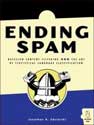
Ending spam by Jonathan A. Zdziarski – Book Review

On August 29, 2005, in Uncategorized, by David K Every


Ending spam: Bayesian content filtering and the art of statistical content filtering
by Jonathan A. Zdziarski

No Starch Press
ISBN: 1593270526
Price: $39.99 U.S.

In case you haven’t noticed, I agreed to many book reviews. I enjoy reading and learning, so the idea of free books appeals to me. Especially on topics I enjoy; and Spam has always been an interest of mine.

First, I must say that Johnathan Zdzarski picked a great publisher. Many publishers just throw promo copies of books to the four winds to fulfill their contractual obligations, or count on their name or the brand recognition of the book series, and you never hear from them again. Not with No Starch Press. Patricia Witkin does her job and was all over me, making sure I did my review, and available for input. Some writers get whiney about a publisher holding their feet to the fire; but I am in awe, that in this jaded world, there are people like her doing her job so well. Seriously, if I put out my own technical book, I’m going to target them first — even if they aren’t the largest publisher, they do their job of promotion.

I found the font easy to read, and there were little notes on the pros and cons and what this could be used for type explanations that were very nice. The book is black and white, and sparse on illustrations; but then they’d probably be out of place on this kind of book, still it added to the dryness. I wasn’t fond of the way they shifted between code/email and body text — both were quite readable and efficient, but they were too close in weight, style and size to be visually obvious. The first paragraph or hundred words of every chapter was in a larger size and that actually bugged me, it felt like when a newbie first finds how to use font size or style, and abuses it. But this book isn’t about dazzling presentation or page layout techniques; it’s about the info baby!

It is a well laid out book broken into 14 chapters, and 3 sections. These are as follows:

• Part I – Introduction to Spam Filtering
• History of Spam
• Historical Approaches to fighting Spam
• Language Classification Concepts
• Statistical Filtering Fundamentals
• Part II – Fundamentals of Statistical Filtering
• Decoding: Uncombobulating messages
• Tokenization: The building blocks of Spam
• Low-down dirty tricks of Spammers
• Data storage for a zillion records
• Scaling in large environments
• Part III – Advanced Concepts of Statistical Filtering
• Testing Theory
• Concept Identification: Advanced Tokenization
• Fifth-order Markovian Discrimination
• Intelligent Feature Set Reduction
• Collaborative Algorithms
• Appendix: Examples of Filtering

Are you getting from the contents that this is no “Dummies guide to Spam”? I didn’t find the book any harder to read than the author’s name. This book is not a light read for those casually interested in the topic of Spam. As the full intimidating title and contents should indicate, this should actually be more a textbook for understanding different ways to address the problem of Spam. Sort of a well-written Masters or Doctoral thesis (without all the supporting references or proofs), if that isn’t an oxymoron or two. Don’t get me wrong, Johnathan does a good job of bringing highly technical concepts down to earth, and there’s lots that lay-people can learn about spam and anti-spam from the book. But the book has far more heft than its measly 287 pages would lead you to believe.

Chapter one was very good, but I was a little letdown that they didn’t go into where the term Spam came from. Amusing little asides about Monty Python would be a refreshing break to the meatier topics. However, light and fluffy was not the goal — the litany of facts and information is the meat and potatoes of this book. The tone continued this way throughout the book. I’m not sure if Johnathan is a dry, fact based instructor; but the tone is about fact, observation, information — with some very dry things that only an uber-nerd would crack a smile at. Even then, I wished I had one of my nerdier friends around to ask them if I should be smiling at that.

Chapter two was very useful to the masses, explaining blacklist, whitelists, challenge/response, throttling, collaborative filtering, address obfuscation, sender policy framework, litigation, spam fingerprinting, and intellectual property.

By Chapter three, it starts getting deep and beyond where most people would find value. Like on old maps where it says, “beyond here there be monsters”. I’m a nerd, and my normal rate of blasting through technical books at about 5-10 pages per minute — but already I was taking my foot off the gas and slowing way down. Whoa there, hairpin ahead. Yeah, yeah, tokenizers, datasets, analysis, I get that. Training methods, decision matrices, and classification. Uh huh. Smoke is starting to leak out. And we were just getting started.

Chapter four had mathematical representations of what things were doing (later ones had simple flow charts); but since this is targeted at coders, I was left wishing for actual code examples. I can read both, but most programmers should understand C or even a metalanguage; so I felt that even though it would greatly increase the page count, some of us would have gotten more value with code examples, or even a CD with sample implementation of many concepts. Maybe that’s just a personal preference thing. Still, by this chapter and beyond it was all new ground for me, and I assume all but very savvy spam programmers. And it just kept going. And going.

If I were writing programs to do this, it would have taken me a week or more to go through the book in detail. As I was reading for information, it went a bit faster. Still, there was information that was useful in general, as well as in specific to approaching problems of spamming and spam blocking — enough that I think Computer Science students or Information Systems students should go through these topics or a book like this, just for that. I really liked the discussions on scaling, distributing, testing and so on, as that was applicable to me as a Web Programmer, as well as others. Not to mention if you were using the Heuristic or Bayesian techniques for advanced searching or other applications. Did I mention this wasn’t a casual read?


Conclusion

The covers casual look and soft-back format belies the content within; the content feels more textbookish. Magnified by tone, and little politically correct things like censoring what an ASCII spammer might show (a bad representation of a breasts and bum). Seriously, if it had sample questions and self-tests at the end of every chapter, a course could easily and should easily be built around it for Information Systems or Computer Science degrees. I seriously think I deserve a few more credits for going through it. Kudos to Johnathan for getting this kind of book published in a world that loves fluff, as this was as fluffy as a cement pillow.

The book says in the intro who it is for: those interested in creating their own spam filter, nerds who just need to know, and spammers who want to figure out how to defeat current anti-spam techniques. I agree and just hope most of the readers are in the first two categories. But that should give you an indication if this book is for you; if you’re looking for really understanding how you would approach the problems of attacking spam, or need to know how others are, then this book is totally for you.

This book is down, and dirty, loaded with information, and will make your head-hurt (in a good way). It isn’t a hard read in that Johnathan did a good job of bringing this down to mortals level, assuming nerds are mortal — but it just not a light subject; so I wouldn’t think of giving it to the casually interested. To be fair though, even the casually interested could get information from the first few chapters and appendix, and assuming they don’t give up there are neat tidbits even for the casually interested throughout, many more for the casually interested programmer.

Anyone with a thirst for knowledge, and a little commitment will generate enough heat off their heads while reading this book to make their beanie propeller spin, at high rate of speed. And that makes it easily worth the $40 entry fee.


MyMac rating: 4 out of 5


MyMac.com Podcast 40

On August 25, 2005, in Uncategorized, by MyMac PodCast

MyMac Podcast 40
Download the MP3 from THIS LINK. Or simply go to our iTunes Music Store listing HERE. (Link will open iTunes)

This week, we reveal the winner of our Adobe Creative Suite Professional 2 contest. Many thanks to Adobe Systems Inc. for sponsoring this contest.

We go into the latest happenings in the Macworld thanks to our news partners at MacMinute.com to start the show off.

Tim goes into detail about his new car audio system and how he connects his iPod. No more FM Transmitters for Tim!

Want to make your own DVD Extras disc? Tim goes into detail on how he made just such a thing for movies not even out, the new King King and Superman Returns movie. Wha? Hey, listen to the Podcast for all the details!

Also in this episode
Not Mac News with Chris Seibold
The Dashboard Minute with Guy Serle

Links from the Dashboard Minute –

IMPathfinder

EasyEnvelopes

Links from this weeks Podcast

Griffin Technologies


The JVC KD-G510

Kong Is King
Superman Returns

AlchemyTV/DVR Review

MacsNPods

This podcast is sponsored by

Small Dog Electronics


RamJet.com

We love feedback! Email us at MyMacPodcast@Gmail.com


iPod and the Price of Success

On August 24, 2005, in Uncategorized, by Guy Serle


If you spend anytime on online forums about technology (like I do), you’ll find certain constants in anonymous comments in the forum/replies section of most technology websites. Tech Fanboys. Just what is a Tech Fanboy? A Tech Fanboy is an individual that is so in love with a particular piece of hardware or software that they disparage anyone who might have a difference in opinion, usually with lots of off-topic remarks about a person’s parentage or sexual preference.

Typical online battles have included Intel vs. AMD, Gameboy vs. whatever company was foolish enough to make a competing product (this is too long a list to do here) vs. PSP, VHS vs. Beta, Marvel vs. DC (nothing to do with technology, but it’s a battle that’s lasted a long time), and the Granddaddy of all tech battles; Apple vs. Microsoft. What is it about these two companies that inspire normally sane people (open to interpretation of course) to yell, rant, and rave about systems that they don’t use as compared to systems that they do? I mean in some ways, it’s not a fair fight. On the PC side you have upwards of 80-90% of the marketplace with thousands of companies all building Windows compatible computers and on the other you have….Apple. On the PC side you have hundred of thousands of IT pros all dependant on MS to make a few mistakes so that they (as IT pros) can look brilliant and on the other side you have ….Apple. On the Apple side you have ease of use, exceptional technical support, incredible included software (iLife), first class content creation software only available for the Macintosh, and on the other side you have….XP Movie Maker.

As a Mac guy, I’ve certainly spent my fair share of time in forums berating MS users about the virus/X-ware problem of the week or how hard it can be to get something simple done, mostly because on the opposite side of the desk was someone saying that Macs suck because they (pick your poison) have no games, don’t support some obscure graphics card in favor with the “elite” this week, you can’t build your own, too slow, only used by graphics professionals, too expensive, one-button mouse, yadda, yadda, yadda. Most of these are myths or easily dismissed as the nonsense they are. Of course there are games for the Mac. Not as plentiful as on the PC side, but just about every genre is represented. Advanced graphics cards are available, just not as many. You CAN build your own Mac, and many have, I just fail to see the point in doing so. People who build PCs as hobbies or for their own use aren’t saving that much money as compared to buying it retail. They are able to cobble together the exact pieces that they may want for slightly less, but unless you consider the time spent researching and purchasing separately the parts desired and then the additional time used building their wonder tower as being worthless, well who am I to tell you different? Yes, Macs are more expensive, but you get more out of the box than a typical low-budget PC. The Mighty Mouse (still hate that name) finally puts to rest the one-button mouse debate. Of course I’ve used a Logitech scroll-wheel with multiple buttons for years so I never really cared about Apple’s mouse.


So far in this article I have sounded like a typical Mac-loving Fanboy. My apologies. I can’t help thinking that I’m working on a better platform for what I like to do because frankly who doesn’t? People generally don’t get excited for some piece of gear that they don’t feel is better than what others are using. Human nature. I am trying to change though. It’s taken me almost 45 years (20 of which has been spent mostly in front of Macs) to come to the conclusion that the best tool for the job is the one you feel most comfortable with.

When I write an article for MyMac.com, I mostly use (insert suspenseful music that builds to a shocking crescendo) Microsoft Word. Why do I use Word when there are a plethora of other writing tools available? Because it really is the only cross-platform document creation software that just about anyone can read when I email them. Pages is great but try sending a Pages native document to someone without it on their hard drive or to a Windows user. Another reason is because I have MS Office on both my at home Macs and at my XP terminal at my job. I can start a document at home or at the office, email it myself, and continue writing without having to translate it. Best tool for the job. Not necessarily the greatest tool, but it works with little fuss.

The more astute of you will have noticed by now that I haven’t mentioned the iPod or anything to do with the topic of this feature. I have rambled on for almost a page and a half about Fanboys, tech battles, my personal quest for betterment, and my writing style (such as it is). If you’re still reading, thanks.

The reason for all the hyperbole is that while Apple may not lead in sales or market share for personal computers, there is one tech category that they are currently the undisputed champions; digital music players and the online legal sale of digital music. This makes the typical hardcore PC Fanboy insane. Apple’s market-share with digital music players is almost at MS proportions. Same thing with iTunes. Apple has sold almost 600,000,000 (that’s 600 million for those numerically challenged) songs from their stores around the world. These are amazing numbers considering that they weren’t the first to sell either a digital player or online tunes. So how did they do it? How do they continue to be the market leader when practically every other day another “iPod Killer” is released? Well friends, there is a remarkably simple answer.

Apple “gets it”.

You see, it’s not a question of more features or less DRM or a lower price. What most PC Fanboys don’t understand (most Mac Fanboys don’t get this either) is that the market for computers or digital music players or humbucker techno widgets isn’t us. It’s for the great masses out there that just want something that works well. Easily. Without obscure menus or lots of little tiny buttons to switch between a FM radio, music on the hard drive, or a beverage server. They want it to work while they jog, or ride their bikes, or while sitting in the subway, or stuck in traffic. The iPod does all that. They want their music to be easily found, with a way to make a CD with their favorite songs without a hassle. iTunes does that.

It’s the killer combination of iTunes and the iPod that makes it number one throughout most of the world (at least in the parts of the world that has an iTunes music store…sorry Korea). You want an FM radio with your music player? Go buy a Creative Zen or any of the competing products. Most people have voted with their wallets and Apple has the best overall solution.

PC Fanboys might retort that the computing industry has done the same for Microsoft, but it’s not really the same market. When Joe and Sally Average goes to work, what do they see in their 5 X 5 cubicles? A PC running Windows. They were never given the choice of what platform to use. Some IT Pro slapped down a Dell or Gateway and said good luck as they walked away. So when they go shopping for a computer, what are they going to buy? That which is familiar to them. Doesn’t make them bad or stupid, just people without all the information. They might still choose Windows if they did look, but the point is that to them it was a no-brainer.

I guess what amazes me the most about Apple’s success with the iPod and iTunes is that no one else has created something similar. I’m amazed that MS or Napster or Walmart or SOMEBODY hasn’t created the PC equivalent of iTunes. Like most issues there is a simple reason. Greed. In order for something like MSTunes (copyright Guy Serle 2005) to work and actually be a real competitor, it would have to work with all the different music stores and all the different players out there. See the problem yet? If all those online tune shoppes had to compete with each other on a level playing field, someone’s gotta lose. It all comes down to greed. Same thing with the music players. No one is willing to take that first step and actually try and compete with Apple with the same kind of tools. Therefore Apple wins time and time again by just doing one thing and doing it well.

Will the ride last forever? Of course not. Eventually some new bit of amazing tech will supplant the iPod. No one stays number one forever. MS has been there for some time with operating systems but already the cracks are forming. Will it be Apple that takes them down? I would like to think so, but I honestly have no idea.

For Digital Music and players, Apple is the shizzle right now, but everyone is gunning for it. Sooner or later someone will figure out how. That’s the price of success.


Miglia AlchemyTV/ DVR – Review

On August 23, 2005, in Uncategorized, by Tim Robertson


Miglia AlchemyTV/ DVR
Company: Miglia

Price: $149.99
www.miglia.com

About six months ago or so, I finally had the opportunity to put my television to the full use I originally wanted it for: HDTV. When my local cable company (everybody’s favorite, Comcast) finally rolled out HDTV and DVR service to my area, I was one of the first to jump on that bandwagon. And while the HDTV picture quality did not disappoint, it was not what impressed me the most. I became a DVR junkie.

DVR, or Digital Video Recorder, allows you to record TV, pause live TV, and so much more. It has been great; affording me the opportunity to schedule recordings and watch the shows I want to see when I want to watch them. How is that different from a VCR, you may ask? It’s like the difference between a World War II fighter plane and a F-22. They both do similar things, but…

I’ve had DVR functionality before, notably in the PowerMac G4 I still use as a file server. I had run both an earlier version of Miglia AlchemyTV and EyeTV when they first came out, and was none too impressed with either solution at the time. Both offered clunky software, crappy video, and limited export control. Other than that, they both worked. I had actually planned to do a head-to-head comparison of them a few years ago, but was so disillusioned by both products I never got around to it.

So here comes a new version of the AlchemyTV/DVR system, promising a fix to all the gripes I had with the older version.

Set Up
The AlchemyTV/DVR is a PCI card that plugs into the back of your PowerMac G4 or G5 (I’m testing it with a G5). Because this is a PCI card, you will be required to open up your Mac, free up a PCI port (chances are you have at least two still open and free) and install the unit. If this sounds like a daunting task, trust me that it’s not. (Besides, you should have some compressed air in a can and blowing the dust out of your Mac from time to time anyway, right?)

Installation was simple, and the Alchemy PCI card came with clear instructions. Once installed in your Mac, you can plug in your coaxial cable from your cable or satellite provider via the coaxial plug, as well as connecting another video source via the S-Video or composite cable plug. In this case, I plugged in a VCR I usually only use when converting older videotapes to digital, but more on that in a moment.

Software was a simple install as well, although the software on the CD-ROM that came with the AlchemyTV/DVR was out of date and not compatible with my current OS, 10.4. I don’t consider this a negative, however, as many programs suffer this fate as quickly as Apple updates the system software on Macintosh computers. I simply checked the Alchemy website before installing the AlchemyTV/DVR software to make sure I was using the most recent version. I do this with all software that comes on CD-ROM, and recommend others to do the same. If you have to install software from a CD-ROM, you may want to check the company website before launching the program to check for any updates.

The AlchemyTV/DVR software is simple to use, and features a plug-in architecture so that the software has the ability to do much more with third-party plug-ins. For this review, however, I did not use any third party additions.

The software can be automatically setup by answering a few basic questions, entering your zip code, and the like. This is done so that when you are changing channels, the actual station call letters will be displayed rather than a simple channel number. This also helps to find video files later after you have recorded them.

Users are able to adjust picture quality via the built-in Image Settings control panel. Here you can adjust Hue, Saturation, Contrast, Brightness, and Sharpness. If you get carried away, there is a “Factory Settings” button to return the settings to the default. I found that the default settings were a bit off, and my picture quality benefited with a little more Sharpness. Your mileage may vary.

One neat feature is the ability to control not only the size of the picture window, but its transparency and whether it’s always in front of other windows or not. This is great if, say, you want to catch the news while you are checking your email or browsing the Internet, want to see the picture, but still be able to read text underneath the TV window as well. This feature works very well, and for some, is well worth the price of admission alone.

Scheduling a recording in AlchemyTV/DVR is simple. Select the time, date, and other options and you’re all set. You can set up a one-time recording, a weekly recording, or even a daily recording schedule. Unlike a TiVo, however, you cannot set up an AlchemyTV/DVR to record all episodes that you enjoy of a particular show automatically. You have to set the schedule yourself, manually. While this makes an AlchemyTV/DVR a little less user friendly, there are many other options that you don’t get with a set-top DVR. Read on. The program also used iCal to make sure you don’t miss a recording.

The picture quality is very good, or at least as good as your input. If you connect via rabbit ears, don’t expect high-quality video. Basic cable will look good, as will other input devises, which brings me to what makes me really enjoy the AlchemyTV/DVR.

A niece asked me if I could convert a VHS copy to a DVD for her church group. No problem, I figured, I’ve done it a lot of times. Usually, I connect a VCR to my digital camcorder, and then connect the camcorder to my Mac. Launch iMovie, set the camcorder to bridge, and play the VCR. Complicated for some people, true, but I had done it a bunch of times. Then it dawned on me, I could connect the VCR directly to the AlchemyTV/DVR card, and use the AlchemyTV/DVR software to record the video. This cuts out a bunch of cables, steps, and time. Because the AlchemyTV/DVR software records in a variety of video codec’s, including MPEG 4, DV in both NTSC and Pal, DVCPRO at 720p60 and 1080i60 (Those are high def), Component Video, h.263, h264, Sorenson Video and Video 3, and a host of other. You can also control the quality of the compression for each codec, all in the name of getting the best quality (which I wanted for this project) or saving space if you only plan on watching a recorded show once and toss it in the trash afterwards.

So how did the AlchemyTV/DVR do for this project? Flawlessly. The quality was spot-on, and the video file was quickly dropped into iDVD for quick conversion to DVD.

All in all, I’m very pleased with the AlchemyTV unit. It works well with TitanTV, so finding programs worth recording is a snap. It takes any guesswork out of getting quality video into your Mac, and full screen viewing looks fantastic. It also makes it simple to convert older videos to digital files, which you can then burn to DVD, make compilations, post on the Internet, or email to a friend.

Requirements:
PowerMac G4 or G5
Free PCI or PCI-X slot
PowerPC G4/400 processor and higher
256 MB of RAM
Mac OS X 10.3 and higher

Technical Data:
Max viewing size: 752*576 (PAL), 640*480 (NTSC)
Two years limited warranty
TV/Antenna, Composite IN, S-Video IN, stereo Audio IN

Pros
Easy installation. Simple user interface. Good codec support. Integration with iCal. Remote Control. Open plug-in architecture. Features composite and S-Video in. Multiple size windows, from small to full screen.

Cons
Software requires a 16-digit serial number. Why? No other PCI card can use the software. This is an unnecessary encumbrance on customers. In fact, when I received my review unit, the software did not work at all. Turns out that the serial number my AlchemyTV/DVR came with was actually for the AlchemyTV software only, which is much more limited than the DVR model.

Conclusion
A nice piece of software and hardware. I would recommend it to anyone looking to bring video into their Mac, watch television, and who wants to set-up recordings. TiVo like functionality would make this an even better product.

MyMac.com: Rating: 4 out of 5


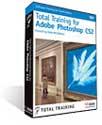
Total Training for Adobe Photoshop CS2
3-DVD package (21 hours 50 minutes)
Hosted by Deke McClelland
Total Training

$299 US (plus current student discounts from Total Training)

Deke is a hero. His Photoshop books and videos are the best. In this fifth edition of the popular Total Training for Adobe Photoshop series, Deke’s skills and experience combine for an excellent tutorial having potential value far greater than its hefty price tag.

First question: If you’re smart enough to know how to use the professional ($600 or thereabouts) version of Adobe Photoshop (as opposed to the under-$100 Adobe Photoshop Elements, or “free” iPhoto) why would you ever need to spend another $300 (or a bit less online) to learn how to use it?

Second question: Why not simply purchase a couple of Deke’s books, study quietly at your own pace, and save a few hundred dollars of your hardly-earned cash?

Answers: Directed audiovisual education can be very instructive, in an appropriate environment. Individuals who learn best this way would spend w-a-y more than $300 for private lessons or top-quality workshops.

Being a private Photoshop teacher, my students will be able to proceed much more quickly via Deke’s time-tested steps than another method, I predict, with or without my active participation. In a classroom or seminar, DVD training is a huge addition to the curriculum.


LET’S GET TECHNICAL
This 3-DVD package, called TPSCS2 by its publisher, contains 36 lessons, each with an average of eight incremental segments. Users can pick and choose, repeat, jump ahead, mix and match, bookmark particular episodes, adjust volume, and pause, all while working step by step alongside Deke’s instruction, assisted by the dozens of included image files.

Installation takes a couple of minutes, and requires a current version of QuickTime (5.0.2 or later), with a live Internet link recommended. With your own copy of Photoshop CS2 on your computer, Total Training’s installer contains three components: Project Files, the Training Application, and Presets (to allow your CS2 to be configured just like Deke’s software).

As with all Total Training videos, this one features a theme: “Invoking the spirit of the original Renaissance man, Leonardo DekeVinci” (complete with appropriate costume — see screen shot above). Once the actual lessons are underway, Deke is heard but not seen, allowing you to follow his mouse tracks and keystrokes in real time.

I chose Part 3, Lesson 2: “Curves, Shadows, and Highlights” as my trial lesson for this review, because I don’t yet spend much time using Photoshop’s powerful and somewhat scary Curves adjustment feature. On our TPSCS2 screen is a sepia-toned photo of an elephant, for our lighting instruction “when the Levels command and the Auto variations fail you,” says Deke.

Elephant has “hot spots” of overexposure above its eyes and on its forehead. Our goal is to turn it into an “accurate, continuous tone representation” — Deke’s language is always snappy and articulate — because “Auto Levels doesn’t do a darn thing.” Ditto for Auto Color. Doing an “Alt>Slide” from standard Levels demonstrates how much color is buried within the saturated black background channels, but midtone red channel tweaking in Levels doesn’t improve the overall photo. “What we need is Levels on steroids,” continues Deke.

During his talking and mousing, I’m pausing TPSCS2 to switch back and forth between the DVD application and Photoshop on my G4 iBook, not having two standard displays or one giant one. Sounds annoying, but it works efficiently.

We need more lighting adjustment points than Levels offers (it has three of them), Deke explains. He is human, we find out, because he always begins with Levels rather than Curves, just like other mortals. Keyboard command is Command (Apple) M for Curves, with its “brightness curve” diagonal line.

Colors can be “mapped,” or sent, from one brightness value to another, with Input being “from” and Output being “to” (not very easy to describe in text, but obvious on the screen). Deke demonstrates how the brightness curve has complete flexibility with regard to black, white, and gamma points, with “pinpoint precision control” over all colors in every image.

When your personal Snooze Alert kicks in, it’s time to stand up, take a break, check your email, flip through one of Deke’s many books, and resume your self-motivated Total Training when your eyelids are fully open again. Pace, coverage, and overall tone of TPSCS2 are geared toward quick-witted Intermediates, but:

• Beginners will feel comfortable and welcome throughout, if they pledge to go slowly and proceed in small increments

And

• Experienced users can always use fine-tuning of their skills, because even pros become lazy with familiarity (the $150 advanced DVD series has just been released, FYI)

Curves are not new to Photoshop CS2, but Adobe’s Bridge is, and it warrants 33 minute Lesson 2 of Part 1. After “Showing Off New Features,” Deke explains about using Bridge for “Managing Your Images,” including “Workspaces, Location Tracking, & Slide Shows,” all newly designed with Bridge in mind.

IN CONCLUSION — IT’S A WINNER
Seeing (and hearing) is believing, and I believe in Total Training for Adobe Photoshop CS2. Not all its features are active yet, so our rating reflects a little room for additional development (that’s not a criticism, merely a fact of release timing). MyMac.com and Nemo highly recommend TPSCS2 and award it 4.5 out of 5.

You can view sample material from the DVD on its web site, and the product comes with a 30-day money back guarantee. Total Training has confidence in their products!


Apple Training Series: iLife ’05 – Book Review

On August 22, 2005, in Uncategorized, by David Weeks


Apple Training Series: iLife ’05
by Michael Rubin

Peachpit Press
464 pages
ISBN 032133020X
US $29.99 CAN $41.99

I’ve been reviewing Macintosh titles for several years, only to find that, unbeknownst to me, Peachpit Press has been publishing an official Apple Training Series collection for quite a while. The series now has 34 titles running the gamut from newbie "how-to’s" to technical discussions of Mac OS X Server security.

Now that I’m no longer asleep at this particular switch, let’s look at author Michael Rubin’s iLife ’05 book.

Subtitled "iTunes, iPhoto, iMovie, iDVD, Garageband" the book is targeted at the beginner to intermediate user. If you’ve advanced past this level, iLife ’05 won’t teach you any new tricks. But if you’re still learning just what you can actually DO with your iApps, this book is worth a look.

I was impressed by Rubin’s clear, methodical writing style, which is complemented by the well-crafted page layout.

Rather than simply regurgitate what each application can do, Rubin tracks three typical iLife users through their different projects, each with a different focus. This approach lets the reader follow the logical sequence in which a project is constructed. Too many "how-to" books fail to give new users a conceptual overview of how to integrate the different capabilities of each iApp. iLife’05 does an excellent job showing how to best assemble a project, and how to use each component application to best effect.

Given that Rubin is writing for beginner/intermediate users, I shouldn’t complain about the lack of neat tips and tricks that can help even the new users. Just be aware this book does not move at all beyond the basics. iLife ’05 would have benefited from including some easy tips and techniques that aren’t in the standard repertoire. But honest-to-goodness intermediate users may find the content too basic for their needs.

Production values are great. Screen shots are plentiful, crisp and clear. iLife 05′s dimensions of 7-3/8" wide X 9-1/8" tall are just right for the book’s weight; it’s easy to hold and read while sitting in that favorite comfy chair.

Included in the purchase price is a DVD with all the lesson material used in the book. This makes it practicable to actually follow the written examples on your own machine. There’s nothing like doing it yourself to cement the learning process.

"Hey, I don’t have DVD optical drive in my Mac, and can’t use the examples" you say. Well, given that iLife ’05 needs a DVD drive to fully install all the software components (Garageband is the driving factor) you probably won’t be using the software without one.

Conclusion

If you want to find out how to use that shiny new iLife software you just bought, Michael Rubin’s Apple Training Series: iLife ’05 is worth of consideration. You’ll end up with a fine grounding in the basics, as well as real-world experience in the best way to make all the iApps work together to get work done. Anyone past the beginner stage may wish to look elsewhere.

MyMac rating 4.5 out of 5 (for beginning iLife users)


Mac OS X Tiger Killer Tips – Book Review

On August 19, 2005, in Uncategorized, by David Weeks


Mac OS X Tiger Killer Tips
Scott Kelby

New Riders
368 pages
$29.99 US $41.99 CAN
ISDB 0-321-29054-2

Scott Kelby must be knocking ‘em dead, as he currently has ten "Killer Tips" books to his credit. If they’re not selling, then publishers won’t be clamoring for him to keep cranking them out.

Well, I’m still alive after reading Kelby’s latest "Killer Tips" reprise, Mac OS X Tiger Killer Tips. MyMac.com publisher Tim Robertson reviewed Kelby’s Killer Tips for Panther late in 2002 and loved it. I also had a review copy of Killer Tips, and found it worthwhile, although it didn’t set my hair on fire. I found Kelby’s writing style cute for several pages, but it soon became cutesy.

After reading Killer Tips Tiger Edition, I can see that Kelby has his style, and he’s sticking to it. Cuteness pervades the book from start to finish, and I found my face turned sore from wincing regularly.

When is a tip not a tip?

I draw the line at calling a simple description of an application preference a tip. Devoting half of page 183 to telling the user how to turn off Dock magnification is a tip only if you’ve never laid a mouse to the Dock menu before. Unfortunately, Killer Tips has more than a few of such "tips," and I found myself paging through the book looking for real honest-to-God tips. This reviewer feels a "tip" is good information that’s somewhat unknown, hard to find, and otherwise obscure. Anything else is just Help File regurgitation.

Happily, there are some fine tips to he found. Many OS X’ers don’t know you can send SMS text messages via iChat, or that the included BlueTooth File Exchange will send photos to your BlueTooth cellphone. A fair number of the Spotlight tips are not well documented elsewhere, yet are useful and easy-to-use.

Mac OS X users searching for real tips will do well to haunt the MacOSXHints.com web site. Webmaster Rob Griffiths has tip books out that truly merit the name.


Conclusion

If you’re rarely read manuals, never simply experiment with your Mac, or are just an OS X newbie looking for some fun shortcuts, then you might profit from reading Kelby’s Mac OS X Tiger Killer Tips. Advanced readers will probably find "Killer Tips" too basic. Both types of readers may find the writing style too corny.

MyMac.com rating 2.5 out of 5


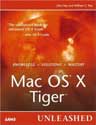
Mac OS X Tiger Unleashed – Book Review

On August 19, 2005, in Uncategorized, by David Weeks


Mac OS X Tiger Unleashed
by John Ray and William Ray

Sams Publishing
1560 pages
$49.95 US $69.9 CAN
ISBN: 0672327465

Pogue Schmogue! Levitus Schmitus.

Sure, David Pogue and Bob Levitus are popular, but for hard-core OS X writing, they ain’t got nothin’ on the Ray Brothers.

John and William Ray have unleashed the newest edition of Mac OS X Unleashed. With a massive page count of 1560 pages, and weighing in just a few ounces shy of 5 lbs, this beast is currently my favorite advanced-level OS X book. Mac OS X Tiger Unleashed (MOSXTU for short) has replaced “Unix for Lovers” as my favorite bedtime read. If you want to find out something, no matter how obscure, odds are that MOSXTU will have it.

I wrote very favorably about the first edition of Mac OS X Unleashed back in 2002. The Tiger edition brings this fine work up to date, and adds a significant amount of new information not present in earlier editions. The only important loss is the coverage of the iLife suite; it’s no longer covered as iLife is now sold separately from OS X.

Ray and Ray spend little time on the basics, and you’ll soon find yourself deep in the soft underbelly of OS X. Need to learn how to install and use Fink, and Fink Commander to run Unix applications? Pages 941 and on will set you right up. Need all the details on the Keychain application? Pages 115-130 have the information.

Not many books cover Ink, Apple’s latest gestural/handwriting recognition system. MOSXTU has more coverage of Ink that any other Tiger book I’ve read.

The Common Unix Printing System (CUPS) is the foundation of OS X’s printing system. Ray and Ray describe CUPS in enough depth to allow a sharp user to install and configure their own PPD’s (PostScript Printer Description). You’ll learn the subtleties of printing via networked printers, including TCP/IP, Samba, Bonjour, and AppleTalk printers. I especially liked the author’s demonstration of how to install and configure an ancient Apple ImageWriter I serial printer for use with OS X.

If you still hanker for more OS X geekiness, read the section on running X11. X11 is Apple’s implementation of the Unix X Windows system. X11/X Windows is a way of running applications on a remote computer, but displaying the screen output on your local computer. I’ve been lacking a certain amount of frustration in my life recently, so I plan to set up X11. After reading MOSXTU’s clear examples, I expect that I’ll have some hair left when I have the X11 installation and configuration complete.

As you’d expect, there’s plenty of material on SSH, Apache, Postfix, and the IPFW firewall. But Mac OS X Tiger Unleashed is not just about running Unix on OS X. I enjoyed the coverage of QuickTime Broadcaster, font management, and the hints on how to best to use Disk Images.

Any book of this size runs the risk of crushing the user under its own weight. Fortunately, Ray and Ray (which one actually wrote the book?) have a dry wit that pops up frequently, and this makes actually reading MOSXTU a pleasurable experience. You won’t see it on Amazon’s top 10 list, but for a computer textbook, it’s better than many.

MOSXTU does have a weak point or two. At times, you’ll have to wade through (or skip over) multi-page listings of preference files, program commands, shell scripts, or source code. I never quite got the point the author’s inclusion of a 5+ page listing of Graphic Converter’s .plist file.

The book is well served with its own Web site. Readers can download Unix applications and example source code, as well as errata lists. There are also discussion forums covering numerous topics.

Conclusion
Quibbles aside, for coverage of advanced-level OS X information, I strongly recommend Mac OS X Tiger Unleashed.

MyMac rating 5 out of 5


MyMac.com Podcast 39

On August 18, 2005, in Uncategorized, by MyMac PodCast

Download the show at this address, or subscribe to the show via the iTMS from THIS link. (Link will open iTunes.)

This podcast is sponsored by
SmallDog.com
RamJet.com

Last week to enter the Adobe CS2 contest! This is your chance to win the $1,299 premier graphics suite in the world. All it takes is listening to this or last week’s show and following a few simple instructions. All entries should be emailed to contest@mymac.com. One entry per person, please.

This week, Tim and Chad do a live review of Pzizz, the Power Napping Software. Seriously! Of course, if the software really works, Tim and Chad may just end up falling asleep during the show.

Also, we look at the fiasco of the The Henrico County school system $50 Apple iBook sale.

Reader feedback! We read a few emails on the show, and look forward to reading yours next week. Send all feedback to mymacpodcast@gmail.com

Links from this weeks Dashboard Minute
For AutoCrossword
For Easy eBay
For most Widgets

Also on the show: a back to school special from SmallDog.com
And Not Mac News by Chris Seibold!

Here is the picture of Chad (Left), Tim (With hat), and Nemo (Right) taken last weekend that Tim and Chad make reference to on the show.


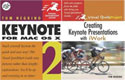
Two Keynote Book Reviews

On August 16, 2005, in Uncategorized, by David K Every

I’ve always enjoyed Presentation software, and I recently got my MBA (Masters Degree in Business Administration), which required bimonthly presentations. I’ve used Keynote quite a bit lately, and had sort of a love/hate relationship with it. Some features like quality of output are fantastic along with the price; others like ease of input, power, compatibility fall more into the “less than love” side of the equation. But this review isn’t about Keynote itself; it is about two new books to teach it to you.

The two books I’m reviewing are:

Creating Keynote Presentation with iWork by Tom Negrino
Keynote 2 for Mac OS X by Tom Negrino

So we’re lacking a lot of versatility in authors. Peachpit Press also produces them both; so we’re lacking versatility in publishers as well. Fortunately, I didn’t dislike either the publisher or the Author, or this would lead to a rather depressing review.


Creating Keynote Presentations with iWork
By Tom Negrino
Peachpit Press – $12.99 U.S.
ISBN: 032135754X

While the title doesn’t call it out, this book is for Keynote 2. The iWork reference in the title may help people, since Keynote isn’t a stand-alone product any more. But on the other hand, some may feel a little like they only got half of the iWord suite covered, compounded by the books short 146-page format. But if you are a harried Executive that wants to learn how to do a Presentation, or harried anyone, this sort of concise and targeted book may be exactly what you’re looking for.

Big text, lots of color pictures, well organized, but rather quick fly-over of features; this is targeted more at teaching someone how to make a presentations using Keynote and very high level overview, as opposed to a regular presenter learning how to become a Power User of all things Keynote. Did I mention I was really impressed by the color and non-intimidating text size?

Along with intro, appendix and index, I’ll let the chapter descriptions describe what the book covers:
Explore Keynote
Write Your Presentations
Gather Images and Sound Files
Pick a Theme
Working with Text
Illustrate your Presentation
Make it Move
Prepare to Present
Deliver your Presentation
Present Everywhere

The book is both a tutorial and a reference book, for the newbie to the subject. Sort of. It says it is for beginners; but I think of beginners are more beginner than this in some ways. Some of the tone implies that users have seen lots of presentations before, or it does things like assumes that users know how to write a presentation: no tips on how to shorten bullet points in the outline, how to structure a presentation, how to break the presentation into chapters, it shows you where to get video but few hints when to and when not to use them, and little things like that. So the book teaches you how to build a presentation with this tool, but not as much on how to build a presentation.

The good news is the book is brief, and that is non-intimidating. And it couldn’t be as brief if it did cover the stuff I’d have liked to have seen. But I still felt it might gloss over a few things that would be helpful. Or it is just that Tom’s way to teach presentations is just slightly different than my own workflow, or the way I would teach someone. So if I’ve been left wanting a little more, it might just be because we think about the same problem a little different. That being said, it was his book, not mine.

This book is an easy read, loaded with information it has a logic that works, there are lots of good tips, and it does cover most of the basics very well. So putting my whines aside, and realizing there’s areas that it doesn’t cover, there’s also vast amounts of territory area that it covers very well. So, I’d recommend it readily.

While a complete newbie might not get as much info as they could about how to build a good presentation, they would definitely go from knowing little or nothing, to being able to put a presentation together. And the suggestion of getting peer reviews of your presentation can fill in many gaps, if you have the kind of people around that have opinions and some time to spend. And let’s face it, nothing can substitute for experience anyway; so just get out and do it, and you’ll learn more for the next Presentation. And this book should be motivation to help people over that hump, and get to the next step. That’s quite an accomplishment for $13 book.
MyMac rating: 3.5 out of 5


Keynote 2 for Mac OS X
by Tom Negrino

Peachpit Press – $21.99 U.S.
ISBN: 0321246616

First let me say, that I liked this author more than I liked the other one. Now those of you paying attention might think, “but it is the same guy”. It is, but this is a level that I think he works even better at: as a beginner to intermediate book with more room for him to flex his synapses instead of targeted at the complete neophyte.

This book is a much more comprehensive book, with 312 pages, with tighter text and smaller pictures; so it is a tad more intimidating, but still an easy read. The book has the usual intro, appendix and index, and is broken into the following chapters:
Getting Started
Creating a Presentation
Mastering Slide Masters
Getting the Type Right
Working with Graphics
Rich Media and Hyperlinks
Working with Tables
Creating Charts
Using Slide Transitions and Animation
Working with PowerPoint
Working with Other Applications
Giving the Presentation
Creating Custom Master Slides
Creating Custom Themes

While the chapter outline looks similar, the depth of each chapter is generally deeper. Actually, comparing the two side by side, you can see that there was definitely some borrowing going on; with either a dumbing down (not in a derogatory way) for the first book, or diving-in deeper for this one. Chapters 1 and 2 in this book, seems to cover Chapters 1, 2, along with some of 4 and 5 and some other info as well.

I personally, far preferred the tone and style of this book. It got to drop some of the talking down stuff, so functions better as a reference, and can convey a lot more information. I also didn’t have any issues with structure; for a beginning-intermediate book, it just felt right to me. And the depth was much more useful. I especially liked the Graphics and Charts sections that didn’t just say, “Here’s how you get and place images them”, but actually could afford the time and space to explain more about the features and functions like opacity, drop shadows, layering, compositing and so on.

The only bummer is that while the other is beautiful color on better satin paper, this book is in black and white and on a lower grade stock. Still, that being said, it was easily a bargain at $21.00.
MyMac rating: 4.5 out of 5

Conclusion
Each of the books had its place.
I would consider the first book (Creating Keynote Presentations with iWork) for a neophyte that knew a bit about computers, but wanted to learn presentations, and would follow up with feedback from friends, and explore on their own. Or for the reader who suffers from attention deficit disorder, and is unlikely to get through a book unless it’s very quickly. That’s not meant as insulting either, there really are a lot of impatient people that this would be great for. It more plants the seed of how to do things, and gets them started over that hump to create a reasonable presentation. And then it is up to the reader to tend the garden and learn more if they want to create really good ones.

The second book (Keynote 2 for Mac OS X) is a much broader book and better value, even at the higher price. It helps self-starting semi-beginners get more into the meat of the presentation tool. And while it glosses over some areas of making good presentations too, there’s less expectations in this type of book for that. It covers many more things that users may want to learn over time; but does require more discipline to get through.

When it comes to Presentations, I’m sort of conflicted; I enjoy smaller and less formal presentations and teaching on subjects that I know well. I enjoy less the stress of much larger and more formal presentations, on less versed or rehearsed topics. A good presentation tool is a safety net, and an aid for creating a clearer message in either case: and either of these books would help someone learn how to create that presentation.


Photo to Movie – Software Review

On August 15, 2005, in Uncategorized, by David Weeks


Photo to Movie
Company: LQ Graphics, Inc

Price: $49.95

http://www.lqgraphics.com


Mac OS and Windows

Slideshows of digital photographs have been popular since Apple Computer first introduced iPhoto. Early versions of iPhoto could do basic slideshows, but Apple provided little beyond the ability to play music and display slides.

Apple raised the bar with iPhoto 4′s introduction of the "Ken Burns" effect. Named after the documentary film producer who popularized panning and scanning across slides, the Ken Burns effect provides a sense of motion, and makes slideshows far more interesting to watch. Slideshow producers can direct the viewer’s eye with controlled movement across the slide, and better control their story.

LQ Graphics’ Photo To Movie (PTM for short) is a dedicated slideshow application that far outperforms iPhoto, both in ease of use and the sheer number of features. The Weeks division of MyMac Labs spent some time with the Macintosh version 3.2.3 (a Windows version is available) of Photo To Movie, and here’s what we found.

Features! Photo To Movie has plenty of features. Here’s a short list:

Extensive control of panning and scanning (Ken Burns effect).
Create pan and scans with non-linear motion paths.
Ability to have preset pan and scan settings.
Custom titles in user-chosen fonts.
Complete control of multiple audio tracks, including volume levels and fades on a per slide basis, and voice recording.
Ability to rotate slides during playback.
Accepts any photo format that QuickTime accepts (JPG, TIFF, QuickTime VR, etc)
Export to any various formats, including DV Stream, Final Cut, Email, Web, CD-Rom.

PTM’s price of $49.95 puts it out of the range of "impulse buy" for most people, but it’s still very affordable. It can be purchased on-line from the LQ Graphics web site, or from several retailers, including CompUSA.

On-line buyers don’t lose out on a fancy printed manual, as LQ Graphics includes only a small Quick Start pamphlet in the box. Most of the documentation contained in the comprehensive on-line Help, with a small FAQ on their web site. I browsed through the on-line Help before delving deeply into PTM, and it help me climb the learning curve more quickly. While the on-line Help is quite good, I still wish I could curl up by the fire with a real manual.

Let’s be clear; while iPhoto is an all-in-one digital shoebox, Photo To Movie is a dedicated slideshow application. You won’t be doing any organizing or editing of your images with PTM. But after you’ve edited your images, PTM will be all you need to create and edit your slideshow.

Users of iMovie will feel instantly at home with PTM’s interface. Once PTM is launched, you begin by dragging your images into the Document window, either one at a time, or in a batch. PTM allows you to drag images directly from iPhoto, or from any other location. Your images are fed into a timeline that looks and acts much like iMovie’s. From within the PTM’s timeline, you can change slide order, and exercise basic control over motion. Audio tracks and titles display in the timeline, as well.

PTM’s high degree of control and display sophistication comes when you edit slide motion and duration in the document window. Click on an image in the timeline, and it appears above in the document window. To control the pan and scan (Ken Burns effect), you adjust two "key frame" rectangles, a green key frame for the start position and a red one for the stop position. Adjusting the key frame is easy; you simply grab one edge and drag until it’s in the proper size, shape and location. When the slide displays, the motion begins with the area enclosed by the green key frame, then smoothly pans and scan to the area enclosed by the ending red key frame.

I found PTM’s key frame concept far easier to control than Apple’s iPhoto technique. You can view the actual size of the start and stop frame superimposed on the photo, so it’s easier to accurately control the motion of the pan and scan. By contrast, I found iPhoto’s method hard to control, and I often needed several tries to get the motion just the way I wanted it.

After you’ve mastered the key frame concept, you can learn to display circular motion paths. This PTM feature is way beyond any found in iPhoto, but circular motion’s not as simple as adjusting a simple pan and scan. I needed a fair bit of practice, but after several attempts I was able to craft an acceptable circular path.

Adjusting display settings is quick and easy. An Inspector window is displayed to the right of the document window, with controls for slide display time, settings for how long the motion lasts, and any delays at the beginning or end of the slide display. Each slide can have its own display settings; you’re not locked into the same display times and options for each slide. PTM allows you to delay the start of the motion at the beginning, or have non-motion display at the end of the slide, as well. Complete control over each slide is one of the things that distinguished PTM slideshows from iPhoto’s.

Transitions between slides are easy to manage. You can specify a default transition, and then override the default if you wish. LQ has provided plenty of transitions to choose from. I did miss the Mosaic transition that iPhoto provides. On the other hand, PTM’s Iris and Slide Changer are not available in iMovie.

PTM gives you nearly as much control over audio. If you wish, each slide can have its own audio track, with each track having separate fade-in and volume levels. Photo To Movie incorporates a media browser showing the contents of your iTunes library by pressing the F8 key, so it’s easy to import your desired audio tracks. Once imported, use the Inspector to edit the fades and volume levels. Audio tracks can be split in two with the Split Audio menu choice; that comes in handy when you need only part of an audio file. Split the audio, then discard the unneeded portion by selecting it in the Timeline, and then tap the Delete key. Unfortunately, you cannot use protected AAC tracks purchased from the iTunes Music store. While PTM allows you to record, you can’t record voiceover tracks while the slideshow is playing. That feature would be worth its weight in gold.

Once you’ve tweaked your slide masterpiece, you certainly want to export it so other can appreciate your fine craftsmanship. Choose Document Info to pick the export format, and then choose Export. Wait, and you’ll get your file. I found it confusing that you must choose Document Info to specify the desired export options; a more logical place would be in the Export dialog box itself. Patience is a virtue when exporting, especially if you’re exporting to DV stream in preparation for making a DVD. Audio files add to the export time. Obviously, a faster computer is better. Slow exporting is not PTM’s fault; it takes plenty of CPU horsepower to convert the graphics and audio.

This short review can’t really do justice to the various capabilities of Photo To Movie. It’s easy to learn the basics, but then you’ll be spending quite a bit of time getting just the right effect for your slideshows. Be forewarned that good taste often dictates "less is more!" Don’t go crazy with jarring combinations of transitions, fades, and motion.

If you’ve been looking for the right slideshow creation tool that gives you power that iPhoto cannot, check out LQ Graphics Photo To Movie.

PROS
Basics easy to learn.
Interface is similar to iMovie
Easier and better control over Ken Burns effect than iMovie

CONS
Circular motion paths take time and practice to learn
Most documentation is electronic; paper manual is a bit thin.

MyMac rating 4 out of 5


Logitech USB Headset 350 – Review

On August 12, 2005, in Uncategorized, by Guy Serle


Logitech USB Headset 350
Company: Logitech

Price: $35-40
Logitech USB Headset 350 link

If you have been listening to the MyMac.com Podcast lately, you may have noticed that I have been doing a mini-feature within the podcast called “The Dashboard Minute”. I’ve wanted to do something like this since the first time I heard Chris Seibold’s “Not Mac News. Unfortunately I didn’t have the two things required for such an endeavor. One: Something useful to add, and two: The equipment to do so.

Apple helped me out with problem one when OS X 10.4 was released along with Dashboard. I love the idea of widgets for small specialty purposes and once I saw the number of them being released, knew I had found a topic that was worthy. I won’t go into the whole Dashboard vs Konfabulator argument as I can’t merit the time to go into it. There are many pros and cons on both sides. Look it up, make up your own mind, and then move on. Konfabulator is now also on the Windows side (and was just purchased by YAHOO) and I wish them the best of luck. It’s too good an idea for just one platform.

Problem two was a little trickier. I don’t have a lot of money or time to devote to what my wife refers to as, “My computer hobby”, so the easiest and cheapest solution to a problem is always best. I had tried to use an old cheap microphone plugged into a Griffin Technologies iMic USB converter, but it sounded dreadful. Most likely not the fault of Griffin, but of the cheap microphone I had. I was hesitant to buy a more expensive microphone without knowing what it might sound like beforehand. If I made the wrong choice, it might be difficult or impossible to return.

Then, while walking through a local computer store one day, I happened across the audio section and found a bunch of different USB based headsets, some of which also had built-in microphones. None of them were overly expensive and I decided to try the Logitech brand since I had used products of theirs before and had generally been happy with the quality. I chose the Logitech USB Headset 350 over a similar 250 model, mostly because it looked a little more substantial and had better cushioning for the headset. There was only a slight difference in price (about ten bucks), so I splurged.

Once home, I got it out of it’s packaging (quite a feat in itself), I plugged it in and fired up GarageBand. Once I had changed the audio settings (go to GB’s preferences) and started a new vocal track, I was pleasantly surprised by how well the combination headset and microphone worked. There were some minor latency issues in GarageBand that were easy enough to deal with. Probably less than a quarter-second or so between the spoken word and hearing it in the headset. This may not seem like much, but trying to talk and have your voice sound a moment later can be very distracting and it can easily interrupt your train of thought. The way around it is to adjust your voice track either before you begin or after you’ve finished recording.

The microphone has a noise-canceling feature that works very well. It is on an adjustable boom that allows for the microphone to swing from near your mouth, all the way back into the headset when you just want to use the headphones. It also swings in either direction depending on which side you want to use the microphone for. On the USB cord, there is a volume control as well as a handy lit mute button if you wanted to use this as a telephony headset. Very nice. One tip, when using the microphone, don’t have it directly in front of your mouth as it will pick up the hard consonants when you speak. I usually place it just at the tip of my nose so that it picks up every thing I say without the “p, t, k, and s” sounding hard.

The sound out of the headsets, while not in the same league as headsets costing much more, was pretty good. Besides using it with GarageBand, I also tried it with iTunes and was very happy with the sound quality. According to Logitech, they have “40mm neodymium drivers for full rich sound”. I found the earpads to be comfortable for long use, though not everyone will probably feel the same. The earpads are very soft and they are adjustable as well depending on the size of your head. If Logitech could make them swivel, they would be near perfect for just about anyone’s head size.

Logitech is trying to do a lot of different things with this headset and on the whole it works nicely. If you want to use them in a telephony environment, you might find them a bit heavy for long-term use. Using it for Podcasting or recording audio works well in a single-user mode. With the minor latency problems, recording with the audio monitor on or with several people speaking at once will most likely be distracting, though a faster system than mine (A 933 MHz QuickSilver G4) may reduce or eliminate this issue. All-in-all, a nice combination in an inexpensive package.

Highs
Comfortable earpads
Noise reduction works well
Good sounding
Lit mute button

Lows
Heavy
Some latency issues

While not a perfect solution, the Logitech USB Headset 350 is great for general usage. Those with a bigger budget may want to look elsewhere.

MyMac.com Rating: 3 out of 5


MyMac Podcast 38

On August 11, 2005, in Uncategorized, by MyMac PodCast


MyMac Podcast 38
You can download the MP3 audio file from THIS link, or tune to our iTunes Music Store listing and subscribe to get each weekly edition of the show downloaded to your computer, and automatically updated on your iPod.

Huge contest news! Working with Adobe System Incorporated, MyMac.com is proud to announce our latest contest: your chance to win a copy of Adobe Creative Suite 2 (CS2), a retail value of $1,299! This is an unheard of chance to win THE premier software package! Don’t miss this chance, download our latest edition of the podcast today!

Tim and Chad look at a bit of Adobe Photoshop history, the big new features, and recap the story of the creation of Adobe Photoshop. The Derrick Story article we read from can be found online at this URL.

News from MacMinute.com

Chris Seibold returns with the Not Mac News segment.

The Dashboard Minute by Guy Serle looks at a few new Dashboard Widgets.

Links for the Dashboard Minute:
Unity Software
Bedrock Biorhythms
Aviation Weather

This podcast is sponsored by:
SmallDog.com
RamJet.com’s 1GB RAM deal
Adobe Creative Suite 2


The Boom Box from Roxio – Review

On August 9, 2005, in Uncategorized, by Owen Rubin


The Boom Box
Company: Roxio

Price: $49.95
http://www.roxio.com

Listening to music is no longer a passive activity. Sure, you have your iPod, and you have a lot of music on your Macintosh, but just how do you decide what to transfer to your new iPod shuffle, or which songs go onto your iPod from your large collection? And what about all those old vinyl LPs and cassette tapes that you are just dying to listen to on your MP-3 player? If you are like me, you may also often listen to streaming Internet radio stations on your computer, but wouldn’t it be great if you could record them and listen to them later on your iPod? Time to take control of your music and listening, and Roxio is here to help you.

Roxio, long known for its CD and DVD burning software, Toast, Jam and Popcorn for the Mac, and Easy Media Creator 7 for the PC, has brought together 5 great products in one bundle for only $50, The Boom Box. The bundle includes CD Spin Doctor, MusicMagic Mixer, Audio Hijack, iPodderX, and iSpeak It. You may have seen some of these before as separate applications, but now they are all in one easy to install bundle. And, since they are all in one package, a single serial number installs all 5 applications at one time. Each application has its own look and feel, which is to be expected since they came from separate companies, but each is fairly easy to learn, and some have a subtle iTunes design feel overall,. Here is a quick look at what these utilities can do for you:

CD Spin Doctor: This program use to be only available as part of the Toast bundle, but is now available in this package as well. Basically, CD Spin Doctor lets you import and digitize music straight from your turntable, cassette player, or any other analog audio source you can input to your Mac. Most Macs have an external audio input connector, and if yours does not, you will need to purchase a device like Griffin’s iMic to convert an audio mini-plug to a USB plug.

With this software, you can even record live performances. The software allows you to create and delete tracks automatically or by hand, and significantly reduce clicks, pops, hiss and noise from your music source to enhance the sound quality of the recording. It does a great job making old LP records sound great as MP3s.The user interface is simple and straight forward, and it even generates a waveform of the file it recorded, which takes some time if the file is large. CD Spin Doctor will also analyze the recorded info and automatically break it up into “tracks” for you, so an LP, for example, can be recorded in one single pass, and split into songs later with this feature.

MusicMagic Mixer is a must for iPod users, or anyone who wants to become their own DJ and does not have time to analyze all their music. And if you own an iPod Shuffle, and want to pick your music a bit more smartly, this is for you. With this program, you can intelligently build play lists of music types by letting MusicMagic Mixer analyze the input sound wave for each audio file you have. It actually looks at multiple aspects of the acoustic elements of each song in your collection, and generates play lists based on that analysis. And if you own a Shuffle, and would like a play list of similar types of songs, this will do it for you now automatically.

For the iPod or Mac users that want to go beyond a just MP-3s, The Boom Box has three applications that especially help out. One of my favorites is Audio Hijack. This is a powerful audio capture program that will capture and record, in real-time, audio streams coming into your Mac. For example, I am a fan of one of the Live 365 feeds, Virgin Radio. They play a lot of good music, especially in the afternoon. With this program, I can set up my Mac to record this stream to a file, move that file to my iPod, and then listen at a more convenient time. Think of it as an audio “TiVo” for your Mac, as you can set it up to automatically record a streaming program at a set time. Again, the interface is quite simple, Select from one of five initial sources for hijacking: Windows Media Player Session, Safari Session, RealPlayer Session, iTunes Session, or a DVD Player Session. You can, of course, add additional sources as well. Start that program you wish to Hijack, and then go into Audio Hijack and hit the Hijack button. The program you hijack may need to quit and re-launch, and will be now captured by Hijack. Simply restart the stream you wish to capture, hit record, and the audio stream will be put into a file in real time. This can be a list of MP-3s you play, a streaming radio station, anything. When you are done, simply hit Record again to Stop and hit Release to free the captured program. The end results is an aiff file, left on the desktop, entitled iTunes Session 20050616 1437.aiff, (obviously the date and time of the recording.) Playing back this file sounded as good as the original stream.

But I have two small issues with this application. First, I noticed that hi-rate data streams (128 kbps and above), which never needed to re-buffer before, now occasionally stopped and re-buffered the streams. And, on occasion, when it could not continue, simply stopped the stream all together without much notice. Not sure if this was an ITunes issue or am Audio Hijack issue, but it was annoying. It is worth noting that when it did continue, the playback file did not have the empty gaps I expected to hear, but MIGHT have skips in the audio content depending on the time needed to re-buffer. The other thing I did not like is that when you stop recording a stream, nothing indicates that ANYTHING happened at all. You just have to know that a file will magically appear, labeled by date and 24-hour time, on your desktop in a few seconds. Yet, given the cool ability to capture streams like this, these issues are minimal!

iPodderX allows you to subscribe to your favorite podcasts, have them downloaded and left on your desktop ready to play or move to your iPod. While this sounds like the program above, this is aimed specifically at podcasts. This program includes one of the largest collections of podcast broadcasts collected anywhere (although the MyMac podcast was not in their list!), but of course, you can always add new ones. Similar to Audio Hijack, this application can be set up to automatically record a podcast when it starts, and have it ready for you to listen when you want. Recorded podcasts can be automatically transferred to iTunes or an iPod. The interface is strangely iTunes familiar, and thus easy to use and set up.

Again, I had a small problem though getting MyMac podcasts with this tool because I did not understand it properly. I found the interface a bit awkward. It seems the MyMac pod casts are downloadable mp3 files that are stored on a file server ( the latest, as of the writing is at http://www.mymac.com/podcast/MyMac-Podcast-37.mp3) so I thought I simply pointed to that directory. WRONG! Since I want iPodderX to always get the latest, I needed to point a new subscription at the MyMac RSS feed: http://www.mymac.com/newsfeed.rss and then I will always get the latest. As soon as I pointed there, within seconds forty “news” items appeared in the subscription files list. This included news feeds for articles as well as Pod Casts, which I found a bit confusing since I am in this program for PodCasts, not news. If you double-click on an article, it opens a web page to that article. A single-click gives a preview of the article in the program. But what about PodCasts?

Personally, I found this program VERY non-intuitive and confusing to use, with items not functioning the same each and every time, and things happening that were completely unexpected. For example, if you double-click on a PodCast list item, it opens your browser to the PodCast page, AND it gives you the option of downloading the file (by pressing a down arrow,) or playing the file if already downloaded. Pressing the download button retrieved the file and played it inside this program displaying a small “QuickTime” control bar. But one time I downloaded the file and a small iTunes icon appeared next to the file name, and the next time I downloaded a file a small Finder icon appeared. Why? Clicking on the Finder icon opens the containing folder of the file, AND started playing the PodCast. If already playing, it will re-start the same PodCast, an annoying feature that did not make sense at all. I pressed the iTunes icon on the other download and the PodCast started playing in iTunes, but is also started playing in this program as well. That too was strange. I also noted that touching any rss feed line with a PodCast attached that had the iTunes icon, caused this program to immediately launch iTunes, but did NOT start playing the PodCast in either place. Also, if you are playing a PodCast inside this program, and touch any other rss feed line, the display will change but the cast will continue to play. However, clicking back on the line of the playing PodCast will not return you to the playing QuickTime control bar, but rather some text about the PodCast, so now there is no way to control the playing PodCast. You can click the icon again which will bring up the control bar, but it will also start the PodCast over from the start. Ok, great to get PodCasts, but not a very well written program in my opinion.

The last item, iSpeak It, is a way to take any web feed, web page, or document and convert it into an audio track in iTunes, using the Mac’s built-in text-to-speech capabilities, and then transfer them to your iPod or listen on your Mac. What a great way to get web content like the news, weather or even driving directions and HEAR them on you Mac or iPod. Or take that Word document you need to read before work, convert it, move it to your iPod and listen to it on the way to work. It will even work with RSS feeds. iSpeak It has built-in support for PDF, Word, Appleworks, RTF, HTML and plain text formats. Output formats to iTunes include AAC, AIFF, Apple Lossless, MP3, and Wave files.

The interface on this last application is not as obvious as it should be. I tried to open a Word file using FILE and OPEN menu with no luck, but dropping the same word file onto the open application window caused the text to immediately appear in the window. 5 buttons across the top were not immediately obvious to their functions, but moving the mouse over each did explain their functions. They included buttons for Transfer to iTunes, Get Latest News, Download a Weather Forecast, Download Web Feeds, and Load a Document.

After loading a word document documents, I pressed the iTunes button to transfer the file to a spoken file in iTunes. This launched the iTunes application, and then presented a pop-up dialog where I could specify the name, artist, album, genre, and playlist tags, as well as select the output file format, and the ability to split the file into multiple audio files based on number of words, sentences, or paragraphs. I can also choose to delete the old file of the same name if I am overwriting an older version of the same. I set this all up and pressed Transfer. Nothing happened for several at least 10 to 15 seconds, and then my Mac started to speak the file. Was this being transferred to iTunes in real time? I was listening to a slow Kathy voice, so it was going to take a very long time? It turns out, the delay WAS the conversion, and then iTunes was instructed to start playing the file, but again, this was not made obvious. I also could not find out how to easily change the voice or speed used, all of which should be brought to the save dialog for fast and easy access. iSpeak It has a “voice preferences” menu item, but this simply opens your System Preferences to the voice panel where you choose the default voice. Note that the audio file you play is a recording, so you must pick the correct voice here before converting. Lastly, if you are like me and hate almost all the voices in the Mac, you can go to http://www.cepstral.com to purchase some much better voices.

BoomBox is a very cool collection of applications and utilities that will make your iPod and Mac truly a sound experience, and are a MUST for all iPod users. I only hope in future releases they can make these 5 applications feel a bit more integrated to each other, with similar interfaces and feels.

MyMac Rating 4 out of 5


Mighty Mouse – Review

On August 8, 2005, in Uncategorized, by David K Every


Finally, a multi-button mouse from the big Apple; and with a few new cool features to boot. I ran out to my “local” Apple store, a mere 40 miles away, and was the first on my block to fork out my $49.95 for mine. I probably could have saved a few bucks by using either an Education (Student/Teacher) or Developer discount; but frankly the $5 difference wasn’t worth the effort. Even-though I was in the store early, I got one of the last few they had. So was it worth it? Read on.

History

In the 80′s and the early 90′s I was raving about the superiority of the single button mouse. User studies had showed that people got confused when using a mouse with more than one button, and that double-click and click and drag were far easier for people to understand as well as less error prone than a right or left click (two button mice), or worse, right or center or left click (three button mice).

Around the mid-90′s, my views started evolving along with the user base.
The average user changed since 1984 from people who had never seen a mouse and who’s first inclination was to pick it up and speak into it, into kids that had grown up using them or adults using Windows (or Mac) for their work. Also the Operating System started utilizing behaviors, like contextual menus, which work better with another button rather than with some keyboard modifier. So since enough people were familiar with multi-button mice and had the coordination and training, I felt Apple should give the feature to users or buyers would feel short-changed. So because the times changed, I felt it was time for Apple to adapt.

Of course I came to my opinion without a good user-study to back it up. And while I think Apple should listen to my brilliance, or spend lots of their dollars to do user studies and marketing studies to prove what I say is correct; they decided to take their own sweet time and wait an additional 7 or 8 years before getting around to doing the new mighty mouse. (Probably still without the benefit of a User Study). So you’d think that I’d be ecstatic that Apple finally shipped what I’ve been a proponent of for a while; but my message is a little more mixed — both in implementation and delivery.

Flawed Design?

I don’t know what inspired Microsoft to get into the hardware business; but they decided to do little wheel mice (and later optical mice). A decade ago, I felt and wrote at the time that they were a bad implementation of Human Interface. My opinion is/was that a wheel instead of a button made for unnecessary confusion and complexity. The wheel is that a small device like that is prone to break, soil, and cause repetitive stress injuries from using one finger to do all your scrolling.

Imagine this; you click a button, and while holding it, the whole mouse becomes a scroll — you can scroll the active window up/down or side to side, using the large and already trained motor-skill of the entire mouse — instead of the small motor skill of a little wheel. (The button would activate scroll mode). I even hypothesized that best would be to put the buttons on the side so you had a squeeze behavior to activate scroll-mode.

Now along comes Apple’s Mighty-Mouse; taking many ideas and missing on others.

I prefer optical mice for their reliability. Apple’s mice have a very clean and elegant design; maybe a little larger than I think they need to be — but still pretty reliable and usable devices. On top of that, Apple piled on new features; side squeeze buttons, right and left button behavior. Instead of a little wheel, they added a trackball, for two-dimensional scrolling, and it behaves as a button if you click. So it has a plethora of new capabilities.
I’ve been working with it for only a couple days and already, the nerd in me thinks it is a major improvement for all the bells, whistles, gadgets and features. I’ll use it regularly, because it makes my life better than the alternative bland old one-button vanilla mouse. And it is honestly better than most of the competition I’ve played with.

The human factors nut in me is still unconvinced about the little trackball on top.

The reason you’d need a discretely separate control on top of another device is so that you could do both actions at once — move the mouse one way, while moving the trackball in another. I’ve tried doing that, and the coordination required baffles my brain. So the actual usage is to stop moving the mouse, change mental modes, then use the trackball to scroll, then go back to using the mouse. Methinks this mode change could be easier done with the squeeze behavior rather than with the trackball. However, that’s unsubstantiated theory. What I can substantiate is that in practice, I find it quite natural to change modes and use the little scroll-ball as intended. I’ve taken to using it already, and wonder how long until my index finger will start screaming in protest. I question that the trackball moves the window without being pressed — this makes it easier to scroll a window by mistake. However, again, in practice I have not found this to be a problem at all — and the few times I have bumped the little ball, it has been side to side, and most windows are maxed in width, or it hasn’t been by enough to matter, so this hasn’t bit me a single time. Thus I haven’t any support for that concern.

The hardware engineer in me looks at the device and again, hates the little trackball on top. It looks and feels fragile. The smaller the contact area of a device, the easier it is to wear and get dirty. I have this feeling of planned obsolescence. That the device will break, wear or get dirty easily; thus people will keep having to replace their mouse. Also the right mouse button appears to be a tilt behavior and I’m wondering about wear on that as well. Again, in practice that is a concern that I will have to wait months to see if it comes to fruition. And in all honesty, replacing a mouse every 6 months may be worth the price of added convenience anyways; so I might just have to suck it up.

The software engineer in me is once again, less than enthused with Apple’s performance. They gave me far less configurability than I would have preferred from the mouse driver software. It is clean, easy to use/configure, and installed without a problem. But I want to change the behaviors more than they want to let me. For example; make the squeeze behavior into the scroll one, or make chording behaviors (squeezing while using the trackball) do something different — and of course there’s no such capabilities. Once again, I can use it the way that Apple wants me to, or go buy something else. Apple’s behaviors aren’t bad; but I suspect I know more what would work for me, or I would like the opportunity to prove myself wrong. In the end, I’ll have to either write something myself, or wait for third party hacks.

Also, the new mouse came in the expected white stylish packaging with an install CD. The readme file warned that this software was for OS X 10.4.2 or above. I could be very annoyed if I had some flavor of 10.3 (or worse), and had just shelled out my $49 bucks for something that didn’t have a big red warning label on the cover that said “we’re too lazy to make drivers for any but out newest Operating System”. Of course, I’m sure that drivers are coming — but color me unimpressed that Apple shipped it half-baked. You’ll have a tough time convincing me that Apple couldn’t have supported older versions of their OS or Windows in the months or years of development of the hardware, if they didn’t want to.

The marketing and business guy in me understands that Apple wants to release it in more limited, added value, production runs and get to up-charge for it. Then release it later as a standard device for their computer if it proves itself. This allows them to test it more, make a little more off of the device, allow their advanced customers to pay for something they want (without forcing the neophytes from paying for something they don’t need or want), to allow their manufacturers (OEM’s) to ramp up, and it lets Apple release it on a schedule that was independent from a major computer hardware release.

Conclusion

In the end, the Mighty Mouse and I have a love hate relationship.
The love part is that I like using it, and am already using it regularly. It has nice capabilities, fair cost, excellent design, the software is easy to install and configure, and the default behaviors seem reasonable. It’s worth the $50 I shelled out for me.

The hate part is all the potential that I feel it missed on; the configurability, supporting older OS’s out of the box, possible better behaviors that I just don’t get the feeling were thought of or tested. Mine also squeaks and creaks when I use it. I’m also concerned because Apple seems to have more a record of late of shipping first and testing later. How reliable is the trackball going to be? The cord seems short to me. What about a wireless option? And so on.

So I recommend to people to buy it for what it is; if they feel like they need the added functionality. I’ll keep a critical eye on a few potential design failures/concerns. And I’ll also sort of grumble because it fell a little short on my expectations –but to be fair to Apple, my expectations are much higher for them than they would be for Microsoft or other competitors. In the end, I still think the product is one of the best mice I’ve seen or used. But I still want it to flesh out to its full potential and be even more.

MyMac rating: 3.5 out of 5


MyMac.com Podcast 37

On August 4, 2005, in Uncategorized, by MyMac PodCast

MyMac.com Podcast 37

The download link to the show in MP3 format can be found HERE.

You can also subscribe to the show via Apple’s iTunes Music Store at THIS LINK.

Podcast sponsored by SmallDog.com and RamJet.com

This week, Tim and Chad look at the latest news headlines from MacMinute.com. Also on the show, the future predicting power of Chris Seibold’s Not Mac News, and some cool stuff for Dashboard in Guy Serle’s The Dashboard Minute.

Who won the NewerTech MiniStack from MacSales.com? You gotta listen to the podcast to find out!

Links mentioned during the show

The Dashboard Minute

Places to get Widgets:

apple.com/downloads/dashboard


versiontracker.com


macupdate.com


dashboardwidgets.com


dashboardexchange.com


widgetdeveloper.com


dashboardexposed.com


dashboardshared.com

Asteroids Widget

chrismarks.com

Capture Widget

vanillasoap.com/widgets

Send all feedback to mymacpodcast@gmail.com

Companies interested in sponsoring the podcast at Macworld Expo, please contact Tim Robertson at tim@mymac.com


Macintosh Paradise in Boise, Idaho?

On August 2, 2005, in Uncategorized, by Guy Serle


Sometimes the most unexpected things happen when you’re on vacation. Some people look for out of the way cafes that serve a coffee or French wine that is unmatched any-where else that they have been. Others look for unexplored European castles or under-water caverns in the Caribbean. Maybe they take all day setting up their 35-mm camera for that perfect sunset shot off the beach. Me, I look for stores that sell Apple Macintosh gear.

I know that might seem a little strange. Spending your vacation looking for retail outlets that sell computer stuff, but look at it this way. I can’t spend 24 hours a day looking for fun things to do with my family. I would be certifiable by the time I got back from my va-cation. Especially considering where I’m spending the bulk of my vacation this year.

Some people go to the beach, some go to the mountains, Europe, or the islands of the Caribbean. This year, we’re going to visit my mother-in-law in Boise, Idaho. Before you start with all the jokes, let me say this; my Mother-in-law and her husband are wonder-ful, patient, very low key people. All they want is for us to have fun and spend a little time with them. My wife is extremely giving all year (she would have to be considering she has me for a husband) and when vacation plans come up, we have a system. She tells me where we are going and I arrange for it to happen. I get us to the designated vacation area, all in one piece along with my two rambunctious children who have diffi-culty with the words, “Stop whatever you are doing and behave”. Once we are here, we spend a lot of time together, but occasionally I need a break, and therefore, I look for stores that interest me. Obviously since I write for MyMac.com, the Macintosh platform is one of those interests.


In all my years of traveling, I doubt I would have ever considered Boise, Idaho as a great vacation spot, but there are many interesting things to do in the great baked potato state. Mountain scenery, hot springs, nature trails, lots of summer activities. If you’re into winter sports, Idaho has many tall mountains and ski resorts. There is a thriving artistic community as well and Boise State University. Anytime you have those types of people, you also have Macs. They just seem to go together well. So where can they go for the latest in Mac gear? The nearest Apple Store is in Portland, Oregon many hours away. As in any homogenized community, there are CompUSA stores that will meet your minimum requirements for Mac stuff. But, what if you wanted something a little better? Well, you could drive countless hours to get to Portland, Oregon, or you could go to the store that has been serving the Boise, Idaho/ Northwestern Apple com-munity for quite some time. The store’s name is MacLife. Their motto is, “The Joy is in the Journey”. The store’s location is 8610 Overland Road, Boise, Idaho 83709.


What makes this store so different from the looks of Apple’s stores or CompUSA? Wide open aisles, a big selection of iPod accessories, a knowledgeable sales staff that seems more interested in you getting what you need than making a sale, a pro audio section with microphones, pre-amps, midi keyboards, and guitars all ready to try out. A library with most of what anyone needs, ready to be examined in large comfortable chairs with a cup of free coffee. A classroom where the fundamentals of the iLife suite as well as advanced photo manipulation and video editing classes are taught. A full service and repair department for those rare occasions when your Mac goes south on you.


Like any company branded Apple Store I have ever been to, MacLife has a full series of desktop computers, displays, printers, and various other computer and audio hardware all set-up and ready to try. No frozen screens, or half working hardware to be found.

I spoke briefly with the General Manager, Kelly Kitchens, who said that he considered his greatest asset to be his employees who bring great enthusiasm to the store. I asked him what he thought was his biggest challenge with so much uncertainty in the Mac world today. He laughed and said that he really wasn’t that concerned about the Intel changeover. He believes the switch to be the first shot in what could be the renewal of the OS wars with people able to compare different operating systems all running on es-sentially the same hardware.


Being the manager of a retail establishment means that he didn’t have a lot of time to spend with some big goofy guy (um, that’s me) asking questions. So he delegated that task to one of his top salesmen, Ken Scherer. Ken answered all my inquiries.

He showed me the classroom where six Mac minis were set up. Each had a full 1 Gb of RAM for better performance. He also took me through the repair shop where at least 10 Macs of various vintages were awaiting repair from their trained technicians. While he was happy there was no Apple Store close by, he admitted that they were constantly changing the store to meet any future challenge if one should open nearby. Ken is an old timer as far as Apple products go. He started with an Apple II + back in 1979 and his first Macintosh was a Performa 630. Several times while we were talking, he would have to quickly take a telephone call or stop to answer a customer’s inquiry. While I was there, several customers came in with various Macintosh or iPod related questions and needs, and not one of them went away without the exact product required or question unanswered. Many others came in and perused the book section, sitting down in one of the several chairs and reading one of the many Mac or iPod related books on display. They didn’t all make purchases, but you can bet they would be back.


The oddest question came from a young man accompanied by his obviously less than knowledgeable mother asking whether he could hook up his PS2 video output through a Mac mini to an Apple display. Ken didn’t bat an eye. He explained in simple terms that while it was possible through various third party devices (he described the gear in question along with all associated costs, and also explained possible latency issues, very important in most fast reaction type video games), the expense of doing so would most likely be far more than it was worth. No hard sell, no trying to browbeat a customer to make a buy without them knowing the full price, just the facts.

Customer service is one of the most important qualifications of a retail store and while it may be lacking in many other places, MacLife has it in spades. If you live in the North-west part of the US and find meager pickings in the quantity or quality of your local Ap-ple related retail outlets, do a google or mapquest for the MacLife store in Boise, Idaho. You’ll be pleasantly surprised at what you find.


DiskStudio – Review

On August 2, 2005, in Uncategorized, by John Nemerovski


DiskStudio
Microma
t
Price: $50
http://www.micromat.com

Mac OS X 10.3 or higher is required

After months of advertising and anticipation, Micromat released version 1.0.1 of DiskStudio, a software utility that does only one thing best. What’s the big deal?

If the concept of “partition on demand” doesn’t get your pulse racing, stop reading now and get back to whatever you were doing a moment ago. But if you know what partitioning means and wish you had this capability ages ago, the news is mostly good and the product is mostly here.

I installed DiskStudio (or “DS”) on my iBook without effort, and added a DS icon to my Dock. Registration is simple, and the plain English license allows you to install DS onto one computer (see below for a detailed explanation). The CD contains manuals in English, French, Italian, and Japanese.

Upon initial launch, after entering the product’s serial number, I attached a SmartDisk FireFly FireWire 400 drive, and was informed it was “not partitionable.” Hmm. Why not? Same problem when I attempted to partition my Startup Volume. Weird. I thought I had sufficient space on each of those drives.

Clicking on an Info button offered the suggestion to make sure I saved my data elsewhere before attempting to do any partitioning, but didn’t explain why I couldn’t reconfigure the two aforementioned drives. I switched over to a WiebeTech FW400 external portable disk, which was scanned by DS for free space, and was also “not partitionable.” Is this worth $50?

My final external portable drive, a WiebeTech FW800 unit, contains four pre-existing partitions created using Apple’s Disk Utility, one of which is empty and 4GB in capacity. DS quickly located this volume, and identified it as partitionable. Whew! What a strange journey so far.

I clicked on “Partition,” chose a two-partition layout, played around locking/unlocking, dividing/deleting, renaming, and every other function I could locate, then clicked on “Create Partition.” DS asked me “Are You Sure?” and I clicked yes, and the partitions were there soonish, after a “One Moment Please” polite splash screen. Realize that your processor speed and physical RAM and partition sizes will determine the length of this “moment.” Mine lasted a couple of minutes, because my iBook is old and slow.

Next I deleted a partition (“Are You Sure,” Nemo?), then erased a different one, having to select from among four OS Extended and one UNIX drive format structure (again, see below for recommendation). When I was finished, my original volume/partition was identical to how I had begun, leaving me confident that DS does what it’s supposed to do, given a couple of variables.

Important! The DiskStudio CD is bootable, meaning you can create partitions on your startup drive from a C-key restart. Micromat advises users doing this to “Please be patient in allowing DiskStudio time to boot. Approx. 10 minutes.”

Christian Pickman, Micromat Product Manager, assisted with the following Q & A, offering clarity where I was confused at the stumbling early stages of this evaluation.

Nemo: Help please, Christian. I installed and ran DiskStudio just fine, on a 4GB empty external drive partition, but I was unable to do so on smaller partitions. Is there a minimum space requirement on a volume that already contains substantial data?

Christian: We typically leave a little bit of free space on the parent volume from which additional volume are created. Typically, we recommend that there is at least 10% of free space available on the parent volume. Also, to get the maximum amount of partitionable space, consider doing a file and disk optimization, like the one found in TechTool Pro 4.

Nemo: Do you recommend one volume format over another in OS X and/or 9?

Christian: That’s up to the user to decide for what format they need. Using Mac OS Extended (Journaled) is normally recommended, especially if you are using Mac OS X and Mac OS 9.x on the same machine.

Nemo: What should users do who own multiple computers?

Christian: If they want to have the product installed on multiple machines, then they should contact our sales department (800-829-6227 or 707-566-3831) about getting additional serial numbers of the product for a nominal fee. If they don’t plan on installing it on multiple machines, then booting from the DiskStudio CD and creating/deleting partitions would be sufficient.

Nemo: Is there a need to purchase multiple copies/licenses?

Christian: Only if you plan on having it installed on multiple machines.

Nemo: When are maintenance releases/upgrades expected?

Christian: Nothing scheduled at this time. We will be adding more additional features to the product in the future.

Nemo: Do you have plans to allow DS to repartition startup disk without having to reboot from your CD?

Christian: Unfortunately, that is the operating system that does not allow us to do this to the startup volume. This one is out of our control thus the product has to be on a bootable CD in order to perform this task.

Nemo: And how long should it take for the CD startup to complete?

Christian: Depends on the machine processor speed, amount of RAM, read speed of the optical drive, etc. In other words, your boot time may vary.

Nemo: Why do you name the product DiskStudio?

Christian: We called it DiskStudio since we will be adding more hard drive features to our product in the future.

Nemo: Do you have an incentive pricing bundle so new customers can purchase DS and TTPro (and possibly your other utility) at less than full individual retail?

Christian: Not at this time.

Nemo: Thanks for your ongoing support of the Macintosh community, and for advertising in the monthly Mac print magazines.

Christian: Always happy to support the Macintosh community for many years now and look forward to continuing to do this in the future.

Needing to test MicroMat’s capability for partitioning a startup volume, I obtained a brand new G4 iBook with 56GB total capacity and 40GB available and unused. DiskStudio booted up from a C-key restart after a few minutes of the spinning daisy wheel symbol accompanied by plenty of grunting noises emitting from the optical drive.

I chose to “Use English” when asked to do so, and then observed DS “Scanning Free Space,” before saying it was okay to “Partition.” I chose a “Layout” of two Mac OS Extended (Journaled) partitions, and did not lock them. My newly named trial partition was 10GB; just right for Carbon Copy Cloning the contents of my aforementioned older G3 iBook onto the G4’s fresh partition. “Are You Sure” and “One Moment Please,” then very quickly on the faster new iBook my startup drive had two perfect partitions.

How to rate DiskStudio? When a “partitionable” drive is available, this utility deserves our highest rating. But typical users should have more information available so as not to be discouraged by “not partitionable.” Let’s settle on 3.5 out of 5, with hopes for more transparent access to smaller partitions in future releases.


Nemo Memo – Sounds Good to Me

On August 1, 2005, in Uncategorized, by John Nemerovski


How is recorded music supposed to sound? Tim Robertson, our energetic publisher, is an audiophile who makes a firm distinction between casual listening and serious sound quality. David Weeks, a reformed audiophile, by his own admission, values good music playback, but he doesn’t get hysterical if he can’t hear every possible woof and tweet. Where are you on this sliding scale?

My personal listening experience began circa 1960, upon receipt of a small transistor AM radio manufactured by an unknown company called Hitachi. This was when “made in Japan” did not indicate precision engineering. Radio station WLS in Chicago was then beginning its reign as the premier pop and rock’n’roll location on the AM dial, and I spent every available waking and sleeping moment tuned to Dick Biondi and the other jocular disk jockeys.

Music was great then, and who cared about tinny playback from a sub-pipsqueak speaker? During high school the songs got better and better, but my listening equipment didn’t. Radio was radio, and if you wanted to hear something sound better, you bought the recording for a dollar and played it on a one-piece record machine with its supporting changer arm that eventually damaged most of the 45s in your stack.

By the end of college I owned a medium-quality component stereo system on which everything sounded sensational. I was set for life then, with no ambitions to listen to anything except the LPs and reel tapes of my choosing, until death do us part. We’re up to 1970 in our chronology, and for those of you who weren’t with us yet, rock music was at its pinnacle then (all wisecracks can be posted in our Article Discussion area below my column).

Fast forward 35 years, and high-performance audio is now reasonably affordable, while low to mid-quality sound is everywhere for not much more $$$ than a song. In my home I again have decent caliber equipment, while my office is more casual, especially when I’m auditioning different computer and iPod speakers.

One major factor remains constant throughout my 45 years of intense listening: song quality in = song quality out, or SQI=SQO! If a song or musical composition is a winner, I’ll listen to it with pleasure on the crummiest speakers with not much less satisfaction than on the best component system. If the tune is substandard, lousy playback never helps, but decent sound sometimes does.

Six current examples allow me to confirm this absolute truth:

1. Top-notch permanent component systems, when adjusted properly, often produce music that is worth hearing.

2. Great computer speakers, such as Harman/Kardon’s SoundSticks can fill a room and make you want to boogie until breakfast.

3. Lightweight speaker systems, like MacAlly’s IceTune suffice for recreational listening, without any tonal depth.

4. Portable mini-speakers, such as MacAlly’s PodWave, recreate the 1960 Hitachi AM radio experience, for maximum convenience with minimum volume or frequency response.

5. Built-in computer speakers stink, except when playing great oldies songs.

6. Not one of the expensive or budget iPod custom speakers sold in an Apple retail store brings a smile to my lips or a twinkle to my eye. Why do all of them sound so bad?

(Car listening is so variable that it won’t enter into this discussion of home speakers, but good auto audio can be very intense, and enjoyable. Ditto for headphones, which we hope to consider in a subsequent feature.)

Choose one of your all-time favorite songs from any genre. I’ll pick “Saeta” from “Sketches of Spain” by Miles Davis. Listening to it progressively on every available speaker and playback equipment, from my humble iBook to living room components, the experience becomes more immersive as the quality improves, but the essence of the performance retains its integrity throughout the spectrum. No such luck with an inferior song (take your pick).

I have six different playback options available that go up in size and quality as they become less portable (or expensive). Each has its place in a typical music lover’s lifestyle, budget, and personal audio preferences.

As technology advances, your goal could be a high-quality, low-to-mid-priced, good-sounding, attractive speaker that hits a sweet spot and impresses everyone within range (except perhaps your neighbors, if you prefer excessive volume to sublime subtlety). With a bit of luck it could work with different audio sources, from iPod to stereo component.

According to Tim Robertson, “An Audiophile enjoys music as much as you do, and appreciates the tonal quality of good music when the desire to fully embrace a particular piece of music strikes. Most times, we listen to whatever is handy, be it a cheap computer speaker system or a high-end vacuum tube system. We simply ‘hear’ the benefits of very good quality more so than most other people.”

How stubborn or flexible are you in your listening demands, and how much fine audio is required to enjoy the music you play most often? I vote for great music played ANYWHERE, ANY TIME, that I can savor because it speaks to my inner being.

I welcome your comments below. Then crank up some Stravinsky or Stones or Sade or Santana or Sonny Stitt, and get into your own special groove.


Looking for something?

Use the form below to search the site:

Still not finding what you're looking for? Drop a comment on a post or contact us so we can take care of it!