Toy Wars, by Carolyn Curtis, is as funny and true today as it was back in February 1996! Men have their toys, and women theirs. How did Carolyn’s purchase of a PowerMac 6100 even the playing field? Click there to find out!
The Garage Band Loops contest is over, and our winner is… Click here!
The contest is over! Click this link to find out who won and listen to the top three songs as decided by our five panel judges.
Halo
Company: MacSoft
Price: $49.99
http://www.macsoftgames.com/

It was over a year and a half ago now that I decided to support Microsoft and picked up an XBOX. The reason? I had to play Halo. And while you can say anything you like about Microsoft and the XBOX, Halo is one killer game. I finished the single player version in a few weeks, and have since played the player vs. player against friends that come to visit. (My own kids know better than to play me! HA!)

Tim takes a rocket up the, well, you know what…
Bungie was the original creator of Halo, but Microsoft stepped in and bought the company simply to get their hands on Halo and make it an XBOX exclusive. The original plan, though, was to released Halo for both the PC and Mac, but Microsoft saw how good this game was going to be, they knew that Halo could put XBOX on the map. Some games are so good, you buy an entire game system to play that game, such as Grand Theft Auto III and PlayStation II.
Gotcha’ dead to rights! (Actually I died here…)
I was sad to see Bungie get swallowed up by Microsoft, as a Mac user who loved their games (I reviewed Myth: The Fallen Lords, way back in 1998!) and did not hold my breath waiting to see if Halo would come to the Mac.
Come it did, in a port of the XBOX version that, while not at visually stunning as the original, is darn close.
For those not in the know, Halo is set in the future. In the game, you play “Master Chief” and your job is, basically, to kill all the bad guys. Nothing new or original in that, true, but it is the game play, execution, graphics, and story line that set Halo so far ahead of most of the competition.
You may think the Macintosh version of Halo would seem dated at this point, but you would be wrong. The single player mode is fantastic and hours of fun. Having played the XBOX version, I was hoping to simply plug in a USB game controller, but Halo for Mac does not support game pad use. To play Halo, you have to you the combination of your mouse and keyboard. No problem for those who are used to playing Unreal Tournament, or any other game in which you use the mouse to look around and fire your weapon, and your keyboard to move from side to side and back to front. But if you are not use to using both at the same time while playing a game, or if you have a game pad you use, there is a learning curve. For myself, it was not a huge problem at all, and in fact I found the mouse easier to use than a thumb-button. Aiming your fun with a mouse is much more accurate than any game controller, and with Halo, I was a much better killing machine than I am on the XBOX version.
Halo, out of the box, is very unstable. Crashing often, the game was almost unplayable in both single player and online play mode. Fortunately, MacSoft has been quick with the updates, and the latest version of Halo is, while not perfect, much more stable and playable than the boxed version.
Graphics are terrific, and movement of the main character is very intuitive and accurate. Sound plays an important role in Halo, and it is one of the defining aspects of the game. Combining the richness of the graphics with the realistic sounds really helps immerse the player in the world of Halo. There is, after all, a reason that Electronic Gaming Monthly named Halo 2 the most anticipated game of this year.
The single player mode starts off easy for you, teaching you how to move and look around. As Master Chief, you are awaken from cold-sleep as your starship is attacked. You abandon ship, and crash land on a world-sized ring in space, called Halo. (Hence the name.) Your enemies are the “Convent”, a collective of races united in their fanatical religious beliefs.
Bad guy in sight!
The Convent makes for some great bad guys. Some are brave, and will rush at you with energy swords hell-bend on ending your life. Other with guns blazing, and grenades flying. Some, like the 5 foot tall Grunts, will also charge you if the have numbers on their sides. If you find one alone, however, he is more likely to flee in terror, bemoaning “Run! He’s gonna kill us all!” in a hilarious voice.
As Master Chief, you will fight on the ground in many different locations, as well as in tanks, aircraft, alien hovercraft, and the ever-popular Warthog. You don’t know driving games until you drive and fight inside the all-wheel drive Warthog, let me tell you.
That’s what I’m takin’ about!
The story-plot of Halo is deeply engrossing. It is, besides the fun game play, what will bring you back again and again in an effort to beat the single player mode of the game.
The main reason I wanted to lay Halo for Mac, however, was its online game play. In online gaming, you face off against other player over the Internet or LAN. Games such as Capture the Flag will allow you to work as part of a team, while the more popular Slayer will let you simply kill everyone around you.
Key to the popularity of Halo is the abundance of different weapons and vehicles you can use. The multiplayer game play really shines here. From the shrieking Banshee flying through the air to the growl of the Warthog engine, the vehicles are simply a blast. Team play is a blast, as you can have one player driving the Warthog over the rough terrain, while another sits in the back minding the 102MM rocket launcher or 12.7MM three barreled machine gun. Heck, you can even sit in the passenger seat and fire your personal weapon at the enemies!
Every player will find a personal favorite weapon in Halo. Like to rush in with a lot of firepower? The Assault Rifle, Shotgun, or Plasma Rifle may be your favorite. Perhaps you like to work form a distance, taking out the other team via the S2 AM Sniper Rifle with its 8X zoom with a quick and deadly headshot. Or if high explosive mayhem is your choice of visiting death on other players, you will love the M19 SSM Rocket Launcher. There is a plethora of armaments in Halo, and half the fun is trying each to learn which you like the best.
Pros: Halo is for gaming what nitrous oxide is for drag racing. Full of full-tilt fun with an eye on storytelling and detail.
Cons: Crashing, but these are being addressed in updates. Steep system requirements, needing at least 800MHZ or faster G4 or G5, 256MB or more RAM, and a 32MB of better graphics card. And those are the minimums! Halo may be tons of fun, but you will need a powerful machine just to play it on. All those pretty graphics and sounds make a lot of demand on a system.
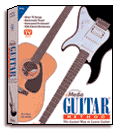
eMedia Guitar Method, Vol. I
Company: eMedia
Price: $59.95 (US)
http://www.emediamusic.com

I’ve wanted to buy this software package since watching Peter Frampton lavish his praise for it on TV infomercials a few years ago. Frampton played with David Bowie for a while in the 80s, and I respect that. I’ve always respected just about any guitar player better than me. (Let’s just say I respect a lot of guitar players.) The Guitar Method product Frampton touted looked very good on the tube, too, but the positive reports by the test monkeys in the infomercial seemed all-too-familiar and sort of cheesy. Like most all infomercials the good side gets a hard sell but the glitches get nary a mention.
The Basics
The Box came with a CD-ROM in it, basic instructions for installing the software on the CD-ROM, and some promo materials. It’s nice to have a printed manual, which was absent, but in this case it’s not necessary. Just insert the CD-ROM, click to install the program (it’s available in Mac OS 9 and X formats and Windows) and away we go. The program is installed; after opening the program you get to the Table of Contents and from there begin the lessons.
Of course, for this beginner’s course you’ll need a guitar. The lessons indicate you may use an electric guitar, and you may, but I recommend going the acoustic route and trying to match harmonies with the included music on the CD-ROM. The songs are all demonstrated on an acoustic guitar. It makes for better learning to have the same type of instrument as the instructor.
The Lessons
The instructor’s name is Kevin Garry, Ph.D. Professor Garry presents each lesson succinctly in the form of QuickTime movies (see Example A). He starts people out with the most basic elements of guitar playing: the simple G and C chords.
The interface is pretty simple. The program’s main screen provides the basic contents of the lesson, supported by a QuickTime movie (icon illustrated by a movie camera) and simple written instructions. The animated fretboard appears once the audio (the audio icon is illustrated by a speaker) is started. The animated fretboard is your guide, your "bouncing ball" to follow through the songs and chord practices. For songs with lyrics, just follow along with the red-highlighted lyrics on the main screen. Or just do whatever works best for you.
I call it "Fun with The One-Finger Chord." Professor Garry leads the beginner through the first songs, "Freres Jacques" and "Skip to My Lou," calmly and effectively. These are simple one-finger-chord songs. By one finger, I mean, literally that the student only needs to press one finger on to the fretboard and strum a few strings to make a chord. For those with even the minutest rhythmic ability, picking up these tunes should be very easy. The teacher gives plenty of time for practice and review. The animations of the fretboard (see example B) coincide with the red highlights moving over the songs’ lyrics to indicate where to play. This is a brilliant way to learn songs.
Keeping the guitar properly tuned is essential. While the course effectively explains tuning its importance cannot be understated. Unlike a piano, which requires a professional’s touch, most guitar players are expected to keep their own instruments in tune. Some guitars, beginner’s guitars especially, need to be tuned often. Relative tuning, explained in the last part of Lesson Four, is required reading and is a quite simple technique to use. But one still needs to use the included Tuner to match the sounds in the lesson.
The lessons continue with Professor Garry slowly introducing more complex chords and rhythms and songs. It’s all done in "baby steps," in a logical manner, and most people should be able to follow the course easily and learn all of the 70 songs included in the 160-plus lessons, graduating from the old-timey traditional stuff to rock hits such as "Rock N’ Me" by The Steve Miller Band and "Uncle John’s Band" by The Grateful Dead.
I kept the headphones on one ear with the other ear exposed so I could hear my own playing and attempt to harmonize with the artists’ vocal renditions of the songs as well as the guitar playing. Good speakers would be more comfortable, for sure, and would make the lessons a more pleasurable experience.

The OLGA Archive and HCAGF
A puzzling but still welcome addition is the inclusion of suggested songs from the On-Line Guitar Archive (OLGA.net). It’s puzzling because, alas, OLGA no longer offers lyrics, which were removed for legal reasons.
After the first 26 lessons, the CD-ROM directs the user to the OLGA to download the chords of about 30 songs. While it’s useful for picking up chord progressions, it might be difficult for those still in the beginner’s stage, without lyrics to follow.
Still, the user may get bored with the included songs, and may want to go for their contemporary favorites. OLGA provides a nice selection tunes; you get the chords, so if you know the lyrics you’re golden. There’s nonetheless plenty on the CD-ROM to learn and it proves quite effective to stick with just what’s on it.
I further recommend the Acoustic Guitar Forum at Harmony Central for on-line support. They are good people willing to answer most any question about acoustics.
Tools
Included with Guitar Method Volume One are four extra tools. The Tuner works okay on my increasingly outdated but still wonderful 400-mHz blue-and-white G3, Spring ’99 model, running Mac OS 9.04, with external microphone. It’s not real smooth, however. I think anyone undertaking guitar should get a handheld analog or digital tuner, and a pitch pipe. One shouldn’t have to boot-up one’s computer to tune their guitar.
Everything else works great; quite frankly, I think it’s darn decent of the folks at eMedia to include the OS 9 version on the CD, as many other software developers have left the old platform behind.
The Recorder included with the program works fine, but so does SimpleSound that is bundled with OS 9. Mac users can get a nice recording using SimpleSound, and the resulting files can be converted to MP3 format using iTunes; one who feels ready to share one’s guitar education may do so easily.
The Metronome is a hoot and it works great. I’ve never used one before, but this one has a nice selection of preset tempos. I might use it for improvisational practice. Why not?
The Chord Dictionary is nice to have for looking up most any chord, but especially those rare chords that one can’t fathom from the obscure songbooks.
Summary
I can’t think of a better computer-based method of learning guitar. While I usually prefer programs that do not require having a CD-ROM inserted to operate, it’s understandable in this case and it really works well anyway. Those QuickTime movies would take up a lot of hard disk space, so it’s better they’re left on the CD-ROM.
The minds behind the Guitar Method Vol. 1 have a gift for providing an elegant interface for relaying basic guitar knowledge. They signed up a fine guitar teacher in Professor Garry. He delivers the goods in the least confusing way. I backpedaled a bit to get through some of the teachings, but I immediately and intuitively understood precisely what he was relaying. I feel that absolute beginner’s will feel the same way. There’s no substitute for direct human instruction, but for those who like to get a jump on their first person-to-person lesson or those who simply cannot deal with the cost or inconvenience of a private professional human instructor, this is a great start. There were no glitches in the software either.
As I ran through the lessons, like I said, the only thing I felt was odd was the OLGA reference. It’s just not the same since the OLGA had to remove the lyrics and, for beginner’s, I’m not sure it should have been referenced beyond more than a mention. But this is really a minor issue and probably more understandable than I know.
I fully recommend Guitar Method Vol. 1. It’s an excellent piece of software for those interested in learning guitar the easiest possible way without taking private lessons. The lessons make the sum of this CD-ROMs parts much greater than the asking price.
I wish I had this product when I first started playing; instead, I ended up on the path of piecemeal instruction with years of doing some basic guitar maneuvers the wrong way. Still, my friends and I would jam for lengthy sessions and, partly because we DID NOT have the basics down we ended up with some unusual and sometimes fresh material. Today, I play variations of bluegrass, rock, jazz and experimental music on my 1987 Fender Telecaster (electric) with Fender tube amp and Gibson WM-45 (acoustic).
Last year I took weekly private lessons for about four months with an old pro. I learned much, especially scales and modes, which are not covered on this CD-ROM. Bad guitar habits are hard to shake, but with practice my playing has improved, thus adding at least some anecdotal support to the "it’s never too late to teach an old dog new tricks" adage.
Recommended Guitar Dealers
Beyond the standards Gibson, Guild and Martin there are many excellent less expensive acoustic guitar options, including Tacoma and Larivee. If one has money to spend I recommend contacting Mandolin Bros. for a Breedlove, Santa Cruz, Michael Dunn, a custom-built or a sweet vintage model. Actually, even if one doesn’t have much money I recommend Mandolin Bros. They have something for everyone including lower-priced Yamahas. For those who prefer to shop west of the Mississippi, I recommend E.M. Shorts. These are stores with excellent reputations. These stores routinely set up guitars correctly for beginners, making the guitars they offer much easier to play. These are not the types of stores that need to sell anything (well, maybe they do, but it doesn’t show) and the salespeople are willing and able to answer all beginner’s questions online or over the phone.
(For a nice story on a starter instrument check out the legend of Arlo Guthrie’s first guitar , a present from his father, Woody.)
FootTrack
Company: T-Squared Software
Price: 39.95
http://www.foottrack.com/

Remember Ricky Fitts from American Beauty? You know, the guy who walked around filming bags blowing in the wind and had thousands of DV tapes in his bedroom? Probably not, still from the description you can imagine the trouble that guy is in if he wants to find a particular scene or a particular tape. With thousands of tapes to choose from how is he going to find the bit of footage he’s looking for? Well maybe if he had FootTrack life wouldn’t be so tricky (well for Ricky it would, his Dad being a nut job and all).
FootTrack is a nifty application that does a task I didn’t realize needed doing: cataloging digital videotapes on your Mac. Sounds a bit unnecessary on the surface, those little lines on the piece of cardboard that comes with every blank tape are there for a reason. Yet using those lines becomes quickly tedious. Hence if you have more than a couple of tapes FootTrack is a very nifty utility. But, one might argue, I paint people’s names on grains of rice for fun and profit so small lettering is no challenge. Is there a real difference between the little lines and FootTrack? Well the lines are hard to write on for most folks and, unlike FootTrack, don’t provide a video preview.
Like the little lines FootTrack is fairly intuitive, unlike the little lines the program is actually easy to use. You pop a tape in your camcorder and capture the footage in a process not unlike iMovie. You name the "tape" you just created (make it match the name you wrote on the tape) and all the clips on the tape are now in a "virtual" tape on your hard drive. You can, predictably, add all sorts of information about the tape and clips, location, length etc. and export said data to a spreadsheet or database. You don’t actually need to export the data to make all the info you added useful, FootTrack has snappy search feature included. All of this is undoubtedly useful stuff but nothing you couldn’t accomplish on your own with, say, AppleWorks. The thing that really makes FootTrack worthwhile is the video preview.
The video preview feature is the central feature of FootTrack. Once you create a tape, essentially a copy of the actual footage, you can save it for later reference. This, of course, is useful because you no longer have to drag out the camera, hook it up to the computer, guess at the right tape and hunt for the required footage. With FootTrack you just fire up your Mac and go from there. This not only saves time fast forwarding and tape hunting it saves wear and tear on your camcorder (Do you really want to use your GL2 as a glorified deck?). I can hear the objection: Video files are huge, I won’t have any hard drive space left after just a few tapes! Fear not, FootTrack allows you to save your tapes at a variety of compression levels so you can get enough resolution to find the clip you are looking for without have to save every clip at full gigabyte devouring quality.
So how useful is all this functionality? Pretty useful if you’re working with more than a few tapes. Once you have six or seven tapes you like to pull specific scenes off of things can get confusing no matter how good you are at tiny lettering (take that, rice writing guy). If you’re working with dozens of tapes FootTrack is nearly indispensable. There is other, people tell me, useful features of FootTrack. Stuff like batch capture with Final Cut Pro. Since I use Media Edit Pro I can’t really delve into any of the more advanced features of FootTrack, I suggest you try the demo. Trust me :If you’ve had trouble keeping up with your tapes or have grown tired of hauling out your camera just to hunt for a missing clip you’ll be very happy with FootTrack. If you tape over the same tape again and again never saving your old footage you’ll still find some utility in FootTrack (think of it as a way to never buy another tape) though I suspect videographers with scads of tapes will get the most use out of it.
MyMac Rating: 4 out of 5
Pros: Saves wear on camera, saves time, coolest icon EVER
Cons: none

The Loops contest is over! Who will win?
Our team of five judges are busy pouring over the more than 100 songs submitted, and will have found the winner sometime this week! Check back often to see who won, as well as HEAR who won when we post the QuickTime version of the winning song, and perhaps the two runners-up!
As for holding another contest like this, one more open to outside music, all I can say right now is that we are in talks with a major partner, and all options are open. With luck, we should have some very exciting news within the next few months! So keep practicing, you will need all your skill in our next contest!
“GarageBand is a registered trademark of GarageBand.com, which is not affiliated with MyMac.com’s contest. If you’re looking for their ongoing song contest, visit http://www.garageband.com “

The rules
p>Did you know that MyMac.com almost became eWorld? Read the whirlwind story about one publishers quest to get a license from Apple, his run in with Steve Jobs, and the final act of turning MyMac.com into eWorld. From our April 1998 issue. Click here!
Last weekend I spent a considerable number of hours with the grandbrats. The kids were moving to a new house and needed some free babytending. My three-and-a-half year old grandson Preston is a lively little lad. I don’t like parking him in front of the teevee for entertainment, but Nana’s house doesn’t have a lot of activities for little kids. After building blocks and coloring and digging holes in the backyard we were running out of things to do. Suddenly inspiration hit! “Wonder what’s on the internet for little kids?” I thought.
Isn’t the ‘net cool? I sat down, typed http://www.bobthebuilder.com into the browser and lo and behold up popped the website with a games section. I’m still using my graphite iBook with no mouse, just a trackpad, so we spent the first go around with me moving the mouse and him doing the clicking. We built a house and colored it. We laid pipe. We put Bob The Builder’s tools away. The games were age appropriate and instructional and fun.
The next day Preston was eager to play on the computer again. My husband suggested Thomas the Tank Engine, http://www.thomasthetankengine.com a British incarnation that is starting to become popular in the States. Thomas the Tank Engine also has age appropriate games and Preston enjoyed gathering balloons with the helicopter game. This one only required the up and down keys and he was able, after several attempts, to coordinate his eyes and fingers to play the game without my help.
Meanwhile one-year-old Taylee was running around getting into everything her chubby little hands could grasp. She rearranged several drawers. (What is it little kids find so fascinating about emptying out drawers and cupboards?) I took Taylee on my lap as well and went to google and typed in “pictures of horses.” We found a great website with lots of horse pictures, and both kids enjoyed looking at them. Taylee started to nod off so I went off to the couch to settle her for her nap. Preston continued playing on the computer by himself. He was very pleased that he figured out how to use the trackpad to move the cursor around. He was still a little clumsy, but managed to find the back button on the browser which took him back to Thomas the Tank Engine. How did he know how to do that?
My monitor screen still has tiny little fingerprints on it from him pointing to “‘Dis one, Nana, now ‘dis one.” He didn’t think the computer was anything at all special. Many of his toys and games are interactive. I gave him LeapPad for Christmas and he knew exactly how to use it right out of the box. My old LC is still gathering dust in a closet, I’m thinking about hauling it out for him. I have some old games on disks that might be appropriate. It might also improve his eye/hand coordination and teach him how to use a mouse.
I’d love some feedback on what other websites might be interesting to little kids. I’d also like to hear about any fun software available. When my own kids were growing up we didn’t have computers (Why, back in MY day!…) and the internet didn’t arrive in our home until they were practically out the door to be on their own. So, I’m pretty out of touch with what is available, or even where to look for this type of stuff.
The day Preston and his mom came home from the hospital I visited their house with my iBook. I sat this three-day-old infant on my lap and had my son take his picture with me in front of the computer. My son laughed at me. “Mom, why are you doing this?” he said. “I want my grandson to grow up strong, and healthy, and to be a Mac user,” I replied. Looks like the imprinting worked.
Tomorrow is the LAST DAY to send in your Garage Band Loops entry to the contest! So don’t delay, send them in today!
Check out the rules here, and come back next week to find out who won!
The winner will be chosen before February 28th, 2004, and will receive courtesy of Other World Computing an OWC Neptune 120GB external Firewire 400 hard drive.
“GarageBand is a registered trademark of GarageBand.com, which is not affiliated with MyMac.com’s contest. If you’re looking for their ongoing song contest, visit http://www.garageband.com “
Fun Photoshop Project #1
There are times when using Photoshop is simply a chore, and there comes a time when you want to get a little creative with a fun project. Here is a simple one, which will only take a few hours at most, but will have make people sit up and notice.
With three kids, it seems that my digital camera gets quite the workout. Between my wife and I, we are always taking pictures of the kids. Now that our two oldest, Brittaney and Raechel, are older and responsible enough, we allow them to use the camera at times as well. (Kids LOVE the idea of taking pictures. Send them outside for a half-hour with a digital camera with orders to take “Neat and interesting pictures” and they will have a ball!)
On a recent shopping expedition, I purchased three black 8X10 picture frames with the idea of printing out one picture of each child on some high-gloss photo paper and hanging it on the wall. But I wanted these to be different, so here is what I did.
First, I selected three good headshots of each child, which you can see below:

Next, I opened each photo in Adobe Photoshop and cropped out as much as needed from each photo.
Time to add some effects!
First, I choose Filter – Artistic – Poster Edges to create some nice black lines in the photo. This will help define what changes in the next effect we will apply.


Now, I want each photo to have a strong one-color look to it. To get the look for each photo I want, I used Image – Adjustments – Variations and added a ton of Red. I changed colors for each picture, going with Green and Blue in the other two pictures. Once I have the desired amount, I move onto the next step.


The last Photoshop step is to give each picture a cartoon-type of effect. To do this, I went to Filter – Artistic – Cutout and adjusted the options there to get the desired effect.


After repeating each step above for all three pictures, I loaded some high-quality high-gloss photo paper into the printer and printed each photo.
While the photos were printing, I borrowed some colorful construction paper from the kids. I selected a different background color for each photo. Then I ripped up some other colors to add even more color.
I then used stick-glue to adhere the torn construction paper to each background, creating a nice effect that will go good with the cartoon-style of pictures created above.
The last step is to cut out the headshots from the printed photos, and using the stick-glue, adhere them to the construction paper as well. Then simply frame each picture!

This is the finished project (sorry for the camera flash!) You would be amazed at how simple this project is, and how many people will comment on it once on display.
Here are all the materials you will need:
High-Gloss photo paper. (You can use a photo-matte paper as well, which may actually look better with the construction paper background.)
Multi-colored construction paper.
Stick-Glue.
Image-Editing software (Adobe Photoshop CE used in this project.)
About two hours of free time
Be creative! Have fun! And let us know your fun Photoshop projects!

I enjoy building things, and ever since I first saw this, I wanted to build something along the same lines. My idea was to originally convert an Atari Joystick into a USB Hub. Then, while Christmas shopping in December, I noticed the die-cast; 1/16th NASCAR replicas, and thought that would make an even better USB Hub. So…
Here it is, a one-of-a-kind product. I converted the Kyle Petty #45 NASCAR Dodge into a four-port USB hub. The hub itself is in the back of the car, and works perfectly! I connected quite a few different USB devices to it, and it works without a problem. This is not a self-powered USB hub; it needs to draw power from a computer’s USB connection.
If you are interested in buying this, let me know. (PayPal accepted.) My wife likes it, but points out “Where on your cluttered desk are you going to put it?” She has a point. The idea was to see if I could build it, and keep it very nice looking. I think I did that. So why not sell it?
If you like this, and have a suggestion for another custom USB hub, let me know and I will build it for you!
Growing up, Mickey Mouse was always the friendly little guy with all his friends in the comic books I read avidly. Up until I discovered Science Fiction, anyway. Harmless mouse. Harmless and happy cartoon characters (except maybe Donald Duck). I learned to read from those guys, and their book friends Dick and Jane. Childhood memories glow with a particular warmth, don’t they?
Even when I was grown, with kids of my own, like everyone else, I took my family to Disneyland, to ride the rides, see the shows, and to take pictures of my kids hugging that friendly mouse. We all bought and wore those mouse ears. Didn’t you?
All this was not that long ago, as I think about it. Sure, the year’s fly by, and the kids are grown now, with kids of their own. My grandkids all know about Mickey Mouse, and a few of his friends, but no one reads those comics anymore, and my grandkids will likely never get to Disneyland. They prefer Magic Mountain with the world’s biggest rides and roller coasters, or Waterworld. More likely, they get their thrills on their PCs and their game machines of choice.
Which is probably just as well. Mickey doesn’t seem that friendly anymore. Looks to me that Disney is toast too. With all the public in-fighting between Michael Eisner and Walt Disney’s nephew Roy, – and with the major split between Pixar and Disney, – and with the new hostile takeover bids by Comcast, Warner Brothers, et. al., – the image of the sweet harmless mouse is becoming tarnished, and a bit frayed around the edges. Childhood memories are fading fast.
Now bump that vision up a notch or two. Guess who wants a piece of the action, and might even bid to own Disney too? I will give you a big hint: the Queen of England recently knighted him, and he is a billionaire to boot. On top of all this, it is said that he *really, really* wants to have Disney!
Can you see it now? Disneyland, owned by Microsoft, and controlled by Bill Gates? Would you ever set foot inside that place again? Would you trust any of the rides? Would Pixar ever allow the Disney Corporation to distribute its films? Will all the old movies we know and love ever play on anything other than some DRM’d Microsoft controlled device?
It is two long years or more before Microsoft can release its next version of Windows, codenamed Longhorn. Buying Disney is just the diversion Microsoft needs to keep its software sales going, push its interactive set-top hardware and software, and bolster its image as a major media company.
Somebody please tell me we all are not going to lose all our best early childhood friends to the Evil Empire!
Get hold of Tinkerbell! Tell her to call for Peter Pan! Contact Clarabell Cow and Goofy! Set Pluto on guard! Call out mean ol’ Captain Kat! Send for Huey, Dewey and Lewie, and Unca Scrooge too! Go get Donald Duck and Mickey Mouse, and send a telegram for Pecos Bill and John Bunyan!
Bring in the Big Bad Wolf, and Monstro! Send a letter to Jiminy Cricket and the Cheshire Cat! Phone the Seven Dwarfs and Christopher Robin! Bring on the Haunted Mansion Ghosts and the Pirates of the Caribbean! And tell all the Bald Mountain Ghosts and Goblins!
Bring ‘em all! Tell all the hostile bidders and the unwanted suitors to take a powder! Twenty-Three Skiddoo! Run ‘em out of town on a rail! And don’t come back! Let ‘em hear the Mouse that Roared!
p>HP 7140 xi printer, scanner, copier, fax
HP Officejet 7140xi Printer, Scanner, Copier, Fax
Company: Hewlett-Packard
Suggested Retail: $699.99
http://www.hp.com

Our old laser printer was becoming a financial burden due to the escalating costs of the toner, OPC belt, and yearly service contract. When the service contract came due in November of last year we started looking around for a more cost-effective printer. As I was researching different options, our FAX machine also quit working. My research then turned to the direction of all-in-one devices.
Living in a rural part of the US has many advantages. One disadvantage is a dearth of local stores that have a variety of machines to test before purchase. I had to rely on written reviews, and information from friends and colleagues about their experiences with different machines. The most positive feedback pointed me over and over again to the Hewlett-Packard line of products.
There were some very strict parameters I had to work with in choosing an all-in-one device. We have four computer workstations, two are Mac and two are PC, running on a network. So, the machine had to be network capable. The driver had to be cross-platform. I was also concerned about the cost of the consumables, as well as the type of paper the machine would easily handle. I wanted duplex printing capabilities as well.
I called Hewlett-Packard’s customer service line and spoke with a representative. I explained my needs and he pointed me to the HP OfficeJet 7140. He answered all my questions and even volunteered some information about other products in their line, which might work just as well for me. The HP website has an option to compare similar models which I found helpful as well.
I decided to buy direct from Hewlett Packard rather than go through a reseller. At that time they offered free shipping as well as a $70.00 rebate. (Their offers change on a regular basis, so the offer I received may no longer be in effect.) Their three-year service warranty on this machine was $75.00, so with the rebate essentially that cost me $5.00. The service warranty is a ‘next day exchange’ warranty. Anytime during the three years if we have a problem that cannot be solved with a call to Tech Support, Hewlett-Packard will overnight a new machine to us. They hold our credit card number until the old machine is returned, but do not charge it unless it is not received within a certain number of days. They pay shipping both ways.
The 7140 arrived within two days of purchase. We had it up and running in about thirty minutes. The set up instructions were clear and concise, with both text and graphics. Drivers for both Mac and PC were on one CD, and installation was fast and painless. The user’s manual is well written and the troubleshooting section at the end of the manual has saved me a couple of calls to Tech Support.
There is one thing I wish I had considered before purchasing an all-in-one machine. That is, with four workstations and a FAX machine, there are times when jobs interfere. For instance, one day I was printing checks when a FAX rang through. The FAX took precedence over the printing and printed out on two checks, which caused me to have to void those checks and reprint. I have learned to take the machine off ‘auto-answer’ when I’m running checks. Any large print or copy jobs have to be scheduled when no one else is using the machine for day-to-day tasks.
On the other hand there is a huge advantage to having one machine performing four tasks that requires only one set of consumables. Before we had to stock cartridges for the copier and FAX machine, and toners and other supplies for the printer. The consumables for the 7140 are reasonably priced. (It requires cartridges as well as print heads.) With two months of heavy daily use we have replaced three black cartridges, one color cartridge and no print heads. I am able to purchase the cartridges at Costco for about $5.00 less each than I have found on-line or through Hewlett-Packard.
I miss the speed of the laser printer but as far as print quality goes the inkjet gives more than acceptable prints. The print setting for color pictures on photo or glossy paper can be run at 4800×2400. There are two paper trays, and duplex printing and copying are available.
This machine has two slots that accept photo cards. I have not used this feature but others in my office have, and report they are satisfied with this convenience. Why load up your hard drive when you only want one picture off the card?
The FAX function works as well or better than any other FAX machine I have used. It has all the standard settings we expect these days including queuing and speed dial. It has been easy to program for these various functions.
I have not used the scanner, so I cannot report on this feature. In fact, we so rarely require anything to be scanned that I would have happily bought an all-in-one without a scanning feature.
I have placed one call to Hewlett-Packard Tech Support and was immediately connected with a Macintosh savvy person. He patiently walked me through the problem, and I received a follow-up call the next day from HP to make sure I was not having any more problems, and to ask about the quality of the help I received.
Overall I am very pleased with the performance of the 7140. If budget would have allowed, and if I had some prior experience with an all-in-one, I would have purchased two machines: one for the PC workstations and one for the Macintosh workstations due to the volume of work we have. Even though this machine is advertised as a ‘small office’ machine I would suggest anyone with more than two workstations look at other options. I expect to get at least three years of life from this machine, and for the price I consider it good value for money, especially with the reasonable cost of the service warranty and consumables.
Information on the HP OfficeJet 7140xi can be found at this link:
MyMac.com rating is 4 out of 5.
Seven years ago and this still fit today:
"Are our precious Internet applications and browsers no more than castles of sand? We have become totally dependent on search engines, news readers, file seekers, bookmark managers, and dozens more. Every day a new one, "beta than ever," is announced, and suddenly "old faithful" is in the trash."
Ah, the sweet sound of music! That was the idea behind our GarageBand Loops contest. That and to give all those lucky people who have the software a reason to play with it, and have a little fun. Even better, by sending in your very own masterpieces, you have the chance to win an external 120GB FireWire hard drive from Other World Computing.

There have been a few bumps on the road along the way, and I want to thank both Larry O’Connor at Other World Computing, as well as Patrick R. Koppula, COO & President of GarageBand.com and Ali Partovi, CEO, Garageband.com.
Turns out that my idea, The GarageBand Contest, unknown and unintentional on my part, stepped on the toes of another contest, also titled GarageBand Contest over at GarageBand.com. After some long emails and phone conversations with the very polite Patrick and Ali, things were worked out to everyone’s satisfaction. I would like to publicly apologize to GarageBand.com for our misstep in using their trademarked name. I would no more like to see a MyMac.com Contest somewhere than they did seeing our GarageBand contest.
One of the things that came out of this contest in my mind was just how much talent people have for music. I received request after request for permission to use vocals and external instruments in the contest submissions. Of course, the rules clearly state that only the loops in the stock shipping version of GarageBand would be allowed, but all the requests did tell me how many people are using this software to expand their musical compositions. If we do hold another contest, it will be much more open. (And have another name.)
There are only eight (8!) days left to submit your song, as the contest ends on February 21! So hurry up, get those submissions in today!
“GarageBand is a registered trademark of GarageBand.com, which is not affiliated with MyMac.com’s contest. If you’re looking for their ongoing song contest, visit http://www.garageband.com “
MYOB AccountEdge 2004
Company: MYOB US, Inc
Price: $299.00 (US)
Network Licenses $99.00
http://www.myob.com/us

“I love this stuff,” Tom Nash told me during the WebEx demo of the newly released AccountEdge 2004 from MYOB. Tom is the Product Manager for MYOB. He was creating a report using the updated Reports feature of AccountEdge 2004 on his computer. I was on the other end of a phone line, with his desktop active in my browser. What a great way to demo a product!
The ‘stuff’ he was talking about is programming. That’s way over my head. I’m just another software user who expects everything to work perfectly, every time, in each new release. Talking with Tom gave me some insight on what programmers go through in order to make a product both powerful and user friendly.
I have been reviewing MYOB software since 1999, and every time the company releases a new edition I’m always pleased with their progress. MYOB AccountEdge 2004 is no exception. The outstanding new feature in this release is the addition of electronic transaction capabilities. Businesses that wish to process customer credit card purchases can now do this function with an MYOB merchant services account. Their merchant services rates are competitive and can be found through this link
Electronic vendor payments and direct deposit payroll are also new in AccountEdge 2004. Vendor payments setup and membership is automatically included with the Direct Deposit account, although separate transaction fees apply. Any business that uses separate processing for payroll services, credit card fees, and other electronic banking functions may find it handy to have all these transactions handled by one service.
I have enjoyed working with the new Help features in this version. There is a help icon in the bottom left of most windows that opens a drop down menu containing four options. The Tell Me How option has been very useful, as it gives a choice of topics for the window in which the user is working.
Also improved are report management and jobs organization. Reports can be customized and saved for future use. New reports include Statement of Cash Flow, Time billing Slip Detail and Summary by Job. If the user is using the Job Tracking feature, a warning in the preferences can make sure the all jobs get assigned to transactions.
My favorite new function is included in Forms customization. A watermark or background image can be inserted, and rounded borders can be created. There is a snap to grid for alignment, and color printing options. This was the first new feature I utilized for our business, and our invoices, packing slips and purchase orders now have a more professional look.
I put AccountEdge 2004 through its paces during the month of January, by generating and printing year end reports, taxes, and employee W-2′s and vendor 1099′s. The program performed flawlessly. Though the ability to print W-2′s and 1099′s was introduced in AccountEdge 2003, I didn’t really appreciate that upgrade until this year.
There are some features that I don’t use in MYOB because they don’t pertain to our business. I am going to report on them briefly, based on feedback from readers of my prior reviews.
Time Billing:
Time billing is a useful feature for any business that needs to bill clients for time spent. Time can be entered either manually or by using a live clock feature. I’ve not had the need for this feature in our business, but have a correspondent who was searching for a program to replace TimeSlips, which was not being developed for OS X. This correspondent attended MacWorld and visited the MYOB team at their booth. This is what he reported: “We went with AccountEdge from MYOB. It’s not Timeslips, but then again, nothing is and probably won’t be. MYOB took the time to meet with us and explain things. So, I bought one full operating program and four licenses. We will be [getting] the network version and updates at no additional cost in April.”
Networking:
AccountEdge was the first accounting application for Mac and OS X to offer a network version to users when AccountEdge 2003 was released. At that time I heard from several users who were extremely disappointed in the performance of the network feature. I was told that the program slowed to a complete crawl, making the feature virtually useless when two or more people were using the program at once. I put the correspondents in touch with MYOB and can report that for two of them, workarounds were devised for their systems. One user reported no satisfaction on the issue.
The MYOB programmers are a diligent lot though. I have to hand it to them, in my five years experience with their programs I have known them to listen to the feedback and take every measure they could to improve features based on user input. I have been told by MYOB that the improved Network version will be offered free to Network users who are currently enrolled in a support plan, when it is released in April of this year. I will look forward to hearing from any readers who can offer feedback on the Networking feature after it is released.
Another section of the program that I have never used is the Inventory section. I just don’t need it. Any reader feedback on that would be welcome.
AccountEdge has a lot of little conveniences built right into the program that are great timesavers. The user can use the plus/minus keys to change dates; shift plus brings up a calculator; and the ability to customize reports while the report is open are just a few. The more I use this program, the more I appreciate these small timesavers. And they are all very Mac intuitive, of course.
As always MYOB offers a free trial download of the program that can be accessed for 30 days. Start at this link for more information, and to find out about current special offers:
Without a doubt in my mind, MYOB offers the very best in accounting software for Macintosh users. The company has committed itself to development for this platform from day one. The features offered in the program cover every situation encountered by most small to medium sized businesses. There is a Chart of Accounts already developed for most type of businesses which can be used as is, or customized, or the user can build his own. The MYOB website has an online searchable database of FAQ’s that I have found very useful. Their printed manuals are well written with both text and graphic images for clarity.
System Requirements:
PowerMac with at least 32MB RAM
40MB available Hard Disk space for program installation
35MB (average) additional for each company file
800×600 screen resolution running thousands of colors
MacOS 9x, OSX version 10.1 or later
For acceptable network performance:
G4 processor with at least 128MB RAM
100Base T or faster Ethernet network with AppleShare IP 6.2 or later for OS 9 or OS X server
For MYOB Business Services
Optional subscription based services. Application approval, Internet access and Mac OS 9.1 or later required.
MyMac.com rating: 5 out of 5, and getting better all the time.
ComboDock FireWire 800/400/USB2 Bridge Solution
Company: WiebeTech
Price: $170 US
http://www.wiebetech.com

First thing I did upon receiving this one-of-a-kind product is look back at our comments on its predecessor . Please take five minutes to read the middle review from 1/6/03 and become familiar with the approach WiebeTech is taking to bare-drive docking.
All the technical glitches and uncertainties David Weeks and I encountered in our 2003 drive dock reviews have been addressed with simplicity and success in Wiebe’s new ComboDock. Connectors attach without any hesitation, and ample printed documentation is provided so newcomers to the process won’t sweat waterfalls over their exposed hardware.
When your new brushed-bronze colored ComboDock is affixed to an exposed hard drive, its vulnerability is limited by common sense. Drives and ports are engineered for serious industrial operation, but not for recreational tossing or twisting. My ComboDock + 40GB bare 3.5” hard drive sit flat on my desk, without unnecessary clutter or obstruction.
ComboDock is not bus powered. At this time, there are no bus powered FW800 devices anywhere on the planet, meaning you’ll need an extra surge-protected electrical outlet to use it. With cables coming and going in every direction, ComboDock’s ON/OFF switch is within short reach, as are its FireWire and USB ports. You can study all the specs here. Direct ordering from the manufacturer is also available.
My setup and initial testing began by following Wiebe’s minimal printed instructions. I unwrapped a couple of components, affixed a metal bottom plate to my new 3.5” Hitachi Deskstar bare hard drive, attached ComboDock to the drive, glued on six rubber bumpers, plugged in a couple of cables, switched on ComboDock, formatted Hitachi for Mac OS, and immediately began archiving/transferring my precious personal data from iMac -> Hitachi. What could be easier?
Drive docks exist so users can quickly swap bare drives back and forth. If this is a project that makes you consider a heavy dose of tranquilizers, stop reading and go back to using your SCSI/USB Zip Drive. But if you’re any type of geeker or hardware honcho, you’ll immediately sense the potential for a fast, flexible way to access multiple hard drives for instant highest-speed data transfer. ComboDock is swift! That’s not a scientific appraisal, but it’s as true on my modest consumer equipment as it will be on your dual-processor G5 mega Mac.
Intended users are people who want or need to backup onto different drives for a variety of purposes, such as redundant daily secure storage; IT pros who have to test or relocate equipment; audio and video hounds who desire a cheap way to manage several different volumes of footage for Final Cut Pro or any other application; and people who want to impress friends with how geeky they are when using heavy metal exposed hardware.
My personal setup has ComboDock + Hitachi HD placed close at hand between G3 iMac and CD burner. I use all three every day, and can’t imaging living or working without them. My computer tutor business doesn’t lend itself to many bare drive swaps, but I jump at the opportunity to do so with ComboDock in my digital toolbox. Try it — you’ll like it, but keep it flat, level, and unobstructed.
Depending upon your interest and need for ComboDock, our MyMac.com rating is between FOUR and FIVE, due to a slight wobble when picking up ComboDock or attached exposed drive one-handed, but either way this unusual product gets our two-handed applause and recommendation.
RetroPad USB NES Controller
Company: RetroZone
Price: $25.00 US
My first home video game system was, not surprisingly, an Atari 2600. I loved that machine, and while PacMan for the 2600 was possibly the worse port of a video game ever, it was what I sat up dreaming about before Christmas day. My love of video games continued, and by the mid-1980’s, it was for the Nintendo Entertainment System, or NES. What I really liked about the NES, besides the better and more colorful graphics, was the controller. The NES game pad was a huge improvement over the cruddy joystick that shipped with the Atari units before it.
So I was curious when I came across RetroZone, and its sole proprietor, Brian Parker. What RetroZone does is take the NES controller and convert it to USB, able to work with your Mac or PC with no software needed. Simply plug it in and play your games. For me, that meant I could play all my emulated NES games in RockNES using an original NES controller, rather than a keyboard or number pad.
I was so impressed with this, that rather than do a simple review of the RetroPad USB NES Controller, I decided to bring attention to the creator himself, as I think his idea and entrepreneur spirit is what being a Mac user is really all about. And as an old school video game player, I confess I was more than a little curious to learn more about Brian and his products. Brian graciously agreed to answer some questions in an interview conducted via email in early February 2004.

MyMac.com: I understand that you actually build each controller by hand. Can you describe how you do this, and what is involved?
Brian Parker: The first step is the most fun, taking things apart! With the controller in pieces I can wash off the years of dirt. Some that look very old turn out looking new after being cleaned. Next is installing the new circuits. A USB chip I programmed is added to the board and wired up to the existing circuits. I keep as much of the original controller intact as possible so it looks and feels the same. There may be ways to build it with less manual labor, but then it would not be original. When everything is back together I test it on the computer. Windows (aka VirtualPC) has a nice graphical display for the buttons and d-pad to see that it’s working.
MyMac.com: What made you think of converting a NES Controller into a USB model that could work on a Mac and PC?
Brian Parker: In the USB spec there is a standard for Human Interface Devices. That HID standard is basically built-in drivers for devices like keyboards and mice. By using the standards, a device should work on any computer with USB and without writing any drivers. I am a hardware guy so no drivers are a good thing. Of course I am also a Mac guy, so if I had to choose I would have made the controller for Mac first. I don’t ask what OS the buyers have but at least one has had a mac.com email address.
MyMac.com: How long have you been creating these?
Brian Parker: I made the first one sometime in December as a Christmas present for a friend. He and another guy are doing crazy things like beating Zelda without getting the first sword. Many games like Zelda are much better with the real controller than with a keyboard. Some time in mid-January I set up my page to sell them.
MyMac.com: Are there any other video game controllers that you have converted, or plan to?
Brian Parker: Right now I am pretty much done with Genesis and Atari controllers. They aren’t systems I really used, so I don’t know as much about the options. My PowerGlove adapter should be done within a week as well. I have seen quite a few educational sites using the PowerGlove for research such as sign language recognition. I was looking at the Zapper light gun but it doesn’t respond to CRT or LCD screens. Not quite sure why it doesn’t work….
MyMac.com: Which Atari controllers are you working on, the 2600 one-button joystick or another model?
Brian Parker: My adapter will work on the 2600 joystick, and any other controllers that are compatible with it. The Atari 7800, and Commodore 64 also used the same port so they will also work. I can convert pretty much any digital controller quite easily so other controllers are always possible.
MyMac.com: Where do you find the controllers?
Brian Parker: I have gotten controllers almost totally from eBay. I had some trouble at the beginning from controllers not being as good as I was expecting. Controllers that reeked of smoke even after cleaning was another problem. Those were completely useless. I would hate to live in the house they came from. I now know which sellers are good and what to look for in the description.
MyMac.com: Have you sold a lot of these, or just a few?
Brian Parker: I would call it a slow trickle. A few per day, higher on weekends. However I’m not expecting the market to be very large. Of course I always wish there were more orders because I think it’s a great product.
MyMac.com: Is this your full time job, or do you do this in your spare time?
Brian Parker: I am certainly not making enough money for this to be a full time job, although it does take up a lot of time. My wonderful wife is the one that makes the real money as a chemist. After graduating from UC Santa Cruz I haven’t had an official job. Instead I have done a variety of things like making stained glass windows, Newton software, website design, and projects like this one. Hopefully sometime I will have a hardware design job to pay for new toys like a 20″ iMac.
MyMac.com: How many units do you think you would be able to handle working as you do? If the orders started pouring in, would you be able to keep up with demand?
Brian Parker: I can handle many times the demand right now. The only problem would be making I have a constant supply of parts. There are also some things I could do to make assembly faster. Would a controller survive a trip through the dishwasher? If it gets overwhelming I can easily hire some people to help with assembly. Some have already asked for jobs without knowing what they would be getting into.
MyMac.com: Being a hardware guy, have you ever thought of converting other game items, such as a Coleco controller or some such, into a USB Hub or other computer gear?
Brian Parker: My video game experience really started with NES, and has stayed primarily Nintendo so I don’t know much about ColecoVision or similar systems. But all that needs to happen is someone mentioning a project like this and I can tell fairly quickly if it will work. Controllers like Coleco and Intellivision would make interesting phones. Starting to sound like Monster House… I have been thinking of a NES PC www.junkmachine.com These are generally built with x86 mini-atx boards, but a laptop board like the G3 iBook would be much better. Then you wouldn’t need fans or a large power supply. Funding is usually the stopping point of the project, and there is no way I will sacrifice my clamshell iBook.
Many thanks to Brian for taking the time to answer some of my questions.
Now that you have heard of the RetroPad USB NES Controller, and its ingenious creator, you may be asking how the unit actually works. Thankfully, I have one, and am happy to say it works quite well.
The controller feels just like a stock NES unit. I was worried initially that perhaps the buttons would feel different, or that the L-Pad would not work quite the same. My worries were unfounded. The RetroPad USB NES Controller works just like a stock NES controller, which I tested by actually using both this unit and an original. I use RockNES to play emulation NES games, but I do own a working NES as well. Game control on both the original NES and RockNES felt the same using the retrofitted controller and an original.
Set-up for games is easy. A quick trip to the preference panel for the program you will use the RetroPad USB NES Controller with allows you to set what each button does. I used the RetroPad USB NES Controller to play both MAME games via MacMAME, Atari 2600 games via Stella, and the aforementioned RockNES. All worked perfectly with the unit.
All said, this is a really neat item. If you like retro gaming as much as I do, this is an easy $25 to spend. If you know someone who is into retro games, this would make a great present.
While this is not really a review, I would have to rate the RetroPad USB NES Controller a perfect 5 out of 5. Real neat idea, well executed, and cool as heck.
For more details, or to order one of these yourself, check out The RetroZone!
Olympus Stylus 400
Company: Olympus Corporation
Price: $399 US
http://www.olympus.com

I remember seeing the television commercial for the Olympus Stylus camera in which water cascades down a tropic scene, gently splashing the Stylus camera with water. The message, of course, is that the Stylus is weather proof, up to a point, of course. And while I did want to test that out, my main review criteria is the same as it always is when reviewing a digital camera; ease of use, quality of picture, quality of the camera itself, and all the other little things that go into the decision to purchase a camera or not.
Out of the box, I was surprised that the Stylus 400 was smaller than I thought it would be. It’s much smaller than the recently reviewed HP 935, in fact. The Stylus 400 will easily fit into a front-shirt pocket or a purse without a large bulge, unlike many high-quality cameras.
The Stylus 400 is a 4.0 megapixel digital camera that is both sporty looking and rugged in design. Too many of the digital cameras I have used feel fragile, or constructed with a plastic that just feel like it would crack or break with one accidental fall. And in my house, with three kids, things get knocked off the table all too often. The last thing I want to see happen is for an expensive digital camera to get busted after a three foot fall onto the carpet.
I only mention that because that was the fate on one of my first digital cameras. The rigid metal case of the Stylus 400 gives me a level of comfort, and the feel of the camera itself just feels well built. It’s not easy to quantify the “feel” of something in a review. “Feel”, being a subjective matter by its very nature, is usually something I leave out of my reviews. But I felt, with the Stylus 400, that it is important enough to mention because this camera just “feels” like a good, solid camera. One you can both depend on to work, and one that feels comfortable in your hand. Again, this is very subjective in and of itself, but it goes a long way for me when I am contemplating a purchase of any device, be it a car, a laptop, or a digital camera.
The Stylus 400 sports a 3X zoom lens, ships with a 16MB xD-Picture card (memory card, proprietary only for Olympus digital cameras), and comes with its own rechargeable battery and battery charger. Nice features, all, though I would question the purchase of a 4.0 MP camera when there are other cameras in the same price-range with 5MP or higher resolution. Why should this matter? As a rule, the higher the resolution, or megapixels, the better the quality of pictures.

First, to test its “all-weather” feature, I put the Stylus 400 though the paces. To test its waterproof specs, I ran the unit under a light shower for ten seconds. While I doubt too many people will actually want to use an expensive digital camera on purpose in any rainy conditions, it could be the case that a sudden storm hits while you are outside. I was happy to see no ill effects a little water had on the Stylus 400. Dunking the unit in a bucket of water, however, is not recommended, nor would taking it deep-sea diving. But for an occasional spat with some water, the Stylus 400 is safe.
Olympus chose to use digital menus to change settings, or switch picture-taking modes. You can turn the flash and auto timing on and off with a button, but most features force you into the menu to do anything. While this cuts down on buttons needed on the body of the camera, it doesn’t make the unit any more user friendly.
There are a few different modes to pictures, including Portrait, Landscape + Portrait, Landscape, Night Scene, Self Portrait, and movie. Speaking of movie, it seems almost all the digital camera manufacturers are now including the ability to take video with their cameras. The Stylus 400 is no exception. The video format is QuickTime, so your Macintosh will have no problem viewing or using the captured video. However, be aware that with the Stylus 400, you cannot record sound. Why give users the ability to capture video but not sound?
Picture quality ranged from very good to poor. My main concern with the Stylus 400 is one of consistency. While most pictures came out very detailed at the highest setting, there were times in well-lighted situations that one out of six pictures would look bad. Five out of six good-looking pictures makes me nervous. The Stylus 400 just seemed to decide it simply did not care for some condition while I was shooting, and would give me poor results. I was unable to nail-down just why I would get a great picture, and two seconds later a bad one in the same lighting conditions.
Battery life was excellent. The Stylus 400 uses an Olympus LI-10B rechargeable lithium ion battery, and the unit ships with its own battery charger. The battery is easily installed in seconds, and takes only a few hours to completely recharge after depletion. Thankfully, depleting the battery takes quite a while. I found that the Stylus 400, on a full charge, easily outlasted any other digital camera I have reviewed in power consumption. The only negative here is that the battery has to be removed for charging, as there is no dock or plug-in to charge the battery in the camera. There is a DC-IN plug, for which you can buy an optional AC adapter.
The Stylus 400 is turned on and off by manually moving the lens cover back and forth. This is a very intuitive design, and the lens cover feels very solid and dependable.
Looking for negatives, I would have to point out that the xD-Picture card is a proprietary Olympus technology, for which 512MB is the largest size you can get. The Stylus 400 ships with only 16Mb, forcing the consumer to buy a larger card almost immediately. That in itself is not unique with digital cameras, but using non-standard memory cards is. There are simply too many competitive storage mediums for these devices out there, and a quick scan of my local Best Buy and CompUSA showed neither carried xD-Picture cards.
To connect the camera to your computer via USB 1.1, you have to open a side latch on the camera, which is very hard to open at times. I scraped my knuckle on the camera a few times trying to get the side latch open to get at the card slot, USB, and Video Out connectors. I would much rather see an optional dock, so that I don’t have to open this latch just to transfer my pictures. But unfortunately, a dock is not an option on the Stylus 400.
The built-in display is an 1.5 TFT active matrix LCD, and works very well. Very bright, very sharp. It even works well in very bright light. I didn’t have this unit during the summer months, so I cannot say if the viewfinder works well in very bright sunlight. Indoors, even under florescent lighting, it was easy to view.
What comes in the box:
16MB xD-Picture Card™
LI-10B Li-Ion Battery and Charger
Win/Mac USB Cable
Video Cable
Wrist Strap
RM-2 Self-timer Remote Control
Quick Start Guide
Printed Instruction Manual
Warranty Card
CD-ROM: CAMEDIA Master Software, Adobe Acrobat® Reader®, and Camera Reference Manual
The specs:
3x optical, 4X digital Zoom
Image Format: Still – JPEG, Video – QuickTime
White Balance: Presets and Automatic
Lens Aperture: F/3.1 – 5.2Display: 1.5 TFT Active Matrix LCD
Self-Timer: Yes
Remote Control: Included, Yes. Infrared
Warranty: 1 Year
Read more specs here
Final Thoughts:
I enjoyed my time with the Olympus Stylus 400. I like the sleek look, great craftsmanship, durability and features. The side panel is annoying, but you get used to it. The inconsistent picture quality is a little troublesome. A little pricey for a 4MP camera. The size is a plus. If you are going to give the ability to take videos, not to be able to capture sounds as well is mystifying.
Just a quick note to let all our readers that they can continue to follow Steve Consilvio’s writing on his own website, http://www.behappyandfree.com. MyMac.com would like to wish Steve all the success in his writing in the future.
Use the form below to search the site:
Still not finding what you're looking for? Drop a comment on a post or contact us so we can take care of it!
A few highly recommended friends...
All entries, chronologically...
Comments. Be heard!